

Sony WH-1000XM5 one side not working is one of the most reported issues among users of this premium headphone. Whether the left ear cup has gone silent or the right side sounds muffled, the problem is frustrating – especially when the headphone otherwise works fine. The good news? Most cases are fixable without sending the unit in for repair.
Quick Summary
- The most common cause is a software or Bluetooth connection glitch, not hardware failure
- Resetting the headphones resolves the issue in most cases
- Checking audio balance settings on the connected device is often overlooked but critical
- Cleaning the headphone jack and re-pairing Bluetooth are reliable first steps
- If none of the fixes work, the issue may be a defective driver or internal connection
How to Fix Sony WH-1000XM5 One Side Not Working
Follow each fix in order. Most users find the problem resolves within the first three steps.
Fix 1: Check the Audio Balance Settings on the Connected Device
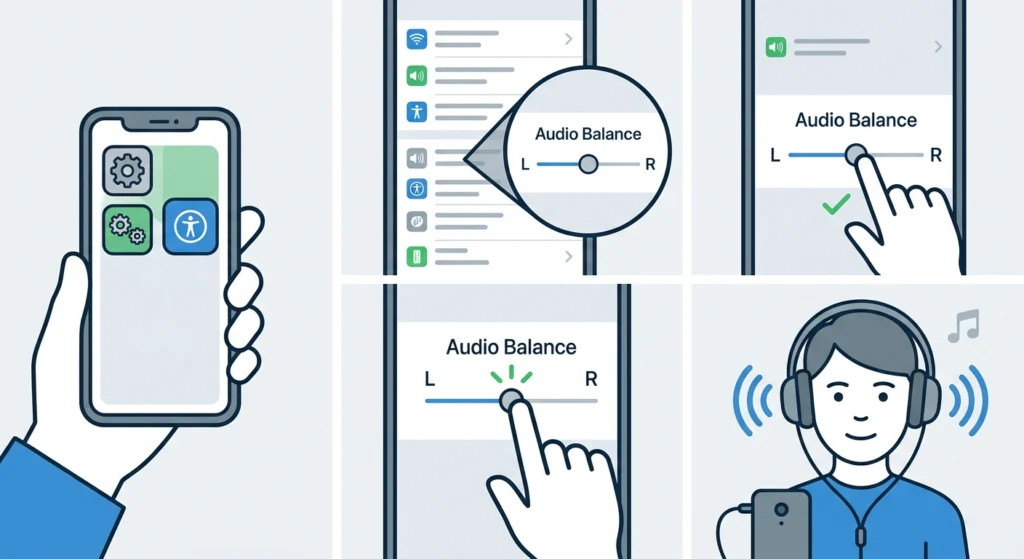
Before touching the headphones, check the audio balance on the device being used. A shifted balance slider is one of the most common – and most overlooked – causes of one-sided audio. This happens accidentally on phones, laptops, and tablets.
- Step 1: Open the sound or accessibility settings on the connected device
- Step 2: Look for an ‘Audio Balance’ or ‘Left/Right Balance’ option
- Step 3: Make sure the slider is centered between left and right
- Step 4: Play audio to test both ear cups
On Windows 11, the balance option is found under Sound Settings – Advanced Sound Options. If adjusting the audio output settings is unclear, this guide on adjusting audio output settings on Windows 11 walks through the exact steps.
Fix 2: Reset the Sony WH-1000XM5
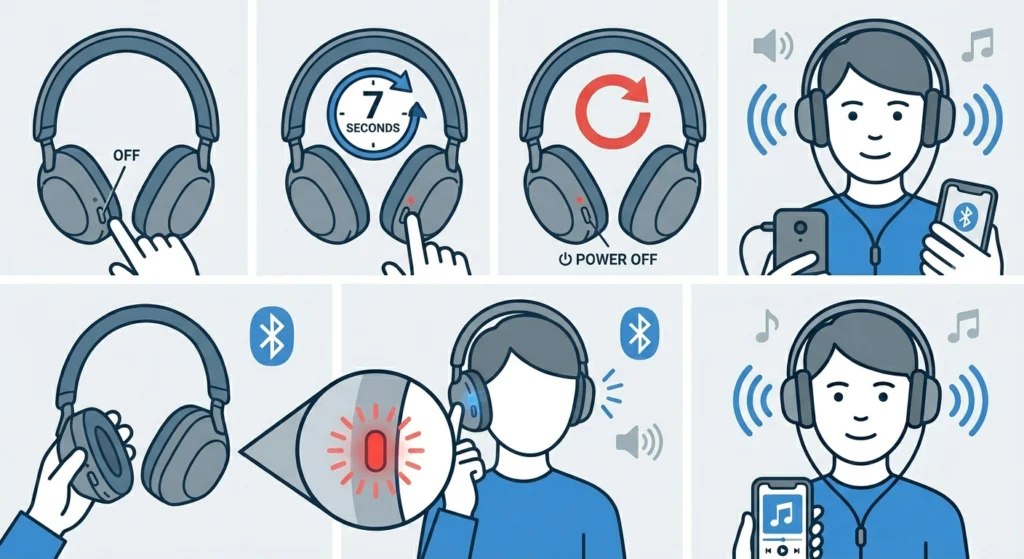
A factory reset clears any firmware glitch or corrupted connection data causing only one side to produce audio. This is the most effective fix for software-related one-sided audio problems.
- Step 1: Turn off the headphones completely
- Step 2: Press and hold the Power button for 7 seconds until the indicator light flashes red
- Step 3: Release the button – the headphones will reset and power off
- Step 4: Power the headphones back on and pair them again to the device
- Step 5: Play audio and check both sides
Note that a reset will remove all existing pairings. All devices will need to be re-paired after this step.
Pro Tip: After a reset, avoid immediately reconnecting to the last device using quick-connect. Instead, go through the full pairing process manually – this ensures a clean Bluetooth handshake and is far more likely to restore stereo audio properly.
Fix 3: Re-Pair the Headphones via Bluetooth

Sometimes the Bluetooth pairing profile becomes corrupted, which causes audio to only route to one driver. Deleting the pairing and starting fresh often solves this immediately.
- Step 1: On the connected device, go to Bluetooth settings
- Step 2: Find the Sony WH-1000XM5 in the paired devices list
- Step 3: Select ‘Forget’ or ‘Remove’ the device
- Step 4: Put the headphones into pairing mode by holding the Power button until the blue indicator flashes
- Step 5: Re-pair the headphones from scratch
- Step 6: Test audio playback on both sides
For Windows users, this detailed guide on how to re-pair Bluetooth earbuds for stereo sound on Windows covers every step clearly, including fixing mono audio after reconnection.
Fix 4: Check and Clean the 3.5mm Audio Jack
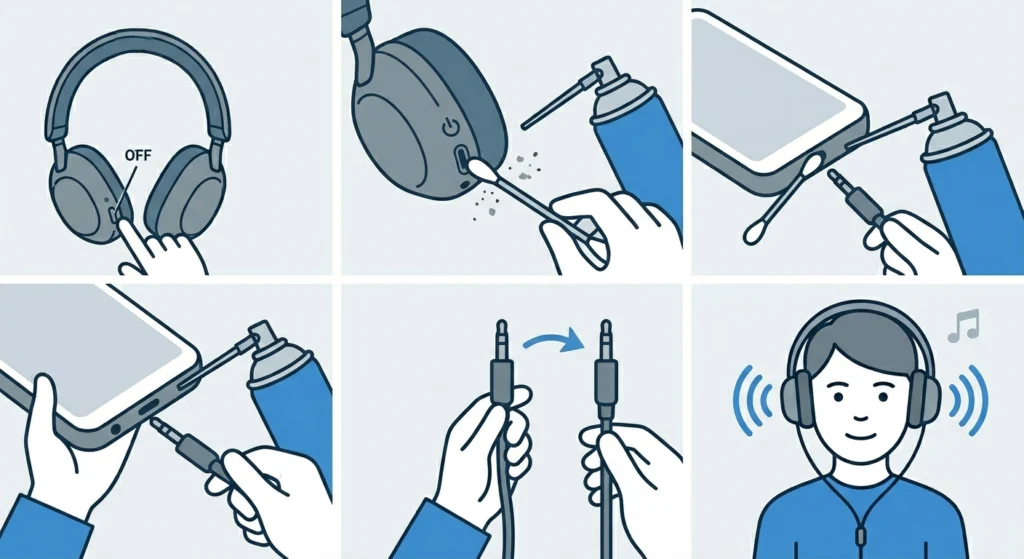
When using the headphones in wired mode and only one side works, the issue is almost always with the audio jack. Dust, lint, or oxidation inside the port can block one channel of the audio signal.
- Step 1: Power off the headphones
- Step 2: Use a dry cotton swab or a can of compressed air to clean the 3.5mm port on the headphones
- Step 3: Also clean the headphone jack on the source device (phone, laptop, etc.)
- Step 4: Plug the cable in firmly and test audio again
- Step 5: Try a different 3.5mm cable to rule out a faulty cable
The key is to make sure the plug is fully seated. A partially inserted jack will always result in one silent earcup.
Fix 5: Update the Headphone Firmware via Sony Headphones Connect App
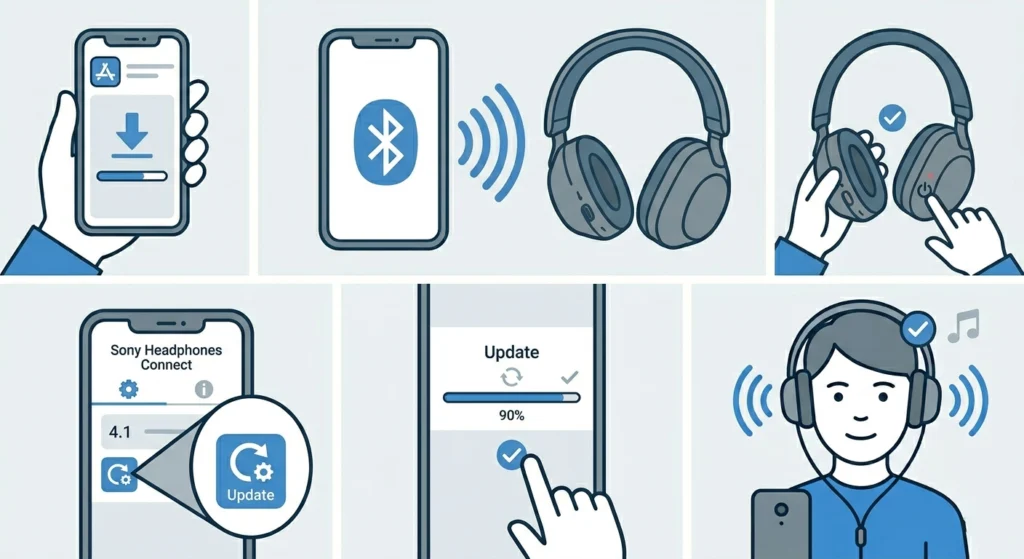
Outdated firmware can cause audio routing issues. Sony regularly releases updates to fix bugs exactly like this one.
- Step 1: Download the Sony Headphones Connect app on Android or iOS
- Step 2: Connect the WH-1000XM5 to the phone via Bluetooth
- Step 3: Open the app and navigate to the System tab
- Step 4: If a firmware update is available, tap ‘Update’ and wait for it to complete
- Step 5: Once updated, restart the headphones and test both sides
Keep the headphones close to the phone and keep both devices charged during the update process. Interrupting a firmware update can cause additional issues.
Fix 6: Reset Audio Settings on the Connected Device

Sometimes equalizer apps, sound enhancers, or audio drivers on the connected device introduce problems that affect one audio channel. Resetting audio settings clears these software conflicts.
On Windows 11, the fastest way to do this is to reset all sound enhancements and spatial audio settings back to default. This guide on resetting audio settings on Windows 11 makes the process straightforward.
- Step 1: Open Sound Settings on the connected device
- Step 2: Disable any equalizer, Dolby Atmos, or spatial sound enhancements
- Step 3: Set the audio format to the default stereo option
- Step 4: Restart the device and reconnect the headphones
- Step 5: Play audio and check both earcups
Pro Tip: Third-party equalizer apps are a surprisingly frequent cause of one-sided audio. If any EQ or sound enhancement app is installed, disable it completely before testing – not just toggling individual bands, but turning the entire app off.
Fix 7: Test with a Different Device

Testing the headphones on a completely different device – a different phone, tablet, or laptop – quickly narrows down whether the issue is with the headphones or the original source device. If both sides work fine on another device, the problem is with the original device’s audio output settings or Bluetooth driver, not the WH-1000XM5.
- Step 1: Fully charge the headphones
- Step 2: Pair them to a second device (friend’s phone, another laptop, etc.)
- Step 3: Play audio and test both earcups
- Step 4: If both sides work, return to the original device and check its audio and Bluetooth settings
Tips for Preventing One-Sided Audio Issues
- Always store the headphones in the provided case to prevent physical damage to internal wiring
- Avoid twisting or bending the headband aggressively – internal cables run through it
- Keep the Sony Headphones Connect app updated alongside the firmware
- Periodically clear old Bluetooth pairings on frequently used devices to prevent profile conflicts
- When using wired mode, insert and remove the 3.5mm plug carefully to avoid pin damage
- Charge the headphones regularly – very low battery can cause erratic audio behavior
Common Problems and Solutions
Left Earcup Has No Sound After Bluetooth Connection
This usually points to a corrupted Bluetooth profile. The fix is to forget the device in Bluetooth settings and re-pair from scratch. If the issue persists, perform a factory reset as described in Fix 2 above.
Right Side Works Fine in Wired Mode But Not Wireless
This is a clear sign the problem is Bluetooth-specific. Update the firmware, reset the headphones, and re-pair. A fresh pairing resolves this in most cases.
One Side Cuts Out Randomly During Playback
Intermittent audio loss on one side often points to a loose internal connection, particularly if it happens when moving the headband. This may require professional service if all software fixes have been attempted.
Audio Balance Resets to One Side After Each Connection
This is a device-side issue. The audio balance setting on the connected device may not be saving correctly. Check system sound settings and confirm the balance is locked to center. On Windows 11, the guide on managing audio input devices can help identify if the device is routing audio incorrectly.
One Side Works at Lower Volume Than the Other
Uneven volume between sides is typically caused by an audio balance setting or an equalizer profile that was applied unevenly. Reset audio settings and check the balance slider on the source device.
Frequently Asked Questions
Why is only one side of the Sony WH-1000XM5 working?
The most common causes are a shifted audio balance setting on the connected device, a corrupted Bluetooth pairing profile, outdated firmware, or a dirty 3.5mm jack when in wired mode. Software issues cause this far more often than hardware failure.
Will resetting the WH-1000XM5 delete all pairings?
Yes. A factory reset removes all paired devices from the headphone’s memory. Every device will need to be re-paired manually after the reset is complete.
Does the Sony WH-1000XM5 have a mono mode that could cause one-sided audio?
The headphones themselves do not have a built-in mono mode. However, some connected devices default to mono audio output, which can make it seem like only one side is working. Check the accessibility or audio settings on the device and ensure stereo output is selected.
Can a firmware update fix the one-sided audio problem?
Yes, in many cases it can. Sony firmware updates often include bug fixes for audio routing issues. Always make sure the WH-1000XM5 is running the latest firmware through the Sony Headphones Connect app before considering hardware repair.
How do you put the Sony WH-1000XM5 into pairing mode?
Press and hold the Power button for about 7 seconds while the headphones are off. The indicator light will flash blue rapidly, indicating the headphones are in pairing mode and ready to connect to a new device.
Is one-sided audio on the WH-1000XM5 a known hardware defect?
There have been isolated reports of driver failure on one side, but this is not a widespread manufacturing defect. The vast majority of one-sided audio cases are caused by software, firmware, or connection issues rather than hardware damage.
What should be done if only one side works after trying all fixes?
If all software-based fixes have been tried and one side still does not produce audio, the issue is likely a failed internal driver or a broken internal wire. Contact Sony Support and check if the unit is still under warranty – the WH-1000XM5 comes with a one-year limited manufacturer warranty.
Does audio quality difference between sides mean the driver is damaged?
Not necessarily. An uneven audio balance setting or a third-party equalizer app can cause one side to sound quieter or different. Always reset audio settings and check balance before assuming hardware damage.
Can using the headphones at very high volume damage one driver?
Sustained high-volume use can degrade driver performance over time, but it does not typically cause sudden, complete audio loss on one side. Sudden one-sided failure is almost always a software or connection issue.
Is it possible to repair a single driver on the WH-1000XM5?
Driver replacement is technically possible but requires professional disassembly. Unless comfortable with electronics repair, it is strongly recommended to go through Sony’s repair service rather than attempting this independently, as improper disassembly can void the warranty and cause further damage.