
Resetting Samsung Galaxy Buds 2 Pro to factory settings is the fastest way to clear out pairing glitches, audio bugs, or connection errors that a simple restart cannot fix. This guide walks through the exact steps needed to wipe the earbuds back to their original state, with or without a phone nearby.
Quick Summary Table
- Best method: Use the Galaxy Wearable app for a complete factory reset
- No phone available: Use the touch-sensor reset on both earbuds
- Time needed: Under 2 minutes for either method
- What gets erased: Paired devices, EQ settings, touch controls, and ANC preferences
- After reset: Earbuds must be re-paired and reconfigured from scratch
Method 1: Factory Reset Using the Galaxy Wearable App
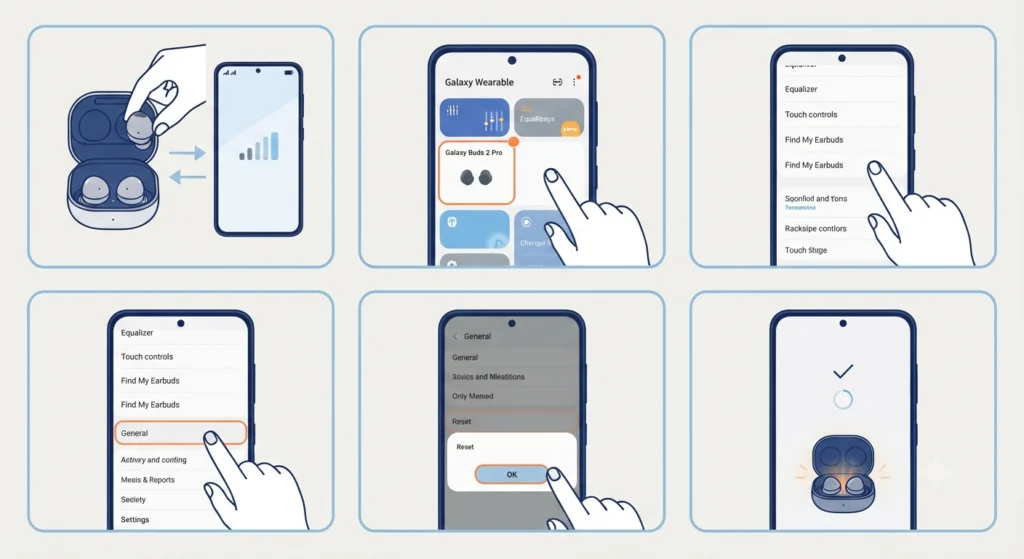
This is the method Samsung officially supports, and it gives the most thorough reset since it clears settings stored on both the earbuds and the connected device.
- Step 1: Place both earbuds in the charging case, then open the lid and keep the case near the phone or tablet.
- Step 2: Open the Galaxy Wearable app on the connected device. Android users with a Samsung phone usually have this pre-installed, while iPhone users can use the Galaxy Buds app instead.
- Step 3: Tap on the Galaxy Buds 2 Pro device card once the app detects the earbuds.
- Step 4: Select Earbuds settings, then scroll down to find the General or About earbuds section.
- Step 5: Tap Reset earbuds, then confirm by tapping Reset again when the warning prompt appears.
- Step 6: Wait for the app to confirm the reset is complete, then close the case lid for a few seconds before reopening it.
Once the reset finishes, the earbuds behave like a brand-new pair. They need to be set up again from the beginning, which means re-pairing through Bluetooth and reconfiguring any custom touch gestures or sound settings that were saved before.
Pro-Tip: Update the earbud firmware right after resetting. Samsung regularly pushes stability updates, and starting fresh on outdated firmware often brings back the same bugs the reset was meant to fix.
Method 2: Factory Reset Without a Phone (Touch Sensor Method)
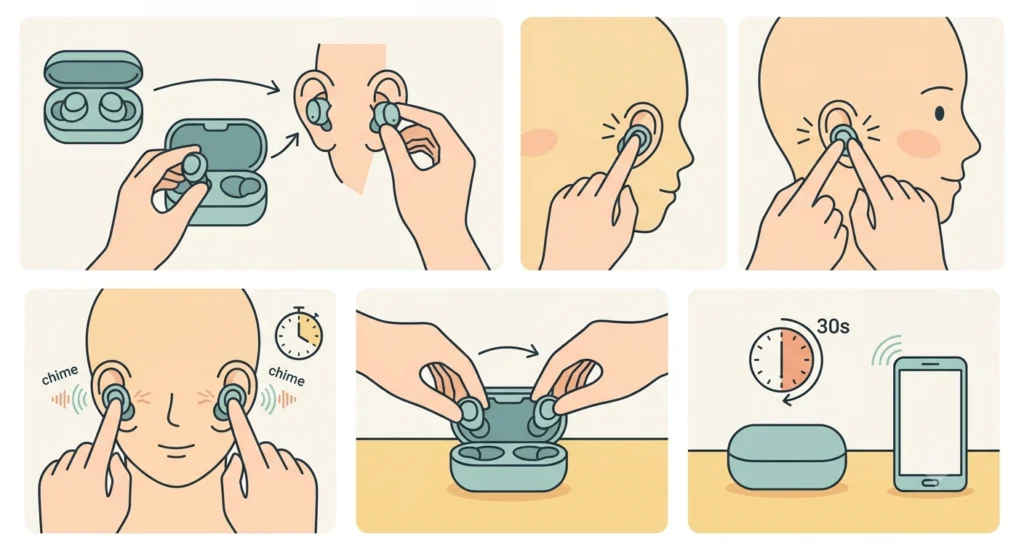
This method comes in handy when the Wearable app will not connect, or when there is no phone on hand at all. It relies purely on the touch sensors built into each earbud.
- Step 1: Remove both earbuds from the charging case and place them in the ears.
- Step 2: Press and hold the touch sensor on both earbuds at the same time.
- Step 3: Keep holding for about 10 seconds, until a chime sounds in both ears.
- Step 4: Place the earbuds back into the charging case and close the lid.
- Step 5: Wait at least 30 seconds before opening the case again near the device that needs pairing.
This touch-based reset clears the connection state and resolves most pairing issues, though it may not wipe every saved setting the same way the app-based reset does. For a complete wipe, the Galaxy Wearable app method above remains the more reliable choice.
What Happens After the Reset
Once either reset method finishes, the Galaxy Buds 2 Pro show up as a new device the next time the case is opened near a phone or tablet. Bluetooth pairing has to be redone, and any saved EQ profiles, ambient sound levels, or touch control customizations return to their factory defaults. Anyone re-pairing the buds for stereo sound on a Windows machine can check this guide on pairing Bluetooth earbuds correctly for stereo audio to avoid ending up with mono playback after the reconnection.
Tips for a Smooth Reset
- Charge both earbuds to at least 20 percent before starting, since a reset mid-process on low battery can leave one bud stuck in a half-reset state.
- Close any other Bluetooth-connected devices nearby during pairing, as overlapping signals sometimes cause the Wearable app to detect the wrong device.
- Write down or screenshot any custom EQ or touch settings beforehand if those configurations took a while to get right, since they will not survive the reset.
- Clean the charging contacts on the earbuds and inside the case with a dry, lint-free cloth before placing them back in, since debris on the contacts can interfere with the reset confirming properly.
Common Problems After Resetting
A few hiccups tend to show up right after a factory reset, and most of them trace back to the same handful of causes.
- Earbuds will not appear in the Bluetooth list: forget the old device entry on the phone first, then try pairing again as if setting them up for the first time.
- Only one earbud connects: place both back in the case together for 30 seconds, then remove them at the same time rather than one after the other.
- Microphone not picked up after reconnecting to a Windows laptop: this is a common Windows 11 quirk, and this guide on fixing microphone detection issues covers the exact settings to check.
- Audio plays through the wrong output device after reset: Windows sometimes defaults back to internal speakers, and adjusting this is covered in the guide on setting the correct audio output device.
- Sound quality feels off or distorted post-reset: a full audio settings reset on the connected Windows 11 device, as explained in this guide on resetting Windows audio settings, often resolves this faster than repeating the earbud reset.
Pro-Tip: If the earbuds were previously paired with several devices, go into the Bluetooth settings on each of those devices and manually remove the old Galaxy Buds 2 Pro entry before re-pairing. Leftover entries are one of the most common reasons a freshly reset earbud refuses to connect properly.
Frequently Asked Questions
Does factory resetting the Galaxy Buds 2 Pro delete the firmware?
No, a factory reset only clears paired device data, EQ settings, and touch customizations. The firmware version installed on the earbuds stays the same.
How long does a full factory reset take?
The entire process, from opening the Wearable app to confirming the reset, usually takes less than two minutes.
Will resetting fix a single earbud that will not charge?
Sometimes, since a reset clears software-level charging glitches. If the earbud still will not charge afterward, the issue is more likely a hardware fault or dirty charging contacts.
Can the Galaxy Buds 2 Pro be reset without the Galaxy Wearable app?
Yes, the touch sensor method described above works without any app, though it offers a slightly less thorough wipe than the app-based reset.
Do both earbuds need to be reset together, or can just one be reset?
Both earbuds reset together as a pair when using either method. There is no way to reset just the left or right earbud independently through Samsung’s standard process.
Is it safe to factory reset the earbuds frequently?
Yes, a factory reset does not cause any wear on the hardware. It can be performed as often as needed without affecting battery life or sound quality.
What should be done if the Wearable app does not detect the earbuds at all?
Close and reopen the case lid near the phone, confirm Bluetooth is turned on, and check that the phone is not already connected to a different pair of earbuds.
Does a factory reset remove the earbuds from a previously paired Windows laptop too?
The reset clears the connection on the earbud side, but the old entry may still show up in the laptop’s Bluetooth list. Removing it manually before re-pairing helps avoid connection conflicts.
Can the earbuds be reset while they are still charging in the case?
Yes, both reset methods work whether the case is plugged in or running on its own battery, as long as the earbuds themselves have enough charge.
What is the difference between restarting and factory resetting the Galaxy Buds 2 Pro?
Restarting simply power-cycles the earbuds without erasing any saved settings, while a factory reset wipes paired devices, EQ profiles, and touch customizations entirely.