
Setting up Wyze Headphones takes just a few minutes once the right steps are followed in order. Whether the device is being paired for the first time or reconnected after a reset, the process works the same way across iPhone and Android since everything happens through the Wyze app. This guide walks through each step needed to get the headphones connected and ready to use.
Key Takeaways
- Wyze Headphones pair through the Wyze app on both iPhone and Android
- The app is available for free on the App Store and Google Play
- Pairing mode is triggered by pressing the power button until the light flashes blue and red
- A short ‘Pairing’ voice prompt confirms the headphones are ready to connect
- Covering the right ear cup with a hand completes the final setup step
- The same headphones can be reconnected to a laptop or desktop later without repeating this process
Step-by-Step: Setting Up Wyze Headphones on iPhone
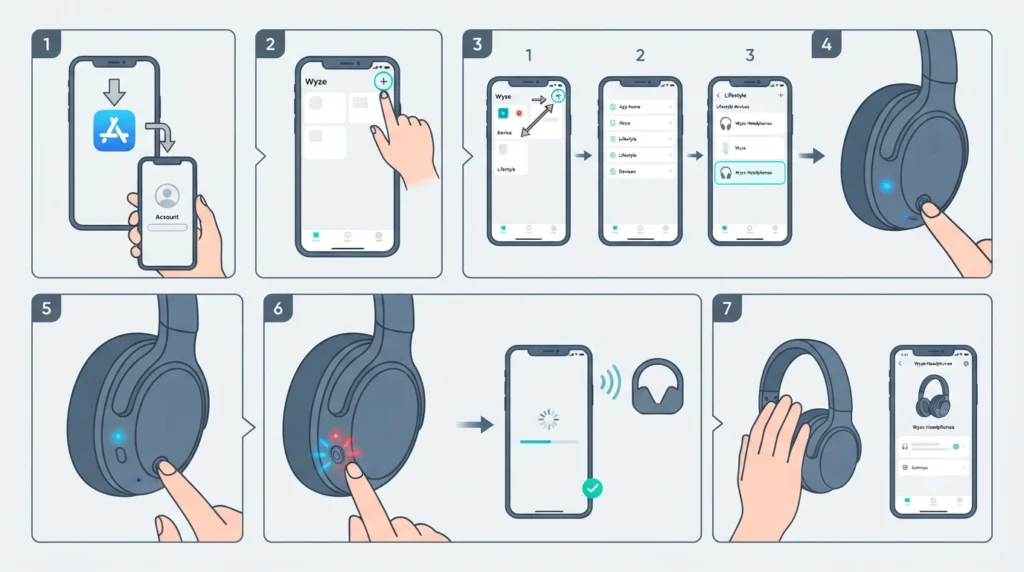
These steps apply to any iPhone running a supported iOS version. Having Bluetooth and location permissions enabled beforehand makes the process go much faster.
- Step 1: Download the Wyze app from the App Store and sign in, or create a new account if this is the first Wyze product being used.
- Step 2: Open the app and tap the plus sign in the top right corner of the Home screen.
- Step 3: Tap Device, then select Lifestyle, followed by Wyze Headphones.
- Step 4: Turn on the headphones by briefly pressing the power button on the bottom of the right ear cup. The light should turn blue.
- Step 5: Press and hold that same power button until the light begins flashing blue and red. A voice prompt saying ‘Pairing’ plays if the headset is being worn during this step.
- Step 6: Let the app search and connect automatically. This usually takes just a few seconds once pairing mode is active.
- Step 7: Cover the right ear cup with a hand when prompted. This confirms the connection and moves the app to the Wyze Headphones product page.
Once that last step is done, the headphones are fully set up and ready for playback, calls, and touch controls right from the app.
Step-by-Step: Setting Up Wyze Headphones on Android
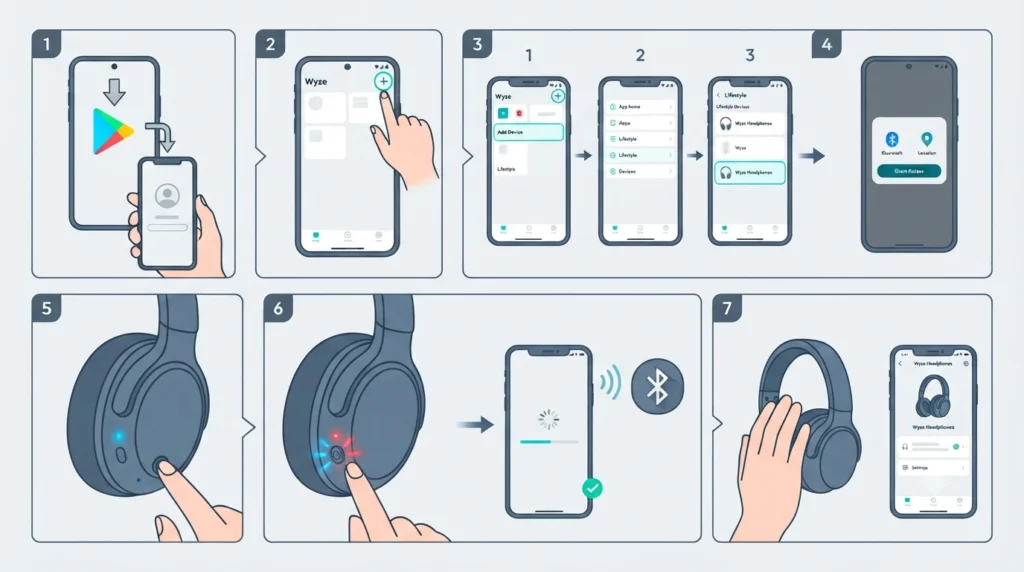
The Android setup mirrors the iPhone process closely, since the Wyze app functions the same way on both platforms. A few permission prompts may look slightly different depending on the Android version installed.
- Step 1: Install the Wyze app from Google Play and log in or create an account.
- Step 2: From the Home tab, tap the plus icon, then choose Device.
- Step 3: Select Lifestyle from the categories, then choose Wyze Headphones.
- Step 4: Grant the Bluetooth and location permissions the app requests. These are required for the phone to detect nearby Bluetooth accessories.
- Step 5: Press the power button on the right ear cup briefly to turn the headphones on, then press and hold it until the light flashes blue and red.
- Step 6: Wait for the app to detect the headphones automatically and complete the Bluetooth handshake.
- Step 7: Cover the right ear cup with a hand when the app requests it, which finalizes the pairing and opens the product dashboard.
Pro Tip: Keep the headphones within about three feet of the phone during pairing. Bluetooth setup often stalls not because of a faulty device, but simply because the two devices are too far apart to complete the initial handshake reliably.
Using Wyze Headphones Beyond the Phone
Once paired with a phone, the same headphones can also connect to a laptop or desktop without much extra effort. Windows machines treat Wyze Headphones like any other Bluetooth audio device, so the same troubleshooting logic that applies to other wireless earbuds applies here too. For anyone who regularly switches the headphones between a phone and a PC, learning how to re-pair Bluetooth earbuds for proper stereo sound on Windows saves a lot of frustration down the line, especially if audio starts playing in mono after a reconnect. It’s also worth knowing how to fine-tune playback once connected, and this guide on adjusting audio output settings on Windows 11 covers exactly that.
Tips for a Smooth Setup
- Charge the headphones fully before the first setup attempt. A low battery can interrupt the pairing sequence partway through.
- Close other Bluetooth-connected apps on the phone before starting, since some apps hold onto the Bluetooth radio in the background.
- Keep the Wyze app updated. Older app versions sometimes miss steps during the pairing flow, which can make the process feel stuck even when the headphones are working fine.
- Turn the phone’s Bluetooth off and back on if the app fails to detect the headphones on the first try. This resets the local Bluetooth stack and often clears up detection issues.
- Stay within Wi-Fi range during setup, since some steps in the app rely on an internet connection to register the device to the account.
Common Setup Problems and How to Fix Them
Method 1: Headphones Not Appearing in the App
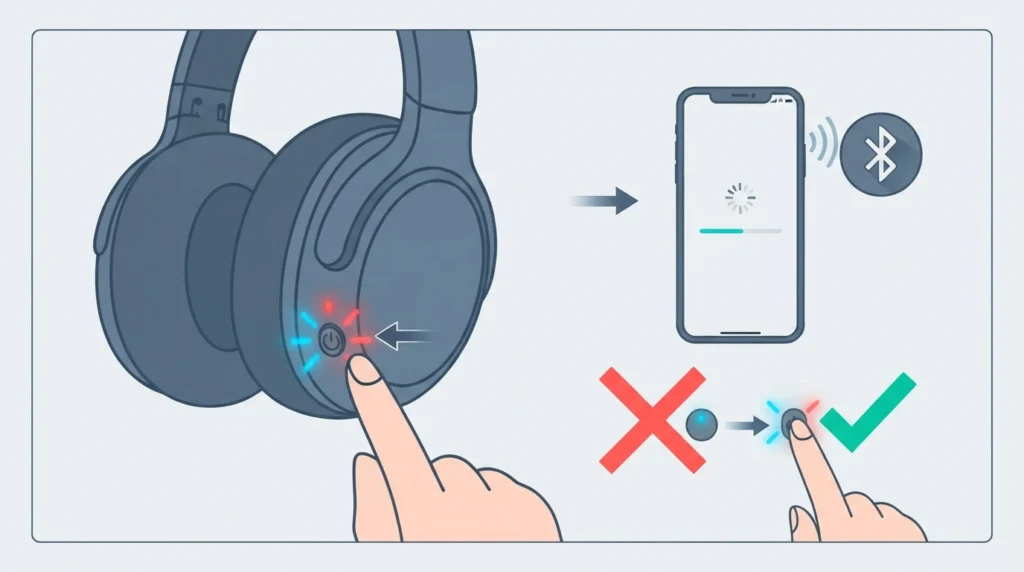
This usually means pairing mode was not triggered correctly. Press and hold the power button again until the light flashes both blue and red, not just blue. A single short press only turns the headphones on; it does not start pairing mode.
Method 2: App Gets Stuck After Pairing
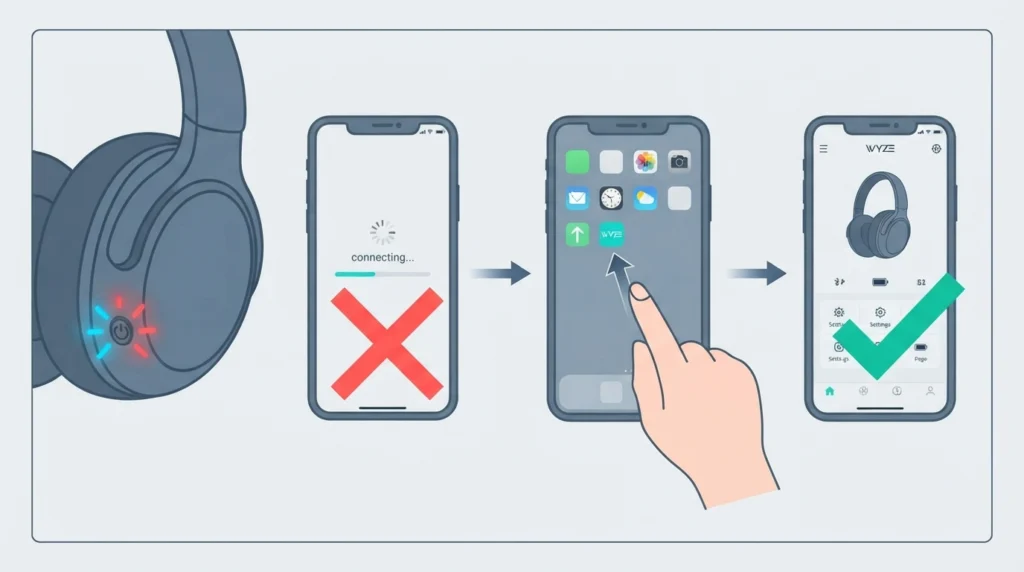
If the app connects but never reaches the final confirmation screen, force-close the app and reopen it. In many cases, the connection completed successfully in the background, and reopening the app simply reloads the correct product page.
Method 3: Headphones Pair but Audio Sounds Off
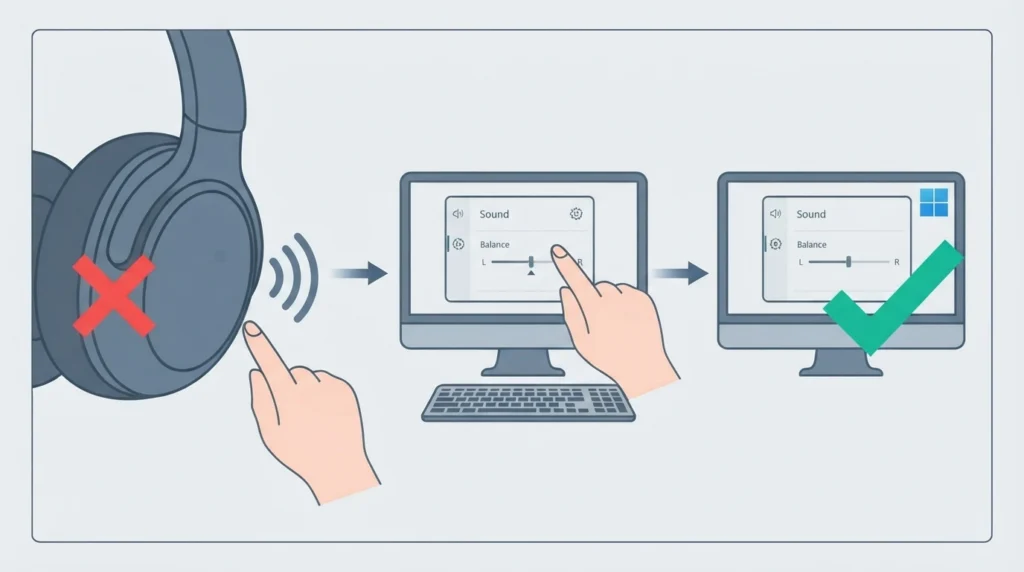
Audio that sounds unbalanced or plays through only one side is rarely a hardware problem. It usually points to a Bluetooth profile issue on the connected device. Anyone experiencing this while connected to a computer instead of a phone may find it useful to review this guide on resetting audio settings on Windows 11, which addresses this exact kind of imbalance.
Method 4: Microphone Not Working During Calls
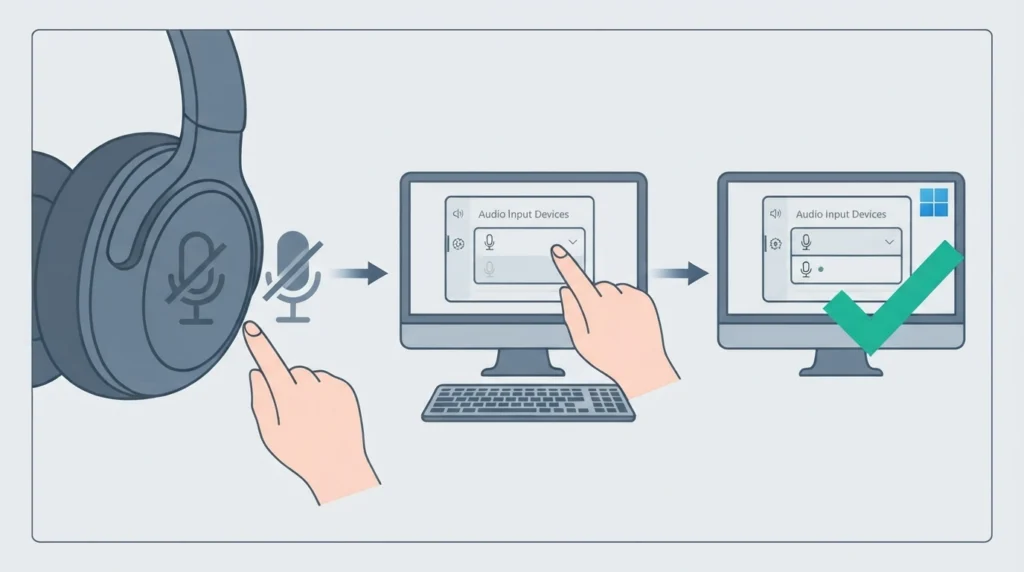
When the headphones connect fine for music but the microphone does not pick up during calls, the issue is often related to which audio device the operating system has selected as the default input. This is a common enough issue on Windows 11 that a dedicated resource exists for resolving microphone detection problems, which is worth checking if the headphones are also being used for video calls on a PC.
Frequently Asked Questions
Do Wyze Headphones need the Wyze app to work?
The Wyze app is required for the initial setup and pairing process. After that, the headphones function as a standard Bluetooth device and can reconnect automatically to any device they have previously been paired with.
Can Wyze Headphones be paired with an iPhone and Android phone at the same time?
Yes. The headphones can be registered under one Wyze account and paired with multiple devices, but only one active Bluetooth connection works at a time unless multipoint pairing is supported and enabled.
Why won’t the light on the Wyze Headphones turn blue and red?
This usually means the power button was pressed too briefly. A short press turns the headphones on, while a press-and-hold of a few seconds is required to enter pairing mode.
How long does it take to fully charge Wyze Headphones?
Charging time varies depending on the model and current battery level, so checking the battery indicator light on the headphones themselves is the most accurate way to confirm charge status during setup.
Can Wyze Headphones connect to a laptop after being set up on a phone?
Yes. Once pairing mode is activated again on the headphones, they can be selected from the Bluetooth device list on a laptop just like any other wireless headset.
What does covering the right ear cup during setup actually do?
This step uses the built-in sensor on the right ear cup to confirm proper fit and completes the final handshake between the headphones and the app, signaling that setup finished correctly.
Is a Wyze account required to set up the headphones?
Yes. A Wyze account is needed to add the headphones as a device within the app, even if no other Wyze products are being used.
What should be done if the app asks for location permission during setup?
Location permission is a standard requirement for Bluetooth scanning on many phones and does not mean the app is tracking location for any other purpose. Denying this permission can prevent the app from finding the headphones.
Can the pairing process be repeated if the headphones are reset?
Yes. The same steps used for the initial setup can be repeated any time the headphones are factory reset or removed from the Wyze account.
Do Wyze Headphones work the same way on older iPhone or Android models?
The setup process is consistent across supported models, though very old operating system versions may not support the Wyze app at all, so checking app store compatibility beforehand is worthwhile.