
Soundcore earbuds pack a feature that most owners never turn on, and that is a shame, because HearID Personalized Sound on Soundcore earbuds can transform flat, generic audio into something that actually fits the shape of a listener’s hearing. This guide walks through exactly how to activate and use it, no detours, no filler.
Key Takeaways
- HearID is a built-in hearing test inside the Soundcore app that maps how well each ear picks up different frequencies.
- The test takes roughly two to three minutes per ear and requires a quiet room and a Bluetooth connection to compatible Soundcore earbuds.
- Once completed, the app builds a custom EQ curve based on the test results and applies it automatically.
- The feature can be turned on, adjusted, or turned off anytime under Sound Effects in the app.
- Compatible models include Liberty Air 2 Pro, Liberty 3 Pro, Liberty 4, Liberty 5 Pro Max, and several other Soundcore lines with app-based EQ support.
How to Set Up HearID Personalized Sound Step-by-Step
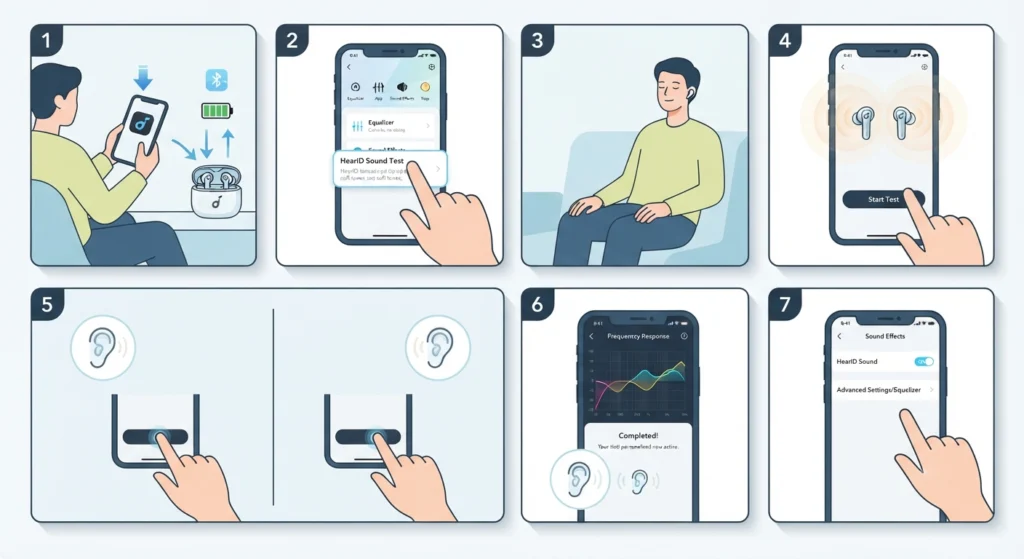
The process is short, but a few small details make the difference between an accurate profile and a wasted test. Follow these steps in order.
- Step 1: Download and open the Soundcore app on a phone or tablet, then make sure the earbuds are fully charged and connected over Bluetooth.
- Step 2: On the main device screen, tap into the connected earbuds, then locate the HearID Test or HearID Sound Test option, which usually sits near the Sound Effects section.
- Step 3: Put both earbuds in and find a quiet spot before starting. Background noise from a fan, traffic, or a TV in the next room can skew the results.
- Step 4: Tap Start Test. A series of soft tones will play at different pitches and volumes in each ear. Tap the on-screen button the moment a tone becomes audible, even if it is faint.
- Step 5: Repeat the tone-tapping process until both ears have been tested. The app tracks each ear separately since hearing sensitivity often differs slightly between the left and right side.
- Step 6: Once finished, the app automatically saves the results and generates a personalized sound curve. This curve gets applied right away, so audio should sound different immediately after the test.
- Step 7: To confirm it is active later, go to Sound Effects, then toggle HearID Sound on or off, or tap Advanced Settings to view and fine-tune the custom EQ built from the test.
Anyone who has ever re-paired Bluetooth earbuds for proper stereo sound knows that a stable connection matters just as much as the software settings, and the same logic applies here. A dropped connection mid-test forces a restart, so keeping the phone close and Bluetooth interference low speeds things along.
Pro-Tip: Take the test at a time when hearing feels normal, not right after a loud concert, a cold, or extended exposure to noise. Temporary hearing fatigue can throw off the results, and the profile will not reflect true baseline hearing.
What Happens After the Test Completes
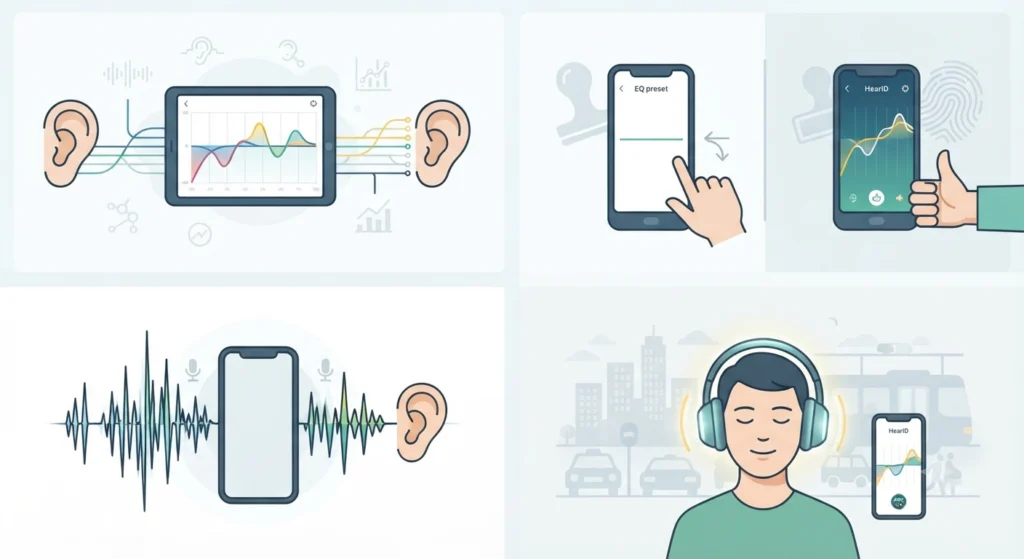
Once HearID finishes analyzing both ears, the app builds an EQ curve that boosts frequencies the ears pick up less easily and balances out ones that come through strong. This is different from a generic preset like Bass Booster or Treble Boost, since those apply the same curve to everyone regardless of actual hearing ability.
The result usually feels like turning up detail rather than volume. Vocals in a song might sound clearer, or a podcast host’s voice might carry better in a noisy commute. Most people find that the difference is subtle in quiet settings but far more noticeable in headphones with active noise cancellation, since ANC already removes distractions that used to mask weaker frequency response.
Adjusting or Refining the HearID Profile
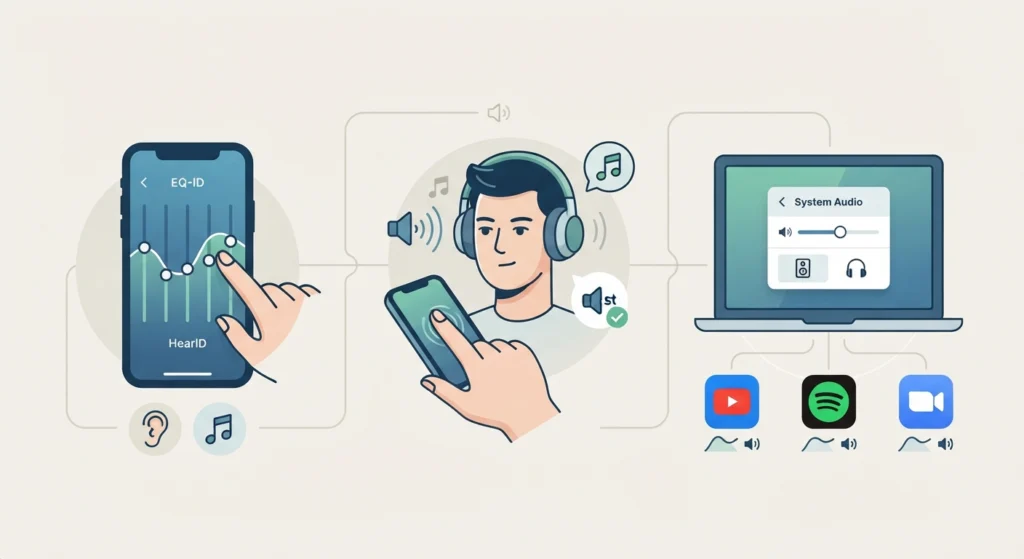
The generated curve is not locked in place. Inside Sound Effects, tapping Advanced Settings opens a manual EQ view built directly on top of the HearID baseline. Small sliders allow fine adjustments to bass, mid-range, and treble without losing the personalized foundation.
This works best when changes are made in small increments, listening to a familiar song after each adjustment rather than guessing blindly. A commonly overlooked step here connects to overall system audio, since adjusting audio output settings on the connected device can affect how the HearID curve translates through different apps like Spotify, YouTube, or a video call platform.
Tips for Getting the Most Accurate HearID Results
- Test in a room with minimal background noise, ideally under 40 decibels of ambient sound.
- Keep the volume on the phone at a consistent, moderate level before starting, since the app calibrates based on standard output levels.
- Avoid rushing through tone taps. Waiting for a genuine “just barely audible” moment produces a more reliable curve than tapping too early.
- Retake the test every few months, especially after any ear infections, wax buildup, or noticeable changes in hearing.
- Make sure firmware on the earbuds is up to date before testing, since older firmware versions sometimes limit how well the EQ curve applies.
Common Problems With HearID and How They Get Resolved
A handful of recurring issues show up across different Soundcore models, and most have a straightforward fix.
The test will not start or freezes midway. This usually points to a Bluetooth connection hiccup. Disconnecting and reconnecting the earbuds, then relaunching the app, resolves it in most cases. For persistent connection drops, resetting audio settings on the phone often clears out a corrupted Bluetooth cache that interferes with the test.
Sound does not seem different after the test. Double check that HearID Sound is actually toggled on in Sound Effects, since completing the test does not always mean the profile stays active if another EQ preset gets selected afterward.
One ear sounds noticeably louder or clearer than the other. This is often the whole point of HearID, since it corrects for natural asymmetries between ears. If the difference feels extreme rather than subtle, retaking the test in a quieter environment usually produces a more balanced result.
Microphone or call quality issues after enabling HearID. HearID affects playback EQ, not microphone input, so if calls sound off after setup, the issue likely traces back to input device settings rather than HearID itself. Checking managing audio input devices on the connected computer or phone usually isolates the actual cause.
Frequently Asked Questions
Does HearID work on every Soundcore earbud model?
No. HearID requires app-based EQ support, so it works on models like Liberty Air 2 Pro, Liberty 3 Pro, Liberty 4, Liberty 5 Pro Max, and several other newer Soundcore lines. Older or budget models without advanced app integration may not include the feature.
How long does the HearID test take?
The full test for both ears typically takes between two and five minutes, depending on how quickly tones are detected and tapped.
Can HearID be retaken if the first result feels off?
Yes. The test can be retaken as many times as needed directly from the Sound Effects menu, and each new test overwrites the previous profile.
Does HearID replace the need for a hearing aid or professional hearing test?
No. HearID is designed for audio personalization and entertainment purposes only. It is not a medical device and should not substitute a professional hearing evaluation.
Will HearID drain the earbuds’ battery faster?
No noticeable difference in battery life has been reported from using HearID, since the processing happens through the connected phone rather than continuously on the earbuds themselves.
Can HearID be combined with noise cancellation modes?
Yes. HearID Sound and ANC modes work independently of each other and can both be active at the same time on supported models.
Is an internet connection required to use HearID?
An internet connection is generally needed the first time the Soundcore app loads and syncs with the earbuds, but the test itself can often run without one once the app is fully set up.
What should be done if the HearID option is missing from the app?
This usually means the earbud model does not support HearID, or the app needs an update. Checking the app store for the latest Soundcore app version resolves most cases where the feature seems to be missing.
Does HearID work with both earbuds separately or as a pair?
HearID tests each ear individually, since hearing sensitivity commonly differs slightly between the left and right ear, then applies a combined but ear-specific profile.
Can the HearID profile be reset back to default sound?
Yes. Toggling off HearID Sound in the Sound Effects menu reverts playback to the default or last-selected EQ preset without deleting the saved HearID test data.