
Headphones not recognized after a firmware update is one of the most frustrating post-update problems out there. One moment everything works fine, and after a routine firmware flash, the system acts like the headphones never existed. The good news is this is almost always fixable – no hardware replacement needed.
Key Takeaways
- Firmware updates can reset or conflict with audio drivers, causing headphones to go undetected.
- Re-pairing Bluetooth or re-plugging wired connections is the first step to try.
- Updating or rolling back audio drivers resolves the issue in most cases.
- Windows audio services and sound settings often need a manual refresh after firmware changes.
- A clean driver reinstall is the most reliable fix when other steps fail.
Step-by-Step Guide to Fix Headphones Not Recognized After Firmware Update
Fix 1: Reconnect or Re-Pair the Headphones
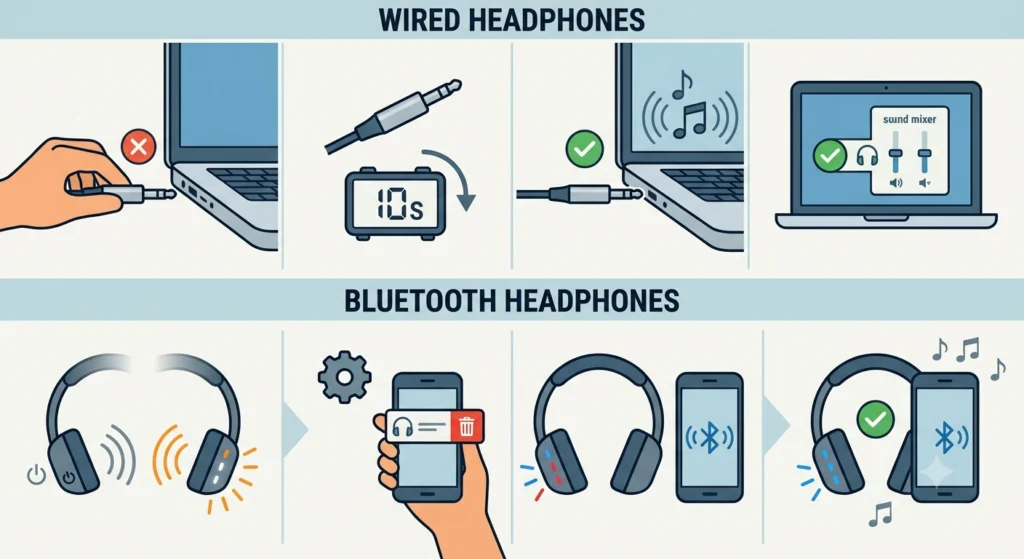
The simplest reason headphones go undetected after a firmware update is that the connection was disrupted during the process. Before diving into settings, start here.
For wired headphones:
- Step 1: Unplug the headphone jack or USB cable completely.
- Step 2: Wait 10 seconds, then plug it back in firmly.
- Step 3: Listen for the device detection sound from the system.
- Step 4: Check if the headphones now appear in the sound output settings.
For Bluetooth headphones:
- Step 1: Turn the headphones off, then back on to reset the Bluetooth connection.
- Step 2: On the device, go to Bluetooth settings and remove (forget) the headphones.
- Step 3: Put the headphones into pairing mode.
- Step 4: Re-pair them as a new device.
This works best when the firmware update interrupted an active pairing session. If the headphones still do not show up, move to the next fix.
Fix 2: Restart the Windows Audio Service
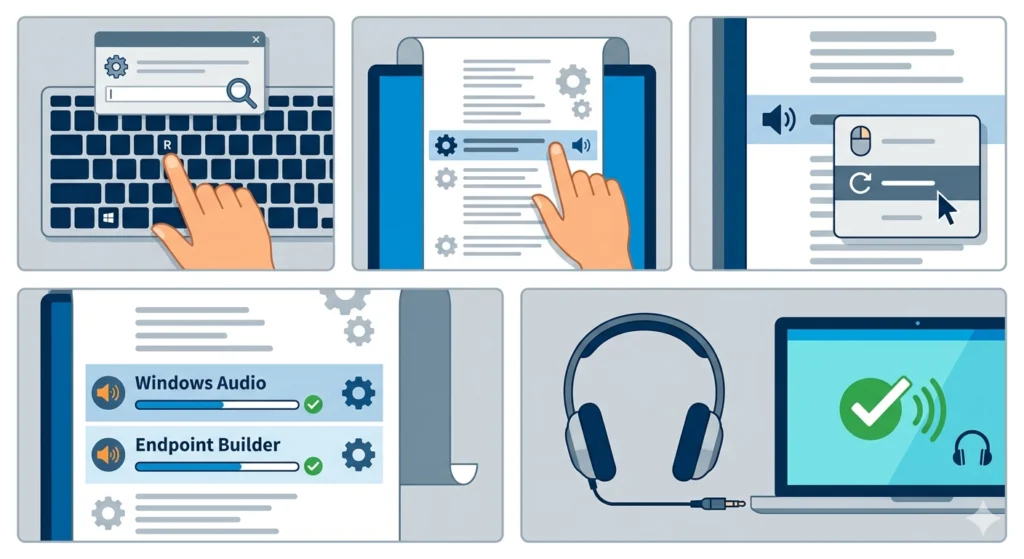
Firmware updates can sometimes knock Windows audio services into a stopped or broken state. Restarting the service manually forces the system to re-scan connected audio devices.
- Step 1: Press Windows + R, type services.msc, and press Enter.
- Step 2: Scroll down and find Windows Audio in the list.
- Step 3: Right-click it and select Restart.
- Step 4: Also restart Windows Audio Endpoint Builder the same way.
- Step 5: Reconnect the headphones and check if they are now recognized.
Most people find that this alone brings the headphones back, especially after driver-level firmware changes. If the issue is more persistent, the next steps cover driver management directly.
Fix 3: Update the Audio Driver
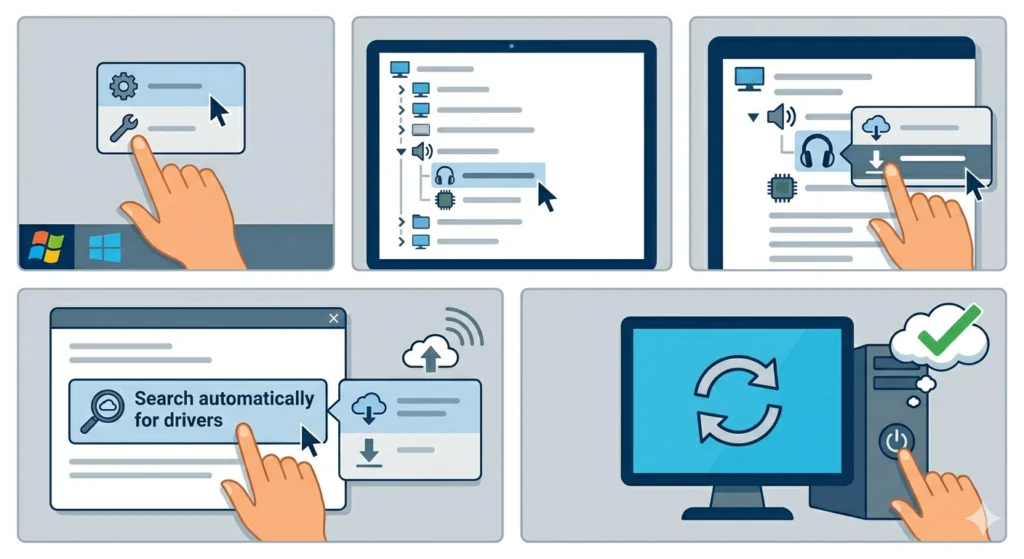
A firmware update can make an older audio driver incompatible with the updated hardware. Updating the driver gives the system a fresh, compatible version to work with.
- Step 1: Right-click the Start button and open Device Manager.
- Step 2: Expand the Audio inputs and outputs section.
- Step 3: Right-click the headphone device or the audio controller and select Update driver.
- Step 4: Choose Search automatically for drivers and let Windows find the latest version.
- Step 5: Restart the computer once the update finishes.
If Windows says the driver is already up to date but the headphones are still not detected, visit the headphone or motherboard manufacturer’s website and download the latest audio driver manually.
Pro Tip: For Realtek or IDT audio chips, download the driver directly from the chip manufacturer’s official site rather than relying on Windows Update. Manufacturer-specific drivers tend to be more complete and up to date than generic ones.
Fix 4: Roll Back the Audio Driver
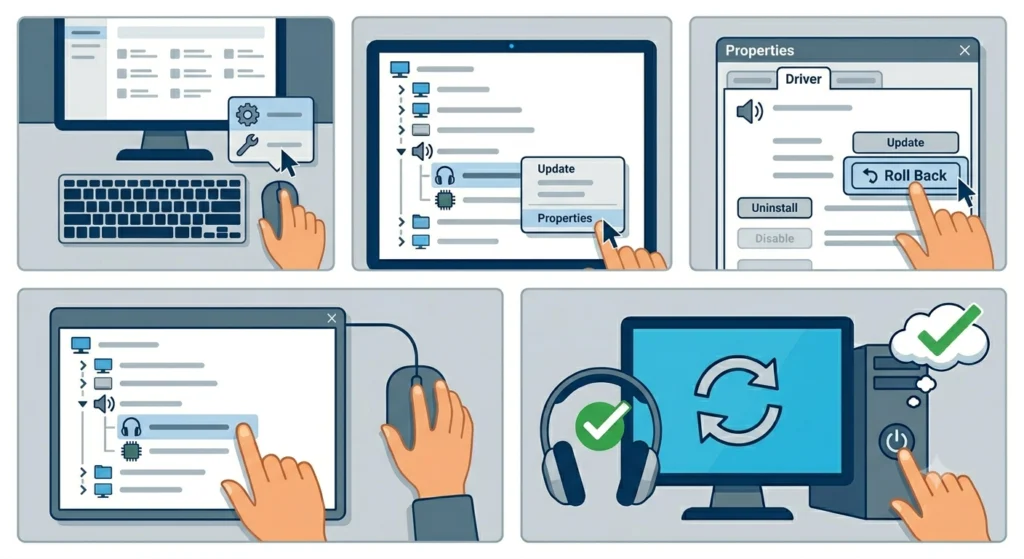
Sometimes a firmware update installs a new driver version that is actually buggier than the previous one. Rolling back restores the driver that was working before.
- Step 1: Open Device Manager again.
- Step 2: Expand Audio inputs and outputs or Sound, video and game controllers.
- Step 3: Right-click the audio device and select Properties.
- Step 4: Click the Driver tab.
- Step 5: If Roll Back Driver is available (not greyed out), click it and follow the prompts.
- Step 6: Restart the computer and test the headphones.
Fix 5: Set Headphones as the Default Audio Device
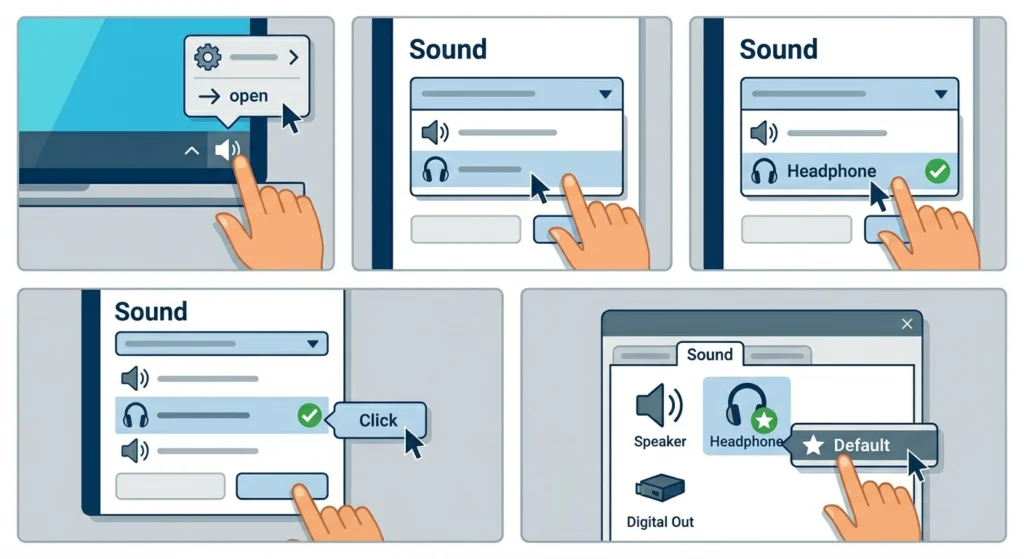
A firmware update can silently reset audio output to the system’s built-in speakers, making headphones appear absent even when they are actually connected. Manually setting the headphones as the default device fixes this.
- Step 1: Right-click the speaker icon in the taskbar and select Sound settings or Open Sound settings.
- Step 2: Under Output, check if the headphones appear in the dropdown list.
- Step 3: If they are listed, select them as the output device.
- Step 4: For more control, click More sound settings to open the classic Sound panel.
- Step 5: Right-click the headphones under the Playback tab and select Set as Default Device.
For a deeper look at adjusting audio output settings on Windows 11, that guide walks through the full process including managing multiple output devices simultaneously.
Fix 6: Check for Disabled Devices in Sound Settings
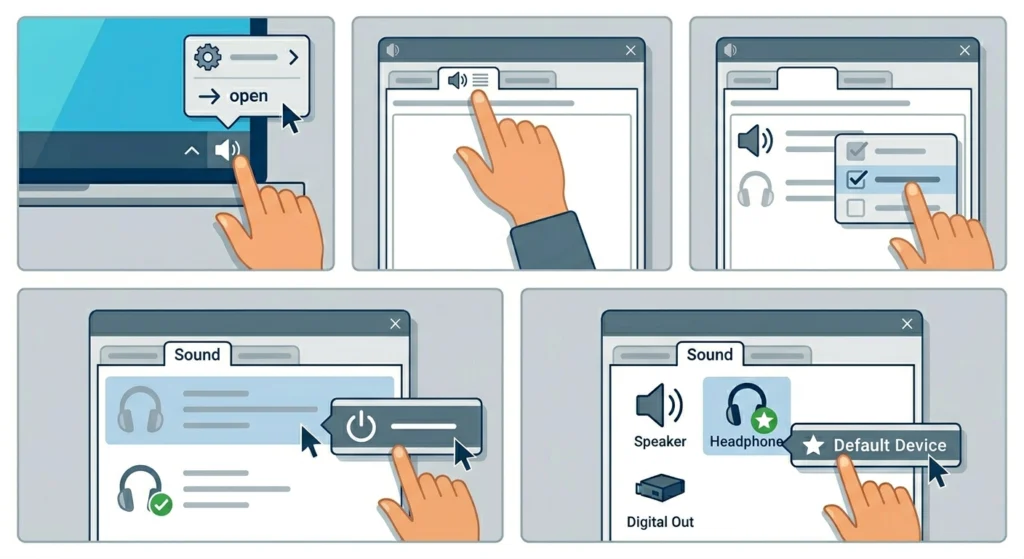
Firmware updates occasionally disable audio devices at the system level without any warning. The headphones are technically connected but hidden from the active device list.
- Step 1: Right-click the speaker icon in the taskbar and click Sounds.
- Step 2: Go to the Playback tab.
- Step 3: Right-click on an empty area and check both Show Disabled Devices and Show Disconnected Devices.
- Step 4: If the headphones appear grayed out, right-click them and select Enable.
- Step 5: Right-click again and set as the default device.
Fix 7: Uninstall and Reinstall the Audio Driver Completely
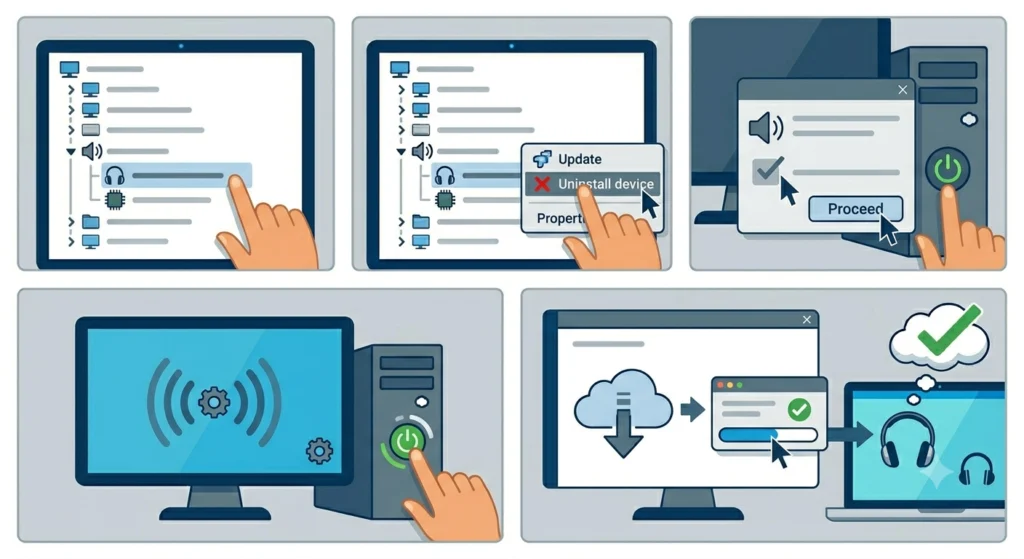
When updating the driver does not work, a clean reinstall is the most reliable solution. This removes any corrupted or conflicting driver files and replaces them fresh.
- Step 1: Open Device Manager and expand Sound, video and game controllers.
- Step 2: Right-click the audio device and select Uninstall device.
- Step 3: Check the box that says Delete the driver software for this device if it appears.
- Step 4: Click Uninstall and restart the computer.
- Step 5: Windows will attempt to reinstall the driver automatically on reboot. If it does not, go to the manufacturer’s site and install the driver manually.
Pro Tip: Use a tool like DDU (Display Driver Uninstaller) in Safe Mode for the cleanest possible driver removal if standard uninstall does not fully clear the old files. It removes leftover registry entries that normal uninstall misses.
Fix 8: Reset Audio Settings to Default
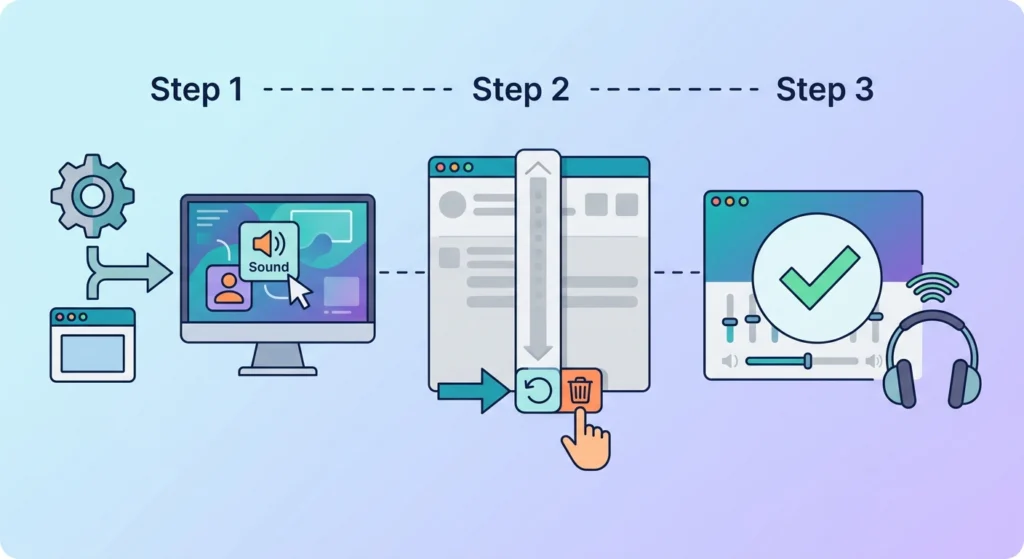
If none of the above steps have worked yet, resetting audio settings clears any configuration conflicts introduced by the firmware update. For a full walkthrough, the guide on resetting audio settings on Windows 11 covers every option available, including settings that are not visible in standard menus.
- Step 1: Open Settings and navigate to System then Sound.
- Step 2: Scroll to the bottom and look for an option to Reset or restore default sound settings.
- Step 3: Confirm the reset and reconnect the headphones afterward.
Fix 9: Run the Windows Audio Troubleshooter
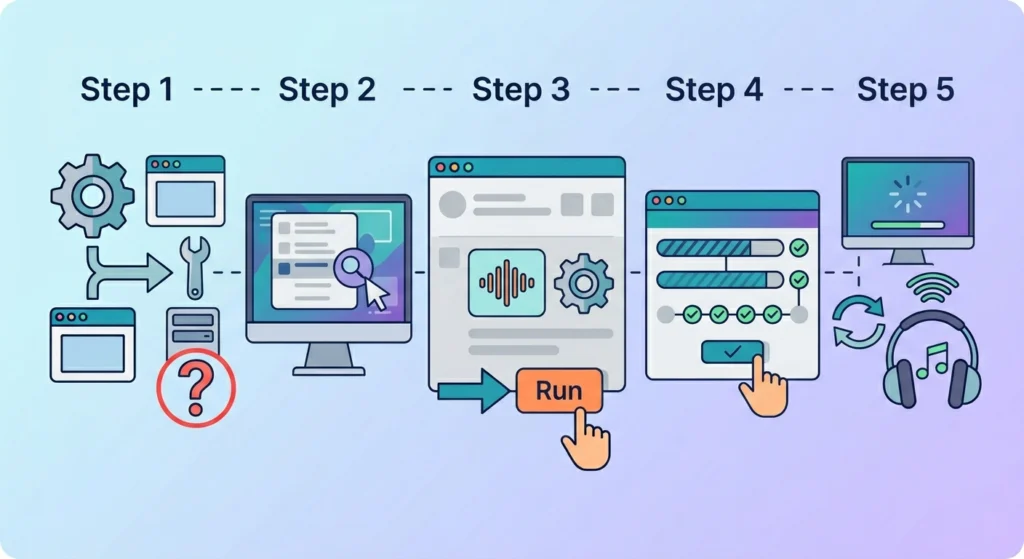
Windows has a built-in audio troubleshooter that can automatically detect and fix common detection problems. It is not always perfect, but it handles straightforward driver and service issues quickly.
- Step 1: Open Settings and go to System then Troubleshoot.
- Step 2: Click Other troubleshooters.
- Step 3: Find Playing Audio and click Run.
- Step 4: Follow the on-screen prompts and apply any fixes it suggests.
- Step 5: Restart and test the headphones again.
Tips for Preventing This Issue in the Future
- Always create a system restore point before running a firmware update on any audio hardware.
- After any firmware update, check Device Manager for yellow warning icons on audio devices before assuming everything is fine.
- Keep audio drivers updated separately from firmware – they are not always bundled together.
- For Bluetooth headphones, unpair them before starting a firmware update and re-pair afterward. This prevents connection data conflicts.
- If using a USB DAC or audio interface, check the manufacturer’s site for a companion driver update whenever firmware changes.
Common Problems and Quick Fixes
Headphones appear in Device Manager but produce no sound
This usually points to the device not being set as default output. Go to Sound settings and manually select the headphones as the default playback device.
Bluetooth headphones connect but audio still plays through speakers
The system defaulted back to speakers after the firmware update. Open Sound settings and switch the output device to the Bluetooth headphones. For a persistent fix when managing multiple Bluetooth audio devices, the guide on managing audio input devices on Windows 11 explains how to lock in the preferred device.
No audio devices shown at all after firmware update
The audio driver is likely corrupted. Open Device Manager and check if there are any devices with a yellow warning icon under Sound, video and game controllers. Uninstall and reinstall the driver completely.
Headphones detected on one port but not another
Some firmware updates change how USB or audio ports are assigned. Try a different port and check if the headphones are recognized. Also check BIOS or UEFI settings to ensure the audio ports are enabled.
Microphone on headset not detected even when headphones work
This is a separate audio input issue. The guide on resolving microphone detection problems on Windows 11 covers the specific steps for getting the mic recognized independently of headphone output.
Frequently Asked Questions
Why did my headphones stop working after a firmware update?
Firmware updates can modify how the system communicates with audio hardware. This sometimes causes driver conflicts, resets default device settings, or disables audio devices at the system level. The update itself is not necessarily broken – it just requires a manual refresh of the audio configuration.
Do firmware updates affect wired headphones the same way as Bluetooth ones?
Yes, but in different ways. Wired headphones are more likely to be affected by audio driver changes, while Bluetooth headphones may also experience pairing data conflicts. Both types can lose detection after a firmware update, and both respond to the same driver and settings fixes.
Is it safe to roll back a driver after a firmware update?
Yes, rolling back a driver is safe and reversible. It simply restores the previous driver version. If rolling back causes other issues, the newer driver can be reinstalled at any time through Device Manager or the manufacturer’s site.
Will reinstalling the audio driver delete any settings?
A driver reinstall removes the software component that controls the audio hardware. It does not delete personal audio settings like equalizer profiles saved in third-party apps, but it does reset any driver-level configurations. These can usually be reconfigured after reinstalling.
How do I know if my audio driver is outdated?
Open Device Manager, right-click the audio device, go to Properties, and check the Driver tab. The driver date and version are listed there. Compare these against the latest version on the manufacturer’s website to see if an update is available.
My headphones are shown as ‘Not Plugged In’ even though they are connected. What does that mean?
This usually means the system is not detecting the physical connection, which can happen after a driver conflict from a firmware update. Try uninstalling and reinstalling the audio driver, and also check if the port itself is enabled in Device Manager and BIOS settings.
Can a Windows update cause the same problem as a firmware update?
Yes. Major Windows updates sometimes replace audio drivers with generic versions that are less compatible with specific hardware. The same fixes – updating drivers, checking default devices, restarting audio services – apply to both firmware and OS update scenarios.
How do I check if the Windows Audio service is running?
Press Windows + R, type services.msc, and press Enter. Scroll to ‘Windows Audio’ in the list. The status column should show ‘Running’. If it shows anything else, right-click and select Start or Restart.
What if my headphones are still not recognized after trying all the fixes?
At that point, it is worth testing the headphones on a different device to confirm the hardware itself is not damaged. If they work fine elsewhere, the issue is isolated to the system configuration and may require a full OS audio component repair or a clean Windows install as a last resort.
Do I need to re-pair Bluetooth headphones every time there is a firmware update?
Not necessarily, but it is a good preventive step. If the firmware update changes the device’s Bluetooth profile or MAC address behavior, the previous pairing data becomes invalid. Re-pairing takes less than a minute and often resolves detection issues without any further troubleshooting.