
Headphone volume buttons not responding is one of the most frustrating audio issues – especially when it happens mid-listening session. Whether the controls are completely dead or just acting inconsistently, the good news is that most causes are fixable without replacing the headphones. This guide walks through every proven fix, from quick software resets to physical button cleaning, so the right solution is never far away.
Quick Summary: Key Takeaways
- Unresponsive volume buttons are usually caused by software conflicts, dirty contacts, or incorrect audio settings – not hardware failure
- Bluetooth headphones need to be re-paired and have firmware checked before assuming the buttons are broken
- Wired headphones often lose button response due to CTIA/OMTP jack mismatches or debris in the port
- Windows 11 audio output settings and input device configurations are common culprits for inline control failure
- Cleaning the buttons and resetting the headphone firmware resolves the majority of cases
Fix 1: Clean the Volume Buttons
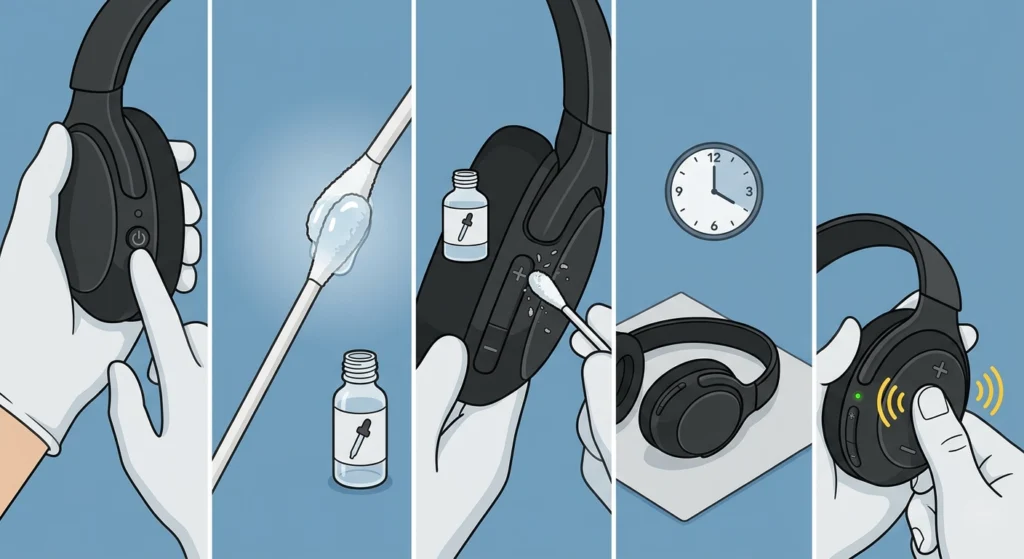
Before touching any settings, start with the most overlooked cause – physical debris and grime buildup around the button contacts. Dust, skin oils, and moisture can all prevent a button from making proper contact when pressed.
- Step 1: Power off the headphones completely
- Step 2: Dip a cotton swab lightly in isopropyl alcohol (90% or higher)
- Step 3: Gently work the swab around and under each volume button, pressing it slightly as you clean
- Step 4: Let the area dry fully for at least 3 to 5 minutes before powering back on
- Step 5: Test each button to confirm response
This works best on headphones that have been used regularly for over a year, or those stored in gym bags or humid environments. Most people find that this single step restores button function when the buttons feel ‘sticky’ or require extra force to register.
Fix 2: Reset the Headphones
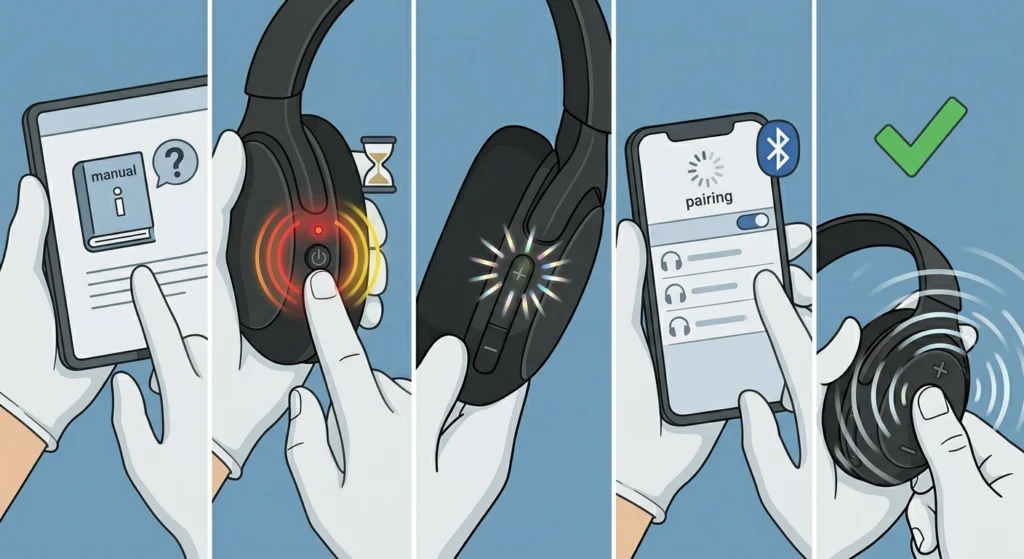
A firmware or pairing glitch can cause the volume buttons to stop sending signals properly. Resetting the headphones clears this entirely and restores default button mapping.
- Step 1: Locate the reset procedure for the specific headphone model – this is typically found in the manual or on the manufacturer’s support page
- Step 2: Most Bluetooth headphones reset by holding the power button and volume down simultaneously for 10 to 15 seconds until an LED flashes or a tone plays
- Step 3: For wired headphones with inline remotes, disconnect and reconnect the cable while testing each button
- Step 4: Re-pair the headphones to the device after resetting
- Step 5: Test volume buttons immediately after pairing is complete
The key is to do a full factory reset rather than just a simple power cycle. A power cycle does not clear corrupted button mapping data – a full reset does.
Fix 3: Re-Pair the Bluetooth Connection

For Bluetooth headphones, an unstable or corrupted pairing profile is a surprisingly common reason volume controls stop working. The audio streams fine, but button commands fail to transmit correctly.
- Step 1: On the connected device, go to Bluetooth settings and find the headphones in the paired devices list
- Step 2: Select ‘Forget’ or ‘Remove’ the device
- Step 3: Put the headphones into pairing mode (refer to the model’s manual)
- Step 4: Pair the headphones fresh as a new device
- Step 5: Once connected, test all volume buttons
For Windows users experiencing button control issues after reconnecting headphones, the detailed process for re-pairing Bluetooth earbuds for stereo sound on Windows covers the full reconnection workflow including driver handling.
Fix 4: Check and Adjust Audio Output Settings
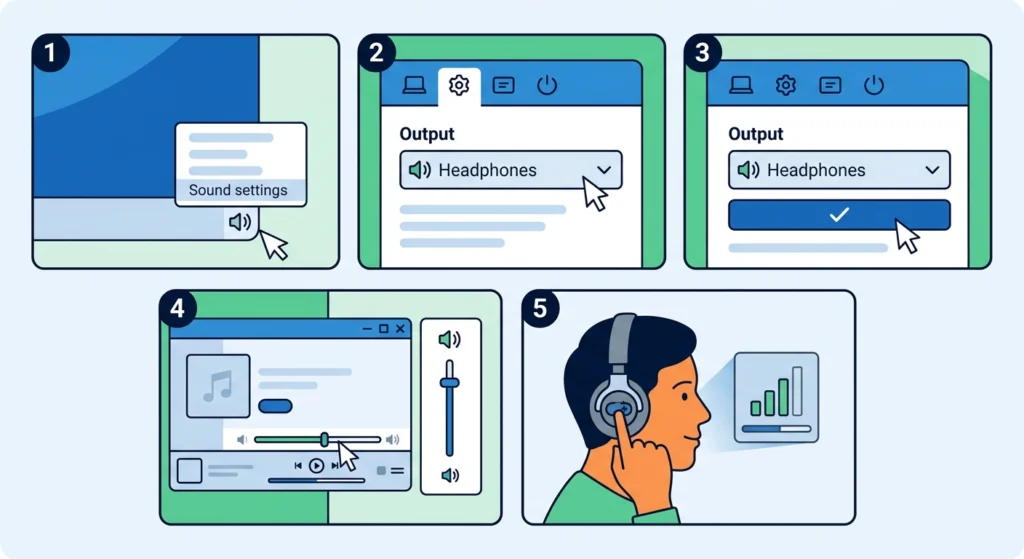
Sometimes the volume buttons work perfectly fine, but the system is routing audio to a different output device – so pressing the buttons controls the wrong channel. This makes it appear as though the buttons are dead.
- Step 1: Right-click the speaker icon in the system tray and open ‘Sound settings’
- Step 2: Under ‘Output’, confirm the headphones are selected as the active playback device
- Step 3: Set the headphones as the default device
- Step 4: Open the app currently playing audio and check its individual volume settings – some apps override system volume controls
- Step 5: Press the headphone volume buttons and watch for the on-screen volume indicator to respond
Windows 11 users should review the full guide on adjusting audio output settings on Windows 11 if the correct device is selected but buttons still do not affect volume.
Pro-Tip: On Windows 11, each app can have its own volume level set independently. If volume buttons adjust system volume but a specific app stays at max or minimum, open ‘Volume mixer’ in sound settings and manually drag that app’s slider. This is a frequently missed step.
Fix 5: Update or Reinstall Audio Drivers
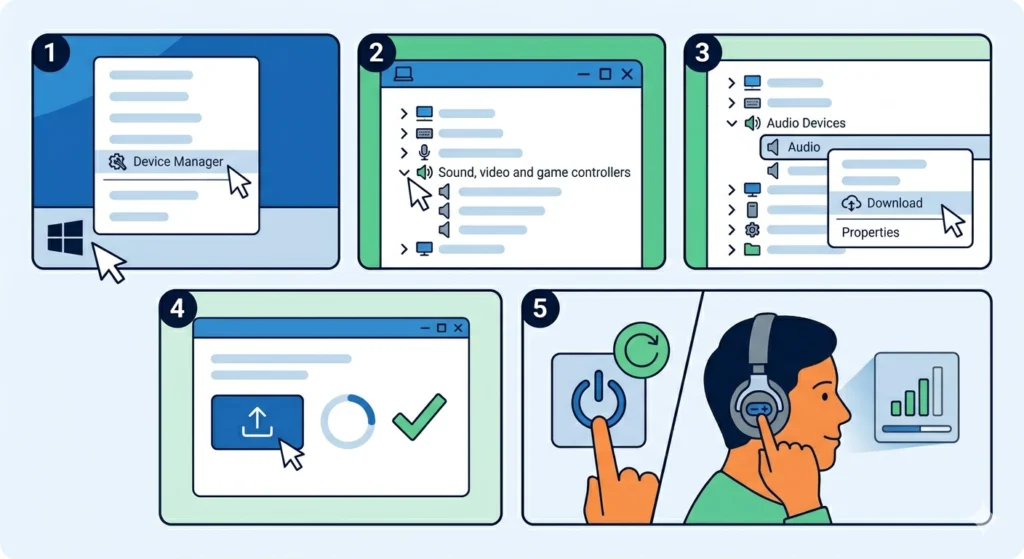
Outdated or corrupted audio drivers can completely break inline remote functionality. The buttons may work at a hardware level but the operating system fails to interpret the signals correctly.
- Step 1: Right-click the Start button and select ‘Device Manager’
- Step 2: Expand ‘Sound, video and game controllers’
- Step 3: Right-click the audio device and select ‘Update driver’
- Step 4: Choose ‘Search automatically for drivers’ and install any available update
- Step 5: Restart the computer and test the headphone volume buttons again
If the update does not help, try uninstalling the driver entirely and restarting – Windows will reinstall a fresh copy automatically on next boot. This clears any corrupted driver state that updates alone cannot fix.
Fix 6: Check for Jack Compatibility Issues (Wired Headphones)
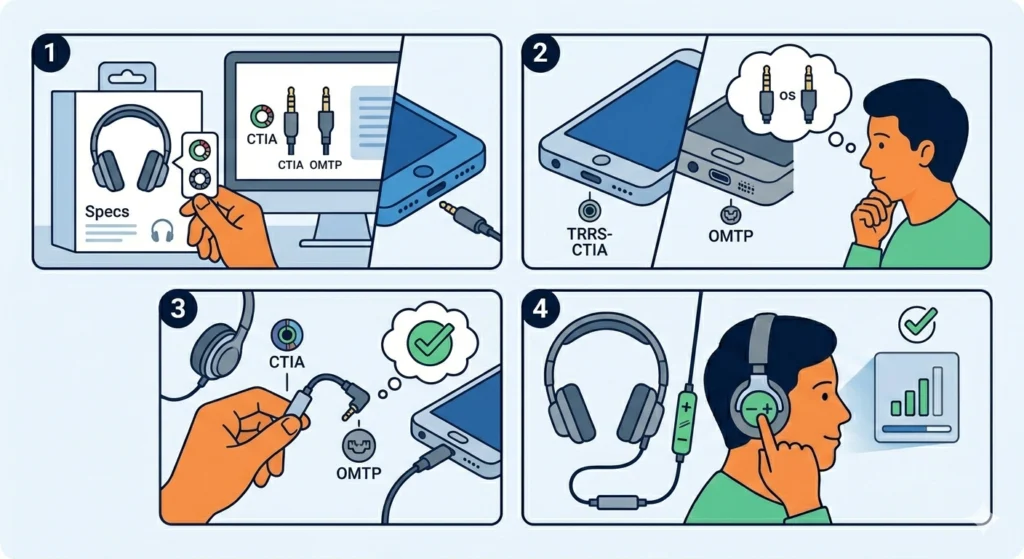
This one catches a lot of people off guard. Wired headphones with inline remotes use either CTIA or OMTP jack standards. When a CTIA headphone is plugged into an OMTP port (or vice versa), volume and mic buttons simply will not work even though audio plays fine.
- Step 1: Check the headphone packaging or manufacturer specs for CTIA or OMTP designation
- Step 2: Compare this to the device’s jack standard – most modern laptops and phones use CTIA (TRRS), but older devices and some Android phones use OMTP
- Step 3: If there is a mismatch, purchase a CTIA to OMTP adapter (these are inexpensive and widely available)
- Step 4: Connect through the adapter and test the buttons
The key giveaway for this problem is when audio works perfectly but every button on the remote is completely unresponsive. No amount of software fixes will resolve a hardware standard mismatch – only using the correct adapter will.
Fix 7: Inspect the Cable and Headphone Jack Port
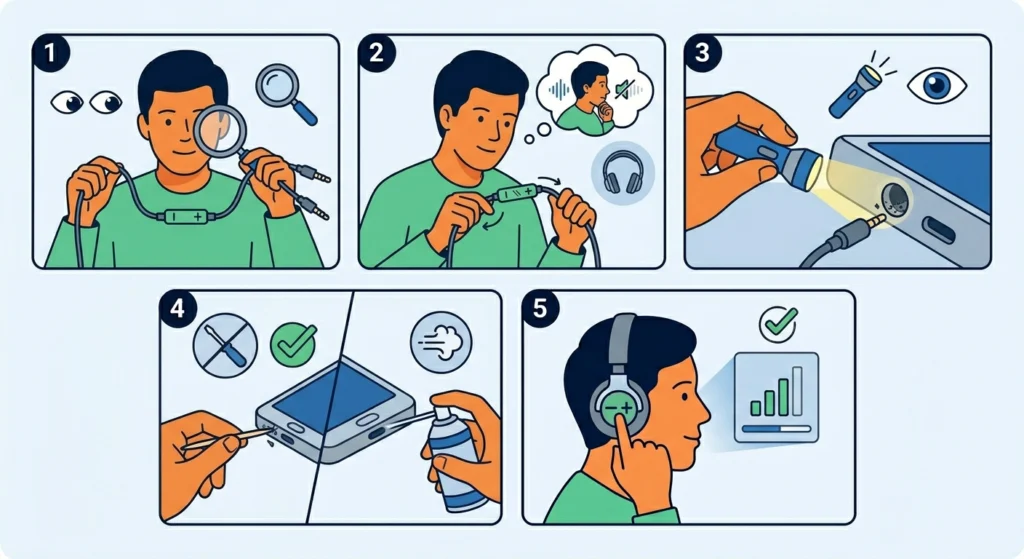
For wired headphones, a bent cable near the remote or debris inside the headphone jack port can interrupt the button signal path entirely.
- Step 1: Visually inspect the cable along its entire length, paying close attention to where it connects to the remote unit and at both ends
- Step 2: Gently flex the cable near the remote – if audio cuts in and out, there is likely a damaged internal wire
- Step 3: Use a flashlight to look inside the headphone jack port on the device for lint, debris, or bent pins
- Step 4: If debris is present, use a toothpick or a blast of compressed air to clear it – never use metal objects
- Step 5: Plug in the headphones again firmly and test all buttons
Pro-Tip: Lint buildup in headphone ports is extremely common on phones kept in pockets. Even a small amount of compressed lint can prevent the jack from seating fully, which cuts off the button signal pins. A single careful pass with a wooden toothpick often restores full functionality instantly.
Fix 8: Test on a Different Device
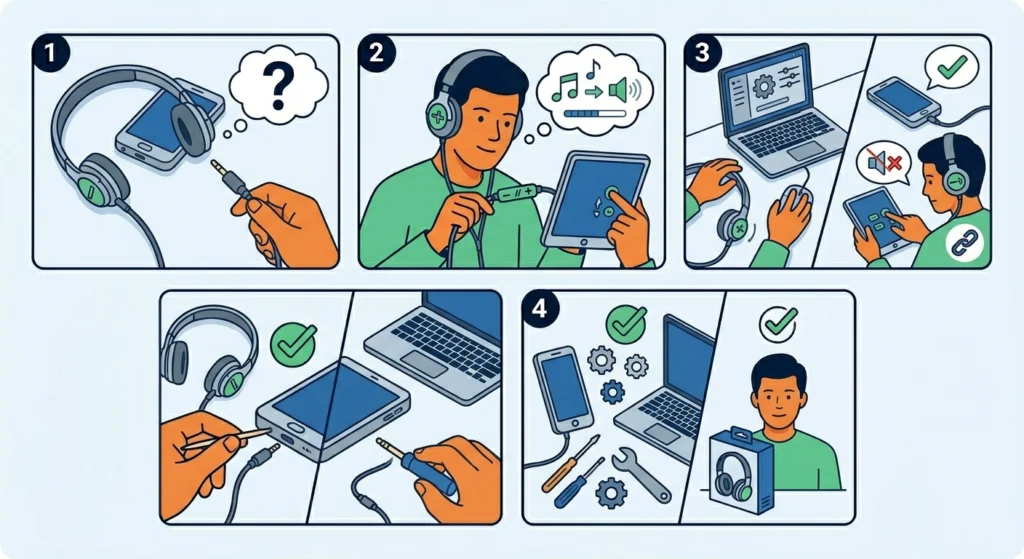
This step quickly identifies whether the problem is with the headphones or the connected device. It takes less than a minute and provides critical diagnostic information.
- Step 1: Connect or pair the headphones to a completely different phone, tablet, or computer
- Step 2: Play audio and test all volume buttons
- Step 3: If buttons work on the second device, the issue is with the original device’s settings or drivers – focus further troubleshooting there
- Step 4: If buttons still do not work on the second device, the headphones themselves need service or replacement
Fix 9: Update Headphone Firmware
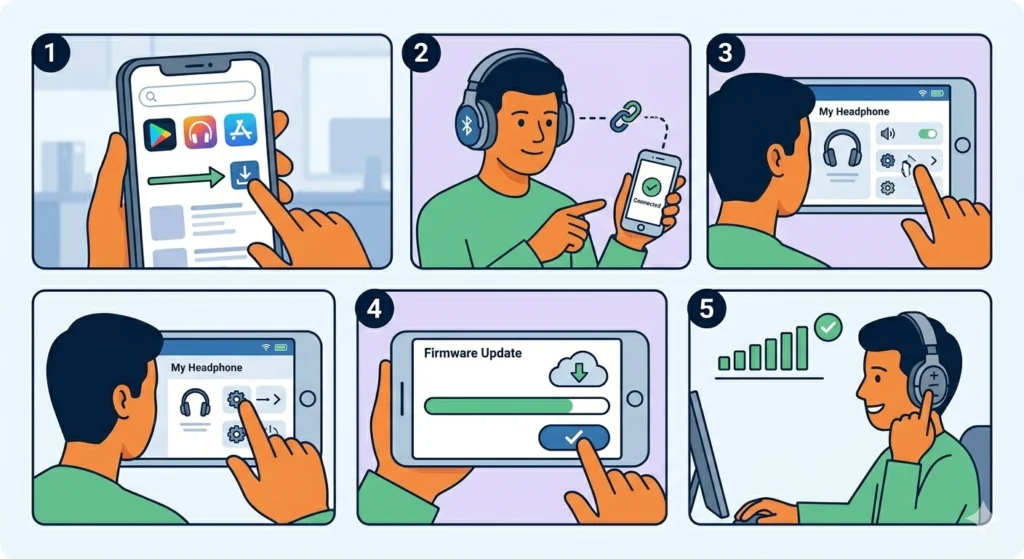
Many modern Bluetooth headphones have companion apps that deliver firmware updates. An outdated firmware version can introduce bugs that affect button responsiveness, and manufacturers frequently release patches specifically for control issues.
- Step 1: Search for the headphone brand’s official companion app (Sony Headphones Connect, Bose Music, JBL Headphones, Jabra Sound+, etc.)
- Step 2: Install the app and connect the headphones
- Step 3: Navigate to the device settings or ‘About’ section within the app
- Step 4: Check for available firmware updates and install any that appear
- Step 5: After the update completes, test volume button response
Tips for Keeping Headphone Buttons Working Long-Term
- Avoid pressing volume buttons with wet fingers – moisture infiltrates the button gaps and causes corrosion over time
- Store headphones in a case rather than loose in a bag – cable bending at the remote unit is a leading cause of button failure
- Clean the buttons every few months with a dry cloth, and do a deeper clean with isopropyl alcohol every 6 months
- Keep the companion app and firmware updated on Bluetooth models – brands like Sony and Bose push control-related fixes regularly
- Avoid wrapping cables tightly around the headphones during storage – this stresses the wiring inside the remote unit
- If the headphone jack port feels loose, get it inspected before it causes permanent connection issues
Common Problems and Solutions
Volume Buttons Work on One Device but Not Another
This is almost always a CTIA/OMTP mismatch for wired headphones, or a Bluetooth profile conflict for wireless models. Try a fresh pairing on the problematic device and confirm the jack standard matches. For Windows 11, checking the audio input device management settings can reveal whether the headphone remote is being misidentified by the operating system.
Only One Button (Volume Up or Down) Stops Working
A single non-functioning button almost always points to physical debris or a stuck button mechanism. Clean thoroughly around the specific button with isopropyl alcohol and a toothpick. If cleaning does not help, the contact pad beneath that button may be worn – this typically requires a repair or replacement.
Volume Buttons Work but Mic or Play/Pause Does Not
This is a common CTIA/OMTP symptom – different pins on the jack correspond to different controls. A partial mismatch can leave some buttons working while others fail. It can also result from an audio driver not recognizing the headset as a headset (with mic) rather than just headphones.
Buttons Respond Inconsistently – Work Sometimes, Not Others
Intermittent response usually indicates a loose internal connection in the cable or a dirty contact. Flex the cable near the remote while pressing a button – if it responds when the cable is in a specific position, there is a wire break inside. For Bluetooth, this can also be a low battery issue causing signal drops in the button transmission.
Buttons Stopped Working After a Windows Update
Windows updates sometimes reset audio driver configurations or change default device assignments. After a Windows update, go to Device Manager, uninstall and reinstall the audio driver, and recheck output device settings. Reviewing how to reset audio settings on Windows 11 provides a full step-by-step recovery process for post-update audio issues.
Frequently Asked Questions
Why did my headphone volume buttons suddenly stop working?
The most common causes are debris buildup around the button contacts, a Bluetooth pairing glitch, outdated audio drivers, or incorrect audio output device settings. Physical button failure without any visible damage is less common than a software or connectivity cause. Starting with a headphone reset and a port cleaning resolves the issue in most cases.
Can I fix unresponsive headphone buttons without opening the headphones?
Yes, in the majority of cases. Cleaning the buttons externally, resetting the firmware, updating drivers, and re-pairing Bluetooth connections are all external fixes. Opening the headphones is only necessary if there is a confirmed broken internal wire or worn contact pad – and that level of repair typically requires professional service or replacement.
Do volume buttons on wired headphones require drivers to work?
Yes, for buttons to control system volume – rather than just app volume – the operating system needs to recognize the headphone remote through the audio driver. On Windows, if drivers are outdated or corrupt, inline controls may stop registering. Updating or reinstalling audio drivers usually restores this functionality.
Will resetting my Bluetooth headphones erase the equalizer settings?
A factory reset on most Bluetooth headphones does erase custom EQ settings, paired device lists, and any personalized configurations stored in the headphone firmware. After resetting, reconnect through the companion app and reconfigure preferences. The audio quality and button function will be fully restored.
Why do headphone volume buttons work on my phone but not on my laptop?
This is usually a driver or audio output configuration issue specific to the laptop. The laptop may not have the correct audio driver installed, or the headphone may be registered as a plain audio output without HID (Human Interface Device) control support. Updating drivers and confirming the headphone is set as the default communications device in Windows sound settings typically resolves this.
How do I know if my headphone remote is CTIA or OMTP?
Check the product packaging or the manufacturer’s specifications page. CTIA (also called AHJ) is the modern standard used by Apple, Samsung, and most current devices. OMTP is older and was used by some Nokia and early Android devices. Visually, both look identical – only the pin assignment inside the 3.5mm plug differs. When in doubt, use a CTIA/OMTP adapter and test both orientations.
Can low battery cause Bluetooth headphone buttons to stop responding?
Yes. When a Bluetooth headphone battery drops very low, the device may maintain audio streaming (which requires less power) while dropping or delaying HID button signals. Charging the headphones fully often immediately restores button response that appeared completely broken.
Is it safe to use isopropyl alcohol to clean headphone buttons?
Yes, isopropyl alcohol at 90% concentration or higher is safe for cleaning headphone buttons externally. It evaporates quickly, does not leave residue, and effectively dissolves oils and grime. Use a cotton swab – never pour or spray liquid directly. Allow a few minutes of drying time before powering the device back on.
What should I do if none of these fixes work?
If all software and cleaning fixes have been attempted and buttons remain unresponsive, the issue is likely a physical hardware failure inside the remote unit – a broken circuit trace or worn contact pad. At this point, check whether the headphones are still under warranty. Most major brands (Sony, Bose, Jabra, JBL) offer warranty replacements for button failures. If out of warranty, contact a local electronics repair shop or consider an authorized service center.
Do all headphone companion apps support firmware updates?
Not all, but most major Bluetooth headphone brands provide companion apps with firmware update functionality. Sony (Headphones Connect), Bose (Bose Music), Jabra (Sound+), JBL (Headphones), and Sennheiser (Smart Control) all support firmware updates through their apps. For budget or lesser-known brands, check the manufacturer’s website for standalone firmware update tools.