
Having an earbud mic not working during phone calls is one of the most frustrating audio issues – especially when the caller on the other end keeps saying they cannot hear you. The good news is that most of the time, this problem has a straightforward fix. This guide walks through every practical solution, step by step, so the mic gets back to working the way it should.
Quick Summary: Key Takeaways
- A dirty or loose earbud connector is the most common cause of mic failure during calls
- Incorrect audio input settings on the device often route the mic away from the earbuds
- Bluetooth earbuds need to be in the correct audio profile (Hands-Free or HFP) for the mic to work
- Restarting or re-pairing the earbuds fixes most Bluetooth mic issues
- Third-party apps and call apps sometimes need manual mic permission granted
- Physical mic damage is the last thing to check – test on another device first
Fix 1: Clean the Earbud Jack or Charging Port
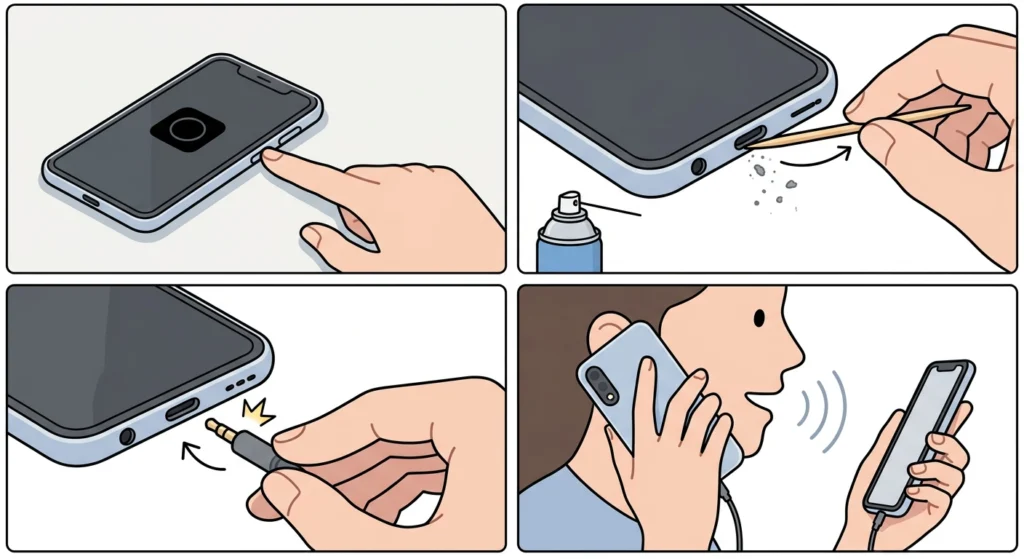
Before diving into settings, start with the physical connection. Lint, dust, and debris inside the headphone jack or USB-C port can block the mic signal entirely. This is one of the most overlooked causes – and one of the easiest to fix.
- Step 1: Power off the device before cleaning
- Step 2: Use a dry toothpick or a short puff of compressed air to gently remove debris from the port
- Step 3: Re-insert the earbud firmly until it clicks or seats fully
- Step 4: Make a test call to check if the mic is now being picked up
Most people find that a partial connection – where the plug is not fully seated – causes the mic to cut out even though audio playback still works fine. Always push the connector all the way in.
Fix 2: Check the Correct Audio Input Is Selected
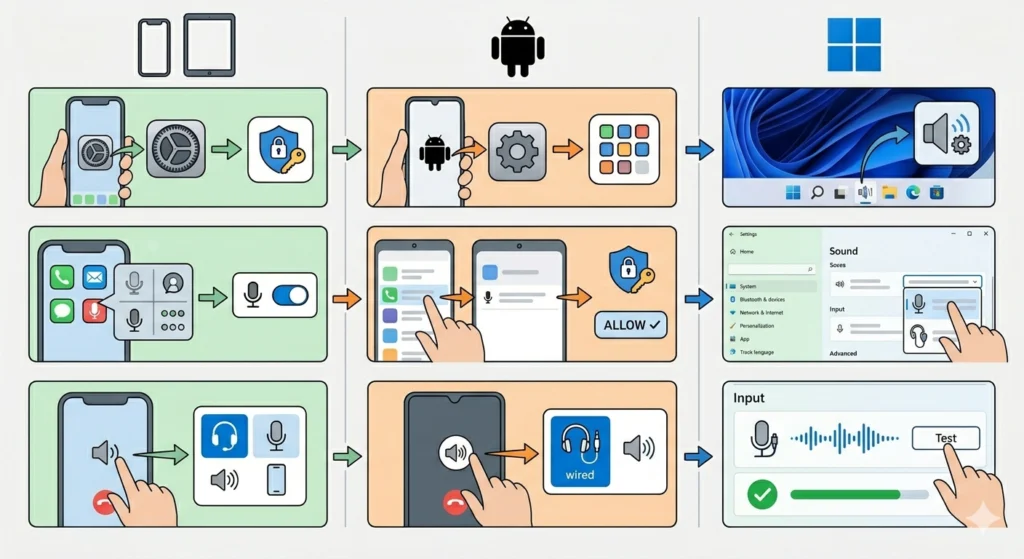
On both mobile devices and computers, the system needs to know which microphone to use. Sometimes after plugging in earbuds, the device still defaults to the built-in mic or a previously connected device.
On iPhone or iPad
- Step 1: Go to Settings, then Privacy and Security, then Microphone
- Step 2: Make sure the Phone app or the specific call app has microphone access turned on
- Step 3: During a live call, tap the audio icon and select ‘Headset’ instead of ‘Speaker’ or ‘iPhone’
On Android
- Step 1: Go to Settings, then Apps, then select the Phone or calling app
- Step 2: Tap Permissions and confirm Microphone is set to ‘Allow’
- Step 3: During a call, check the audio output button and switch it to ‘Wired Headset’ if available
On Windows 11
- Step 1: Right-click the speaker icon in the taskbar and select ‘Sound settings’
- Step 2: Under the Input section, select the earbud mic from the dropdown
- Step 3: Click the mic and run the test to confirm it is receiving audio
For a more detailed walkthrough on Windows, the guide on managing audio input devices on Windows 11 covers every setting in depth.
Fix 3: Fix Bluetooth Earbud Mic Not Working on Calls
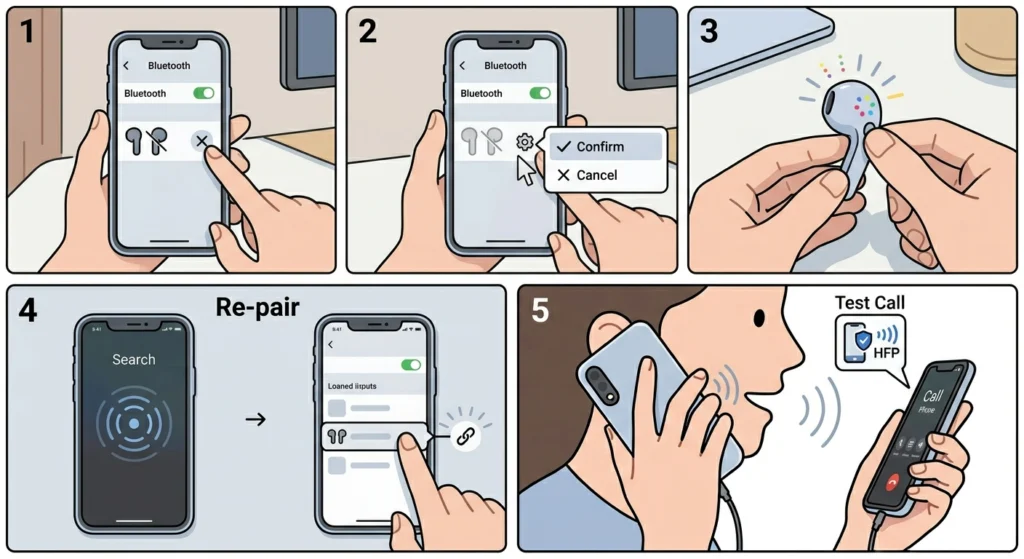
Bluetooth earbuds use different audio profiles depending on what they are doing. For music, they use A2DP (high-quality stereo). For phone calls with mic support, they need to switch to HFP (Hands-Free Profile) or HSP (Headset Profile). When the wrong profile is active, audio plays fine but the mic simply does not work.
- Step 1: Disconnect the Bluetooth earbuds from the device completely
- Step 2: Forget the device in Bluetooth settings
- Step 3: Put the earbuds back into pairing mode (usually by holding the button for 5-7 seconds until the light flashes)
- Step 4: Re-pair the earbuds from scratch
- Step 5: Make a test call immediately after connecting – the device should now default to the Hands-Free profile
If the earbuds keep dropping back to A2DP during calls, the full process of re-pairing Bluetooth earbuds with the correct profile settings can resolve this consistently.
Pro-Tip: On Windows, open Sound settings and under the Input section, look for the earbuds listed twice – once as a ‘Stereo’ device and once as ‘Hands-Free’. Always select the ‘Hands-Free’ version as the input device when making calls. The stereo version disables the mic entirely.
Fix 4: Grant Microphone Permission to the Calling App
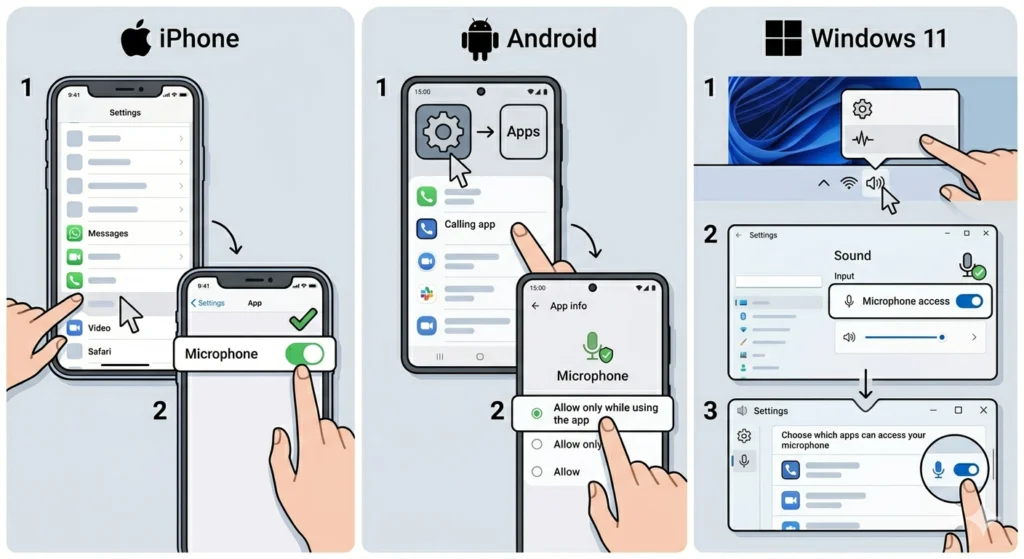
This is especially common with third-party apps like WhatsApp, Zoom, Teams, Discord, or Skype. Even if the system mic is working, the app itself needs explicit permission to access it. Without that permission, calls go through but the other person hears nothing.
On iPhone
- Step 1: Open Settings and scroll down to find the calling app
- Step 2: Tap the app and toggle Microphone to the on position
On Android
- Step 1: Go to Settings, then Apps, then locate the calling app
- Step 2: Tap Permissions, then Microphone, and select ‘Allow only while using the app’
On Windows 11
- Step 1: Go to Settings, then Privacy and Security, then Microphone
- Step 2: Make sure ‘Microphone access’ is toggled on at the top
- Step 3: Scroll down and confirm the specific calling app has access enabled
Fix 5: Update or Reinstall Audio Drivers (Windows)
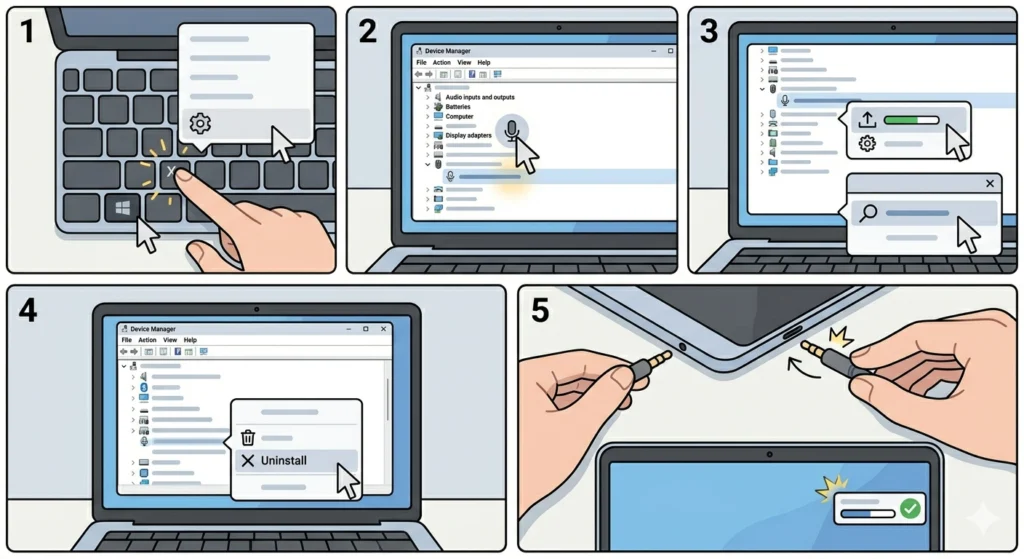
On Windows computers, outdated or corrupted audio drivers are a surprisingly common cause of earbud mic problems. The system might recognise the earbuds for playback but fail to initialise the mic input correctly.
- Step 1: Press Windows + X and select Device Manager
- Step 2: Expand ‘Audio inputs and outputs’ and find the earbud device listed there
- Step 3: Right-click it and select ‘Update driver’, then choose ‘Search automatically’
- Step 4: If the update does not help, right-click again and select ‘Uninstall device’
- Step 5: Disconnect and reconnect the earbuds so Windows reinstalls the driver automatically
If audio input problems persist after updating drivers, the guide on resolving microphone detection problems on Windows 11 covers deeper diagnostic steps.
Fix 6: Reset Audio Settings on the Device
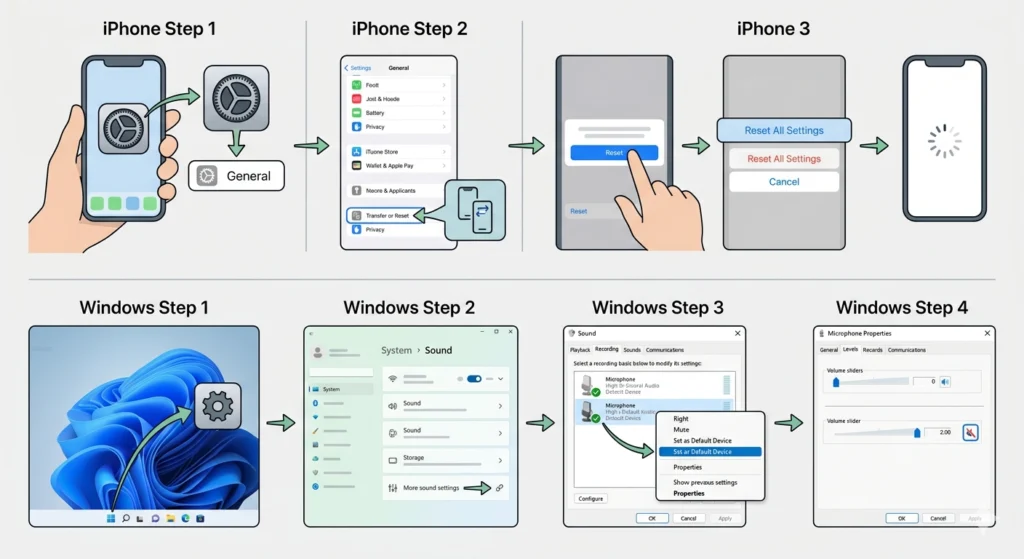
Sometimes audio routing gets stuck in a broken state after a software update or after switching between multiple audio devices. A reset clears out those corrupted preferences without affecting personal data.
On iPhone
- Step 1: Go to Settings, then General, then Transfer or Reset iPhone
- Step 2: Tap ‘Reset’, then select ‘Reset All Settings’
- Step 3: Confirm and let the device restart – this resets audio routing without erasing apps or files
On Windows 11
- Step 1: Open Settings, then System, then Sound
- Step 2: Scroll down and click ‘More sound settings’
- Step 3: Under the Recording tab, right-click the earbud mic and set it as the default device
- Step 4: Click Properties and under Levels, make sure the mic volume is not at zero
For a complete reset process on Windows, the detailed steps for resetting audio settings on Windows 11 walk through every option available.
Pro-Tip: On Windows, the mic boost setting under Recording device properties can make a huge difference. If the earbud mic is being picked up very faintly or not at all, try increasing the mic boost level to +20dB under the Levels tab. This works best with budget earbuds that have weaker built-in microphones.
Tips for Keeping the Earbud Mic Working
- Always insert wired earbuds before starting a call – plugging in mid-call sometimes causes the device to miss the handoff
- Keep the mic hole on the earbud cable clear – it is usually a small pinhole near the inline control module
- Avoid using earbud extension cables – they can introduce resistance that weakens the mic signal
- For Bluetooth earbuds, keep firmware updated through the manufacturer’s companion app
- Test earbuds on a second device to rule out whether the issue is the earbuds or the phone itself
- Restart the calling app fully (force close it) before making calls – background apps can lock the mic input
Common Problems and Quick Solutions
- Mic works on music apps but not on calls: The audio profile is wrong – switch to Hands-Free mode or re-pair the Bluetooth earbuds
- Caller hears crackling or static: The jack is dirty or the cable is damaged near the plug – clean the port or try a different cable
- Mic stops working after a software update: Reset audio settings or update the audio driver
- Only one earbud mic works: Most earbud sets only have one mic, usually in the right earbud – check the manufacturer specs
- Mic works on built-in apps but not third-party apps: Microphone permission has not been granted to that specific app – go to app permissions and enable it
- Bluetooth mic keeps cutting out: Move the phone closer to reduce interference, or check if another Bluetooth device is competing for the connection
Frequently Asked Questions
Why does the earbud mic work for music but not phone calls?
This happens because phone calls and music use different audio pathways. For calls, the device needs the Hands-Free Profile (HFP) on Bluetooth earbuds, or correct input routing on wired earbuds. Music can play through any profile, but mic transmission requires the call-specific profile to be active. Re-pairing the earbuds usually forces the correct profile to load.
How do you know if the earbud mic is broken or if it is a settings problem?
The quickest test is to plug the earbuds into a different phone or laptop and make a test call. If the mic works on the second device, the issue is definitely a settings or permissions problem on the original device. If the mic fails on both devices, the earbud mic hardware is likely damaged.
Can lint in the headphone jack cause the mic to stop working?
Yes, absolutely. The 3.5mm TRRS jack has four contact rings – one of them is dedicated to the mic. If debris is blocking that specific contact, audio can still play through the earbuds while the mic signal is completely cut off. Cleaning the port carefully with a dry toothpick often solves this instantly.
Why is the earbud mic not working on WhatsApp or Zoom but working on regular calls?
Third-party apps need their own separate microphone permission granted. Even if the phone’s mic is active, apps like WhatsApp, Zoom, and Teams need explicit permission to access the input. Go to app settings and enable mic permission for each app that needs it.
Does the earbud need to be plugged in before or after starting a call?
Always plug in or connect the earbuds before starting or answering a call. Most phones detect the audio device when the call begins. If the earbuds are connected mid-call, the system may not re-route the mic in time, and the built-in phone mic stays active instead.
Why does only one side of the earbuds have a working mic?
Most earbuds only include one physical microphone, typically located in the right earbud cable or bud. This is completely normal and by design. Only premium or true wireless earbuds with independent mics in both buds offer dual-mic setups. If the right earbud is the mic side, using only the left earbud during calls will mean no mic input.
Can a phone case block the headphone jack and affect the mic?
Yes, this is more common than expected. Some thicker phone cases have a slightly narrowed headphone jack cutout that prevents the 3.5mm connector from seating fully. The audio might still work (stereo uses the first two contacts) but the mic contact at the base of the plug never connects. Remove the case and test the connection without it.
How do Bluetooth earbud audio profiles affect the mic during calls?
Bluetooth audio devices switch between A2DP (Advanced Audio Distribution Profile) for stereo music and HFP/HSP (Hands-Free or Headset Profile) for calls. A2DP does not support mic input, so if the earbuds stay on A2DP during a call, the caller hears nothing. Forgetting and re-pairing the device usually forces the correct profile handshake when a call begins.
What does it mean when the mic works on speakerphone but not through earbuds?
This confirms the earbud mic itself is the issue, not the phone’s internal mic or call settings. The phone’s speaker mic is working fine but the earbud input is not being recognised. This usually points to a dirty jack, a bad cable connection, or an incorrect audio input setting. Follow the cleaning and audio input selection steps first.
Is there a way to test the earbud mic without making an actual call?
Yes – on iPhone, use the Voice Memos app and record a short clip with the earbuds plugged in. On Android, the built-in voice recorder app works the same way. On Windows, use the Sound settings to run the microphone test under the Input section. These tests confirm whether the mic signal is reaching the device without needing to make a live call.