
Customize touch controls on Sennheiser Momentum True Wireless 3 earbuds directly from the Smart Control app, giving each tap, double tap, and long press a function that actually matches daily listening habits. The touch panel sits right on the Sennheiser logo of each earbud, and once the gestures are set up properly, skipping tracks, answering calls, or switching noise modes becomes second nature.
Key Takeaways
- Touch controls on the Momentum True Wireless 3 are customized through the Sennheiser Smart Control app, not through the earbuds themselves.
- Each earbud can be assigned different gestures, including single tap, double tap, triple tap, and tap-and-hold.
- Firmware needs to be updated to version 2.12.33 or later to unlock the full range of customization options.
- Touch sensitivity issues, like accidental pauses, are usually fixed by adjusting gesture assignments rather than replacing the earbuds.
- The entire setup takes less than five minutes once the app is installed and the earbuds are paired.
Step-by-Step Guide to Customize Touch Controls
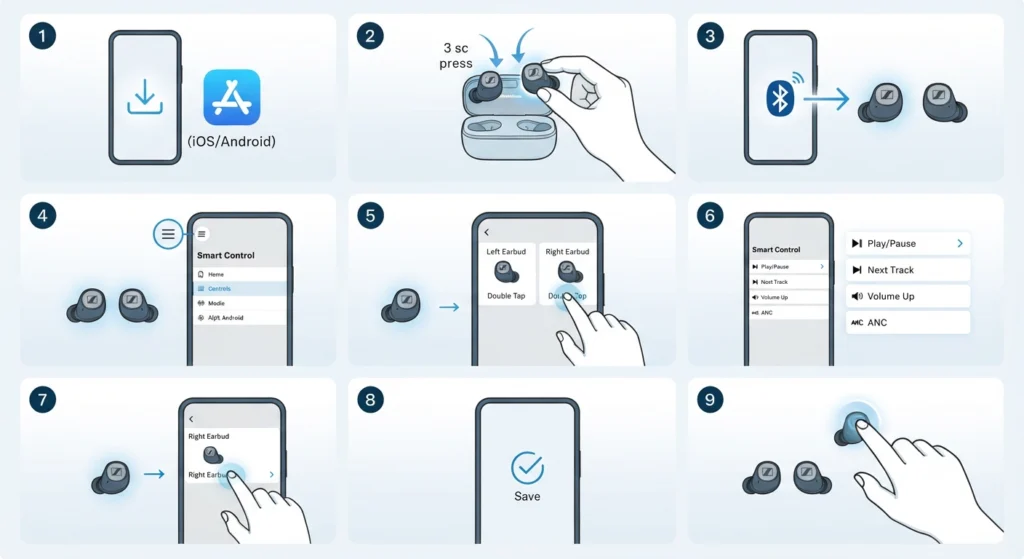
The process below works for both iOS and Android devices, since the Smart Control app layout stays consistent across platforms.
- Step 1: Download the Sennheiser Smart Control app from the App Store or Google Play Store, then install it on the phone or tablet that will be used with the earbuds.
- Step 2: Place the Momentum True Wireless 3 earbuds in pairing mode by taking them out of the charging case and pressing the touch panel on each earbud for about three seconds until a voice prompt confirms pairing.
- Step 3: Open the Smart Control app and connect it to the earbuds through Bluetooth. A firmware update prompt may appear at this stage, and it is worth completing before moving forward, since older firmware versions limit the available gesture options.
- Step 4: Tap the menu icon and select the Controls section, sometimes labeled Earbud Controls, where a list of current gesture assignments for both the left and right earbud appears.
- Step 5: Select a gesture type, such as single tap, double tap, triple tap, or tap-and-hold, on either earbud to open the list of available actions.
- Step 6: Choose the desired function for that gesture from the options provided, which typically include play or pause, next track, previous track, volume up, volume down, activate voice assistant, and toggle ANC or Transparency Mode.
- Step 7: Repeat the assignment process for the other earbud, since left and right buds can hold completely different functions.
- Step 8: Exit the Controls menu once every gesture reflects the intended action. Changes save automatically and sync to the earbuds within a few seconds.
- Step 9: Test each gesture directly on the earbuds to confirm the new controls respond as expected before putting the app away.
Pro-Tip: Assign tap-and-hold to Active Noise Cancellation toggling rather than a quick tap. Long presses are far less likely to trigger by accident when adjusting the earbuds in the ear, which cuts down on random ANC switching during a call or workout.
Default Touch Control Actions on Momentum True Wireless 3
Before any changes are made, the earbuds ship with a standard gesture layout. Knowing the defaults makes it easier to spot what actually needs adjusting.
- Single Tap: Play or pause music, answer or end a call.
- Double Tap: Skip to the next track, reject an incoming call.
- Triple Tap: Return to the previous track.
- Tap and Hold: Adjust volume, activate the voice assistant, or toggle between ANC and Transparency Mode, depending on which earbud is held.
Tips for Getting the Most Out of Custom Touch Controls
Small adjustments in how the earbuds are configured often make a bigger difference than expected. A few practical suggestions:
- Keep the most frequently used action, usually play/pause or ANC toggle, on the simplest gesture, which is the single tap.
- Avoid assigning two very similar gestures, like double tap and triple tap, to actions that get confused easily, such as next track and previous track on the same earbud.
- When switching between a phone and a laptop, checking the paired devices list inside Smart Control helps confirm the earbuds are talking to the correct source before adjusting gestures, and the process to re-pair Bluetooth earbuds for proper stereo sound on a Windows machine follows a similar pairing sequence described in this guide.
- If the earbuds are used mainly during exercise, tap-and-hold gestures tend to work more reliably than quick taps, since sweat and movement can cause single or double taps to misfire.
- Review gesture assignments every few months, especially after a firmware update, since new firmware occasionally adds extra customization slots that were not available before.
Common Problems With Touch Controls and How to Fix Them
Touch control issues on the Momentum True Wireless 3 are usually software related rather than hardware faults. The fixes below cover the situations most people run into.
Fix 1: Touch Controls Feel Too Sensitive
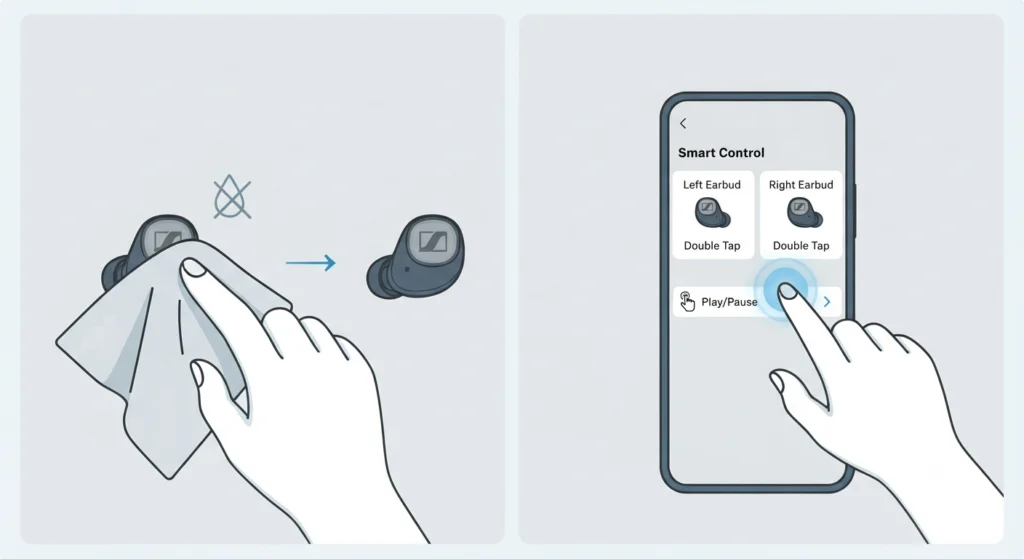
Moisture on the fingers or on the earbud surface is the most common cause of accidental gesture triggers. Wiping the touch panel and hands dry before adjusting the earbuds solves most of these cases. If misfires continue, switching sensitive actions like play/pause to a tap-and-hold gesture through Smart Control reduces accidental activation significantly.
Fix 2: Gesture Changes Do Not Save
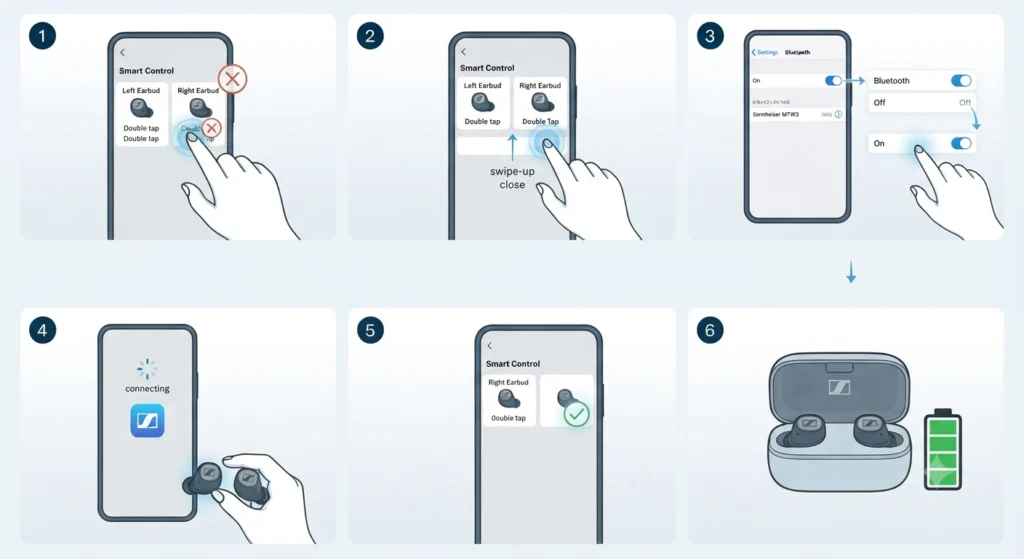
This typically happens when the app loses connection to the earbuds mid-adjustment. Closing the app fully, reconnecting Bluetooth, and reopening Smart Control before repeating the gesture assignment usually resolves it. Confirming the earbuds are fully charged also helps, since low battery can interrupt the sync process.
Fix 3: One Earbud Ignores Touch Commands
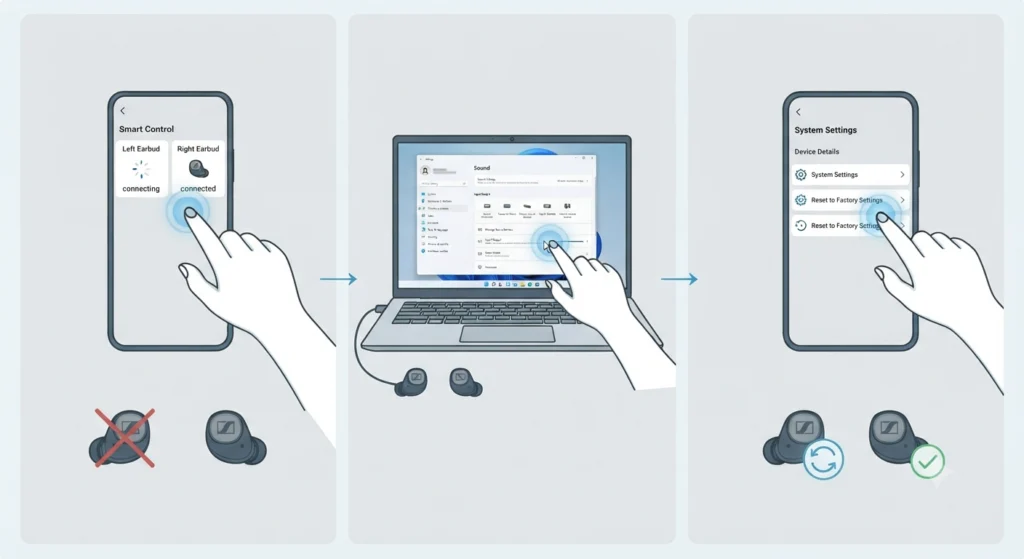
If only one earbud stops responding to gestures, checking the connection status inside the app is the first step. On a Windows 11 laptop, this often overlaps with broader audio configuration issues, and reviewing how to manage audio input devices on Windows 11 can rule out a system-level conflict rather than an earbud fault. A factory reset through Smart Control is the next step if the problem persists.
Fix 4: Voice Assistant Does Not Trigger
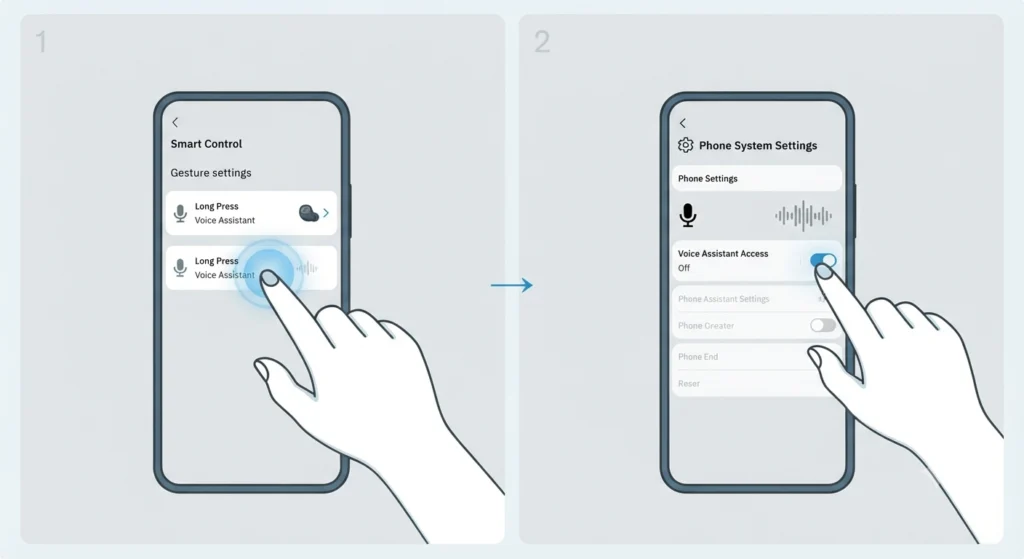
Voice assistant activation depends on both the gesture assignment and the phone’s own assistant settings being enabled. Double-checking that the assistant feature is turned on within the phone’s system settings, in addition to the Smart Control gesture assignment, resolves most cases where nothing happens on a long press.
Frequently Asked Questions
Can touch controls be turned off completely on the Momentum True Wireless 3?
Yes, the Smart Control app allows touch controls to be disabled entirely, which is useful for anyone who experiences frequent accidental taps and prefers to control playback from the connected device instead.
Do left and right earbuds need the same gesture assignments?
No, each earbud can be assigned different actions for the same gesture type. For example, the left earbud could handle volume while the right earbud controls track skipping.
What firmware version is required for full touch control customization?
Firmware version 2.12.33 or later unlocks the complete set of customization options for the Momentum True Wireless 3 inside the Smart Control app.
Why do some gestures stop working after a software update?
Occasionally, an update resets certain preferences to default. Reopening Smart Control and reassigning the affected gestures typically restores the previous setup within a minute.
Is the Smart Control app required to change touch controls?
Yes, there is no way to reassign gestures directly on the earbuds. The Smart Control app is the only method for customizing touch control functions.
Can touch controls be used to switch between Active Noise Cancellation and Transparency Mode?
Yes, this function is available as one of the assignable actions, most commonly set to a tap-and-hold gesture on either earbud.
What should be done if touch gestures stop responding altogether?
Restarting Bluetooth on the connected device and reopening the Smart Control app usually reconnects the earbuds properly. If gestures still fail to respond, a factory reset through the app resolves most remaining cases.
Does adjusting audio output settings affect how touch controls behave?
Not directly, but conflicting playback settings can sometimes make it seem like a gesture failed when audio was simply routed elsewhere. Reviewing how to adjust audio output settings on Windows 11 helps confirm the earbuds are the active playback device before troubleshooting gestures further.
Can the microphone be activated through a custom touch gesture?
The touch controls manage playback, calls, and ANC functions rather than microphone activation directly. If the microphone itself is not being detected, checking a dedicated guide on resolving microphone detection problems on Windows 11 is a more direct path to a fix.
How long does it take to fully customize the touch controls?
Once the app is installed and the earbuds are paired, assigning every gesture typically takes under five minutes.