
Beats Powerbeats Pro not charging is one of the most frustrating issues any earbuds owner can run into – especially right before a workout or commute. The good news is that most charging problems come down to a handful of fixable causes, from dirty contacts to firmware glitches. This step-by-step guide walks through every proven fix so the earbuds can get back to full power as fast as possible.
Key Takeaways
- Dirty charging contacts are the most common cause of Powerbeats Pro not charging
- Resetting the earbuds clears firmware glitches that block charging
- Both the earbuds and the charging case need clean, functional contacts to work
- Using a damaged or non-Apple-certified cable can silently prevent charging
- If nothing works, the battery or case hardware may need Apple service
Fix 1: Clean the Charging Contacts
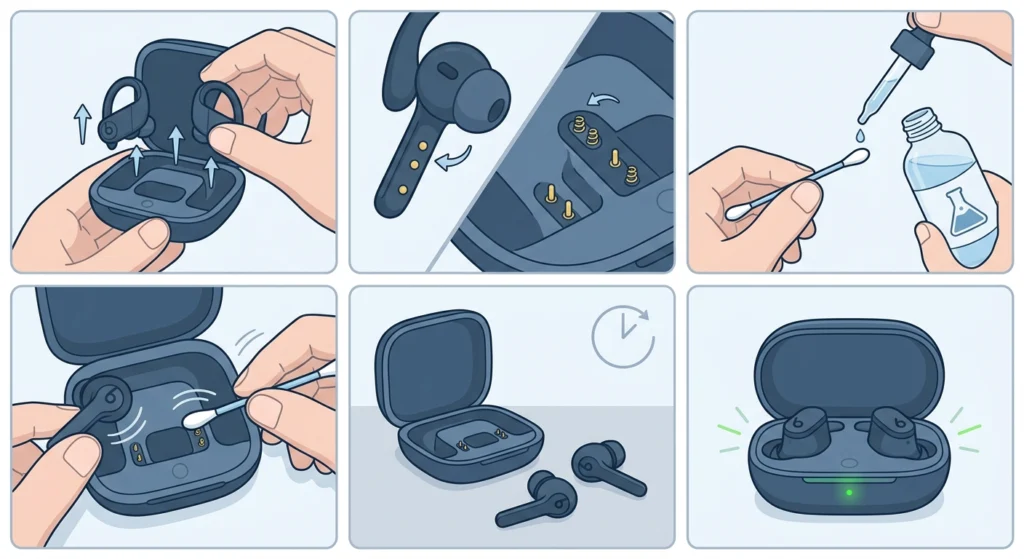
This is the number one fix that solves Powerbeats Pro charging issues for most people. Sweat, dust, and earwax can build up on the metal charging pins inside the case and on the earbuds themselves, breaking the electrical connection completely.
- Step 1: Remove the earbuds from the charging case.
- Step 2: Look at the small metal pins on each earbud and the matching contacts inside the case slots.
- Step 3: Dampen a cotton swab lightly with isopropyl alcohol (70% or higher).
- Step 4: Gently scrub the metal pins on both the earbuds and the inside of the case. Use a dry swab to remove any residue.
- Step 5: Let everything dry for 2-3 minutes before placing the earbuds back in the case.
- Step 6: Check if the LED indicator lights up to confirm charging has resumed.
This works best when done regularly – even once a month – to prevent buildup before it causes problems.
Fix 2: Inspect and Reseat the Earbuds in the Case
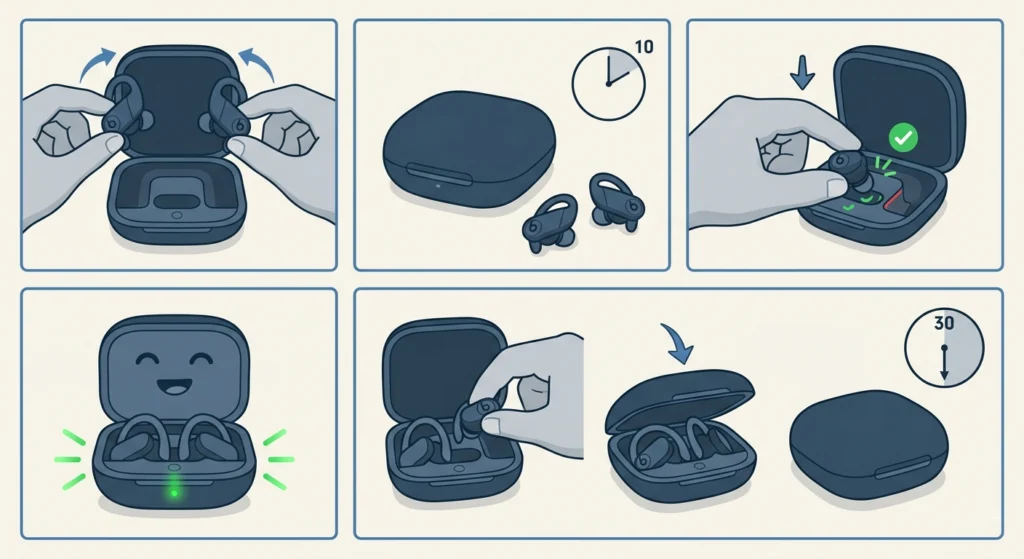
Sometimes the earbuds are simply not seated properly in the charging case. If they are even slightly misaligned, the contacts do not touch, and charging will not start.
- Step 1: Take both earbuds out of the case completely.
- Step 2: Close the case lid and wait 10 seconds.
- Step 3: Open the lid and press each earbud firmly back into its slot. There should be a snug, secure fit.
- Step 4: Close the lid and wait 30 seconds.
- Step 5: Open the lid and check the LED light – a solid or pulsing light means charging is active.
The key is making sure each earbud clicks or settles firmly into place. A loose fit is easy to overlook but causes inconsistent charging every time.
Fix 3: Check and Replace the Charging Cable
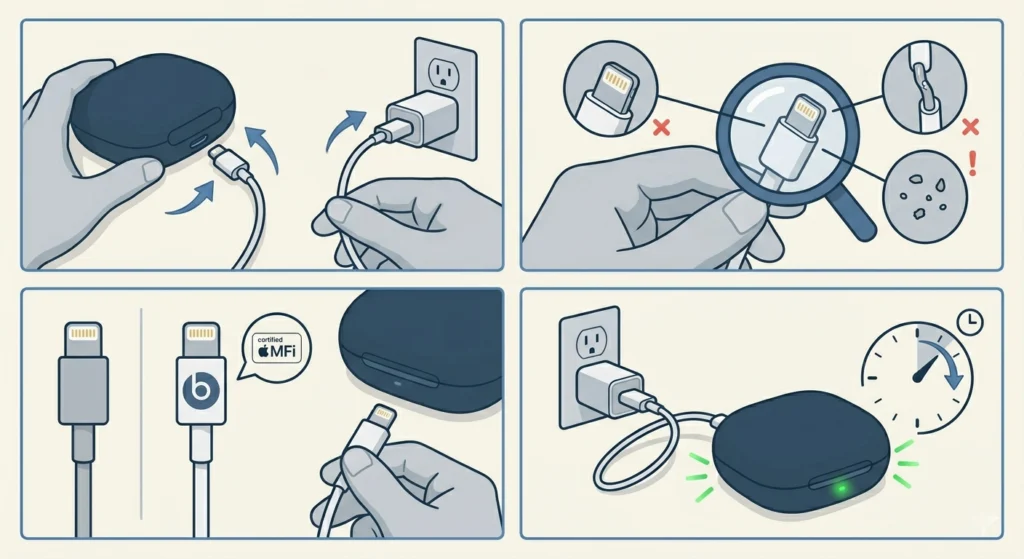
The Powerbeats Pro case charges via a Lightning cable. A faulty, frayed, or uncertified cable is a silent culprit that many people skip past. Third-party cables that are not MFi-certified by Apple can fail to deliver adequate power to the case.
- Step 1: Unplug the current cable from the case and the power adapter.
- Step 2: Inspect the Lightning connector for bent pins, debris, or physical damage.
- Step 3: Try a different Lightning cable – preferably the original Apple cable or an MFi-certified alternative.
- Step 4: Plug the case in and wait up to 2 minutes. The LED should light up if charging starts.
Also try a different power adapter or USB port. Wall adapters can fail silently, and some USB ports on computers deliver too little power to charge the case reliably.
Fix 4: Reset the Powerbeats Pro
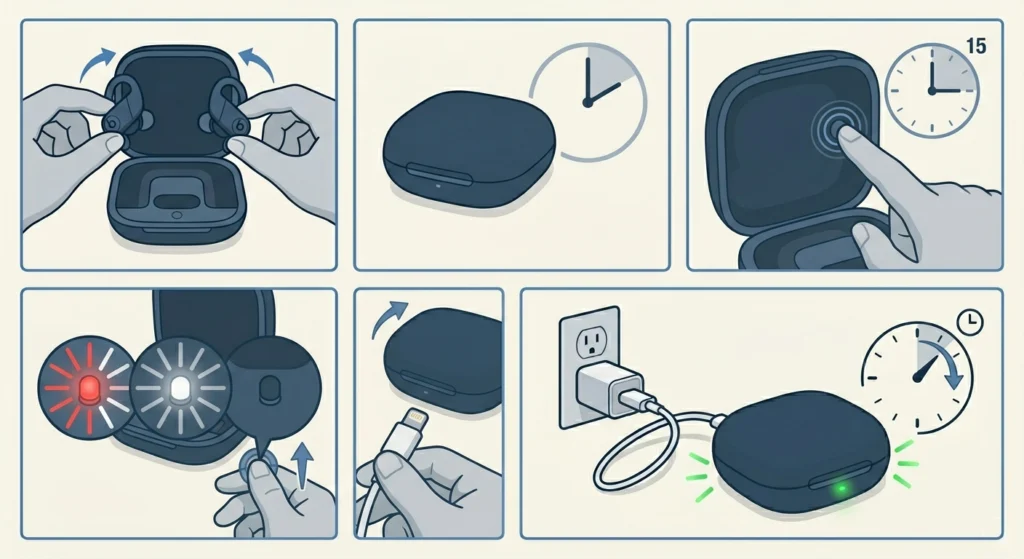
A full reset clears any firmware or software glitch that may be blocking the charging process. This is especially useful when the earbuds show signs of power but refuse to charge past a certain percentage.
- Step 1: Place both earbuds into the charging case and close the lid.
- Step 2: Open the lid after 10 seconds.
- Step 3: Press and hold the system button (located on the inside of the case lid) for about 15 seconds.
- Step 4: The LED light will flash red and white, then turn off. Release the button.
- Step 5: Close the lid and plug the case into power using a working Lightning cable.
- Step 6: Wait a few minutes and check if the charging indicator appears.
After a reset, the Powerbeats Pro will need to be re-paired with any connected device. If re-pairing on a Windows PC, following proper steps to re-pair Bluetooth earbuds for stereo sound on Windows can ensure the connection is restored without audio issues.
Pro-Tip: Always reset with the earbuds inside the case – not outside. Resetting while they are seated helps synchronize both the case firmware and the individual bud firmware at the same time, which produces a more thorough reset.
Fix 5: Charge the Case First (Without Earbuds)
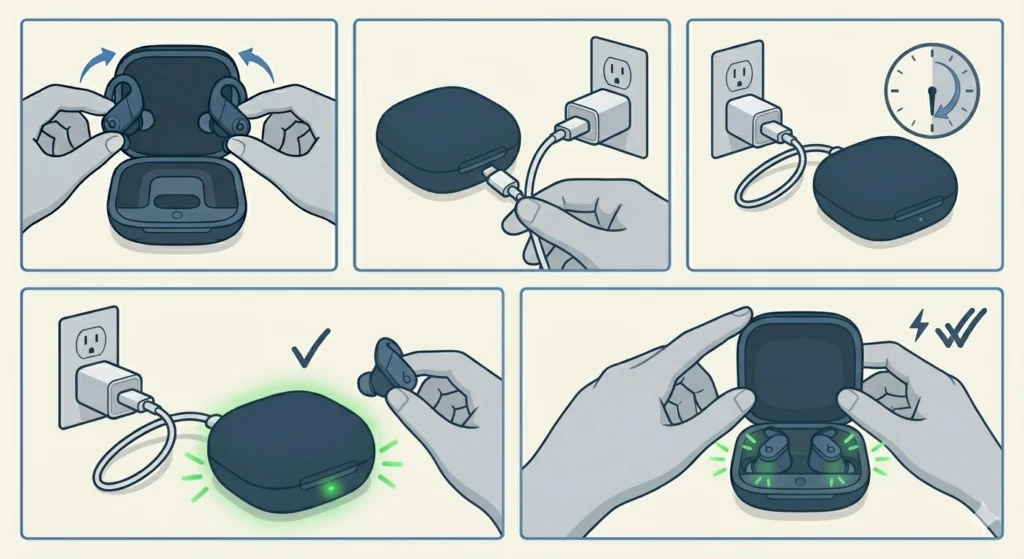
If the charging case battery is completely dead, it cannot charge the earbuds even if everything else is working perfectly. The case needs its own charge to pass power to the earbuds.
- Step 1: Remove both earbuds from the case.
- Step 2: Plug the empty case into a wall adapter using a Lightning cable.
- Step 3: Leave it to charge for at least 30-45 minutes without the earbuds inside.
- Step 4: Once the case LED shows it has power, place the earbuds back in and close the lid.
- Step 5: Check for the charging indicator on each earbud.
Most people find that this step alone fixes what seemed like an earbuds problem – when in reality the case was simply empty.
Fix 6: Update Firmware
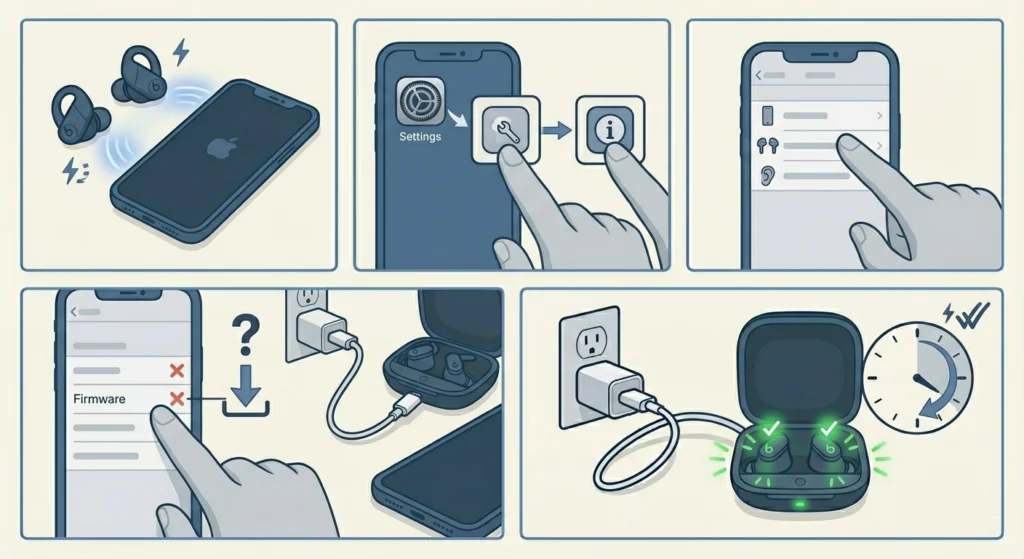
Outdated firmware can sometimes cause charging irregularities. Powerbeats Pro firmware updates through the connected iPhone or iPad automatically, but triggering the update manually can help push through a stuck version.
- Step 1: Make sure the Powerbeats Pro are connected to an iPhone or iPad.
- Step 2: Open Settings and go to General, then About.
- Step 3: Scroll down and tap on Powerbeats Pro.
- Step 4: Note the current firmware version. To prompt a new update, leave the earbuds in the case, the case plugged in, and the iPhone nearby and connected to Wi-Fi.
- Step 5: Apple pushes firmware updates automatically under these conditions – this usually completes within a few hours.
Fix 7: Check for Physical Damage to the Case or Earbuds
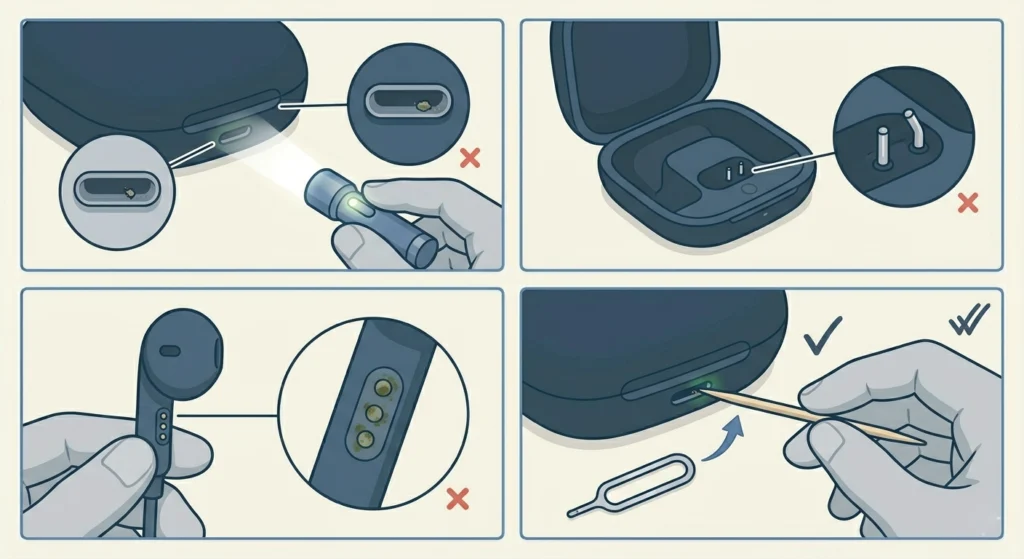
Drops, impacts, or water exposure can damage the charging components inside the case or the earbuds. The Powerbeats Pro are sweat and water resistant, but they are not waterproof – and the charging case has no water resistance at all.
- Step 1: Inspect the Lightning port on the case for debris, corrosion, or bent metal inside the port. Use a flashlight for better visibility.
- Step 2: Look at the charging pins inside the case for any bent or missing pins.
- Step 3: Check the metal charging contacts on the earbuds for corrosion or discoloration.
- Step 4: If debris is present in the Lightning port, use a toothpick or a SIM card removal tool to gently clear it. Never use metal objects that could damage the port.
Pro-Tip: Corrosion on charging contacts often appears as a greenish or darkened residue. Isopropyl alcohol on a cotton swab can remove mild corrosion, but severe oxidation usually means the component needs professional replacement.
Tips for Keeping Powerbeats Pro Charging Consistently
- Wipe down the earbuds and pins with a dry cloth after every workout to prevent sweat buildup.
- Always use the original Apple Lightning cable or an MFi-certified replacement for charging.
- Store the earbuds in the case when not in use – this keeps the contacts protected and the battery topped up.
- Avoid charging the case from low-output USB ports like those on older computers or cheap car chargers.
- Keep the case away from extreme heat or cold, which degrades lithium battery performance over time.
- Never charge the case in humid environments or immediately after heavy sweating – moisture near the Lightning port is a common cause of charging failure.
Common Problems and What They Mean
LED light does not turn on when placed in case
This usually means the contacts are dirty or the case battery is completely drained. Start with cleaning the contacts, then charge the case alone for 30-45 minutes before reinserting the earbuds.
One earbud charges but the other does not
Check the contacts for the non-charging earbud specifically – that slot may have more buildup or a slightly bent pin. Also try swapping the earbuds between slots to see if the problem follows the earbud or stays with the slot.
Earbuds charge to a certain percentage and stop
This often points to a firmware glitch or a degraded battery cell in one earbud. A full reset is the first step. If the issue persists after resetting and updating firmware, the battery may need service.
Case charges but earbuds show 0% even after hours
The earbuds are likely not making proper contact with the case pins. Clean both sets of contacts thoroughly and make sure the earbuds are fully seated. If the problem continues after cleaning, the case pins may be damaged.
Lightning port feels loose or cable falls out
Debris packed into the Lightning port is the most common cause. Carefully clear the port with a toothpick. If the port itself is physically damaged, Apple service or a case replacement is needed.
For users who also experience audio-related issues after resolving charging problems – such as the microphone not being detected – checking a guide for resolving microphone detection problems on Windows 11 can help restore full functionality across all connected devices.
Frequently Asked Questions
Why are Beats Powerbeats Pro not charging in the case?
The most common reasons are dirty or oxidized charging contacts, a completely drained case battery, a faulty Lightning cable, or the earbuds not being seated properly in the case. Cleaning the contacts and reseating the earbuds resolves the issue in most situations.
How do you reset Beats Powerbeats Pro to fix charging?
Place both earbuds in the case, open the lid, and hold the system button on the inside of the lid for about 15 seconds until the LED flashes red and white. Release the button, close the case, and plug it in to check if charging resumes.
How long should Powerbeats Pro take to fully charge?
The earbuds themselves charge fully in approximately 1.5 hours inside the case. The charging case takes about 2 hours to fully charge via Lightning. A 5-minute charge in the case provides around 1.5 hours of playback time.
Can dirty contacts really stop Powerbeats Pro from charging?
Yes – even a thin layer of sweat residue, earwax, or dust on the metal charging pins can break the electrical connection entirely. This is the single most common cause of Powerbeats Pro charging failure and is completely fixable with a cotton swab and isopropyl alcohol.
Does the Powerbeats Pro charging case have its own battery?
Yes. The charging case contains a built-in battery that stores power and transfers it to the earbuds. If the case battery is dead, the earbuds will not charge even if the earbuds themselves are functional. Always charge the case first if the earbuds show no charging activity.
Will a third-party Lightning cable work to charge the Powerbeats Pro case?
Only MFi-certified Lightning cables are guaranteed to work reliably. Non-certified cables may appear functional but can deliver inconsistent power, which causes charging to fail silently. Always use an Apple cable or a cable with the MFi logo.
How do you know if the Powerbeats Pro are charging?
When placed in the case with the lid open, each earbud displays an LED indicator light near the charging contacts. A white light means the earbud is charging. On a paired iPhone, opening the case near the device shows the battery percentage of both earbuds and the case in a pop-up.
What does it mean if only one Powerbeats Pro earbud charges?
It typically means the contacts on that specific earbud or that specific slot in the case are dirty or damaged. Clean both the earbud contacts and the case slot contacts. If the problem persists after cleaning, try the reset method or check for a bent pin in the affected case slot.
Can water damage cause Powerbeats Pro not to charge?
Yes. While the earbuds are sweat and water resistant (IPX4 rated), the charging case has zero water resistance. Any moisture that gets into the case – especially the Lightning port or the charging slots – can cause corrosion and charging failure. Always dry both the earbuds and the case thoroughly before charging.
When should Powerbeats Pro be sent in for repair?
If all of the above fixes have been attempted – cleaning contacts, resetting, checking cables, charging the case separately, and updating firmware – and charging still does not work, there is likely a hardware failure such as a dead battery cell, damaged charging pins, or a faulty Lightning port. At this point, contacting Apple Support or visiting an Apple Authorized Service Provider is the right next step.