
Running a mic test is one of the fastest ways to confirm that a microphone is picking up sound correctly on a Windows PC. Whether preparing for a video call, a recording session, or an online gaming match, verifying that the mic works before jumping in saves a lot of frustration. This guide walks through exactly how to do that on Windows 10 and Windows 11 – no technical background needed.
Key Takeaways
- A mic test can be done directly in Windows Settings in under a minute
- The online mic test tool above gives instant visual feedback through a live waveform
- Windows 11 and Windows 10 have slightly different Settings layouts but follow the same logic
- If multiple mics are connected, make sure the correct one is set as default – see the full guide on managing audio input devices on Windows
- App-level mic permissions can block sound even when hardware is working fine
How to Run a Mic Test on Windows 10 and Windows 11
Windows has a built-in microphone test feature inside the Sound Settings panel. It shows a live input meter so the audio signal is visible in real time. Here is how to access it.
Mic Test on Windows 11
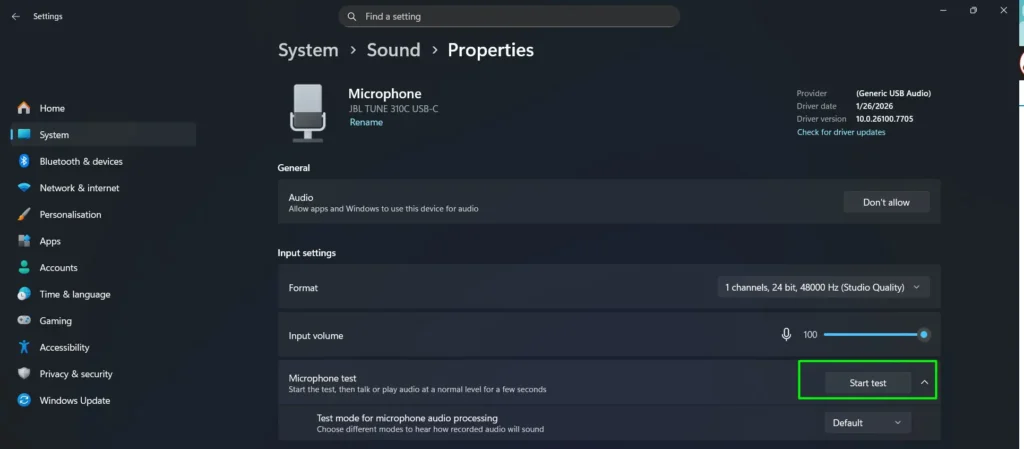
- Step 1: Right-click the speaker icon in the taskbar and select ‘Sound settings’
- Step 2: Scroll down to the ‘Input’ section
- Step 3: Click on the microphone listed under ‘Choose a device for speaking or recording’
- Step 4: Click ‘Start test’ under the ‘Test your microphone’ section
- Step 5: Speak into the mic for a few seconds, then click ‘Stop test’
- Step 6: A percentage result will appear – anything above 0% means the mic is picking up sound
Mic Test on Windows 10
- Step 1: Right-click the speaker icon in the taskbar and select ‘Sounds’
- Step 2: Go to the ‘Recording’ tab
- Step 3: Speak into the microphone and watch the green bar next to the device – if it moves, the mic is active and working
- Step 4: Right-click the mic device and select ‘Properties’
- Step 5: Go to the ‘Levels’ tab to review and adjust the input volume if needed
Pro Tip: If no green bar appears in the Recording tab on Windows 10, right-click on the empty area inside the tab and select ‘Show Disabled Devices’ and ‘Show Disconnected Devices’. A hidden or disabled mic entry may be the reason nothing shows up.
How to Use the Online Mic Test Tool on This Page
The mic test tool at the top of this page offers a faster, more visual way to test a microphone directly in the browser. No installation or downloads are needed – just a browser and a working microphone.
- Step 1: Click the ‘Start Mic Test’ button at the top of the page
- Step 2: When the browser asks for microphone permission, click ‘Allow’
- Step 3: Speak or make a sound near the microphone
- Step 4: Watch the waveform visualizer – it should move in response to sound
- Step 5: Check the volume bar and percentage to see the live input level
- Step 6: Click ‘Stop Mic Test’ when done, or ‘Reset’ to clear the stats and start fresh
The tool also displays Peak Volume, Average Volume, and Duration – useful for checking consistency during longer tests. Most people find that a peak volume of 30% or higher is a healthy level for video calls and recordings.
Pro Tip: No audio from this tool is ever recorded, stored, or sent anywhere. It reads the microphone input in real time for visual feedback only. The permission prompt that appears is a standard browser security step – not a data collection request.
Tips for Getting the Best Mic Test Results
- Test in a quiet environment – background noise can affect readings and make it harder to tell if the mic is working properly
- Position the mic 15 to 30 cm from the mouth for the most accurate volume level reading
- Make sure the mic is not muted in Windows – check for a physical mute button on the device itself and also look at the system tray
- Update audio drivers if the mic test shows inconsistent results – outdated drivers are a common cause of unstable input levels
- For USB microphones, try a different USB port if the mic is not detected during the test
- If the mic works in the browser tool but not in a specific app, the issue is almost always related to enabling microphone permissions for that specific app rather than the hardware itself
- Avoid covering the microphone hole on a laptop – it sounds obvious, but it is one of the most common reasons a mic test returns near-zero levels
Common Microphone Problems and Quick Fixes
Sometimes a mic test reveals an issue. Here are the most frequent problems and the direct fix for each.
Microphone Not Detected
If no microphone appears in the Recording tab or Sound Settings, check the physical connection first. For USB mics, unplug and replug into a different port. For 3.5mm mics, confirm it is plugged into the correct jack – most laptops have a combined headphone and mic jack that requires a 4-pole connector.
Microphone Detected But No Sound
This usually points to a volume or mute issue. Go to Sound Settings, select the microphone, and confirm the input volume is above 50. Also check Windows privacy settings – go to Settings, then Privacy, then Microphone, and make sure the access toggle is turned on.
Microphone Works in Windows But Not in the Browser
Browser mic access is managed separately from Windows. Click the lock icon in the browser address bar and set microphone access to ‘Allow’ for the current site. Some browsers also have a global mic permission setting under their Privacy and Security panel.
Low Microphone Volume
Open Sound Settings, select the microphone, and increase the input volume slider. On Windows 10, go to Recording, then Properties, then Levels, and raise the Microphone Boost value. A boost of +10 dB to +20 dB often resolves low-volume issues. For a deeper look at why microphone detection problems occur, that guide covers the most frequent hardware and software causes in detail.
Microphone Cuts In and Out
This is usually caused by a loose cable, a power-saving setting that turns off USB devices, or an unstable driver. Open Device Manager, locate the audio input device, right-click and select ‘Update driver’. Also check Power Options and disable USB selective suspend when using a USB microphone.
Frequently Asked Questions
How do you do a mic test on Windows 10 or 11?
Right-click the speaker icon in the taskbar and open Sound Settings. Under the Input section, select the microphone and click ‘Start test’. Speak into the mic and the result will show as a percentage. Alternatively, use the online mic test tool at the top of this page for instant live waveform feedback.
Why is the mic test showing 0% in Windows?
A 0% result typically means the microphone is muted, the input volume is set to zero, or the wrong input device is selected. Check the input volume slider in Sound Settings and confirm the correct microphone is chosen. For help switching between multiple devices, see the guide on managing audio input devices.
Is the online mic test tool safe to use?
Yes. The mic test tool on this page runs entirely in the browser. No audio is recorded, stored, or transmitted anywhere. The browser simply reads microphone input for real-time visualization only, and the permission prompt is a standard browser security requirement.
Can the mic test be done without installing any software?
Yes. Windows includes a built-in mic test in Sound Settings that requires no extra installation. The online tool above also works without any downloads, plugins, or browser extensions.
What is a good volume level during a microphone test?
For video calls and online meetings, a peak volume of 30% to 70% is generally ideal. Below 20% may make it difficult for others to hear clearly. Consistently hitting 90% or above can indicate the mic gain is too high, which may introduce distortion or clipping.
Why does the microphone work in Windows but not in Chrome or Firefox?
Browsers control mic permissions independently from Windows. Click the lock or information icon in the browser address bar and set microphone access to ‘Allow’ for the site. Also check the browser’s own settings under Privacy and Security for any global microphone permission blocks.
How do you test a microphone on a laptop?
Laptop microphones are tested the same way as external ones. Open Sound Settings, go to the Input section, and look for the built-in microphone – usually labeled ‘Microphone Array’ or ‘Internal Microphone’. Select it, run the test, and speak close to the microphone holes, which are typically located near the keyboard or along the screen bezel.
What does a flat waveform mean during a mic test?
A flat waveform means no audio signal is being received. This usually indicates the mic is muted, disconnected, disabled in Windows, or that browser permission was denied. Check each of those in order to identify and fix the cause.
Can multiple microphones be tested at the same time?
No. Windows and browser-based tools test one input device at a time. To test a different microphone, switch the default input device in Sound Settings and run the test again for each device.
Does the mic test work on all editions of Windows 10 and Windows 11?
Yes. The built-in Sound Settings mic test and the online tool both work on all editions of Windows 10 and Windows 11, including Home, Pro, and Enterprise versions. No additional features or settings are required.