
If one app cannot hear your microphone while everything else works, the problem is often a Windows microphone permission rather than the microphone itself. Enabling microphone for specific apps in Windows 11 only takes a minute once you know which permission controls your app.
The important part is that Windows handles supported apps and traditional desktop programs differently. Some apps have their own individual microphone toggle, while programs such as Chrome, Zoom, Discord, OBS Studio, and Audacity may use the broader Let desktop apps access your microphone setting instead.
Quick answer: Open Settings > Privacy & security > Microphone. Turn on Microphone access and Let apps access your microphone, then enable the app you want to use. If the app does not have an individual switch, turn on Let desktop apps access your microphone and check the microphone settings inside the app itself.
How to Enable Microphone for Specific Apps in Windows 11
Start with the Windows 11 microphone privacy page. This controls whether Windows and supported apps are allowed to use your microphone.
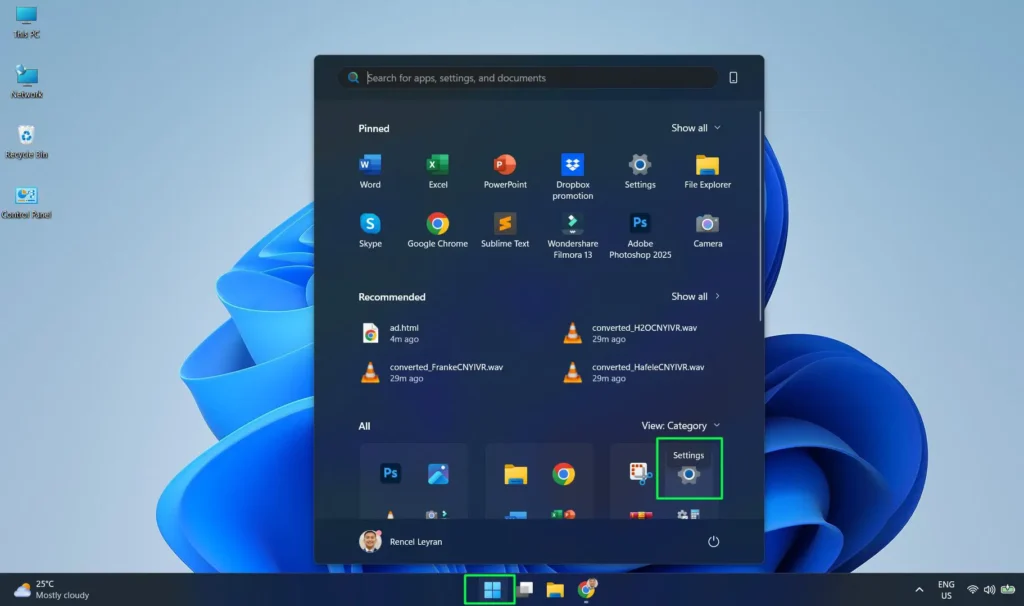
1. Click the Start button on the taskbar, then open Settings. You can also press Windows key + I to open Settings directly.
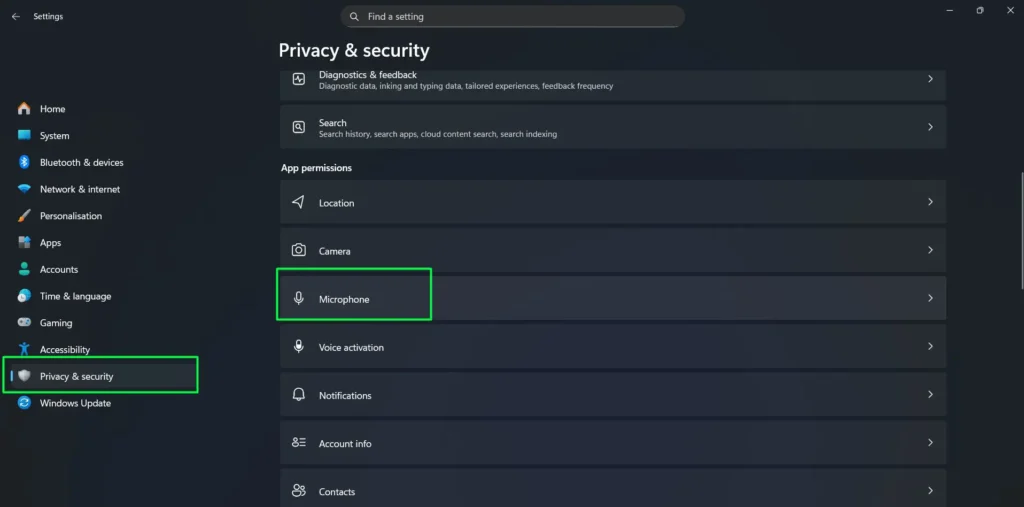
2. Select Privacy & security from the left sidebar.
3. Scroll to the App permissions section and select Microphone.
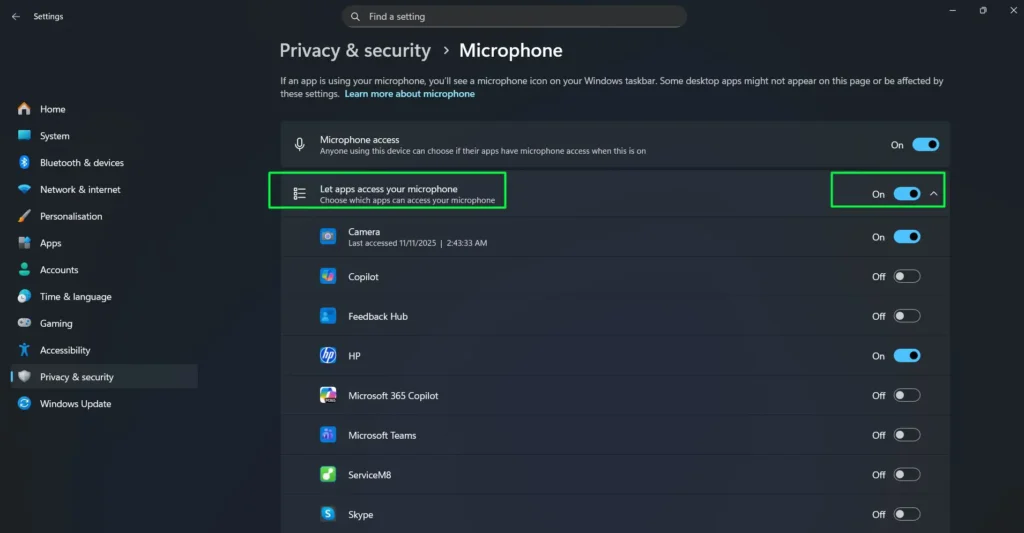
4. Make sure Microphone access is turned On. This is the main device-level permission. If it is off, apps cannot normally use the microphone through Windows microphone permissions.
5. Turn Let apps access your microphone On.
6. If you are using a traditional desktop program, scroll down and make sure Let desktop apps access your microphone is also turned On.
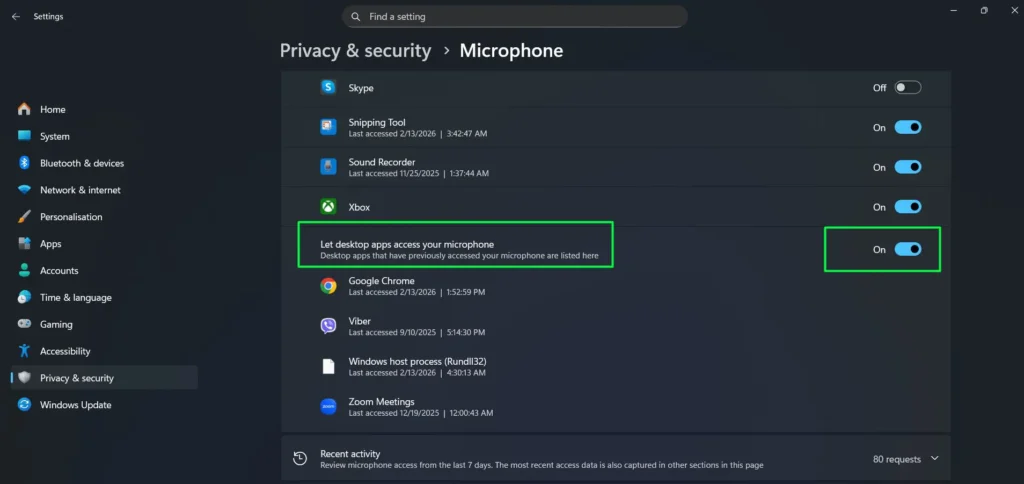
7. Under Let apps access your microphone, find the app you want to use and turn its individual switch On, if Windows provides a toggle for that app.
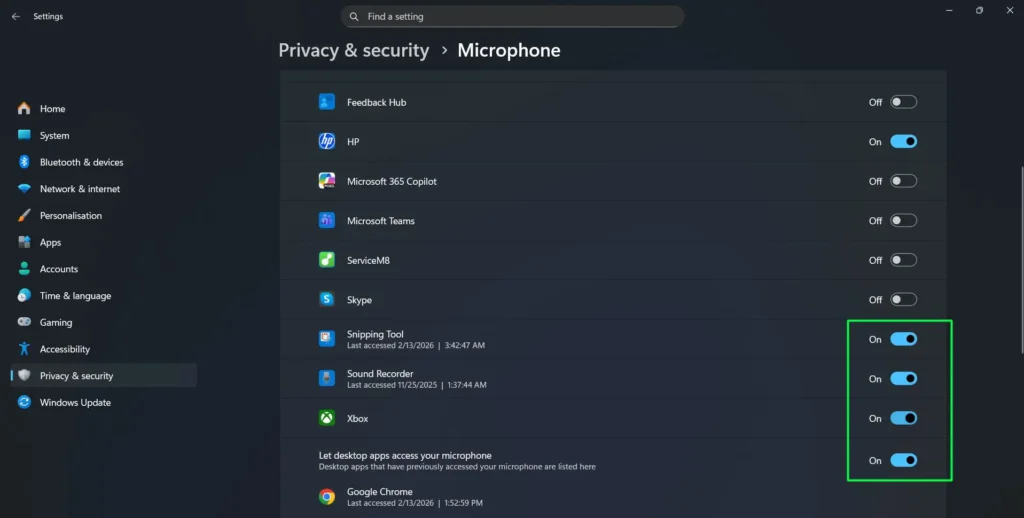
After changing the permission, close the affected app completely and reopen it. You normally do not need to restart Windows, but restarting the app helps it detect the updated permission state.
Important: If the program you want to use does not appear with an individual switch, that does not necessarily mean anything is wrong. It may be a traditional desktop app, which Windows handles differently.
Why Isn’t My App Showing in Microphone Permissions?
This is one of the most confusing parts of enabling microphone access in Windows. Not every program appears in the same permission list, and not every program can be enabled or disabled individually from the Windows microphone privacy page.
Apps With Individual Microphone Permissions
Windows can show individual microphone switches for supported apps under Let apps access your microphone. When an app appears here, you can turn microphone access on for that app while leaving another supported app turned off.
If the app you need appears in this section, simply turn its switch On.
Traditional Desktop Apps
Traditional Windows desktop programs work differently. Examples commonly include programs such as Google Chrome, Discord, Zoom, OBS Studio, Audacity, and other software installed as standard desktop applications.
Windows does not normally give these programs the same individual microphone on/off switches. Instead, the Let desktop apps access your microphone setting applies to the desktop-app group.
That means you may not be able to allow one traditional desktop app and block another using the Windows microphone privacy page alone. For more control, check the microphone or privacy settings inside the individual program.
Windows may also show desktop programs that have interacted with the microphone underneath this setting. However, seeing a program listed there does not mean Windows gives it a separate toggle.
How to Enable Microphone Access for Desktop Apps
If Zoom, Chrome, Discord, OBS, Audacity, or another desktop program cannot use your microphone, check the desktop-app permission.
- Press Windows key + I to open Settings.
- Go to Privacy & security > Microphone.
- Make sure Microphone access is On.
- Make sure Let apps access your microphone is On.
- Scroll down and turn Let desktop apps access your microphone On.
- Close and reopen the program that needs microphone access.
If the microphone still does not work, open the application’s own audio settings and confirm that the correct microphone is selected. Windows can allow microphone access while an app is still configured to use the wrong input device.
Fastest Way to Open Microphone Settings
You do not have to navigate through several Settings pages every time. Windows Search can open the microphone privacy page directly.
1. Press Windows key + S and type Microphone privacy settings.
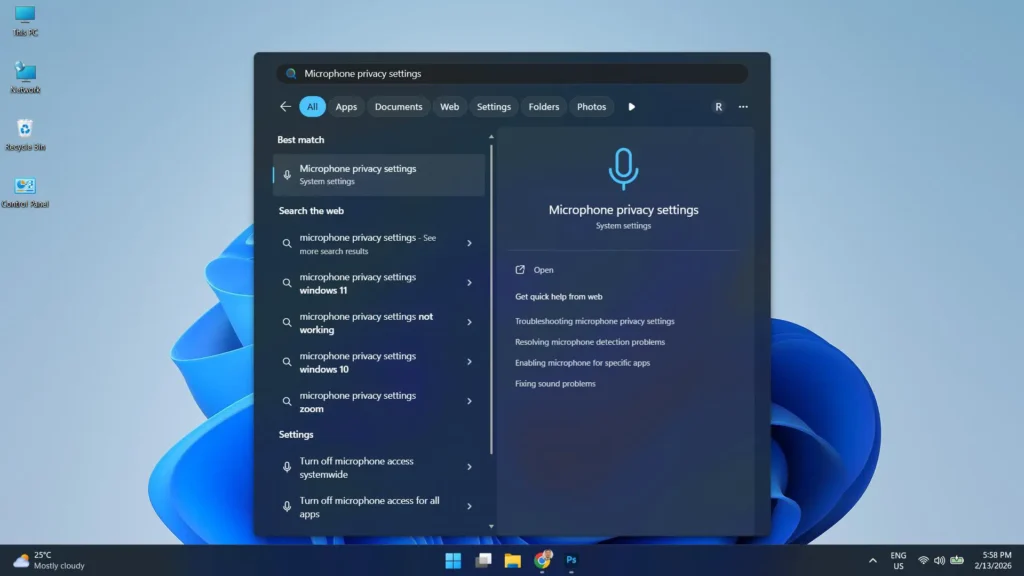
2. Press Enter or select Microphone privacy settings from the search results.
3. Check the master microphone permission, then locate the app you want to manage if it has an individual toggle.
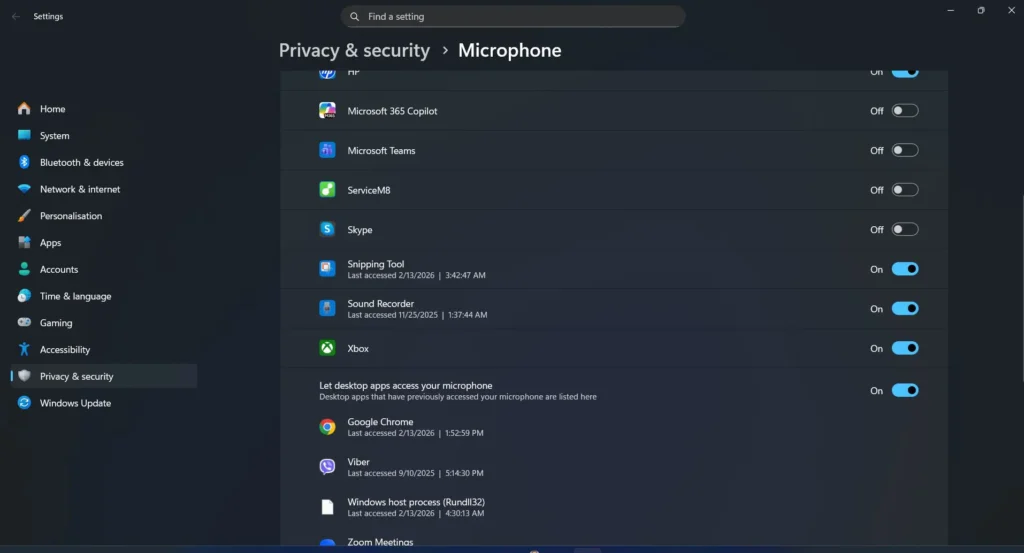
This shortcut is especially useful when you regularly switch microphone permissions while troubleshooting calls, recordings, or newly installed apps.
How to Enable Microphone for Chrome, Edge, and Websites
Browser microphone access has an extra permission layer. Even if Windows allows Chrome or Microsoft Edge to use the microphone, an individual website can still be blocked from using it.
Think of the permission chain like this:
- Windows permission allows the browser to access the microphone.
- Browser permission controls whether websites can request microphone access.
- Website permission determines whether a specific site can actually use the microphone.
Enable Microphone for a Website in Google Chrome
- First make sure Let desktop apps access your microphone is enabled in Windows.
- Open Chrome.
- Open Settings > Privacy and security > Site settings.
- Under Permissions, select Microphone.
- Check whether the website is listed as blocked. If it is, change its microphone permission to Allow.
- Return to the website and reload the page.
If Chrome displays a microphone permission prompt when you first open a call, recorder, voice chat, or other microphone-enabled page, choose the appropriate Allow option if you trust the website and want it to use your microphone.
Enable Microphone for a Website in Microsoft Edge
Microsoft Edge also asks websites to request microphone access separately. Open the website and select Allow when Edge asks whether the site can use your microphone.
If you previously blocked the site, open Edge settings, review its site permissions, and change the site’s microphone permission back to Allow. Then reload the page.
This is why a microphone can work perfectly in one website but remain blocked in another website using the same browser.
Microphone Enabled but Still Not Working in One App?
If Windows microphone permissions are already enabled but only one application still has no audio, do not immediately reinstall the microphone driver. A problem affecting only one app is more likely to be an app-level input or permission issue.
- Close and reopen the app. Some programs need to restart before they recognize a permission change.
- Check the microphone selected inside the app. Zoom, Discord, Teams, recording programs, games, and other communication apps commonly have their own input-device selector.
- Check the Windows input device. Go to Settings > System > Sound and verify that the correct microphone appears under Input.
- Check browser site permissions. If the problem happens in Chrome or Edge, make sure the website itself has microphone access.
- Check for a physical mute button. Headsets, USB microphones, laptops, and keyboards can have hardware microphone-mute controls.
- Test the microphone outside the affected app. If it works elsewhere, the hardware and Windows input path are probably functioning and the problem is more likely specific to that application.
If Windows cannot detect the microphone at all, that is a different problem. Follow our guide to resolve microphone detection problems in Windows for connection, driver, Device Manager, Bluetooth, USB, and hardware troubleshooting.
How to Test the Microphone After Changing Permissions
Testing the microphone immediately after changing permissions helps separate a Windows problem from an app-specific problem.
- Open Settings > System > Sound.
- Find the Input section.
- Select the microphone you want to use.
- Speak into the microphone and check whether Windows detects an input signal.
You can also use our online microphone test to check whether your browser can access the microphone and receive audio. When prompted by the browser, allow microphone access for the test page.
If the microphone works in Windows and in the browser test but fails in only one program, focus on that program’s microphone selection and permissions rather than reinstalling hardware drivers.
How Microphone Permissions Work for Popular Apps
The exact setup depends on how the application is installed and packaged, but these are the permission layers you will commonly need to check:
| App or Service | What to Check |
|---|---|
| Google Chrome | Windows desktop-app microphone access, Chrome microphone permission, and the individual website permission |
| Microsoft Edge | Windows microphone access plus the individual website permission in Edge |
| Zoom | Windows microphone permission and the microphone selected inside Zoom |
| Discord | Windows microphone permission and the input device selected in Discord Voice & Video settings |
| Microsoft Teams | Windows microphone permission plus the microphone selected in Teams; web versions also require browser site permission |
| OBS Studio | Windows desktop-app access and the correct audio input capture device inside OBS |
| Audacity | Windows desktop-app access and the correct recording device selected in Audacity |
If an app has both a Windows permission and its own microphone selector, both need to be configured correctly.
How to Check Which Apps Have Used Your Microphone
The Microphone privacy page can also help you identify apps that have interacted with the microphone. Windows may display recent activity or last-access information for supported apps and desktop programs it has detected.
Open Settings > Privacy & security > Microphone and review the activity information shown on the page. This can help confirm whether Windows has detected microphone use from the app you are troubleshooting.
Keep in mind that desktop apps do not behave exactly like individually permissioned apps, and Windows may not display every desktop program in the same way.
How to Enable Microphone Access for Apps in Windows 10
Windows 10 uses similar microphone permissions, although the Settings layout is different from Windows 11.
- Open Start > Settings > Privacy.
- Select Microphone.
- Make sure microphone access for the device is enabled.
- Turn on the setting that allows apps to access the microphone.
- Enable the individual supported app you want to use.
- For traditional desktop programs, make sure desktop-app microphone access is also enabled.
Microsoft ended standard support for Windows 10 on October 14, 2025. The operating system can still run, but Windows 11 is Microsoft’s currently supported Windows version for most PCs that meet its requirements.
Frequently Asked Questions
How do I allow only one app to use my microphone in Windows 11?
Open Settings > Privacy & security > Microphone, make sure microphone access is enabled, and use the individual toggle for the app if Windows provides one. Traditional desktop apps generally cannot be individually controlled from this page and instead use the shared desktop-app microphone setting.
Why isn’t my app showing under microphone permissions?
If the app does not appear with an individual switch, it may be a traditional desktop application. Turn on Let desktop apps access your microphone and then check the microphone settings inside the program itself.
Can I allow one desktop app to use the microphone but block another?
Windows does not normally provide individual microphone privacy toggles for traditional desktop apps. The Let desktop apps access your microphone setting applies broadly to supported desktop programs. Check each application’s own privacy or microphone settings when available.
Why does Chrome still say my microphone is blocked?
Chrome has its own website permissions in addition to Windows microphone permissions. Make sure Windows allows desktop apps to use the microphone, then open Chrome’s Privacy and security > Site settings > Microphone settings and allow the website that needs microphone access.
Why is my microphone enabled but not working in Zoom, Discord, or another app?
The app may be using the wrong input device even though Windows permission is enabled. Open the application’s audio or voice settings and select the correct microphone. Also confirm the same microphone appears under Settings > System > Sound > Input.
Do I need to restart Windows after changing microphone permissions?
Usually not. The permission change normally applies immediately. However, close and reopen the affected app so it can detect the new permission state.
How can I tell if the problem is the app or the microphone?
Test the microphone in Windows Sound settings or with a microphone test tool. If the microphone works there and also works in other programs, the issue is probably related to the affected app’s permission, selected input device, or browser site permission rather than the microphone hardware.