
Wireless earbuds not connecting after reset is one of the most common frustrations Bluetooth audio users run into. The reset was supposed to fix things – but now the earbuds won’t pair at all. The good news is that this is almost always a simple pairing issue, not a hardware problem. This step-by-step guide walks through exactly what to do to get them reconnected.
Quick Summary Table
| Issue | Root Cause | Fix |
|---|---|---|
| Earbuds not showing up to pair | Not in pairing mode after reset | Hold the button until light flashes |
| Device still sees old pairing | Saved Bluetooth profile not cleared | Remove from device Bluetooth list |
| Earbuds connect but no audio | Wrong audio profile active | Set output device manually |
| One earbud connects, other doesn’t | Earbuds not synced to each other | Re-sync both earbuds together first |
| Pairing fails repeatedly | Device Bluetooth cache issue | Toggle Bluetooth off and on |
Step-by-Step: How to Fix Wireless Earbuds Not Connecting After Reset
After a factory reset, earbuds forget every device they were ever paired with. The device they need to reconnect to, however, still remembers the old pairing profile. That mismatch is the main reason the connection fails. Follow each step below in order for the fastest result.
Fix 1: Put Earbuds Into Pairing Mode Correctly
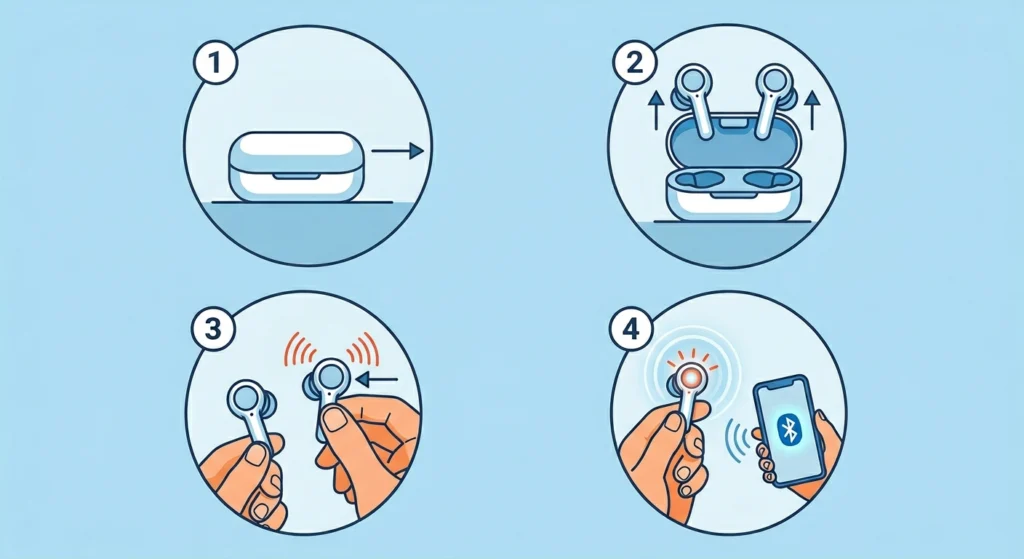
This is the step most people skip. After a reset, earbuds don’t automatically go into pairing mode – they need to be manually triggered. The key is to hold the pairing button long enough.
- Step 1: Place both earbuds in the charging case and close the lid for 10 seconds.
- Step 2: Open the lid and take both earbuds out.
- Step 3: Press and hold the button on the earbuds (or the case button, depending on the brand) until the LED flashes rapidly – usually alternating white and red, or solid white flashing.
- Step 4: The rapid flashing means pairing mode is active. Move quickly to the next step.
Most earbuds stay in pairing mode for only 2 to 3 minutes before timing out. If the light stops flashing before pairing is complete, repeat this step.
Fix 2: Remove the Old Pairing from the Device
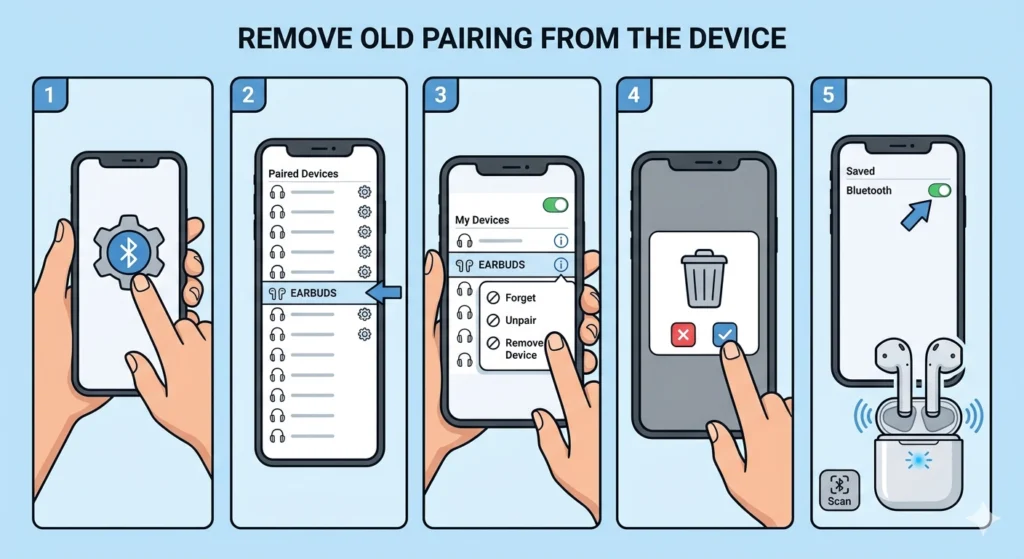
The device still holds the old Bluetooth profile from before the reset. When it tries to reconnect, it uses that old data – which the earbuds no longer recognize. Removing the saved pairing clears that conflict.
- Step 1: Open Bluetooth settings on the phone, tablet, or computer.
- Step 2: Find the earbuds in the ‘Paired Devices’ or ‘My Devices’ list.
- Step 3: Tap the info icon or press ‘Forget’, ‘Unpair’, or ‘Remove Device’ – the label varies by operating system.
- Step 4: Confirm the removal. The earbuds should disappear from the saved list.
- Step 5: Now put the earbuds back into pairing mode (Fix 1) and scan for new devices.
On Windows 11, if the earbuds connect but audio still routes to the wrong output, check the guide on adjusting audio output settings to make sure the right device is selected.
Fix 3: Re-Sync Both Earbuds to Each Other First
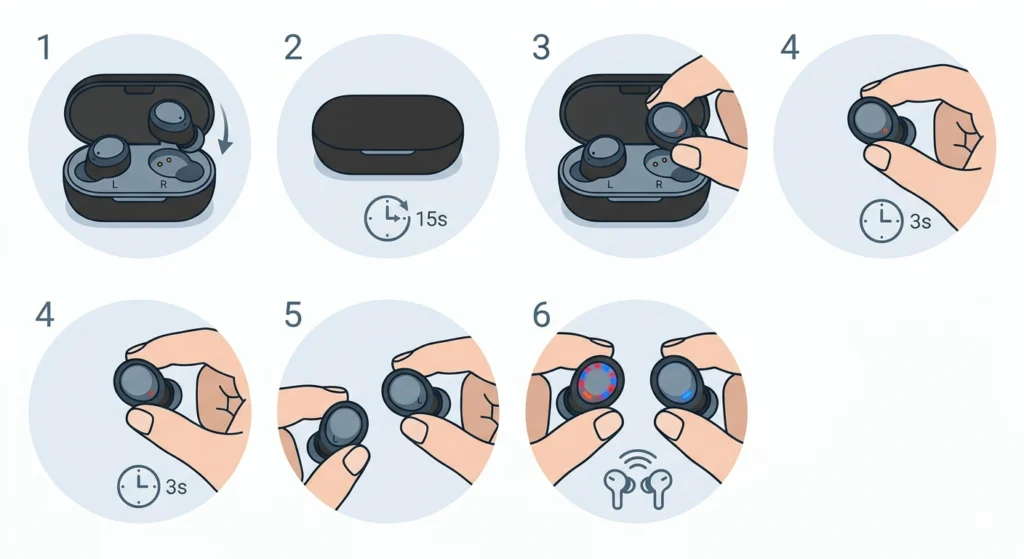
True wireless earbuds (left and right separate buds) need to sync with each other before either one can pair to a device. After a reset, that sync between the two buds is also wiped. This is why one earbud connects fine but the other stays silent or disconnects immediately.
- Step 1: Put both earbuds back in the case and close the lid.
- Step 2: Wait 15 seconds, then open the case with both earbuds inside.
- Step 3: Take out the primary earbud first (usually the right one – check the manual to confirm).
- Step 4: Wait 3 seconds, then take out the second earbud.
- Step 5: The two earbuds should connect to each other automatically, with one LED flashing and the other staying solid.
- Step 6: Once synced, put them into pairing mode and connect to the device.
This works best when both earbuds start from a fully charged state. Low battery on one earbud can interrupt the sync process mid-attempt.
For users pairing earbuds to a Windows PC for stereo sound specifically, this guide on how to re-pair Bluetooth earbuds for stereo sound on Windows covers the additional steps needed to get both channels working properly.
Fix 4: Toggle Bluetooth Off and On at the Device
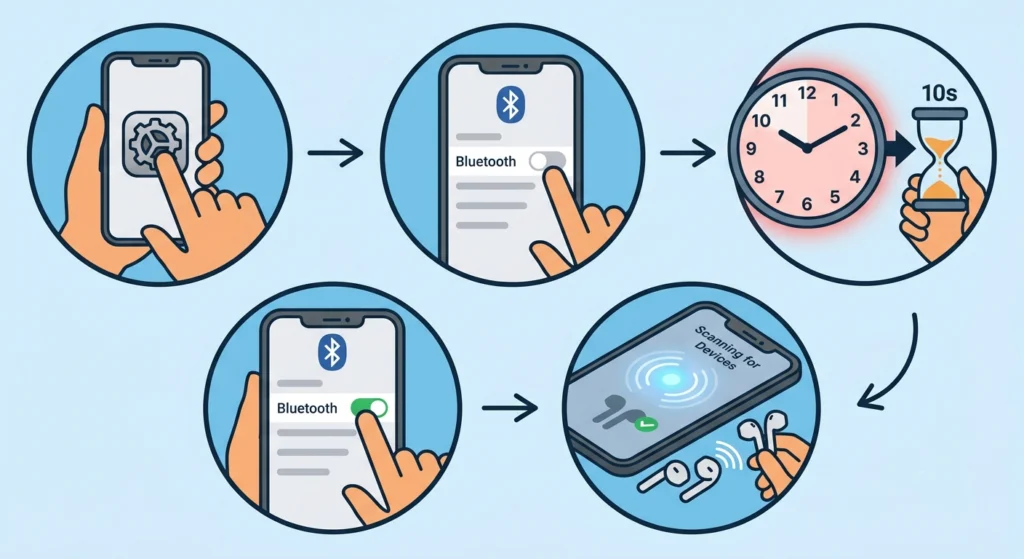
Sometimes the device’s Bluetooth stack gets into a stuck state – especially on phones that have been connected and disconnected from many devices over time. A quick toggle resets it without affecting other settings.
- Step 1: Open the Settings app and go to Bluetooth.
- Step 2: Turn Bluetooth off.
- Step 3: Wait 10 full seconds – don’t rush this.
- Step 4: Turn Bluetooth back on.
- Step 5: With the earbuds in pairing mode, tap ‘Connect’ or scan for new devices.
Most people find that this simple toggle fixes connection failures on phones more often than expected. The Bluetooth radio resets cleanly and picks up the earbuds without the pairing history interference.
Fix 5: Update Firmware or Reset the Earbuds Again
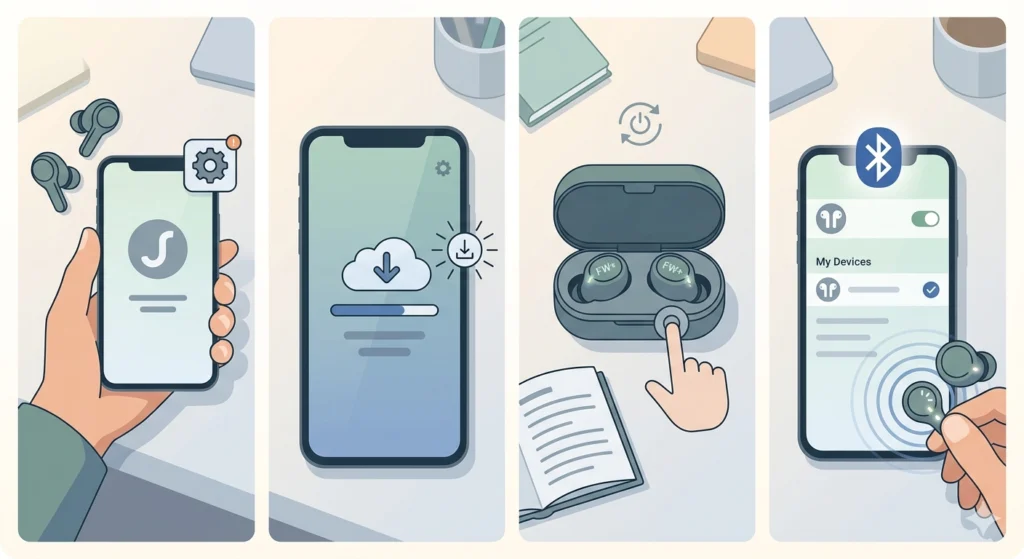
If none of the above steps worked, there may be a firmware bug triggered by the reset – or the reset didn’t complete fully. Doing a second reset after the earbuds are powered up fresh often completes the process properly.
- Step 1: Open the earbud companion app (Sony Headphones Connect, JBL Headphones, Jabra Sound+, etc.) on the phone.
- Step 2: Check if a firmware update is available and install it if so.
- Step 3: After the update, perform the factory reset one more time following the exact steps in the manual.
- Step 4: After the reset completes, go directly into pairing mode and connect fresh.
Pro-Tip: Always check the manufacturer’s app before doing a second reset. Some earbuds (Sony WF series, Samsung Galaxy Buds) require the app to be open during the pairing process after a reset for the connection to complete successfully. Trying to pair without the app open will fail even if everything else is done correctly.
Tips for a Smooth Re-Pairing Experience
- Keep earbuds charged above 20% before pairing – low battery causes unstable connections.
- Stay within 1 meter of the device during the initial pairing – Bluetooth range is reduced during the handshake process.
- Turn off any other Bluetooth devices nearby temporarily – competing signals can cause pairing to fail on the first attempt.
- Use the official companion app whenever available – it handles the pairing handshake more reliably than the OS Bluetooth menu alone.
- On iPhone, go to Settings – Bluetooth – tap the (i) next to the earbuds and select ‘Forget This Device’ before re-pairing.
- On Android, long-press the device name in Bluetooth settings and choose ‘Unpair’ or ‘Forget’.
Common Problems After Reset and How to Solve Them
Earbuds Keep Disconnecting Right After Pairing
This usually means the earbuds timed out of pairing mode mid-process. Put them back in the case, wait 20 seconds, then restart the pairing from Fix 1. Make sure the device’s Bluetooth screen is open and scanning before the earbuds enter pairing mode.
Earbuds Show as ‘Connected’ But No Sound Comes Out
The audio output may still be routed to the phone’s speaker or a previously connected device. On Android, pull down the notification shade and tap the audio icon to switch output. On Windows 11, right-click the speaker icon in the taskbar and set the earbuds as the default playback device.
Only One Earbud Has Sound After Reset
The two earbuds lost their internal sync. Follow Fix 3 above to re-sync them to each other first. Don’t try to connect them to the phone until both earbuds are talking to each other – the LED behavior described in Fix 3 confirms when this sync is complete.
Earbuds Not Showing Up in the Bluetooth Scan List
The earbuds are either not in pairing mode or the device’s Bluetooth is in a stuck state. Confirm the pairing mode LED is flashing (Fix 1), then toggle the device Bluetooth off and on (Fix 4). If using a Windows PC, restart the Bluetooth Support Service from Services in Task Manager.
Earbuds Paired But Microphone Doesn’t Work
The device may have connected using the wrong Bluetooth profile – audio-only instead of headset profile. On Windows 11, the guide on resolving microphone detection problems covers how to switch profiles and get the mic recognized properly.
Pro-Tip: After successfully re-pairing, test both audio and microphone immediately. Some devices connect the audio profile first and the microphone profile only after a few seconds – or they require the headset profile to be selected manually. Checking both right away saves a second troubleshooting session later.
Frequently Asked Questions
Why won’t wireless earbuds connect after a factory reset?
A factory reset wipes all pairing data from the earbuds. The phone or computer, however, still holds the old pairing profile. When the device tries to reconnect using that old data, the earbuds don’t recognize it – causing the connection to fail. The fix is to delete the old pairing from the device and pair fresh as if it were the first time.
Do wireless earbuds need to be in pairing mode to connect after a reset?
Yes, absolutely. After a reset, earbuds start with a blank slate and must be manually placed into pairing mode. They don’t automatically broadcast a pairing signal just by being turned on. The pairing mode is usually triggered by holding a button until the LED flashes in a specific pattern – this varies by brand, so checking the product manual for the exact button hold time is the safest approach.
How long does it take for wireless earbuds to reconnect after a reset?
The actual pairing handshake takes 5 to 15 seconds once both the earbuds and the device are ready. The process can take up to 3 to 5 minutes total if clearing the old pairing from the device and re-syncing both earbuds together is needed. Following all steps without rushing gives the most reliable result.
What should be done if the earbuds won’t show up in the Bluetooth scan?
First, confirm the earbuds are actually in pairing mode – the LED should be flashing, not solid or off. Second, toggle Bluetooth off and on at the device. Third, move the earbuds closer to the device. If they still don’t appear, restart the phone or computer and try again. Competing Bluetooth signals from other nearby devices can sometimes suppress discovery.
Can a phone be the reason wireless earbuds won’t connect after a reset?
Yes, it happens. The phone’s Bluetooth cache can hold corrupted pairing data that blocks new connections. Clearing the Bluetooth cache on Android (Settings – Apps – Bluetooth – Storage – Clear Cache) often resolves this. On iPhone, toggling airplane mode on and off, which resets all radio hardware, is a quick equivalent fix.
Why does only one earbud connect after a reset?
True wireless earbuds need to sync to each other before pairing to an external device. After a reset, that internal sync is lost. The primary earbud connects to the phone, but the secondary earbud can’t join because it hasn’t reestablished its connection to the primary. Putting both back in the case and following the re-sync sequence in Fix 3 above resolves this.
Is it safe to reset wireless earbuds multiple times?
Yes, factory resets don’t damage the hardware. They only clear stored data like pairing profiles, EQ settings, and firmware preferences. Resetting multiple times to get a clean connection is a normal part of troubleshooting wireless audio devices and is safe to do as many times as needed.
Why do the earbuds connect but then immediately disconnect?
This usually happens when the earbuds exit pairing mode before the handshake finishes – most earbuds only stay in pairing mode for 2 to 3 minutes. Low battery is another common cause of unstable connections right after pairing. Charging the earbuds to at least 50% and keeping the phone close during the pairing attempt helps prevent immediate disconnections.
Does the companion app need to be installed for pairing after a reset?
Not always, but for many modern earbuds (Sony, Samsung, Jabra, Bose), the companion app significantly improves pairing reliability after a reset. Some earbuds require the app to complete the setup process, especially for true wireless earbuds where firmware and sync settings are managed through the app. Installing the official app before starting is always the recommended approach.
What if the earbuds still won’t connect after trying all these steps?
At this point, the issue is likely a hardware or deep firmware problem. The recommended next step is to contact the manufacturer’s support line with the earbud model and serial number. Most brands offer a warranty replacement if the earbuds are less than one year old and can’t be fixed through software steps. Checking if the earbuds connect to a completely different device first helps confirm whether the issue is with the earbuds themselves or with the original device.