
Setting up Technics EAH-AZ80 multipoint lets these earbuds stay connected to more than one device at the same time, so switching between a laptop and a phone no longer means digging through Bluetooth menus every few minutes. This guide walks through the exact steps needed to get multipoint working correctly on the first attempt.
Key Takeaways
- The Technics EAH-AZ80 supports multipoint connection to up to three devices at once
- Multipoint is enabled through the Technics Audio Connect app, not through phone Bluetooth settings alone
- Each additional device needs to be paired individually using the earbuds’ pairing mode
- The default pairing passkey for the EAH-AZ80 is 0000
- Once set up, audio switches automatically between connected devices in most cases
Step-by-Step Guide to Enabling Multipoint on Technics EAH-AZ80
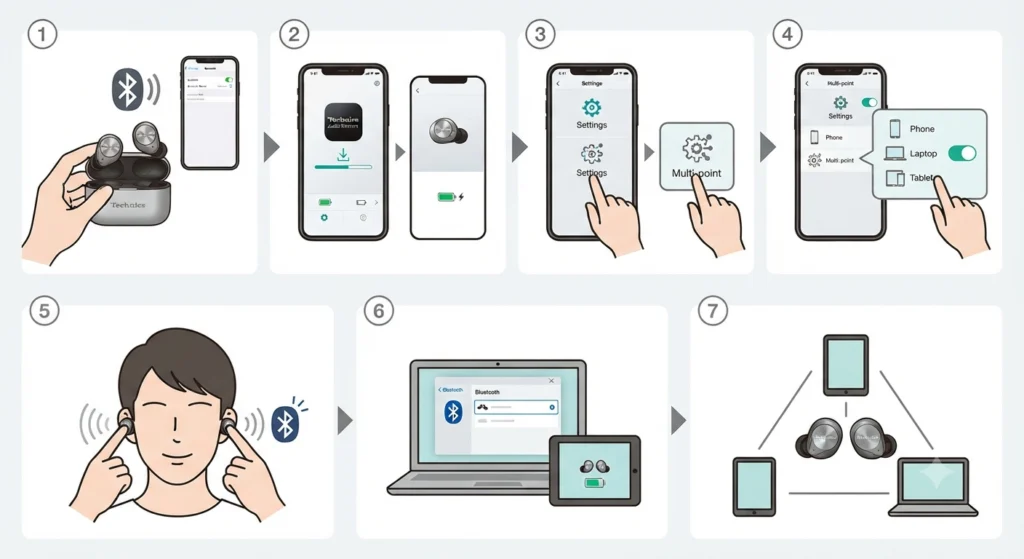
Multipoint on the EAH-AZ80 has to be turned on inside the companion app before a second or third device can be added. Skipping this part is the most common reason people end up with a regular single-device pairing instead of true multipoint. Follow the steps below in order.
- Step 1: Pair the earbuds with the first device the usual way. Take both earbuds out of the charging case, wait for the voice prompt to say ‘pairing,’ then select ‘Technics EAH-AZ80’ from that device’s Bluetooth menu. Enter 0000 if a passkey is requested.
- Step 2: Download and open the Technics Audio Connect app on a phone that is already paired with the earbuds. This app is free on both Google Play and the App Store.
- Step 3: Inside the app, tap Settings, then select Multi-point.
- Step 4: Choose ‘3 devices’ from the multi-point menu. This allows the earbuds to hold a connection with up to three Bluetooth sources at once.
- Step 5: With both earbuds worn, touch and hold the touch sensors on both the left and right earbud at the same time until the voice prompt says ‘pairing’ followed by a short melody. This puts the earbuds into pairing mode for the next device.
- Step 6: Open the Bluetooth settings on the second device (a laptop, tablet, or a different phone) and select ‘Technics EAH-AZ80’ from the list. Enter 0000 if prompted for a passkey.
- Step 7: Repeat Step 5 and Step 6 for a third device, if a third connection is needed.
Pro-Tip: Multi-point has to be set to ‘3 devices’ inside the app before pairing a second or third source. Pairing an additional device while multi-point is still off will simply replace the earlier connection instead of adding to it.
Switching Audio Between Connected Devices
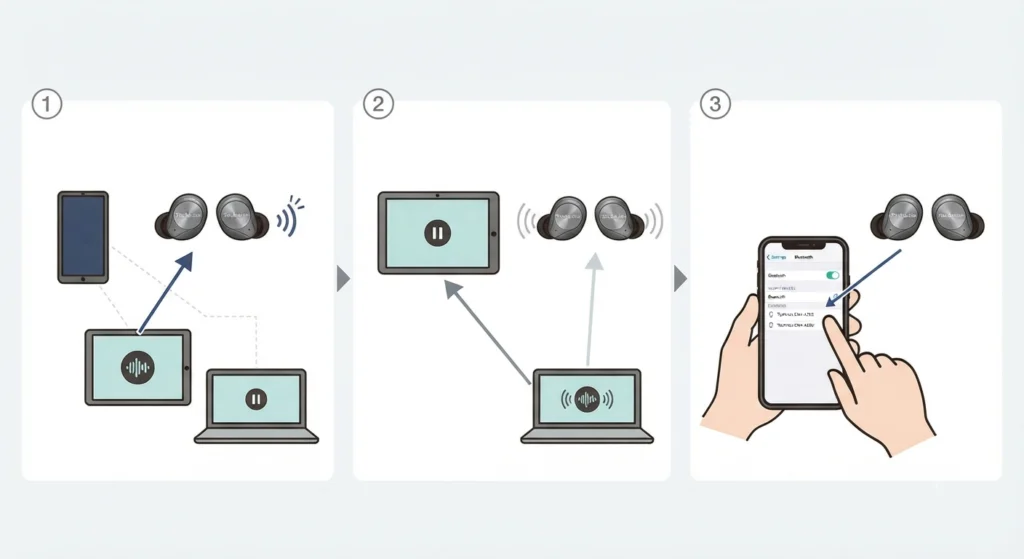
Once multipoint is active, the EAH-AZ80 usually switches automatically to whichever paired device starts playing audio or receives a call. There is no manual toggle needed for most everyday use, though a couple of behaviors are worth knowing.
- Step 1: Start audio playback on the device that should take priority, such as pressing play on a music app or answering an incoming call.
- Step 2: The earbuds detect the active audio stream and route sound from that source within a second or two.
- Step 3: If switching does not happen automatically, open the Bluetooth menu on the desired device and reconnect to ‘Technics EAH-AZ80’ manually.
Tips for a Smooth Multipoint Experience
A few small habits make a noticeable difference in how reliably multipoint performs day to day.
- Keep the Technics Audio Connect app updated, since firmware updates for the earbuds are delivered through it and can improve connection stability.
- Stay within roughly one meter of each device during the initial pairing step, as distance can interrupt the process before it completes.
- On a Windows 11 laptop used as one of the multipoint devices, checking and adjusting audio output settings ahead of time helps avoid the earbuds defaulting to the wrong playback device.
- If stereo sound seems off after connecting to a Windows machine, it often helps to re-pair the earbuds for stereo sound on that device rather than assuming the earbuds themselves are faulty.
- Avoid pairing a fourth device, since the EAH-AZ80 is built to hold multipoint connections with three devices maximum.
Common Problems and How to Fix Them
Most multipoint issues on the EAH-AZ80 trace back to one of a few predictable causes. The fixes below address the ones people run into most often.
Fix 1: A Third Device Will Not Pair
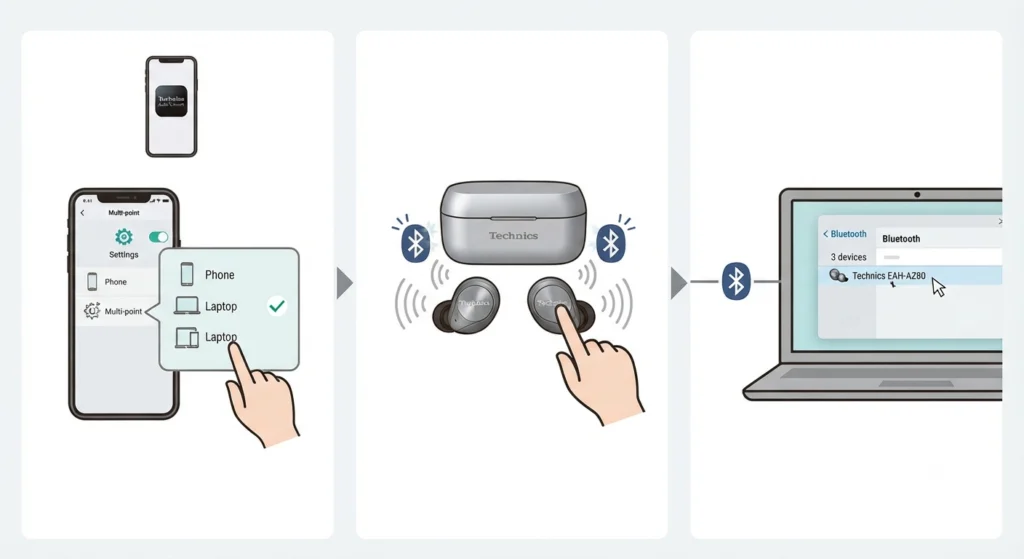
This usually means multipoint was never switched to ‘3 devices’ in the Technics Audio Connect app, or the earbuds were not put back into pairing mode before attempting the new connection. Revisit Settings, then Multi-point, confirm ‘3 devices’ is selected, then repeat the pairing mode step before selecting the earbuds on the new device.
Fix 2: Audio Does Not Switch Between Devices Automatically
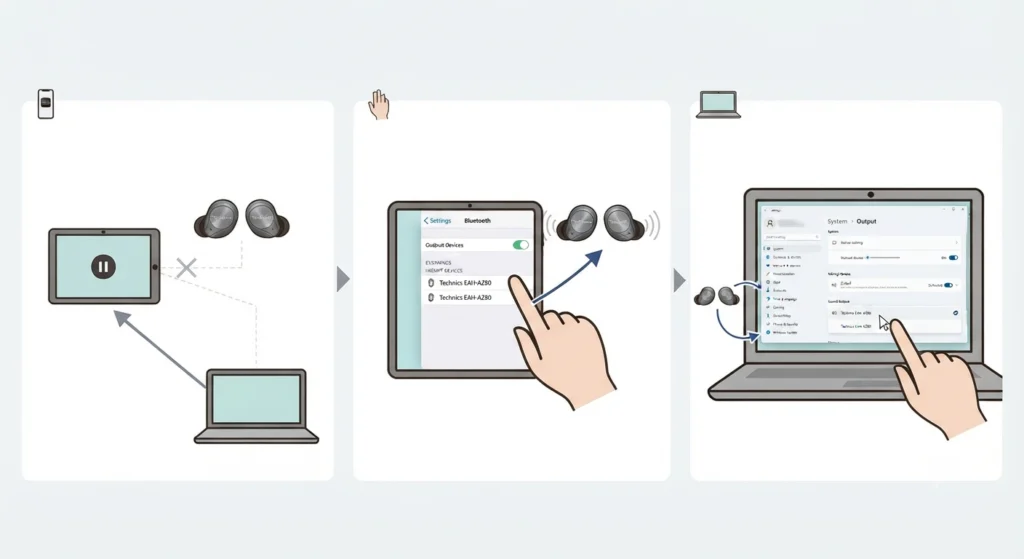
Sometimes a device holds onto the connection even after audio stops. Manually reconnecting from that device’s Bluetooth menu resolves this in most cases. On Windows 11 machines, adjusting audio output settings so the earbuds are set as the default playback device also reduces this kind of delay.
Fix 3: Microphone Is Not Detected on a Connected Laptop
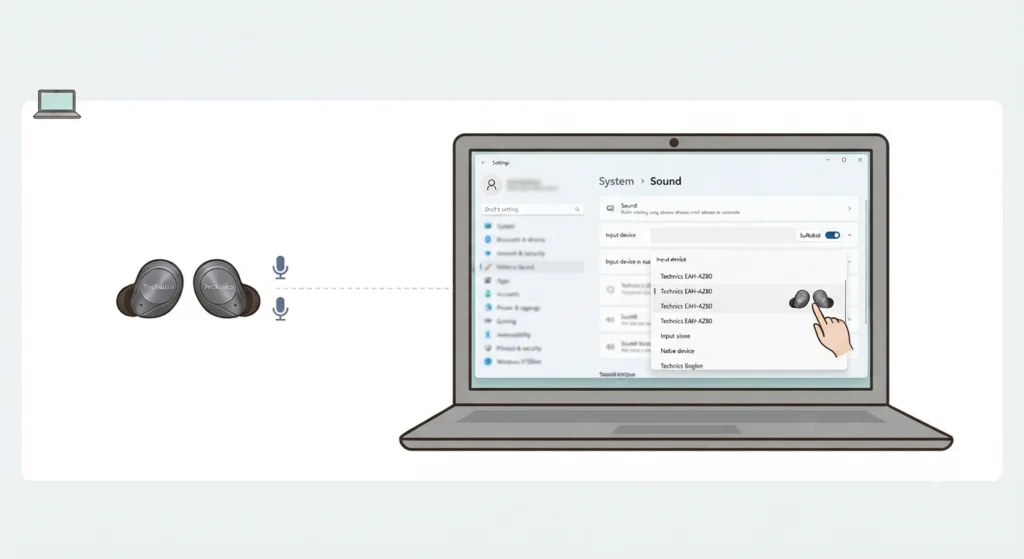
This is a common issue on Windows 11 rather than something wrong with the earbuds themselves. Checking the system’s input device list usually clears it up, and a dedicated guide on resolving microphone detection problems covers the exact settings to check.
Frequently Asked Questions
How many devices can the Technics EAH-AZ80 connect to at once?
Up to three devices can stay connected simultaneously once multipoint is enabled and set to ‘3 devices’ in the Technics Audio Connect app.
What is the default pairing passkey for the EAH-AZ80?
The passkey is 0000, four zeros, and it only appears if the connecting device specifically asks for one during pairing.
Does multipoint need to be enabled through an app?
Yes. Multipoint is controlled through the Technics Audio Connect app under Settings and Multi-point, and it cannot be turned on from a phone’s Bluetooth settings alone.
Why does pairing a new device disconnect an existing one?
This happens when multipoint has not been switched to ‘3 devices’ in the app. Without that setting active, a new pairing simply replaces the previous connection.
Can the EAH-AZ80 connect to a Windows 11 laptop for multipoint?
Yes, laptops running Windows 11 work fine as one of the multipoint devices, though checking audio output and input settings afterward helps avoid minor routing issues.
Does switching between devices happen automatically?
In most situations, yes. The earbuds detect which paired device is actively sending audio and switch to it without any manual input.
What should be done if the earbuds will not enter pairing mode for a second device?
Both touch sensors need to be touched and held at the same time until the ‘pairing’ voice prompt and melody play. Doing this on only one earbud will not trigger pairing mode.
Is a firmware update required before setting up multipoint?
It is not strictly required, but keeping firmware current through the Technics Audio Connect app reduces the chance of connection drops during multipoint use.
Can multipoint be turned off later if it is no longer needed?
Yes. Returning to Settings and Multi-point in the app allows switching back to a single-device connection at any time.
Why is there no sound from a second device even though it shows as connected?
This is typically a device-side output setting rather than a pairing failure. On Windows 11, adjusting audio output settings to select the earbuds as the active playback device usually resolves it.