
Setting up EarFun Air Pro 4 earbuds on iPhone takes less than two minutes once the charging case and Bluetooth menu are in sync. This guide walks through the exact pairing sequence, the app setup, and the small details that most first-time users overlook.
Key Takeaways
- Charge the earbuds fully before the first pairing attempt to avoid a weak Bluetooth signal.
- Opening the case lid automatically triggers pairing mode on the Air Pro 4 – no button press is needed for the first connection.
- The EarFun Audio app unlocks EQ presets, ANC control, and firmware updates that are not available through iPhone Bluetooth settings alone.
- Dual Device Connection lets the Air Pro 4 stay linked to two Apple devices, such as an iPhone and a MacBook, at once.
- A factory reset resolves most stuck-pairing or one-earbud-silent issues in under a minute.
Step-by-Step Guide: Pairing EarFun Air Pro 4 with iPhone
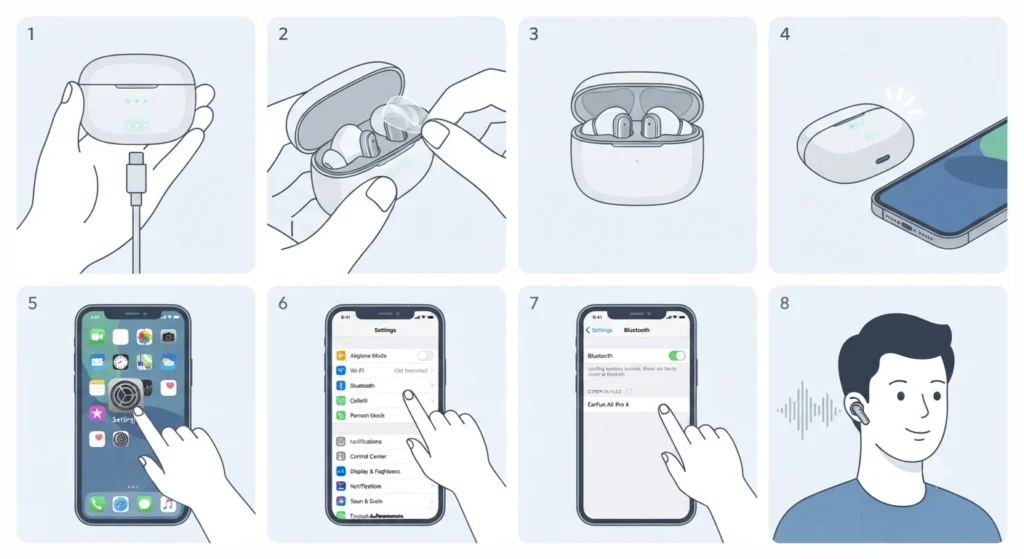
This is the core process, and it matches how EarFun designed the earbuds to behave straight out of the box. Follow the order below rather than skipping ahead, since the pairing window only stays open for a short time after the case is opened.
- Step 1: Charge the earbuds and the case for at least 15 minutes if this is the first time unboxing them. A full charge is not required, but a low battery can cause the earbuds to disconnect mid-pairing.
- Step 2: Remove the thin insulating film from both earbuds and the case, if present. This film protects the contacts during shipping and blocks charging until removed.
- Step 3: Place both earbuds back into the case and close the lid for a few seconds. This resets the internal state so the next steps go smoothly.
- Step 4: Open the case lid near the iPhone. The Air Pro 4 enters pairing mode automatically, and the LED indicator on the earbuds starts flashing white.
- Step 5: On the iPhone, open Settings, then tap Bluetooth. Turn the toggle on if Bluetooth is currently off.
- Step 6: Wait a moment for the device list to populate, then tap ‘EarFun Air Pro 4’ under Other Devices or My Devices.
- Step 7: Confirm the connection. Once paired, the earbuds name moves to the top of the Bluetooth list and a short tone plays through the earbuds.
- Step 8: Insert the earbuds and check that audio routes correctly by playing any sound clip or song.
Pro-Tip: The pairing window closes after roughly three minutes if no connection is made. If the earbuds stop flashing before the iPhone finishes scanning, simply close the case, wait five seconds, and reopen it to restart pairing mode.
Setting Up the EarFun Audio App on iPhone
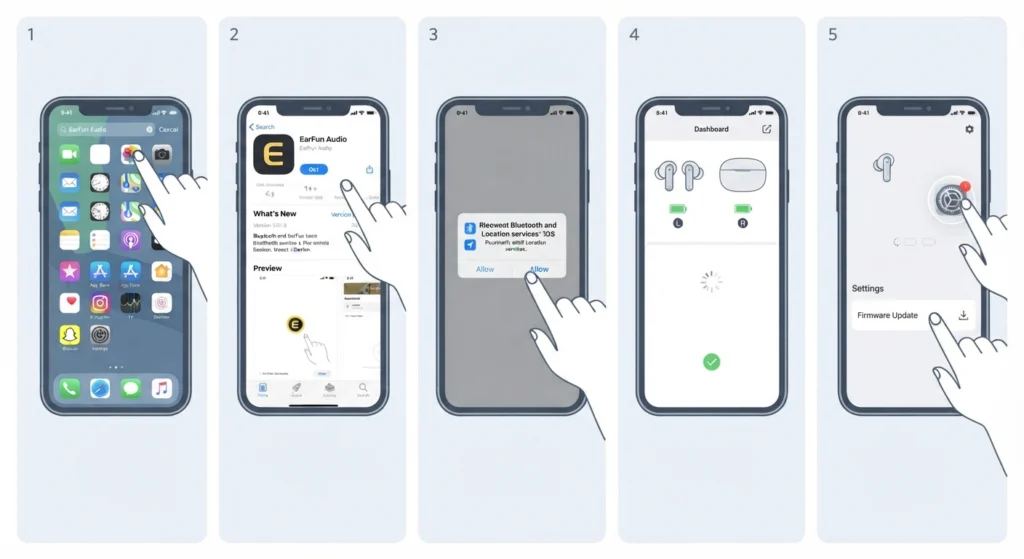
Basic playback works fine through the native iPhone Bluetooth connection, but the EarFun Audio app is where the earbuds actually come to life. It handles firmware updates, custom EQ, ANC modes, and tap control mapping.
- Step 1: Open the App Store on the iPhone and search for ‘EarFun Audio’.
- Step 2: Install the app and open it once the Air Pro 4 is already connected via Bluetooth.
- Step 3: Grant the Bluetooth and Location permissions the app requests. Location access is required by iOS for Bluetooth scanning and does not share personal data.
- Step 4: Allow the app to detect the earbuds. A battery readout and control panel appear once detection completes.
- Step 5: Check for a firmware update under the device settings menu and install it if one is available, since EarFun regularly patches connection stability through firmware.
Method 1: Connecting the Air Pro 4 to a Second Apple Device
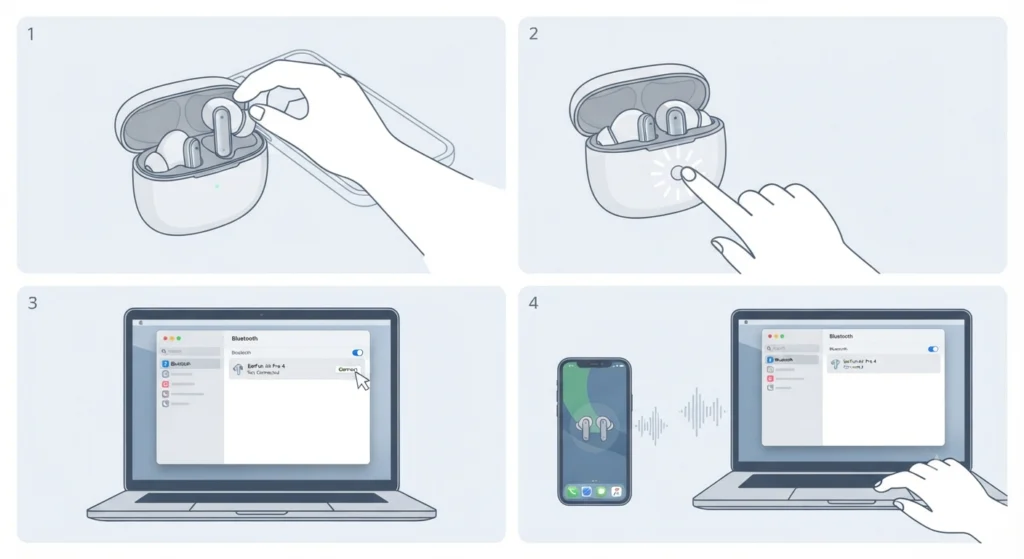
The Air Pro 4 supports Bluetooth Multipoint, so it can stay linked to an iPhone and a second device, like a MacBook or iPad, without needing to re-pair every time the source switches.
- Step 1: With the earbuds already connected to the iPhone, place them back in the case but leave the lid open.
- Step 2: Press and hold the button on the outside of the case for three seconds until the LED flashes rapidly.
- Step 3: On the second device, open its Bluetooth settings and select ‘EarFun Air Pro 4’ from the list.
- Step 4: Once connected, audio automatically switches to whichever device is actively playing sound, though the earbuds may need a manual reconnect from the Bluetooth menu the first time this feature is used.
Those who split time between an iPhone and a Windows laptop often run into a slightly different multipoint behavior on the PC side. The process for pairing Bluetooth earbuds for stereo sound on a Windows machine follows its own set of menus, and it helps to re-pair Bluetooth earbuds for stereo sound on Windows if the laptop only plays audio out of one earbud after switching sources.
Tips for a Smooth Setup
- Keep the iPhone within three feet of the case during the very first pairing attempt. Distance rarely matters once the connection is established, but it matters during the initial handshake.
- Forget the device from a previous phone or laptop before pairing to a new iPhone. The Air Pro 4 can hold multiple saved connections, but an old saved link sometimes takes priority over a fresh one.
- Update iOS to the latest version before pairing new Bluetooth accessories. Older iOS builds occasionally show outdated device names in the Bluetooth list.
- Name recognition matters – the earbuds always appear as ‘EarFun Air Pro 4’ in the list, so avoid tapping a similarly named entry left over from another EarFun product.
Pro-Tip: In-Ear Detection, which pauses playback the moment an earbud is removed, is turned on by default. This is convenient for most people, but anyone who frequently rests the earbuds on a desk without placing them back in the case may prefer to switch it off inside the EarFun Audio app.
Common Pairing Problems and How to Fix Them
Fix 1: iPhone Does Not Show the Earbuds in the Bluetooth List
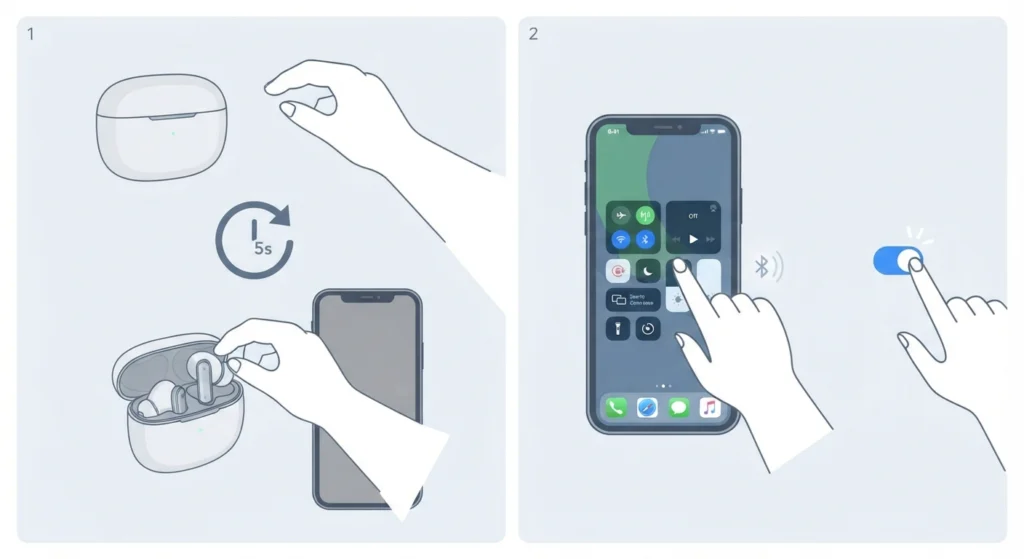
Close the case, wait five seconds, then reopen it while standing close to the iPhone. If the earbuds still do not appear, turn Bluetooth off and back on from Control Center, since iOS occasionally caches an outdated device scan.
Fix 2: Earbuds Connect but No Sound Comes Through
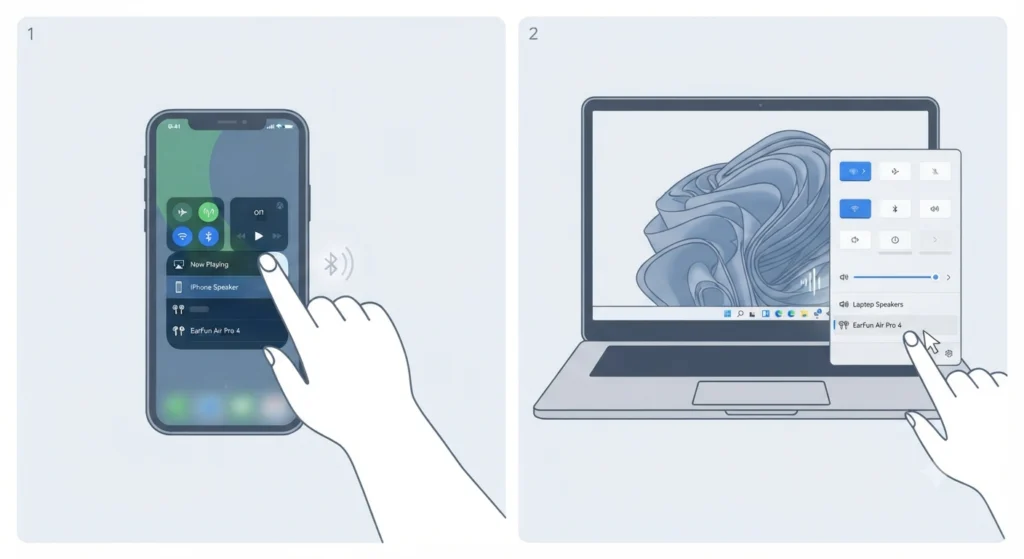
Check the iPhone’s audio output destination, since it sometimes defaults back to the built-in speaker after a call or video ends. Anyone who runs into the same issue on a Windows 11 laptop can review the steps for adjusting audio output settings on Windows 11 for a similar fix on the desktop side.
Fix 3: Only One Earbud Plays Audio
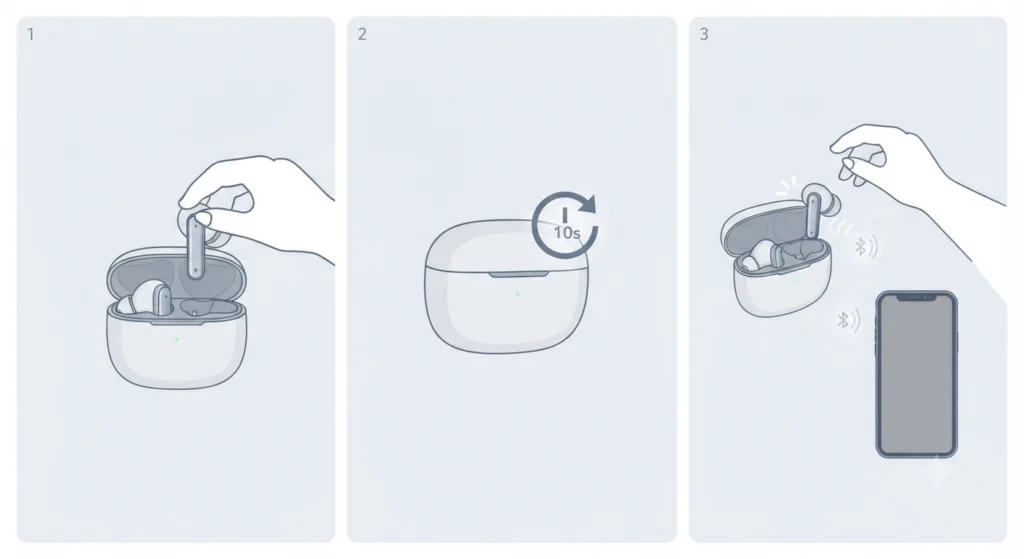
Place both earbuds back in the case, close the lid for ten seconds, then take them out again. This forces the earbuds to resync with each other before reconnecting to the iPhone.
Fix 4: Connection Keeps Dropping or Stuttering
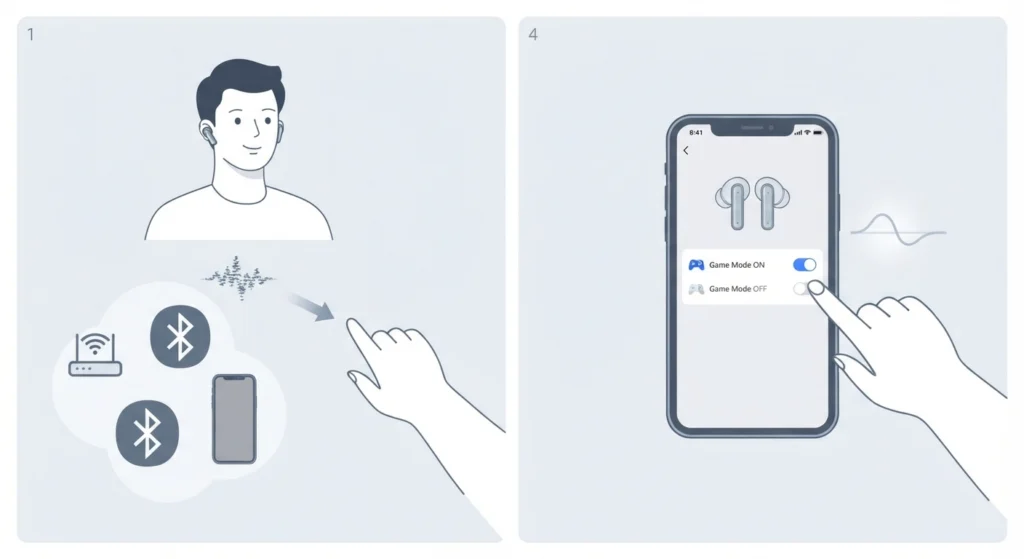
Move away from other active Bluetooth or Wi-Fi devices, since crowded 2.4GHz environments can interrupt the signal. Turning off Game Mode inside the EarFun Audio app, if it happens to be enabled, also reduces bandwidth strain and often stabilizes playback.
Fix 5: Earbuds Won’t Pair After Repeated Attempts
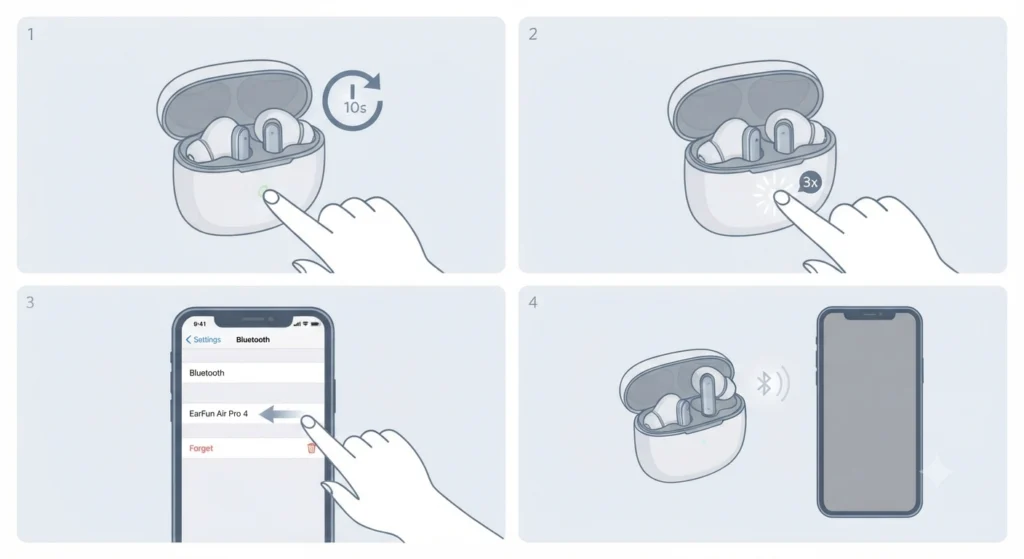
Perform a factory reset. With both earbuds in the case and the lid open, press and hold the case button for ten seconds until the LED flashes rapidly three times. Then forget the ‘EarFun Air Pro 4’ entry from the iPhone’s Bluetooth settings and repeat the standard pairing steps from the beginning.
Frequent Bluetooth resets are common enough on the PC side too, and the general logic for resetting audio settings on Windows 11 follows a comparable pattern of clearing the saved connection before reconnecting.
Frequently Asked Questions
Does the EarFun Air Pro 4 work with iPhone?
Yes. The Air Pro 4 pairs with any iOS device running standard Bluetooth 5.3 or later and supports full playback, call handling, and ANC control through the EarFun Audio app.
Why won’t EarFun Air Pro 4 connect to iPhone automatically after the first pairing?
This usually happens when Bluetooth was toggled off, the case battery ran low, or a previous device is still holding priority in the connection list. Removing the old saved entry and reopening the case near the iPhone typically resolves it.
Is the EarFun Audio app required to use the Air Pro 4 on iPhone?
No, basic listening and calls work through the native iPhone Bluetooth connection alone. The app is only needed for EQ adjustments, ANC mode switching, tap control customization, and firmware updates.
Can the Air Pro 4 stay connected to two devices at the same time?
Yes, through Bluetooth Multipoint. A common pairing is an iPhone alongside a MacBook or iPad, with audio automatically shifting to whichever device starts playing sound.
How long does the EarFun Air Pro 4 pairing window stay open?
Roughly three minutes after the case lid is opened. Closing and reopening the case restarts the window if pairing mode times out.
What password is needed to pair the Air Pro 4 with an iPhone?
None. Modern EarFun earbuds, including the Air Pro 4, do not require a PIN or passcode during Bluetooth pairing on iOS.
How does a factory reset work on the Air Pro 4?
With the earbuds seated in the case and the lid open, press and hold the case button for ten seconds until the LED flashes rapidly three times, then remove the saved device entry from the iPhone before pairing again.
Why does only one earbud produce sound after pairing?
This is typically a sync issue between the two earbuds rather than a phone-side problem. Placing both earbuds back in the case for ten seconds before taking them out again forces them to resync.
Does the Air Pro 4 support LDAC or aptX on iPhone?
iPhone playback runs on the standard AAC and SBC codecs, since iOS does not support LDAC or aptX regardless of the earbuds being used. Codec toggles inside the EarFun Audio app apply mainly to Android connections.
What should be done if the Air Pro 4 keeps disconnecting during calls?
Check for interference from nearby Bluetooth or Wi-Fi devices, confirm the earbuds are seated correctly for a full seal, and disable Game Mode if it has been switched on, since it prioritizes low latency over connection stability.