
Resetting AirPods to factory settings is the fastest way to fix pairing glitches, audio dropouts, or a left-and-right earbud that refuses to sync. Most AirPods owners run into this scenario at some point, whether the earbuds connect to an iPhone, a Mac, or a Windows laptop. The basic process stays the same across the lineup, though the exact button or tap sequence changes slightly between models. This guide breaks down the exact steps for AirPods, AirPods Pro, and AirPods Max, so the right earbuds and case combination can be wiped clean and paired again like new.
Key Takeaways
- AirPods, AirPods 2, AirPods 3, AirPods Pro, and AirPods Pro 2 use a physical setup button on the back of the charging case.
- AirPods 4 and AirPods Pro 3 use a triple double-tap gesture on the front of the case instead of a button.
- AirPods Max reset through the Digital Crown and the noise control button pressed together for about 15 seconds.
- A factory reset wipes all paired device history, so every device needs to be paired again afterward.
- The entire reset, from closing the lid to seeing the white flashing light, usually takes less than two minutes.
Step-by-Step Guide to Reset AirPods to Factory Settings
The reset method depends on which AirPods model is in hand, since Apple changed the physical case design across generations. Find the matching method below and follow it exactly, since skipping the wait time or releasing the button too early is the most common reason a reset does not take effect.
Method 1: Reset AirPods, AirPods 2, AirPods 3, AirPods Pro, and AirPods Pro 2
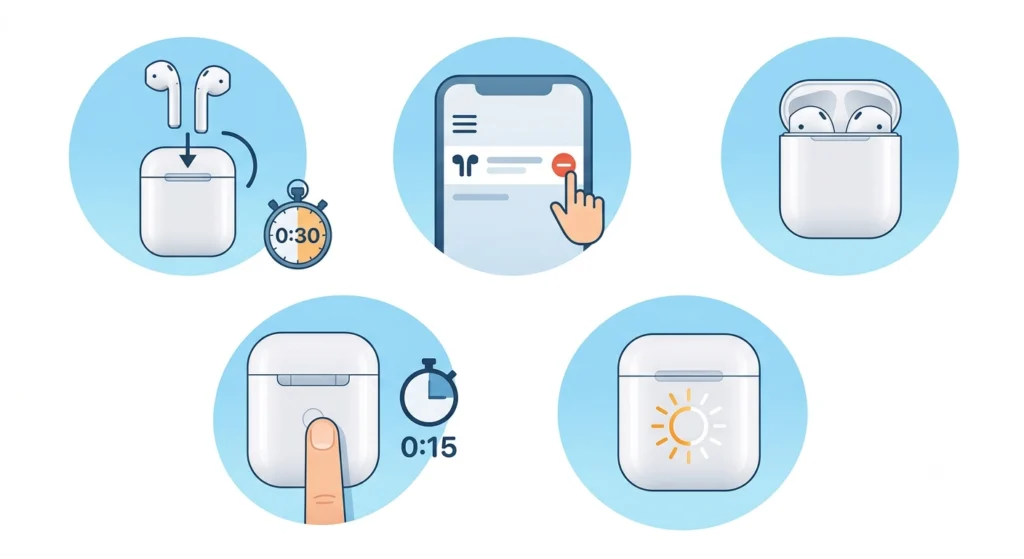
This method covers every AirPods generation built with a small setup button on the back of the charging case, including both the Lightning and USB-C versions of AirPods Pro 2.
- Step 1: Place both earbuds into the charging case and close the lid completely for about 30 seconds.
- Step 2: On a paired iPhone or iPad, open Settings, tap Bluetooth, then tap the info icon next to the AirPods and select Forget This Device. Skip this step if the earbuds no longer appear in the Bluetooth list.
- Step 3: Open the lid of the case and leave it open.
- Step 4: Press and hold the setup button on the back of the case for about 15 seconds.
- Step 5: Watch the status light on the front of the case. The reset is complete once the light flashes amber, then switches to flashing white.
Pro Tip: Forgetting the device in Bluetooth settings before pressing the setup button keeps the AirPods from auto-reconnecting halfway through the reset, which is a common reason people assume the process failed.
Method 2: Reset AirPods 4 and AirPods Pro 3
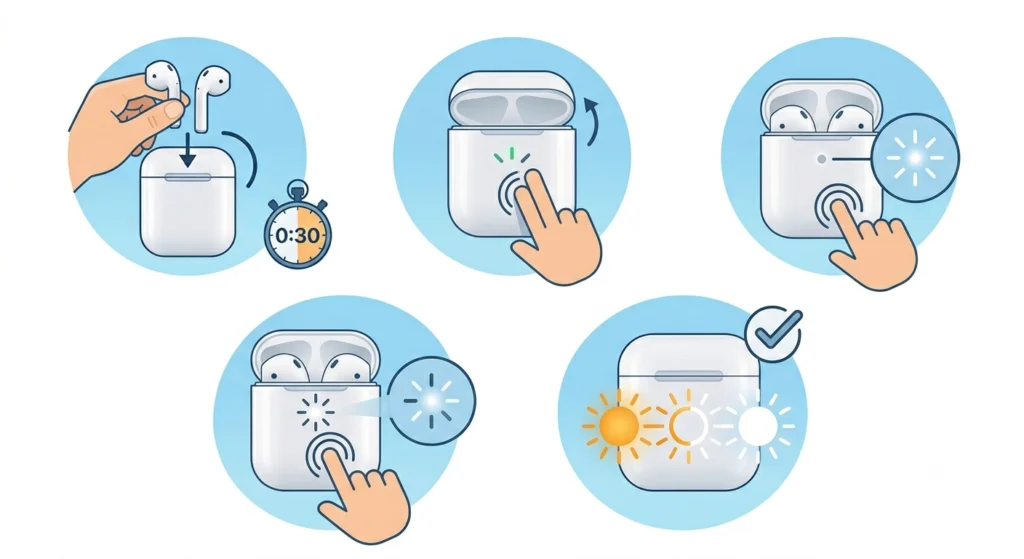
Newer cases dropped the physical setup button in favor of a tap gesture on the front panel. The light pattern looks the same at the end, but getting there takes a bit more timing.
- Step 1: Put both earbuds in the case, close the lid, and wait 30 seconds before opening it again.
- Step 2: Open the lid and double-tap the front of the case while the status light is still on.
- Step 3: Double-tap the front of the case again as soon as the status light starts flashing white.
- Step 4: Once the light starts flashing faster, double-tap a third time and wait until the light flashes amber, then white.
- Step 5: Release and check the case. The amber-to-white flash confirms the AirPods are back to factory settings.
Method 3: Reset AirPods Max
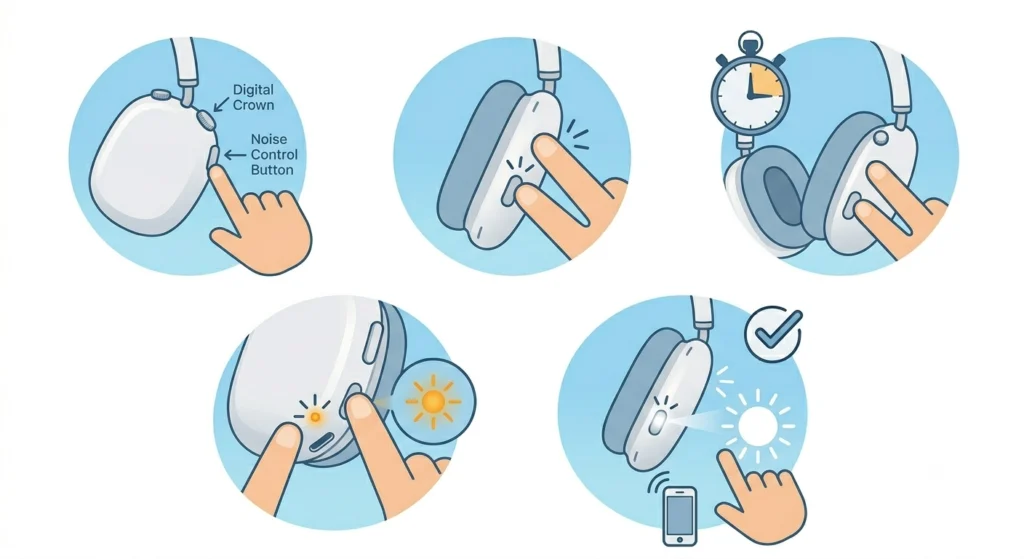
AirPods Max do not have a charging case with a button, so the reset happens directly on the headphones using two physical controls.
- Step 1: Locate the Digital Crown and the noise control button on the right ear cup.
- Step 2: Press and hold both buttons at the same time.
- Step 3: Keep holding for about 15 seconds until the status light next to the charging port flashes amber.
- Step 4: Continue holding a few seconds longer until the same light switches from amber to white, then let go.
- Step 5: Reconnect the headphones the same way they were set up the first time.
Pro Tip: Releasing the buttons the moment the light turns amber only restarts AirPods Max instead of resetting them. The key is to keep holding until the light continues on to flashing white.
How to Reconnect AirPods After a Factory Reset
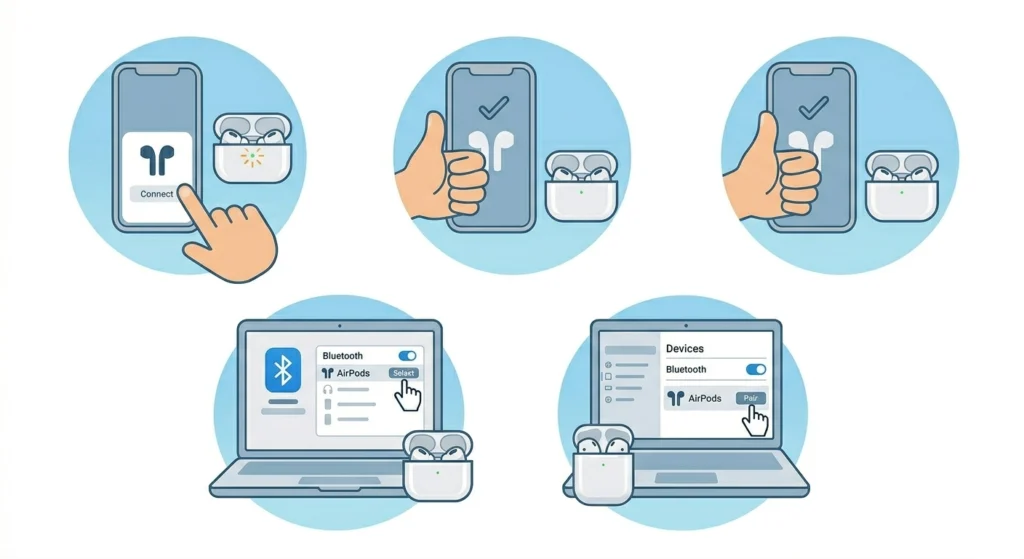
Once any model shows the white flashing light, it is ready to pair as if it just came out of the box. Open the lid near an iPhone or iPad and a setup card should pop up on the screen automatically, and tapping Connect finishes the process in a few seconds. On a Mac, open Bluetooth settings instead and select the AirPods from the list of nearby devices.
Pairing with a Windows laptop works a little differently since there is no setup animation. Bluetooth needs to be turned on manually, and the earbuds have to be selected from the available devices list while the case lid stays open. Anyone re-pairing Bluetooth earbuds for stereo sound on a Windows machine after a reset usually finds the connection completes within a minute once the device is selected.
Tips for a Smooth AirPods Reset
- Charge the case to at least 20 percent before starting, since a low battery can dim or disable the status light.
- Keep the lid open for the entire button-hold or tap sequence, since closing it early cancels the process.
- Reset one set of AirPods at a time if multiple pairs are nearby, since Bluetooth proximity can confuse which case is responding.
- Update the connected iPhone or iPad to the latest iOS version beforehand, since outdated software occasionally blocks the new pairing screen from appearing.
- Remove the AirPods from Find My before giving them away, even though this step is separate from the actual factory reset.
Common Problems When Resetting AirPods
Most reset attempts go smoothly, but a few snags show up often enough to mention.
Status light does not change color: This usually means the case lid was closed too soon or the button was not held the full 15 seconds. Start over from the 30-second wait step and keep the lid open the entire time.
AirPods will not show up after reset: Move closer to the paired device, confirm Bluetooth is switched on, and try closing then reopening the case lid to trigger the pairing screen again.
Only one earbud resets or reconnects: Place both earbuds back in the case together and repeat the full reset method, since a partial reset on a single earbud is a known quirk tied to low battery levels.
No sound after reconnecting on a Windows 11 laptop: The AirPods may pair but stay muted if Windows has not selected them as the default output device. Adjusting the audio output settings in the Sound menu usually solves this in a couple of clicks.
Microphone not picking up voice on calls: This is a separate issue from the Bluetooth audio connection itself. Anyone running into this after reconnecting on a PC can check a dedicated guide for resolving microphone detection problems on Windows 11 to get the input device recognized correctly.
Frequently Asked Questions
Does resetting AirPods delete paired device history?
Yes. A factory reset removes every saved Bluetooth pairing, so the AirPods need to be connected to each device again afterward, including any iPhone, iPad, Mac, or Windows laptop that used them before.
Can AirPods be reset without the charging case?
No. The setup button or tap gesture used for resetting is built into the case itself, so the case has to be present and within reach during the entire process.
How long does a factory reset actually take?
The hold or tap sequence itself lasts about 15 seconds, plus the initial 30-second wait with the lid closed. Including reconnecting afterward, the whole process usually finishes in under two minutes.
Do AirPods need a full charge before resetting?
A full charge is not required, but the case should have enough battery to power the status light for the full 15-second hold. A nearly dead case sometimes fails to show the light at all.
Will resetting fix one AirPod that stopped working?
Often, yes. Many one-sided audio issues come from a corrupted pairing rather than a hardware fault, and a reset clears that pairing data completely. If the problem continues after a reset, a hardware check is the next reasonable step.
Is restarting AirPods the same as resetting them?
No. Restarting just power-cycles the earbuds, similar to rebooting a phone, and keeps all pairings intact. Resetting wipes the pairing history entirely and returns the AirPods to their out-of-box state.
Can AirPods Max be reset using only the noise control button?
No. Both the Digital Crown and the noise control button need to be pressed together at the same time. Pressing either one alone does not trigger a factory reset.
Should AirPods be removed from Find My before reset?
It is a good habit when selling or giving away a pair, since Find My tracks the device through an Apple Account separately from the Bluetooth pairing. The factory reset itself works whether or not this step happens first.
Why does the status light stay amber instead of turning white?
This usually means the button or tap sequence was released too early. The light needs to flash amber and then continue on to a white flash before the reset is actually complete.
Can AirPods be reset while connected to a Windows or Android device?
Yes. The reset happens directly on the case or headphones through the button, tap, or button combo, so it works the same way no matter which device the AirPods were last connected to.