
One earbud not connecting via Bluetooth is one of the most common audio issues people run into – and it is almost always fixable without buying a replacement. Whether the left or right earbud suddenly went silent, refuses to pair, or keeps disconnecting, this guide walks through the exact steps to get both earbuds working together again.
Quick Summary: Key Takeaways
- The most common cause is an out-of-sync pairing between the two earbuds – a factory reset usually fixes this.
- Low or unequal battery levels can prevent one earbud from connecting properly.
- Bluetooth device conflicts and cached pairing data on the host device are frequent culprits.
- Most fixes take under five minutes and require no tools or technical experience.
- If only one earbud produces sound but both are connected, the issue is likely an audio balance or mono setting on the device.
How to Fix One Earbud Not Connecting via Bluetooth
Fix 1: Charge Both Earbuds Fully Before Anything Else
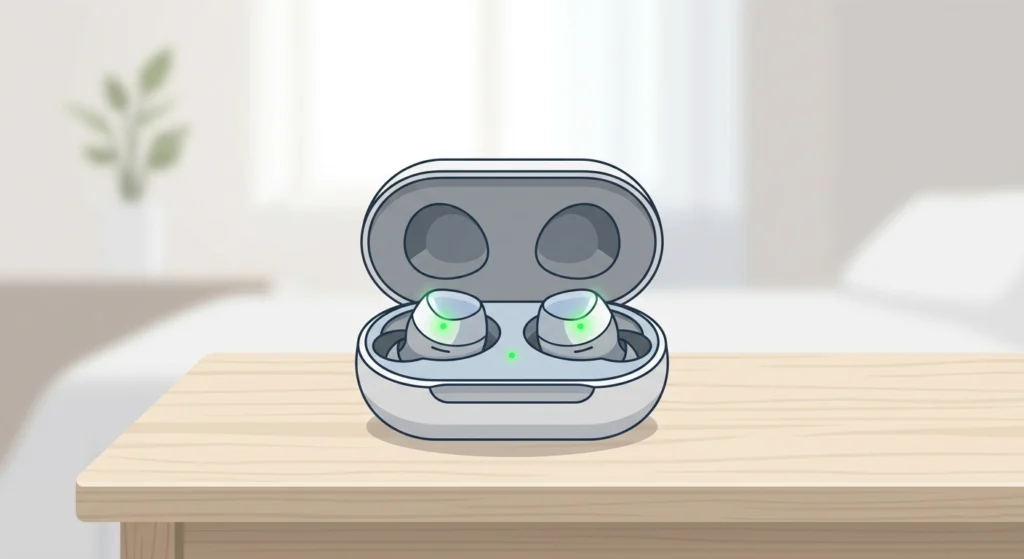
This step gets skipped constantly, but it matters more than most people expect. When one earbud has significantly less battery than the other, it may fail to initialize the Bluetooth connection properly. Place both earbuds back in the charging case, leave them for at least 20-30 minutes, and then try connecting again. Make sure the charging case itself is also charged – a depleted case cannot charge the earbuds even if they are inside it.
Fix 2: Forget the Device and Re-Pair from Scratch
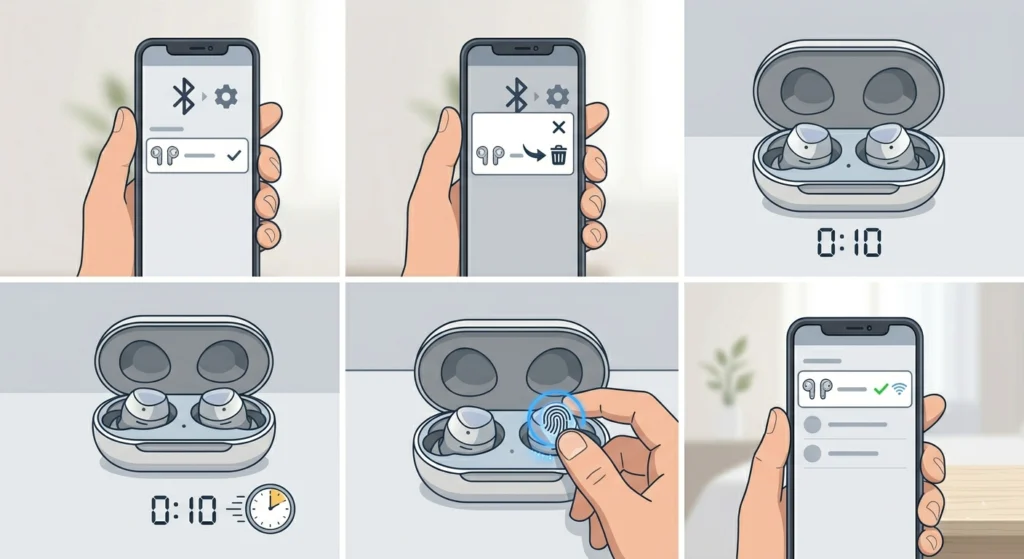
Stale Bluetooth pairing data is a surprisingly common cause of single-earbud connection failures. The fix is to remove the earbuds entirely from the device’s Bluetooth list and start the pairing process fresh.
- Step 1: On the phone or computer, open Bluetooth settings and find the earbuds in the paired devices list.
- Step 2: Select ‘Forget’, ‘Unpair’, or ‘Remove’ – the wording depends on the device.
- Step 3: Place both earbuds back in the charging case and close the lid for 10 seconds.
- Step 4: Open the case and put both earbuds in pairing mode (usually by holding a button until the LED flashes).
- Step 5: On the device, scan for Bluetooth devices and select the earbuds to pair again.
For Windows users dealing with persistent Bluetooth pairing issues, this guide on how to re-pair Bluetooth earbuds for stereo sound on Windows covers the process in detail for that platform.
Fix 3: Reset the Earbuds to Factory Settings
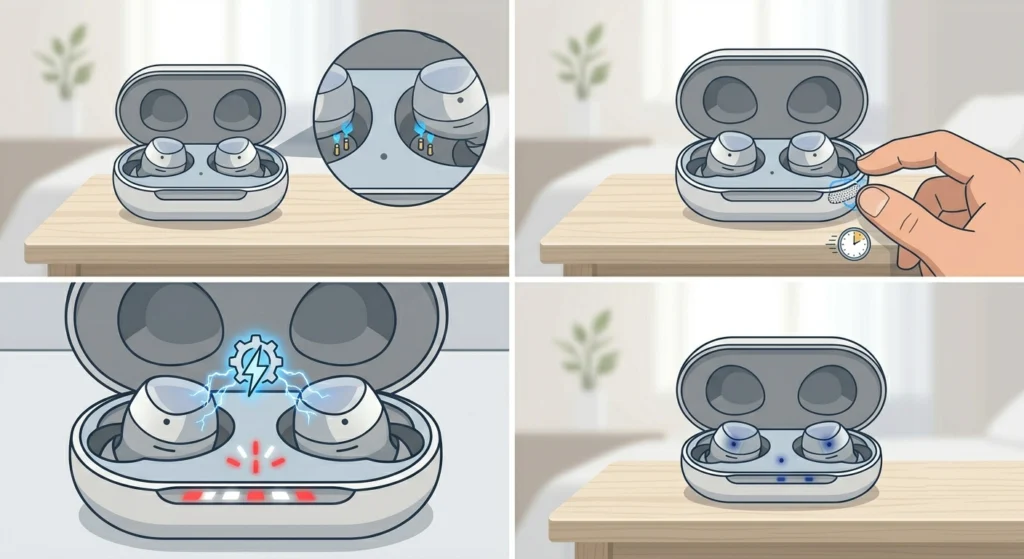
When re-pairing alone does not solve it, a full factory reset on the earbuds themselves almost always will. This clears all stored connection data from the earbuds and forces them to re-sync with each other as a true stereo pair.
- Step 1: Place both earbuds in the charging case and leave the lid open.
- Step 2: Press and hold the button on the case or on both earbuds simultaneously – typically for 10 to 15 seconds until the LED flashes red and white, or blinks rapidly.
- Step 3: The earbuds will power off and restart. This confirms the reset is complete.
- Step 4: Re-pair the earbuds with the device as described in Fix 2 above.
The reset process varies by brand. For JLab earbuds, it is typically a long press inside the case. For Samsung Galaxy Buds, use the Galaxy Wearable app. Always check the manufacturer’s manual if the standard hold method does not trigger a reset.
Pro-Tip: After a factory reset, always pair the earbuds with the phone or device while both earbuds are outside the case and in pairing mode at the same time. Pairing only one earbud first is a common mistake that causes the mono/stereo sync issue to reappear immediately.
Fix 4: Check the Audio Balance Setting on the Device
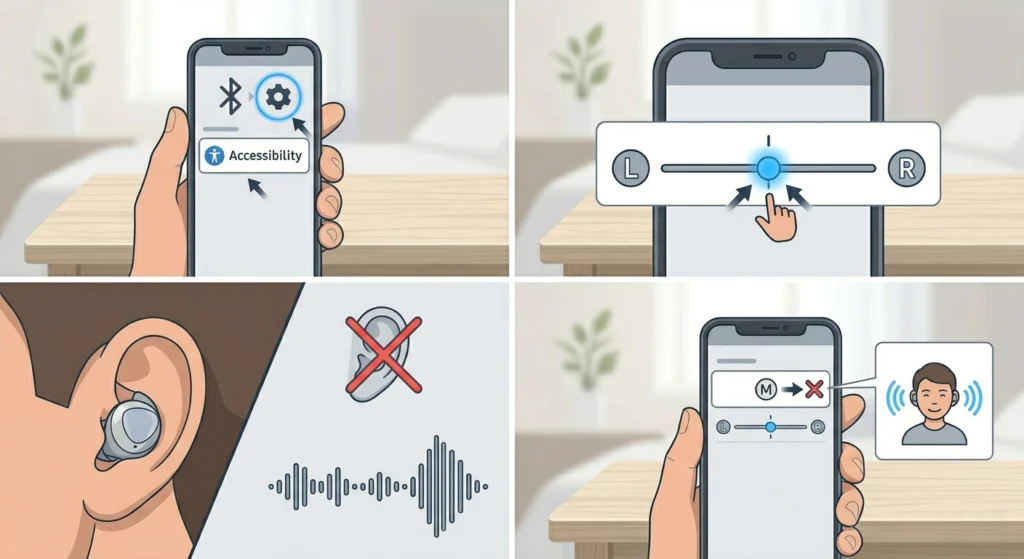
Sometimes both earbuds are technically connected, but only one produces sound. This is often caused by the audio balance being set too far to one side – a setting that gets accidentally changed more often than people realize.
- Step 1: On iPhone or iPad, go to Settings, then Accessibility, then Audio/Visual, and check the Balance slider. It should be centered.
- Step 2: On Android, go to Settings, then Accessibility, then Audio Balance or Hearing. Center the slider.
- Step 3: On Windows 11, right-click the sound icon in the taskbar, open Sound Settings, and check the output balance. More detail on this is available in the guide for adjusting audio output settings on Windows 11.
- Step 4: Also check if Mono Audio is turned on. This setting routes all sound to one earbud only and should be turned off for stereo listening.
Fix 5: Turn Bluetooth Off and Back On
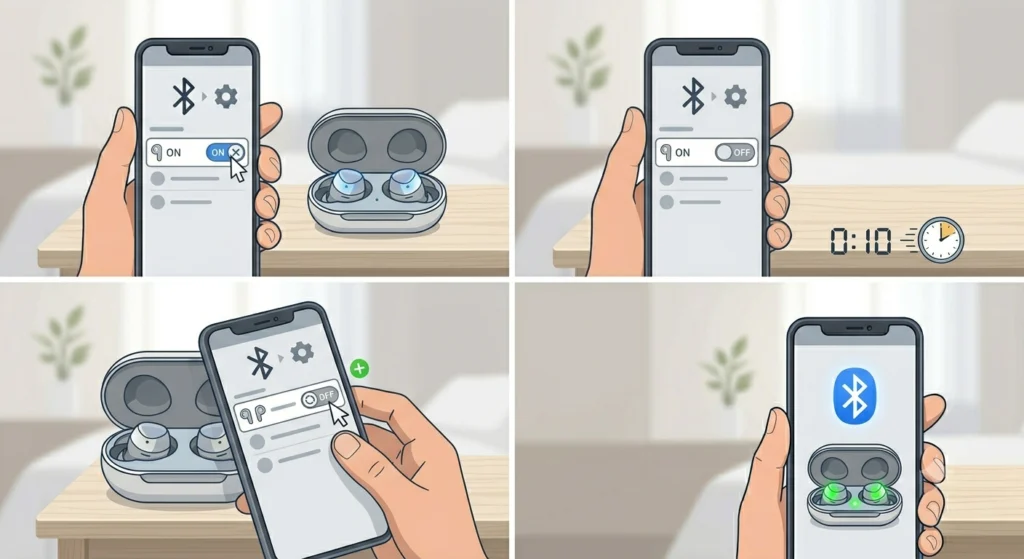
It sounds almost too simple, but a Bluetooth toggle cycle clears temporary connection glitches that can cause one earbud to drop. Turn Bluetooth off on the phone or computer, wait 10 full seconds, then turn it back on and reconnect. This is especially effective if the issue started suddenly mid-session rather than during initial setup.
Fix 6: Restart Both the Earbuds and the Source Device
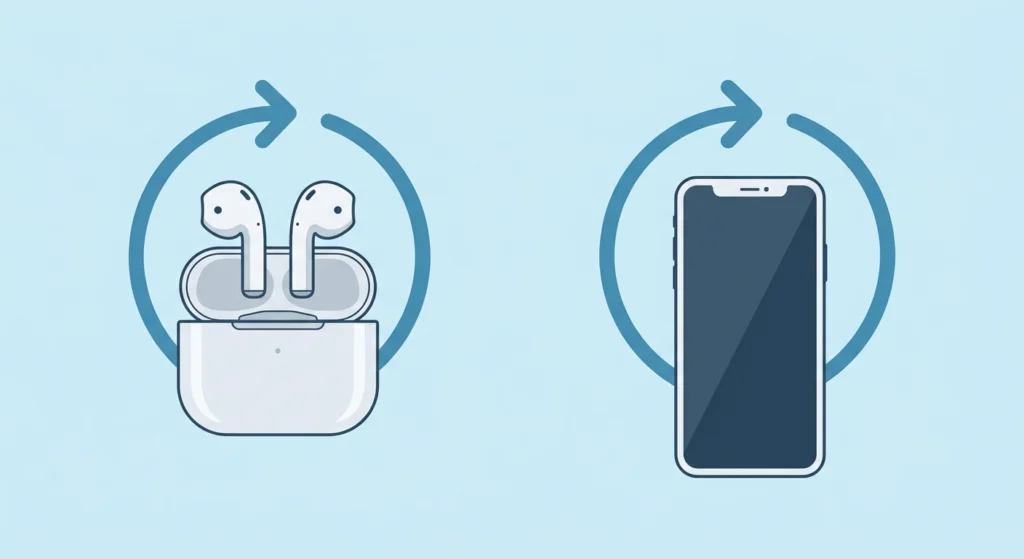
Restarting both devices clears temporary software states that interfere with Bluetooth handshakes. Power off the earbuds completely, restart the phone or computer, then power the earbuds back on and reconnect. This is a fast fix that resolves more cases than expected, particularly after a system update on the host device.
Fix 7: Remove Competing Bluetooth Connections
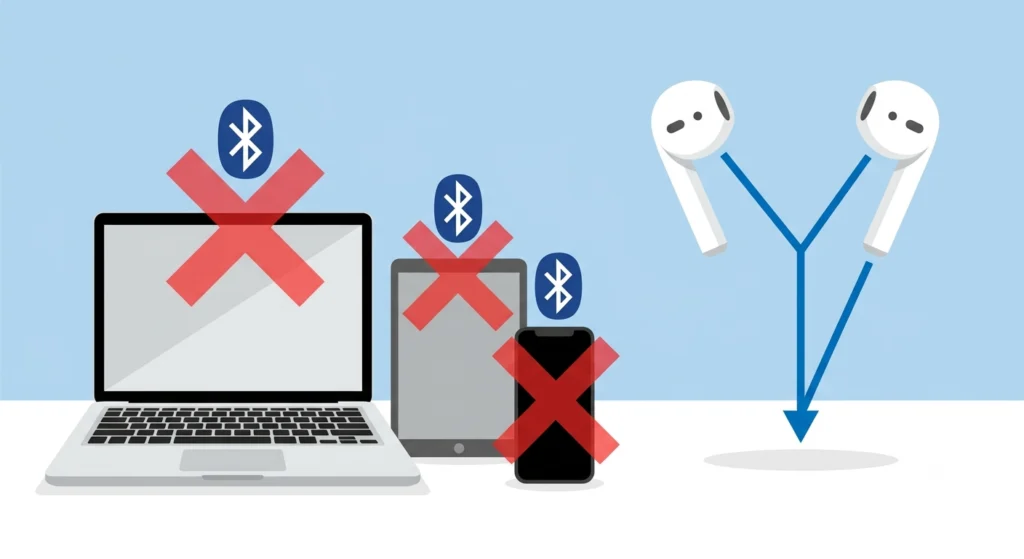
Earbuds connected to multiple devices at once can struggle to maintain a clean stereo link. If the earbuds were previously connected to a laptop, tablet, and phone, all those devices may be competing for the connection. Disconnect the earbuds from all other Bluetooth sources and connect to just one device at a time. The key is to make sure only one active Bluetooth source is in range during this process.
Tips for Keeping Both Earbuds Connected
- Always store earbuds in their charging case when not in use – this keeps them synced and charged.
- Keep the firmware updated. Manufacturers frequently release updates that fix connection bugs.
- Avoid pairing the earbuds to too many devices at once if the model does not support multipoint well.
- Clean the charging contacts on both the earbuds and the case regularly. Dirty contacts cause incomplete charging, which leads to connection issues.
- Keep the earbuds within a reasonable range of the source device – Bluetooth performance degrades through walls and beyond about 10 meters.
Pro-Tip: If one earbud keeps dropping out during use (rather than failing to connect at first), the problem is almost always interference from other wireless devices nearby – microwaves, Wi-Fi routers, and other Bluetooth devices all operate on the 2.4 GHz band. Moving away from these sources, even by a meter or two, can eliminate the dropouts entirely.
Common Problems and Solutions
Problem: Only the Primary Earbud Connects
Most true wireless earbuds have a primary earbud that connects to the device first, then the secondary earbud syncs to it. If the secondary earbud is not syncing, a factory reset followed by re-pairing both earbuds simultaneously is the fix. This is the most common scenario and is almost always resolved by reset.
Problem: One Earbud Connected but Silent
Check the audio balance setting immediately. If the balance is centered and mono audio is off, the issue may be a physical one – earwax or debris blocking the speaker grille. Clean the affected earbud gently with a dry cotton swab and test again.
Problem: One Earbud Keeps Disconnecting Mid-Use
This usually points to a weak battery, interference, or a firmware bug. Charge both earbuds fully, update the firmware, and test in a different location to rule out interference. If it continues, a factory reset is the next step.
Problem: Left and Right Earbud Audio Is Swapped
This happens when the earbuds sync in the wrong order after a reset. Put both back in the case, close the lid for 30 seconds, and then remove them together and re-pair. The earbuds should self-correct the left/right designation during the sync process.
Problem: Earbuds Show as Connected on Windows but One Produces No Sound
Windows sometimes reverts to default audio output or misroutes audio after a Bluetooth reconnect. Check the active audio output device in Sound Settings and make sure the earbuds are set as the default. Guides for managing audio input devices on Windows 11 can help navigate this.
Frequently Asked Questions
Why is only one of the earbuds connecting to Bluetooth?
The most common reason is that the two earbuds have lost sync with each other. True wireless earbuds work by having one earbud connect to the device and the other connect to the first earbud. When that internal connection breaks, only the primary earbud appears to connect. A factory reset on the earbuds restores this sync.
How do you reset earbuds when one is not connecting?
Place both earbuds in the charging case with the lid open and hold the button on the case or earbuds for 10 to 15 seconds until the indicator light flashes. The exact method varies by brand, so consult the product manual if this does not work. After the reset, re-pair both earbuds to the device simultaneously.
Can a low battery cause one earbud to not connect?
Yes. When one earbud has significantly lower battery than the other, it may not have enough power to initialize the Bluetooth connection. Charging both earbuds fully in the case before troubleshooting is always the recommended first step.
Why does only one earbud work after pairing?
This typically means the two earbuds did not sync properly before pairing to the device. After pairing, both earbuds need to talk to each other before audio plays in stereo. The fix is to reset the earbuds and pair them again with both units outside the case and in pairing mode at the same time.
Does the audio balance setting affect earbud connectivity?
Not connectivity directly, but it can make one earbud appear silent even when both are technically connected. If the balance is set fully to one side, all audio is routed to that side only. Centering the balance slider in accessibility settings resolves this instantly.
Why does one earbud keep disconnecting randomly?
Random disconnections are usually caused by a low or unequal battery level, Bluetooth interference from nearby devices, or a firmware bug. Charge both earbuds, update the firmware, and try using them closer to the source device. If the issue continues, a factory reset is the next step.
Can too many paired devices cause one earbud to not connect?
Yes. Some earbud models limit how many devices they can remember, and having too many saved connections can cause pairing instability. Clearing old paired devices from the earbud’s memory – typically done during a factory reset – resolves this.
What should be done if the earbud connects but makes no sound?
First check the audio balance and mono settings on the device. If those are correct, inspect the earbud’s speaker grille for blockage from earwax or debris. Clean it gently with a dry cotton swab. If it still produces no sound after cleaning and a reset, the speaker may have a hardware fault.
Is it normal for earbuds to only connect one at a time?
It depends on the design. Some earbuds, like single-driver mono units, are designed to work one at a time. True wireless stereo earbuds, however, should both connect and produce sound simultaneously. If both are powered on and synced, they should both be active during playback.
Why does one earbud work on one device but not another?
This often comes down to Bluetooth version compatibility or how the pairing data is stored on each device. Remove the earbuds from the Bluetooth list on the problem device, reset the earbuds, and re-pair fresh. Also check that the source device’s Bluetooth driver or firmware is up to date.