
Lossless Audio on Beats Studio Pro is one of the easiest ways to get studio-quality sound straight from a phone, tablet, or computer. This feature relies on the built-in digital-to-analog converter inside the headphones, which kicks in the moment a USB-C cable connects the device to a compatible source. The result is a noticeably cleaner, more detailed listening experience compared to standard Bluetooth playback.
Quick Summary Table
- Connection type needed: USB-C to USB-C cable (included in the box)
- Audio quality supported: Up to 24-bit/48kHz lossless playback
- Compatible sources: iPhone, iPad, and Mac with USB-C, plus Android devices with USB-C
- Charging while listening: Yes, headphones charge during USB-C playback
- Sound profiles available: Beats Signature, Entertainment, and Conversation
- ANC and Transparency mode: Not available while using USB-C audio
Step-by-Step Guide to Enable Lossless Audio on Beats Studio Pro
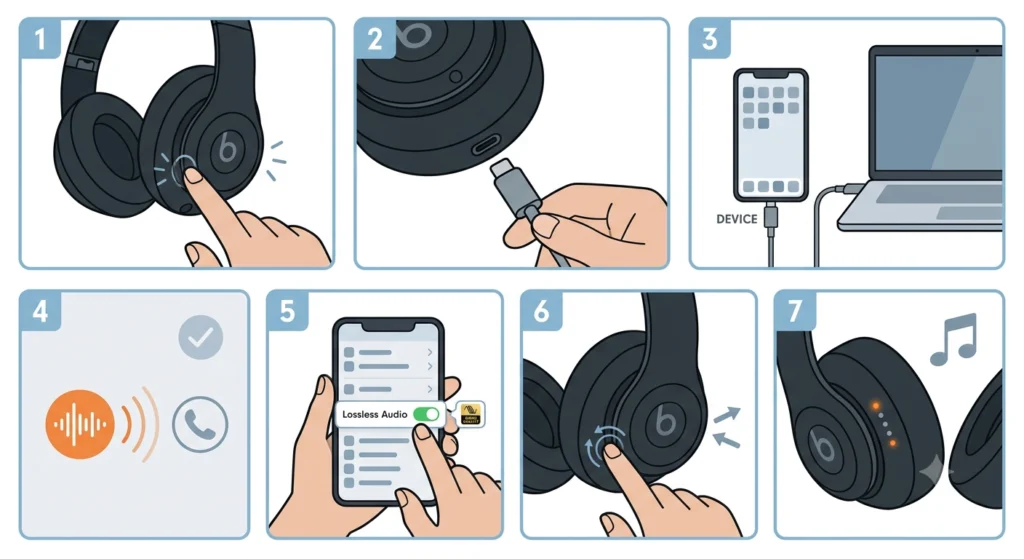
Setting this up takes only a couple of minutes once the right cable is in hand. The process is nearly identical across Apple and Android devices, since the headphones handle the digital-to-analog conversion internally rather than relying on the source device’s own DAC.
- Step 1: Power on the Beats Studio Pro headphones before connecting anything. The system button on the right earcup needs a quick press to confirm they’re awake.
- Step 2: Plug one end of the included USB-C cable into the port on the left earcup of the headphones.
- Step 3: Connect the other end of the cable into the USB-C port on the source device – this could be an iPhone, iPad, Mac, or an Android phone with a USB-C port.
- Step 4: Wait a moment for the device to recognize the headphones as a USB audio accessory. A status tone usually plays through the headphones once the connection is active.
- Step 5: Open a music app that supports lossless streaming, such as Apple Music, Amazon Music, or Tidal, and confirm lossless or hi-res playback is turned on in the app’s audio settings.
- Step 6: Press the system button twice to cycle through the three sound profiles – Beats Signature, Entertainment, or Conversation – and pick whichever suits the content being played.
- Step 7: Start playback. The fuel gauge LEDs on the earcup will light up to indicate which profile is active, confirming the headphones are running in USB-C audio mode.
Pro-Tip: Bluetooth doesn’t need to be turned off for USB-C audio to work, but leaving it on sometimes causes notification sounds or call alerts to interrupt playback. Switching Bluetooth off on the source device while listening through the cable keeps the lossless stream free of unexpected interruptions.
Why USB-C Beats Bluetooth for Lossless Listening
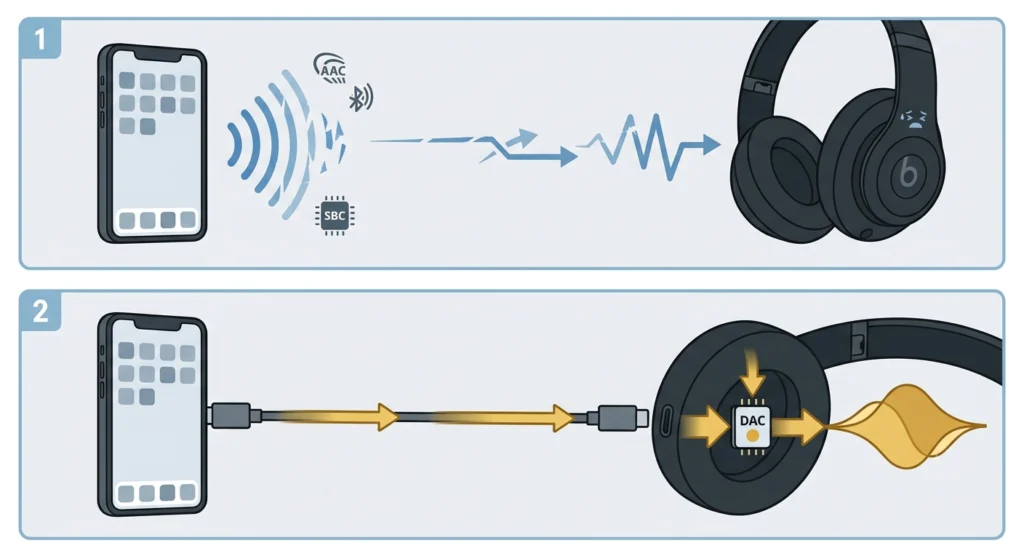
Bluetooth headphones, including the Beats Studio Pro, are limited to standard codecs like AAC and SBC when paired wirelessly. These codecs compress audio data to keep the wireless connection stable, which means some of the original detail gets discarded along the way. A USB-C connection skips that compression step entirely. Digital audio data travels straight from the source device into the onboard DAC inside the Studio Pro, where it gets converted to analog sound without the usual wireless bottleneck. That’s the entire reason lossless playback sounds noticeably richer and more dynamic through the cable than it does over Bluetooth.
Sound Profiles Explained
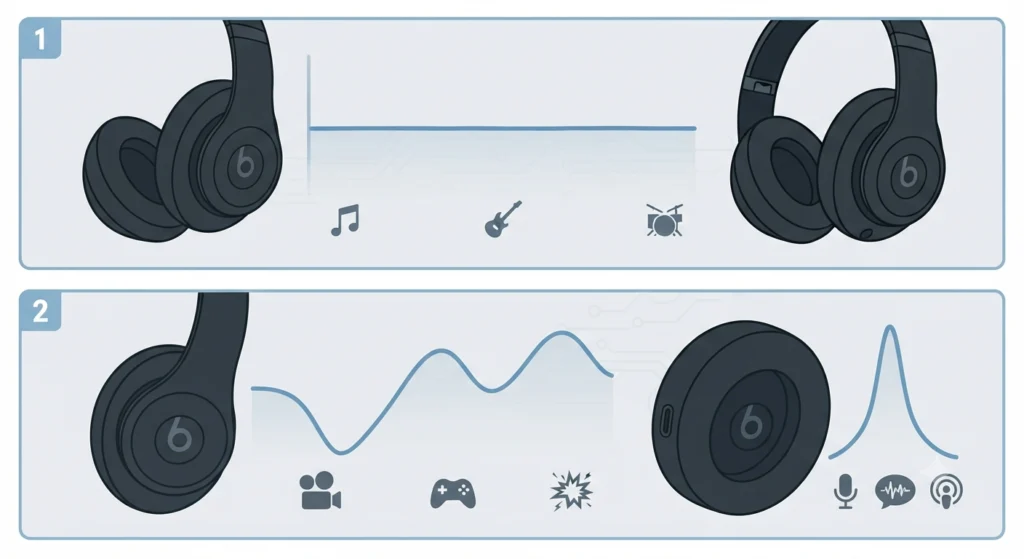
USB-C audio mode unlocks three EQ-tuned profiles that aren’t available over a standard wireless connection. Each one shapes the frequency response differently depending on what’s being played.
- Beats Signature: A balanced tuning that works well across most music genres without favoring any particular frequency range.
- Entertainment: Boosts certain parts of the audio spectrum, making it a strong pick for movies, games, and other visual content.
- Conversation: Tunes the frequency response toward voice clarity, which makes it ideal for podcasts and phone calls.
Switching between these profiles only takes a double press of the system button, and a short tone confirms the change each time.
Tips for Getting the Best Lossless Listening Experience
- Use a music service that actually offers lossless or hi-res tracks. Standard streaming quality on most platforms won’t take advantage of the onboard DAC’s full capability.
- Keep the USB-C cable manageable. The included cable is fairly short, so sitting closer to the source device makes for a more comfortable listening session.
- Remember that USB-C audio charges the headphones simultaneously, so there’s no need to worry about battery drain during long listening sessions.
- If switching between wireless and wired listening throughout the day, it sometimes helps to re-pair the headphones over Bluetooth afterward – this guide on re-pairing Bluetooth earbuds for stereo sound walks through that process clearly.
Common Problems When Using USB-C Lossless Audio
Most issues with this feature come down to either the cable, the source device’s settings, or the music app itself rather than the headphones malfunctioning.
- No sound through the cable: Double-check the USB-C cable is fully seated on both ends, and try a different port on the source device if available.
- Audio still sounds compressed: Confirm lossless playback is actually enabled inside the music app’s settings, since the app controls whether a lossless stream is sent in the first place.
- Headphones default back to Bluetooth: Disconnect and reconnect the USB-C cable, and make sure Bluetooth pairing isn’t actively competing for the audio connection.
- No ANC or Transparency mode while using USB-C audio: This is expected behavior, since those features are disabled automatically during wired USB playback.
- iPhone with a Lightning port won’t connect: A USB-C to Lightning adapter is required for older iPhone models, since the standard cable only works with USB-C ports directly.
For deeper troubleshooting around Windows-specific audio settings, the guide on adjusting audio output settings on Windows 11 covers how to make sure the correct playback device is selected when using Beats Studio Pro with a PC.
Frequently Asked Questions
Does Beats Studio Pro support lossless audio over Bluetooth?
No. Bluetooth connections on Beats Studio Pro rely on AAC and SBC codecs, neither of which support lossless playback. A USB-C connection is required to access lossless or hi-res audio.
What audio quality does the USB-C connection support?
The built-in DAC supports sample rates up to 24-bit/48kHz, which covers lossless and hi-res tracks from services like Apple Music, Amazon Music HD, and Tidal.
Does the headphone charge while using USB-C audio?
Yes. Connecting via USB-C both streams audio and charges the headphones at the same time, unlike the 3.5mm cable option which draws no power.
Can ANC or Transparency mode be used during USB-C lossless playback?
No. Active Noise Cancellation and Transparency mode are unavailable while the headphones are running in USB-C audio mode.
Is an adapter needed to use USB-C audio with an iPhone?
Only iPhone models with a Lightning port require a USB-C to Lightning adapter. iPhones with a native USB-C port can connect directly using the included cable.
Does the 3.5mm cable also support lossless audio?
It can, but losslessness depends entirely on the source device’s own DAC rather than the one built into the Beats Studio Pro, since the analog cable bypasses the onboard converter.
Why does USB-C audio sound better than Bluetooth?
USB-C audio sends uncompressed digital data directly to the onboard DAC, avoiding the codec compression that Bluetooth connections require to maintain a stable wireless signal.
Can the sound profile be changed while listening?
Yes. Pressing the system button on the right earcup cycles through Beats Signature, Entertainment, and Conversation profiles at any point during playback.
Does USB-C audio work with Android devices?
Yes, as long as the Android device has a USB-C port and supports USB audio output, the connection works the same way it does on Apple devices.
Why does sound stop working after switching between wired and wireless listening?
This usually happens when the source device hasn’t fully released the previous connection. Disconnecting the cable, waiting a few seconds, and reconnecting typically resolves it. On Windows 11, reviewing how to manage audio input devices can also help confirm the headphones are set as the active device.