
When the Jabra Elite 10 is not pairing to a phone, it can be frustrating – especially when it worked perfectly just yesterday. The good news is that most pairing failures come down to a handful of fixable causes: the earbuds not entering pairing mode properly, a stale Bluetooth cache on the phone, or the earbuds still remembering an old device. This guide walks through every proven fix in order, from the simplest to the more thorough, so the connection gets restored as quickly as possible.
Quick Summary – What to Know Before Starting
- The Jabra Elite 10 supports Bluetooth multipoint, meaning it can connect to two devices at once – but it will not show up as ‘available’ if both slots are already occupied by other paired devices.
- Pairing mode on the Elite 10 is activated by pressing and holding the left and right earbud buttons simultaneously for 3 seconds while outside the case.
- A factory reset clears all paired devices and is the most reliable fix for stubborn pairing issues.
- Always forget the earbuds from the phone’s Bluetooth settings before attempting to re-pair.
- Keeping firmware updated via the Jabra Sound+ app prevents many recurring connection issues.
Fix 1: Put the Jabra Elite 10 Into Pairing Mode Correctly
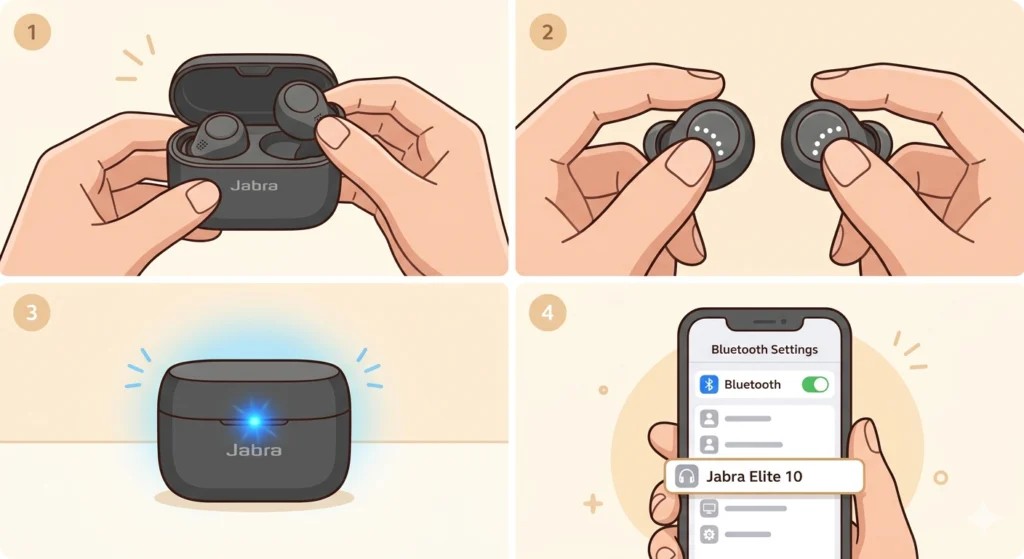
This is the most common reason the earbuds do not show up on a phone. The Elite 10 does not automatically enter pairing mode every time it is taken out of the case – that only happens when there are no previously paired devices saved. If the earbuds already have a device in memory, they will try to reconnect to that device first instead.
- Step 1: Take both earbuds out of the charging case.
- Step 2: Press and hold the button on both the left and right earbud simultaneously for about 3 seconds.
- Step 3: Watch for the LED on the charging case to flash blue – this confirms the earbuds are now in pairing mode and ready to be discovered.
- Step 4: On the phone, open Bluetooth settings and scan for devices. Select ‘Jabra Elite 10’ from the list.
If ‘Jabra Elite 10’ does not appear in the scan, move on to the next fix.
Fix 2: Forget the Earbuds on the Phone and Re-Pair Fresh
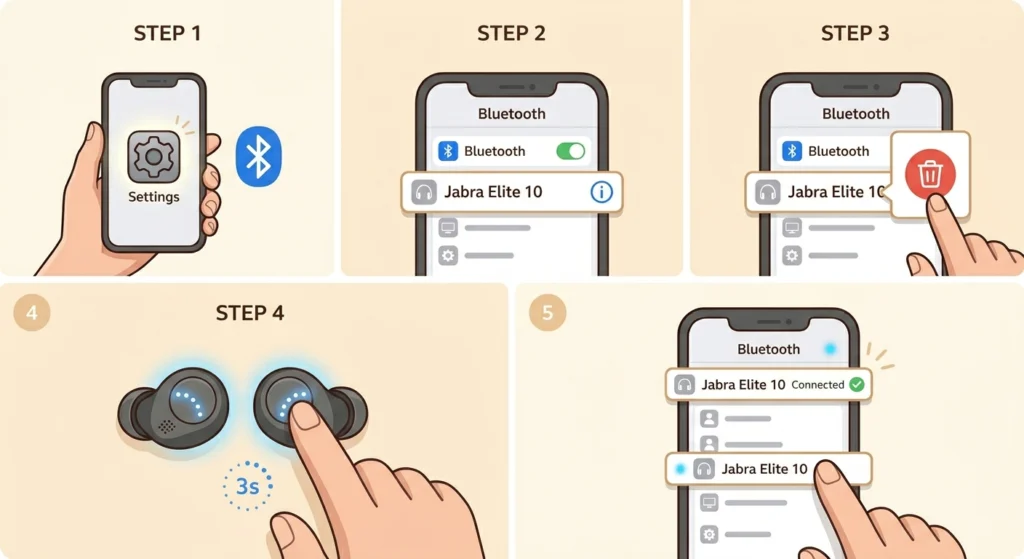
A corrupted Bluetooth pairing record on the phone can prevent a clean connection from forming. Deleting the old record forces both devices to start the handshake from scratch.
- Step 1: On the phone, go to Settings, then Bluetooth.
- Step 2: Find ‘Jabra Elite 10’ in the list of saved or previously connected devices.
- Step 3: Tap the info icon (or gear icon) next to it and select ‘Forget this device’ or ‘Unpair’.
- Step 4: Put the earbuds into pairing mode using the steps in Fix 1.
- Step 5: Scan for Bluetooth devices on the phone and reconnect to the Jabra Elite 10.
This works best when the earbuds were working before but suddenly stopped reconnecting after a phone update or switching between multiple devices.
Fix 3: Check If the Multipoint Slots Are Full
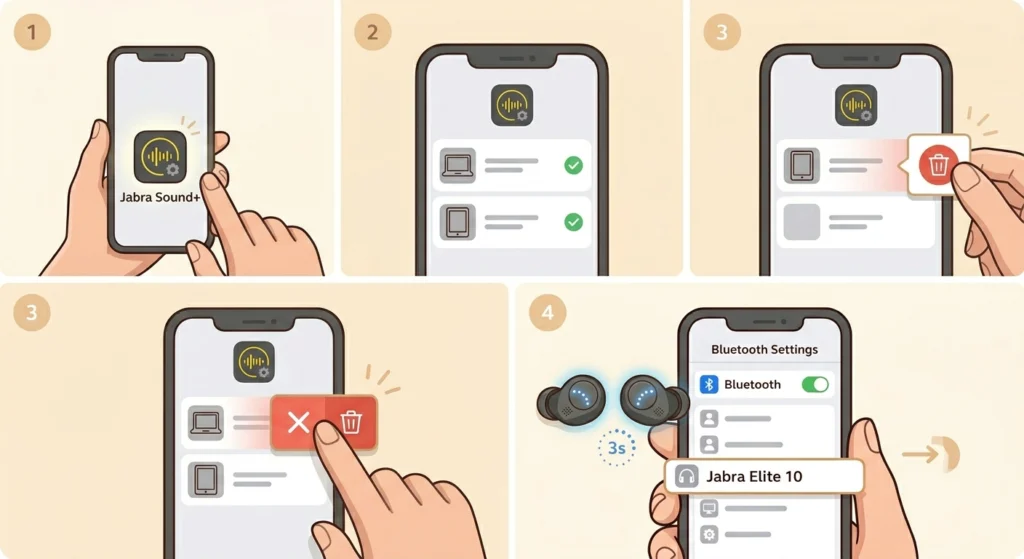
The Jabra Elite 10 supports Bluetooth multipoint, which allows it to stay connected to two devices at the same time. However, if both connection slots are already taken by two other saved devices, the earbuds will automatically connect to those and will not be discoverable by a new phone.
- Step 1: Open the Jabra Sound+ app if it is installed.
- Step 2: Check under the device settings to see which devices are currently paired.
- Step 3: Remove one of the existing paired devices from the list to free up a slot.
- Step 4: Put the earbuds into pairing mode and connect to the phone.
If the Jabra Sound+ app is not available, performing a factory reset (Fix 5) will clear all paired devices and resolve this issue.
Fix 4: Restart Both the Phone and the Earbuds
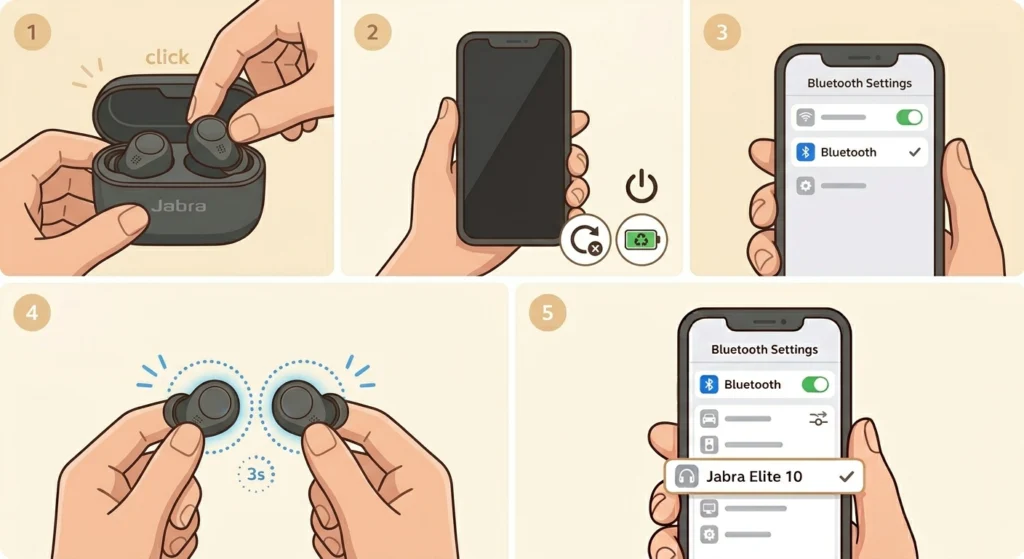
Sometimes Bluetooth stacks on phones get into a bad state after prolonged use or after a software update. A full restart clears temporary glitches on both ends without losing any settings or data.
- Step 1: Place the earbuds back into the charging case and close the lid to power them off.
- Step 2: Restart the phone completely – not just locking the screen, but a full power cycle.
- Step 3: Once the phone is back on, enable Bluetooth.
- Step 4: Take the earbuds out of the case and put them into pairing mode (press and hold both earbud buttons for 3 seconds).
- Step 5: Search for Bluetooth devices and pair.
Fix 5: Factory Reset the Jabra Elite 10
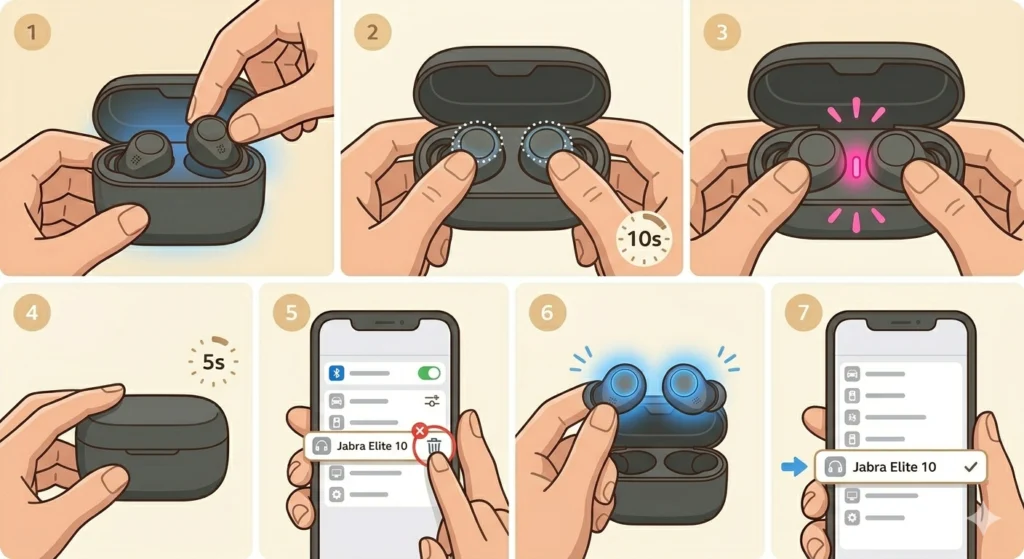
A factory reset is the most reliable fix for persistent pairing failures. It clears all saved paired devices from the earbuds’ memory and restores them to factory state, which eliminates any corrupted pairing data on the earbuds side. Audio equalizer settings and app preferences stored in Jabra Sound+ are not affected.
- Step 1: Place both earbuds inside the charging case and leave the lid open.
- Step 2: Press and hold the left and right earbud buttons simultaneously for 10 seconds.
- Step 3: The LED indicator inside the charging case will flash pink – this confirms the reset process has begun.
- Step 4: Close the lid of the charging case and keep it closed for at least 5 seconds to complete the reset.
- Step 5: After the reset, forget the earbuds from the phone’s Bluetooth settings (if they were previously paired there).
- Step 6: Take the earbuds out of the case – they will automatically enter pairing mode since no devices are saved yet.
- Step 7: On the phone, scan for Bluetooth devices and select ‘Jabra Elite 10’ to complete pairing.
Pro-Tip: After a factory reset, always delete the old Jabra Elite 10 entry from the phone’s Bluetooth settings before re-pairing. Trying to reconnect to the old pairing record without forgetting it first is one of the most common reasons pairing still fails even after a reset.
Fix 6: Update the Jabra Elite 10 Firmware
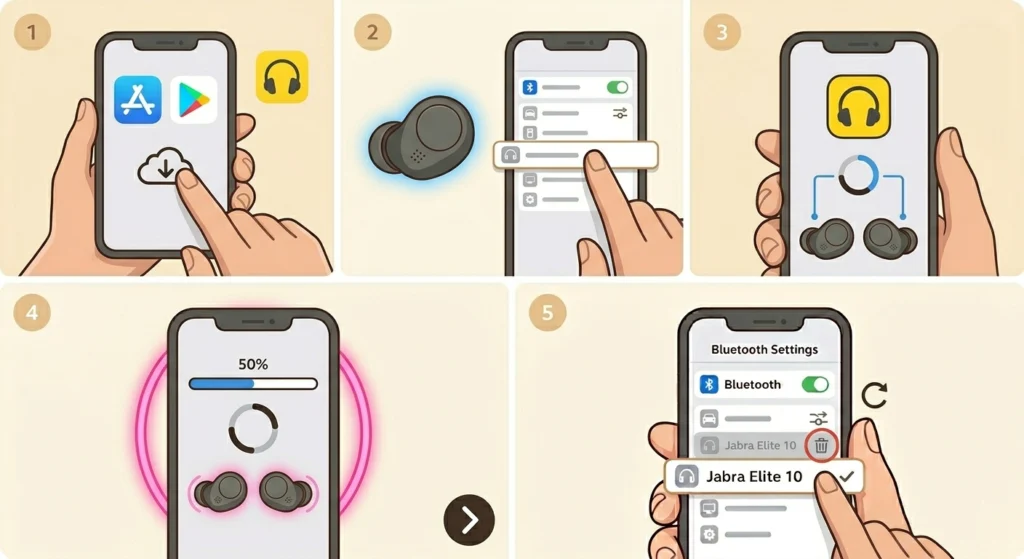
Jabra has released several firmware updates for the Elite 10 that fix Bluetooth connection stability issues with specific phones, including certain Xiaomi and Google Pixel models. Running outdated firmware can cause the earbuds to behave unpredictably during the pairing process.
- Step 1: Download and install the Jabra Sound+ app from the App Store or Google Play Store.
- Step 2: Pair the earbuds to the phone first – even temporarily using a basic connection if needed.
- Step 3: Open the Jabra Sound+ app and let it detect the earbuds.
- Step 4: If a firmware update is available, follow the on-screen prompts to install it.
- Step 5: Once the update completes, forget the earbuds from Bluetooth settings and re-pair cleanly.
Most people find that keeping the firmware current through Jabra Sound+ prevents pairing issues from returning. Jabra also recommends re-pairing after firmware updates, particularly when LE Audio features are involved.
Fix 7: Toggle Bluetooth Off and On, Then Clear Bluetooth Cache (Android)
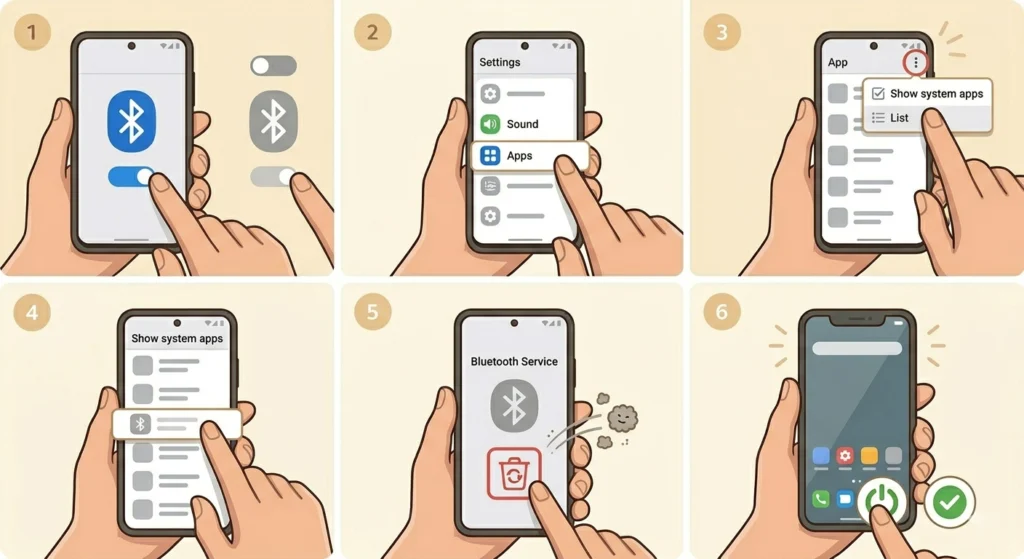
On Android phones, the Bluetooth cache can sometimes accumulate corrupted data that interferes with new pairings. Clearing it is a simple step that costs nothing and can make a real difference.
- Step 1: Go to Settings and turn Bluetooth off, then back on.
- Step 2: On Android, go to Settings, then Apps (or Application Manager).
- Step 3: Tap the three-dot menu and select ‘Show system apps’.
- Step 4: Find ‘Bluetooth’ or ‘Bluetooth MIDI Service’ from the list.
- Step 5: Tap ‘Storage’ and then ‘Clear Cache’.
- Step 6: Restart the phone and attempt pairing again.
This step is Android-specific. On iPhone, the equivalent is simply toggling Bluetooth off and on from Settings – or doing a full device restart. If there are audio routing issues on a Windows device after re-pairing, re-pairing Bluetooth earbuds for stereo sound on Windows covers the additional steps needed.
Tips for Keeping the Jabra Elite 10 Connected
- Keep the earbuds charged above 20% – very low battery levels can cause Bluetooth to drop or prevent pairing mode from activating correctly.
- Stay within range during the initial pairing process. Keep the phone within 1 meter of the earbuds while connecting for the first time.
- Avoid pairing near heavy Wi-Fi interference. Crowded 2.4GHz networks can disrupt Bluetooth. Moving away from routers or microwaves during pairing helps.
- Use the Jabra Sound+ app to manage the list of paired devices and keep only the devices actually in use saved to the earbuds.
- If switching between an iPhone and an Android phone regularly, take note that each device needs to be paired separately, and the multipoint limit of two devices applies.
Pro-Tip: If the Jabra Elite 10 keeps disconnecting even after a successful pairing, check if the phone has a ‘Battery Optimization’ or ‘Adaptive Battery’ setting that might be putting the Bluetooth service to sleep in the background. Disabling battery optimization for the Jabra Sound+ app on Android usually solves this. On Windows 11, unexpected audio issues after reconnecting can also be addressed by adjusting audio output settings to ensure the correct device is selected.
Common Problems and Quick Fixes
Jabra Elite 10 Not Showing Up in Bluetooth Scan
This almost always means the earbuds are not in pairing mode. Make sure to press and hold both earbud buttons for 3 seconds until the charging case LED flashes blue. If the earbuds have two devices already saved, they will skip pairing mode automatically and try to reconnect to those devices instead – requiring a factory reset to clear the slots.
Earbuds Pair But No Sound Comes Through
This usually points to the phone routing audio to a different output. On Android, check the active Bluetooth audio device in sound settings. On iPhone, swipe to Control Center and tap the audio output icon to switch to the Jabra Elite 10. On Windows, this is a common issue after re-pairing, and resetting audio settings can restore normal output quickly.
Only One Earbud Connects
Place both earbuds back into the case, close the lid for 10 seconds, then remove them together. The earbuds sync with each other through the case before connecting to the phone. If one earbud consistently fails to connect, a factory reset usually resolves the sync issue between the two earbuds.
Jabra Elite 10 Keeps Disconnecting After Pairing
Check for firmware updates in the Jabra Sound+ app. Jabra specifically released updates to fix unstable Bluetooth connections with certain phone models. Also check if any battery optimization settings on the phone are cutting off Bluetooth in the background.
Pairing Fails With a Specific Phone After a Firmware Update
Jabra recommends deleting the existing pairing and re-pairing after firmware updates, particularly for LE Audio features. Go to the phone’s Bluetooth settings, forget the earbuds, and pair from scratch after the firmware update completes.
Frequently Asked Questions
How do you put the Jabra Elite 10 in pairing mode?
Take both earbuds out of the charging case. Then press and hold the button on both the left and right earbud at the same time for about 3 seconds. The LED on the charging case will flash blue to confirm the earbuds are in pairing mode and ready to be found by a phone or device.
Why is my Jabra Elite 10 not showing up in Bluetooth settings?
The most common reason is that the earbuds did not enter pairing mode. They will skip pairing mode and try to reconnect to previously saved devices automatically. Make sure to manually trigger pairing mode by holding both earbud buttons for 3 seconds. If both multipoint slots are already taken, the earbuds will not be discoverable at all until one saved device is removed.
How do you reset the Jabra Elite 10 to fix pairing issues?
Place both earbuds in the charging case with the lid open. Press and hold the left and right earbud buttons simultaneously for 10 seconds until the LED flashes pink. Then close the lid and keep it shut for 5 seconds to complete the reset. After this, forget the old pairing on the phone and re-pair from scratch.
Can the Jabra Elite 10 connect to two phones at the same time?
Yes. The Jabra Elite 10 supports Bluetooth multipoint, which allows it to stay connected to two devices simultaneously. However, having two devices already saved in the earbuds means it will not be discoverable to a third device without removing one of the existing pairings first.
What does it mean when the Jabra Elite 10 LED flashes pink?
A pink LED flash during the factory reset process confirms that the reset has started successfully. This is the expected behavior after pressing and holding both earbud buttons for 10 seconds while the earbuds are inside the case with the lid open.
Does the Jabra Elite 10 factory reset delete my equalizer settings?
No. A factory reset clears the list of paired devices from the earbuds’ memory, but audio settings and equalizer preferences saved in the Jabra Sound+ app are stored in the app itself and remain unaffected.
Why does the Jabra Elite 10 keep disconnecting from the phone?
This can happen due to outdated firmware, battery optimization settings on the phone killing the Bluetooth service in the background, or the phone being too far from the earbuds. Updating firmware through the Jabra Sound+ app and disabling battery optimization for Jabra-related apps usually resolves this.
What should be done if the Jabra Elite 10 pairs but produces no audio?
Check the active audio output on the phone. The phone may have defaulted to a different audio device. On iPhone, use Control Center to switch the output to the Jabra Elite 10. On Android, go to Bluetooth settings and ensure the earbuds are set as the active media device. A re-pair after forgetting the device often solves this cleanly.
Does iPhone support Jabra Elite 10 LE Audio?
As of the latest firmware updates available, iOS does not support LE Audio on the Jabra Elite 10. LE Audio is currently available for Android devices only. Jabra has noted this limitation in official firmware release notes.
How do you pair the Jabra Elite 10 after a firmware update?
Jabra recommends deleting the old pairing from the phone’s Bluetooth settings after a firmware update and re-pairing fresh. This is especially important when LE Audio features are enabled. Simply forgetting the device, triggering pairing mode on the earbuds, and reconnecting from the phone’s Bluetooth menu is all that is needed.