
Quick Summary
- Setting up OnePlus Buds 3 on Android takes less than two minutes once the case is charged and Bluetooth is active.
- OnePlus and Oppo phones use Google Fast Pair for an automatic pop-up connection.
- Other Android phones connect manually through the Bluetooth settings menu.
- The HeyMelody app unlocks touch control customization, noise cancellation modes, and firmware updates.
- A factory reset requires holding the setup button for 15 seconds until the light blinks red.
Setting up OnePlus Buds 3 on Android is a simple process, and most people get connected on the very first attempt without opening a single settings menu manually. These earbuds are built to recognize OnePlus and Oppo devices instantly through Fast Pair, though older or non-OnePlus Android phones still connect just as easily through a short manual process. The steps below walk through both scenarios so the buds are paired, updated, and ready to use in a few minutes.
Step-by-Step Guide to Pairing OnePlus Buds 3 with Android
The pairing method depends slightly on the type of Android phone in use. OnePlus and Oppo phones running a recent version of the OS get a shortcut through Fast Pair, while other Android brands connect through the standard Bluetooth menu. Both paths are covered here.
Pairing on a OnePlus or Oppo Phone
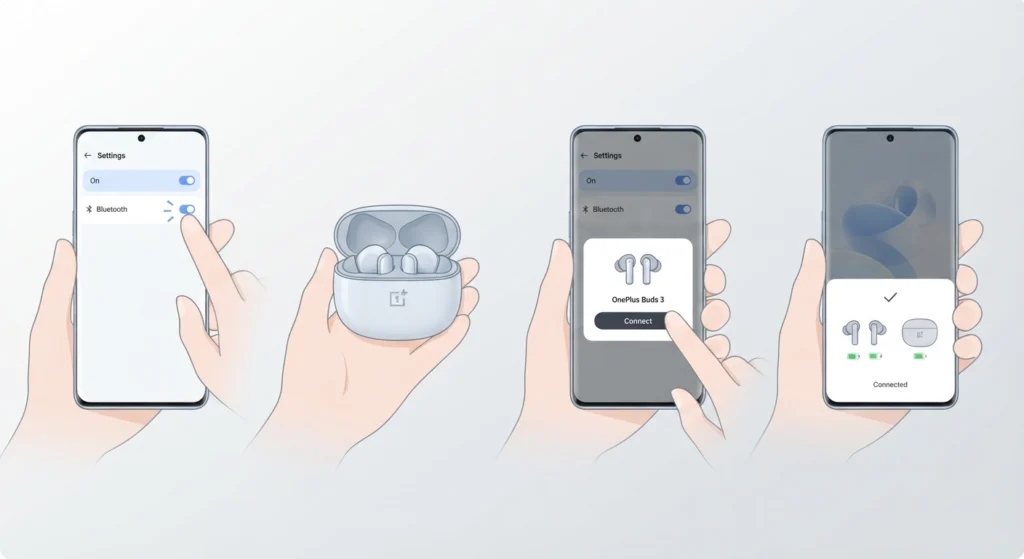
- Step 1: Turn on Bluetooth from the phone’s quick settings panel or from Settings > Bluetooth.
- Step 2: Open the lid of the OnePlus Buds 3 charging case while keeping the earbuds inside.
- Step 3: Hold the case close to the phone, roughly within a few centimeters, until a pairing pop-up appears on the screen.
- Step 4: Tap Connect on the pop-up prompt and follow the on-screen instructions to finish setup.
Pairing on Other Android Phones
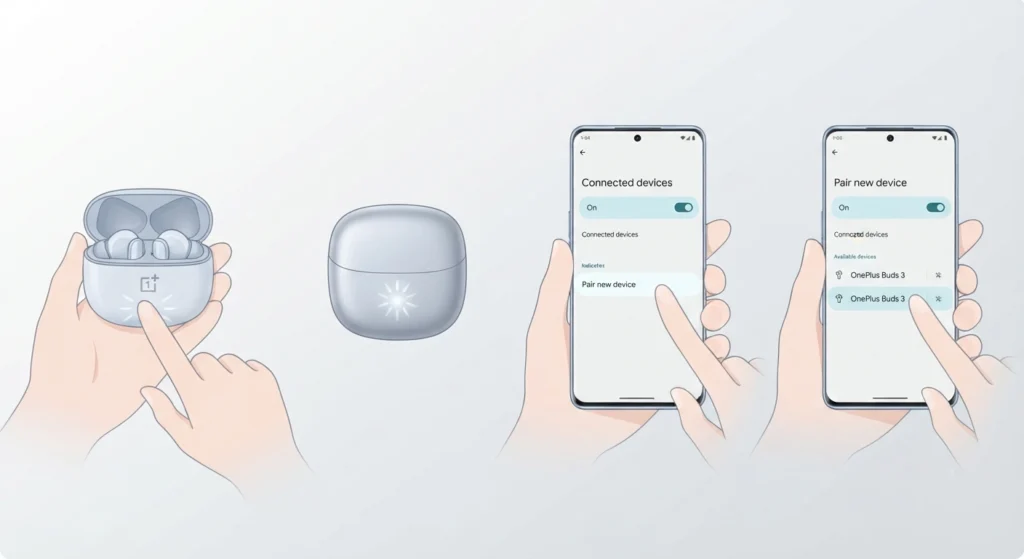
- Step 1: Place both earbuds into the charging case and leave the lid open.
- Step 2: Locate the small setup button on the front of the case and press and hold it for about 2 seconds until the indicator light blinks white.
- Step 3: On the phone, open Settings > Connected devices > Pair new device (menu names can vary slightly by brand).
- Step 4: Select ‘OnePlus Buds 3’ from the list of available devices and wait for the connection to complete.
Once the pairing tone plays through the earbuds, the connection is complete and audio should route through them automatically the next time the case is opened nearby.
Setting Up the HeyMelody App
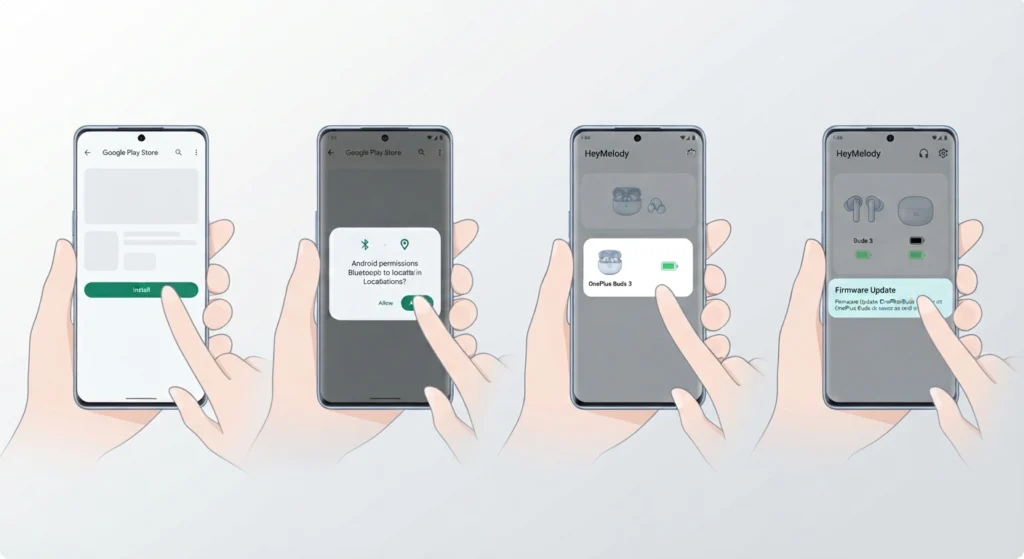
Non-OnePlus Android users get the most value out of installing the HeyMelody app, since it unlocks the same customization panel that OnePlus phones get built into Settings > Bluetooth directly. The app is free and available on the Google Play Store.
- Step 1: Download and install HeyMelody from the Google Play Store.
- Step 2: Open the app and allow the requested Bluetooth and location permissions, which Android requires for device scanning.
- Step 3: Select OnePlus Buds 3 from the detected device list once the earbuds are connected.
- Step 4: Check for a firmware update inside the app and install it if one is available, since this often improves connection stability and battery reporting.
Pro-Tip: Firmware updates released after purchase frequently fix small quirks like inaccurate battery percentage or delayed reconnection. Checking HeyMelody for an update immediately after the first pairing saves a lot of frustration later.
Customizing Touch Controls and Features
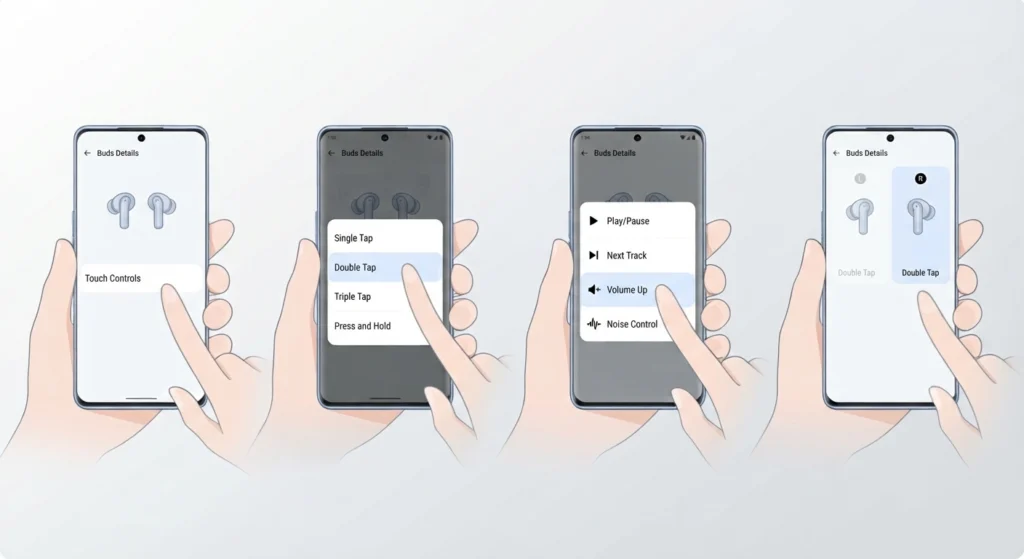
Once paired, the touch area on each earbud can be configured to handle playback, calls, and noise control differently on the left and right side.
- Step 1: Open Settings > Bluetooth > OnePlus Buds 3 on a OnePlus phone, or open HeyMelody on other Android phones.
- Step 2: Select the tap gesture to customize – single tap, double tap, triple tap, or press and hold.
- Step 3: Assign an action such as play/pause, next track, volume, or noise cancellation toggle to that gesture.
- Step 4: Repeat for the opposite earbud, since left and right can carry different functions.
Swiping up or down on the touch stem also adjusts volume directly from the earbud, which is a small detail that a lot of new owners miss during the first week of use.
Tips for a Smooth Setup
- Charge the case fully before the first pairing attempt, since a low battery can sometimes prevent the earbuds from entering pairing mode.
- Keep only one phone’s Bluetooth active nearby during setup, since two devices searching at once can cause the buds to connect to the wrong one.
- Fit the correct ear tip size before finalizing setup, since a poor seal affects both noise cancellation and call clarity.
- For anyone who also connects these buds to a Windows laptop for meetings or music, learning how to re-pair Bluetooth earbuds for proper stereo sound prevents the common one-sided audio issue that shows up occasionally on desktop systems.
Common Setup Problems and Fixes
Most connection issues during setup trace back to a handful of predictable causes, and each one has a quick fix.
Buds Not Appearing in the Bluetooth List
This usually means the case lid was closed too soon or the setup button was not held long enough. Reopen the case, hold the setup button for the full 2 seconds, and refresh the Bluetooth list on the phone.
Buds Connect but No Sound Plays
Check the media volume on the phone first, since it is separate from the touch-control volume on the earbuds. If sound is still missing on a Windows device used alongside the phone, reviewing how to adjust audio output settings on Windows 11 usually resolves the mismatch.
Fast Pair Pop-Up Never Appears
Fast Pair only triggers on supported OnePlus and Oppo devices with location services enabled. On other Android phones, pairing manually through Settings > Bluetooth is the expected method rather than a workaround.
Buds Keep Reconnecting to a Previous Phone
Forget the device from the old phone’s Bluetooth settings first, then pair fresh with the new phone as described in the steps above.
Frequently Asked Questions
How long does it take to pair OnePlus Buds 3 with an Android phone?
Pairing typically takes under a minute on OnePlus or Oppo phones through Fast Pair, and around one to two minutes on other Android phones using the manual Bluetooth method.
Do OnePlus Buds 3 work with non-OnePlus Android phones?
Yes. They pair with any Android phone that supports standard Bluetooth 5.3 connections, though the automatic Fast Pair pop-up is limited to OnePlus and Oppo devices.
Is the HeyMelody app required to use OnePlus Buds 3?
It is not required for basic playback and calls, but it is needed on non-OnePlus phones to access touch control customization, noise cancellation modes, and firmware updates.
Why does the charging case show a different battery reading before and after pairing?
The indicator shows the earbud battery level while they sit inside the case, and switches to showing the case’s own battery level once the earbuds are removed.
How is a factory reset performed on OnePlus Buds 3?
Place both earbuds in the case with the lid open, then press and hold the setup button for 15 seconds until the indicator blinks red several times, confirming the reset.
Can OnePlus Buds 3 connect to two devices at the same time?
They support reconnecting quickly between previously paired devices, but only one active audio connection plays at a time.
What should be done if the setup button does not respond?
Confirm the case has enough charge, since a drained case often prevents the setup button from registering a press at all.
Do the touch controls work differently on the left and right earbud?
Yes, each earbud can be assigned separate gestures, so functions like noise cancellation and track skipping do not have to sit on the same side.
Why does audio only play from one earbud after setup?
This is often a stereo balance or connection sync issue rather than a hardware fault, and reviewing how to reset audio settings on Windows 11 resolves it when the buds are also used with a laptop.
Is Google Fast Pair the same as standard Bluetooth pairing?
Fast Pair runs on top of standard Bluetooth to trigger an automatic on-screen prompt, but the actual connection technology underneath is identical either way.