
A hissing sound coming from headphones is one of the most frustrating audio issues out there. It can ruin a listening session, make calls difficult, and signal that something is off with the setup – whether that is a software setting, a loose cable, or a driver conflict. The good news is that most hissing problems are fixable without replacing the headphones entirely. This guide walks through every proven fix, from the simplest setting adjustments to deeper driver-level solutions.
Key Takeaways
- Headphone hissing is usually caused by high gain settings, electrical interference, faulty cables, or outdated audio drivers.
- Start with the simplest fix first – lowering the microphone boost or system volume often resolves it immediately.
- Audio driver updates and resetting audio settings on Windows 11 eliminate most software-related hissing.
- Wired headphones are more vulnerable to cable-induced noise; wireless models can pick up Bluetooth interference instead.
- Enhancements and sound effects in Windows can introduce hissing – disabling them is a quick win.
How to Fix a Hissing Sound from Headphones
Fix 1: Lower the Microphone Boost and Input Gain
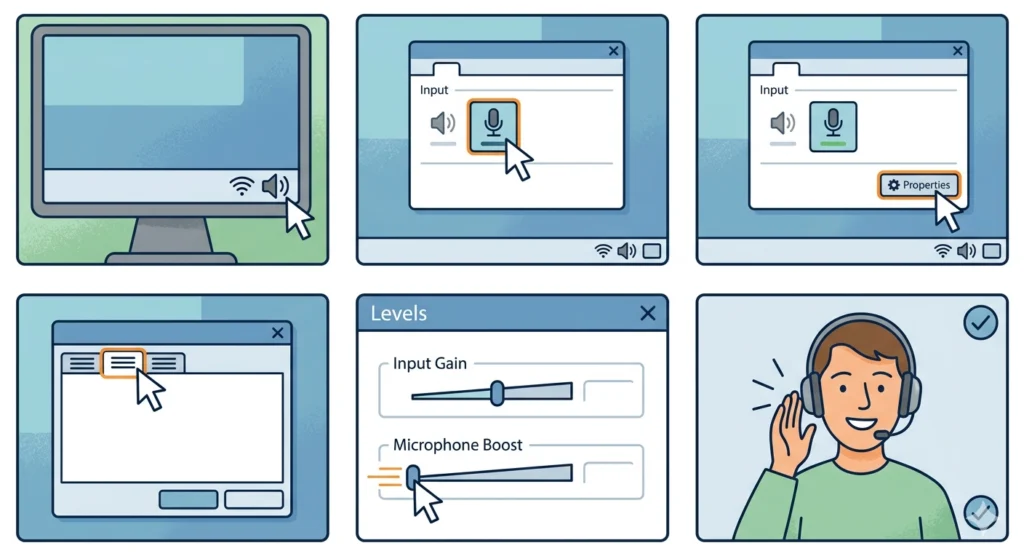
One of the most common causes of headphone hiss is an excessively high microphone boost or input gain. When this is cranked up, it amplifies background electrical noise along with the actual audio signal – and that comes through as a constant hiss.
- Step 1: Right-click the speaker icon in the taskbar and select ‘Sound settings’.
- Step 2: Under ‘Input’, click on the active microphone device.
- Step 3: Click ‘Additional device properties’.
- Step 4: Go to the ‘Levels’ tab.
- Step 5: Reduce ‘Microphone Boost’ to 0 dB or as low as possible.
- Step 6: Click ‘Apply’, then test the headphones.
Most people find that dropping the boost from +20 dB to +0 dB completely eliminates the hiss. The key is to reduce gain before looking at anything else.
Fix 2: Disable Audio Enhancements in Windows
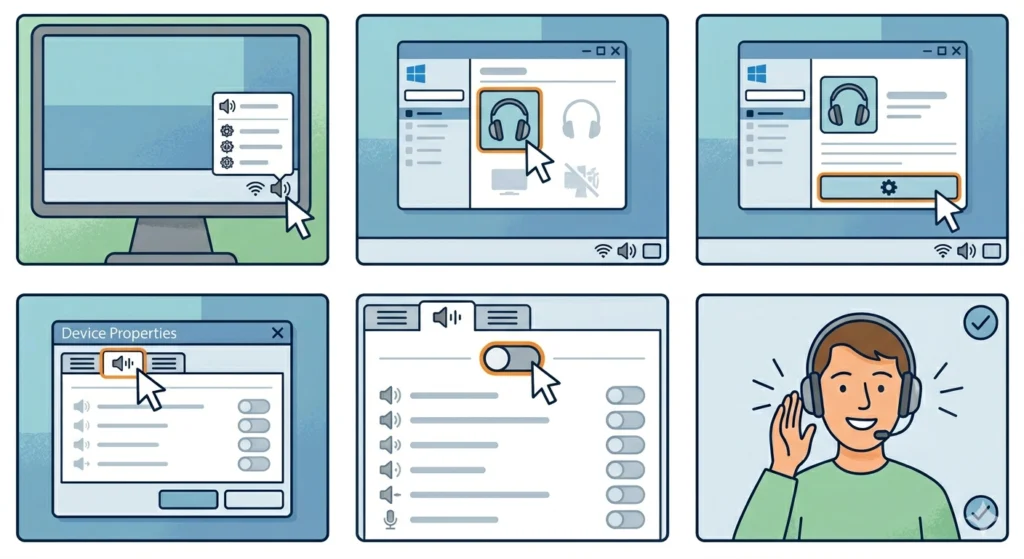
Windows applies a range of audio processing effects by default – things like bass boost, loudness equalization, and virtual surround. These enhancements can create or amplify hissing noise, especially with sensitive headphones.
- Step 1: Right-click the speaker icon and open ‘Sound settings’.
- Step 2: Under ‘Output’, click the headphone device.
- Step 3: Select ‘Additional device properties’.
- Step 4: Click the ‘Enhancements’ tab (or ‘Advanced’ on some Windows versions).
- Step 5: Check ‘Disable all enhancements’.
- Step 6: Hit ‘Apply’ and test.
This works best when the hiss appears during playback but not when the headphones are just plugged in at idle.
Pro-Tip: If there is no ‘Enhancements’ tab, try right-clicking the audio device in Device Manager, selecting ‘Properties’, and checking if any manufacturer-specific audio software (like Realtek HD Audio Manager or IDT Audio) has its own enhancement settings that need to be turned off separately.
Fix 3: Update or Reinstall the Audio Driver
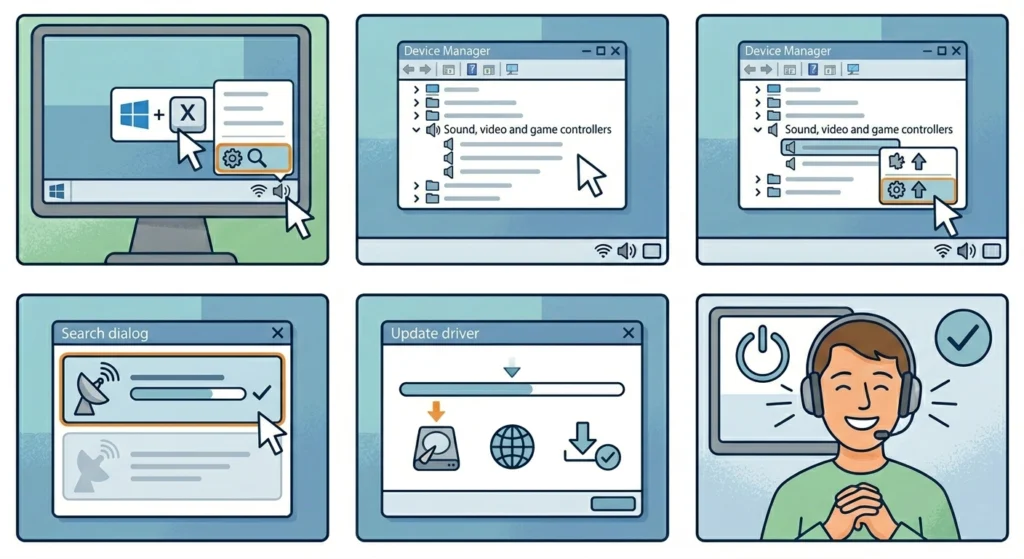
An outdated or corrupted audio driver is a surprisingly frequent source of headphone hiss. Driver bugs can cause the sound card to output unwanted noise at the hardware level, and no amount of setting tweaks will fix it without updating the driver first.
- Step 1: Press Windows + X and open ‘Device Manager’.
- Step 2: Expand ‘Sound, video and game controllers’.
- Step 3: Right-click the audio device and select ‘Update driver’.
- Step 4: Choose ‘Search automatically for drivers’ and let Windows find the latest version.
- Step 5: If no update is found, visit the motherboard or laptop manufacturer’s website to download the latest audio driver manually.
- Step 6: Restart the computer after installation and test the headphones.
If updating does not help, try uninstalling the driver entirely (check ‘Delete the driver software for this device’) and then restarting – Windows will reinstall a clean version automatically.
Fix 4: Adjust the Sample Rate and Bit Depth
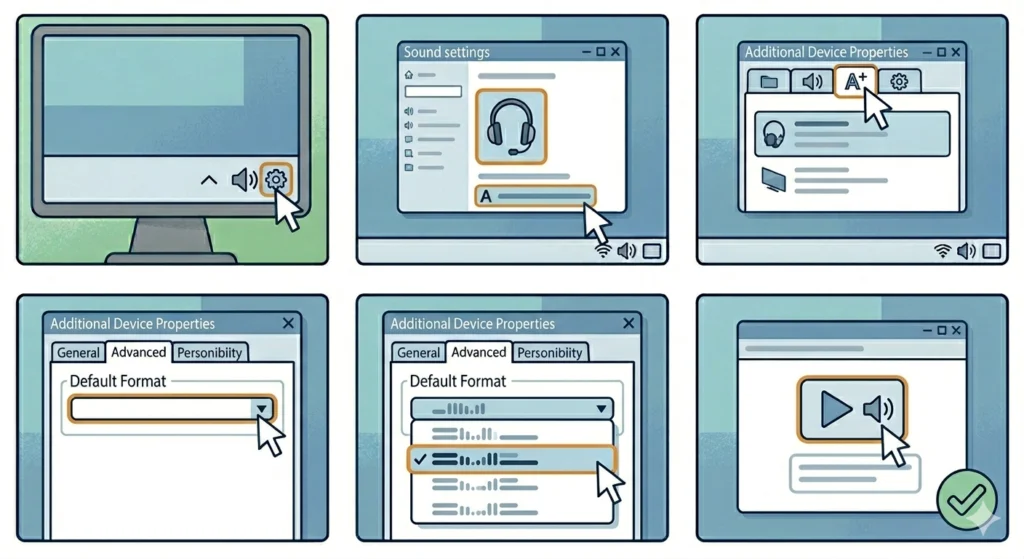
A mismatch between the audio output format and what the headphones can handle can create static or hissing. Changing the sample rate often resolves this.
- Step 1: Right-click the speaker icon and go to ‘Sound settings’.
- Step 2: Click on the headphone device under ‘Output’.
- Step 3: Click ‘Additional device properties’, then the ‘Advanced’ tab.
- Step 4: Under ‘Default Format’, open the dropdown.
- Step 5: Try switching between options – common ones are ’16 bit, 44100 Hz’, ’24 bit, 48000 Hz’, and ’16 bit, 48000 Hz’.
- Step 6: Click ‘Test’ after each change to see which setting removes the hiss.
The key is to match the sample rate to what the audio source is outputting. Mismatched rates cause the system to resample audio on the fly, and that process can introduce noise.
Fix 5: Check and Replace the Headphone Cable
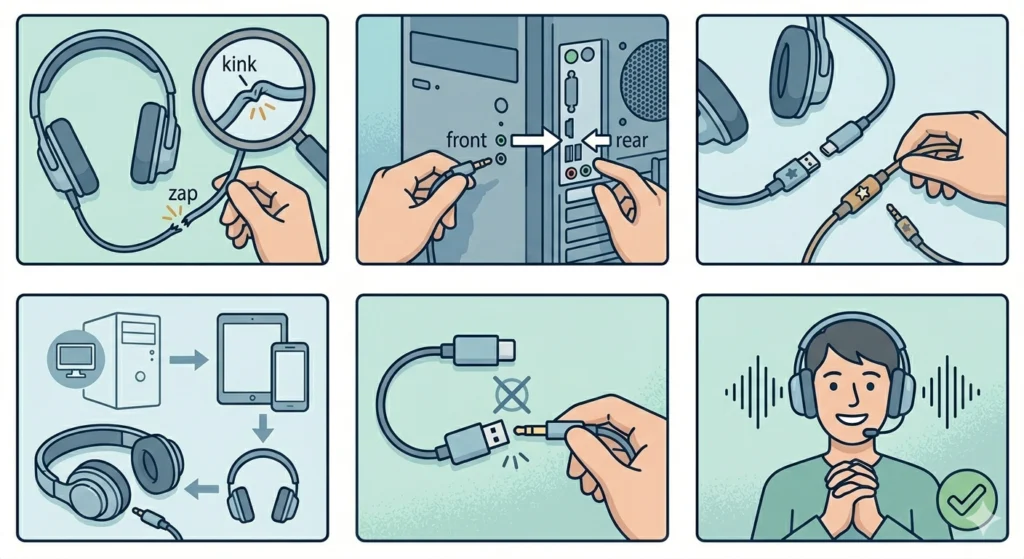
Physical cable damage is often overlooked. A frayed, bent, or loose cable can create intermittent hissing, especially when moving the headphones. This applies to both the headphone cable itself and any extension cords or adapters in the chain.
- Step 1: Unplug the headphones and inspect the cable along its full length for visible damage, kinks, or exposed wire.
- Step 2: Plug the headphones into a different audio jack or port (front panel vs rear panel on a desktop).
- Step 3: If using an adapter (3.5mm to USB, for example), remove it and test without it.
- Step 4: Try a different cable if the headphones have a detachable cord.
- Step 5: Test on a different device entirely (a phone or tablet) to determine if the cable or the PC is the source of the hiss.
Rear audio jacks on desktop PCs are almost always quieter than front-panel jacks, because they connect directly to the motherboard rather than through internal cables that can pick up electrical noise from components.
Fix 6: Eliminate Electrical Interference and Ground Loop Noise
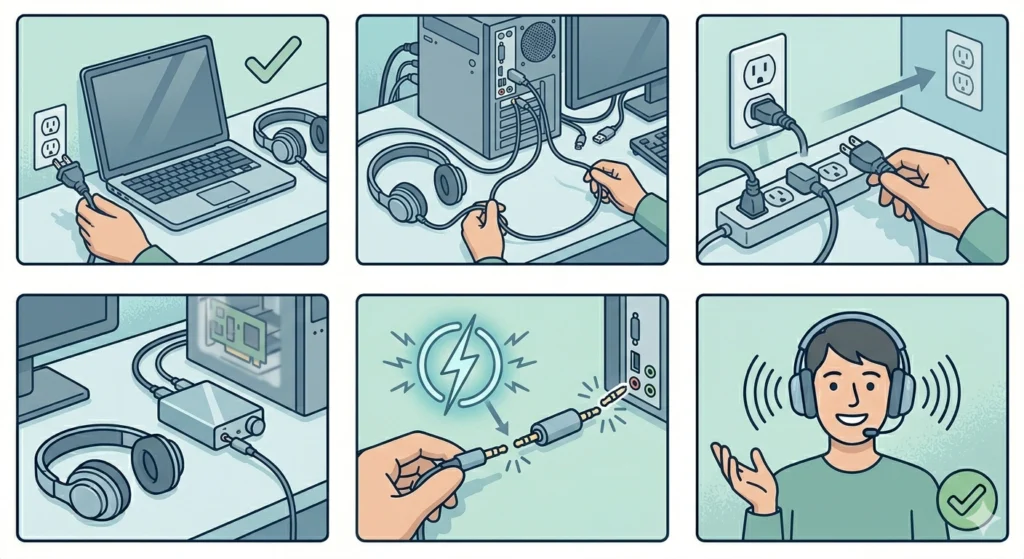
Hissing caused by electrical interference has a distinct buzzing or humming quality. It often gets louder when the screen brightness changes, the hard drive spins up, or a charger is plugged in. This is called a ground loop and it is common with desktop setups.
- Step 1: Unplug the laptop charger (if on a laptop) and test whether the hiss disappears.
- Step 2: Move the headphone cable away from power cables, USB hubs, and screens.
- Step 3: Try plugging the PC into a different wall outlet or power strip.
- Step 4: Consider using a USB DAC (Digital-to-Analog Converter) or a headphone amplifier, which isolates the audio signal from the PC’s internal electronics.
- Step 5: For persistent ground loop hiss, a ground loop isolator (a small, inexpensive adapter) placed between the headphones and the audio jack will break the electrical loop causing the noise.
Pro-Tip: Laptops are especially prone to charger-induced hiss because the power adapter can inject noise into the audio circuit. Testing with the charger unplugged is always the fastest way to confirm if electrical interference is the root cause.
Fix 7: Configure Audio Output Settings Correctly
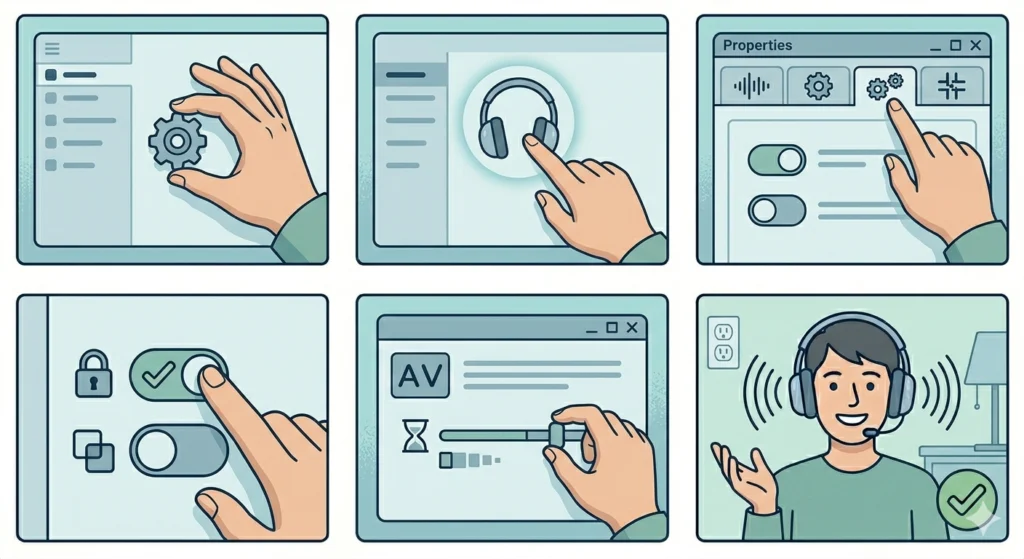
Incorrect audio output settings on Windows 11 can push the audio subsystem to operate outside its optimal range, creating hiss. This includes exclusive mode settings and buffer sizes.
- Step 1: Go to ‘Sound settings’ and open the headphone device properties.
- Step 2: Under the ‘Advanced’ tab, uncheck ‘Allow applications to take exclusive control of this device’.
- Step 3: Apply the changes and test.
- Step 4: If using a DAW or audio production software, check the ASIO buffer size settings – a buffer that is too small can cause noise artifacts.
Fix 8: Fix Bluetooth Interference for Wireless Headphones
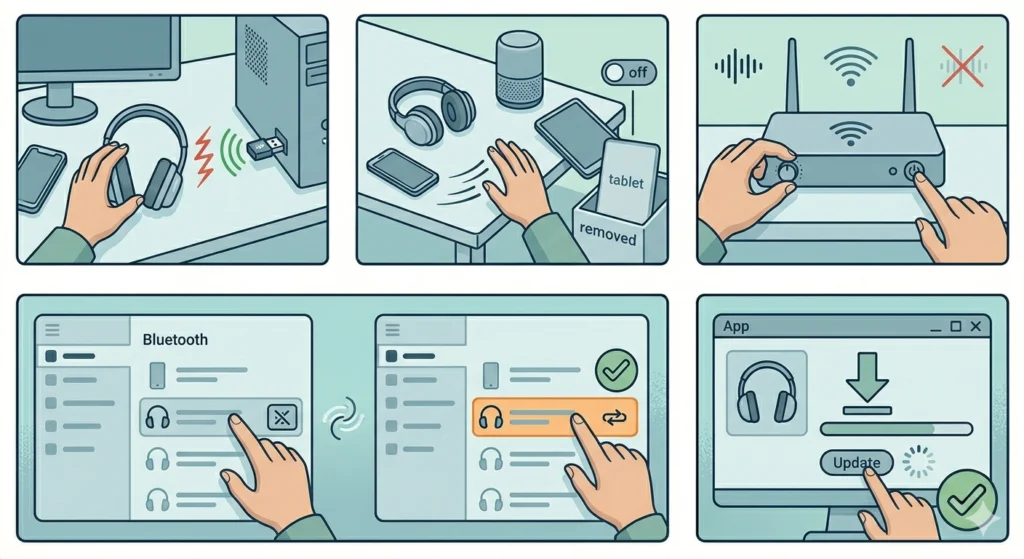
Wireless headphones that hiss are usually dealing with Bluetooth interference or a weak connection rather than the hardware issues that affect wired headphones.
- Step 1: Move the headphones closer to the Bluetooth transmitter or PC.
- Step 2: Remove other Bluetooth devices from the area that could be competing for the same frequency band.
- Step 3: Turn off nearby Wi-Fi routers briefly to see if 2.4 GHz interference is the cause.
- Step 4: Unpair and re-pair the Bluetooth headphones on Windows to reset the connection profile.
- Step 5: Update the headphone firmware using the manufacturer’s companion app if available.
Tips for Preventing Headphone Hiss
- Always store headphones with cables loosely coiled – tight coils stress the internal wires over time.
- Use the rear audio jack on desktop PCs instead of the front panel for a cleaner signal.
- Keep audio drivers updated, especially after major Windows updates, which sometimes reset driver settings.
- Avoid running headphone cables parallel to power cables – cross them at a 90-degree angle instead to reduce interference pickup.
- Use a dedicated USB DAC if the onboard sound card consistently produces background noise.
- For recording setups, keep microphone gain as low as possible and compensate with software gain instead.
Common Problems and Troubleshooting
Hiss Only Appears During Recording
This almost always points to microphone boost being set too high. Go back to Fix 1 and reduce the boost to 0 dB. If the recording is too quiet afterward, increase it gradually in small increments until the hiss just starts to appear, then back off slightly.
Hiss Is Present on All Devices
If the same headphones hiss on a phone, tablet, and PC alike, the issue is with the headphones themselves – typically worn-out drivers or internal wiring. At this stage, professional repair or replacement is the practical solution.
Hiss Disappears When Nothing Is Playing
This is called ‘idle noise’ and it often comes from audio enhancements or equalizer software running in the background. Disable all enhancements (Fix 2) and check for any third-party audio software running at startup.
Hiss Gets Worse at Higher Volume
A hiss that scales with volume points to a gain staging problem. The amplifier is being driven too hard. Lower the system volume and compensate by raising the volume in the media player or application instead of at the system level.
Hiss Only on One Side
Single-sided hiss is almost always a physical issue – a loose cable connection, a damaged driver on that side, or a failing solder joint inside the headphone. Check the cable first, then test with a replacement cable if detachable.
Frequently Asked Questions
Why do headphones hiss even when nothing is playing?
This is usually caused by background electrical noise from the audio circuit, high gain settings, or audio enhancements running continuously. It is called the noise floor of the system. Lowering the microphone boost and disabling enhancements typically resolves it.
Does headphone hiss mean the headphones are broken?
Not necessarily. In most cases, hissing is a software or settings issue rather than a hardware defect. Work through the fixes above before assuming the headphones need replacing. Only if the hiss persists across multiple devices does hardware damage become likely.
Can a bad audio jack cause headphone hissing?
Yes. A worn or oxidized 3.5mm jack creates an inconsistent electrical connection, which produces hissing or crackling. Cleaning the jack with compressed air or a cotton swab dipped in isopropyl alcohol can help. If the jack is physically damaged, replacing it or using a USB audio adapter is the better fix.
Is headphone hiss harmful to hearing?
At low levels, background hiss is not a hearing risk. However, if the hiss is loud enough that someone turns the volume up to compensate, that elevated volume over time can contribute to hearing fatigue. Fixing the hiss early protects both the listening experience and long-term hearing health.
Why does hissing stop when the charger is unplugged?
This is a classic ground loop symptom. The laptop’s power adapter introduces electrical noise into the audio circuit. Using a three-prong grounded outlet, a ground loop isolator, or a USB DAC can resolve this without needing to leave the charger unplugged.
Do expensive headphones hiss less than cheap ones?
Higher-impedance headphones (typically 150 ohms and above) are generally less sensitive to background noise from consumer-grade amplifiers. Budget headphones with low impedance pick up more of the noise floor from the source device. That said, even premium headphones can hiss if the source settings are misconfigured.
Can a USB DAC eliminate headphone hiss?
In most cases, yes. A USB DAC bypasses the PC’s internal audio card entirely, removing it from any electrically noisy environment inside the computer case. The result is typically a much cleaner, quieter signal. Entry-level DACs are affordable and make a noticeable difference for desktop users with persistent hiss problems.
Why do wireless headphones hiss more than wired ones?
Bluetooth audio compression (especially on lower-quality codecs like SBC) can introduce noise artifacts that sound like hissing. Using higher-quality codecs such as aptX or AAC, staying within optimal Bluetooth range, and minimizing interference from other wireless devices usually reduces this.
Can Windows audio updates fix headphone hiss?
Sometimes. Windows updates occasionally include audio driver patches that address known noise issues. Keeping the system updated, and manually checking the audio driver version against the latest from the manufacturer, is a good habit for maintaining clean audio output.
Does the length of the headphone cable affect hissing?
Longer cables can act as antennas and pick up more electrical interference from the environment, which adds to hiss. Using the shortest cable practical for the setup reduces this risk. Shielded cables offer additional protection in electrically noisy environments.