
A buzzing sound from headphones is one of the most frustrating audio issues anyone can deal with. Whether it shows up as a faint electrical hum, a constant static noise, or an annoying interference buzz, it makes listening unbearable. The good news is that most of the time, this problem has a straightforward fix – and this guide covers the most effective solutions in a clear, step-by-step format.
Key Takeaways
- A loose or damaged cable is the most common cause of buzzing in wired headphones.
- Audio driver issues and incorrect sound settings are frequent culprits on Windows and Mac.
- Electrical interference from nearby devices can cause humming even when everything else looks fine.
- Bluetooth headphones can buzz due to signal interference or low battery.
- Most fixes take less than 10 minutes and require no special tools.
Fix 1: Check and Reseat the Audio Cable
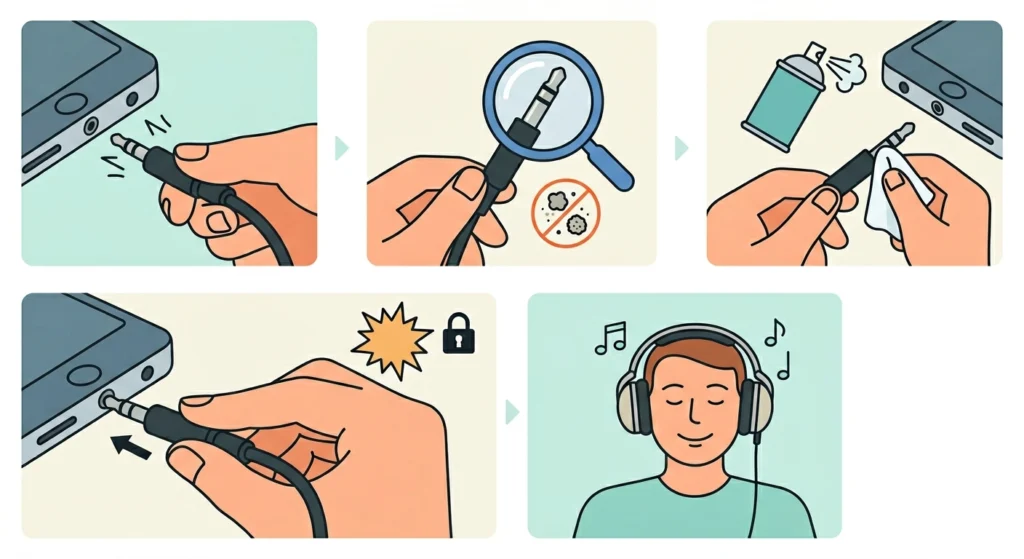
The first thing to check is the physical connection. A partially plugged-in cable or a worn-out 3.5mm jack is responsible for a surprising number of buzzing complaints. The key is to make sure every connection point is fully seated and secure.
- Step 1: Unplug the headphone cable completely from the audio jack or device.
- Step 2: Inspect the plug and jack for visible dirt, debris, or bent contacts.
- Step 3: Gently clean the plug with a dry cloth or compressed air.
- Step 4: Plug the cable back in firmly until it clicks or seats fully.
- Step 5: Test the audio to see if the buzzing is gone.
This works best when the buzzing changes or stops when the cable is slightly wiggled – that is a clear sign the connection is the issue.
Fix 2: Try a Different Audio Port or Device
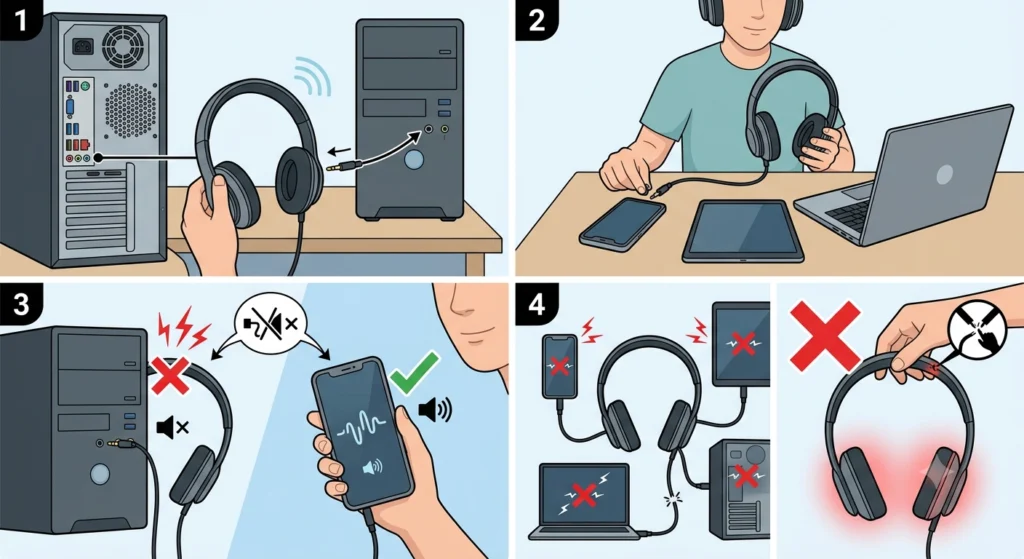
Sometimes the problem is not the headphones at all – it is the audio port on the device. Testing on a different port or a completely different device helps isolate whether the issue is with the headphones or the source.
- Step 1: Plug the headphones into a different audio jack on the same device (front vs. rear panel on a desktop PC).
- Step 2: If still buzzing, plug the headphones into a separate device entirely – a phone, tablet, or another computer.
- Step 3: If the buzz disappears on another device, the original device’s audio output is the problem.
- Step 4: If the buzz continues on every device, the headphones themselves may be damaged.
Fix 3: Adjust the Volume and Audio Settings
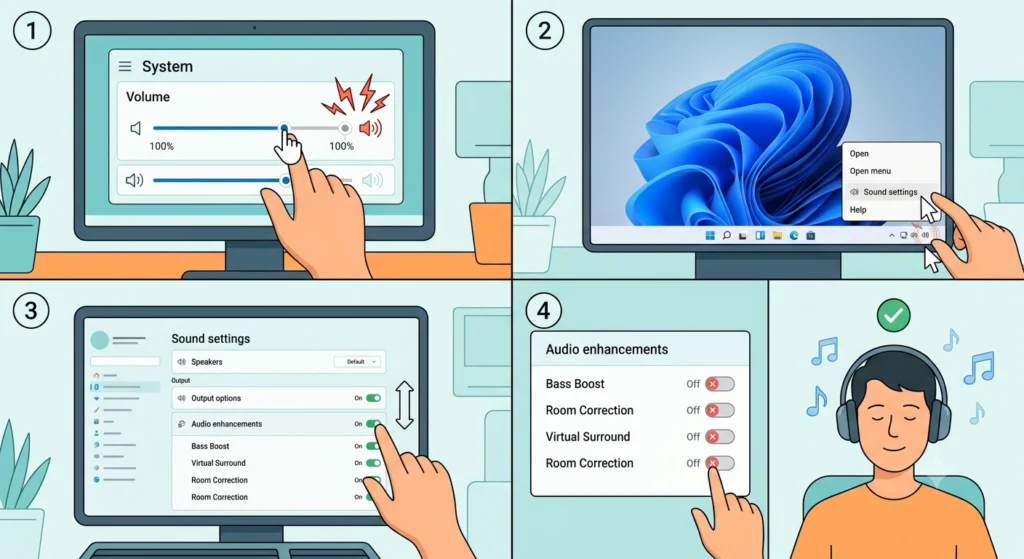
Running audio at extremely high volume levels or having conflicting sound enhancements enabled can introduce buzz and distortion. Most people find that turning the volume down slightly – or disabling audio enhancements – resolves the issue quickly.
- Step 1: Lower the system volume to around 70-80% and check if the buzzing reduces.
- Step 2: On Windows 11, right-click the speaker icon in the taskbar and select ‘Sound settings’.
- Step 3: Click on the output device and scroll to ‘Audio enhancements’.
- Step 4: Turn off all enhancements and test the headphones again.
For more detailed guidance on this, the full walkthrough on adjusting audio output settings on Windows 11 covers every option in depth.
Pro-Tip: Certain audio enhancement features like ‘Bass Boost’ or ‘Loudness Equalization’ are known to cause buzzing or distortion at higher volumes. Disabling them one at a time can pinpoint which setting is causing the problem.
Fix 4: Update or Reinstall the Audio Driver
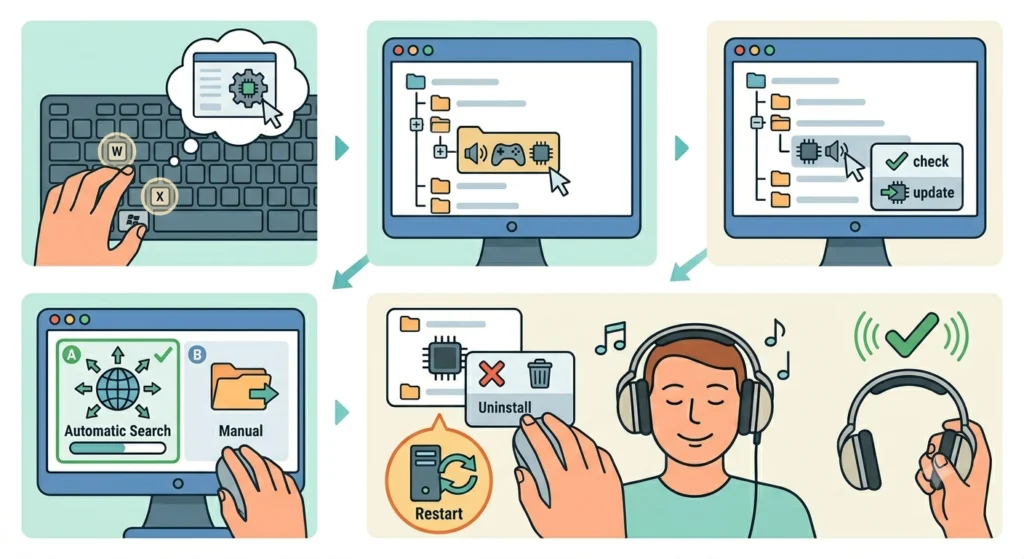
An outdated or corrupted audio driver is one of the most overlooked causes of headphone buzzing. Drivers control how the operating system communicates with the audio hardware, and even a minor corruption can produce persistent noise.
- Step 1: Press Windows + X and select ‘Device Manager’.
- Step 2: Expand the ‘Sound, video and game controllers’ section.
- Step 3: Right-click on the audio device and select ‘Update driver’.
- Step 4: Choose ‘Search automatically for drivers’ and let Windows find the latest version.
- Step 5: If updating does not help, right-click again and select ‘Uninstall device’, then restart the computer. Windows will reinstall the driver automatically.
Fix 5: Reset Audio Settings to Default

If the buzzing started after changing audio settings or installing new software, resetting everything back to default is a fast and reliable fix. This clears out any misconfigurations that may be causing interference.
- Step 1: Open ‘Sound settings’ on Windows 11.
- Step 2: Scroll down and locate the option to reset audio settings.
- Step 3: Confirm the reset and restart the device.
- Step 4: Plug in the headphones and test.
There is a dedicated guide on resetting audio settings on Windows 11 that walks through this process with screenshots for every step.
Fix 6: Eliminate Electrical Interference

Electrical buzz – often described as a ’60Hz hum’ – typically comes from nearby electronics interfering with the headphone signal. Chargers, monitors, fluorescent lights, and USB hubs are common culprits. The fix is simpler than it sounds.
- Step 1: Move away from large electronics like monitors, routers, or power strips while testing the headphones.
- Step 2: Unplug any USB devices, especially hubs or charging cables, from the same port area.
- Step 3: If using a desktop PC, try plugging the headphones into the rear audio jack instead of the front – rear ports are better shielded.
- Step 4: If the headphones are connected while the device is plugged into power, try running on battery only and check if the buzz disappears.
Pro-Tip: Ground loop interference is a real issue on desktop setups. If the buzz only appears when the laptop or PC is plugged into a charger, a USB audio adapter or a ground loop isolator (available cheaply online) can eliminate it instantly.
Fix 7: Fix Bluetooth Interference (Wireless Headphones)
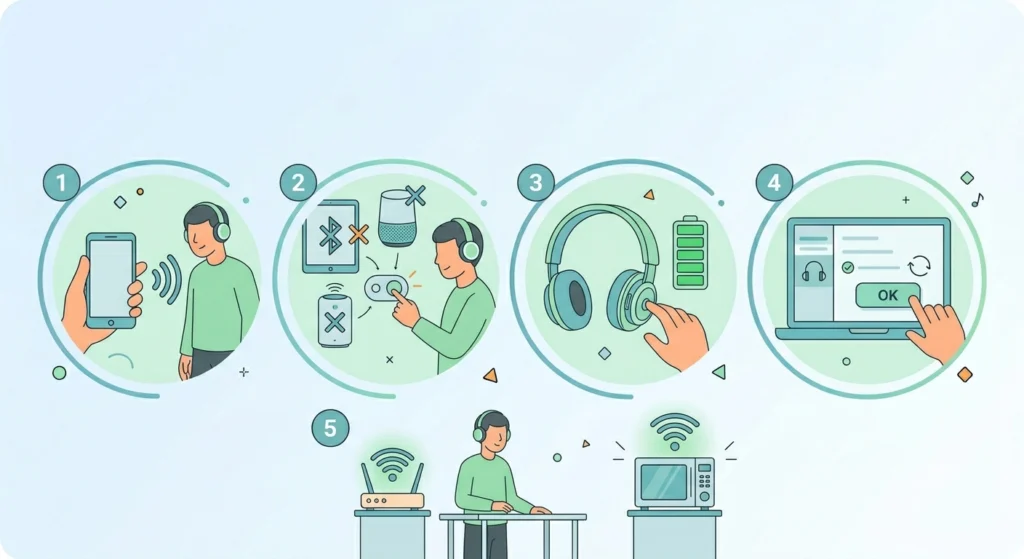
Bluetooth headphones have their own set of buzzing causes. A weak connection, nearby wireless devices, or even a low battery can produce static or buzzing sounds that come and go.
- Step 1: Move closer to the paired device – weak Bluetooth signal is a top cause of static buzz.
- Step 2: Turn off other nearby Bluetooth devices that may be competing for the same frequency.
- Step 3: Check the headphone battery level – low battery often causes audio degradation and buzzing.
- Step 4: Disconnect and re-pair the headphones. The full process for re-pairing correctly is covered in this guide on how to re-pair Bluetooth earbuds for stereo sound on Windows.
- Step 5: Move away from Wi-Fi routers, microwaves, and other 2.4GHz devices that can interfere with Bluetooth signals.
Fix 8: Check the Headphone Cable for Damage
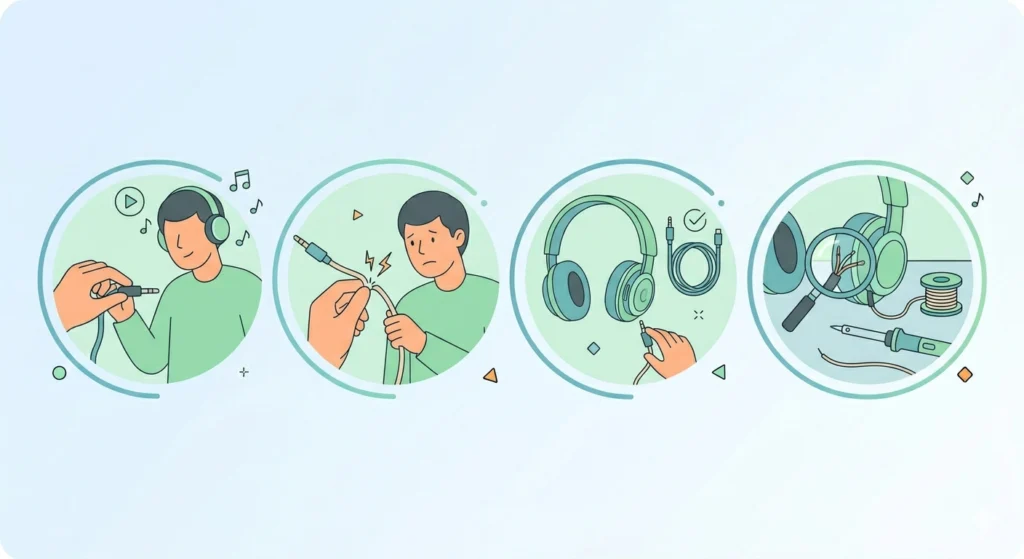
Physical damage to the headphone cable – especially near the plug or the ear cup – is a very common cause of buzzing in older or heavily used headphones. The damage is not always visible, but bending the cable while listening can help locate the problem spot.
- Step 1: While audio is playing, gently bend and flex the cable from the plug upward, section by section.
- Step 2: If the buzzing changes or cuts in and out at a specific point, that section has internal wire damage.
- Step 3: For detachable cables, replace the cable with a compatible one – this is usually cheap and solves the problem completely.
- Step 4: For non-detachable cables, a repair shop can re-solder the wire, or the headphones may need to be replaced if the damage is near the driver.
Tips for Preventing Headphone Buzzing
- Always unplug headphones by holding the plug, not pulling the cable.
- Store headphones with loose, natural coils rather than tight wraps that stress the cable.
- Keep the audio jack clean using compressed air every few months.
- Avoid running headphone cables alongside power cables – the proximity causes electromagnetic interference.
- Keep Bluetooth headphone firmware updated for the best connection stability.
- Use a USB DAC (digital-to-analog converter) on desktop PCs if electrical hum is a recurring issue – it bypasses the onboard audio completely.
Common Problems and Troubleshooting
- Buzzing only on one side: This usually points to a damaged wire inside the cable on that side, or a loose connection at the ear cup. Try flexing the cable near the affected ear cup to confirm.
- Buzzing only when charging the device: This is a classic ground loop issue. Try a USB audio adapter or run the device on battery to confirm.
- Buzzing that comes and goes: Intermittent buzz is almost always a loose or partially broken cable connection. Replace the cable if detachable.
- Buzzing after a Windows update: Driver conflicts after system updates are common. Roll back or reinstall the audio driver using Device Manager.
- Buzzing with a specific app only: The app may be pushing audio beyond the safe output level. Lower the in-app volume and check the app’s audio settings for enhancements.
- New headphones buzzing out of the box: Check the source device first. New headphones should not buzz – if every device produces the same sound, the headphones may have a manufacturing defect and qualify for a return or exchange.
Frequently Asked Questions
Why do headphones make a buzzing or humming sound?
Headphone buzzing usually comes from one of four sources: a loose or damaged cable, electrical interference from nearby devices, incorrect audio settings or driver issues, or a problem with the headphone’s internal driver. Identifying which category fits the situation helps narrow down the fix quickly.
Can a buzzing sound damage headphones over time?
The buzzing itself does not damage headphones. However, the underlying cause – such as electrical interference or a short circuit in the cable – could potentially cause further damage if left unresolved. It is always better to fix the issue sooner rather than later.
Why do headphones buzz only when plugged into a laptop charger?
This is a ground loop issue caused by differences in electrical potential between the audio output and the power supply. It is especially common with cheaper laptops. Running the laptop on battery usually confirms the diagnosis. A USB audio adapter or ground loop isolator solves this permanently.
Does buzzing mean headphones are broken?
Not necessarily. Many buzzing issues are caused by external factors like the audio source, settings, or interference rather than a fault in the headphones themselves. Testing on multiple devices is the fastest way to determine whether the headphones are the problem.
How do you fix buzzing in Bluetooth headphones?
Start by moving closer to the paired device and ensuring the battery is charged. Disconnect and re-pair the headphones, and keep other Bluetooth devices away during testing. If the buzz continues, check for firmware updates from the headphone manufacturer.
Why is there a buzzing sound when nothing is playing?
A buzz present even in silence – often called ‘idle noise’ or ‘self-noise’ – usually comes from the headphone amplifier circuit or the audio interface. Lowering the system volume, switching to a different audio port, or using a USB DAC often resolves this completely.
Can a dirty headphone jack cause buzzing?
Yes. Dust, lint, or oxidation inside the audio jack creates a poor electrical connection that results in buzzing, crackling, or dropouts. Cleaning the jack with compressed air or a cotton swab lightly moistened with isopropyl alcohol usually fixes this.
Does audio driver update fix headphone buzzing?
In many cases, yes – especially when the buzzing started after a Windows update or a new software installation. Updating or reinstalling the audio driver through Device Manager is a reliable fix for software-related buzzing that is not caused by a physical problem.
Why do headphones buzz at high volume?
At very high volumes, audio signals can exceed what the headphone driver is designed to handle, causing distortion that sounds like buzzing. Lowering the volume to 80% or below and disabling audio enhancements like ‘Loudness Equalization’ typically eliminates this.
Can a USB hub cause headphone buzzing?
Yes, especially unpowered USB hubs. They can introduce electrical noise that travels through the system and shows up as buzzing in headphones connected to the onboard audio. Removing the hub or switching to a powered USB hub usually resolves the interference.