
Wireless headphones with severe audio delay can ruin any listening experience – whether it is watching a video and seeing lips move a half-second before the words come out, or playing a game where every sound effect feels slightly off. The delay is frustrating, but the fix is almost always within reach. This guide walks through every proven method to eliminate that lag for good.
Quick Summary: Key Takeaways
- Audio delay on wireless headphones is most commonly caused by Bluetooth codec mismatches, incorrect audio settings, or software latency issues.
- Re-pairing the headphones and clearing old Bluetooth profiles often resolves the issue immediately.
- Switching to a low-latency codec like aptX Low Latency or AAC can dramatically reduce delay.
- Windows audio settings and sound enhancements are frequent hidden culprits.
- A full headphone reset is a reliable last-resort fix that restores factory default timing.
- Physical distance and wireless interference between the device and headphones worsens delay noticeably.
How to Fix Severe Audio Delay on Wireless Headphones
Fix 1: Move the Source Device Closer and Remove Interference
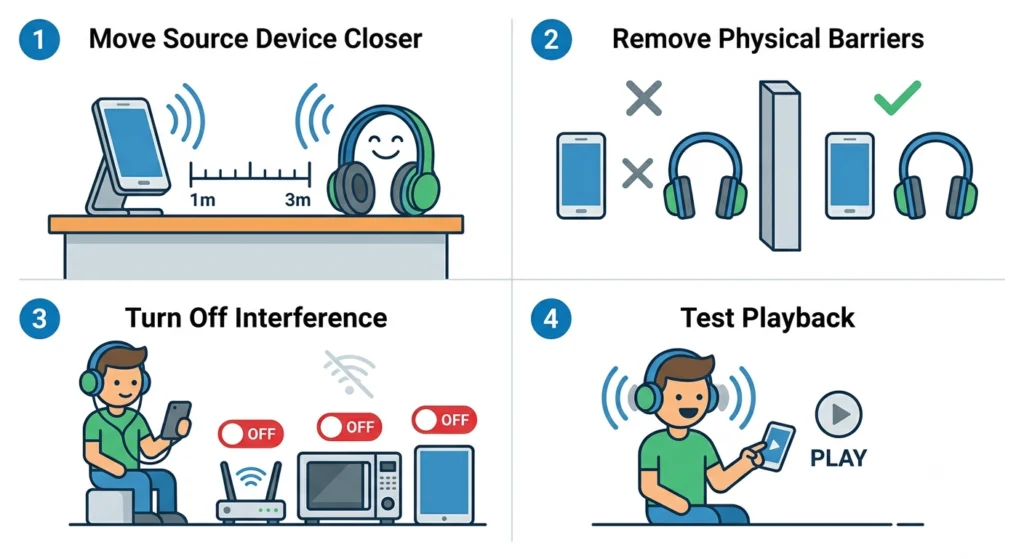
Before diving into software settings, start with the physical environment. Bluetooth audio delay spikes when the signal is weak. The headphones work harder to maintain the connection, and that extra effort adds latency.
- Step 1: Move the phone, tablet, or computer to within 1-3 meters of the headphones.
- Step 2: Remove any physical barriers between the two devices – walls, large furniture, or even a body in the way can degrade signal quality.
- Step 3: Turn off or move away from other wireless devices like Wi-Fi routers, microwaves, baby monitors, and other Bluetooth gadgets. These all share the 2.4 GHz frequency band and create interference.
- Step 4: Test playback again at close range to determine whether distance was the root cause.
This step costs nothing and takes under a minute. Most people overlook it, but interference alone can add 100-300ms of delay.
Fix 2: Re-Pair the Headphones from Scratch
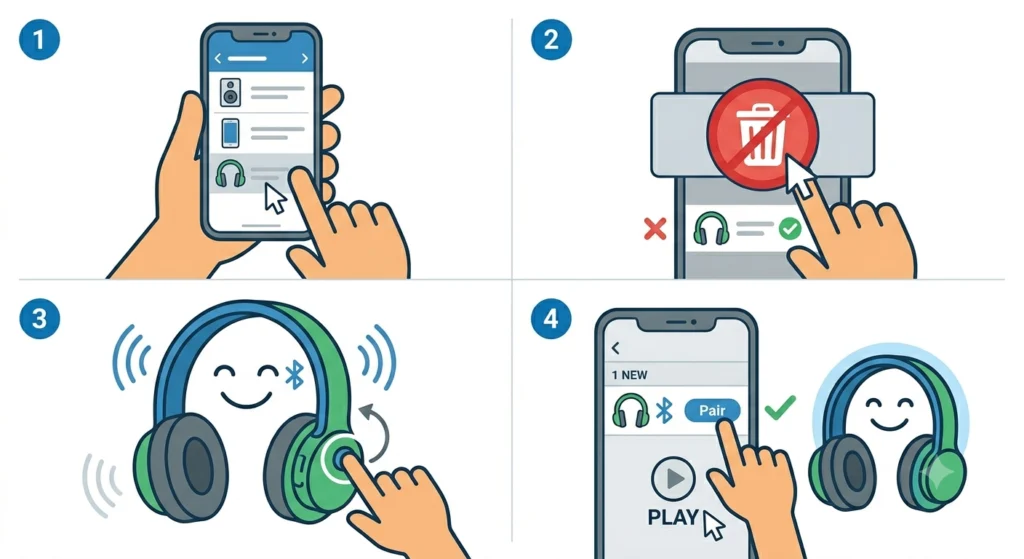
A corrupted or outdated Bluetooth pairing profile is one of the most common causes of persistent audio delay. Clearing it and starting fresh forces the devices to renegotiate the connection with clean settings.
- Step 1: On the source device (phone, PC, tablet), open Bluetooth settings and find the headphones in the paired devices list.
- Step 2: Select ‘Forget’ or ‘Remove’ the device to delete the saved profile completely.
- Step 3: Put the headphones into pairing mode (refer to the headphone manual – usually a long press on the power button).
- Step 4: Re-pair the headphones as a fresh device and test audio playback immediately after connecting.
For Windows users dealing with persistent pairing issues, this guide on re-pairing Bluetooth earbuds for stereo sound on Windows covers the full process in detail and is worth reviewing alongside these steps.
Fix 3: Switch to a Low-Latency Bluetooth Codec
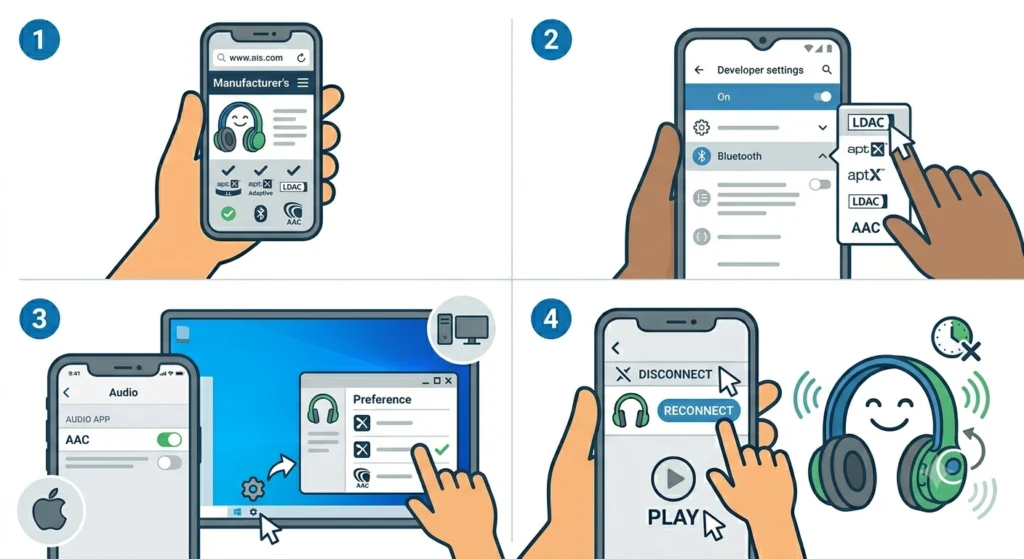
Bluetooth audio codecs control how audio is compressed and transmitted. The codec in use has a massive impact on delay. The standard SBC codec was not built for low latency – it can introduce 100-300ms of lag. Switching to a better codec is often the most effective single fix.
- Step 1: Check whether the headphones support aptX Low Latency, aptX Adaptive, AAC, or LDAC by looking at the product specifications on the manufacturer’s website.
- Step 2: On Android, enable Developer Options (Settings > About Phone > tap Build Number 7 times), then go to Developer Options > Bluetooth Audio Codec and select the best codec both devices support.
- Step 3: On iOS, AAC is handled automatically when pairing with Apple devices. Make sure AAC is not disabled in any audio settings app.
- Step 4: On Windows, codec selection is managed through the Bluetooth driver and headphone software app. Check the manufacturer’s companion app for codec settings.
- Step 5: After switching codecs, disconnect and reconnect the headphones to apply the change, then test audio again.
aptX Low Latency cuts delay down to around 40ms, which is virtually imperceptible. This is the codec to aim for when gaming or watching video content.
Pro-Tip: Both devices must support the same codec for it to activate. If the phone supports aptX but the headphones only support SBC, the connection will default to SBC regardless of what is selected in settings. Always verify codec support on both ends before troubleshooting further.
Fix 4: Disable Audio Enhancements on Windows
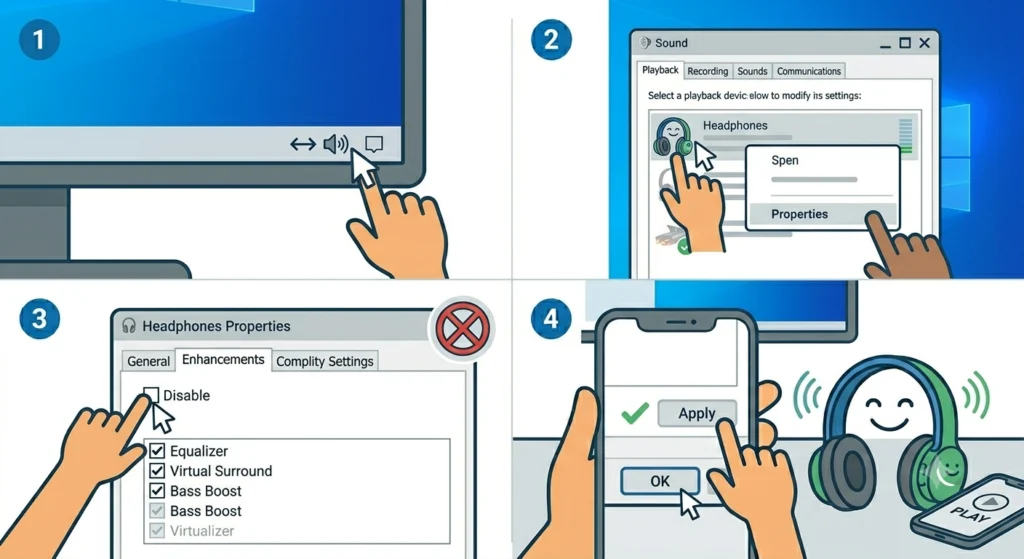
Windows applies audio processing effects by default – equalizers, virtual surround, bass boost, and more. These enhancements add processing overhead that introduces noticeable delay, especially over Bluetooth. Disabling them is a quick win.
- Step 1: Right-click the speaker icon in the system tray and select ‘Sound settings’ or open Control Panel > Sound.
- Step 2: Under the Playback tab, right-click the Bluetooth headphones and select ‘Properties’.
- Step 3: Go to the ‘Enhancements’ tab and check the box for ‘Disable all enhancements’.
- Step 4: Click Apply and OK, then test audio playback.
If the Enhancements tab is not visible, it may be hidden under ‘Advanced’ or managed through the audio driver’s control panel (Realtek, IDT, etc.).
For a more thorough look at how Windows audio settings can affect headphone performance, checking the full guide on adjusting audio output settings on Windows 11 is highly recommended.
Fix 5: Reset the Windows Audio Settings
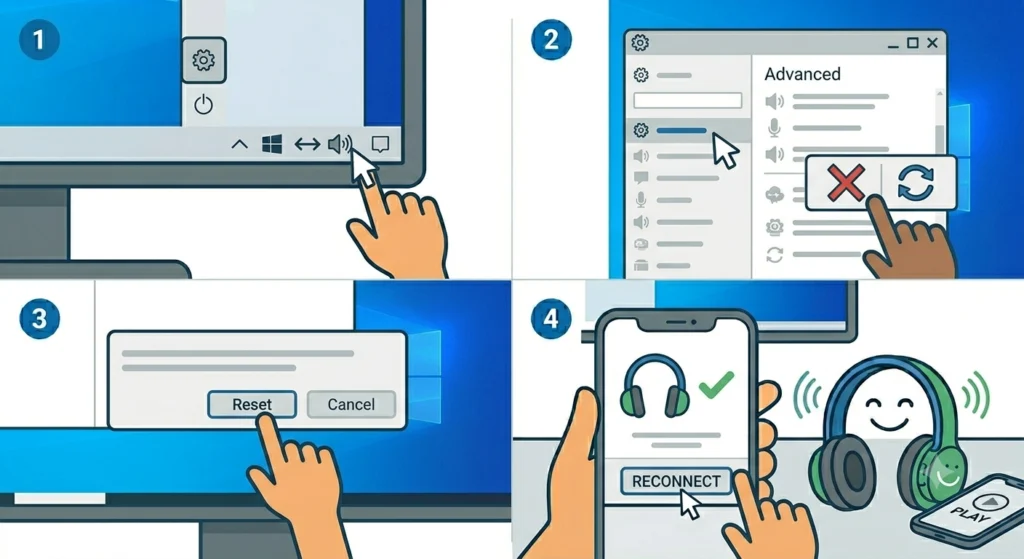
Sometimes Windows audio configuration gets cluttered with conflicting settings from old drivers, software updates, or multiple audio devices. A full reset clears all of that out.
- Step 1: Open Settings > System > Sound on Windows 11.
- Step 2: Scroll down to ‘Advanced’ and look for the option to ‘Reset sound settings’ or reset individual device settings.
- Step 3: Confirm the reset and restart the system.
- Step 4: Reconnect the headphones and test playback after restarting.
The detailed walkthrough on resetting audio settings on Windows 11 covers every option available and is useful if the basic reset does not fully resolve the issue.
Fix 6: Change the Bluetooth Audio Format to Hands-Free or Stereo
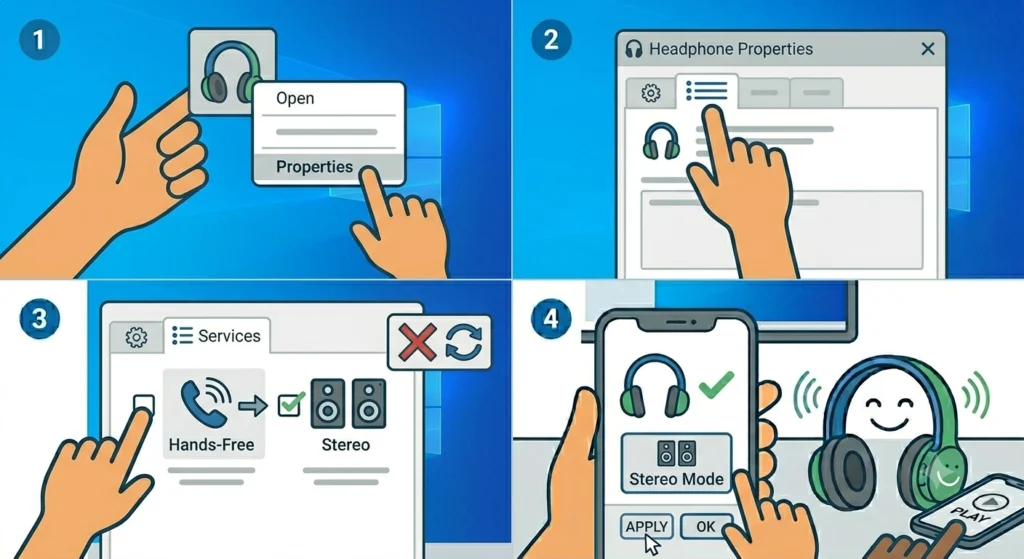
Windows sometimes connects Bluetooth headphones in ‘Hands-Free’ mode instead of ‘Stereo’ mode. Hands-Free mode uses a lower-quality, lower-bandwidth codec that adds significant latency. Forcing stereo mode can fix this immediately.
- Step 1: Open Control Panel > Devices and Printers.
- Step 2: Right-click the Bluetooth headphones and select ‘Properties’.
- Step 3: Go to the ‘Services’ tab and make sure only ‘Wireless Stereo’ or ‘A2DP Sink’ is checked. Uncheck ‘Hands-Free Telephony’ if it is currently selected as the active mode.
- Step 4: Apply the change, then set the headphones as the default playback device under Sound settings.
Fix 7: Update or Reinstall Bluetooth Drivers
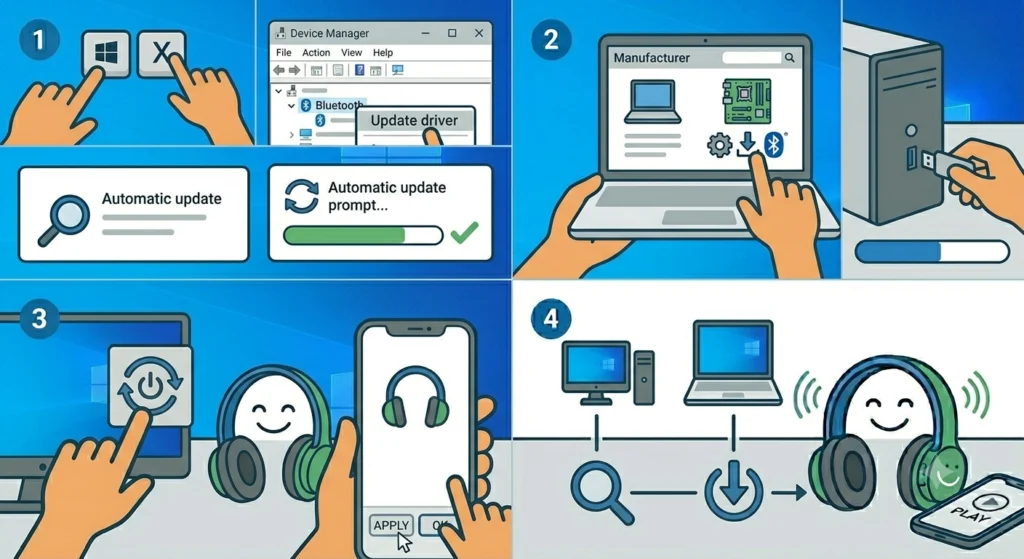
Outdated Bluetooth drivers are a surprisingly common source of audio lag. Driver updates often include latency fixes and improved codec handling that older versions lack.
- Step 1: Press Windows Key + X and select ‘Device Manager’.
- Step 2: Expand the ‘Bluetooth’ section and right-click the Bluetooth adapter.
- Step 3: Select ‘Update driver’ and choose ‘Search automatically for drivers’. Let Windows find and install any available update.
- Step 4: If no update is found automatically, visit the laptop or motherboard manufacturer’s website and download the latest Bluetooth driver directly.
- Step 5: Restart the computer after installing the updated driver and test audio again.
Fix 8: Perform a Factory Reset on the Headphones
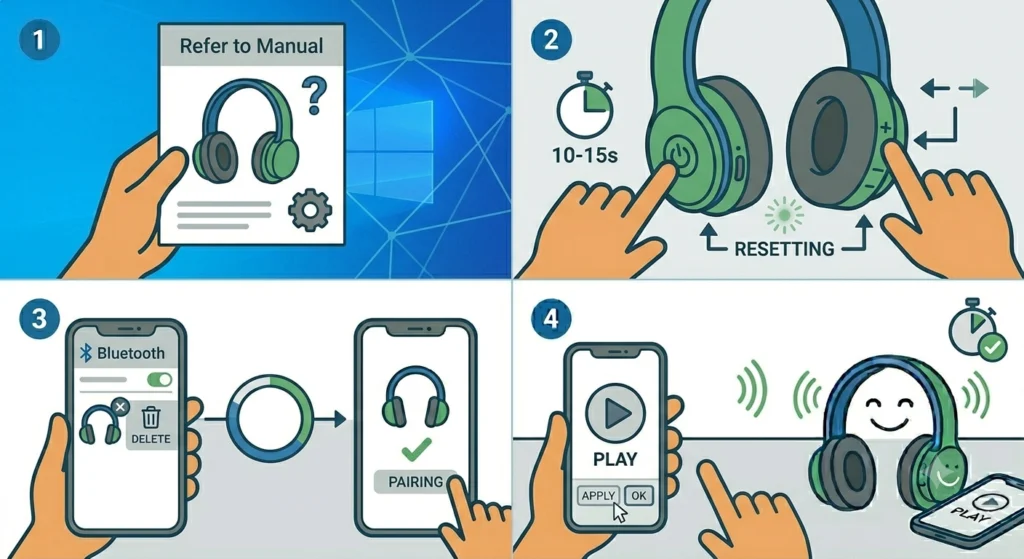
When all other fixes fail, a factory reset on the headphones themselves clears any corrupted firmware settings or misconfigured audio buffers stored internally. This is the cleanest possible starting point.
- Step 1: Refer to the headphones’ manual or the manufacturer’s support page for the exact reset procedure (button combinations vary by brand and model).
- Step 2: Most headphones reset by holding the power button and volume down button simultaneously for 10-15 seconds until an LED pattern or audio cue confirms the reset.
- Step 3: After the reset, forget the device on the source device as described in Fix 2 and re-pair completely from scratch.
- Step 4: Reapply any codec settings and test audio delay before making further changes.
Pro-Tip: Always re-pair after a factory reset rather than reconnecting to an existing saved profile. The reset changes internal identifiers and connection parameters – reconnecting to an old profile can restore the original problem immediately.
Tips for Preventing Audio Delay on Wireless Headphones
- Keep the headphone firmware updated using the manufacturer’s companion app. Firmware updates frequently include latency improvements.
- Charge the headphones regularly. Low battery forces some headphones into a power-saving mode that increases audio processing latency.
- Avoid using the headphones in areas with heavy Bluetooth congestion – airports, open offices, and public transport environments are especially problematic.
- When using headphones for gaming or video, always choose a device that supports aptX Low Latency or aptX Adaptive if minimal lag is a priority.
- On Android, disable ‘Absolute Volume’ in Developer Options if it causes connection instability, as instability often leads to increased lag.
- Close unused apps running in the background on the source device. CPU load on phones and computers can increase Bluetooth processing delay.
Common Problems That Cause Severe Audio Delay
- SBC codec in use: The default Bluetooth codec has the highest latency. Switching to aptX or AAC resolves this in most cases.
- Weak Bluetooth signal: Distance, walls, and interference force the connection to buffer more audio, increasing delay.
- Windows sound enhancements enabled: These add processing time that compounds Bluetooth latency.
- Headphones connected in Hands-Free mode: This lower-quality mode on Windows is a frequent culprit for sudden severe delay.
- Outdated firmware or drivers: Both the headphone firmware and the device’s Bluetooth drivers can contribute to latency if not current.
- Multiple Bluetooth devices competing for bandwidth: Each additional Bluetooth connection on the same adapter shares bandwidth and increases instability.
- Low headphone battery: Power-saving behavior at low charge increases internal audio buffer size and adds noticeable lag.
Frequently Asked Questions
Why do wireless headphones have audio delay in the first place?
Wireless headphones transmit audio over Bluetooth, which requires encoding the audio signal, transmitting it wirelessly, receiving it, and decoding it before playback. Each of those steps takes time. The total delay depends on the codec used, signal strength, and any additional audio processing applied by the device or headphones.
What is the best Bluetooth codec for low latency?
aptX Low Latency offers the best performance, keeping delay around 40ms which is imperceptible to most people. aptX Adaptive is also excellent and adjusts dynamically. AAC is a solid option for Apple devices. SBC has the highest latency and should be avoided when low delay matters.
Can audio delay be fixed without changing any settings?
Sometimes simply moving the source device closer to the headphones or removing nearby wireless interference reduces delay significantly without touching any settings. Re-pairing the headphones from scratch also often resolves the issue without manual configuration.
Does low battery really cause audio delay?
Yes, on many headphone models. When the battery drops below a certain threshold (often around 20%), the headphones shift into a power-saving mode that increases the audio buffer size to reduce processing demand. This directly adds latency. Charging the headphones fully often resolves unexplained lag that appeared over time.
Why does audio delay happen only when watching videos?
Video playback is more sensitive to audio-video sync than music listening because the brain compares lip movement to speech in real time. A delay that is acceptable in music becomes obvious and distracting when watching a person talk on screen. The delay itself may not have increased – the context just makes it more noticeable.
How do you check which Bluetooth codec is currently active on Android?
Enable Developer Options by going to Settings > About Phone and tapping the Build Number seven times. Then go to Settings > Developer Options > Bluetooth Audio Codec. The currently active codec is shown at the top of the list. Note that the option shown only activates if both the phone and headphones support it.
Does resetting the headphones delete saved pairings?
Yes. A factory reset typically clears all paired device profiles stored inside the headphones. After resetting, every previously paired device will need to be re-paired as a new connection. This is expected behavior and part of why the fix is effective – it removes any corrupted pairing data.
Can the audio delay be different on the same headphones depending on the device?
Absolutely. The delay depends on the codec negotiated between the two devices, the Bluetooth stack on the source device, and any audio processing applied. The same headphones might have near-zero delay on a phone supporting aptX Low Latency but noticeable delay on a device that only supports SBC.
Why did audio delay suddenly get worse after a software update?
Software updates can change audio processing pipelines, enable new sound enhancements, or update Bluetooth stack behavior in ways that increase latency. After a major OS update, it is worth disabling audio enhancements, checking codec settings, and verifying that the headphones are still connecting in stereo rather than hands-free mode.
Is there a hardware fix for audio delay, or is it always software-based?
Most audio delay fixes are software or settings-based. However, if the Bluetooth adapter on the computer is outdated or uses an older Bluetooth standard (anything below Bluetooth 4.0), replacing it with a USB Bluetooth 5.0 adapter can provide a hardware-level improvement to both stability and latency.