
Headphones that sound tinny or hollow can completely ruin a listening session. That thin, echo-like audio quality usually points to a fixable issue – whether it is a wrong equalizer setting, a poor physical seal, a software glitch, or worn-out drivers. This guide covers every practical fix in a clear, step-by-step format so the sound quality gets back to where it should be.
Quick Summary: Key Takeaways
- Tinny sound is most often caused by boosted high frequencies or a weak bass response – fixing the EQ solves it in most cases
- A poor ear seal from worn or ill-fitting ear pads dramatically hollows out the sound
- Audio enhancement features in Windows (like loudness equalization or bass boost) can distort the sound profile
- Mono audio mode cuts out stereo separation and creates a flat, hollow effect
- Damaged or partially blown drivers produce a permanent tinny quality that requires physical repair or replacement
- Bluetooth codec mismatches and low-quality audio files also contribute to thin-sounding audio
Fix 1: Adjust the Equalizer Settings
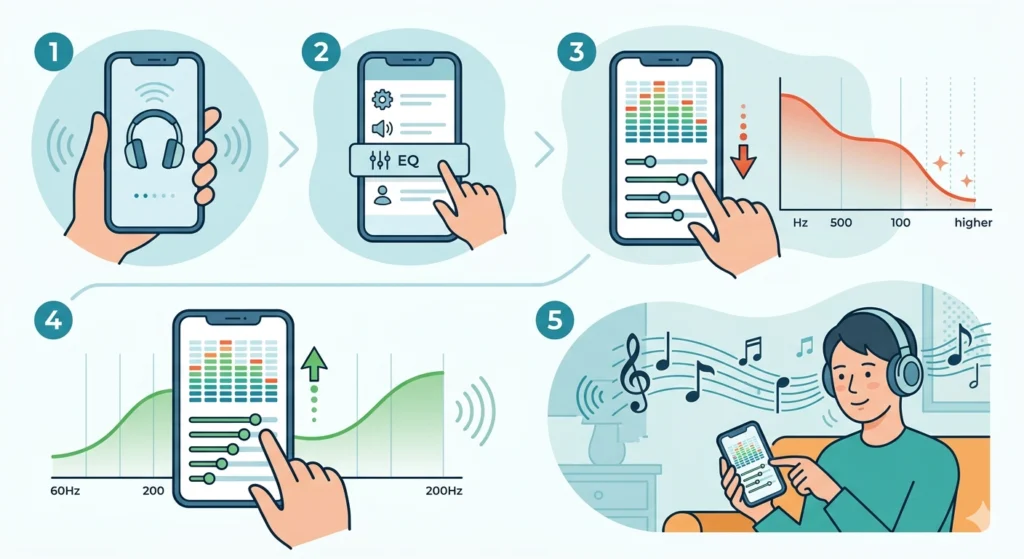
The most common reason headphones sound tinny is an unbalanced EQ. When the high frequencies (treble) are too high and the low frequencies (bass) are too low, sound loses its body and becomes thin and harsh. Most people find that a simple EQ adjustment fixes the problem instantly.
- Step 1: Open the audio software or app that came with the headphones (for example, Sony Headphones Connect, Jabra Sound+, or Bose Music).
- Step 2: Navigate to the equalizer section.
- Step 3: Lower the 4kHz – 8kHz (high) frequencies slightly. These are the ones responsible for harshness and shrillness.
- Step 4: Boost the 60Hz – 200Hz (bass) range gently to restore warmth and body to the sound.
- Step 5: Play a familiar track and fine-tune until the sound feels full and natural.
This works best when starting from a flat or neutral preset, rather than trying to adjust an already overprocessed sound profile. Most streaming apps like Spotify, Apple Music, and YouTube Music also have built-in EQ settings under audio preferences.
Fix 2: Disable Windows Audio Enhancements
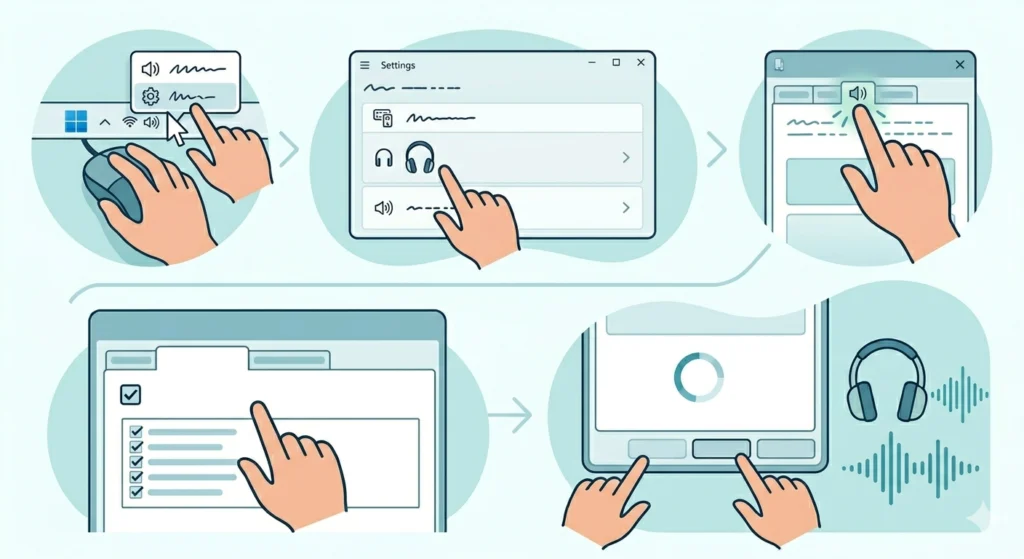
Windows has built-in audio processing features that, while intended to improve sound, often make headphones sound hollow or artificial – especially on cheaper or mid-range headphones. Adjusting audio output settings in Windows 11 can make a noticeable difference here.
- Step 1: Right-click the speaker icon in the taskbar and select ‘Sound settings’.
- Step 2: Click on the headphones listed under output devices, then select ‘More sound settings’.
- Step 3: In the Properties window, go to the ‘Enhancements’ tab.
- Step 4: Check the box that says ‘Disable all enhancements’ or ‘Disable all sound effects’.
- Step 5: Click ‘Apply’, then ‘OK’, and test the audio.
Features like ‘Loudness Equalization’, ‘Bass Boost’, and ‘Virtual Surround’ are the usual culprits. They alter the audio signal in ways that can create a processed, hollow tone – especially noticeable with music or movies.
Pro-Tip: If the ‘Enhancements’ tab is missing, the audio driver may not support it or may need updating. Go to Device Manager, find the audio device, right-click and select ‘Update driver’ to get the latest version.
Fix 3: Check and Reseat the Ear Pads
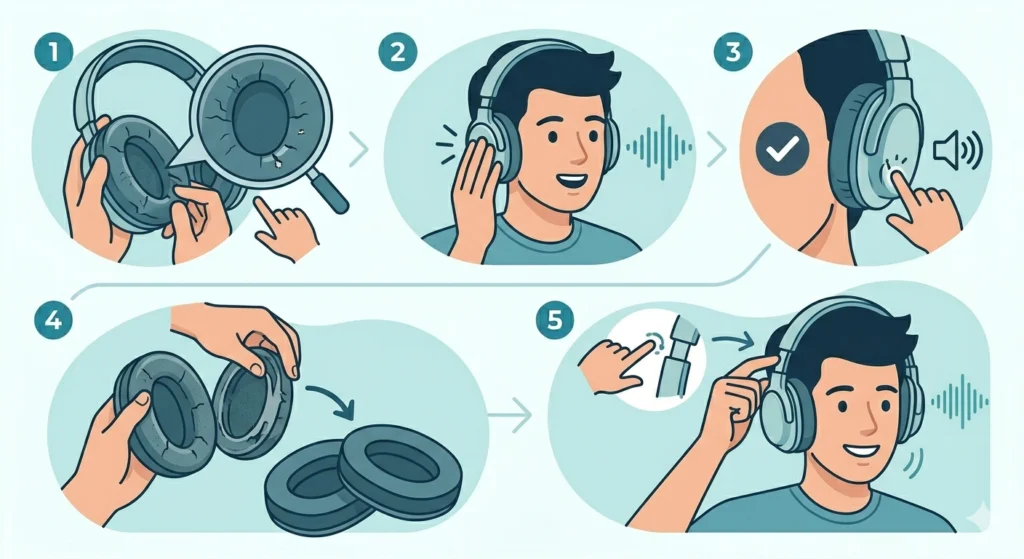
Physical fit matters more than most people realise. When the ear pads do not form a proper seal around the ears, bass frequencies leak out and the sound becomes noticeably hollow. This is especially common with over-ear headphones after the foam or material in the ear pads has worn down over time.
- Step 1: Remove the headphones and inspect the ear pads for visible wear, flattening, or cracking.
- Step 2: Put the headphones back on and press the ear cups slightly closer to the ears to create a better seal.
- Step 3: If the sound improves when pressing them in, the seal is the issue.
- Step 4: If the ear pads are worn flat, replace them with compatible pads from the manufacturer or a third-party seller. Memory foam pads typically provide a better seal than basic foam.
- Step 5: Adjust the headband fit so the cups sit squarely on the ears without gaps.
On in-ear headphones (earbuds), the same principle applies to ear tips. Switching to a larger silicone or foam ear tip size can dramatically improve bass response and eliminate that hollow feeling.
Fix 4: Reset or Update the Audio Driver
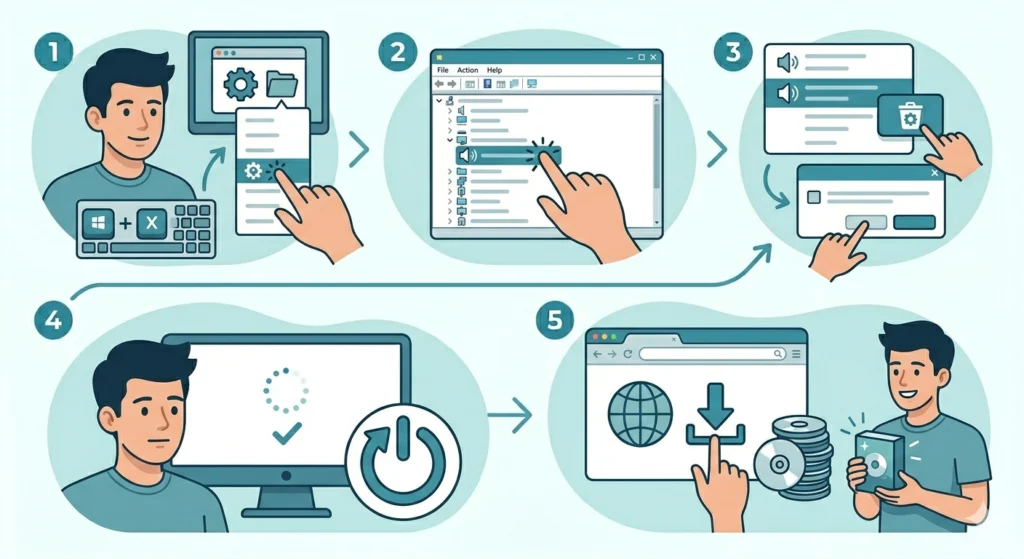
A corrupted or outdated audio driver can cause unusual sound characteristics, including a thin or tinny output. Resetting audio settings in Windows 11 is a reliable way to rule out driver-related issues.
- Step 1: Press Windows + X and select ‘Device Manager’.
- Step 2: Expand the ‘Sound, video and game controllers’ section.
- Step 3: Right-click the audio device and select ‘Uninstall device’. Check the box to delete the driver software if prompted.
- Step 4: Restart the computer. Windows will automatically reinstall the default driver on reboot.
- Step 5: Alternatively, visit the headphone manufacturer’s website or the motherboard/laptop maker’s support page and download the latest audio driver manually.
Fix 5: Disable Mono Audio Mode
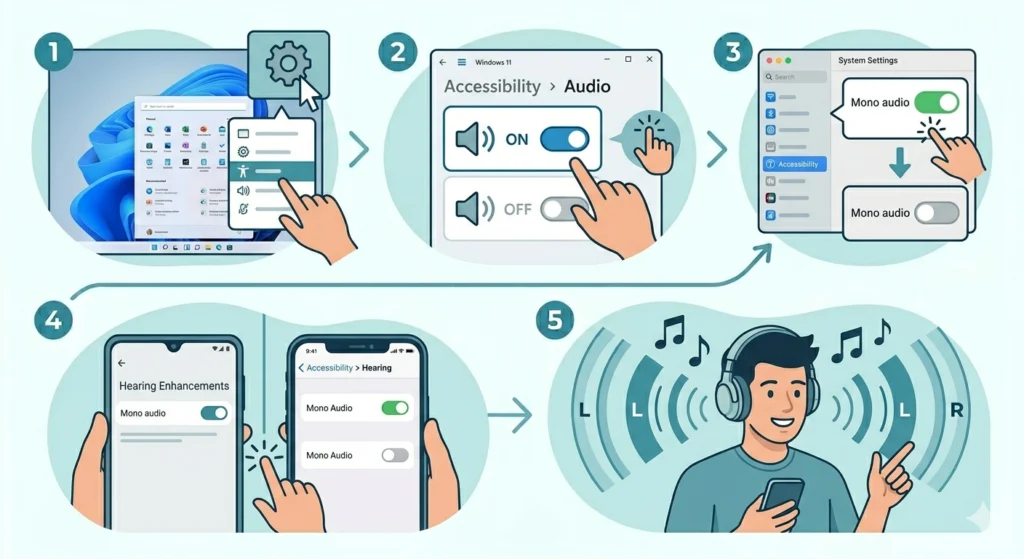
Mono audio mode combines left and right channels into a single signal. When enabled, stereo headphones lose their separation and the audio can sound flat, centred, and surprisingly hollow. It is easy to accidentally turn this on in accessibility settings.
- Step 1: On Windows, go to Settings > Accessibility > Audio.
- Step 2: Make sure ‘Mono audio’ is toggled off.
- Step 3: On Mac, go to System Settings > Accessibility > Audio and confirm mono audio is disabled.
- Step 4: On iPhone or Android, check under Accessibility > Hearing settings and disable mono audio if it is active.
- Step 5: Test audio again with a stereo track to confirm the fix.
Fix 6: Check the Audio Source Quality
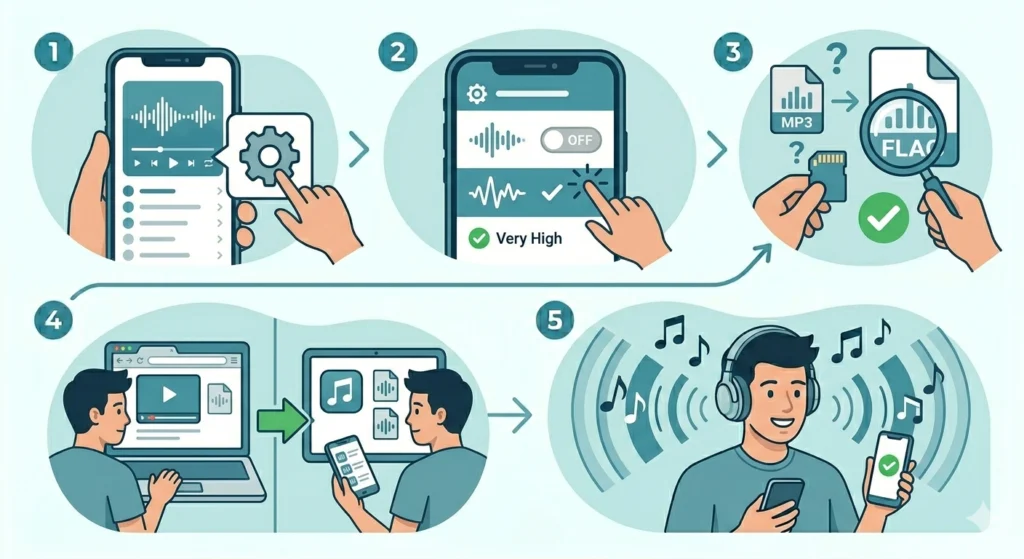
Sometimes the headphones are not the problem at all – the audio file or stream is. Low-bitrate audio (anything under 128 kbps for MP3, or highly compressed streaming quality) sounds noticeably thin and lacking in depth, especially on better-quality headphones which reveal more detail.
- Step 1: Switch the streaming quality to the highest available option. In Spotify, go to Settings > Audio Quality and set it to ‘Very High’. In Apple Music, enable Lossless Audio under Settings > Music > Audio Quality.
- Step 2: If playing local files, compare an MP3 against a FLAC or WAV version of the same track to identify whether file compression is the issue.
- Step 3: Try a different source entirely – for example, switch from a browser stream to a dedicated app – to see if the quality improves.
The key is to test with a known high-quality file. If the same track sounds full and rich on a good speaker system, the source is not the problem.
Fix 7: Fix Bluetooth Codec Issues
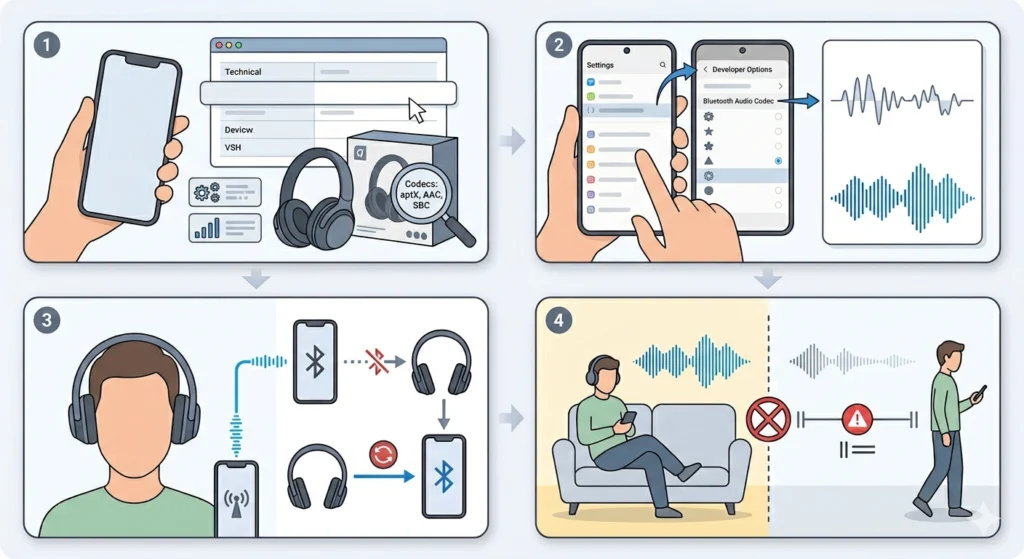
For wireless headphones, the Bluetooth codec in use can significantly affect audio quality. Lower-quality codecs like SBC compress audio heavily and tend to strip out low frequencies, making sound thinner. Higher-quality codecs like aptX, aptX HD, AAC, or LDAC provide much better audio fidelity.
- Step 1: Check what codec the headphones support by looking at the product specifications on the manufacturer’s website.
- Step 2: On Android, go to Developer Options > Bluetooth Audio Codec and select the best codec both the phone and headphones support.
- Step 3: Make sure the headphones are connected properly. If there is any interference or a weak signal, the codec may downgrade automatically to maintain the connection, reducing audio quality. If pairing seems unstable, re-pairing Bluetooth earbuds for stereo sound on Windows can restore the proper codec connection.
- Step 4: Reduce distance between the headphones and the source device. Bluetooth audio quality degrades noticeably beyond 5-6 metres in typical indoor conditions.
Pro-Tip: If the headphones support LDAC or aptX HD but the phone only supports SBC, the connection will always default to SBC. For the best wireless audio quality, both devices need to support the same high-quality codec.
Fix 8: Inspect for Physical Driver Damage
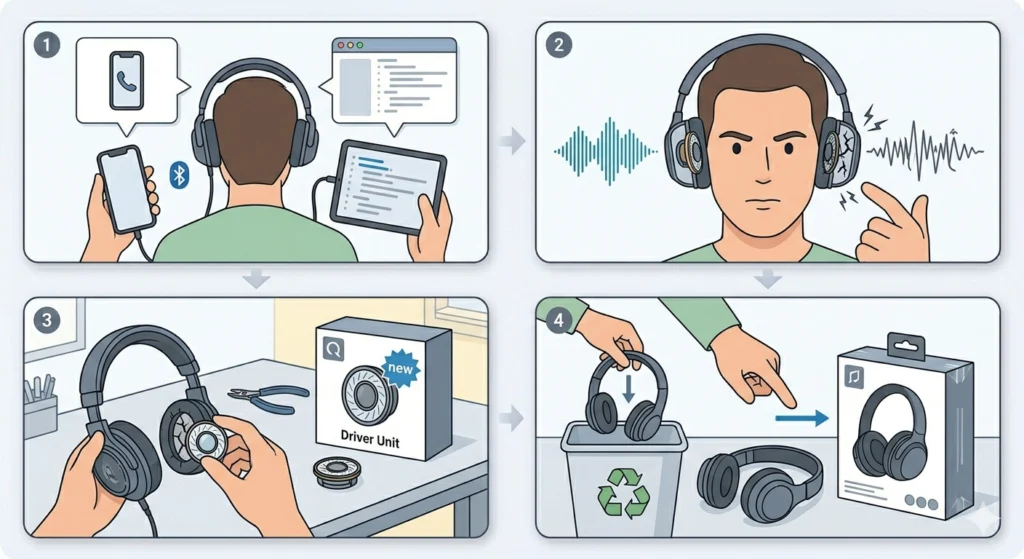
If none of the software fixes help and the tinny sound is consistent across all sources and devices, the headphone driver itself may be physically damaged. A partially blown driver – one where part of the driver cone or voice coil is damaged – produces a noticeably thin, distorted, or buzzy sound.
- Step 1: Test the headphones on a completely different device (such as a phone, tablet, or separate computer) to rule out the source being the issue.
- Step 2: Listen carefully for any crackling, buzzing, or distortion at low and medium volumes. These are signs of a damaged driver.
- Step 3: Check if only one ear cup sounds tinny. Comparing left and right channels separately helps isolate the damaged side.
- Step 4: For repairable headphones, check if the manufacturer offers driver replacement services. Higher-end brands like Sennheiser, Beyerdynamic, and Sony often sell replacement drivers for their popular models.
- Step 5: For budget headphones, replacement is usually more cost-effective than repair.
Tips for Maintaining Good Sound Quality Long-Term
- Store headphones in a case or on a stand rather than leaving cables coiled tightly, which can stress internal wiring over time
- Clean ear pads regularly – dirt and oils can affect both hygiene and the seal quality
- Avoid maxing out the volume consistently, as prolonged high volume can degrade drivers faster
- Replace foam or silicone ear tips on in-ear models every 6 to 12 months depending on usage
- Keep firmware updated on wireless headphones – manufacturers often release audio performance improvements via updates
- Use a dedicated DAC or headphone amplifier if using high-impedance headphones with a phone or laptop, as underpowered output is a common cause of thin sound
Common Problems and Solutions
- Sound is tinny only at high volumes: The driver may be distorting under power. Lower the device volume and raise the headphone volume (if they have independent controls) to find a cleaner operating point.
- One ear sounds thin but the other is fine: The driver in the affected ear cup is likely damaged, or the connection cable has a fault at that channel. Test with the cable swapped to the other side if possible.
- Sound became tinny after a Windows update: Windows updates sometimes reset audio driver settings or re-enable enhancements. Revisit the Sound Properties and re-apply the enhancements fix described in Fix 2 above.
- Tinny sound only during calls, not music: The communication audio device settings in Windows may be set to a different output than the playback device. Check under Sound settings that both playback and communications devices are set to the correct headphones.
- Wireless headphones sound thin but wired ones do not: This points directly to a Bluetooth codec or connection issue. The audio compression used over Bluetooth is almost certainly stripping out low frequencies.
Frequently Asked Questions
Why do my headphones suddenly sound tinny?
A sudden change in sound quality is usually linked to a settings change – like a Windows update re-enabling audio enhancements, an app switching EQ presets, or mono audio being accidentally enabled. It can also happen if an ear pad has finally worn out enough to break the seal. Start by checking the EQ and audio enhancement settings before assuming hardware damage.
Can a tinny headphone sound be fixed permanently?
Yes, in most cases. If the cause is software-related (EQ, enhancements, codec settings), the fix is permanent once applied. If the cause is worn ear pads, replacing them provides a long-term solution. The only case where a permanent fix is not straightforward is physical driver damage, which requires replacement of the driver itself.
Does a cheap headphone cable cause tinny sound?
Yes, it can. A damaged or low-quality cable can cause poor signal transmission, especially affecting bass frequencies. If the sound improves when the cable is held at a certain angle or position, the cable is likely at fault. Replacing the cable with a good-quality replacement usually resolves the issue on headphones with detachable cables.
Why do my headphones sound tinny on my laptop but fine on my phone?
Laptop audio hardware is often lower quality than dedicated audio chips. The headphone output on a laptop may have higher impedance or noise floor, which affects how the headphones perform. Additionally, laptop audio drivers sometimes apply compression or processing that alters the sound. Disabling audio enhancements and using the correct output format in Windows usually closes the gap.
Can EQ apps on a phone fix tinny headphone sound?
Absolutely. Apps like Wavelet (Android) or EQualizer+ (iOS) apply system-wide EQ adjustments that can compensate for headphones that are tonally thin or overly bright. Boosting bass frequencies between 60Hz and 200Hz while slightly reducing upper-mid and treble frequencies (4kHz – 8kHz) tends to bring the most noticeable improvement to tinny-sounding headphones.
Do new headphones sometimes sound tinny before they are broken in?
Some users and audiophiles do report that new headphones sound brighter or thinner initially, with the sound warming up slightly after extended use. This is often called ‘burn-in’. However, the effect is subtle and not consistent across all headphone types. If new headphones sound significantly tinny out of the box, it is more likely a settings issue or a mismatch between the headphone’s tuning and personal preference – which the EQ steps above can address.
What does it mean if only one headphone ear sounds tinny?
When only one side sounds thin while the other sounds full, the issue is almost always hardware-specific. The driver in the affected ear may be damaged, the internal wiring may have a fault on that channel, or the connection jack may have a bent pin affecting one channel. Testing on multiple devices confirms whether it is a headphone issue or a source issue.
Can humidity or sweat damage headphone drivers and cause tinny sound?
Yes. Moisture from sweat or humidity can corrode driver components or cause the driver membrane to warp or degrade over time. Sports and gym headphones are especially vulnerable. If tinny sound develops after heavy sweat exposure, leaving the headphones in a dry environment for 24 to 48 hours sometimes helps. Using headphones specifically rated for water or sweat resistance (IPX4 or higher) prevents this issue from occurring in the first place.
Will a headphone amplifier fix tinny sound?
If the headphones have a high impedance rating (above 80 ohms), they genuinely need more power than a phone or laptop headphone output can provide. Running high-impedance headphones on underpowered outputs causes exactly the kind of thin, weak sound described as tinny. A dedicated headphone amplifier or DAC/amp combination provides the correct output level, which restores proper bass and midrange body to the sound.
Is there a way to test if the headphone drivers are damaged at home?
A practical home test is to play a low-frequency test tone (around 60Hz – 80Hz) at moderate volume and feel the ear cup for vibration. A healthy driver produces clear, consistent vibration. A damaged driver may produce no vibration, buzzing, or rattling. Comparing both ear cups side by side during this test makes it easier to identify which driver has the problem.