
Earbuds that keep automatically disconnecting are one of the most frustrating audio problems anyone can deal with – especially mid-song or during an important call. Whether it happens every few minutes or randomly throughout the day, the good news is that most auto-disconnect issues are fixable without any special tools or technical background. This step-by-step guide covers the most effective fixes to stop earbuds from disconnecting and get them working reliably again.
Key Takeaways
- Low battery is the most overlooked cause of auto-disconnection – always charge both earbuds fully before troubleshooting further.
- Most disconnection problems are caused by Bluetooth interference, outdated firmware, or corrupted pairing data.
- Re-pairing the earbuds from scratch (forget device + re-pair) fixes the majority of cases.
- Keeping earbuds within 10 meters of the connected device and away from Wi-Fi routers reduces signal drops significantly.
- A full factory reset is the most powerful fix when other methods fail.
- If earbuds still disconnect after all fixes, the issue may be hardware-related and repair or replacement should be considered.
Fix 1: Check and Fully Charge the Earbuds
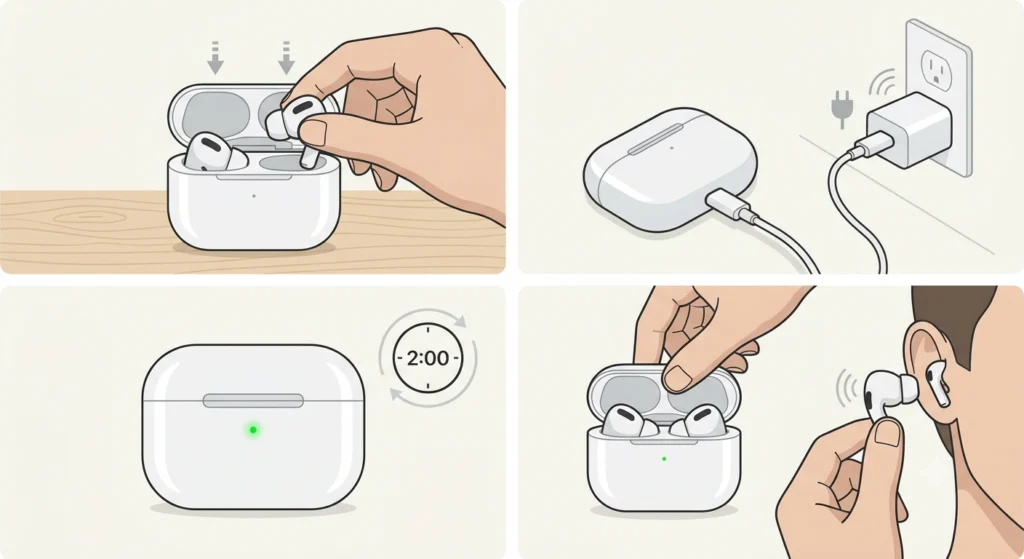
Before anything else, make sure the earbuds and their charging case have enough battery. Low battery is one of the top reasons earbuds disconnect on their own – many models are programmed to cut the connection when power drops below a certain threshold to protect the battery.
- Step 1: Place both earbuds inside the charging case and close the lid.
- Step 2: Connect the case to a power source using the original charging cable.
- Step 3: Wait at least 1-2 hours, or until the charging indicator shows full.
- Step 4: Remove the earbuds and test if the disconnection issue persists.
This works best when done with the original charger, since third-party cables sometimes deliver inconsistent power and can result in incomplete charges even when the indicator shows full.
Fix 2: Re-Pair the Earbuds From Scratch
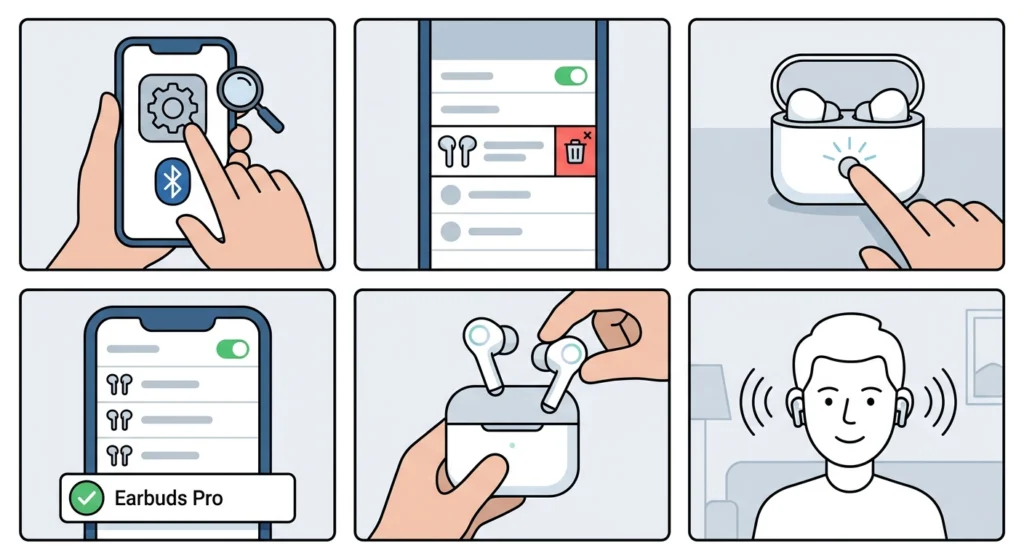
Corrupted pairing data is a surprisingly common cause of repeated disconnections. The Bluetooth profile stored on the phone or computer can become unstable over time, especially after OS updates or if the earbuds were connected to multiple devices. Removing the pairing entirely and starting fresh clears that bad data.
- Step 1: Open the Bluetooth settings on the connected device (phone, tablet, or computer).
- Step 2: Find the earbuds in the paired devices list.
- Step 3: Tap ‘Forget’, ‘Unpair’, or ‘Remove Device’ – the wording varies by platform.
- Step 4: Put the earbuds back in the charging case, then take them out to activate pairing mode (refer to the earbuds’ manual if unsure how to enter pairing mode).
- Step 5: On the device, scan for new Bluetooth devices and select the earbuds to pair again.
- Step 6: Test the connection and listen for any dropouts.
For Windows 11 users who want the earbuds to appear as a proper stereo device, it helps to re-pair Bluetooth earbuds for stereo sound on Windows using the correct audio profile settings.
Pro-Tip: If the earbuds are paired to more than one device (phone + laptop, for example), they may be trying to switch connections automatically. Most earbuds have a ‘multipoint’ or ‘auto-switch’ feature in their companion app – disabling this while troubleshooting can eliminate a major source of random disconnections.
Fix 3: Move Away From Interference Sources
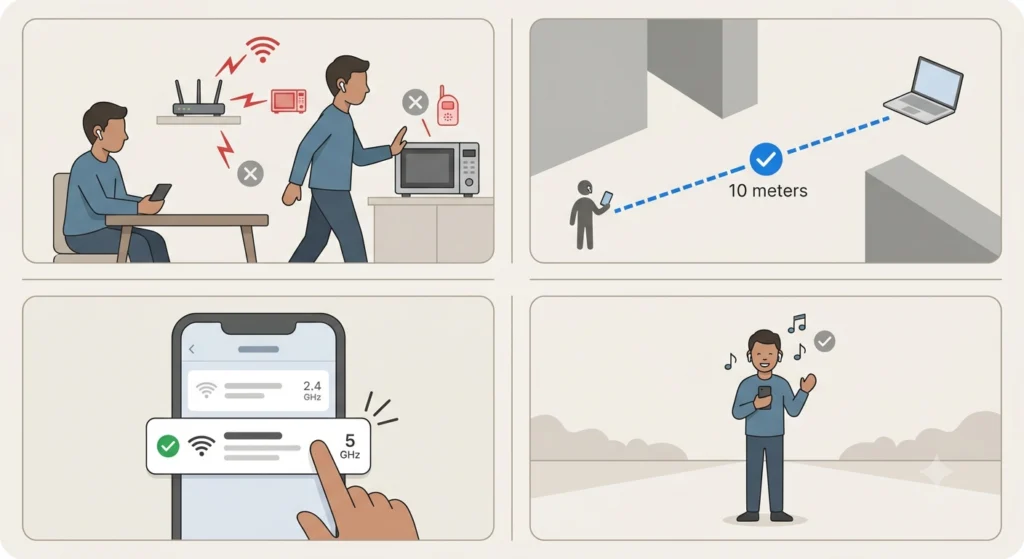
Bluetooth operates on the 2.4 GHz band – the same frequency used by most Wi-Fi routers, microwaves, baby monitors, and even some cordless phones. When too many signals compete in the same frequency range, the Bluetooth connection becomes unstable and drops frequently.
- Step 1: Move the connected device and earbuds away from Wi-Fi routers, microwaves, and other wireless electronics.
- Step 2: Keep the source device (phone or laptop) within 10 meters and with a clear line of sight – walls, the human body, and metal objects all degrade the signal.
- Step 3: If using a 2.4 GHz Wi-Fi network, try switching the router or phone to the 5 GHz band, which does not interfere with Bluetooth.
- Step 4: Test the earbuds in an open area with fewer electronics to confirm whether interference is the root cause.
Fix 4: Update the Earbuds Firmware and Device Software
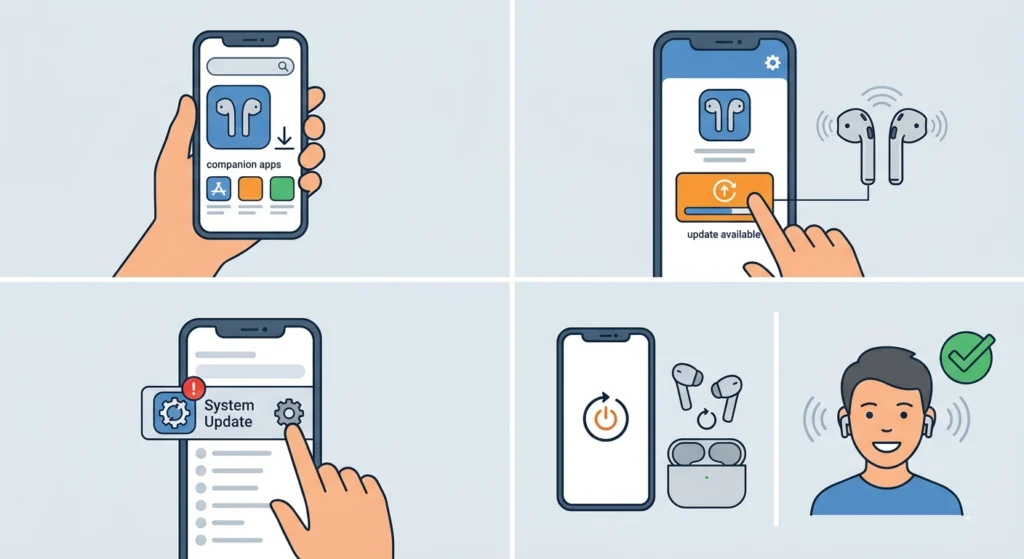
Manufacturers release firmware updates to fix bugs, improve Bluetooth stability, and patch connection-related issues. Running outdated firmware on the earbuds – or an outdated OS on the phone or computer – is a known cause of repeated disconnections.
- Step 1: Download the official companion app for the earbuds (Sony Headphones Connect, Samsung Galaxy Wearable, Jabra Sound+, Bose Music, etc.).
- Step 2: Open the app and navigate to the firmware or software update section.
- Step 3: Follow the in-app instructions to install any available updates. Keep the earbuds charged and near the phone during this process.
- Step 4: On the connected device, check for and install any pending OS or system updates as well.
- Step 5: Restart both the earbuds and the device, then re-test the connection.
Fix 5: Adjust Auto-Off and Power Management Settings
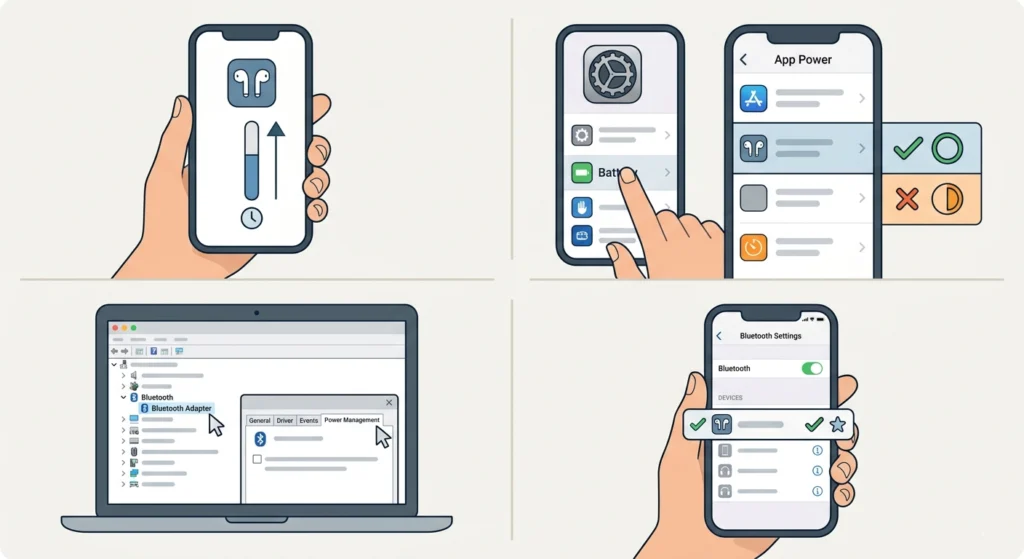
Many earbuds come with a built-in auto-off timer that disconnects them after a period of inactivity – usually 5 to 30 minutes. Some phones also have aggressive battery-saving features that forcibly close Bluetooth connections to save power. Both of these can look exactly like a random disconnection problem.
- Step 1: Open the earbuds’ companion app and look for settings labeled ‘Auto-Off’, ‘Auto Power Off’, or ‘Idle Timeout’.
- Step 2: Increase the timer duration or disable the feature entirely to test if this is the cause.
- Step 3: On Android, go to Settings > Battery > Battery Optimization and set the Bluetooth app and companion app to ‘Unrestricted’ or ‘Not Optimized’.
- Step 4: On Windows 11, navigate to Device Manager, find the Bluetooth adapter, open its Properties, go to the ‘Power Management’ tab, and uncheck ‘Allow the computer to turn off this device to save power’.
- Step 5: On iPhone, go to Settings > Bluetooth and make sure the earbuds connection is set as a preferred device if that option is available.
For Windows 11 users who experience audio dropouts tied to power settings, reviewing the audio output settings on Windows 11 can help identify if the system is switching audio devices automatically.
Fix 6: Factory Reset the Earbuds
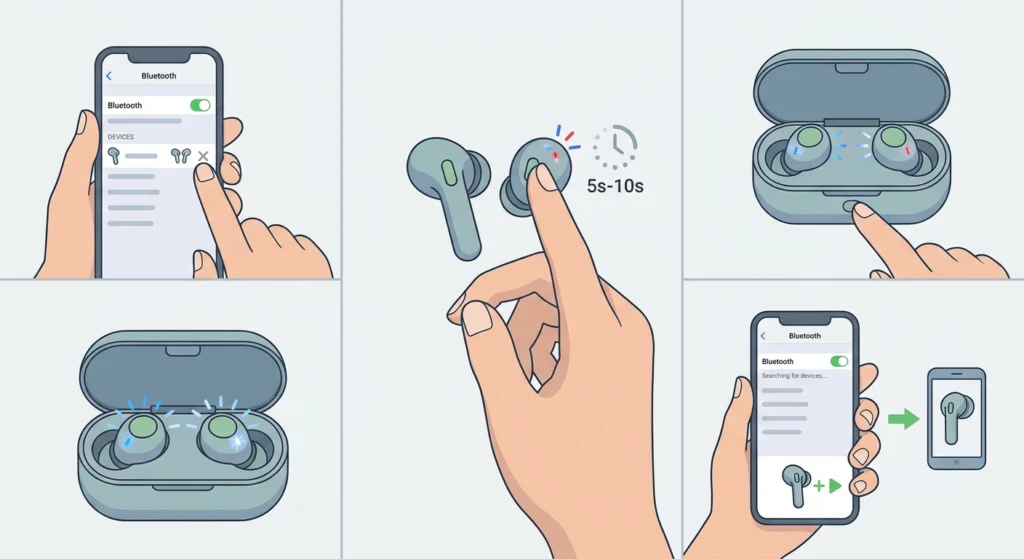
A factory reset wipes all stored pairing data and settings from the earbuds themselves – not just from the connected device. This is the most thorough fix available short of a hardware repair, and it solves issues caused by internal software bugs, corrupt pairing memories, or settings that have drifted out of spec over time.
- Step 1: Forget or unpair the earbuds from all connected devices first.
- Step 2: Consult the earbuds’ manual or the manufacturer’s website for the specific reset procedure – it varies by brand and model.
- Step 3: Most earbuds reset by pressing and holding a button (or combination of buttons) for 5-10 seconds until a light flashes or a tone plays. Some require placing them in the case while pressing.
- Step 4: After the reset is confirmed, put the earbuds into pairing mode.
- Step 5: Pair them fresh with the primary device and test thoroughly.
Pro-Tip: A factory reset is the closest thing to a ‘clean slate’ for earbuds. The key is to avoid re-enabling auto-connect to multiple devices right after the reset – pair with one device first and confirm the disconnection problem is gone before adding more paired devices.
Tips for Keeping Earbuds Connected Reliably
- Store earbuds in the charging case when not in use to keep the battery topped up and protect the internals.
- Clean the earbud charging contacts and case pins regularly with a dry cotton swab – dirty contacts cause inconsistent charging and can indirectly lead to power-related disconnections.
- Avoid pairing earbuds to more devices than necessary. Most earbuds handle 2-3 paired devices well, but more pairings increase the chance of unwanted switching.
- Keep the earbuds’ companion app updated alongside the firmware – app updates often contain critical bug fixes for connection management.
- Restart the earbuds by placing them in the case and taking them out again if a spontaneous disconnect occurs. A fresh connection attempt often resolves one-off drops.
- If using earbuds during exercise, sweat and movement can affect the seal on the ear and create micro-interruptions in some models. Secure-fit ear tips reduce this.
Common Problems and Troubleshooting
Only One Earbud Keeps Disconnecting
This usually means the affected earbud has a lower battery than the other, a dirty or damaged charging contact, or a weaker Bluetooth chip. Clean the contact, charge it fully in the case, and if the problem continues, check the manufacturer’s support page for a bud-specific reset procedure.
Earbuds Disconnect Only When Moving
Movement-related drops are almost always a distance or obstruction issue. The body itself blocks Bluetooth signals, so turning or walking away from the source device can cause drops if the signal is already weak. Keep the phone in a pocket on the same side as the primary earbud when possible.
Earbuds Disconnect After Every OS Update
OS updates sometimes reset Bluetooth settings, remove saved pairings, or change power management defaults. After any major update, re-pair the earbuds, check the power management settings again, and look for a firmware update in the companion app that addresses the new OS version.
Earbuds Reconnect but Immediately Disconnect Again
This ‘connect-disconnect loop’ is usually caused by corrupted pairing data on the device, low battery, or a firmware bug. Try the full re-pair process first, then a factory reset if re-pairing does not stop the loop.
Earbuds Keep Disconnecting From Windows 11
Windows 11 is known for aggressive Bluetooth power management. Disabling ‘Allow the computer to turn off this device to save power’ in Device Manager is the most effective fix. Additionally, reviewing audio settings on Windows 11 can rule out software conflicts that mimic disconnection symptoms.
Frequently Asked Questions
Why do earbuds keep disconnecting on their own?
The most common reasons are low battery, Bluetooth signal interference, corrupted pairing data, or aggressive power-saving settings on the connected device. Auto-off timers built into the earbuds can also trigger disconnections after a period of inactivity.
How do you stop earbuds from auto-disconnecting?
Start by charging the earbuds fully, then forget and re-pair them from scratch. Disable auto-off timers in the companion app, turn off battery optimization for Bluetooth on Android, and update the firmware. A factory reset is the most reliable fix if simpler steps do not work.
Can interference cause earbuds to disconnect?
Yes. Bluetooth uses the 2.4 GHz frequency, which overlaps with Wi-Fi, microwaves, and other wireless devices. High interference environments – offices, crowded public spaces, or areas near multiple routers – can cause repeated connection drops.
Does low battery cause earbuds to disconnect?
Absolutely. Most earbuds are designed to disconnect automatically when the battery drops too low to maintain a stable connection. Keeping the earbuds and their case charged prevents this from happening unexpectedly.
Why does only one earbud disconnect?
In true wireless earbuds, each bud has its own battery and Bluetooth connection. If one bud disconnects more often, it likely has a weaker battery charge, dirty charging contacts, or a hardware issue. Fully recharging both buds and cleaning the contacts usually resolves this.
Will factory resetting earbuds fix disconnection problems?
In most cases, yes. A factory reset clears all stored pairing data and software settings from the earbuds, eliminating bugs or corrupt data that could be causing the instability. After resetting, pair the earbuds fresh and avoid immediately adding multiple device pairings.
Why do earbuds disconnect when the phone is in a pocket?
The human body absorbs Bluetooth signals, especially at short ranges. Placing the phone in a pocket directly opposite the earbuds (right pocket with left earbud as primary, for example) can weaken the signal enough to cause drops. Keeping the phone on the same side as the dominant earbud helps.
How can earbuds be stopped from disconnecting when connected to multiple devices?
Most earbuds with multipoint connectivity have an auto-switch feature that detects audio on another paired device and switches automatically. This can cause unexpected disconnections. Disabling auto-switch in the companion app, or limiting active pairings to one device at a time, resolves this.
Does updating firmware really fix disconnection issues?
Yes, firmware updates are specifically designed to fix bugs, improve Bluetooth stability, and address known connection issues. Skipping firmware updates is one of the most overlooked reasons why disconnection problems persist even after other fixes are tried.
When should earbuds be replaced instead of repaired?
If the earbuds continue disconnecting after a full factory reset, fresh pairing, firmware update, and hardware cleaning – especially if they are also experiencing distorted sound, charging problems, or physical damage – the Bluetooth chip or battery may have failed. At that point, professional repair or replacement is the most practical next step.