
Distorted audio from headphones is one of the most frustrating experiences for any listener – whether you’re deep into a playlist, on an important call, or gaming. The sound becomes scratchy, muffled, crackling, or just plain wrong. The good news is that most cases of distorted headphone audio are fixable without replacing the hardware. This guide walks through every proven solution, from the quickest software tweaks to more hands-on physical fixes.
Key Takeaways
- Audio distortion from headphones is most commonly caused by volume set too high, incorrect audio format settings, or a loose/damaged connection
- Start with the simplest fixes first – lower volume, check the cable, and update drivers before doing anything advanced
- Windows audio settings like sample rate and bit depth are a surprisingly common culprit
- Wireless headphones and wired headphones have different root causes and different fixes
- If distortion only happens on one platform (like a specific app), the issue is software-side, not hardware
Fix Distorted Audio from Headphones: Step-by-Step Solutions
Fix 1: Lower the Volume Level
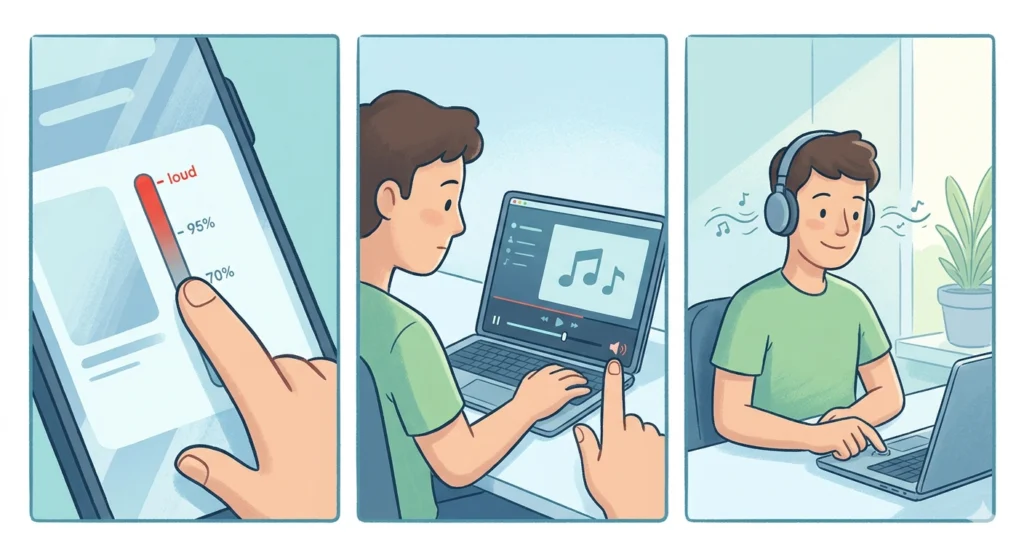
This is the most overlooked fix, but it works more often than expected. When volume is pushed past a certain threshold – either on the device, the app, or both – the audio signal clips. Clipping is what causes that harsh, buzzy, distorted sound. It is not damage; it is simply the audio signal exceeding what the headphone driver can cleanly reproduce.
- Step 1: Lower the volume on the source device to around 70-80% maximum
- Step 2: If using a PC, also check the app’s internal volume (like Spotify, YouTube, or a video player) and bring it down
- Step 3: Play audio again and check if distortion clears up
This works best when the distortion only happens at higher volumes. If the sound is distorted even at low volumes, move to the next fix.
Fix 2: Check and Reseat the Audio Cable or Jack
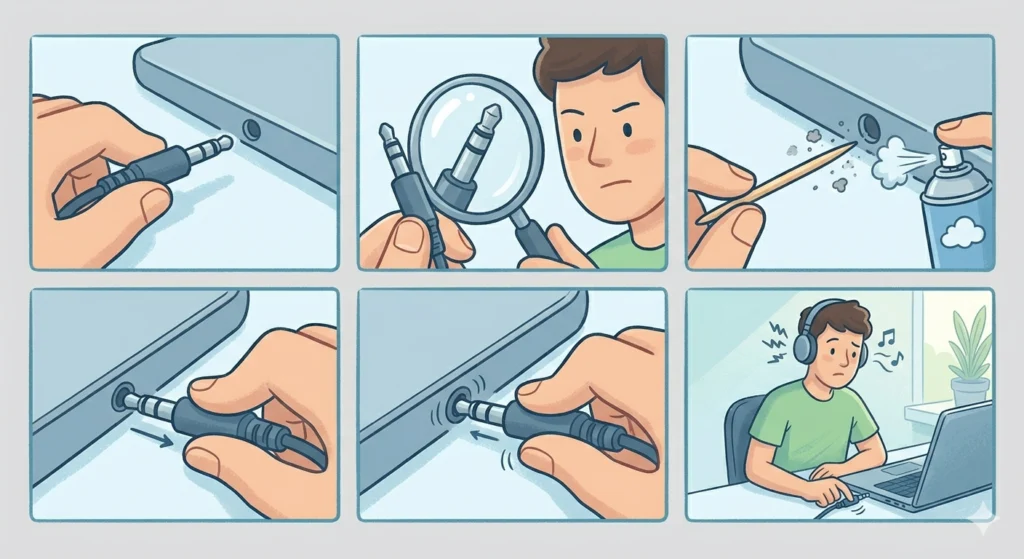
For wired headphones, a loose or partially inserted plug is one of the top reasons for distorted, crackling, or unbalanced audio. The 3.5mm jack needs to be fully seated – even a millimeter off can cause issues.
- Step 1: Unplug the headphone jack completely from the device
- Step 2: Inspect the plug for visible damage, bent prongs, or debris
- Step 3: Clean the headphone port gently using a dry toothpick or a puff of compressed air to remove lint or dust
- Step 4: Firmly and fully reinsert the plug until it clicks or seats flush
- Step 5: Gently wiggle the plug while audio plays – if distortion comes and goes with movement, the cable or port is the problem
If wiggling changes the audio, the cable is likely damaged internally near the plug. Testing with a different pair of headphones on the same port will confirm whether the port or the cable is at fault.
Fix 3: Adjust Audio Format Settings in Windows
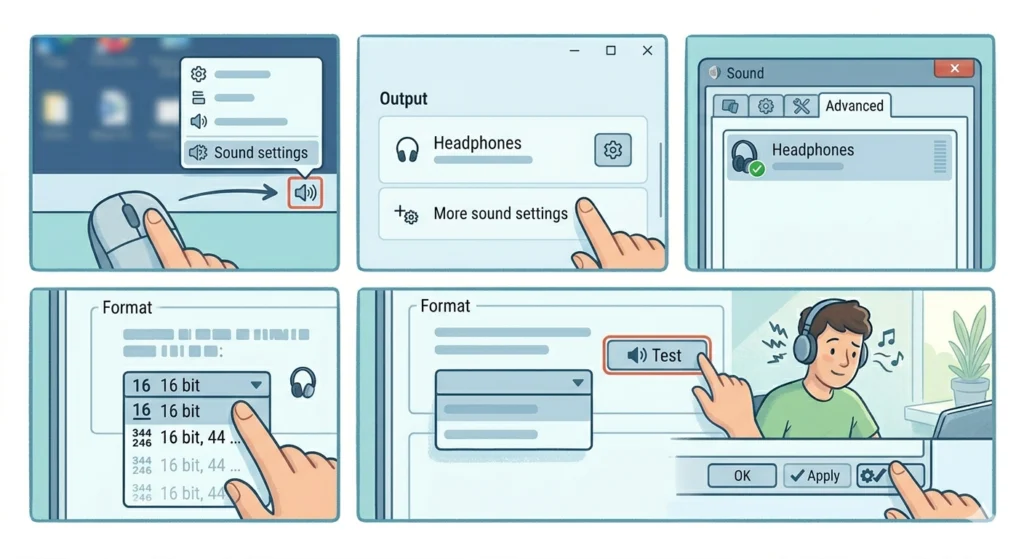
Windows sometimes defaults to audio formats that do not match what the headphones or the audio card support. A mismatch in sample rate or bit depth causes distortion that sounds like static, buzzing, or a slightly ‘underwater’ quality.
- Step 1: Right-click the speaker icon in the taskbar and select ‘Sound settings’
- Step 2: Under ‘Output’, click on the headphones device and select ‘More sound settings’
- Step 3: In the Properties window, go to the ‘Advanced’ tab
- Step 4: Under ‘Default Format’, use the dropdown to try different settings – start with ’16 bit, 44100 Hz (CD Quality)’
- Step 5: Click ‘Test’ after each change, then click ‘Apply’ once the distortion stops
For most consumer headphones, 16-bit at 44100 Hz or 48000 Hz is the sweet spot. Higher bit rates like 24-bit 192kHz can actually cause distortion on devices that do not fully support them. Detailed steps for adjusting audio output settings on Windows 11 can help if the menus look different on a specific system.
Pro-Tip: Also disable ‘Audio Enhancements’ on the same Advanced tab. Windows audio enhancements like bass boost, loudness equalization, and virtual surround sound frequently cause distortion – especially with headphones that have a different impedance than what the enhancement expects. Turn them all off first before changing anything else.
Fix 4: Update or Reinstall Audio Drivers
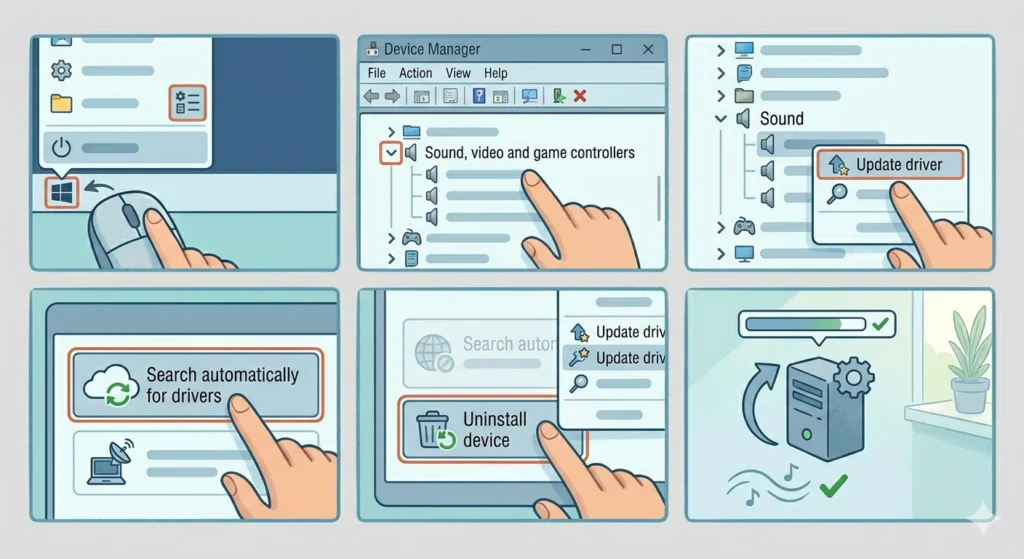
Outdated or corrupted audio drivers are a silent cause of headphone distortion. The driver is the software bridge between Windows and the audio hardware – when it breaks down, audio quality suffers in unpredictable ways.
- Step 1: Right-click the Start button and open ‘Device Manager’
- Step 2: Expand ‘Sound, video and game controllers’
- Step 3: Right-click the audio device and select ‘Update driver’
- Step 4: Choose ‘Search automatically for drivers’ and follow the prompts
- Step 5: If that finds nothing new, go back, right-click the device, and choose ‘Uninstall device’
- Step 6: Restart the PC – Windows will automatically reinstall a fresh driver on boot
For dedicated sound cards or USB DACs, it is better to download the driver directly from the manufacturer’s website rather than relying on Windows Update.
Fix 5: Reset or Reconfigure Windows Audio Settings
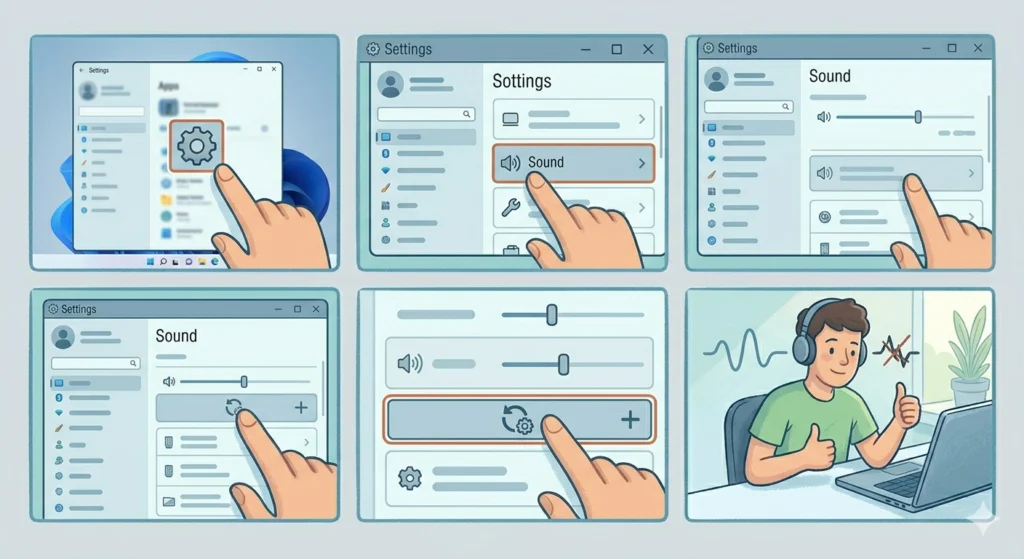
Sometimes Windows audio settings get into a corrupted or misconfigured state – especially after updates or after switching between multiple audio devices frequently. A full reset of the audio configuration can clear up persistent distortion.
The process for resetting audio settings on Windows 11 covers exactly how to restore default values without losing personal preferences. This is especially useful when distortion appeared suddenly after a Windows update.
Fix 6: Check for Wireless Interference (Bluetooth Headphones)
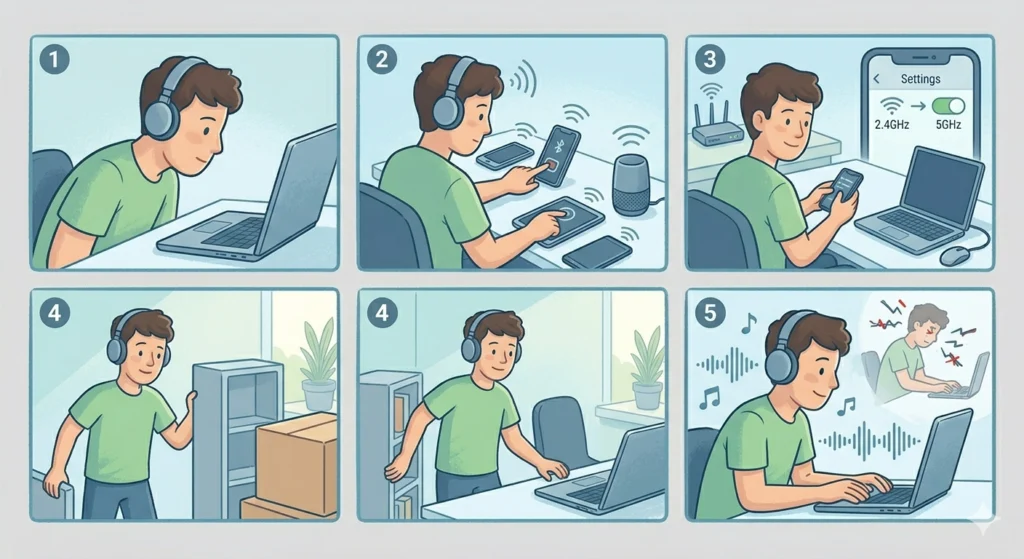
Bluetooth headphones are particularly sensitive to wireless interference. Other devices operating on the 2.4GHz band – like Wi-Fi routers, microwaves, baby monitors, and even other Bluetooth devices – can corrupt the audio signal and create distortion, stuttering, or static.
- Step 1: Move closer to the source device (phone, laptop, or desktop) to within 3 feet
- Step 2: Turn off other nearby Bluetooth devices temporarily
- Step 3: If on Wi-Fi, try switching the router to 5GHz band if possible, as it does not conflict with Bluetooth
- Step 4: Remove physical obstructions between the headphones and the source device
- Step 5: If the distortion clears up when closer, the signal range or interference is the confirmed cause
Most people find that walls, metal furniture, and other electronics between the headphones and the source device are the biggest range killers. Keeping the source device on the same side of the body as the headphone’s main driver (usually the left cup where the Bluetooth chip sits) also helps maintain a cleaner signal.
Fix 7: Re-Pair Bluetooth Headphones
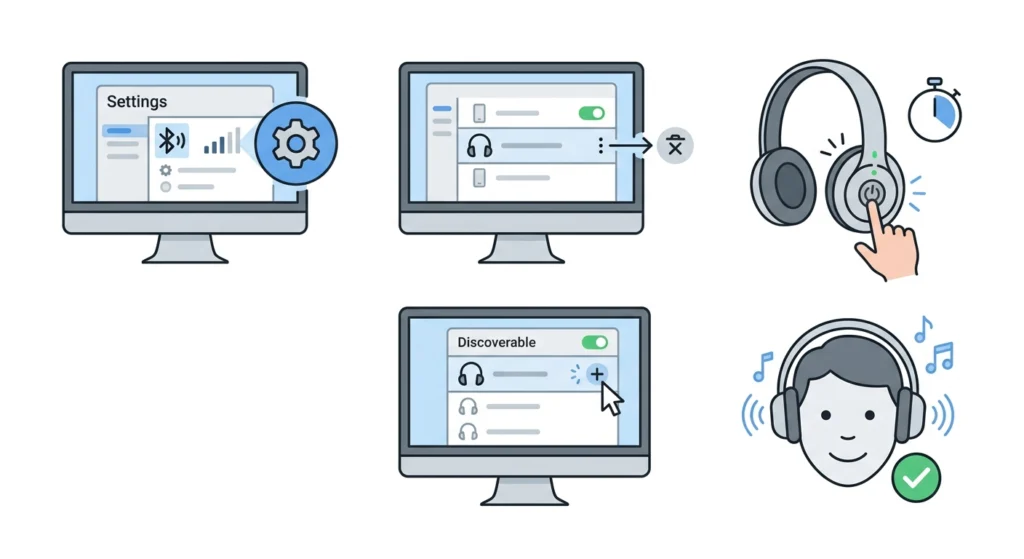
A corrupted Bluetooth pairing profile can cause audio codec mismatches that lead to chronic distortion. Removing the device and re-pairing fresh forces both devices to renegotiate the connection cleanly.
- Step 1: On the PC, go to Settings > Bluetooth and devices
- Step 2: Find the headphones in the list, click the three dots, and select ‘Remove device’
- Step 3: Put the headphones into pairing mode (usually hold the power button for 5-7 seconds)
- Step 4: Re-pair from scratch through the Bluetooth settings
- Step 5: Test audio quality after the fresh connection is established
For a more detailed walkthrough, the guide on how to re-pair Bluetooth earbuds for stereo sound on Windows covers the full process including fixing mono audio issues that can happen during a bad pairing.
Fix 8: Inspect the Headphone Drivers for Physical Damage
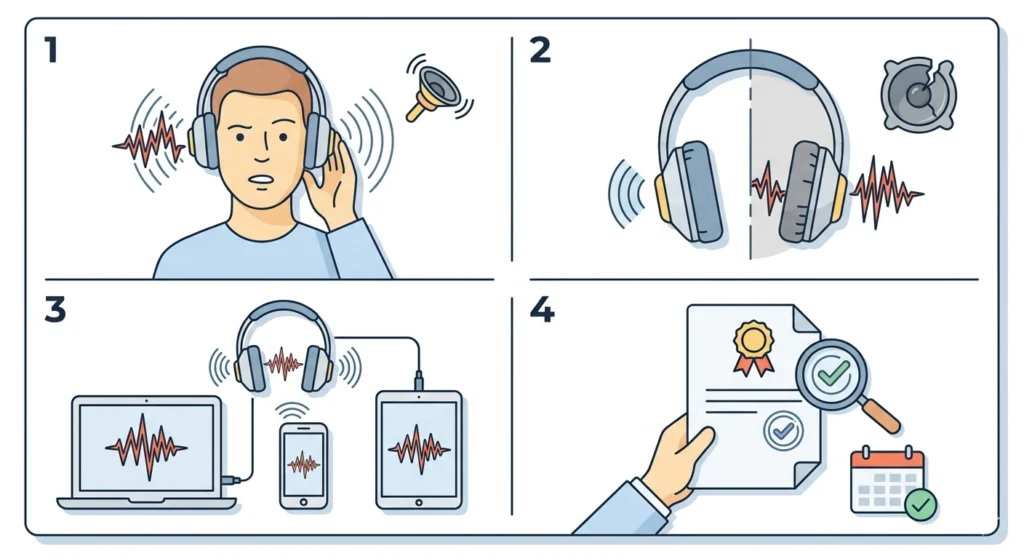
If none of the software fixes work, the issue may be physical. The headphone driver – the small speaker inside each ear cup – can get damaged from drops, moisture, or simply age. A blown or partially damaged driver produces a distinctive distortion that sounds like buzzing, rattling, or a tinny quality that does not go away regardless of software settings.
- Step 1: Listen carefully – does the distortion sound like a rattle or buzz that seems to vibrate physically? That points to driver damage
- Step 2: Check if distortion is only in one ear (left or right) – single-side distortion almost always points to a hardware issue in that specific driver
- Step 3: Test the headphones on a completely different device (phone, tablet, another computer) – if distortion persists across all devices, hardware damage is confirmed
- Step 4: Check if the headphones are still under warranty – driver damage is typically covered
A simple way to test: connect the headphones to a phone and play the same audio. If the distortion follows the headphones from device to device, it is definitely hardware. If the distortion stays behind on one specific device, it is software or a port issue.
Pro-Tip: Before assuming the driver is blown, tap gently on the ear cup with a finger while audio plays. A loose internal component – like a screw, internal wire, or detached padding – can vibrate against the driver and produce a buzzing sound that mimics driver damage. Sometimes, snugging up a loose ear cushion or tightening any external screws resolves what looks like a hardware problem.
Tips for Preventing Headphone Audio Distortion
- Never push device volume past 80% – the last 20% of most volume sliders is where clipping starts
- Store wired headphones coiled loosely, never tightly wrapped around a device, to prevent internal cable stress
- Keep headphone ports free of lint by storing devices in a case or pouch
- For Bluetooth headphones, keep firmware updated through the manufacturer’s app when available
- Avoid using headphones in high-moisture environments – sweat and humidity degrade the driver over time
- When plugging in a wired headphone, insert straight – angled insertion stresses the jack contacts
Common Headphone Distortion Problems and Fixes
Crackling or Static Sound
Usually caused by a loose cable connection, dirty headphone port, or dust on the driver. Clean the port and reseat the cable first. If the issue is on Bluetooth, re-pairing typically resolves it.
Buzzing or Humming in One Ear
A ground loop issue is common when headphones are plugged into a PC that is near other electronics. Try a different USB port, or plug the headphone jack into a different port on the device. Also check that all audio enhancements are disabled in Windows.
Muffled or Underwater Sound Quality
This is almost always an audio format mismatch. Go to the Windows audio Advanced settings and lower the sample rate. CD Quality (44100 Hz) is the most universally compatible setting.
Distortion Only on Loud Parts of Songs
Classic clipping. The signal level is exceeding what the headphone can handle. Lower both the app volume and the system volume, and if available, disable any loudness equalization in the sound settings.
Bluetooth Audio That Cuts In and Out with Distortion
Interference or range issue. Move closer to the source device, disable other Bluetooth devices nearby, and if possible, switch the connected Wi-Fi to a 5GHz network.
Frequently Asked Questions
Why do headphones sound distorted suddenly when they were fine before?
The most common triggers for sudden distortion are a Windows update that changed audio settings, a driver update or corruption, a newly installed app that altered audio processing, or a cable that developed a micro-break from recent movement or stress. Start by checking if audio enhancements got turned on after the update, then check the audio format settings.
Can high volume actually damage headphones permanently?
Yes. Sustained listening at maximum volume can overdrive the headphone drivers and cause permanent damage to the voice coil inside each driver. The distortion heard at high volumes is a warning sign. Once a driver is physically blown, the only fix is driver replacement or a new pair of headphones.
Does the audio distortion fix differ between wired and Bluetooth headphones?
Yes, the process is different. Wired headphone distortion is usually caused by cable issues, port cleanliness, or audio format settings. Bluetooth distortion is more often caused by interference, pairing corruption, codec mismatch, or device distance. The software fixes (drivers, audio format) apply to both types.
What audio format setting is best for headphones in Windows?
For most consumer headphones, 16-bit, 44100 Hz (CD Quality) is the most stable and compatible setting. High-resolution settings like 24-bit 192kHz can cause distortion on devices that do not fully support them. Only use higher-resolution settings if the headphones and audio card are confirmed to support them.
How do you tell if headphone distortion is hardware or software?
Test the same headphones on a completely different device – a phone or tablet works well. If the distortion is gone on the other device, the original device’s software, settings, or port is the cause. If distortion follows the headphones to every device, the hardware inside the headphones is damaged.
Can a dirty headphone jack cause distortion?
Absolutely. Pocket lint, dust, and debris in the headphone port are extremely common causes of crackling and intermittent distortion. The debris creates an incomplete contact between the plug and the port. Cleaning the port with a dry toothpick or a puff of compressed air often resolves the issue immediately.
Why do Bluetooth headphones sound distorted when a phone is in a pocket?
The human body absorbs Bluetooth signals significantly. When a phone is in a front or back pocket, the body creates a barrier between the transmitter and the headphones. This weakens the signal enough to cause dropouts and distortion. Keeping the phone in a shirt pocket or in hand provides a cleaner line of sight to the headphones.
Do audio enhancement features like virtual surround cause distortion?
Yes, very commonly. Windows audio enhancements like bass boost, loudness equalization, and virtual surround sound apply additional signal processing that can push audio beyond the headphone’s limits or create phase distortion. Disabling all enhancements is one of the first things to check when diagnosing distorted audio.
Can a faulty USB port cause headphone distortion for USB headphones?
Yes. USB headphones draw power and data from the USB port. A faulty or electrically noisy USB port can introduce interference directly into the audio signal. Switching to a different USB port – particularly one on the back of a desktop PC, which is more directly connected to the motherboard – often resolves USB headphone distortion.
Is there a way to fix distorted audio without reinstalling drivers?
Yes. Before reinstalling drivers, try disabling audio enhancements, changing the audio format to CD Quality, lowering volume levels, and cleaning the headphone port. Most distortion cases are resolved through settings changes alone without needing a driver reinstall.