
Bluetooth headphones that keep disconnecting mid-song or during a call are one of the most frustrating audio issues out there. The good news? Most of the time, it is not a hardware problem. It is usually something fixable – a setting, a pairing conflict, or a simple software glitch. This step-by-step guide walks through every proven fix so the headphones stay connected and the audio stays uninterrupted.
Quick Summary: Key Takeaways
- Most Bluetooth disconnection issues are caused by interference, outdated drivers, or pairing conflicts – not broken hardware.
- Clearing old paired devices and re-pairing is one of the fastest fixes.
- Keeping the source device within 10 meters (33 feet) prevents most range-related drops.
- Updating drivers and firmware solves a large percentage of persistent disconnection problems.
- Power management settings on Windows and Android are a hidden but common culprit.
- If the headphones disconnect only on a specific device, the problem is almost always with that device’s settings, not the headphones.
How to Fix Bluetooth Headphones That Keep Disconnecting
Fix 1: Turn Bluetooth Off and Back On
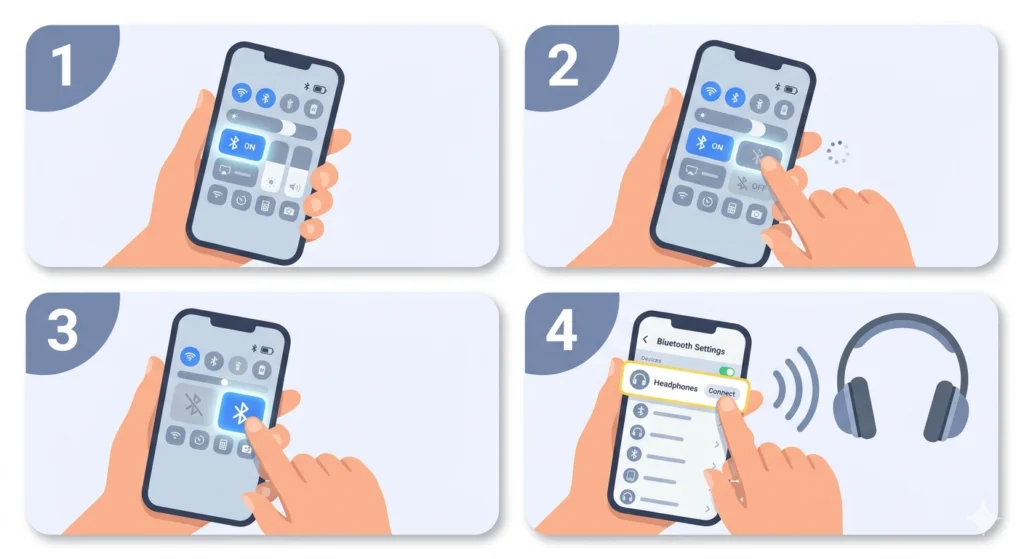
This sounds basic, but it works more often than expected. Bluetooth stacks can hang after extended use, especially on phones and laptops. A quick toggle forces the adapter to reset its connection state.
- Step 1: Open the device settings or quick-access panel.
- Step 2: Turn Bluetooth off and wait 10 seconds.
- Step 3: Turn Bluetooth back on.
- Step 4: Reconnect the headphones manually if they do not auto-connect.
Fix 2: Forget the Device and Re-Pair from Scratch
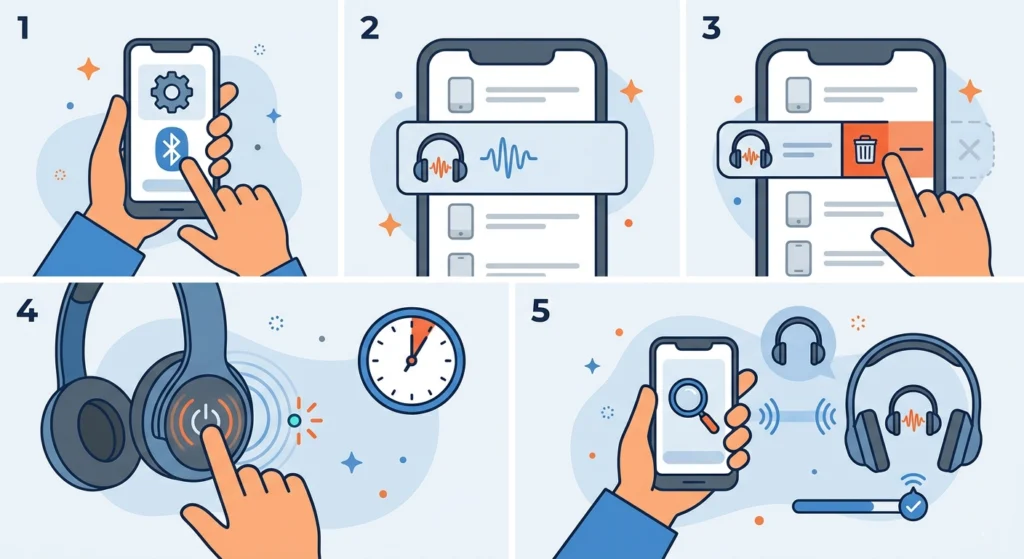
Old pairing data can become corrupted over time – especially after OS updates. Removing the headphones from the paired devices list and starting fresh clears that corrupted data completely. For anyone who wants a more detailed walkthrough on re-pairing Bluetooth devices on Windows, this guide on how to re-pair Bluetooth earbuds for stereo sound on Windows covers it thoroughly.
- Step 1: Go to Bluetooth settings on the source device.
- Step 2: Find the headphones in the paired devices list.
- Step 3: Select ‘Forget’ or ‘Remove device’.
- Step 4: Put the headphones into pairing mode (usually hold the power button for 5-7 seconds until the LED flashes).
- Step 5: Search for the headphones from the source device and pair them again.
This fix resolves a surprisingly high number of random disconnection issues. Most people find that re-pairing alone eliminates the problem entirely.
Fix 3: Check and Reduce Wireless Interference
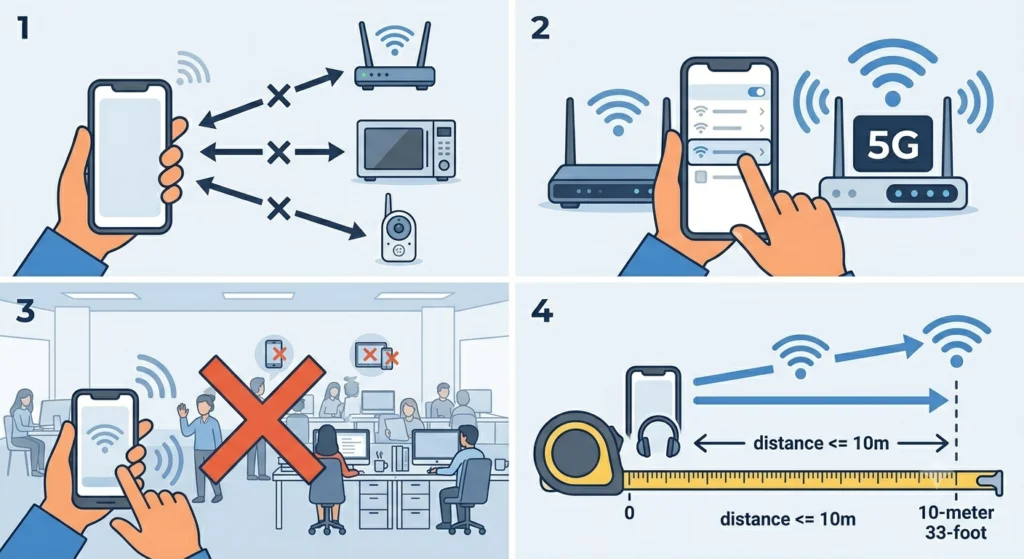
Bluetooth operates on the 2.4 GHz frequency – the same band used by Wi-Fi routers, microwaves, baby monitors, and even some cordless phones. When too many devices compete for that frequency, signal drops happen.
- Step 1: Move away from the Wi-Fi router, microwave, or other wireless devices.
- Step 2: If on Wi-Fi, switch the router to the 5 GHz band to reduce 2.4 GHz congestion.
- Step 3: Avoid using Bluetooth in crowded areas like offices with many active wireless devices.
- Step 4: Keep the source device within 10 meters (33 feet) with clear line of sight when possible.
The key is to reduce the number of devices broadcasting on 2.4 GHz near the headphones. Even shifting a few feet away from a router can make a noticeable difference.
Fix 4: Update Bluetooth Drivers (Windows)
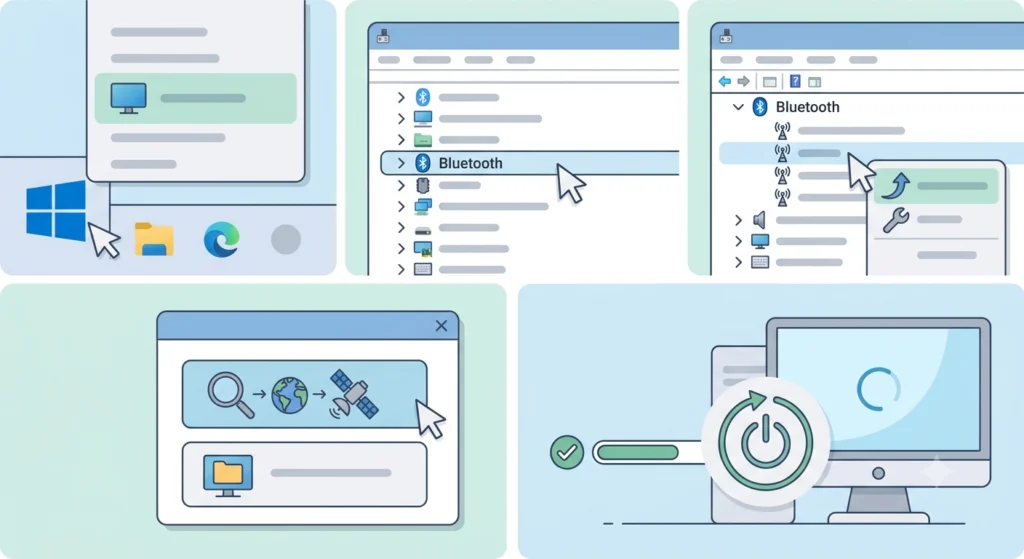
Outdated Bluetooth drivers are a common cause of frequent disconnections on Windows laptops and desktops. Driver updates often include stability fixes that directly address connection drops.
- Step 1: Right-click the Start menu and select ‘Device Manager’.
- Step 2: Expand the ‘Bluetooth’ section.
- Step 3: Right-click the Bluetooth adapter and choose ‘Update driver’.
- Step 4: Select ‘Search automatically for drivers’.
- Step 5: Restart the computer after the update completes.
If Windows does not find an update automatically, visit the laptop or motherboard manufacturer’s website and download the latest Bluetooth driver directly. This works best when the headphones disconnect specifically on a Windows PC but work fine on a phone.
Pro Tip: After updating drivers, also check Windows audio output settings to make sure the headphones are set as the default playback device. Incorrect audio routing can mimic disconnection symptoms. A full walkthrough is available in this guide on adjusting audio output settings on Windows 11.
Fix 5: Disable Power Management for Bluetooth (Windows)
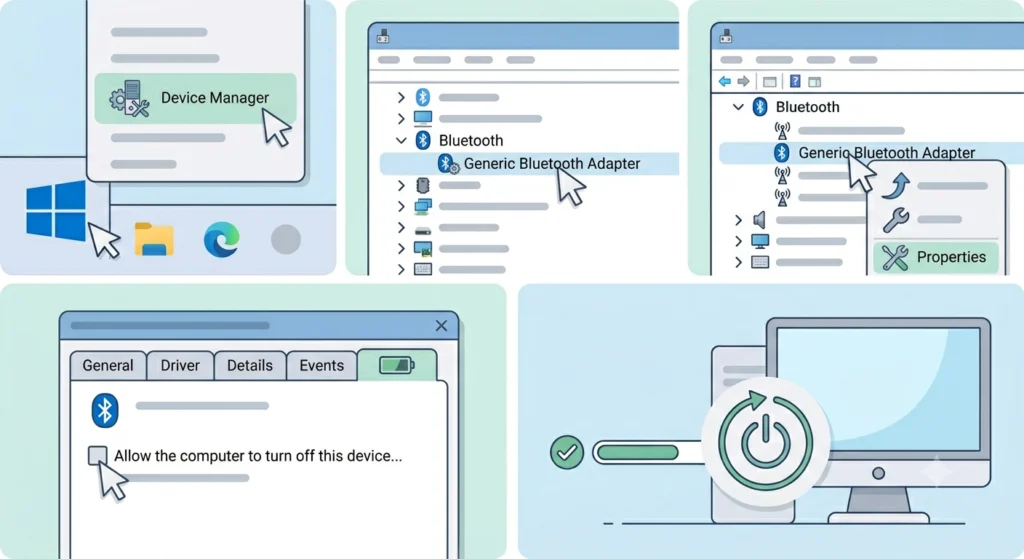
Windows has a feature that cuts power to Bluetooth adapters to save energy. It is a well-intentioned feature that causes a lot of disconnections, especially when the computer is idle or on battery mode.
- Step 1: Open ‘Device Manager’ (right-click Start menu).
- Step 2: Expand ‘Bluetooth’ and right-click the Bluetooth adapter.
- Step 3: Select ‘Properties’, then go to the ‘Power Management’ tab.
- Step 4: Uncheck ‘Allow the computer to turn off this device to save power’.
- Step 5: Click OK and restart if prompted.
This single fix resolves disconnections for a large number of Windows users, particularly those using laptops on battery power.
Fix 6: Update Headphone Firmware
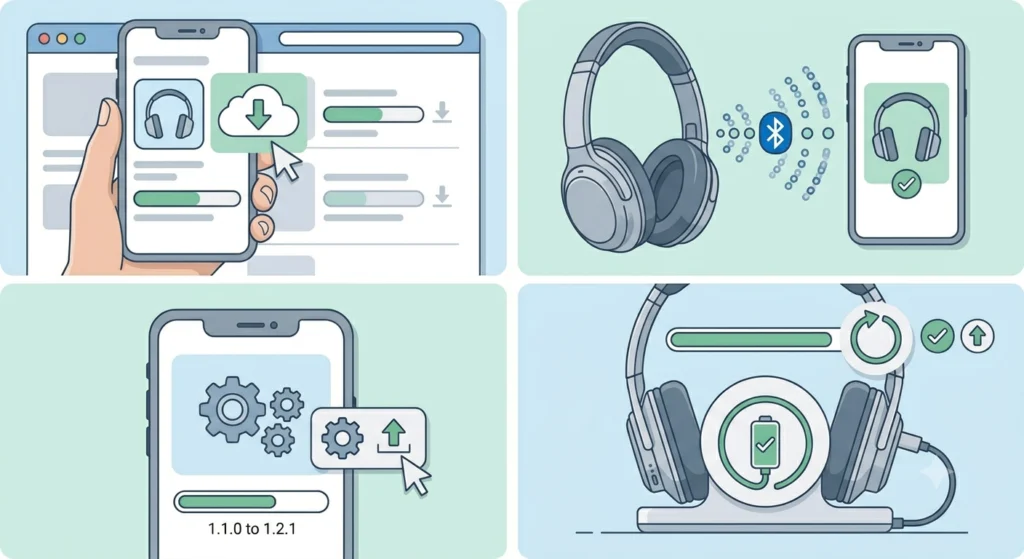
Many modern Bluetooth headphones – especially from brands like Sony, Bose, Jabra, and Sennheiser – have companion apps that push firmware updates. These updates often contain bug fixes for connection stability.
- Step 1: Download the official companion app for the headphones (Sony Headphones Connect, Bose Music, Jabra Sound+, etc.).
- Step 2: Connect the headphones to the app via Bluetooth.
- Step 3: Check for available firmware updates in the app settings.
- Step 4: Install the update and keep the headphones charged during the process.
Firmware updates are easy to overlook, but they are one of the most effective long-term fixes for recurring disconnection issues.
Fix 7: Clear Bluetooth Cache (Android)
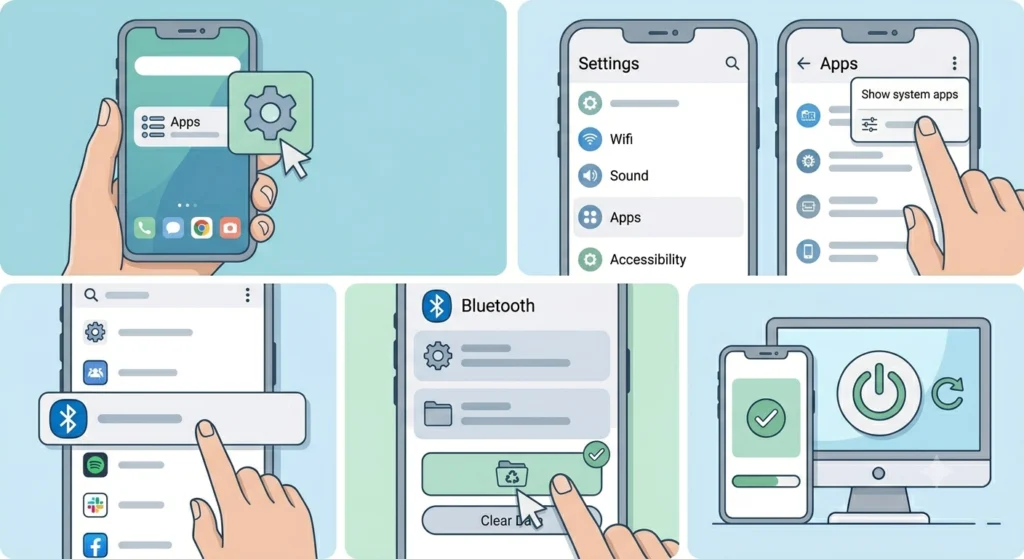
Android stores Bluetooth connection data in a cache. Over time, that cache can become bloated or corrupted – leading to unstable connections. Clearing it forces Android to rebuild the Bluetooth pairing data from scratch.
- Step 1: Go to ‘Settings’ and open ‘Apps’ or ‘Application Manager’.
- Step 2: Tap the three-dot menu and select ‘Show system apps’.
- Step 3: Find and tap ‘Bluetooth’ or ‘Bluetooth Share’.
- Step 4: Tap ‘Storage’, then ‘Clear Cache’.
- Step 5: Restart the phone and re-pair the headphones.
This fix is specific to Android devices and works especially well on Samsung phones running One UI.
Fix 8: Disable Battery Optimization for Bluetooth (Android)
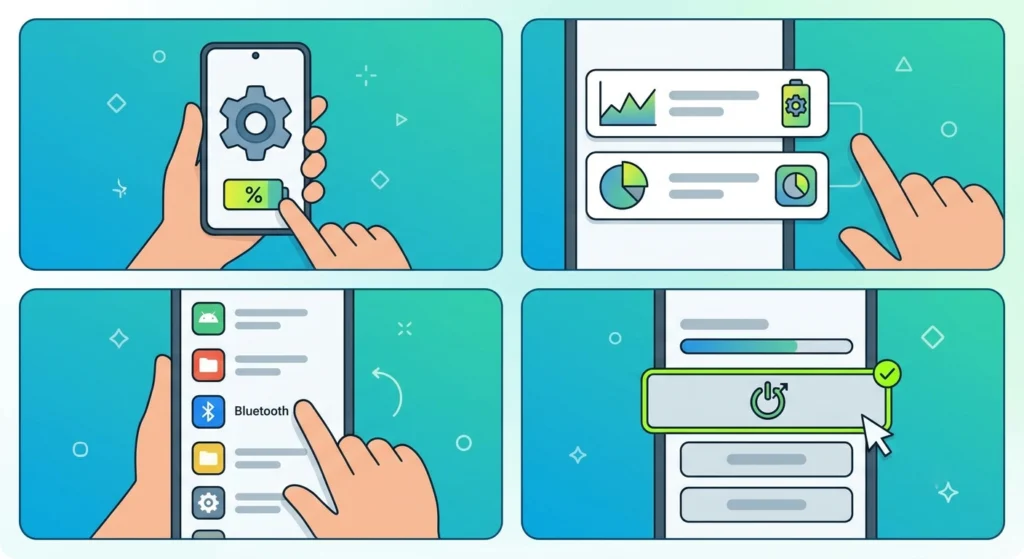
Android’s battery optimization can aggressively put Bluetooth processes to sleep, causing the connection to drop when the screen turns off or the phone is idle.
- Step 1: Go to ‘Settings’ and tap ‘Battery’.
- Step 2: Look for ‘Battery Optimization’ or ‘App Battery Usage’.
- Step 3: Find the Bluetooth or audio-related system service.
- Step 4: Set it to ‘Unrestricted’ or ‘Not Optimized’.
On Samsung devices, there is also a ‘Nearby device scanning’ setting under Connections that can interfere with stable Bluetooth. Disabling it sometimes helps as well.
Fix 9: Reset Network Settings on iPhone
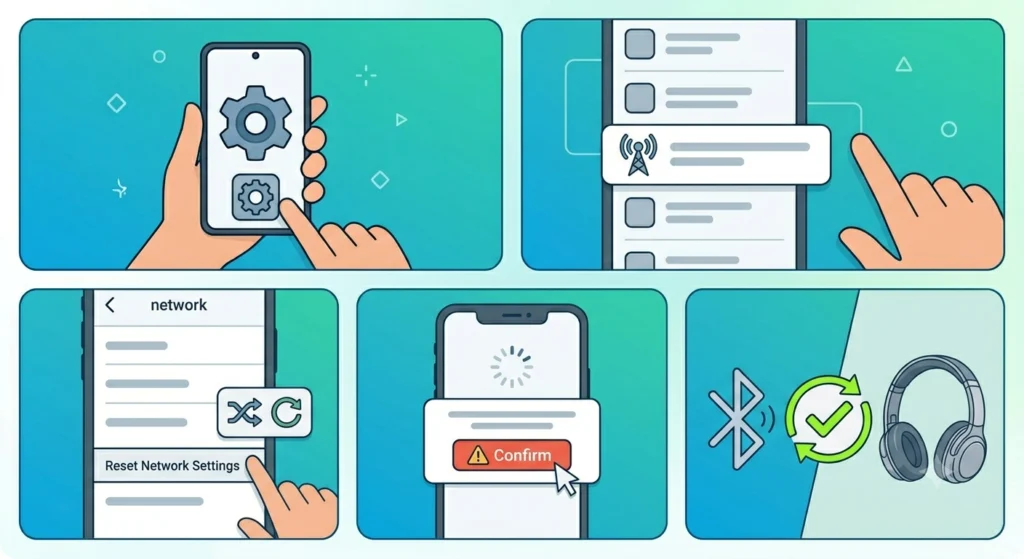
On iPhone, Bluetooth settings are tied to the network configuration. Resetting network settings clears all paired Bluetooth devices and Wi-Fi networks, giving Bluetooth a completely fresh start.
- Step 1: Go to ‘Settings’ and tap ‘General’.
- Step 2: Scroll down and tap ‘Transfer or Reset iPhone’.
- Step 3: Tap ‘Reset’, then select ‘Reset Network Settings’.
- Step 4: Confirm and wait for the phone to restart.
- Step 5: Re-pair the headphones from scratch.
Note that this will also remove saved Wi-Fi passwords, so have those ready before proceeding.
Fix 10: Hard Reset the Headphones

When all else fails, a factory reset of the headphones clears all stored pairing data and restores the device to default settings. This is especially useful when the headphones disconnect on multiple devices.
- Step 1: Refer to the headphone’s user manual or manufacturer’s website for the exact reset process.
- Step 2: Most models require holding a combination of buttons (power + volume down, or a dedicated reset button) for 10-15 seconds.
- Step 3: Wait for the reset indicator (flashing LED or voice prompt saying ‘Device reset’).
- Step 4: Re-pair the headphones with the source device.
Pro Tip: After a hard reset, pair the headphones with only one device at a time and test stability before connecting to multiple devices. Multi-device pairing (multipoint) can sometimes cause instability on older firmware versions.
Tips to Keep Bluetooth Headphones Connected
- Keep the source device within 10 meters (33 feet) and minimize physical obstructions like walls between devices.
- Charge the headphones regularly – low battery causes unstable Bluetooth connections before the device fully powers off.
- Avoid connecting the headphones to too many devices at once if multipoint is not supported well on the model.
- Keep both the source device’s OS and the headphone firmware updated.
- In offices or crowded spaces, switch the Wi-Fi band on nearby routers to 5 GHz to free up the 2.4 GHz band for Bluetooth.
- If using Windows, periodically check the Bluetooth adapter in Device Manager to make sure it shows no errors or warning icons.
Common Bluetooth Disconnection Problems and What Causes Them
Headphones disconnect when the phone screen turns off
This is almost always caused by battery optimization or power management settings aggressively cutting Bluetooth processes. Disabling battery optimization for Bluetooth on Android (Fix 8) solves this in most cases.
Headphones only disconnect on one specific device
This points to a device-level issue – outdated drivers, corrupted pairing data, or power settings. Re-pairing (Fix 2) and updating drivers (Fix 4) are the first steps to try.
Headphones disconnect every few minutes in the same location
Interference from nearby wireless devices is the likely cause. Switching the local Wi-Fi router to 5 GHz and moving away from microwaves or cordless phones helps significantly (Fix 3).
Headphones disconnect and reconnect rapidly (stuttering)
Stuttering disconnections typically indicate range issues or heavy interference. Stay within close range of the source device and reduce obstacles between both devices.
Headphones lose connection after a Windows update
Windows updates can overwrite or reset Bluetooth driver settings. Reinstalling or updating the Bluetooth driver (Fix 4) and re-checking the power management setting (Fix 5) usually resolves this quickly.
One earbud disconnects but the other stays connected
This is a stereo sync issue rather than a standard Bluetooth disconnection problem. It often happens after a reset or firmware update. Re-pairing both earbuds to each other first, then to the source device, typically resolves it.
Frequently Asked Questions
Why do Bluetooth headphones keep disconnecting randomly?
Random disconnections are most commonly caused by wireless interference, outdated Bluetooth drivers, corrupted pairing data, or power management settings that cut Bluetooth to save battery. Running through the fixes above – starting with re-pairing and power management settings – resolves most random disconnection issues.
How do I stop my Bluetooth headphones from disconnecting on Windows 11?
The two most effective fixes for Windows 11 are disabling the power management setting in Device Manager (Fix 5) and updating the Bluetooth adapter driver (Fix 4). Also check Windows audio settings to ensure the headphones are set as the default output device. This guide on resetting audio settings on Windows 11 is helpful if audio settings are part of the issue.
Does low battery cause Bluetooth to disconnect?
Yes. When headphone battery drops to critical levels, the Bluetooth radio is one of the first components to lose stable power. This causes intermittent drops before the headphones fully power off. Keeping the headphones charged above 20% prevents battery-related disconnections.
Can too many Bluetooth devices cause disconnections?
Yes, having too many active Bluetooth devices nearby can create interference, especially if multiple devices are broadcasting on the 2.4 GHz band. Turning off Bluetooth on devices that are not actively in use reduces congestion and improves connection stability.
How far can Bluetooth headphones be from the source device?
Standard Bluetooth 4.x and 5.x headphones typically maintain a reliable connection up to 10 meters (33 feet) in open space. Walls, furniture, and other physical obstructions reduce that range. High-end models with Bluetooth 5.0 and above can maintain connections at longer distances, but performance still depends on the environment.
Why do my headphones disconnect when I move my phone to another room?
Walls and large objects absorb and reflect Bluetooth signals, reducing effective range significantly. A connection that works fine in the same room may drop as soon as a wall is added between the headphones and the phone. Staying within the same room or reducing physical barriers between devices resolves this.
Will resetting my headphones delete all paired devices?
Yes. A factory reset clears all stored Bluetooth pairing data from the headphones. After a reset, all devices will need to be paired again from scratch. This is actually helpful when trying to fix persistent connection problems because it eliminates any corrupted pairing data.
Why do my headphones keep disconnecting from my iPhone specifically?
iPhone-specific disconnections are often related to accumulated network data or a conflict with other nearby Apple devices. Resetting network settings on the iPhone (Fix 9) and re-pairing the headphones tends to resolve most iPhone-specific Bluetooth issues. Also check if ‘Automatic Switching’ between Apple devices is enabled, as this causes the headphones to jump between nearby Apple devices unexpectedly.
Can a software update cause Bluetooth headphones to disconnect more often?
Yes. Major OS updates on Windows, Android, and iOS can reset or alter Bluetooth driver settings and power management configurations. After an OS update, it is worth revisiting the power management settings (Fix 5 for Windows) and re-pairing the headphones (Fix 2) to rule out update-related configuration changes.
How do I know if the disconnection problem is with the headphones or the source device?
Pair the headphones with a different device entirely – a phone, tablet, or another laptop. If the headphones connect and stay connected on the alternate device, the problem is with the original source device’s settings, drivers, or Bluetooth adapter. If the headphones disconnect on every device, the headphones themselves or their firmware may be the issue – a factory reset (Fix 10) or firmware update (Fix 6) is the next step.