
Enabling Speak-to-Chat on the Sony WH-1000XM5 turns a quick chat into a hands-free moment, automatically dipping the music and opening up ambient sound the second talking starts. This walkthrough covers both ways to switch it on – the two-finger touch gesture and the Sony Sound Connect app – along with the sensitivity settings that keep it from firing at the wrong moment.
Quick Takeaways
- Speak-to-Chat ships disabled by default on every WH-1000XM5 unit.
- A two-finger hold on the touch sensor panel turns it on or off in seconds, no phone needed.
- The Sony Sound Connect app, renamed from Headphones Connect in October 2024, adds sensitivity and timing controls.
- Music only pauses automatically over a Bluetooth connection – a wired 3.5mm cable will not trigger that behavior.
- Frequent false triggers from coughing, humming, or background noise usually get fixed by lowering the sensitivity to Low.
Method 1: Enable Speak-to-Chat Using the Touch Sensor Panel
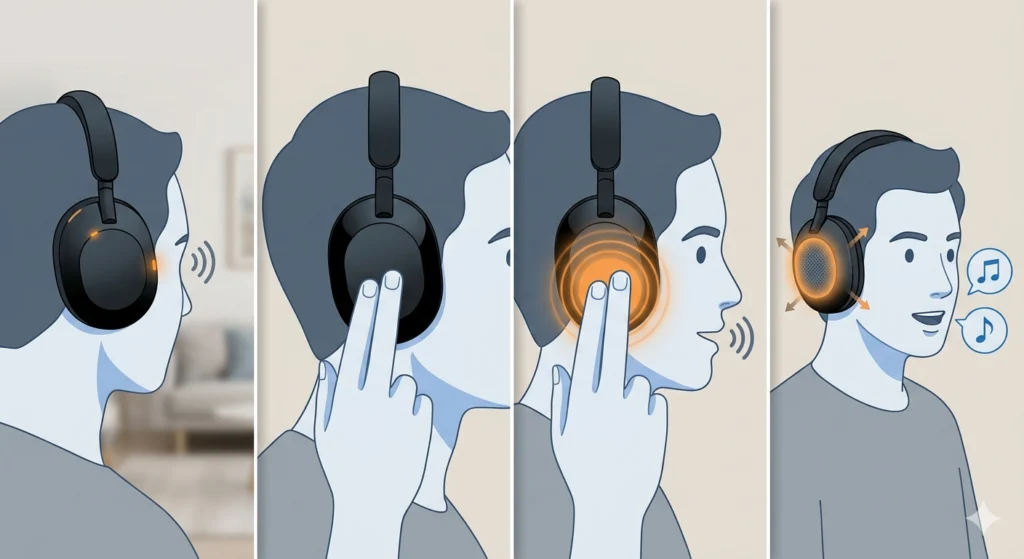
The touch sensor panel on the right ear cup works as a direct switch for this feature, which makes it the fastest route when the phone is not within reach.
- Step 1: Put the WH-1000XM5 on and confirm the headphones are powered on and connected to a phone or computer.
- Step 2: Rest two fingers flat on the touch sensor panel located on the right ear cup.
- Step 3: Hold both fingers in place until the voice guidance announces ‘Speak-to-chat activated’.
- Step 4: Start talking – the headphones will lower the music and switch to ambient sound automatically.
Pro Tip: Repeating the exact same two-finger hold switches the feature back off, signaled by the voice guidance saying ‘Speak-to-chat deactivated’. This shortcut comes in handy on a commute or at a desk, where pulling out a phone just to flip a setting feels like overkill.
Method 2: Enable Speak-to-Chat Using the Sony Sound Connect App
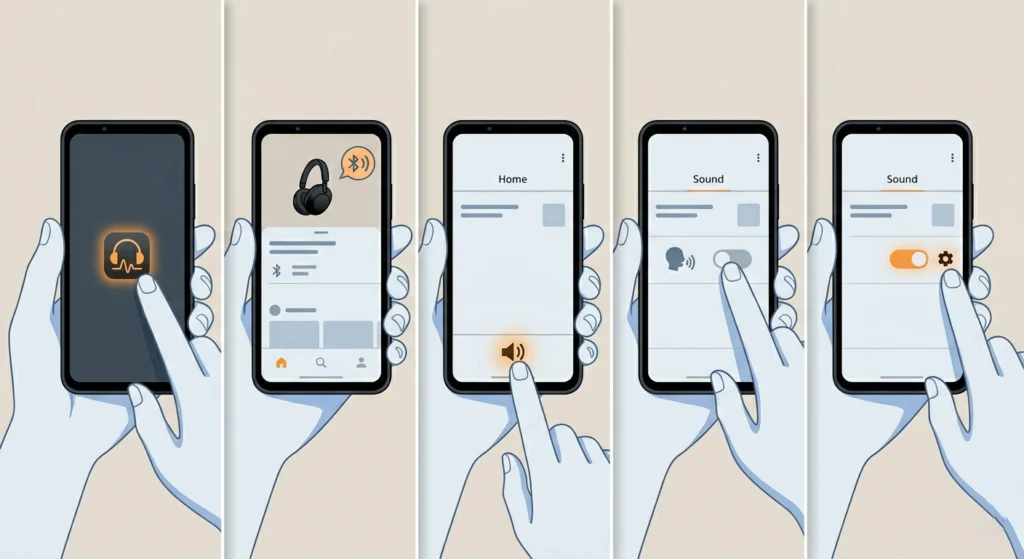
Sony renamed its companion app from Headphones Connect to Sound Connect in October 2024, though the menu layout for this particular feature has stayed close to what longtime users already know. Going through the app unlocks sensitivity and auto-off timing that the touch gesture alone cannot adjust.
- Step 1: Open the Sony Sound Connect app on a phone already paired with the WH-1000XM5.
- Step 2: Confirm the headphones appear as the connected device on the home screen.
- Step 3: Tap the Sound tab from the bottom navigation bar.
- Step 4: Find the Speak-to-Chat setting and tap the toggle to switch it on.
- Step 5: Tap the gear icon next to the toggle to open Voice Detect Sensitivity and the auto-off timer, then adjust either one if needed.
Pro Tip: Most people find that Low sensitivity works better in noisy spaces like trains, gyms, or open offices, since engine noise and nearby chatter can otherwise set the feature off without anyone actually speaking to the wearer.
Tips for Getting the Most Out of Speak-to-Chat
- Match the sensitivity level to the surroundings – a quiet home office can usually stay on a higher setting than a busy commute.
- Stretch out the auto-off timer for longer conversations, so the music does not creep back in mid-sentence.
- Switch the feature off manually before a run or workout, since heavy breathing and movement are sometimes picked up as speech.
- Keep both the headphone firmware and the Sound Connect app updated, since voice-detection accuracy tends to improve with newer builds.
- Treat the touch gesture as a fast manual override, even after the feature has already been turned on through the app.
Common Speak-to-Chat Problems and How to Fix Them
Fix 1: Speak-to-Chat Does Not Activate When Talking
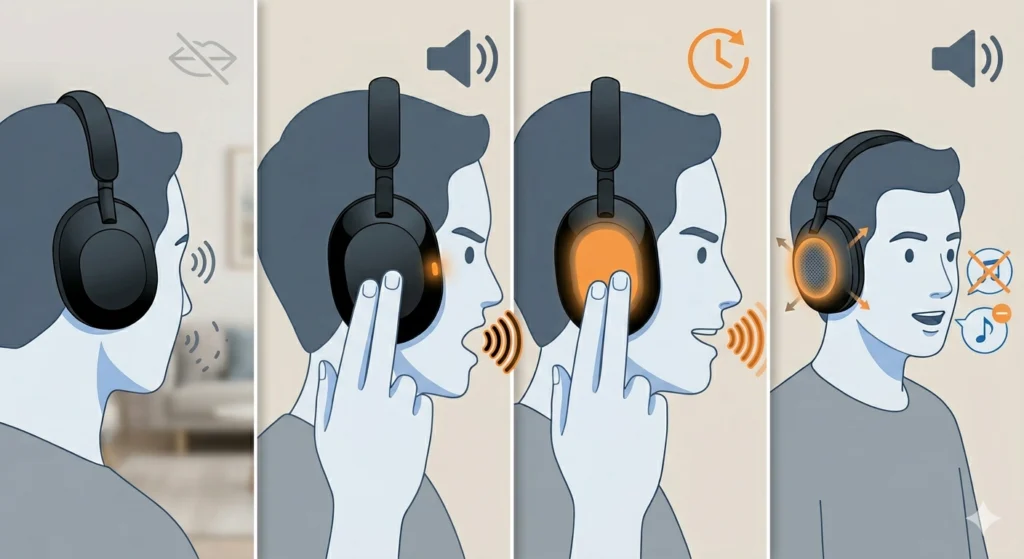
This usually comes down to volume or distance from the microphone. Speaking a bit louder and for a touch longer often solves it. In extremely loud environments such as an airplane cabin, the feature may not register speech reliably no matter how loud the voice gets, so switching it on manually through the touch panel becomes the more dependable option in that specific case.
Fix 2: Speak-to-Chat Triggers Without Anyone Talking
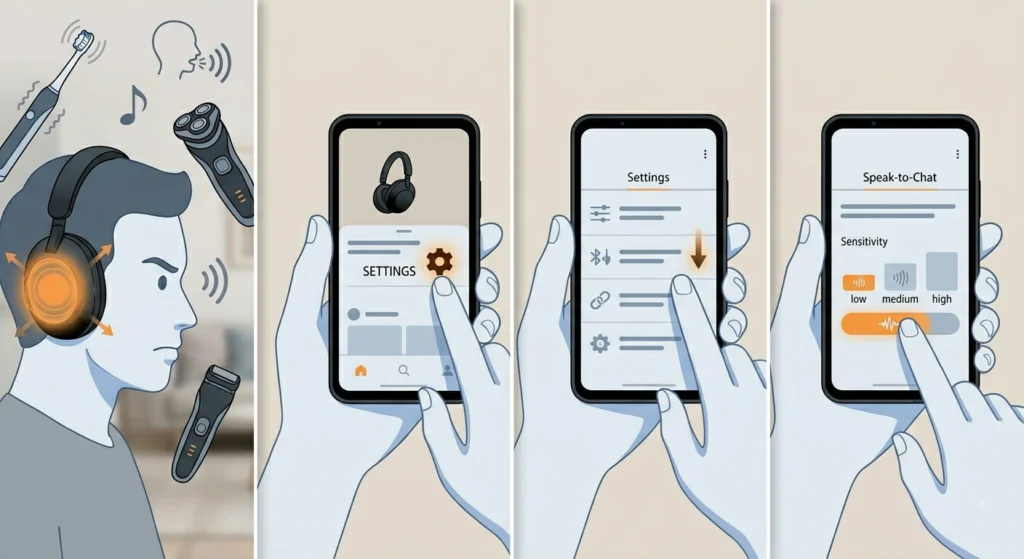
Vibrations from an electric toothbrush, an electric shaver, or even coughing and humming can sometimes get picked up as speech. The key is to open the Sound Connect app and switch Voice Detect Sensitivity down to Low, which cuts down on these accidental activations significantly.
Fix 3: Music Does Not Pause Automatically
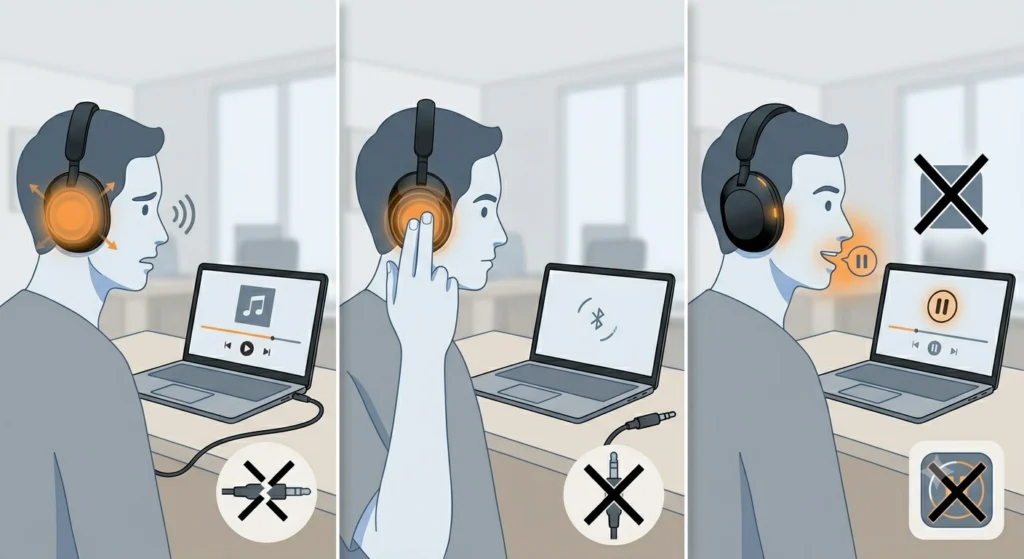
Automatic pausing only works over a Bluetooth connection. A wired 3.5mm cable connection will not trigger that behavior at all. Some playback apps also do not support automatic pause and resume, regardless of connection type, so the issue is not always on the headphone side.
Fix 4: Audio Cuts Out or Mutes During Windows Video Calls
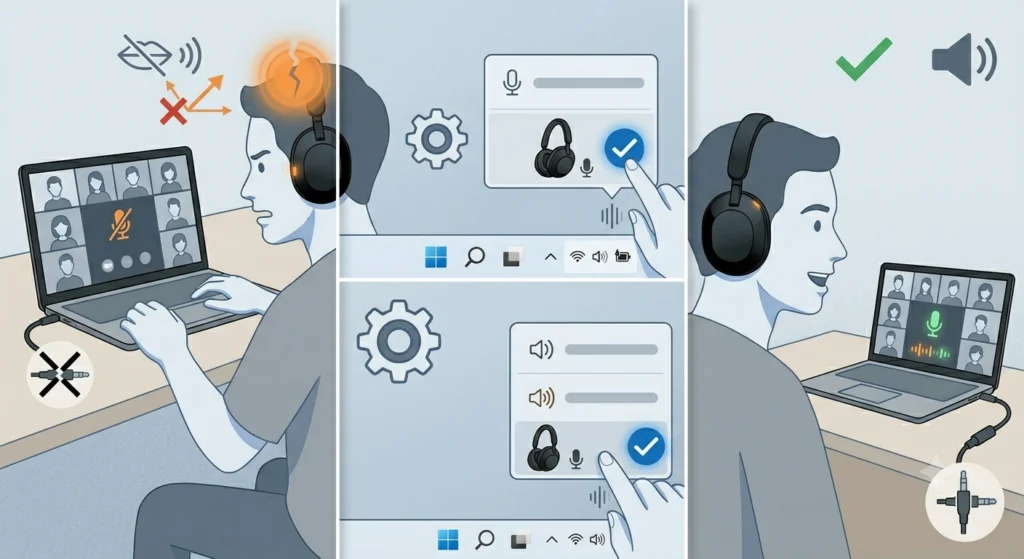
This happens when the computer has not selected the WH-1000XM5 microphone correctly for the call, which causes Speak-to-Chat to activate and mute the headset output at the same time. On a Windows 11 machine, a guide on resolving microphone detection problems walks through getting the correct mic recognized, and a guide on adjusting audio output settings helps make sure the call routes through the right device on both ends.
Fix 5: Headphones Disconnect Before Setup Finishes
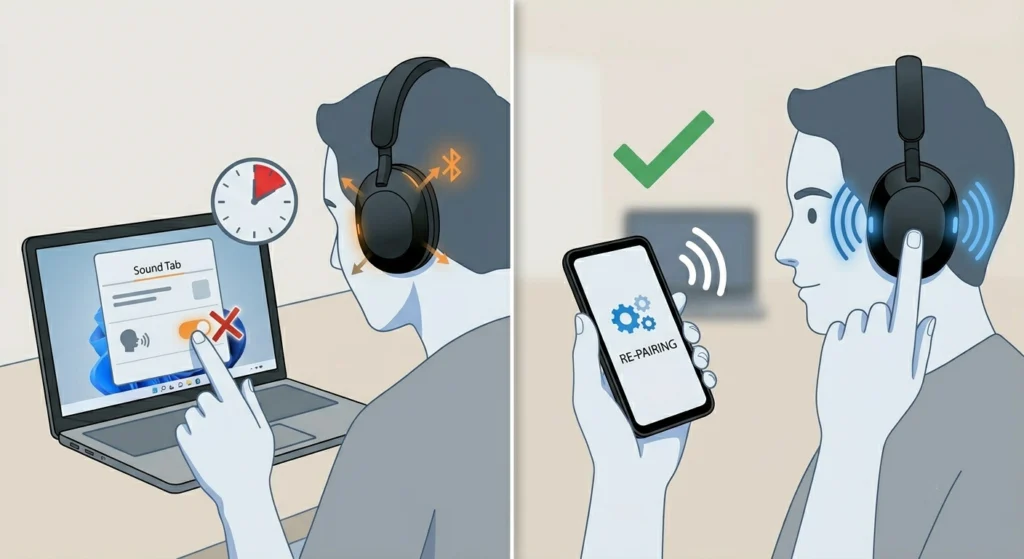
A shaky Bluetooth connection makes it hard to even reach the Sound tab long enough to flip the toggle. If the WH-1000XM5 keeps dropping its link on a Windows 11 laptop, a guide on re-pairing Bluetooth earbuds for stereo sound is worth running through before touching any Speak-to-Chat setting.
Frequently Asked Questions
What does Speak-to-Chat do on the Sony WH-1000XM5?
It automatically lowers the music and switches to ambient sound the moment the wearer starts speaking, then brings playback back once the conversation pauses for a few seconds.
Is Speak-to-Chat turned on by default?
No. Sony ships the WH-1000XM5 with this feature disabled in the factory settings, so it needs to be turned on manually through either the touch panel or the app.
Does Speak-to-Chat work with a wired connection?
No. Automatic music pausing only happens over a Bluetooth connection. A wired 3.5mm cable does not support that automatic pause and resume behavior.
How does Speak-to-Chat get turned off?
Hold two fingers on the touch sensor panel until the voice guidance says ‘Speak-to-chat deactivated’, or flip the toggle off inside the Sound tab of the Sony Sound Connect app.
Why does Speak-to-Chat activate when nobody is talking?
Vibrations from things like an electric toothbrush or shaver, along with coughing or humming, can sometimes be mistaken for speech. Lowering the sensitivity to Low inside the app usually clears up frequent false triggers.
Can the sensitivity of Speak-to-Chat be adjusted?
Yes. Tapping the gear icon next to the Speak-to-Chat toggle in the Sound Connect app opens Voice Detect Sensitivity, which can be set to better match the surrounding environment.
How long does Speak-to-Chat stay active after the talking stops?
The mode ends automatically after a set stretch of silence, and that stretch can be adjusted from the same app menu used for sensitivity.
Is the Sony Sound Connect app required to use this feature?
Not strictly. The touch sensor gesture handles turning the feature on and off directly from the headphones, though the app is needed to fine-tune sensitivity and timing.
What is the difference between Speak-to-Chat and Quick Attention mode?
Quick Attention mode only works while a hand stays pressed on the right ear cup and switches off the instant the hand lifts. Speak-to-Chat, on the other hand, runs automatically based on detected speech and needs no hand contact at all.