
Bose QuietComfort Ultra Earbuds one side not working is one of the most frustrating things that can happen right before a commute, workout, or focused work session. The good news is that most of the time, it is not a hardware defect. A simple reset, a quick clean, or a minor settings tweak is usually all it takes to bring both earbuds back to full stereo sound.
Key Takeaways
- A factory reset fixes most single-earbud audio issues instantly
- Dirty charging contacts are a leading cause of one earbud going silent
- Mono audio or balance settings on the connected device can cause one-sided sound
- Low battery on one earbud will cause it to cut out before the other
- Re-pairing the earbuds as a stereo pair restores proper left-right audio
- Blocked speaker mesh reduces or eliminates sound on the affected side
Step-by-Step Fixes for Bose QuietComfort Ultra Earbuds One Side Not Working
Fix 1: Check the Battery Level on Both Earbuds
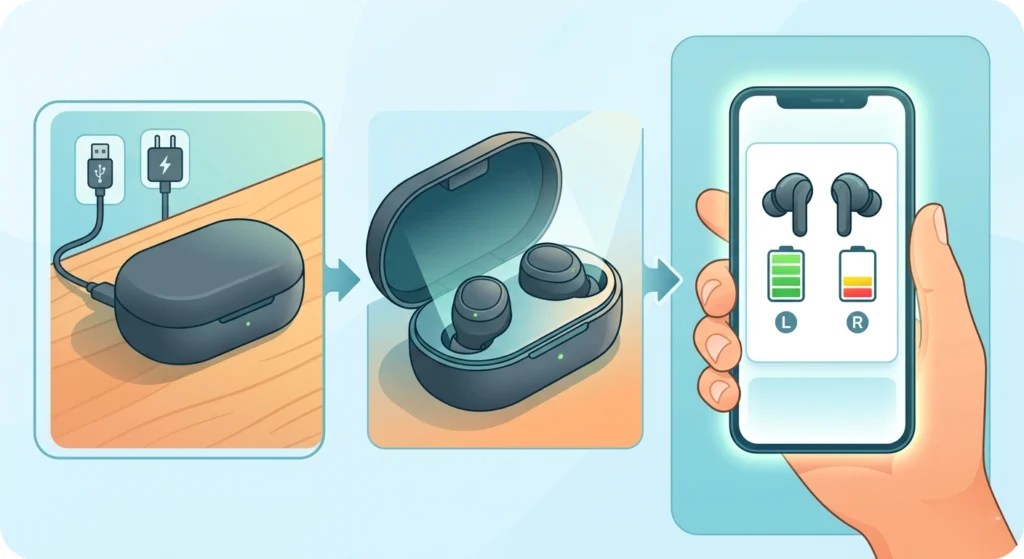
Before anything else, check the battery. When one earbud is significantly lower on charge than the other, it can drop out of the stereo connection entirely while the other keeps playing normally. This is one of the most common – and most overlooked – reasons for one-sided audio.
- Step 1: Place both earbuds in the charging case for at least 15 minutes.
- Step 2: Open the Bose Music app and check the battery percentage for each earbud individually.
- Step 3: Make sure both show a balanced charge before testing audio again.
This works best when both earbuds start every session with at least 50 percent battery.
Fix 2: Clean the Charging Contacts and Ear Tips
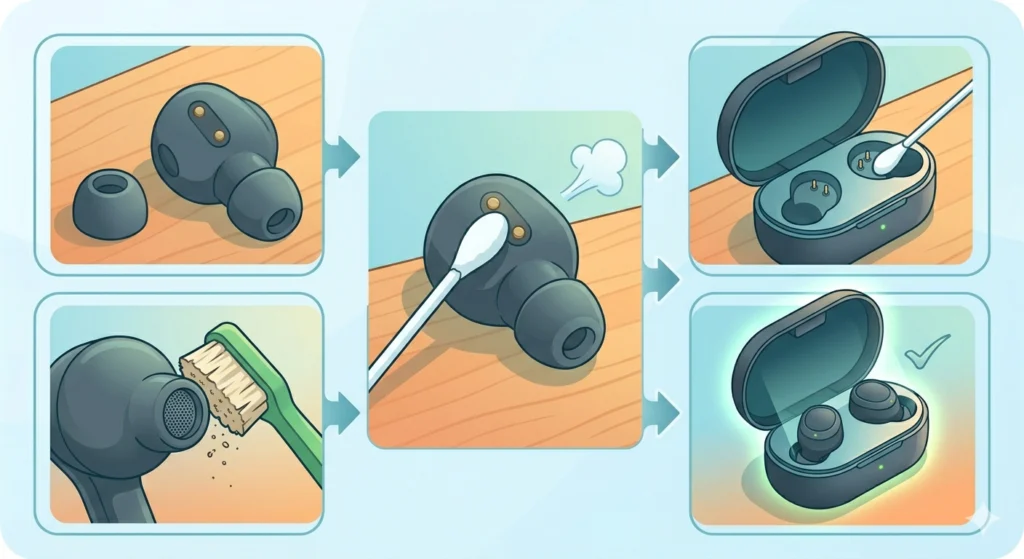
Dirty charging contacts are a silent killer of proper earbud function. When debris or oxidation builds up on the pins inside the case or on the earbuds themselves, one side may not charge properly – and a low or empty earbud simply stops producing audio.
- Step 1: Remove the ear tips from both earbuds and set them aside.
- Step 2: Use a dry, lint-free cloth or a cotton swab to gently wipe the metal charging contacts on both earbuds.
- Step 3: Clean the corresponding contacts inside the charging case as well.
- Step 4: Inspect the speaker mesh on the silent earbud for earwax or debris. Use a dry soft-bristle toothbrush to gently brush it away – never use liquids directly on the mesh.
- Step 5: Reattach the ear tips and place both earbuds back in the case for a few minutes before testing.
Pro-Tip: Make it a habit to clean the charging contacts once a week. Buildup happens gradually and slowly causes charging issues that show up as audio problems later on.
Fix 3: Perform a Factory Reset on the Earbuds
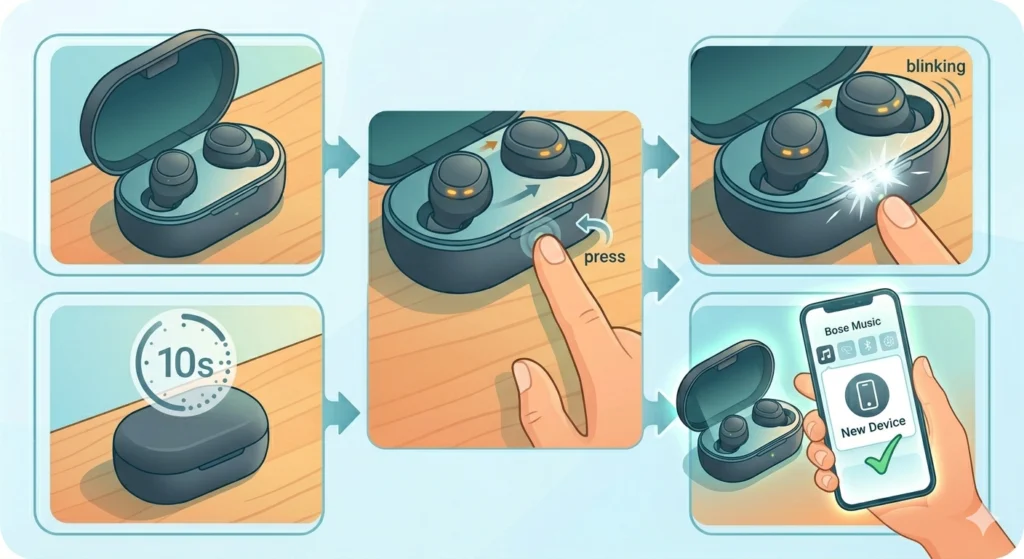
A factory reset clears any corrupted pairing data or firmware glitches that can cause one earbud to drop audio. This is the most effective single fix and should be tried early in the troubleshooting process.
- Step 1: Place both earbuds in the charging case and leave the lid open.
- Step 2: Press and hold the button inside the case for about 30 seconds until the LEDs on both earbuds blink amber three times, then flash white.
- Step 3: Close the case and wait 10 seconds.
- Step 4: Re-open the case near the phone or device and pair the earbuds fresh through the Bose Music app or Bluetooth settings.
Most people find that a clean reset followed by a fresh pairing completely resolves the issue right away.
Fix 4: Re-Pair the Earbuds as a Stereo Pair
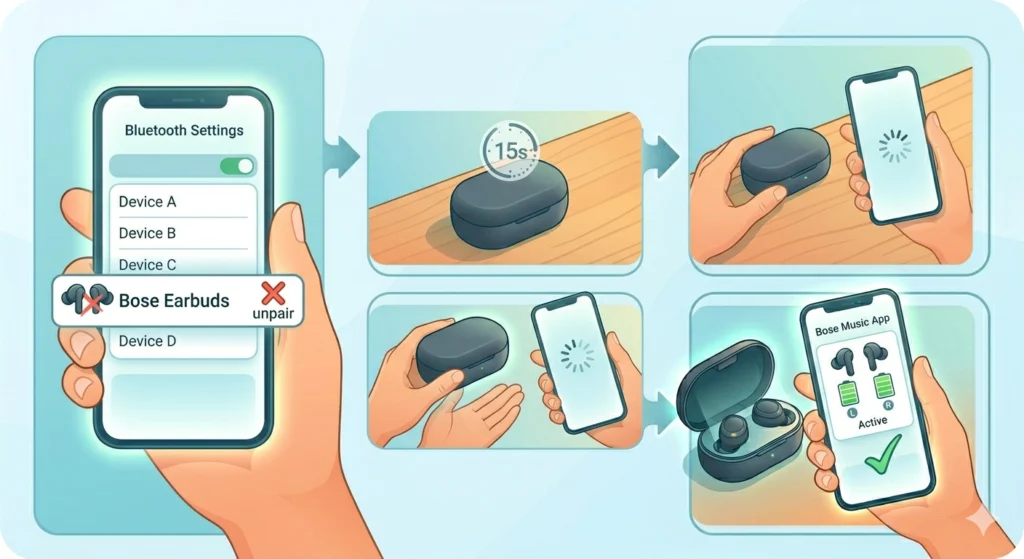
Sometimes the earbuds lose their internal left-right stereo connection even while still connected to the source device. This can make it sound like only one side is playing when in reality the pair bond between the two earbuds has broken down. Knowing how to re-pair Bluetooth earbuds for stereo sound is a useful skill that solves this specific scenario quickly.
- Step 1: Go to the Bluetooth settings on the connected device and forget or unpair the Bose QuietComfort Ultra Earbuds.
- Step 2: Place both earbuds back in the case, close the lid, and wait 15 seconds.
- Step 3: Open the lid and hold the case near the device.
- Step 4: Re-pair through the Bose Music app or the device Bluetooth menu and confirm both earbuds appear active.
Fix 5: Check Audio Balance and Mono Settings on the Source Device
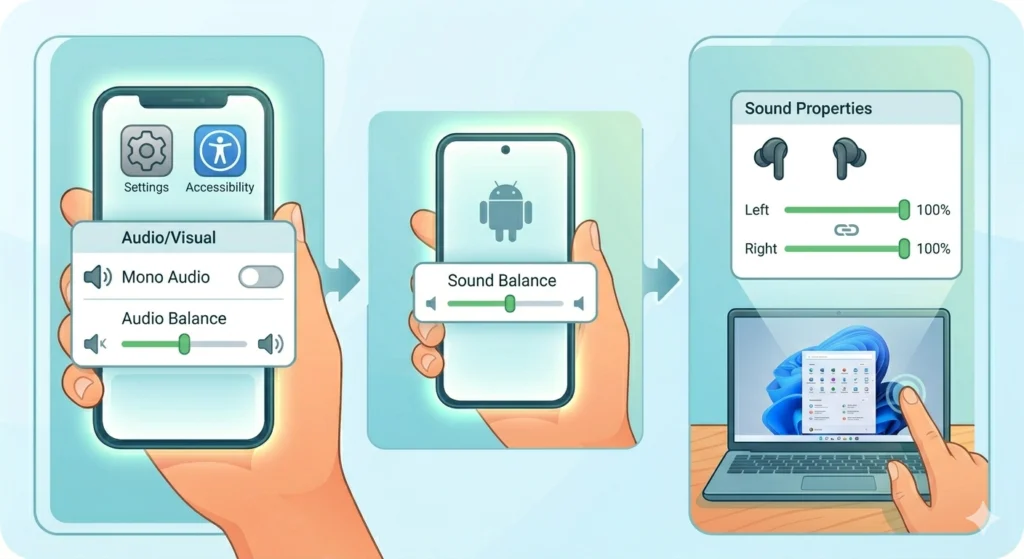
This one catches a lot of people off guard. If the audio balance slider on a phone, laptop, or tablet has been shifted toward one side, the opposite earbud will sound quieter or completely silent. Mono audio mode, if accidentally enabled, routes all sound to one channel as well.
- Step 1: On iPhone – go to Settings, then Accessibility, then Audio and Visual. Make sure the Balance slider is centered and Mono Audio is toggled off.
- Step 2: On Android – go to Settings, then Accessibility, and look for Audio Balance or Sound Balance. Center the slider.
- Step 3: On Windows 11 – open Sound Settings, select the earbuds as the output device, click Device Properties, and verify the balance is set equally on both left and right. For more detail on this, check the full guide on adjusting audio output settings on Windows 11.
Pro-Tip: If the earbuds are used across multiple devices, check the balance settings on every device individually. A shifted balance on one device does not affect others, but it is easy to forget which device was last adjusted.
Fix 6: Update Firmware Through the Bose Music App
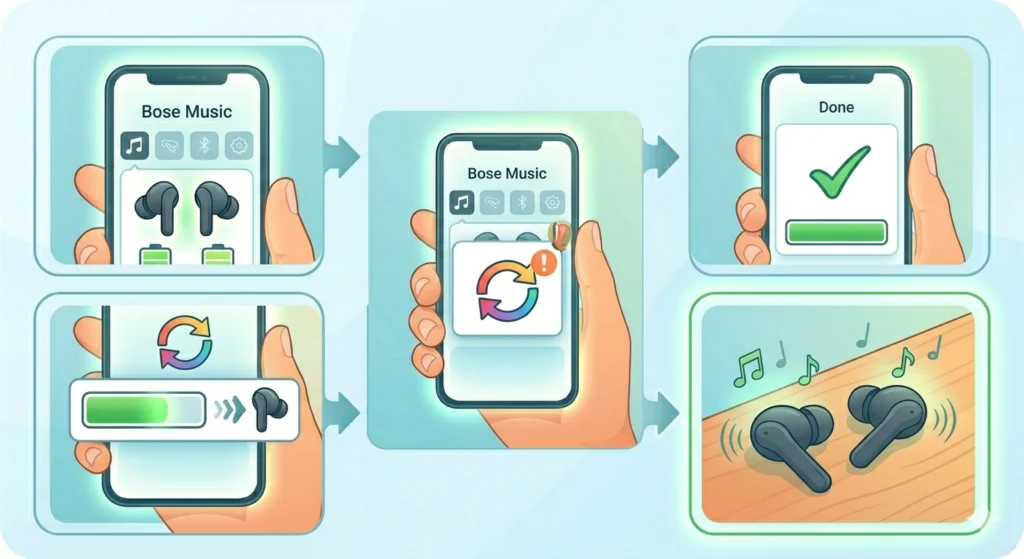
Outdated firmware can introduce audio bugs, including one-sided audio. Bose regularly releases updates that patch known connectivity and audio routing issues.
- Step 1: Open the Bose Music app and connect the earbuds.
- Step 2: Tap on the earbuds in the app and look for any available firmware updates.
- Step 3: If an update is available, follow the on-screen prompts to install it. Keep the earbuds in range throughout the process.
- Step 4: Once the update completes, test audio on both earbuds.
Fix 7: Test With a Different Device and Audio Source
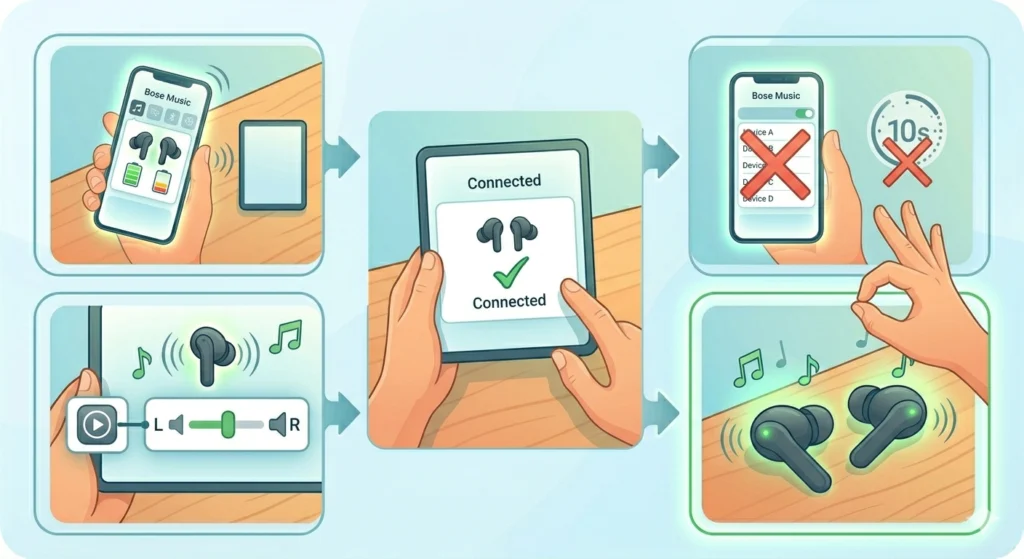
Before assuming the earbuds are faulty, rule out the source device. A specific app, streaming service, or audio file could be sending mono or unbalanced audio. Testing with a completely different device and audio track narrows down whether the issue is the earbuds or the source.
- Step 1: Disconnect from the current device and pair the earbuds to a different phone, tablet, or computer.
- Step 2: Play a stereo audio track – something with distinct left-right panning works best for testing.
- Step 3: If both earbuds work on the second device, the issue is in the original device’s settings or app.
- Step 4: If the problem persists on the second device as well, the issue is with the earbuds themselves.
Tips for Keeping Both Earbuds Working Reliably
- Always store the earbuds in the case between uses to keep the battery balanced on both sides
- Avoid exposing the earbuds to excessive moisture – sweat and humidity accelerate contact corrosion
- Clean the ear tips and speaker mesh weekly to prevent blockages
- Keep the Bose Music app updated so firmware updates install automatically
- Charge the case fully before long trips so both earbuds stay topped up throughout
- Avoid using only one earbud exclusively for long periods – this creates a battery imbalance over time
Common Problems and What Causes Them
One earbud is silent but both are connected
This usually points to a balance setting issue on the source device, a firmware glitch, or a broken stereo pairing bond between the two earbuds. Go through Fix 3 (factory reset) and Fix 5 (balance check) first.
One earbud cuts out intermittently
Intermittent dropout is most often caused by battery imbalance or wireless interference. Check that both earbuds are equally charged and try moving away from areas with heavy Wi-Fi or Bluetooth congestion.
One earbud sounds muffled or very quiet
A blocked speaker mesh is the primary culprit here. Earwax or debris builds up over time and restricts sound output. Refer to Fix 2 for the proper cleaning process.
The left earbud specifically never works
With Bose QuietComfort Ultra Earbuds, the right earbud acts as the primary in the stereo pair. If the left side consistently has issues, it is usually a pairing bond problem between the two earbuds rather than a hardware failure. A factory reset followed by fresh pairing almost always resolves this.
One earbud works in calls but not in music
This is a device-level audio routing issue. The device may be treating the earbuds differently for calls versus media audio. Check the audio output settings on the device and make sure stereo mode is active for media playback specifically.
Frequently Asked Questions
Why is only one Bose QuietComfort Ultra Earbud producing sound?
The most common reasons are a battery imbalance between the two earbuds, a corrupted stereo pairing bond, dirty charging contacts, or an audio balance setting shifted on the source device. Start with a factory reset and a fresh pairing to resolve most cases quickly.
How do you reset Bose QuietComfort Ultra Earbuds?
Place both earbuds in the open charging case, then press and hold the case button for about 30 seconds until both earbuds blink amber three times and then white. This performs a full factory reset and clears all pairing data.
Can a blocked speaker mesh cause one earbud to stop working?
Yes. Earwax and debris accumulate on the speaker mesh over time and can muffle or completely block sound on the affected side. Use a dry soft-bristle brush to clean the mesh gently. Never push objects into the mesh or use liquids directly on it.
Does mono audio mode affect Bose QuietComfort Ultra Earbuds?
Absolutely. If Mono Audio is enabled on the connected device, all audio gets routed to one channel, which can make one earbud sound silent or significantly quieter. Check Accessibility settings on both iOS and Android to confirm mono audio is turned off.
Why does the left earbud keep cutting out on Bose QuietComfort Ultra?
The left earbud connects through the right earbud in the stereo chain. If the left side keeps cutting out, the inter-earbud connection is likely unstable. A factory reset followed by re-pairing both earbuds together usually fixes this permanently.
How do you check battery levels on each Bose QuietComfort Ultra Earbud individually?
Open the Bose Music app and connect the earbuds. The app displays the battery percentage for the left earbud, right earbud, and charging case separately so it is easy to spot any imbalance between the two sides.
Will a firmware update fix one-sided audio on Bose QuietComfort Ultra Earbuds?
In many cases, yes. Bose releases firmware updates specifically to address audio routing bugs and connectivity issues. Keeping the earbuds updated through the Bose Music app ensures the latest fixes are applied.
Can using only one earbud at a time damage the stereo function?
It does not cause damage, but consistently using just one earbud creates a battery imbalance over time. An earbud that is chronically at lower battery will eventually drop from the stereo connection before the other side does. Alternating usage or keeping both in the case helps avoid this.
How do you fix Bose QuietComfort Ultra Earbuds one side not working on Windows 11?
On Windows 11, go to Sound Settings and check the balance for the earbuds under Device Properties. If one channel is lower, center the slider. It is also worth reviewing the guide on resetting audio settings on Windows 11 if the issue persists after adjusting balance.
When should the earbuds be sent in for repair?
If all reset and cleaning steps have been completed, firmware is up to date, the issue reproduces on multiple devices, and one earbud remains completely silent, there may be a hardware defect. In that case, contact Bose Support directly to check warranty eligibility and arrange a repair or replacement.