
Bose QuietComfort 45 not connecting to Bluetooth is a frustrating issue – especially when all you want to do is listen to music or take a call. The good news is that most connection problems come down to a few fixable causes: a full device list, outdated firmware, or a pairing glitch that a quick reset can solve. This guide walks through every proven fix, step by step, so the headphones are back online fast.
Key Takeaways
- The QC45 stores up to 8 paired devices – a full list blocks new connections
- A Bluetooth toggle on the source device clears most temporary glitches
- A factory reset wipes all pairings and gives a clean slate
- Firmware updates from the Bose Music app resolve known connectivity bugs
- Keeping the headphones within 30 feet of the source device ensures a stable signal
Fix 1: Toggle Bluetooth Off and On
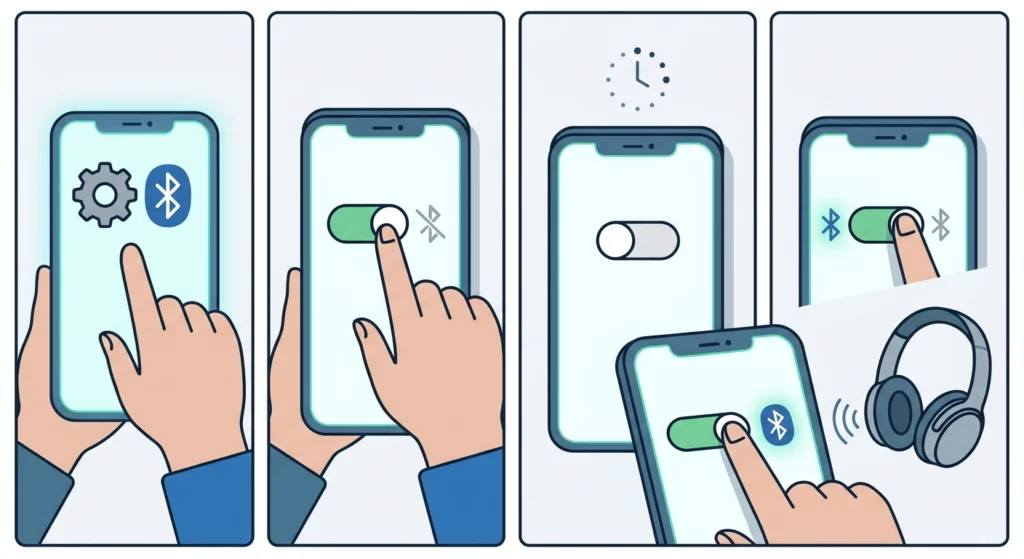
The simplest fix is often the most effective. Refreshing the Bluetooth connection on the source device clears minor communication errors without touching any settings.
- Step 1: Open the Bluetooth settings on the phone, tablet, or computer.
- Step 2: Turn Bluetooth off and wait 10 seconds.
- Step 3: Turn Bluetooth back on.
- Step 4: Power the QC45 off and back on, then let the devices reconnect automatically.
This works best when the headphones were previously paired and suddenly stopped reconnecting. It forces both devices to re-establish the handshake from scratch.
Fix 2: Put the QC45 into Pairing Mode Manually
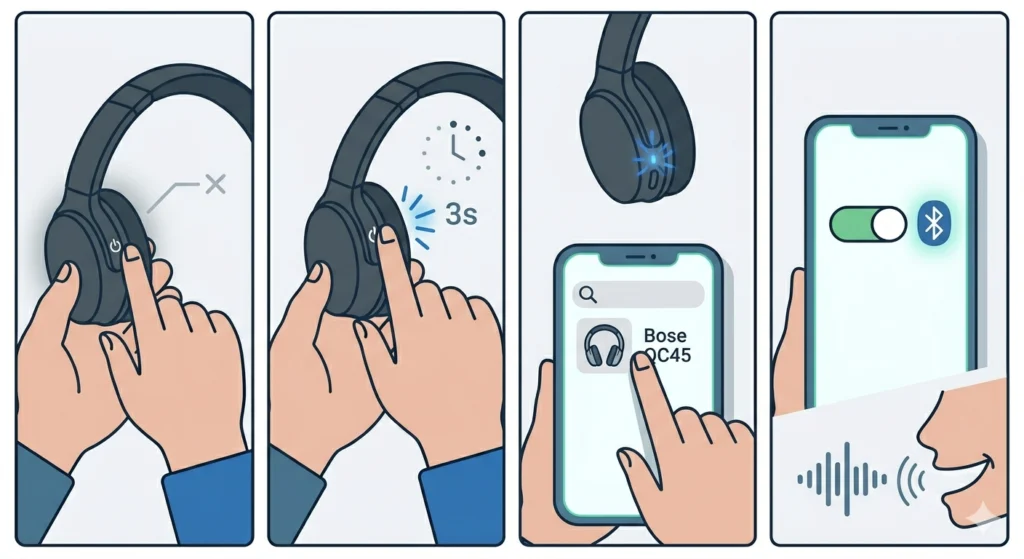
If the headphones are not showing up on any device at all, they may need to be placed into active pairing mode rather than waiting for an automatic connection.
- Step 1: Power off the QC45 completely.
- Step 2: Press and hold the power button for about 3 seconds until the Bluetooth indicator light flashes blue rapidly.
- Step 3: Open Bluetooth settings on the target device and select ‘Bose QC45’ from the available devices list.
- Step 4: Wait for the voice prompt confirming the connection.
The key is making sure no other previously paired device is actively trying to grab the connection at the same time. Moving away from other Bluetooth sources helps here.
Fix 3: Remove the QC45 from the Device’s Bluetooth List and Re-Pair
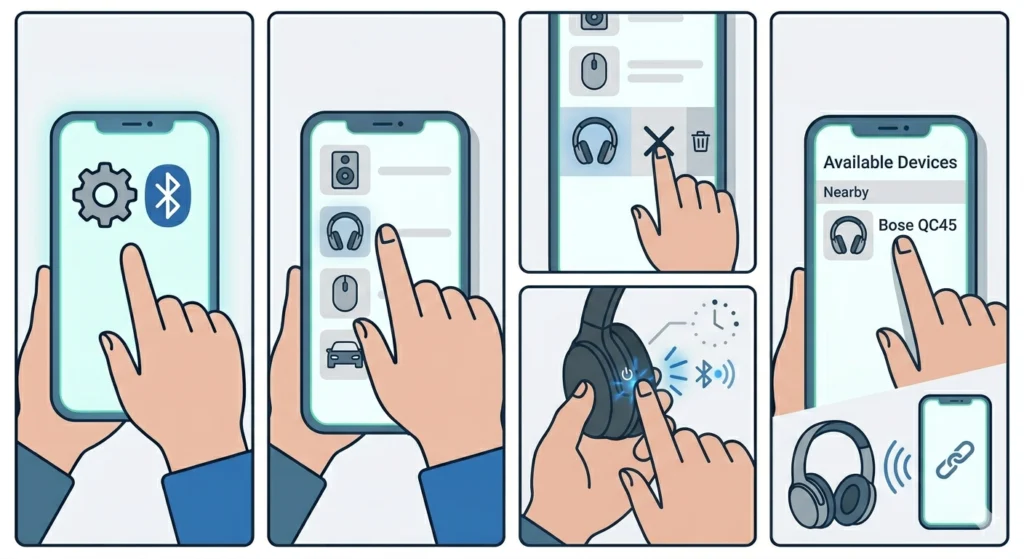
A corrupted pairing record on the connected device is a common culprit. Deleting the old entry and starting fresh fixes this reliably.
- Step 1: Go to Bluetooth settings on the phone or computer.
- Step 2: Find ‘Bose QC45’ in the paired devices list.
- Step 3: Tap ‘Forget’ or ‘Remove’ to delete the pairing.
- Step 4: Put the QC45 into pairing mode (hold the power button until the light flashes blue).
- Step 5: Select the headphones from the available devices list and complete the pairing process.
This is especially useful on Windows 11 – if the audio output settings are not refreshing properly after re-pairing, checking audio output settings on Windows 11 can resolve any lingering playback issues.
Fix 4: Clear the QC45 Paired Device List
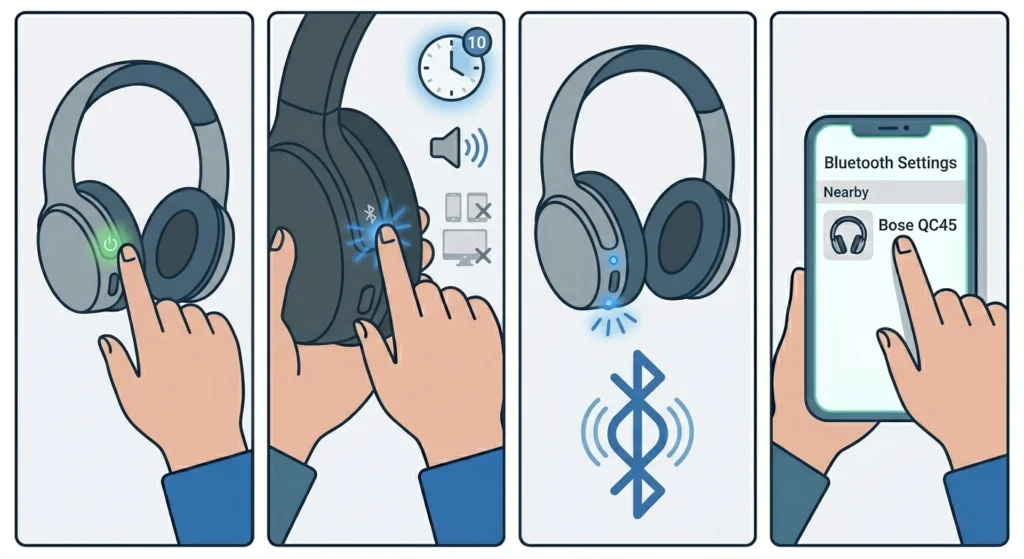
The Bose QuietComfort 45 holds up to 8 paired devices. Once that list is full, the headphones will not accept a new pairing until an old one is removed. Clearing the list gives a clean starting point.
- Step 1: Turn the headphones on.
- Step 2: Press and hold the Bluetooth button on the left earcup for about 10 seconds until a voice prompt says ‘Bluetooth device list cleared.’
- Step 3: The headphones will automatically enter pairing mode.
- Step 4: Open Bluetooth on the target device and select ‘Bose QC45’ to pair.
Pro-Tip: After clearing the device list, pair the most frequently used devices first. The QC45 auto-connects to the most recently used device, so the primary device should be paired last for the fastest daily connection.
Fix 5: Factory Reset the Bose QuietComfort 45
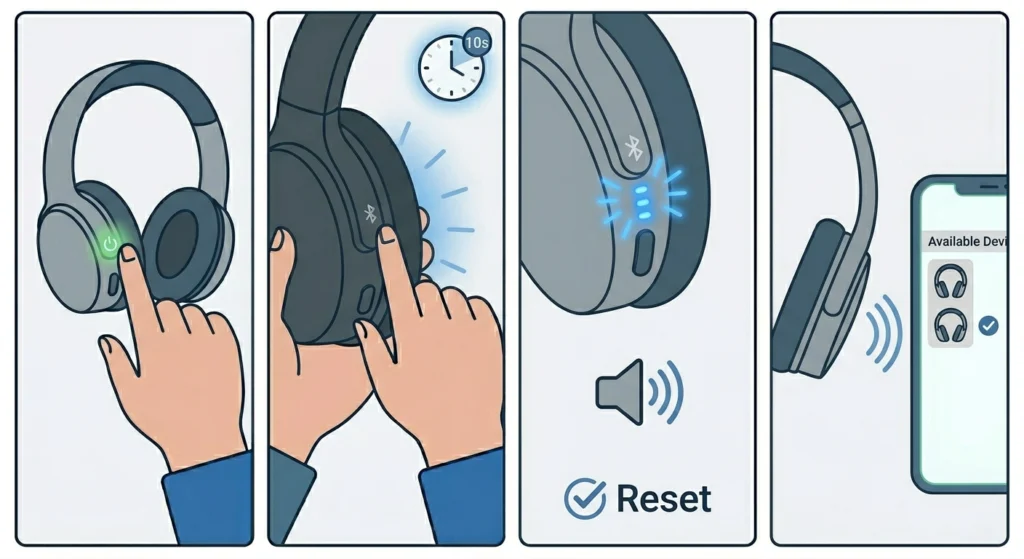
A factory reset is the most thorough software fix available. It clears all stored pairings, resets Bluetooth settings, and returns the headphones to out-of-box condition. Most people find that persistent connection issues disappear completely after this step.
- Step 1: Power on the QC45.
- Step 2: Press and hold the power button for 10 seconds.
- Step 3: Release the button when the Bluetooth indicator light blinks blue three times and a voice prompt confirms the reset.
- Step 4: Re-pair the headphones with the desired devices from scratch.
After resetting, reconnecting the headphones as a fresh Bluetooth device is straightforward. If working with a Windows PC, re-pairing Bluetooth audio devices on Windows covers any platform-specific steps needed to get stereo sound working again.
Fix 6: Update the QC45 Firmware via the Bose Music App
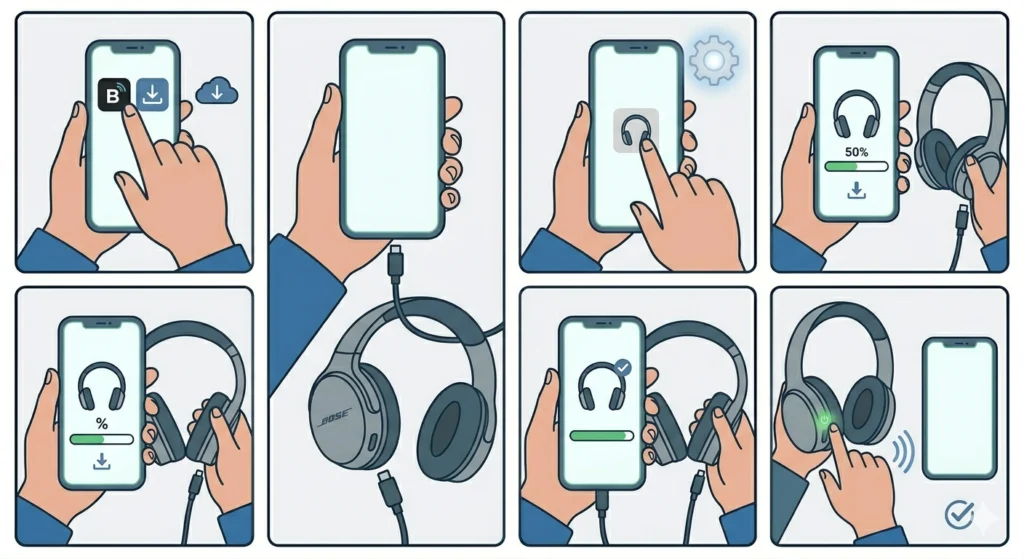
Outdated firmware is a known cause of Bluetooth instability on the QC45. Bose regularly pushes updates that address connectivity bugs, and keeping firmware current prevents many recurring issues.
- Step 1: Download and open the Bose Music app on a smartphone (available on iOS and Android).
- Step 2: Connect the QC45 to the app – use the USB-C cable if Bluetooth is not working at all.
- Step 3: Tap the headphones icon and check for available firmware updates.
- Step 4: Install any updates and keep the headphones connected until the process is complete.
- Step 5: Restart the headphones after updating and test the Bluetooth connection.
Pro-Tip: Keep the Bose Music app installed even after setup is complete. The app is the fastest way to catch firmware updates before they cause noticeable problems – and it also provides battery level readouts and EQ controls.
Fix 7: Check for Interference and Distance Issues
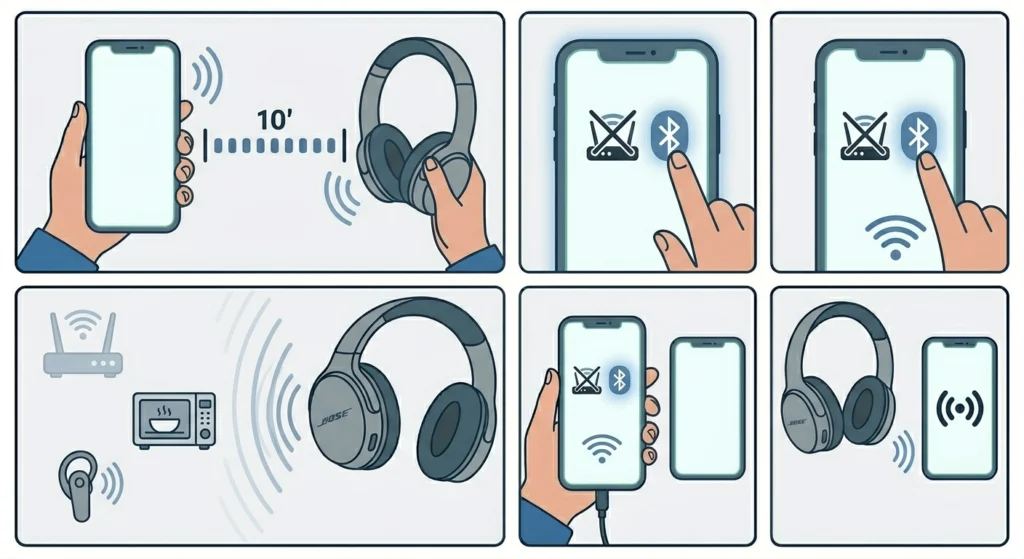
Bluetooth operates on the 2.4 GHz frequency band, which is the same range used by Wi-Fi routers, microwaves, and other wireless devices. Physical obstacles and competing signals can interrupt or prevent a stable connection.
- Step 1: Move the QC45 and the connected device within 10 feet of each other and test the connection.
- Step 2: Temporarily disable Wi-Fi on the source device and attempt to connect.
- Step 3: Move away from routers, microwaves, and other Bluetooth devices.
- Step 4: Reconnect and check if the signal holds at a closer range before moving back to normal distance.
Tips for Keeping the QC45 Connected Reliably
- Always turn off the QC45 when not in use – leaving it powered on in Bluetooth standby can cause reconnection delays.
- Keep the firmware updated through the Bose Music app regularly.
- Limit the paired device list to devices used frequently – fewer stored pairings means faster auto-connection.
- Charge the headphones consistently; low battery levels (below 10%) can destabilize Bluetooth performance.
- On Windows 11, managing Bluetooth audio input devices properly prevents conflicts when switching between headsets – the guide on managing audio input devices explains how to handle this cleanly.
Common Problems and Quick Solutions
- QC45 not showing up in Bluetooth scan: The paired device list is likely full. Clear it using the Bluetooth button hold method in Fix 4.
- Connects but no audio: The headphones may have paired but not set as the default audio output. Change the output device in system sound settings.
- Keeps disconnecting mid-use: Usually caused by interference or low battery. Charge to full and test in a different room away from other wireless devices.
- App says ‘device not found’: Restart both the Bose Music app and the headphones. If Bluetooth is working on other devices, this is likely an app cache issue – reinstall the app.
- Previously paired device no longer connects automatically: Remove the QC45 from the device’s Bluetooth list, clear the headphone’s device list, and re-pair fresh.
- QC45 connects to the wrong device: The headphones always auto-connect to the last paired device. Re-pair in the preferred device order to control priority.
Frequently Asked Questions
Why won’t the Bose QuietComfort 45 connect to Bluetooth?
The most common reasons are a full paired device list, a corrupted pairing record on the connected device, or a minor Bluetooth glitch. Toggling Bluetooth off and on, clearing the device list, or doing a factory reset resolves the issue in most cases.
How do I put the Bose QC45 into pairing mode?
Press and hold the power button for about 3 seconds after powering on. The Bluetooth indicator will flash blue rapidly, signaling the headphones are in active pairing mode and ready to connect to a new device.
How many devices can the Bose QC45 remember?
The QC45 stores up to 8 paired devices. Once the list reaches capacity, it will not accept new pairings until an existing device is removed. Clearing the full list is the fastest solution.
How do I reset the Bose QuietComfort 45?
Power on the headphones and hold the power button for 10 seconds until the Bluetooth light flashes blue three times and a voice prompt confirms the reset. This wipes all stored pairings and returns the headphones to factory settings.
Can I update Bose QC45 firmware without Bluetooth?
Yes. Connect the QC45 to a smartphone via the USB-C cable, open the Bose Music app, and navigate to the firmware update section. The update transfers over the wired connection, so a broken Bluetooth link does not block the update.
Why does the QC45 keep disconnecting?
Frequent disconnections are typically caused by Bluetooth interference from other wireless devices, low battery, or a corrupted pairing record. Try charging fully, moving away from competing wireless signals, and removing and re-pairing the device.
How do I clear the paired device list on the Bose QC45?
Turn the headphones on and press and hold the Bluetooth button on the left earcup for approximately 10 seconds. A voice prompt will confirm that the device list has been cleared, and the headphones will enter pairing mode automatically.
Does the QC45 auto-connect to multiple devices at once?
The Bose QC45 does not support simultaneous multipoint connection in the traditional sense. It auto-connects to the last paired device. To switch devices, disconnect from the active device first or use the Bose Music app to manage connections.
What does the flashing blue light mean on the QC45?
A rapidly flashing blue light means the headphones are in active pairing mode and looking for a device to connect to. A slow, steady blue flash means the headphones are on but not currently connected to any device.
Will a factory reset delete all my Bose QC45 settings?
Yes, a factory reset clears all paired devices and returns the headphones to default settings. Any custom EQ settings saved in the Bose Music app profile remain accessible once the headphones are re-paired and linked to the app account again.