
Bluetooth headphones pairing but producing no sound is one of the most frustrating audio issues out there – especially when the device shows as ‘connected’ yet complete silence greets every attempt to play audio. The good news is that this problem almost always comes down to a software or settings issue, not a hardware defect. This guide walks through the exact fixes to get sound flowing again, step by step.
Key Takeaways
- A paired Bluetooth headphone with no sound is almost always a software or settings problem, not a broken device.
- The most common cause is Windows or macOS not setting the Bluetooth headphone as the active audio output device.
- Disconnecting and re-pairing often resolves the issue faster than deeper troubleshooting.
- Outdated or corrupted Bluetooth drivers are a frequent culprit on Windows PCs.
- Checking audio output settings should always be the first step before anything else.
Fix 1: Set the Bluetooth Headphones as the Default Playback Device
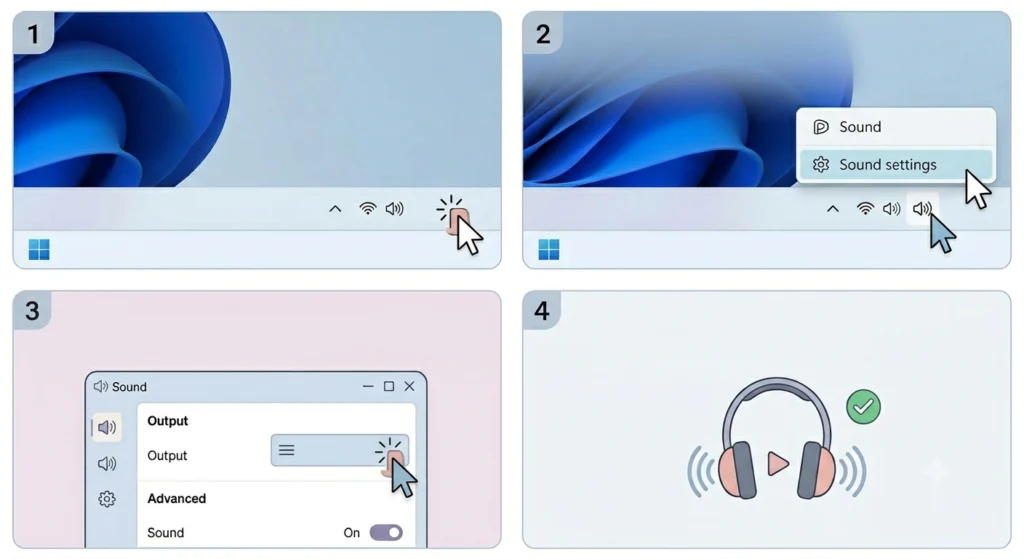
The most common reason headphones pair successfully but produce no sound is that the computer is still sending audio to a different output – like the built-in speakers or a monitor. This fix takes about 30 seconds and solves the problem for most people.
On Windows 11, adjusting the audio output settings to point to the correct device is the very first thing to check. Here is how to do it:
- Step 1: Right-click the speaker icon in the taskbar (bottom right corner).
- Step 2: Click ‘Sound settings’ or ‘Open Sound settings’.
- Step 3: Under ‘Output’, click the dropdown menu and select the Bluetooth headphones from the list.
- Step 4: Play any audio to test if sound now comes through the headphones.
On macOS, go to System Settings – Sound – Output and select the Bluetooth headphones. This single change fixes the issue in the majority of cases.
Fix 2: Disconnect and Re-Pair the Bluetooth Headphones

Sometimes the Bluetooth connection establishes in a half-working state – the device shows as paired but the audio profile fails to negotiate correctly. A fresh re-pair clears this up quickly.
- Step 1: Open Bluetooth settings on the device (phone, PC, or Mac).
- Step 2: Find the headphones in the paired devices list and select ‘Forget’ or ‘Remove device’.
- Step 3: Turn the headphones off completely, then turn them back on.
- Step 4: Put the headphones into pairing mode (usually by holding the power or pairing button until a light flashes).
- Step 5: On the source device, search for new Bluetooth devices and reconnect.
For Windows users dealing with persistent one-sided or incorrectly paired audio, a full guide on how to re-pair Bluetooth earbuds for stereo sound on Windows covers the process in detail.
Pro-Tip: Before re-pairing, also clear the headphones’ own pairing memory if the model supports it – usually done by holding the power and volume-down buttons together for 5-10 seconds while the device is off. This ensures a completely clean connection from both sides, not just from the computer or phone side.
Fix 3: Check the App-Specific Audio Output Setting
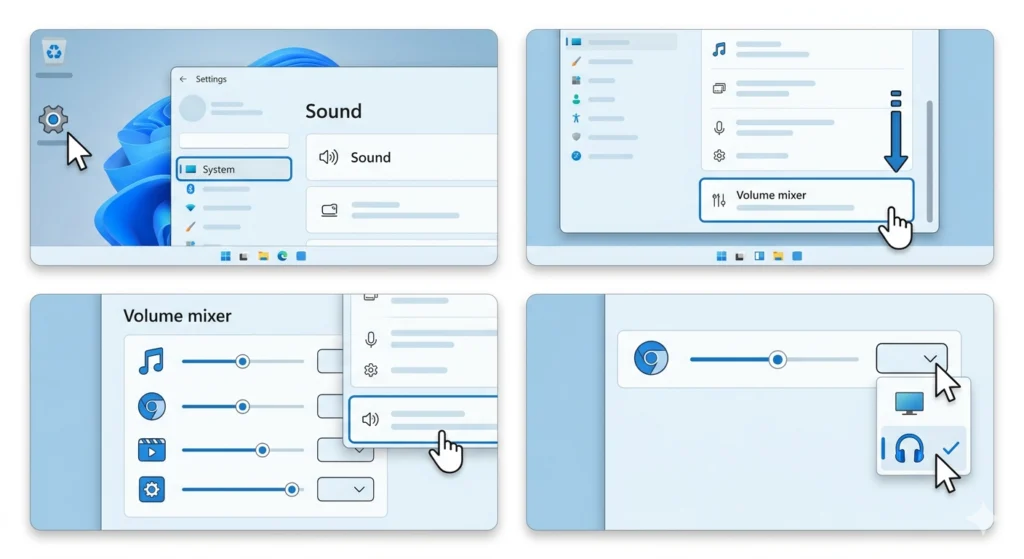
Windows and some Android apps allow audio output to be set per application. The system default might be set to the headphones, but a specific app – like a browser, music player, or video app – could be locked to a different output device.
- Step 1: On Windows 11, go to Settings – System – Sound.
- Step 2: Scroll down and click ‘Volume mixer’.
- Step 3: Check each open application listed there – each one has its own output selector.
- Step 4: Change the output for the relevant app to the Bluetooth headphones.
This is a surprisingly overlooked fix. Browsers like Chrome are particularly prone to sticking to a previously used output device even after the default is changed system-wide.
Fix 4: Update or Reinstall the Bluetooth Driver (Windows)
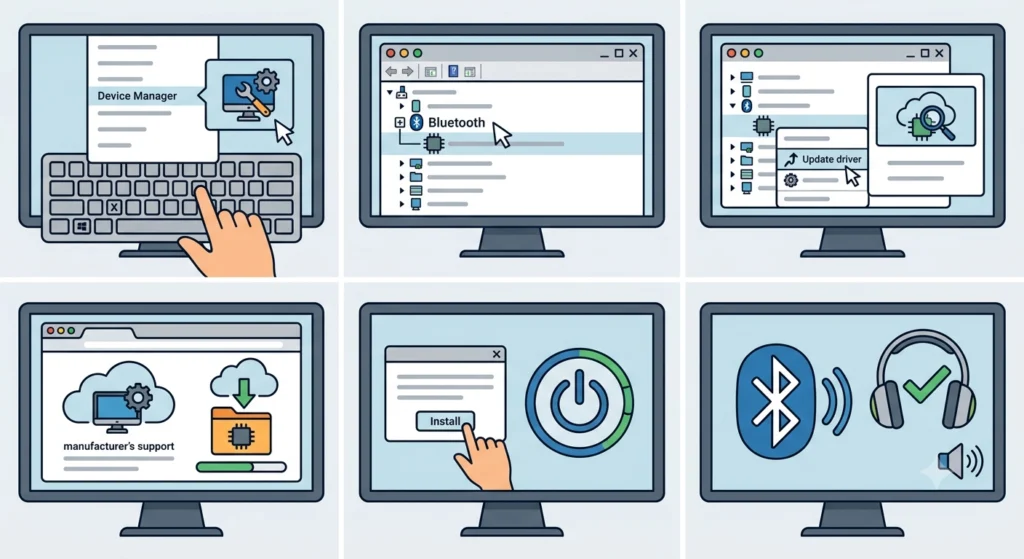
Outdated, corrupted, or missing Bluetooth drivers are a very common cause of Bluetooth devices pairing without transmitting audio on Windows. The key is to make sure the driver matches the current version of Windows being used.
- Step 1: Press Windows + X and select ‘Device Manager’.
- Step 2: Expand the ‘Bluetooth’ section and locate the Bluetooth adapter.
- Step 3: Right-click it and choose ‘Update driver’, then select ‘Search automatically for drivers’.
- Step 4: If no update is found, go to the PC or laptop manufacturer’s support website and download the latest Bluetooth driver manually.
- Step 5: Install the driver and restart the computer.
- Step 6: Reconnect the headphones and test audio.
If updating does not help, try uninstalling the driver entirely from Device Manager, then restarting Windows – the OS will reinstall a fresh copy of the driver automatically on reboot.
Fix 5: Reset Audio Settings on Windows 11
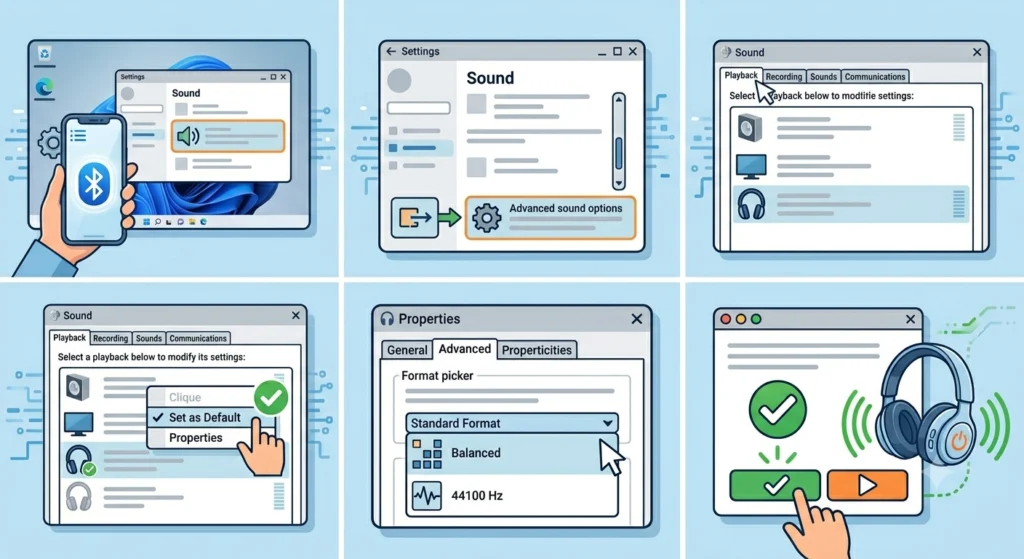
Corrupted or misconfigured audio settings can silently block sound from reaching a Bluetooth device even when everything else looks correct. Resetting audio settings on Windows 11 returns all sound configurations to their default state, clearing out any broken values.
- Step 1: Open Settings – System – Sound.
- Step 2: Scroll to the bottom and locate ‘Advanced sound options’ or ‘More sound settings’.
- Step 3: In the classic Sound control panel that opens, go to the ‘Playback’ tab.
- Step 4: Right-click on the Bluetooth headphones entry and select ‘Set as Default Device’.
- Step 5: Also right-click and choose ‘Properties’, then check under the ‘Advanced’ tab that the format is set to a standard quality like ’16 bit, 44100 Hz’.
- Step 6: Click ‘Apply’ and then ‘OK’, and test audio again.
Pro-Tip: After setting the Bluetooth headphones as the default device in the classic Sound panel, also right-click and set them as the ‘Default Communication Device’. Some applications, especially video conferencing tools, route audio through the communication device channel rather than the standard playback channel – which is why sound might work in music apps but not in calls or meetings.
Fix 6: Disable Audio Enhancements
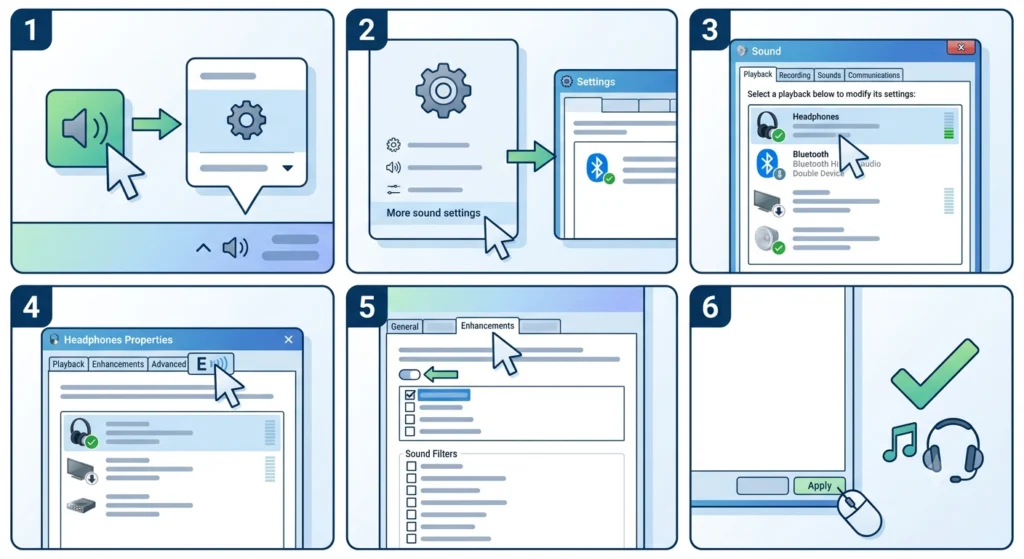
Windows applies audio enhancement processing to output devices by default. In some cases, these enhancements conflict with Bluetooth audio codecs and cause silence even when the connection is active. Turning them off is a quick test.
- Step 1: Right-click the speaker icon and open ‘Sound settings’.
- Step 2: Click ‘More sound settings’ to open the classic panel.
- Step 3: Under the Playback tab, double-click the Bluetooth headphones.
- Step 4: Go to the ‘Enhancements’ tab (or ‘Advanced’ on some builds).
- Step 5: Check the box for ‘Disable all enhancements’ or toggle off ‘Audio enhancements’.
- Step 6: Click Apply and test sound immediately.
Fix 7: Restart the Bluetooth Support Service (Windows)
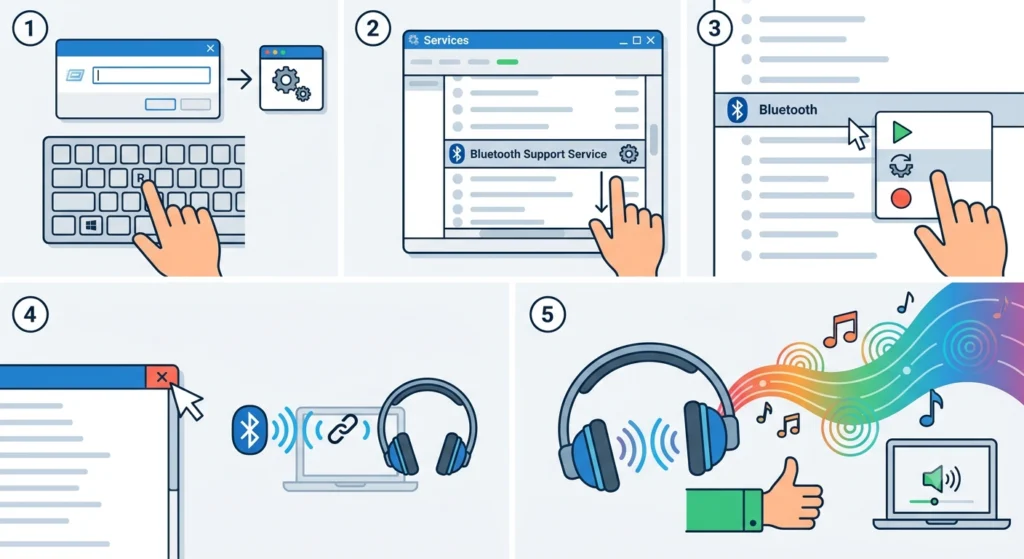
Windows runs a background service specifically for Bluetooth functionality. If this service has stalled or crashed, it can result in headphones that show as paired but carry no audio. Restarting it takes less than a minute.
- Step 1: Press Windows + R, type ‘services.msc’ and press Enter.
- Step 2: Scroll down the list and find ‘Bluetooth Support Service’.
- Step 3: Right-click it and select ‘Restart’. If it is stopped, choose ‘Start’.
- Step 4: Close the Services window and reconnect the headphones.
- Step 5: Test audio playback.
Fix 8: Check the Headphone Firmware and Battery Level
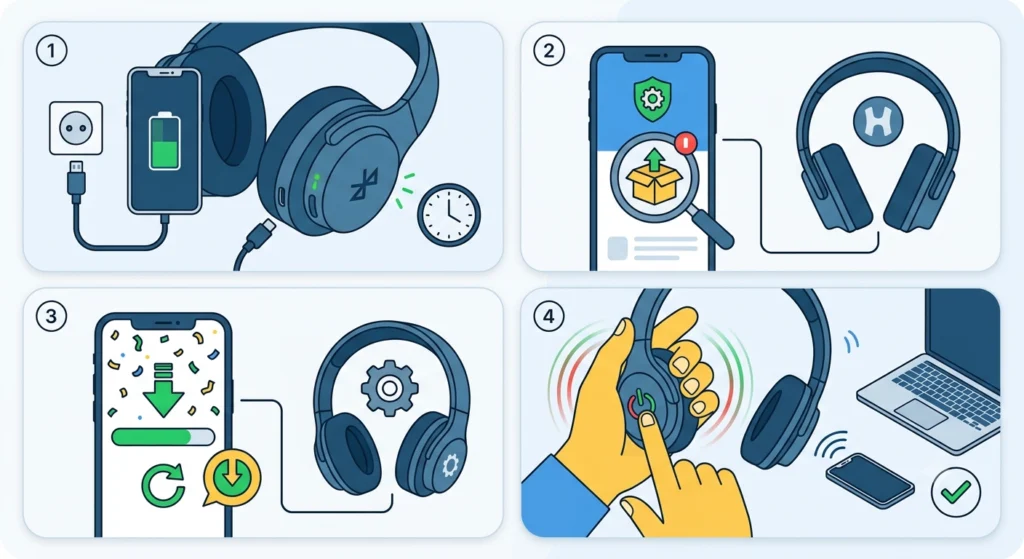
Low battery is often overlooked when chasing audio problems. Many Bluetooth headphone models restrict functionality – including audio output – when battery drops below a certain threshold. They may still ‘pair’ on paper but audio delivery gets cut.
- Step 1: Charge the headphones to at least 50% and try again.
- Step 2: Check if the manufacturer has released a firmware update using their companion app (Sony Headphones Connect, Jabra Sound+, Bose Music, etc.).
- Step 3: Install any available updates, as firmware bugs causing audio silence are sometimes addressed in patches.
- Step 4: After updating, fully power-cycle the headphones and reconnect.
Tips for Preventing This Issue in the Future
- Always charge Bluetooth headphones before use – a low battery causes inconsistent Bluetooth audio behavior on many models.
- Keep Bluetooth drivers updated, especially after major Windows updates, which frequently overwrite or replace driver configurations.
- If using multiple Bluetooth devices with one computer, check that the headphones are set as the active output each time they reconnect – Windows does not always switch automatically.
- Use the manufacturer’s companion app to keep headphone firmware current, as audio-related bugs are often fixed in firmware updates before Microsoft pushes driver changes.
- Avoid pairing the same headphones with too many devices simultaneously – most Bluetooth headphones support multi-point pairing for 2-3 devices, and exceeding this can cause audio routing issues.
Common Problems and Quick Fixes
Headphones show as connected but audio still plays from PC speakers
The default playback device has not been switched. Go to Sound settings and manually select the Bluetooth headphones as the output device. Windows does not always switch automatically when a Bluetooth device connects.
Sound works for a few seconds then cuts out
This usually indicates interference or a power management conflict. Go to Device Manager, find the Bluetooth adapter, open its Properties, and under the Power Management tab, uncheck ‘Allow the computer to turn off this device to save power’.
Only one earbud produces sound
The headphones are likely connected in mono mode rather than stereo mode. Remove the device, reset the earbuds to factory settings, and re-pair them. This commonly happens when one earbud is paired independently instead of both together.
Headphones paired to phone produce sound, but not to PC
The PC Bluetooth driver or audio settings are the issue, not the headphones themselves. Focus on the driver update and default playback device steps specifically for Windows.
No sound after a Windows update
Major Windows updates frequently reset audio output selections and overwrite Bluetooth drivers. After any large update, revisit the Playback Devices panel and re-confirm the Bluetooth headphones are set as default.
Frequently Asked Questions
Why do my Bluetooth headphones pair successfully but produce no sound?
The most common reason is that the computer or phone is still routing audio to a different output device – like built-in speakers – even though the headphones are connected. Setting the headphones as the default playback device in audio settings usually resolves this immediately.
How do you fix Bluetooth headphones that are paired but have no audio on Windows 11?
Right-click the speaker icon in the taskbar, open Sound settings, and under Output, select the Bluetooth headphones. If they are not listed, check Device Manager for driver issues or re-pair the device entirely.
Can a low battery cause Bluetooth headphones to pair without sound?
Yes. Many headphone models restrict audio transmission at low battery levels while still maintaining a basic Bluetooth pairing signal. Charging the headphones to 50% or more and reconnecting often resolves this.
Why does sound play through speakers instead of Bluetooth headphones?
The system default audio output has not been updated to point to the headphones. On Windows, each Bluetooth reconnect may not automatically switch the output device. Manually selecting the headphones in the Sound settings output dropdown fixes this.
Do Bluetooth drivers affect audio output on Windows?
Absolutely. Outdated or corrupted Bluetooth drivers are one of the top causes of Bluetooth audio problems on Windows PCs, especially after major OS updates. Reinstalling or updating the driver from Device Manager or the manufacturer’s website is a reliable fix.
Should audio enhancements be disabled when using Bluetooth headphones?
It depends on the headphone model, but disabling Windows audio enhancements is a recommended step when Bluetooth headphones pair without producing sound. Some enhancements conflict with Bluetooth codecs and silently block output.
How do factory reset Bluetooth headphones fix audio problems?
A factory reset clears all pairing memory and internal configuration from the headphone firmware. This removes any corrupted pairing data or misconfigured settings that may cause the device to connect but fail to transmit audio properly.
What is the Bluetooth Support Service and how does it affect audio?
The Bluetooth Support Service is a Windows background process that manages all Bluetooth communication, including audio routing. If this service crashes or stalls, Bluetooth devices can appear connected but fail to transmit audio. Restarting it via the Services panel (services.msc) can quickly restore normal functionality.
Why do Bluetooth headphones work on my phone but not on my PC?
When headphones work on one device but not another, the problem is isolated to the non-working device – most commonly a driver issue, incorrect default audio output, or a misconfigured Bluetooth stack on the PC. The headphones themselves are functioning correctly.
Can multiple paired devices cause Bluetooth audio issues?
Yes. Most Bluetooth headphones support multi-point connections for 2-3 devices at once. When connected to more devices than supported, audio routing becomes unpredictable and some connections may pair without transmitting sound. Disconnecting extra devices and reconnecting to just one resolves this.