

AirPods Pro 2 not connecting to iPhone is one of the most frustrating things that can happen mid-commute or right before a call. The good news is that this issue almost always has a fix – and most of the time, it takes less than five minutes. This step-by-step guide walks through every proven solution to get your AirPods Pro 2 pairing reliably with your iPhone again.
Quick Summary: What to Know Before You Start
- Most common cause: A minor Bluetooth glitch or stale pairing cache
- Fastest fix: Place AirPods in the case, close the lid for 15 seconds, then reopen near your iPhone
- Reset fix: Hold the setup button on the case for 15 seconds until the light flashes amber then white
- Software fix: Update iPhone to the latest iOS version
- Last resort: Reset Network Settings on iPhone
- Time needed: 2 to 10 minutes depending on the step
Step-by-Step Guide to Fix AirPods Pro 2 Not Connecting to iPhone
Fix 1: Restart the Bluetooth Connection on Your iPhone
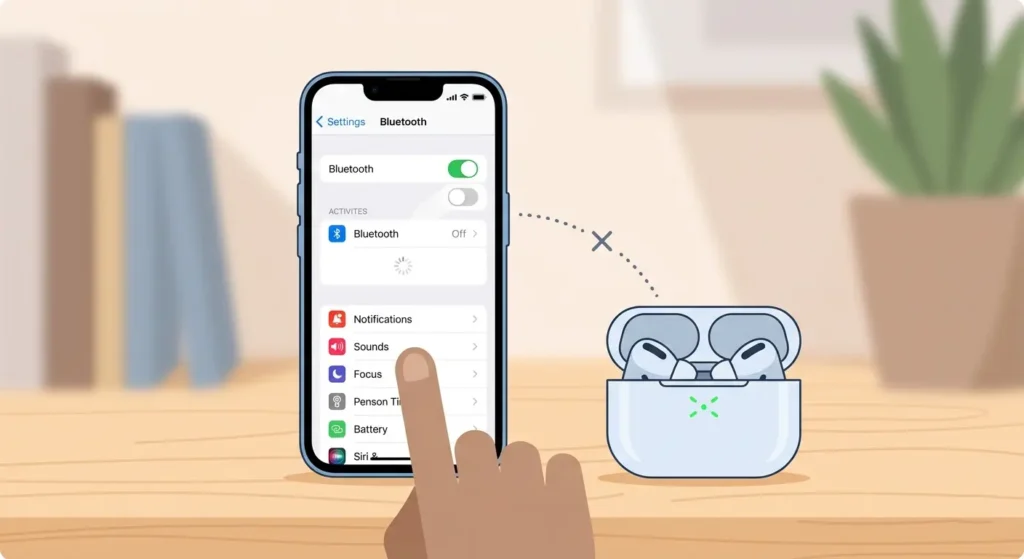
Before anything else, give Bluetooth a fresh start. This clears any temporary communication error between your iPhone and AirPods Pro 2.
- Step 1: Open the Settings app on your iPhone
- Step 2: Tap Bluetooth
- Step 3: Toggle Bluetooth off
- Step 4: Wait 10 seconds
- Step 5: Toggle Bluetooth back on
- Step 6: Open your AirPods Pro 2 case near the iPhone and wait for the connection prompt
This works best when the issue is a one-time glitch. Most people find this alone solves the problem.
Fix 2: Return AirPods Pro 2 to the Case and Reopen It
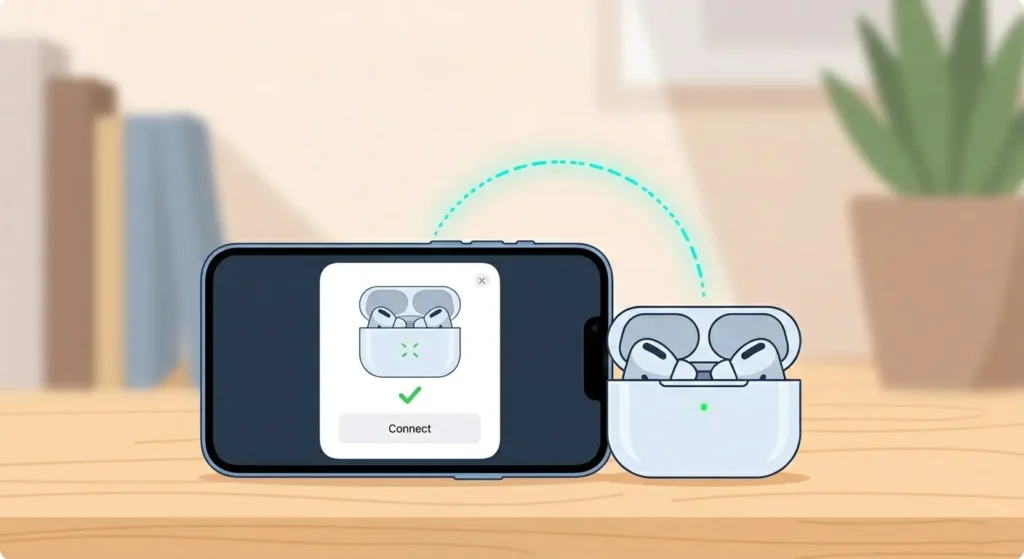
The AirPods Pro 2 case acts as a reset trigger. Closing and reopening it near your iPhone forces a fresh connection attempt.
- Step 1: Place both AirPods Pro 2 back into the charging case
- Step 2: Close the lid completely
- Step 3: Wait 15 to 30 seconds
- Step 4: Hold the case close to your iPhone – within a few inches
- Step 5: Open the lid and look for the connection card to appear on your iPhone screen
The key is to keep the phone and case physically close together during this step. Distance matters more than most people expect.
Fix 3: Check the Charge Level of Your AirPods
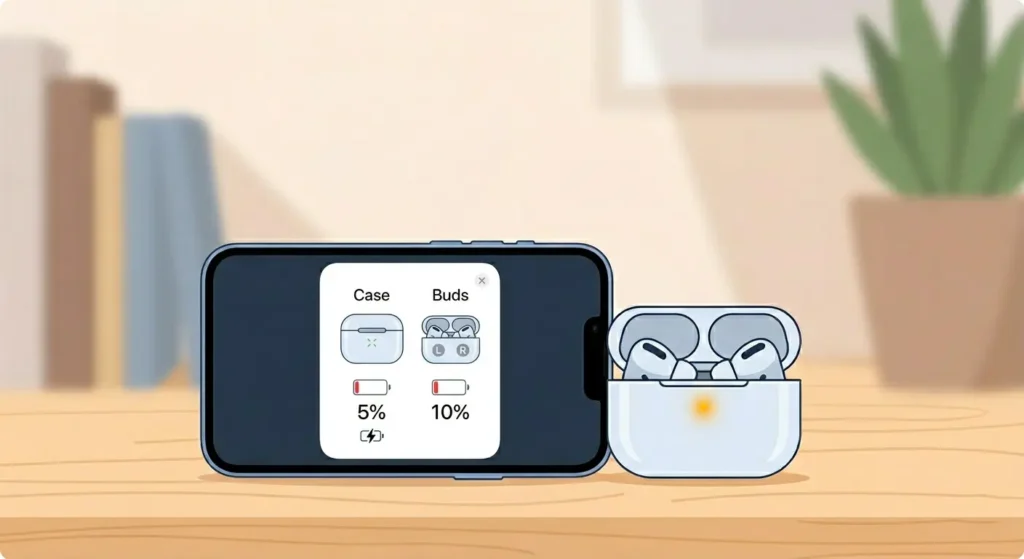
AirPods Pro 2 will not connect properly when the battery is critically low. Even if the buds have some charge, a depleted case battery can disrupt pairing.
- Step 1: Place your AirPods inside the case and close the lid
- Step 2: Open the lid next to your iPhone
- Step 3: Check the battery popup that appears on the iPhone screen
- Step 4: If either the buds or case show below 10%, charge them for at least 20 minutes before attempting to reconnect
Fix 4: Forget the AirPods Pro 2 and Re-Pair Them
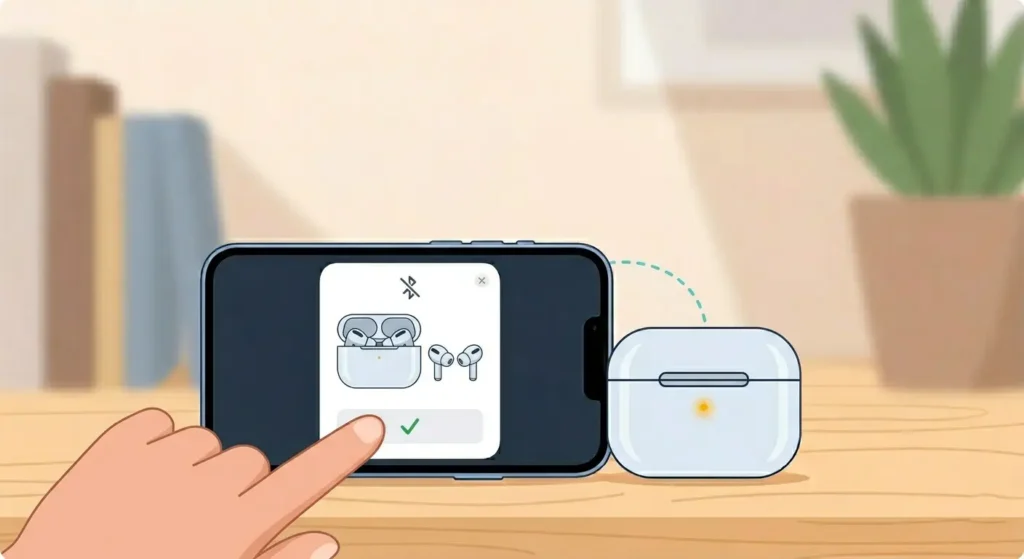
When AirPods Pro 2 are stuck in a broken pairing state, removing them from the Bluetooth list and starting fresh is often the cleanest solution.
- Step 1: Open Settings on your iPhone
- Step 2: Tap Bluetooth
- Step 3: Find your AirPods Pro 2 in the device list and tap the ‘i’ icon next to them
- Step 4: Tap ‘Forget This Device’ and confirm
- Step 5: Place your AirPods in the case and close the lid for 15 seconds
- Step 6: Open the lid next to your iPhone
- Step 7: When the pairing card appears on screen, tap ‘Connect’
This is the same process used when re-pairing Bluetooth earbuds to restore stereo sound on other devices – the principle of clearing the old pairing record applies universally across platforms.
Pro-Tip: After forgetting the device, make sure no other Apple device nearby – like a Mac or iPad – tries to grab the AirPods connection first. Move away from those devices or turn off their Bluetooth temporarily before re-pairing with your iPhone.
Fix 5: Reset Your AirPods Pro 2 Completely
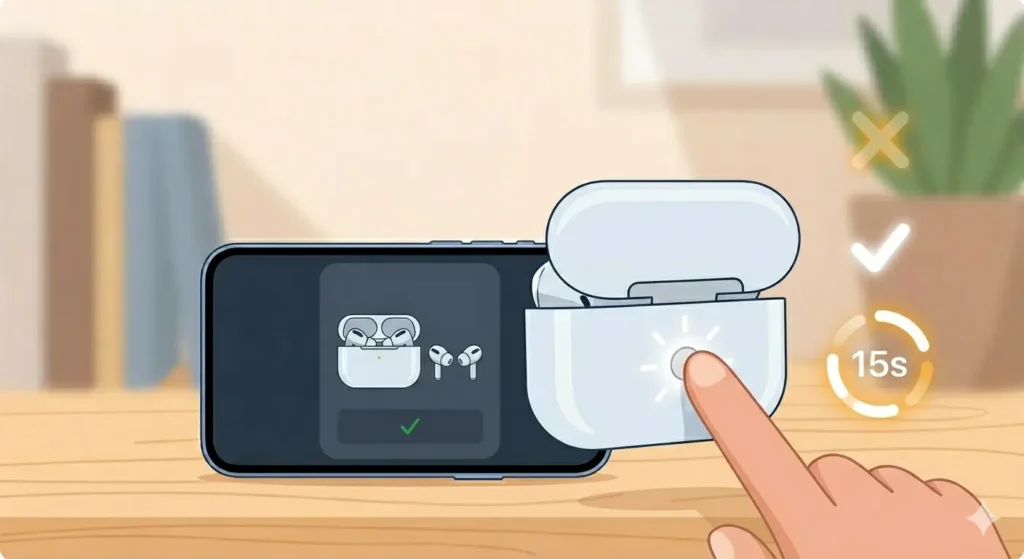
A full reset wipes the AirPods Pro 2 back to factory state. This is the most effective hardware-level fix when software steps do not work.
- Step 1: Place both AirPods into the case and keep the lid open
- Step 2: Locate the small circular setup button on the back of the case
- Step 3: Press and hold the setup button for about 15 seconds
- Step 4: Watch the status light – it will flash amber several times, then flash white
- Step 5: Release the button once the white light flashes
- Step 6: Hold the open case next to your iPhone
- Step 7: Follow the on-screen pairing instructions
Because AirPods Pro 2 are linked to an Apple ID, this reset also removes them from iCloud. They will re-register automatically once reconnected to the iPhone.
Fix 6: Update Your iPhone to the Latest iOS Version
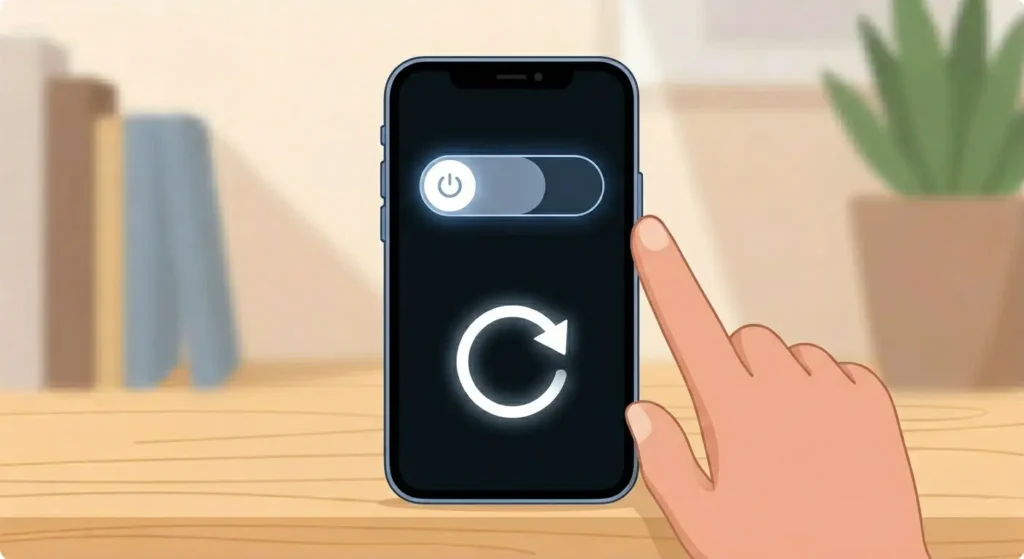
Outdated iOS versions are a surprisingly common cause of AirPods Pro 2 connection issues. Apple regularly releases updates that fix Bluetooth stack bugs.
- Step 1: Open Settings on your iPhone
- Step 2: Tap General
- Step 3: Tap Software Update
- Step 4: If an update is available, tap ‘Download and Install’
- Step 5: Once the update completes and the iPhone restarts, attempt to reconnect your AirPods Pro 2
Keeping iOS current is one of the best long-term habits for maintaining stable audio hardware performance.
Fix 7: Reset Network Settings on Your iPhone
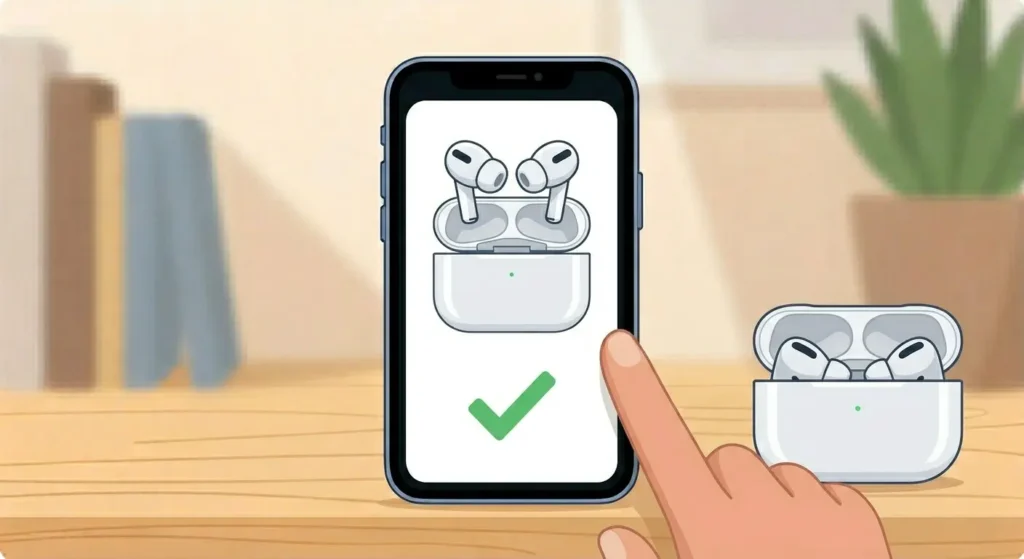
Network Settings on iPhone includes all Bluetooth pairing data. Resetting this clears out corrupted entries that may be blocking your AirPods Pro 2 from connecting.
- Step 1: Open Settings
- Step 2: Tap General
- Step 3: Scroll down and tap Transfer or Reset iPhone
- Step 4: Tap Reset
- Step 5: Select ‘Reset Network Settings’
- Step 6: Enter your passcode and confirm
- Step 7: Once the iPhone restarts, re-pair your AirPods Pro 2 from scratch
Note that this step will also remove saved Wi-Fi passwords, so have those ready before proceeding.
Pro-Tip: If the AirPods Pro 2 were previously paired with a Windows PC and now fail to connect back to iPhone, interference from that saved pairing can be the culprit. On the Windows side, removing the AirPods from the Bluetooth device list and reviewing audio output settings on Windows 11 helps prevent the PC from grabbing the AirPods signal automatically, which can disrupt iPhone pairing.
Tips for Keeping AirPods Pro 2 Connected Reliably
- Always keep iPhone and AirPods firmware up to date – AirPods firmware updates automatically when in the case and near a paired iPhone
- Avoid pairing AirPods Pro 2 to too many devices simultaneously – this increases the chance of switching errors
- Store AirPods in the case when not in use to preserve battery and maintain pairing stability
- When switching between an iPhone and a Mac, use the manual device switch in the audio menu rather than letting the devices compete for the connection
- Keep the AirPods case clean – debris around the charging contacts can cause irregular behavior including pairing instability
- If using AirPods Pro 2 with both Apple and non-Apple devices, always start a fresh pairing session by returning them to the case before switching platforms
Common AirPods Pro 2 Connection Problems and What Causes Them
AirPods Pro 2 Connect but Only One Earbud Works
This usually points to a charge imbalance between the two buds. Place both in the case for 10 minutes, then retry. If one earbud consistently has lower charge, the case contacts may need cleaning with a dry cotton swab.
AirPods Pro 2 Connect but No Sound Comes Through
Check that the AirPods Pro 2 are set as the active audio output. Go to Settings – Bluetooth, tap the ‘i’ next to the AirPods, and verify that ‘Connect to This iPhone’ is set to ‘When Last Connected to This iPhone’ or ‘Automatically’. Also check that the volume is not muted on the iPhone.
AirPods Pro 2 Keep Disconnecting After a Few Seconds
This is typically caused by a low battery, Bluetooth interference, or an outdated firmware. Charge both the buds and case to above 50%, move away from crowded Wi-Fi environments, and check for iOS updates.
AirPods Pro 2 Not Showing Up in Bluetooth List
If the AirPods Pro 2 do not appear on the iPhone Bluetooth list at all, the buds may be in pairing mode from a previous reset. Hold them close to the iPhone with the lid open. If still not visible, perform a full reset using the setup button as described in Step 5 above.
AirPods Pro 2 Connected to Mac Instead of iPhone
Apple devices on the same Apple ID automatically share AirPods pairing data through iCloud. If a Mac is nearby, it may intercept the connection. On the Mac, click the Bluetooth icon in the menu bar and disconnect the AirPods manually to free them up for the iPhone.
Frequently Asked Questions
Why are my AirPods Pro 2 not connecting to my iPhone?
The most common reasons include a Bluetooth glitch, outdated iOS, a drained battery, a corrupted pairing record, or another Apple device capturing the connection. Working through the steps above – starting with a Bluetooth toggle and ending with a full reset if needed – covers all major causes.
How do I force AirPods Pro 2 to reconnect to iPhone?
Place the AirPods back in the case, close the lid, wait 15 seconds, then open the lid next to the iPhone. If that does not trigger a connection, go to Settings – Bluetooth, forget the device, and re-pair from scratch.
Does resetting AirPods Pro 2 delete everything?
A factory reset removes all pairing data stored on the AirPods. Personalized settings like ear tip fit history and custom controls are stored on the paired iPhone, so they are restored automatically once the AirPods reconnect to the same iPhone and Apple ID.
How long does it take to reset and re-pair AirPods Pro 2?
The full reset process – holding the setup button until the amber-then-white flash sequence – takes about 15 to 20 seconds. Re-pairing with the iPhone takes another 30 seconds. The entire process is under two minutes in most cases.
Can a low battery prevent AirPods Pro 2 from connecting?
Yes. When the AirPods or the case battery drops critically low, the Bluetooth chip may not have enough power to complete a stable pairing handshake. Charging for at least 20 minutes before attempting to reconnect usually resolves this.
Why do my AirPods Pro 2 connect to my Mac but not my iPhone?
Both devices share the same Apple ID and iCloud pairing data. When a Mac is active and nearby, it can claim the AirPods connection first. Disconnect the AirPods from the Mac manually via the Bluetooth menu, then try connecting to the iPhone again.
Does updating iOS fix AirPods Pro 2 connection issues?
In many cases, yes. Apple frequently patches Bluetooth-related bugs in iOS updates. If the AirPods Pro 2 were working before a specific update and stopped afterward, it is worth checking for a newer iOS patch that may address the regression.
What does the amber flashing light on the AirPods case mean?
An amber flashing light during the reset process confirms that the AirPods are being wiped. Once the light switches to white flashes, the reset is complete and the AirPods are ready to be paired again as a new device.
Can interference from other Bluetooth devices cause AirPods Pro 2 to not connect?
Yes, dense Bluetooth environments – such as crowded offices or public spaces with many active wireless devices – can cause interference. Try moving to a different room or disabling Bluetooth on nearby devices that are not in use. Microphone-related Bluetooth issues on other platforms follow similar interference patterns, as detailed in guides for resolving microphone detection problems on Windows 11.
Should AirPods Pro 2 firmware be updated manually?
AirPods Pro 2 firmware updates automatically when the buds are in the case, connected to power, and the paired iPhone is nearby with Wi-Fi active. There is no manual update trigger. If a firmware update is pending, leaving the AirPods in the case overnight while the iPhone charges usually completes the update.