
Adaptive Noise Cancellation on the Sennheiser Momentum 4 automatically adjusts how much outside noise gets blocked based on the surroundings, so a quiet office and a noisy train get two very different treatments without any manual switching. This guide walks through the exact steps to turn it on, fine-tune it, and get the most out of it.
Quick takeaways before diving in:
- Adaptive Noise Cancellation is controlled mainly through the Sennheiser Smart Control app, not just the touchpad.
- The feature uses four built-in microphones to read ambient noise and adjust cancellation strength automatically.
- Intensity can still be adjusted manually with a pinch or spread gesture on the touch panel.
- A proper ear pad seal makes a noticeable difference in how effective the noise cancellation feels.
- Firmware updates through the app occasionally improve ANC performance, so keeping the headphones updated matters.
Step-by-Step Guide to Enable Adaptive Noise Cancellation
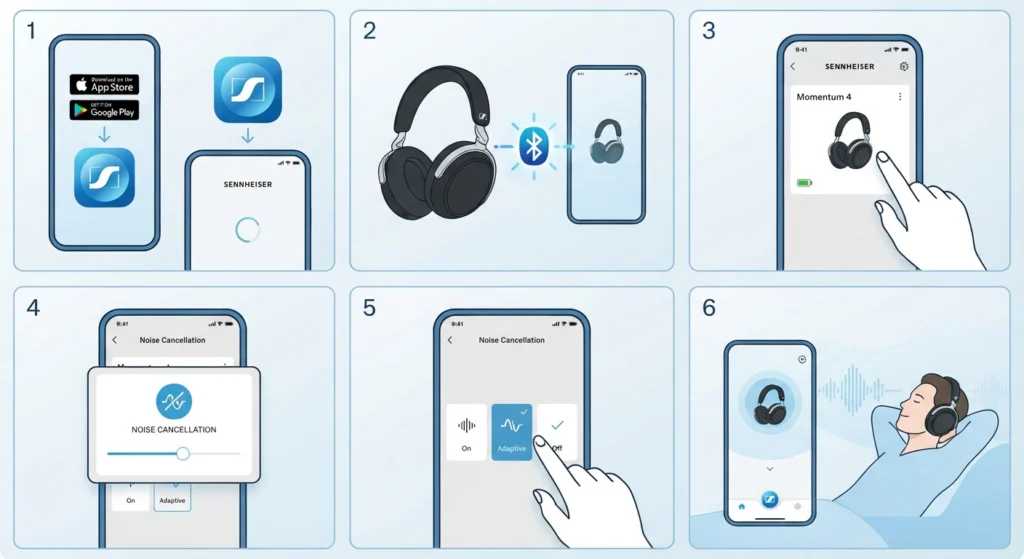
The fastest and most reliable way to turn on Adaptive Noise Cancellation is through the Smart Control app, since it gives full access to the ANC modes that the touchpad alone cannot reach.
- Step 1: Download the Sennheiser Smart Control app from the App Store or Google Play, then open it once installed.
- Step 2: Power on the Momentum 4 and pair it with the phone through Bluetooth settings, or reconnect it if it has been paired before.
- Step 3: Inside the app, tap on the headphone icon or product tile to open the main control screen.
- Step 4: Locate the Noise Cancellation section, usually shown with a slider or mode selector labeled ANC.
- Step 5: Select ‘Adaptive’ from the available modes. This tells the headphones to read the environment continuously and adjust the cancellation level on their own.
- Step 6: Close the app and start listening. Once Adaptive mode is selected, it stays active until it gets changed again, even after the headphones are turned off and back on.
Pro-Tip: Once Adaptive mode has been set in the app, the double-tap gesture on the right earcup only switches between ANC and Transparency Mode – it does not undo the adaptive setting itself. That setting stays saved in the headphones’ memory.
Method 1: Adjusting Noise Cancellation Intensity Manually
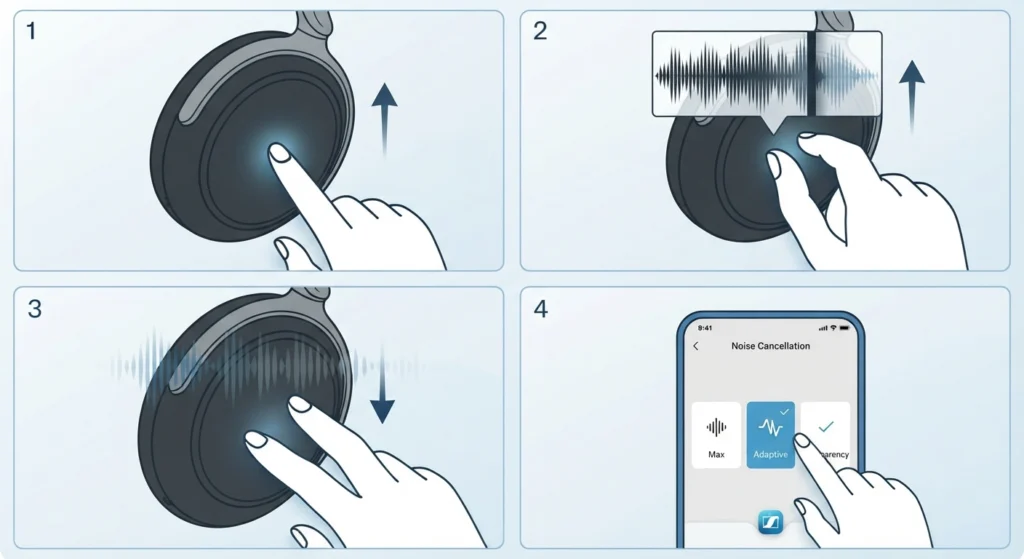
There are moments when full adaptive behavior is not what someone wants – for example, wanting maximum blocking on a flight regardless of how the cabin noise fluctuates. The touch panel allows for that kind of manual override.
- Step 1: With ANC mode active (not Transparency), place a finger on the right touchpad.
- Step 2: Pinch two fingers together on the pad to increase the noise cancellation strength toward maximum.
- Step 3: Spread the fingers apart on the pad to reduce the cancellation strength and let more ambient sound through.
- Step 4: Return to the Smart Control app at any point and reselect ‘Adaptive’ to hand control back to the automatic system.
Method 2: Switching Between ANC and Transparency with Touch Controls

For quick changes without pulling out a phone, the touchpad handles the basics well. This works best when someone needs to briefly hear an announcement or have a short conversation without removing the headphones.
- Step 1: Locate the touch-sensitive panel on the right earcup.
- Step 2: Double-tap the panel to toggle between Adaptive Noise Cancellation and Transparency Mode.
- Step 3: Listen for the short audio cue confirming which mode is now active.
- Step 4: Repeat the double-tap to switch back once the surroundings are no longer needed.
It is worth noting that Transparency Mode automatically activates during incoming calls, and ANC pauses on its own for safety reasons. That behavior is built in and does not need to be configured separately.
Tips for Getting the Best Adaptive Noise Cancellation Performance
- Check that the ear pads are creating a full seal around the ears. A gap, even a small one, lets in higher-frequency sound that ANC is not designed to block.
- Keep firmware current through the Smart Control app, since Sennheiser periodically refines the ANC algorithm through updates.
- Remember that Adaptive Noise Cancellation is most effective against steady low-frequency sound, such as engine hum or HVAC noise, rather than sudden sharp sounds like a door slam.
- On a Windows laptop, confirm the correct Bluetooth audio profile is selected, since an incorrect profile can sometimes make the headphones sound muffled even with ANC working correctly. This is worth checking through adjusting the audio output settings on Windows 11 if playback sounds off after enabling ANC.
Pro-Tip: Cold weather can stiffen the ear pad foam slightly, which affects seal quality and, in turn, how strong the ANC feels. Letting the headphones warm to room temperature before a listening session helps restore the usual seal.
Common Problems and Fixes
Fix 1: Adaptive Noise Cancellation Feels Weak
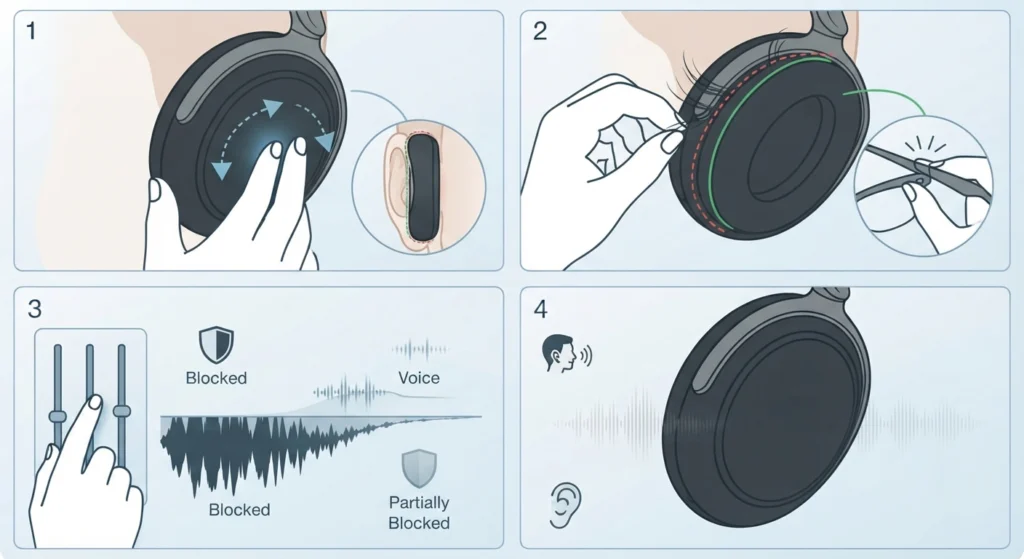
This is often a fit issue rather than a malfunction. Reposition the earcups for a fuller seal, and check that nothing like hair or glasses arms is breaking the seal along the pad edge. Also keep in mind that ANC technology in general targets sounds below roughly 1 kHz, so voices and high-pitched noise will still be partially audible even with ANC at maximum.
Fix 2: ANC Will Not Toggle or Respond
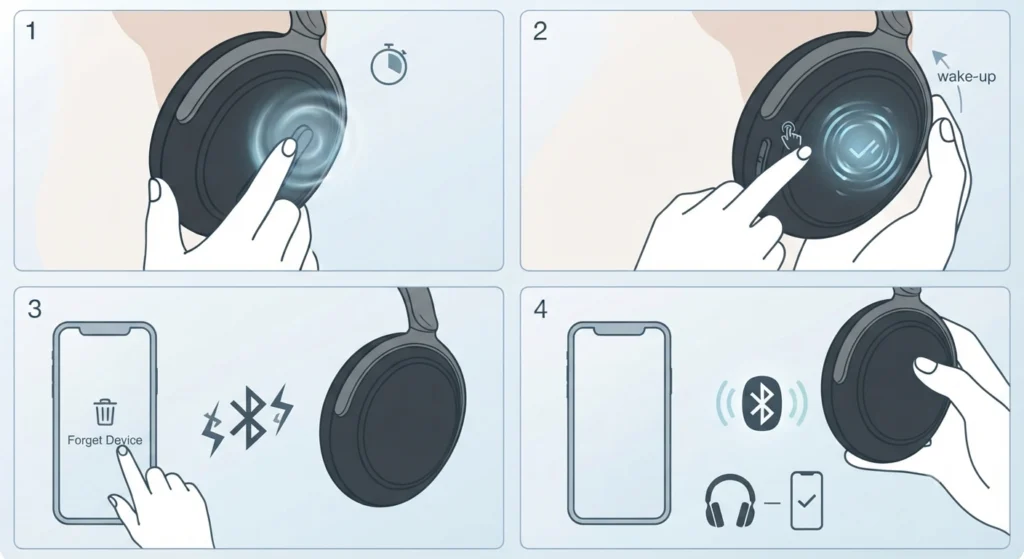
If the touchpad or app controls stop responding, a quick reset usually resolves it. Press and hold the multi-function button for around fifteen seconds to restart the headphones without losing saved pairings. If the issue is tied to a shaky Bluetooth link rather than the ANC system itself, re-pairing the headphones over Bluetooth often clears up the inconsistency.
Fix 3: Audio Sounds Muffled After Enabling ANC on a PC
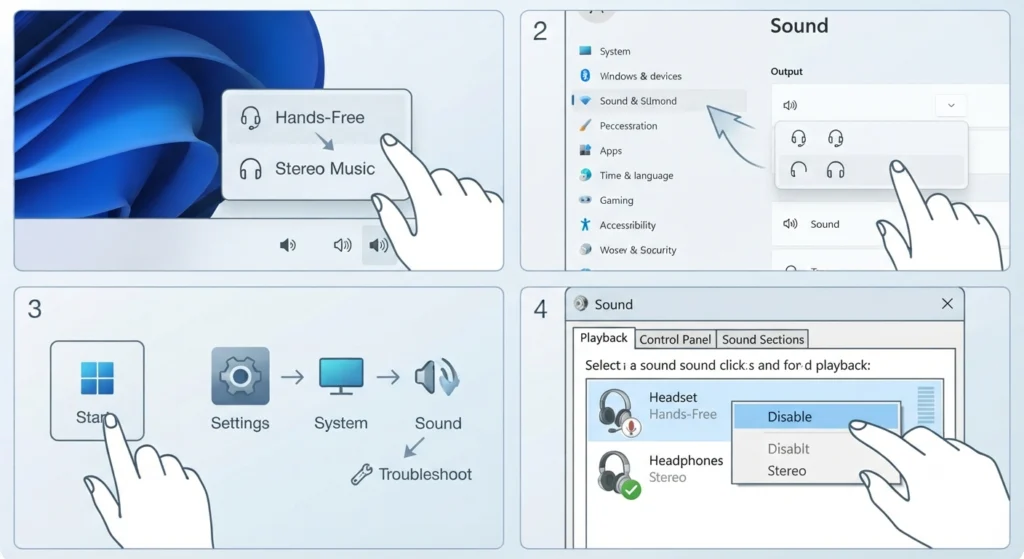
On Windows, this is commonly caused by the system defaulting to a hands-free or call-audio profile instead of the stereo music profile. Switching the active audio device or resetting the default playback settings usually fixes it. A full walkthrough for resetting audio settings on Windows 11 covers this scenario in detail.
Fix 4: ANC Turns Off Unexpectedly During Calls
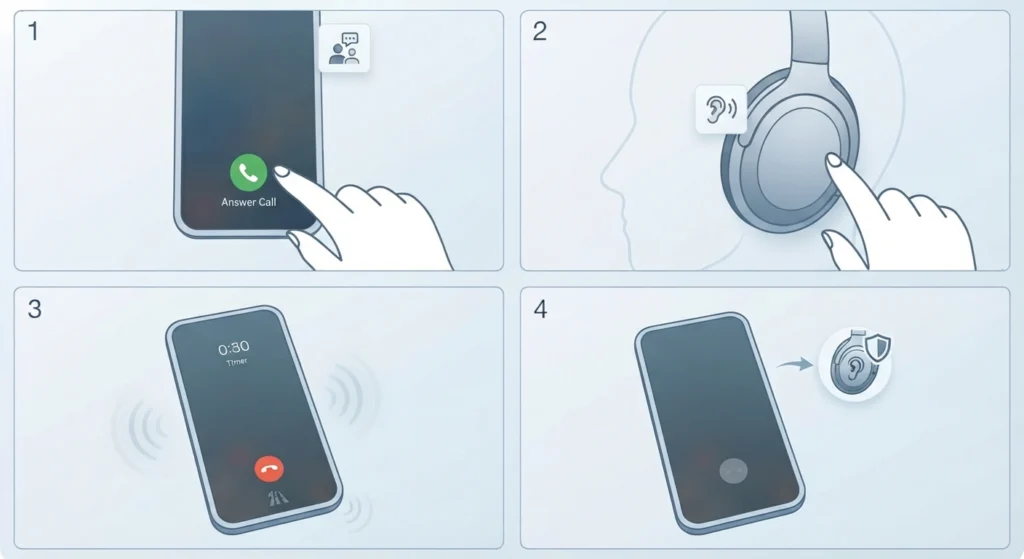
This is expected behavior rather than a fault. Transparency Mode automatically takes over during phone calls so the surrounding environment stays audible for safety, and ANC resumes once the call ends.
Frequently Asked Questions
What is Adaptive Noise Cancellation on the Sennheiser Momentum 4?
It is an ANC system that uses four built-in microphones to continuously read ambient noise levels and automatically adjust how much cancellation is applied, reducing it in quiet spaces and increasing it in loud ones.
Does Adaptive Noise Cancellation drain the battery faster?
Yes. Running ANC, adaptive or otherwise, uses additional power compared to listening with noise cancellation turned off, so battery life will be somewhat shorter with it active.
Can Adaptive Noise Cancellation be used during phone calls?
ANC stays active for call audio quality, but the headphones automatically switch to Transparency Mode when a call comes in, letting the surroundings remain audible during the conversation.
Is Adaptive Noise Cancellation available without the Smart Control app?
The mode can be set once through the app and will remain saved on the headphones afterward. Day-to-day toggling between ANC and Transparency Mode can then be done with the touchpad alone, without reopening the app each time.
How is Adaptive Noise Cancellation different from Transparency Mode?
Adaptive Noise Cancellation works to reduce outside sound automatically, while Transparency Mode does the opposite by using the microphones to let ambient sound through clearly, useful for conversations or staying aware of surroundings.
Can Adaptive Noise Cancellation be turned off completely?
Yes. The Smart Control app includes a persistent ANC off switch, which disables noise cancellation entirely rather than just lowering its intensity.
Does Adaptive Noise Cancellation affect sound quality?
The system is designed to avoid introducing extra noise floor or added ear pressure while active, so music quality stays largely unaffected compared to listening with ANC off.
What is Wind Noise Reduction and how does it relate to ANC?
Wind Noise Reduction is a separate setting inside the ANC menu of the Smart Control app, with Off, Auto, and Max options. It specifically targets wind interference, which regular Adaptive Noise Cancellation is not optimized to handle on its own.
Can noise cancellation intensity be adjusted manually?
Yes. A pinch gesture on the right touchpad increases cancellation strength, and a spread gesture reduces it, giving manual control even while Adaptive mode is otherwise selected in the app.
Is the Smart Control app required for firmware updates related to ANC?
Yes. Firmware updates that refine ANC performance are delivered over the air through the Smart Control app, so keeping the app connected periodically ensures the headphones stay up to date.