
Keeping the Jabra Elite 10 firmware updated through the Jabra Sound+ app is one of the easiest ways to make sure the earbuds perform at their absolute best. Firmware updates bring real improvements – better ANC performance, cleaner call quality, bug fixes, and sometimes entirely new features. The good news is the whole process happens directly through a smartphone app, no cables or computers needed.
Quick Summary
- App required: Jabra Sound+ (free on iOS and Android)
- Earbuds must be paired and connected via Bluetooth before starting
- Update notification appears automatically when a new firmware is available
- Update trigger: tap the Discover icon (glowing yellow) in the app
- Earbuds go into the charging case during the update process
- Pink LED flashing on the case means the update is in progress
- Update takes up to 15 minutes to complete
- Do not use the earbuds while the update is running
How to Update Jabra Elite 10 Firmware Through the Jabra Sound+ App
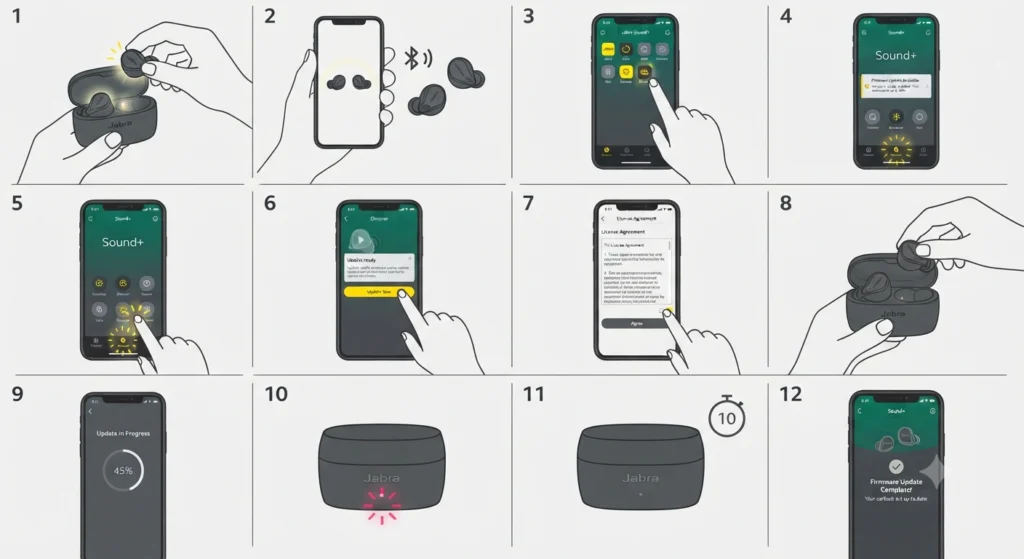
Before starting, make sure the Jabra Sound+ app is installed on the smartphone. It is available for free on the Google Play Store for Android and the App Store for iOS. Also check that the Jabra Elite 10 earbuds are charged enough – having at least 50% battery before beginning the update is a smart move to avoid any interruptions mid-process.
- Step 1: Remove both earbuds from the charging case and make sure they are turned on and paired with the smartphone.
- Step 2: Keep the earbuds within Bluetooth range of the phone – ideally within a few feet.
- Step 3: Open the Jabra Sound+ app on the smartphone.
- Step 4: When a firmware update is available, a notification will appear on the app’s home screen. The Discover icon will also pulse with a yellow glow – this is the visual signal that a new update is ready.
- Step 5: Tap the Discover icon in the app.
- Step 6: Tap ‘Update now’ to begin the update process.
- Step 7: Read and agree to the license terms to allow the update to proceed.
- Step 8: Once prompted, place both earbuds back into the charging case and close the lid. This is required for the update to install correctly.
- Step 9: Follow any additional on-screen instructions in the app.
- Step 10: Watch for the pink LED flashing on the charging case – this confirms the update is actively installing. The process can take up to 15 minutes.
- Step 11: After the LED stops flashing pink, wait at least 10 seconds before opening the charging case.
- Step 12: A notification will appear in Jabra Sound+ confirming the firmware update is complete.
That is all there is to it. The whole experience is designed to be hands-off once the case lid is closed. Most people find the update finishes well under 15 minutes, though leaving the case undisturbed during the entire process helps ensure nothing goes wrong.
Pro-Tip: Enable push notifications for the Jabra Sound+ app so the phone alerts automatically whenever a new firmware version drops. That way, there is no need to manually check – the app will do the work. Go to the phone’s notification settings, find Jabra Sound+, and make sure notifications are turned on.
What to Expect After the Firmware Update
Once the update finishes, the earbuds are ready to use right away. Open the charging case, take out the earbuds, and they should reconnect to the paired device automatically. The Jabra Sound+ app may briefly show the new firmware version on the device page.
Some updates require re-pairing the earbuds with the smartphone – particularly for major releases like the LE Audio update rolled out in May 2025, which added Auracast support and LC3 codec. In those cases, the release notes in the app or on Jabra’s website will flag this requirement clearly. If the earbuds do not automatically reconnect after an update, check this guide on re-pairing Bluetooth earbuds for stereo sound to get things working again.
Tips for a Smooth Firmware Update
- Always charge the earbuds to at least 50% before starting an update.
- Keep the smartphone within a short distance of the charging case throughout the process.
- Make sure the phone has a stable internet connection – the app downloads firmware data during the update.
- Do not open the charging case while the pink LED is flashing. Opening it mid-update can interrupt the process.
- If the LED keeps flashing past 15 minutes, open and close the case lid once. This often gets things back on track.
- Keep notifications enabled on the Jabra Sound+ app to stay on top of new releases automatically.
Pro-Tip: Check Jabra’s official release notes page for the Elite 10 before installing a major update. It lists exactly what each firmware version changes – new features, codec improvements, and any known device compatibility requirements. This is especially useful if the earbuds are used with multiple devices, since some updates have specific Android version requirements.
Common Problems and Fixes During Firmware Update
Fix 1: The Discover Icon Is Not Glowing Yellow
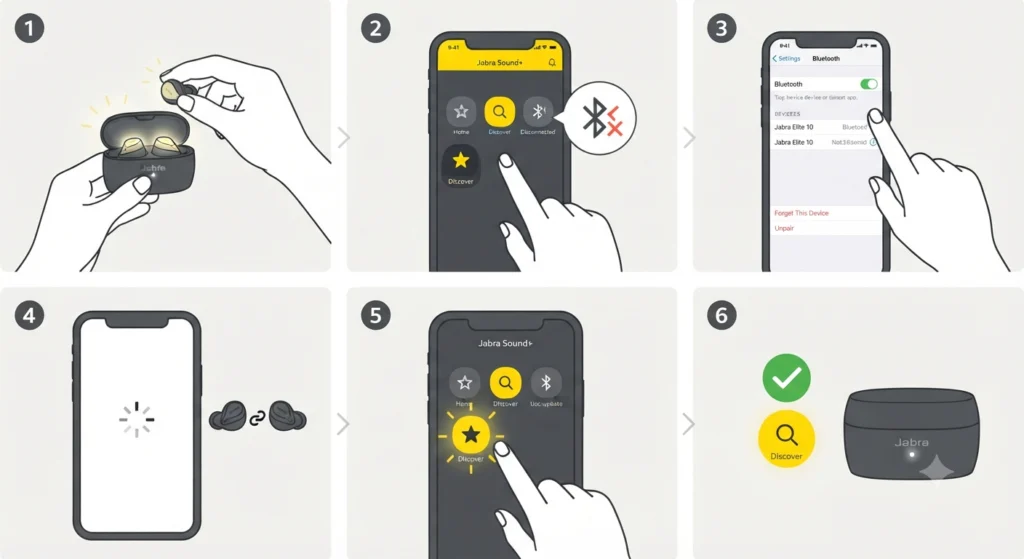
This usually means the earbuds are not properly connected to the smartphone. Make sure both earbuds are removed from the case, Bluetooth is active on the phone, and the earbuds appear as connected in the Jabra Sound+ app. If they appear disconnected, remove them from Bluetooth settings and pair them again. Sometimes audio issues during re-pairing can also affect how the device appears on the phone – for Windows users dealing with related sound problems, reviewing microphone detection issues on Windows 11 can help rule out system-level conflicts.
Fix 2: Update Fails and LED Flashes Red
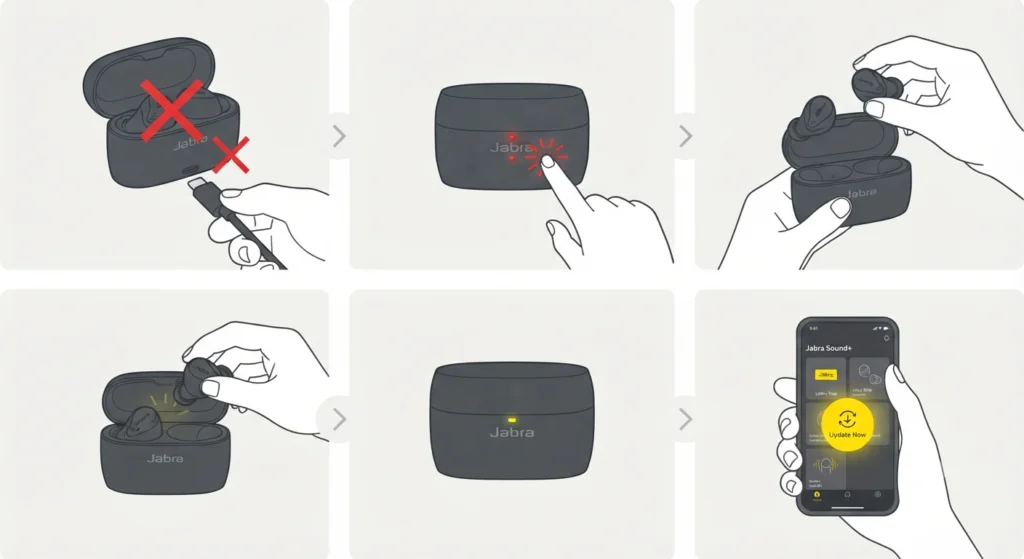
A red LED on the charging case signals that the update encountered an error. The key is to make sure the charging case is connected to a power source. Then remove both earbuds from the case and place them back in with the lid closed. This resets the update attempt. The update will try again automatically. If the issue persists, fully close and reopen the Sound+ app and try initiating the update once more.
Fix 3: App Does Not Show Any Update Available
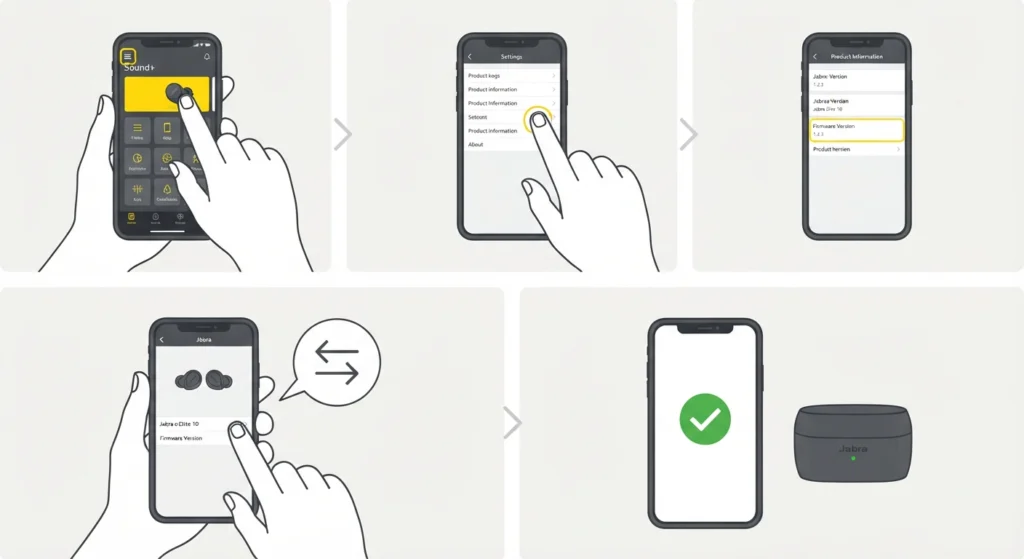
If no update notification appears, it likely means the earbuds are already running the latest firmware. To double-check, open the Jabra Sound+ app, go to the device settings page, and look for the firmware version listed. Then compare that with the latest version on Jabra’s official release notes page for the Elite 10. If the version matches, the earbuds are up to date.
Fix 4: Update Stuck at the Same Progress
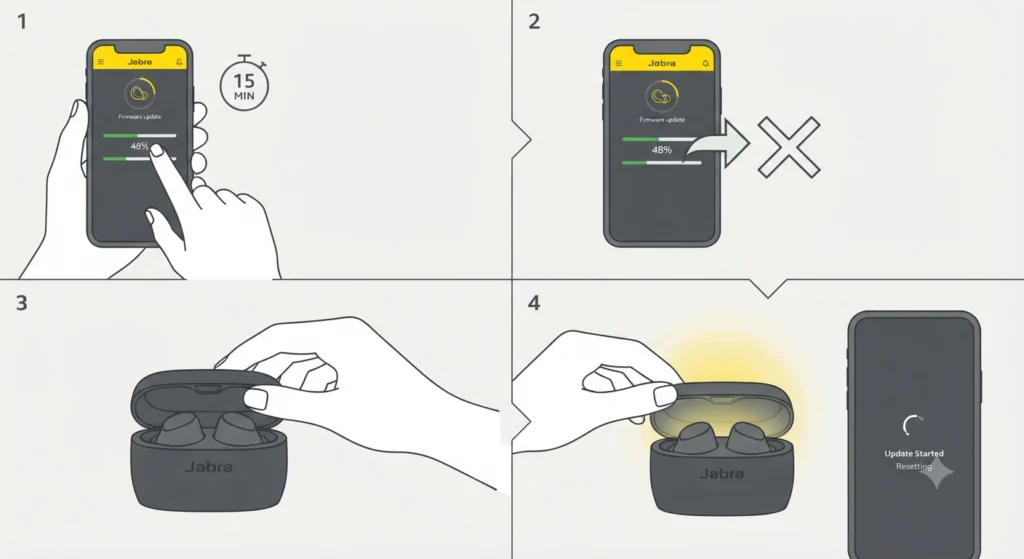
Occasionally the update progress appears frozen. Before doing anything, wait a full 15 minutes before assuming something is wrong. The installation speed can vary. If it is genuinely stuck past that point, close the charging case lid and then reopen it. This typically resets the process and allows the update to continue or restart cleanly.
Frequently Asked Questions
What app is needed to update the Jabra Elite 10 firmware?
The Jabra Sound+ app is required to update the firmware on the Jabra Elite 10. It is free to download on both the Google Play Store for Android and the Apple App Store for iOS.
Do the Jabra Elite 10 earbuds need to be in the case during the update?
Yes. After initiating the update through the Jabra Sound+ app, both earbuds must be placed in the charging case with the lid closed. The update installs while the earbuds are seated inside the case.
How long does the Jabra Elite 10 firmware update take?
The firmware update can take up to 15 minutes. The pink LED flashing on the charging case indicates the update is in progress. Once the LED stops flashing, wait at least 10 seconds before opening the case.
What does the pink LED on the charging case mean during an update?
A pink flashing LED on the Jabra Elite 10 charging case means the firmware update is actively installing. The earbuds should not be removed or used while this LED is flashing.
What does a red LED mean after a firmware update?
A red LED on the charging case signals that the firmware update failed. To fix this, make sure the charging case is plugged into a power source, remove the earbuds, place them back in the case, and close the lid. The update process will attempt to restart.
Can the Jabra Elite 10 firmware be updated without the Sound+ app?
For most users, the Jabra Sound+ app is the recommended and easiest method. Jabra Direct software on a computer can also handle firmware updates, but for the Elite 10 earbuds, the Sound+ app is the standard and simplest approach.
How will the phone notify when a new firmware update is available?
If notifications are enabled for the Jabra Sound+ app, the phone will send an alert when new firmware is ready. Inside the app, the Discover icon will pulse with a yellow glow to signal that an update is available.
Is internet connection required to update the Jabra Elite 10 firmware?
Yes. The Jabra Sound+ app downloads the firmware file over the internet before pushing it to the earbuds. A stable Wi-Fi or mobile data connection on the smartphone is needed throughout the update process.
Can the earbuds be used while the firmware is updating?
No. The earbuds need to remain in the closed charging case for the full duration of the firmware update. Using them or removing them mid-update can interrupt the installation and potentially cause errors.
What should be done if the Jabra Sound+ app does not detect the earbuds?
First, make sure Bluetooth is enabled on the smartphone and the earbuds are not in their case. If the app still does not detect the earbuds, remove the earbuds from the phone’s Bluetooth device list and pair them again from scratch. Opening and closing the charging case with the earbuds inside can also help trigger a fresh connection.