
Keeping the Galaxy Buds 2 Pro firmware updated is one of the easiest ways to maintain peak performance, fix audio bugs, and unlock new features Samsung rolls out. The update process runs entirely through the Galaxy Wearable app on an Android phone – no PC required. This guide walks through every step to get the latest firmware installed quickly and without issues.
Quick Summary
- App needed: Galaxy Wearable (available on Google Play)
- Device required: Android smartphone paired with Galaxy Buds 2 Pro
- Buds must be in the case with sufficient battery before updating
- Update time: typically 5 to 10 minutes
- Internet connection: stable Wi-Fi or mobile data required
Steps to Update Galaxy Buds 2 Pro Firmware via Galaxy Wearable App
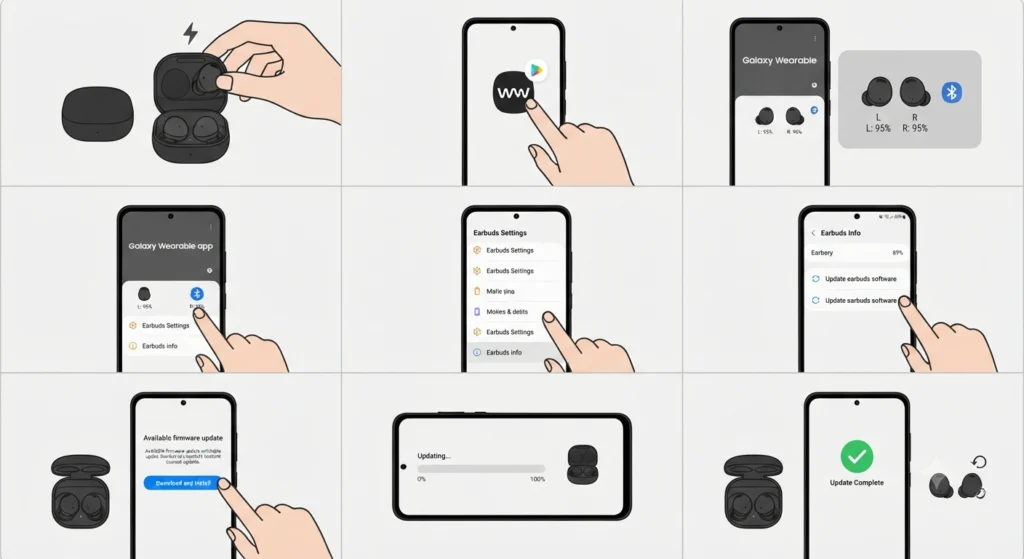
- Step 1: Place the Galaxy Buds 2 Pro inside the charging case and keep the case open. This ensures the buds stay connected and charged throughout the update.
- Step 2: On the Android phone, open the Galaxy Wearable app. If it is not installed, download it from the Google Play Store for free.
- Step 3: Make sure the Galaxy Buds 2 Pro are connected and recognized in the app. The home screen should show the buds with battery levels visible.
- Step 4: Tap on ‘Earbuds settings’ from the Galaxy Wearable home screen.
- Step 5: Scroll down and tap ‘Earbuds info’ (sometimes labeled as ‘About earbuds’).
- Step 6: Tap ‘Update earbuds software’. The app will check for available firmware updates automatically.
- Step 7: If a firmware update is available, tap ‘Update’ or ‘Download and install’ to begin the process.
- Step 8: Keep the buds in the case, the case nearby, and the phone screen active until the update completes. Avoid interrupting the process.
- Step 9: Once finished, the app will display a confirmation message. The Galaxy Buds 2 Pro will restart automatically.
The key is to not close the app or move too far from the phone during the update. Most updates finish within 5 to 10 minutes depending on connection speed.
Pro-Tip: Always charge the Galaxy Buds 2 Pro case to at least 30% before starting a firmware update. If the battery drops too low mid-update, it can interrupt the process. Connecting the phone to Wi-Fi instead of using mobile data also keeps the download stable and faster.
Tips for a Smooth Firmware Update
- Keep the Galaxy Wearable app updated to the latest version before checking for firmware updates.
- Do not use the buds while the update is in progress – leave them seated inside the case.
- Make sure Bluetooth is turned on and the buds remain in range of the phone (within 1 meter is ideal).
- If using a Samsung phone, the update experience is more seamless compared to non-Samsung Android devices.
- Check for updates regularly – Samsung releases firmware patches to improve ANC performance, Bluetooth stability, and voice call quality.
Common Problems During Firmware Update
Fix 1: Update Option is Greyed Out or Not Showing
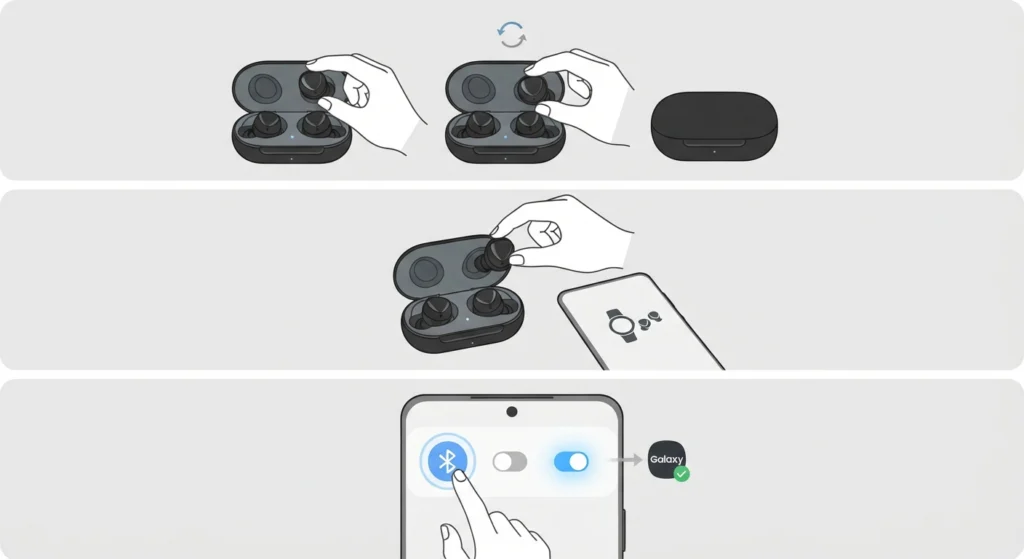
This usually happens when the buds are not properly connected. Remove the buds from the case, place them back in, and reopen the Galaxy Wearable app. If the issue persists, toggle Bluetooth off and on from the phone’s quick settings panel, then reconnect the buds.
Fix 2: Update Gets Stuck at a Percentage
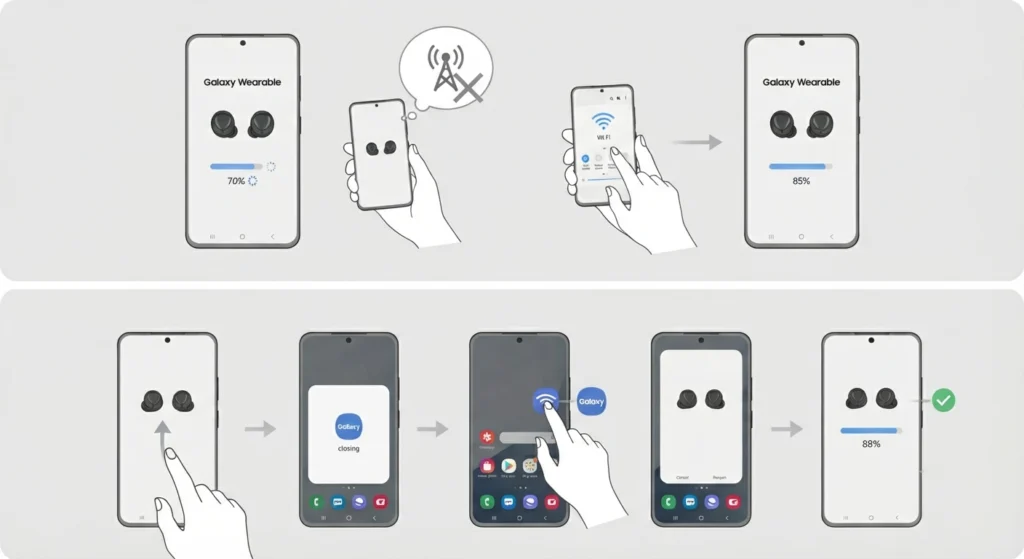
A slow or unstable internet connection is typically the cause. Switch to a Wi-Fi network if on mobile data, or move closer to the router. Force close the Galaxy Wearable app, reopen it, and try the update again. The process usually resumes from where it left off.
Fix 3: Galaxy Wearable App Does Not Detect the Buds
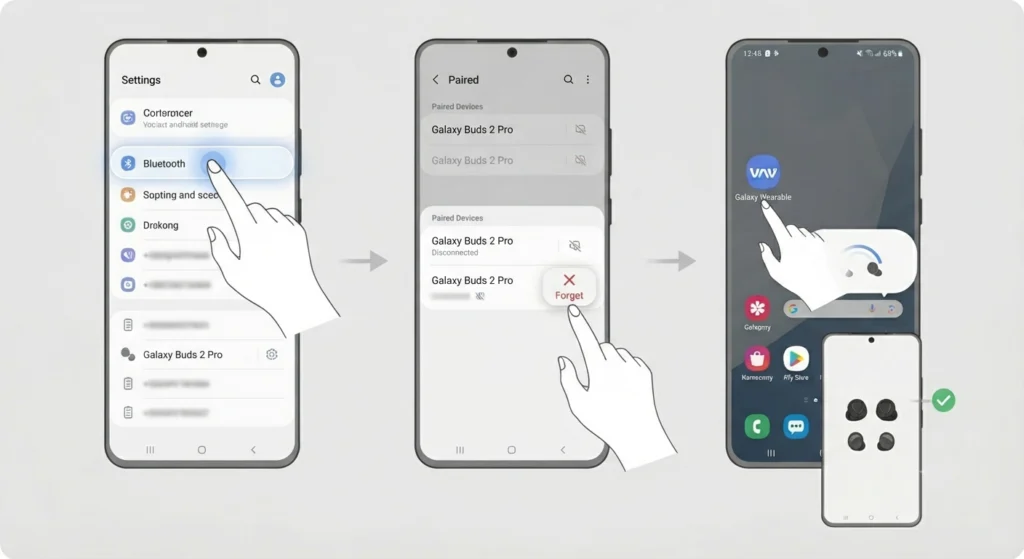
This is a common Bluetooth pairing issue. On Android, go to Settings, Bluetooth, find the Galaxy Buds 2 Pro, tap the gear icon, and select ‘Unpair’. Then re-pair the buds through the Galaxy Wearable app. For users experiencing repeated audio or connection issues after pairing, this guide on re-pairing Bluetooth earbuds for stereo sound covers the process in detail.
Fix 4: Firmware Version Still Shows Old After Update
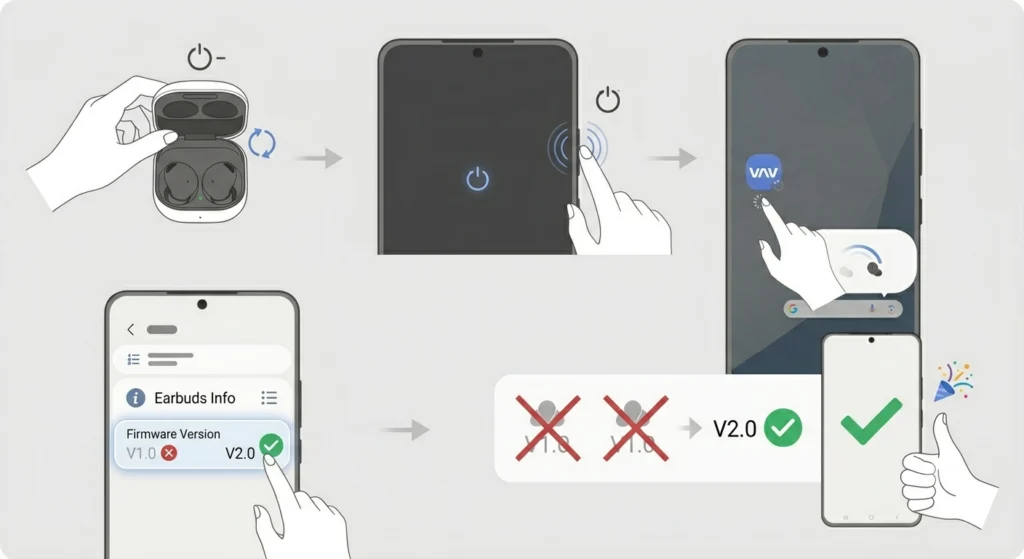
After a completed update, restart both the Galaxy Buds 2 Pro and the paired phone. Reopen the Galaxy Wearable app and go back to ‘Earbuds info’ to confirm the firmware version has changed. Sometimes the app display takes a moment to refresh.
Pro-Tip: If the Galaxy Wearable app keeps showing errors or fails to recognize the buds after multiple attempts, clearing the app cache can help. Go to phone Settings, Apps, Galaxy Wearable, Storage, then tap ‘Clear Cache’. This resolves most persistent app-related problems without needing to reinstall.
For users who also connect the Galaxy Buds 2 Pro to a Windows PC and notice microphone issues after a firmware update, checking the microphone detection settings on Windows 11 can help isolate whether it is a software or firmware conflict.
Frequently Asked Questions
How do you check the current firmware version on Galaxy Buds 2 Pro?
Open the Galaxy Wearable app, go to ‘Earbuds settings’, then tap ‘Earbuds info’ or ‘About earbuds’. The current firmware version is listed there. Comparing it against Samsung’s latest release confirms whether an update is needed.
Do Galaxy Buds 2 Pro update automatically?
Yes, the Galaxy Wearable app can apply firmware updates automatically if auto-update is enabled. To check, open the app, go to ‘Earbuds settings’, tap ‘Earbuds info’, and look for the auto-update toggle. When enabled, updates install in the background when the buds are in the case and connected.
Can the Galaxy Buds 2 Pro be updated using an iPhone?
No. The Galaxy Wearable app required for firmware updates is only available on Android. iPhone users cannot update the Galaxy Buds 2 Pro firmware directly, as Samsung does not offer an iOS version of the Galaxy Wearable app with firmware update support.
How long does the Galaxy Buds 2 Pro firmware update take?
Most firmware updates complete within 5 to 10 minutes. The actual time depends on the size of the update file and the speed of the internet connection. Staying on Wi-Fi typically results in a faster and more reliable update.
What should the battery level be before updating Galaxy Buds 2 Pro firmware?
It is recommended that both the buds and the charging case have at least 30% battery before starting a firmware update. Running out of power mid-update can cause incomplete installation, which may require a reset to fix.
Is it safe to use the Galaxy Buds 2 Pro during a firmware update?
No, the buds should remain in the charging case during the entire update process. Taking them out mid-update can interrupt the installation and potentially cause firmware corruption, which would require troubleshooting or a factory reset.
Why is the ‘Update earbuds software’ option missing in Galaxy Wearable?
This option disappears when the Galaxy Wearable app is not fully connected to the buds. Make sure Bluetooth is active, the buds are in the case within range, and the Galaxy Wearable app is running the latest version. Restarting the app usually brings the option back.
Do firmware updates reset Galaxy Buds 2 Pro settings?
Typically, firmware updates do not reset saved settings like EQ preferences, touch controls, or ANC mode. However, in rare cases where a major firmware version is installed, some settings may revert to defaults. It is worth checking preferences in the Galaxy Wearable app after updating.
Can a failed firmware update damage the Galaxy Buds 2 Pro?
A failed update rarely causes permanent damage but can leave the buds in an unstable state. In most cases, placing the buds back in the case, reopening the Galaxy Wearable app, and retrying the update resolves the issue. A factory reset through the app is the next step if the buds become unresponsive.
Does the Galaxy Wearable app need to stay open during the firmware update?
Yes, it is best to keep the Galaxy Wearable app open and the phone screen active during the update. Closing the app or letting the screen time out can interrupt the process on some Android devices. Most people find that plugging the phone into a charger during the update avoids screen-off interruptions.