
Your mic was working fine, then suddenly it wasn’t. Maybe it stopped after a Windows update, or an app started showing “microphone access denied” out of nowhere. This guide to troubleshooting microphone privacy settings in Windows 11 and Windows 10 starts with the quick checks that fix most cases, then moves on to greyed-out switches, registry conflicts, browser blocks, and settings that keep resetting.
Quick answer (Windows 11): Press Windows + I, go to Privacy & security > Microphone, and turn on all three switches: Microphone access, Let apps access your microphone, and Let desktop apps access your microphone. Then make sure the app you need is turned on in the list. If the switches are greyed out, a policy is locking them. See the greyed-out fix below.
Quick answer (Windows 10): Go to Settings > Privacy > Microphone, click Change and turn on Microphone access for this device, then turn on Allow apps to access your microphone and Allow desktop apps to access your microphone.
Find Your Microphone Problem
Windows controls microphone access in several separate layers, and one can block the mic while the others look fine. Find your symptom below and jump to the right fix.
| Symptom | Where to start |
|---|---|
| Mic doesn’t work anywhere | Hardware mute, then privacy switches |
| Mic works in Windows but not in one app | App permissions and app settings |
| Zoom, Teams, Discord or OBS blocked | Desktop apps switch |
| Mic blocked only in a browser | Browser site permissions |
| Switches greyed out or “managed by your organization” | Group Policy and policy registry key |
| Settings show Allow but apps are still denied | Registry Allow/Deny mismatch |
| Settings reset after updates or restarts | Privacy tools and security software |
| Privacy is fine but there’s still no sound | Input device, exclusive mode and drivers |
Check the Hardware Mute First
Before changing any Windows settings, rule out a physical mute. These look exactly like a privacy block because the mic goes silent with no error.
- Laptop mic mute key: Many laptops have a microphone key on the F-row (often with a crossed-out mic icon), sometimes with an LED. Press it, or press it together with Fn.
- Headset mute: Check for a mute switch on the cable, earcup or boom mic. Many gaming headsets mute when the boom is flipped up.
- Webcam privacy shutter or switch: Some laptops and webcams cut the microphone along with the camera.
- Connection: Reseat USB or 3.5 mm plugs, and try another port.
Check Microphone Privacy Settings in Windows 11
Windows 11 has three separate microphone switches on one page. All three need to be on for every type of app to use the mic.
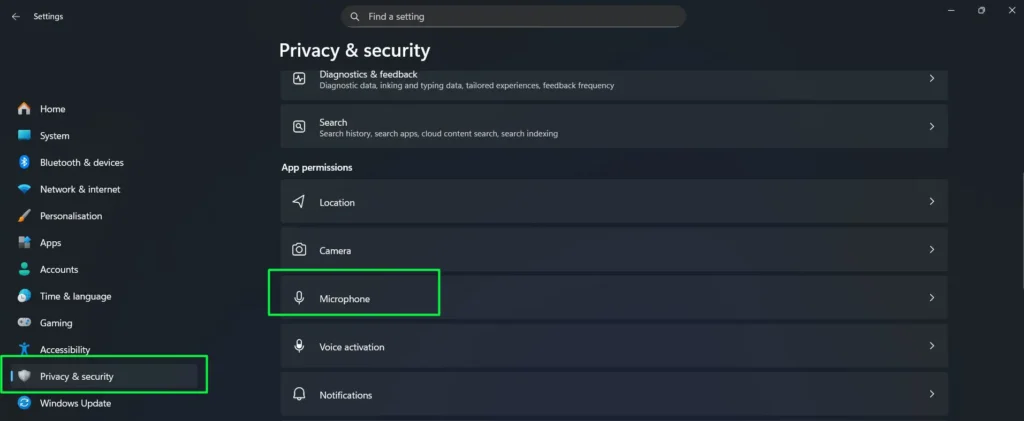
- Press Windows + I to open Settings, click Privacy & security in the left sidebar, then click Microphone under App permissions.
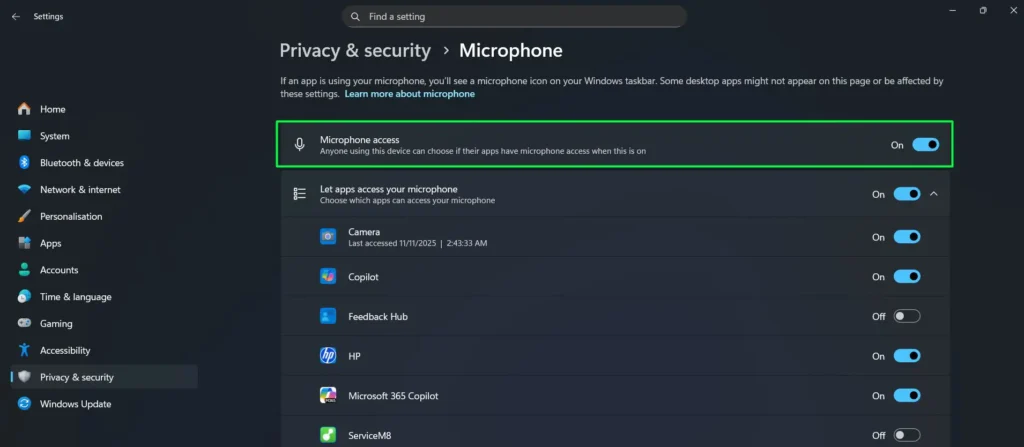
- Turn on Microphone access at the top. This is the master switch. If it’s off, no app can use the mic.
- Turn on Let apps access your microphone. This controls Microsoft Store apps.
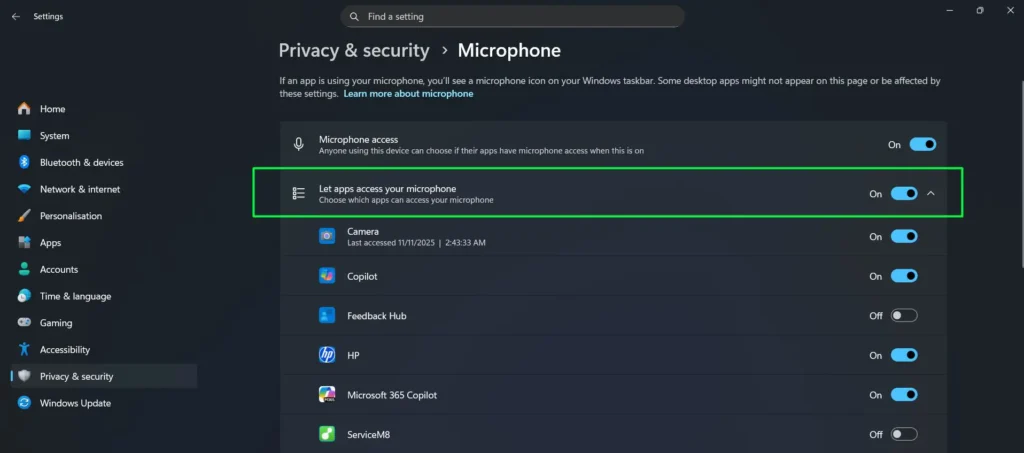
- In the app list below it, find the app you need and turn its switch on.
- Scroll down and turn on Let desktop apps access your microphone. This one switch covers regular programs you installed from the web, such as Zoom, Discord, OBS, and browsers.
- Close Settings, reopen it, and confirm the switches stayed on. Then fully close and relaunch the app you’re fixing.
What the result tells you:
- A switch is greyed out, or you see Some settings are managed by your organization: a policy is locking it. Go to the greyed-out fix.
- A switch turns itself off again after a restart: something is reapplying the setting. Go to settings keep resetting.
- Everything is on but apps are still denied: check the registry mismatch fix.
For a full walkthrough on setting permissions app by app, see this guide on enabling microphone for specific apps.
Check Microphone Privacy Settings in Windows 10
Windows 10 has the same three layers, but the page and wording are different.
- Press Windows + I and select Privacy.
- In the left sidebar, under App permissions, click Microphone.
- If it says Microphone access for this device is off, click Change and turn it on. This needs an administrator account.
- Turn on Allow apps to access your microphone.
- Under Choose which Microsoft Store apps can access your microphone, turn on the app you need.
- Scroll down and turn on Allow desktop apps to access your microphone.
The Group Policy, registry, and driver fixes later in this guide work the same way on Windows 10.
Desktop Apps Not Listed or Still Blocked
Desktop programs like Zoom, Microsoft Teams, Discord, OBS, and Adobe Audition don’t get individual switches like Store apps. They all share the Let desktop apps access your microphone switch. If that switch is off, all of them lose access at once.
In Windows 11, desktop apps that have used the mic appear in a list under that switch with the time they last used it. An app that never shows up there probably isn’t reaching Windows at all, so the problem is likely inside the app.
If the switch is on but one app is still blocked:
- Fully quit the app, including from the system tray, then reopen it. Apps only pick up permission changes on a fresh launch.
- Open the app’s own audio settings and select the correct microphone. Zoom, Teams, and Discord each have their own input device setting, separate from Windows.
- If other desktop apps work and only this one fails, try the switch refresh: turn Let desktop apps access your microphone off, wait a few seconds, turn it back on, and relaunch the app.
- For a Microsoft Store app, reset it: go to Settings > Apps > Installed apps, click the three-dot menu next to the app, select Advanced options, and click Reset. This clears the app’s data, including its saved settings, and it will ask for permissions again on the next launch.
- For a desktop app, reinstall it. If the problem survives a reinstall, close the app, rename its folder in %AppData% (for example, add .old to the end) rather than deleting it, then relaunch. If that doesn’t help, rename the folder back to restore your settings.
Microphone Blocked in Chrome, Edge, or Firefox
Browsers add their own permission layer on top of Windows, and they track microphone access separately for each website. Browsers are also desktop apps, so Let desktop apps access your microphone must be on in Windows first.
- Chrome and Edge: On the site, click the icon to the left of the web address, find Microphone, and set it to Allow. Reload the page. To review all blocked sites, open chrome://settings/content/microphone or edge://settings/content/microphone. You can also choose the correct microphone from the dropdown at the top of that page.
- Firefox: Click the permissions icon in the address bar and clear the blocked microphone permission, then reload and allow access when prompted. To review all sites, go to Settings > Privacy & Security > Permissions > Microphone > Settings.
- Secure connection required: Browsers only allow microphone access on secure (HTTPS) pages. Local development addresses such as localhost are the usual exception.
- Still blocked: Close other tabs or apps that may be using the mic, and temporarily disable privacy or ad-blocking extensions to test.
Microphone Settings Greyed Out or “Managed by Your Organization”
Greyed-out switches, or the message Some settings are managed by your organization, mean a policy is controlling microphone access and overriding your choices.
On a work or school PC: Your IT department sets these policies through MDM, Intune, or Active Directory. You can’t safely change them yourself, so contact IT.
On a personal PC: A privacy tool such as O&O ShutUp10 or a “debloat” script usually applied the policy. Open that tool and undo its microphone restriction first. If that doesn’t work, use one of the methods below.
Fix It With Group Policy (Pro, Enterprise, Education)
- Press Windows + R, type gpedit.msc, and press Enter. Windows Home doesn’t include this tool, so Home users should use the registry method below.
- Go to Computer Configuration > Administrative Templates > Windows Components > App Privacy.
- Double-click Let Windows apps access the microphone.
- If it’s set to Enabled with Force Deny, that’s what is blocking the mic. Change it to Not Configured.
- Click Apply, then OK, and restart your PC.
Fix It With the Registry (All Editions, Including Home)
The same policy is stored in the registry. Editing the registry incorrectly can cause problems, so back up the key first as shown.
- Press Windows + R, type regedit, and press Enter.
- Paste this path into the address bar and press Enter:
HKEY_LOCAL_MACHINE\SOFTWARE\Policies\Microsoft\Windows\AppPrivacy
If the AppPrivacy key doesn’t exist, this policy isn’t the cause. - Right-click AppPrivacy and choose Export to save a backup.
- Look for a value named LetAppsAccessMicrophone. A value of 2 means Force Deny, 1 means Force Allow, and 0 means the user is in control.
- Right-click LetAppsAccessMicrophone and select Delete to remove the policy. If you also see values that start with LetAppsAccessMicrophone_, delete them too.
- Restart your PC and check whether the microphone switches are now available.
Fix Registry Allow and Deny Mismatches
Use this when Settings shows the microphone as allowed but apps are still denied. Windows stores the actual microphone permission in the registry, and occasionally the stored value doesn’t match what the Settings page displays. There are two locations: one for the whole PC and one for your user account.
Before you start: Create a system restore point, and export each key before you change it (right-click the key and select Export).
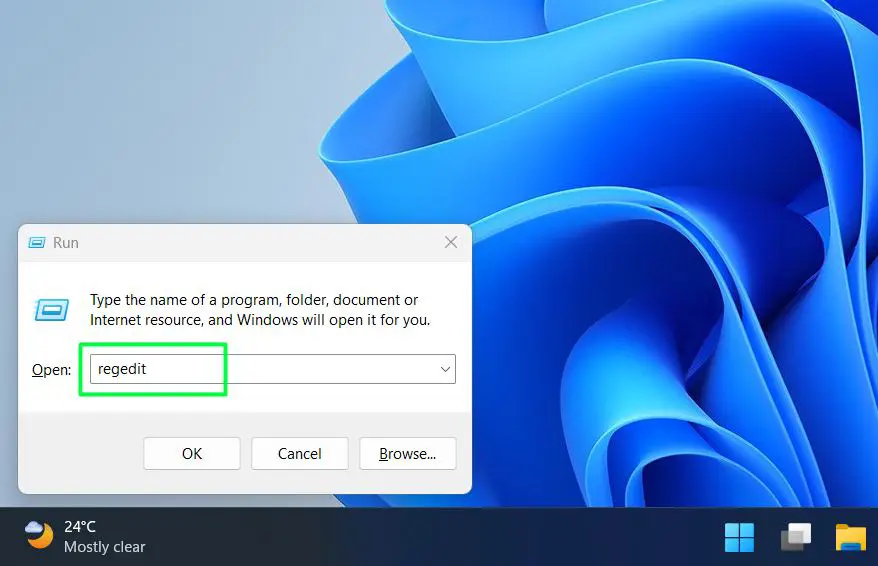
- Press Windows + R, type regedit, and press Enter.
- Go to the PC-wide key:
HKEY_LOCAL_MACHINE\SOFTWARE\Microsoft\Windows\CurrentVersion\CapabilityAccessManager\ConsentStore\microphone - Check the Value entry on the right. It should say Allow. If it says Deny, double-click it, type Allow, and click OK.
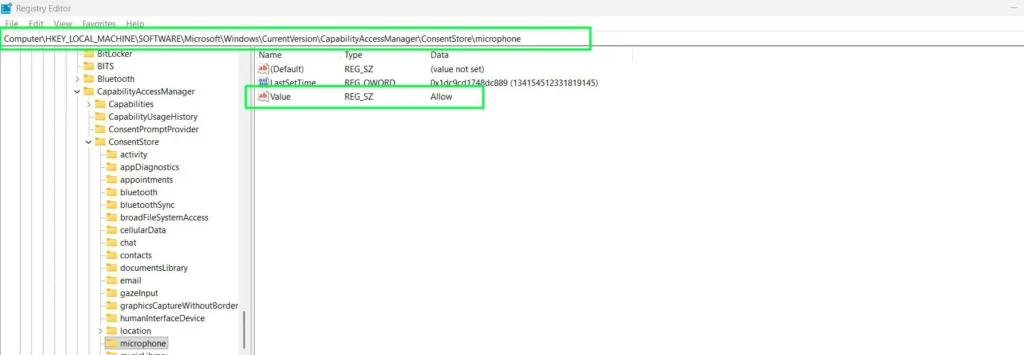
- Go to the same path under your user account and check its Value the same way:
HKEY_CURRENT_USER\Software\Microsoft\Windows\CurrentVersion\CapabilityAccessManager\ConsentStore\microphone - Under that user key, open the NonPackaged subkey. Its Value controls desktop apps and should also say Allow.
- Restart your PC, then return to Settings > Privacy & security > Microphone and confirm the switches match.
If a value changes back to Deny after a restart, something is rewriting it. See the next section. On a managed work PC, you may not have permission to edit these keys, so contact IT.
Microphone Privacy Settings Keep Resetting
If your switches turn themselves off after restarts or updates, something is reapplying the change. Check these in order:
- Privacy and tweaking tools: O&O ShutUp10, debloat scripts, and similar tools can reapply their settings. Open the tool and allow microphone access there.
- Security software: Some antivirus and security suites include webcam or microphone protection that runs separately from Windows. Open your security app, look for privacy, webcam, or microphone protection, and allow the app you need.
- Organization policy: On a PC enrolled in work or school management, policies are reapplied automatically. Only IT can change them.
- Recent updates: If the problem started right after an update, go to Settings > Windows Update > Update history to see what installed, then recheck all three microphone switches.
Tip: Once everything works, export the microphone registry keys from the previous section as a .reg backup. If the settings break again, you can restore them by double-clicking the file.
Privacy Settings Are Fine but the Mic Still Doesn’t Work
If every permission is on and the mic still picks up nothing, the problem is likely the device itself, its settings, or the driver.
Select the Correct Input Device
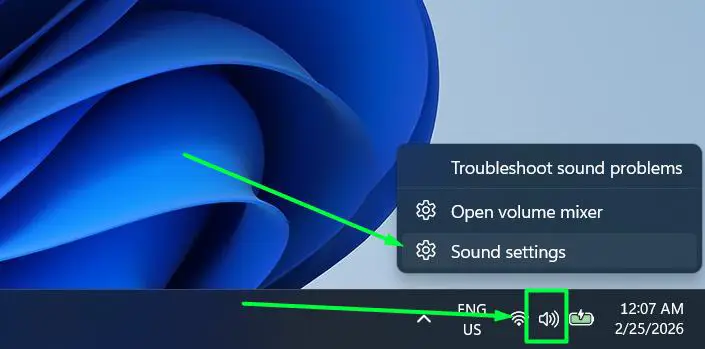
- Right-click the speaker icon in the system tray and select Sound settings.
- Scroll down to Input and select the microphone you actually want to use.
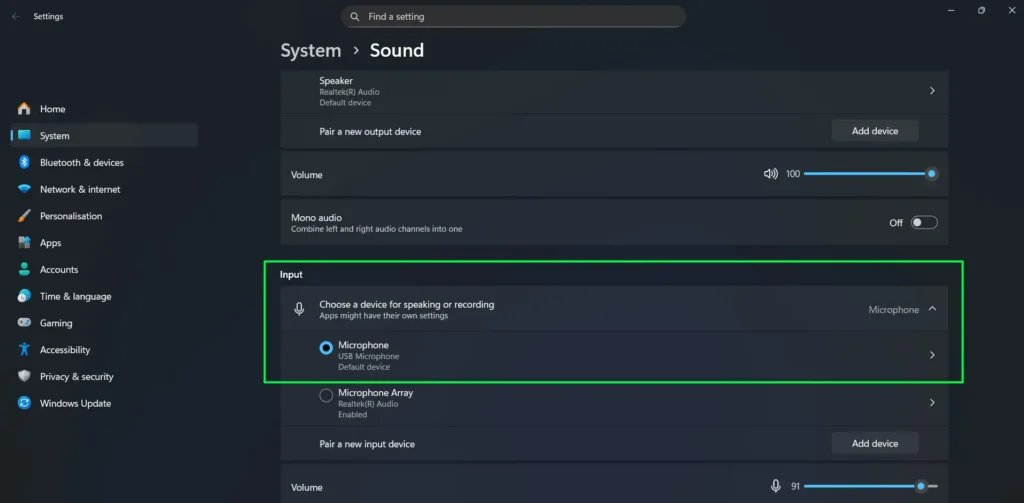
- Click the microphone to open its properties. Check that it’s set to Allow (not disabled) and that the Input volume isn’t at 0.
- Under Microphone test, click Start test and speak normally. The input bar should move.
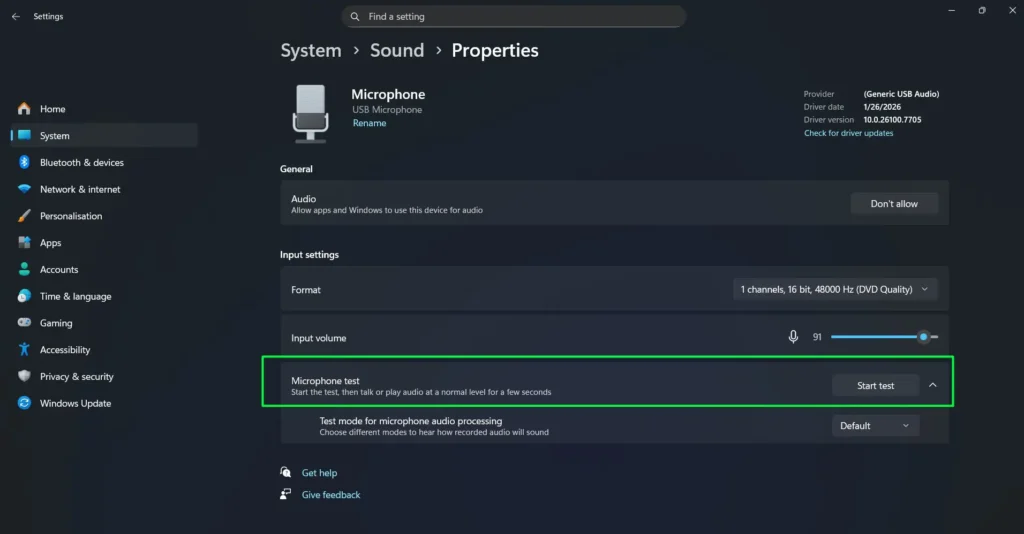
Tip: USB headsets, webcam mics, built-in laptop mics, and audio interfaces all appear as separate devices. If several are listed, test each one while speaking to find the one that’s active.
Turn Off Exclusive Mode
If one app takes exclusive control of the microphone, other apps can’t use it, even with every privacy setting allowed.
- Press Windows + R, type mmsys.cpl, and press Enter.
- Open the Recording tab, right-click your microphone, and select Properties.
- On the Advanced tab, uncheck Allow applications to take exclusive control of this device.
- Click Apply, then OK, and restart the apps that use the mic.
Update or Reinstall the Microphone Driver
A corrupt or replaced driver can look exactly like a privacy block: the mic just doesn’t respond, and no error explains why.
- Press Windows + X and select Device Manager.
- Expand Audio inputs and outputs. A yellow warning icon on your microphone means a driver problem.
- Right-click the microphone, select Update driver, then Search automatically for drivers.
- If that doesn’t help, right-click it again and select Uninstall device. Then click Action > Scan for hardware changes so Windows reinstalls it.
- Restart your PC and test again.
If Windows keeps installing a generic driver that doesn’t work well, download the latest audio driver from your PC, motherboard, or headset manufacturer’s website.
Run the Windows Audio Troubleshooter
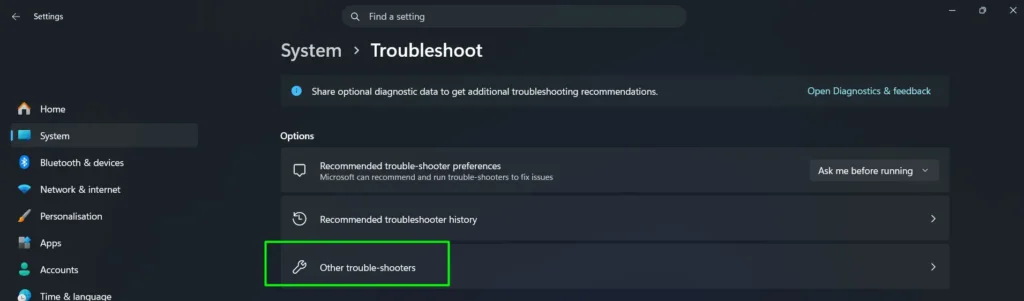
Windows can check some common audio problems automatically. On current Windows 11 versions, troubleshooters open in the Get Help app, and the exact layout may differ slightly from the screenshots.
- Press Windows + I to open Settings.
- Go to System > Troubleshoot > Other troubleshooters.
- Find Audio and click Run.
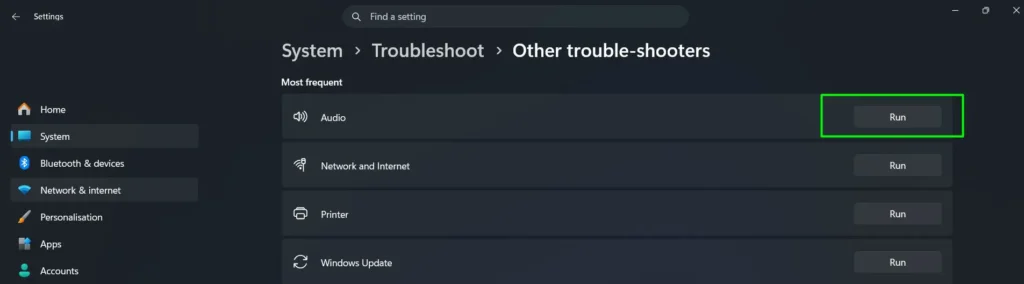
- When asked which device has the problem, choose your microphone or recording device, then follow the prompts.
The troubleshooter doesn’t fix policy blocks, registry conflicts, or security software settings. Use the sections above for those.
Microphone Privacy Settings on Mac
macOS also blocks microphone access until you allow each app.
- Open the Apple menu > System Settings > Privacy & Security > Microphone.
- Turn on the switch next to the app you need. If the app isn’t listed, it hasn’t asked for access yet, so open it and try to use the mic.
- Quit and reopen the app. Many apps only detect the new permission after a restart.
- For Safari, go to Safari > Settings > Websites > Microphone and allow the site.
Advanced: If an app never asks for access, open Terminal and run tccutil reset Microphone. This clears microphone permissions for all apps, so each one asks again the next time it uses the mic.
How to Confirm Your Microphone Privacy Fix Worked
Don’t stop at Settings. Test the mic in Windows and in the app that was failing.
- Open Settings and go to System > Sound.
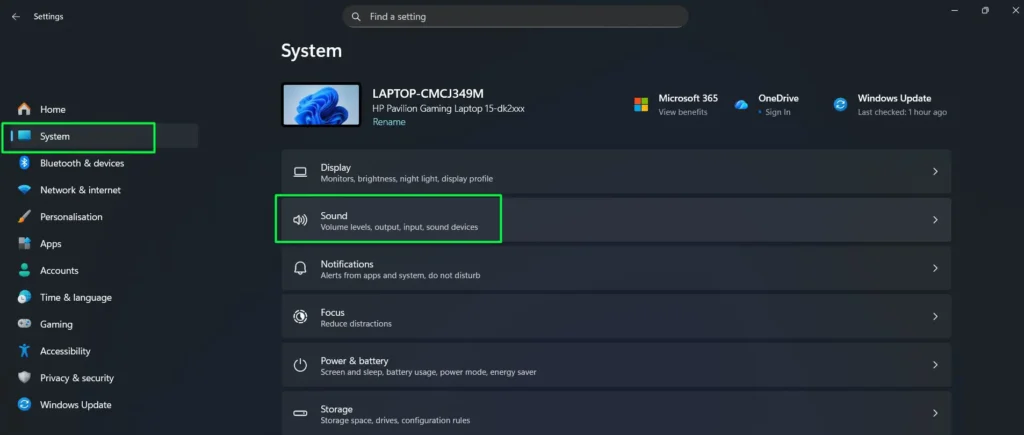
- Under Input, click your microphone to open its properties.
- Click Start test under Microphone test and speak for 10 to 15 seconds. The input bar should move steadily.
- Open the app that was failing and test the mic inside it. A microphone icon should appear in the system tray while it’s in use.
- In Windows 11, return to Settings > Privacy & security > Microphone. Under Recently used or the desktop apps list, the app should now show a recent access time. That confirms Windows allowed it.
You can also run our free online mic test to check your microphone in the browser. If the Windows test passes but one app still fails, recheck that app’s own audio settings. If the Windows test also fails, see this guide on resolving microphone detection problems.
Frequently Asked Questions
How do I fix microphone privacy settings in Windows 11?
Go to Settings > Privacy & security > Microphone and turn on Microphone access, Let apps access your microphone, and Let desktop apps access your microphone. Then turn on the app you need in the list and relaunch it.
Why do my microphone privacy settings reset after Windows updates?
Settings that turn off again are usually reapplied by a privacy tool, security software, or a work or school management policy. If it started after an update, check all three microphone switches again and review your privacy and security apps.
What causes microphone privacy toggles to be greyed out?
A policy is controlling microphone access. On a work PC, IT sets it and you need to contact them. On a personal PC, a privacy tool usually applied it. Undo it in that tool, set the Let Windows apps access the microphone policy to Not Configured, or delete the LetAppsAccessMicrophone registry value, then restart.
What does ‘Some settings are managed by your organization’ mean?
It means Group Policy, MDM, or a registry policy is controlling the setting and overriding your changes. On a work or school device, contact IT. On a personal PC, remove the microphone policy with Group Policy or the registry, then restart.
Why does my microphone work in Windows but not in specific apps?
The app may be blocked by its own permission switch, set to the wrong input device in its own settings, or locked out because another app has exclusive control of the mic. Check the app’s switch in Windows, select the correct mic inside the app, turn off exclusive mode, and relaunch the app.
Why don’t desktop apps appear in the microphone permissions list?
Desktop apps don’t get individual switches like Microsoft Store apps. They all share the Let desktop apps access your microphone switch. In Windows 11, desktop apps appear under that switch only after they have used the microphone.
Can antivirus software block my microphone even when Windows allows it?
Yes. Some security suites include webcam or microphone protection that works separately from Windows. Open your security app, find its privacy, webcam, or microphone protection settings, and allow the app you need.
Why is my microphone blocked only in Chrome or Edge?
Browsers keep their own microphone permission for each website. Click the icon next to the web address, set Microphone to Allow, and reload. Also make sure Let desktop apps access your microphone is on in Windows, and that the site uses HTTPS.
How do I find which setting is blocking my microphone?
Check the layers in order: hardware mute, the three Windows privacy switches, the app’s own permission and input settings, browser site permissions, Group Policy, the registry, and finally security software. Each layer is separate, so one can block the mic while the others look fine.