
Sony WH-1000XM5 noise cancelling not working can be a frustrating experience, especially when these headphones are built to deliver one of the best active noise cancellation (ANC) experiences on the market. Whether the ANC suddenly stopped, sounds weaker than usual, or simply feels off – there are clear, proven fixes that work. This guide walks through each solution in a straightforward, step-by-step format so the issue gets resolved as quickly as possible.
Quick Summary Table
| Fix | Best For | Difficulty |
|---|---|---|
| Check ANC is enabled | ANC appears off | Easy |
| Clean the microphones | Weak or inconsistent ANC | Easy |
| Disable Adaptive Sound Control | ANC keeps switching modes | Easy |
| Run Precise Voice Pick Up check | ANC drops or glitches | Easy |
| Update firmware | Bug-related ANC issues | Moderate |
| Re-pair Bluetooth | ANC issues after device switch | Moderate |
| Factory reset | Persistent ANC failure | Moderate |
Fix 1: Make Sure Noise Cancelling is Actually Turned On
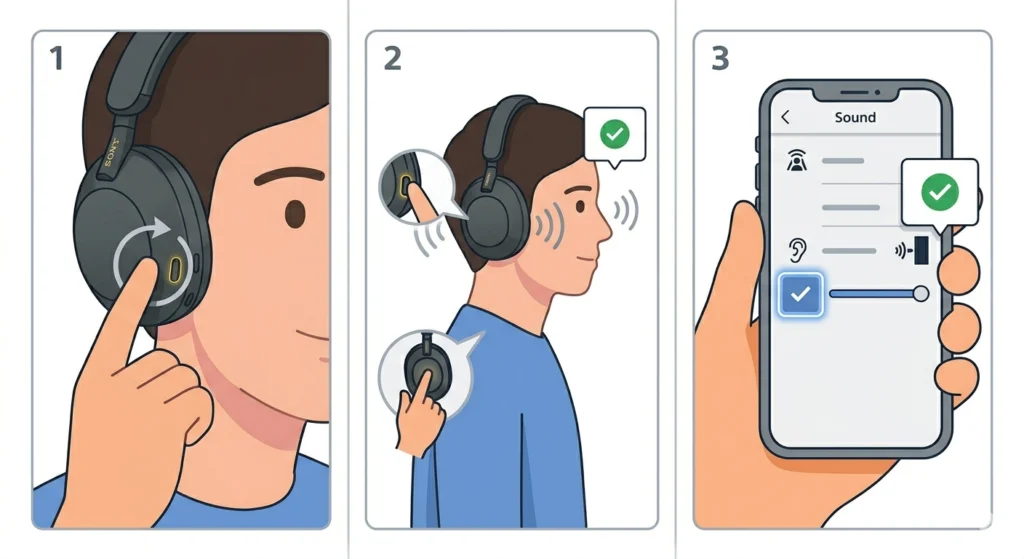
This sounds obvious, but it is the most common reason the WH-1000XM5 ANC feels like it is not working. The headphones have three listening modes – Noise Cancelling, Ambient Sound, and off. It is easy to accidentally cycle to the wrong mode, especially when pressing the NC/Ambient button quickly.
- Step 1: Press the NC/Ambient button on the left earcup once. The headphones will announce the current mode out loud.
- Step 2: Listen for ‘Noise Cancelling’ in the voice prompt. If it says ‘Ambient Sound’ or nothing, press again until it confirms ‘Noise Cancelling’.
- Step 3: Alternatively, open the Sony Headphones Connect app, go to ‘Sound’ and confirm that the slider is set to ‘Noise Cancelling’.
If the ANC level feels low even when enabled, check that the ANC slider in the app is pushed all the way to maximum.
Fix 2: Clean the Noise Cancelling Microphones
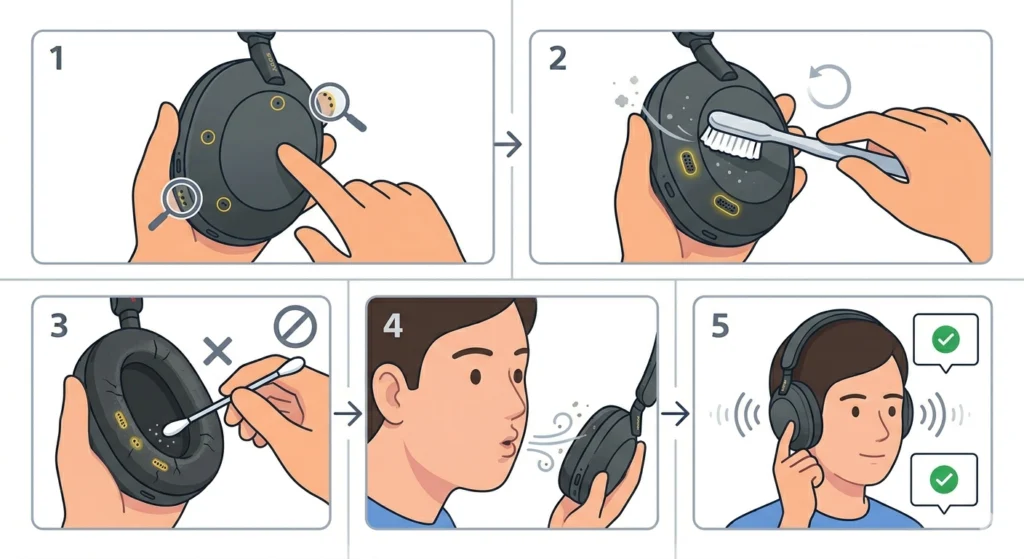
The WH-1000XM5 uses microphones on both earcups to detect and cancel ambient sound. If those mics are blocked by dirt, earwax, or debris, ANC performance drops significantly – sometimes to the point where it feels like it is completely off.
- Step 1: Locate the small microphone ports on the outer and inner surfaces of each earcup. There are multiple – look for tiny pinhole openings.
- Step 2: Use a soft, dry toothbrush or a clean, dry cotton swab to gently brush away any visible debris around the mic holes.
- Step 3: Do not insert anything into the holes. Just brush lightly across the surface.
- Step 4: Blow gently across the mic ports to dislodge any remaining dust.
- Step 5: Put the headphones back on and test ANC again.
This fix is particularly effective for users who store headphones in bags without a case, or who use them in dusty environments.
Fix 3: Turn Off Adaptive Sound Control
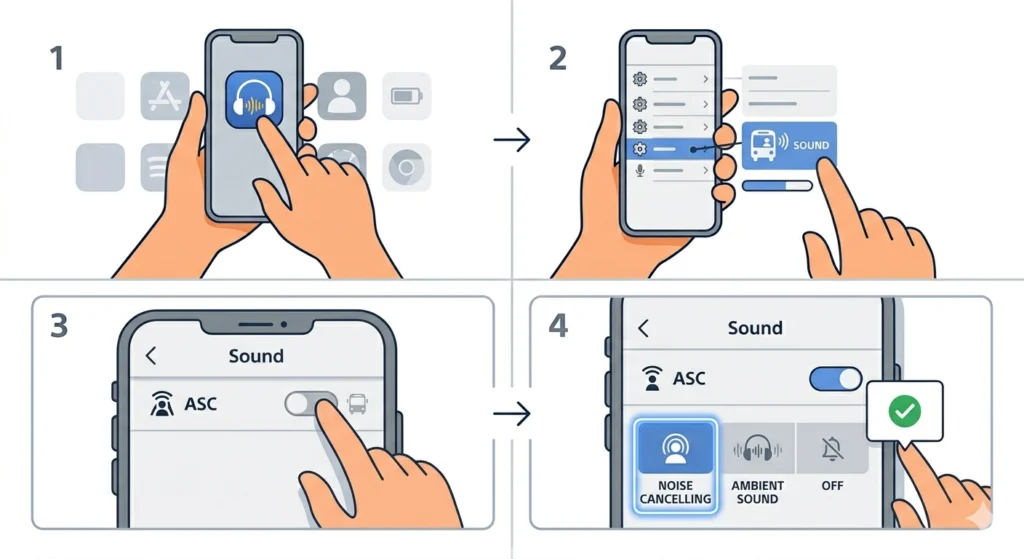
Adaptive Sound Control (ASC) is a feature that automatically adjusts the listening mode based on what the headphones think the user is doing – sitting, walking, running, or on transport. The problem is that ASC can override the manually selected Noise Cancelling mode, making it seem like ANC randomly stops working.
- Step 1: Open the Sony Headphones Connect app on a smartphone.
- Step 2: Tap on ‘Sound Control’ or ‘Adaptive Sound Control’.
- Step 3: Toggle ‘Adaptive Sound Control’ to OFF.
- Step 4: Manually set the mode to ‘Noise Cancelling’ and confirm the setting is saved.
After disabling ASC, the headphones will stay in whichever mode was last manually selected. Most people find this gives far more consistent ANC performance.
Fix 4: Check the Fit and Ear Cushion Seal
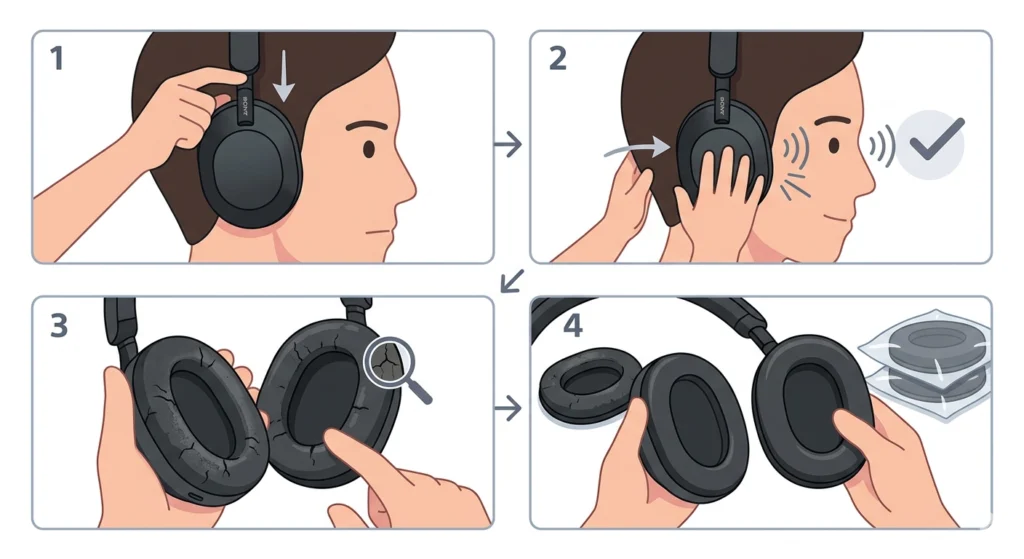
ANC relies on a physical seal around the ears as much as it relies on electronics. If the earcup cushions are not sealing properly against the head, ambient noise leaks in and the noise cancelling effect feels weak – even when it is technically working perfectly.
- Step 1: Adjust the headband so the earcups sit centered over each ear.
- Step 2: Press the earcups gently against the ears and notice if ANC immediately sounds stronger – if yes, the fit seal is the issue.
- Step 3: Check the ear cushions for wear. Cracked or flattened cushions lose their sealing ability over time.
- Step 4: If the cushions are worn, consider replacing them with Sony-compatible XM5 ear pads.
Glasses wearers often notice reduced ANC effectiveness because the frames break the seal. Repositioning the headphones slightly can help minimize this gap.
Fix 5: Run the Precise Voice Pick Up Microphone Check
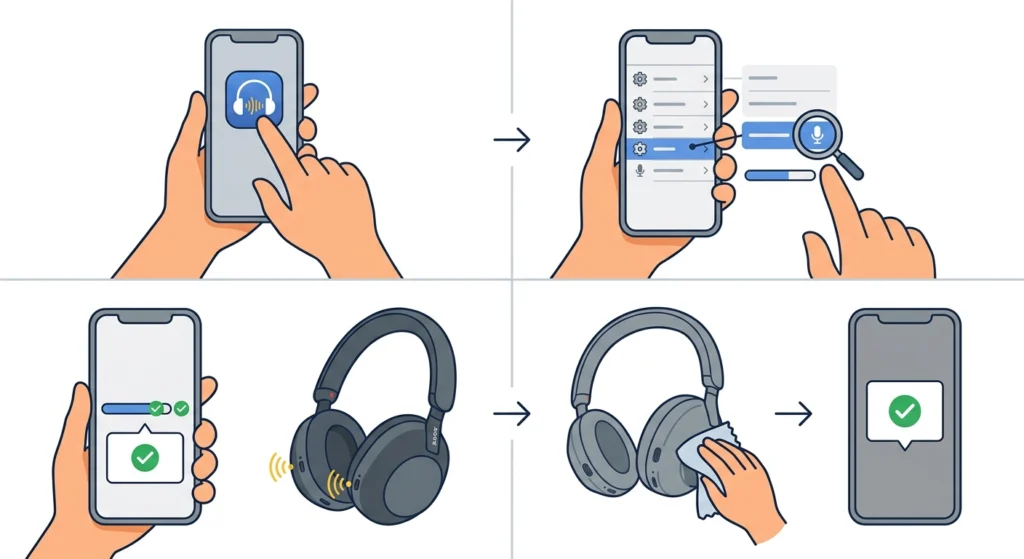
Sony includes a microphone monitoring feature that checks if the mics are picking up sound properly. A failed mic check can explain why ANC is underperforming. This is available in newer firmware versions of the XM5.
- Step 1: Open the Sony Headphones Connect app.
- Step 2: Navigate to ‘System’ then look for ‘Precise Voice Pick Up’ or microphone diagnostics.
- Step 3: Follow the on-screen prompts to complete the microphone check.
- Step 4: If the app flags a mic issue, try cleaning the mics (Fix 2) and re-running the check.
Fix 6: Update the Headphone Firmware
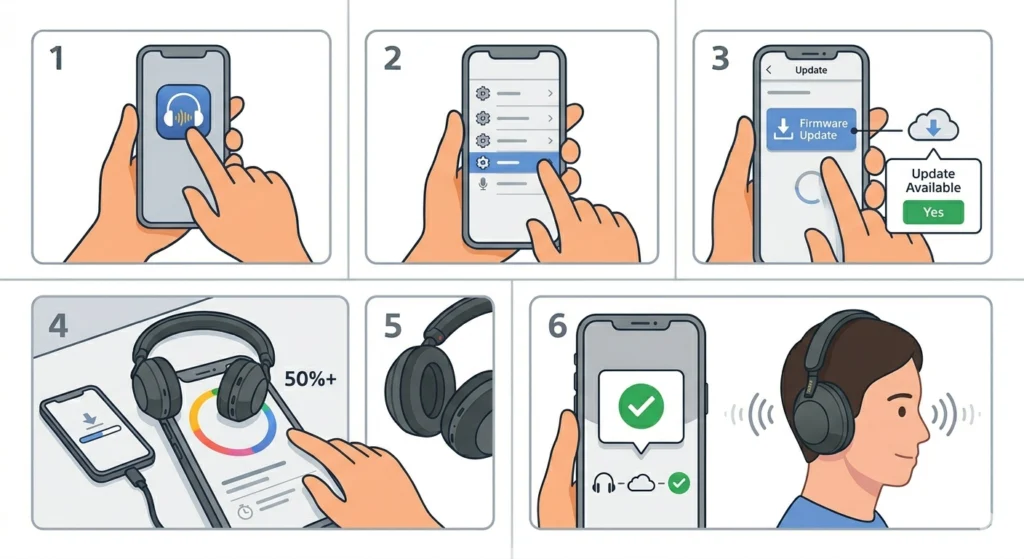
Sony regularly releases firmware updates that fix ANC bugs, improve performance, and address microphone calibration issues. Running outdated firmware is a known cause of inconsistent noise cancellation on the WH-1000XM5.
- Step 1: Open the Sony Headphones Connect app.
- Step 2: Tap the gear icon or go to ‘System’.
- Step 3: Tap ‘Firmware Update’ and check if an update is available.
- Step 4: If an update is available, keep the headphones connected and charged above 50% before starting.
- Step 5: Follow the prompts to install the update. Do not turn off the headphones or the phone during the update.
- Step 6: After the update completes, test ANC again.
Pro-Tip: Always check for firmware updates first when ANC suddenly gets worse after a period of working fine. Sony has patched ANC performance issues through firmware on the XM5 multiple times. Keeping the app updated ensures automatic update notifications are received.
Fix 7: Re-Pair the Headphones via Bluetooth
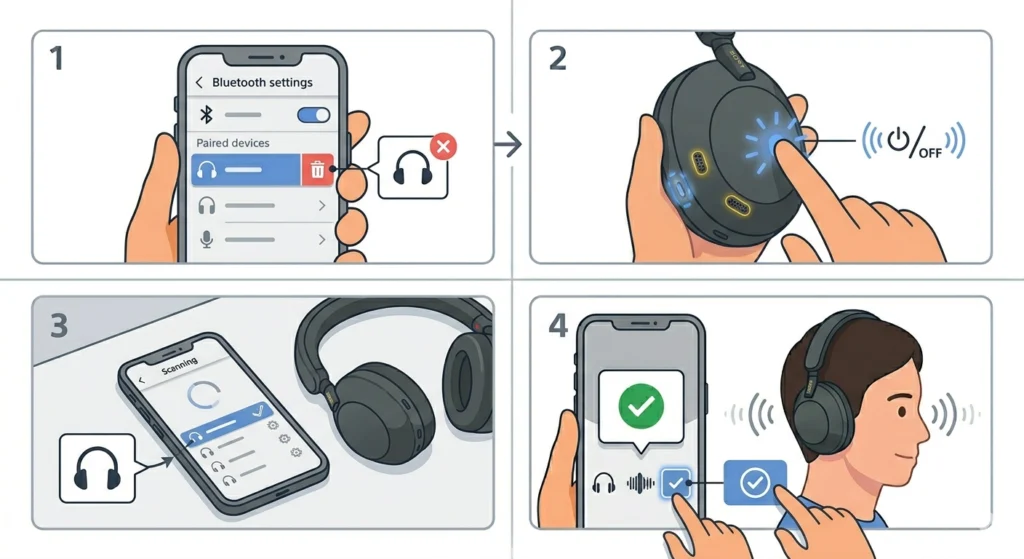
Bluetooth connection issues can sometimes interfere with how audio processing features like ANC communicate between the headphones and the connected device. Re-pairing creates a clean connection and often resolves ANC anomalies that appeared after switching devices or after a software update on the phone.
- Step 1: On the connected device, go to Bluetooth settings and forget or unpair the WH-1000XM5.
- Step 2: On the headphones, press and hold the power button for about 7 seconds until the blue indicator flashes rapidly – this enters pairing mode.
- Step 3: On the device, scan for Bluetooth devices and select ‘WH-1000XM5’ from the list.
- Step 4: Once paired, open the Headphones Connect app and confirm ANC settings are properly configured.
For Windows users who experience ANC anomalies specifically when connected to a PC, reviewing the guide on how to re-pair Bluetooth audio for stereo sound on Windows can also help ensure the audio output is properly configured after re-pairing.
Fix 8: Factory Reset the WH-1000XM5
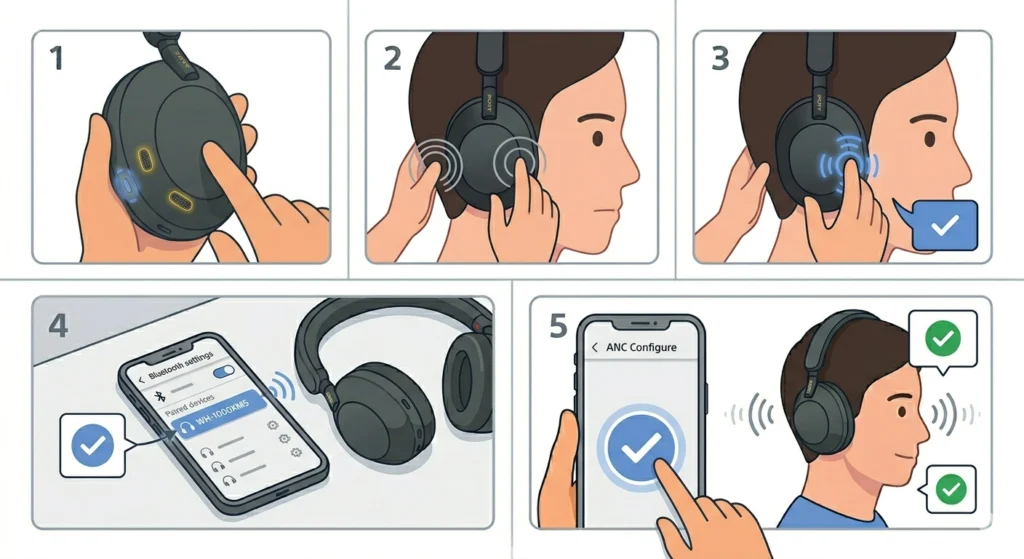
A factory reset clears all paired devices, custom settings, and any corrupted configuration data that might be causing ANC to malfunction. This is the most reliable fix when all other steps have failed.
- Step 1: Turn off the headphones completely.
- Step 2: Press and hold the NC/Ambient button and the power button simultaneously for about 7 seconds.
- Step 3: Release when the LED indicator flashes blue four times and a voice prompt confirms the reset.
- Step 4: Re-pair the headphones to the device (see Fix 7).
- Step 5: Reconfigure ANC settings and test.
Pro-Tip: Before resetting, take note of any custom ANC or equalizer settings saved in the Sony Headphones Connect app. A factory reset wipes these, so they will need to be reconfigured afterward.
Tips for Keeping WH-1000XM5 Noise Cancelling at Peak Performance
- Store the headphones in their case when not in use to protect the microphone ports from dust and debris.
- Avoid exposing the earcup mesh to heavy moisture – sweat and rain can affect mic performance over time.
- Check for firmware updates monthly through the Sony Headphones Connect app.
- If using the headphones with multiple devices, use the Sony app on the primary device for ANC configuration.
- Replace ear cushions every 1-2 years for consistent ANC seal performance.
- Restart the connected device periodically – a fresh Bluetooth stack on the phone or PC can improve ANC stability.
Common Problems and Troubleshooting
ANC Works on Phone But Not on PC
This is usually a Bluetooth audio profile issue. When connected to a PC, the headphones may default to a hands-free audio profile that limits audio quality and ANC performance. Check the Bluetooth settings on the PC and ensure the device is connected using the ‘Stereo’ or ‘Advanced Audio’ profile. If audio settings on Windows are causing confusion, reviewing how to manage audio output settings on Windows 11 can help clarify the correct configuration.
ANC Makes a Hissing or Static Sound
A low hissing sound during ANC is normal to some degree – it is called noise floor and all ANC headphones produce it. However, if the hiss is loud or distracting, try lowering the ANC level slider slightly in the Sony app. A firmware update can also reduce excessive hiss on affected units.
ANC Cuts In and Out
Intermittent ANC is often caused by Adaptive Sound Control switching modes. Disabling ASC (Fix 3) typically resolves this. If it continues after disabling ASC, a factory reset (Fix 8) is the next step.
ANC Does Not Block Low-Frequency Sounds Anymore
The WH-1000XM5 is designed to cancel low and mid-frequency sounds. If bass rumbles like engine noise are suddenly getting through more than before, check the ear cushion seal (Fix 4) and clean the microphones (Fix 2). A firmware update or reset may also recalibrate the ANC algorithm.
ANC is Weaker in One Ear
If noise cancellation sounds stronger on one side, one of the earcup microphones may be blocked or damaged. Clean both earcups thoroughly and re-test. If the issue persists, the unit may need service through Sony support.
Frequently Asked Questions
Why did my Sony WH-1000XM5 noise cancelling suddenly stop working?
The most common reasons include the ANC mode being accidentally switched off, a firmware bug, a Bluetooth connection issue, or blocked microphone ports. Working through the fixes in this guide – starting with checking the ANC mode and cleaning the mics – resolves the issue in most cases.
Does the Sony Headphones Connect app affect noise cancelling performance?
Yes. The app controls ANC level, Adaptive Sound Control, and firmware updates. If the app is outdated or misconfigured, ANC may underperform. Always use the latest version of the Sony Headphones Connect app for the best results.
Can a firmware update fix noise cancelling issues on the WH-1000XM5?
Absolutely. Sony has released multiple firmware updates specifically addressing ANC performance and microphone calibration on the XM5. If ANC degraded after working well previously, a firmware update is one of the first fixes to try.
How do I know if my WH-1000XM5 microphones are damaged?
Signs of damaged ANC microphones include significantly weaker noise cancellation on one side, persistent hissing or distortion during ANC, or ANC that does not improve after cleaning, firmware updates, and resetting. If these symptoms continue, contacting Sony support for a repair or replacement is recommended.
Will resetting the WH-1000XM5 delete my paired devices?
Yes, a factory reset erases all paired Bluetooth devices and custom settings. After resetting, the headphones need to be re-paired to any devices and ANC preferences need to be reconfigured in the Sony Headphones Connect app.
Does wearing glasses reduce ANC effectiveness on the WH-1000XM5?
It can. Eyeglass frames break the seal between the earcups and the head, allowing ambient sound to leak in. This reduces the effectiveness of passive noise isolation, which works alongside ANC. Repositioning the headphones or using thinner-frame glasses can help minimize this effect.
Why does ANC on my WH-1000XM5 sound different in different environments?
The WH-1000XM5 ANC is optimized for consistent low-to-mid frequency noise cancellation, but its effectiveness varies with noise type. Wind noise, for example, can cause ANC to produce pressure sensations or sound worse because the mics pick up turbulence. Moving indoors or away from wind typically restores normal ANC performance.
Is it normal for the WH-1000XM5 to make a pressure feeling in the ears during ANC?
Some users feel a subtle pressure sensation when ANC is active – this is a normal side effect of active noise cancellation technology. It should not be uncomfortable. If the feeling is severe, try lowering the ANC level in the Sony Headphones Connect app, as maximum ANC can feel more intense in very quiet environments.
Can I use the WH-1000XM5 ANC without a Bluetooth connection?
Yes. The WH-1000XM5 supports ANC in wired mode using the included 3.5mm cable, as long as the headphones are powered on. ANC can also be active during wireless use without audio playing – useful for blocking noise in quiet environments.
When should the WH-1000XM5 be sent in for repair?
If ANC remains significantly weaker than expected after completing all the fixes in this guide – including a factory reset and firmware update – the unit likely has a hardware issue such as a faulty microphone. In this case, contacting Sony support or visiting an authorized service center is the appropriate next step.