

Sony WF-1000XM5 not charging in case is one of the most frustrating issues users run into – especially right before a commute or a long flight. The good news is that this problem is almost always fixable at home without sending the earbuds in for repair. Most of the time, it comes down to dirty contacts, a firmware glitch, or a simple reset. This guide walks through every proven fix, step by step.
Key Takeaways
- Dirty charging contacts are the most common cause – always clean them first
- A manual reset clears most firmware-related charging bugs
- The case itself needs to be charged too – check it independently
- Proper earbud seating inside the case is critical for charging to start
- Sony Headphones Connect app can run diagnostics and firmware updates
- If nothing works, Sony’s warranty covers manufacturing defects
How to Fix Sony WF-1000XM5 Not Charging in Case
Fix 1: Clean the Charging Contacts on the Earbuds and Case
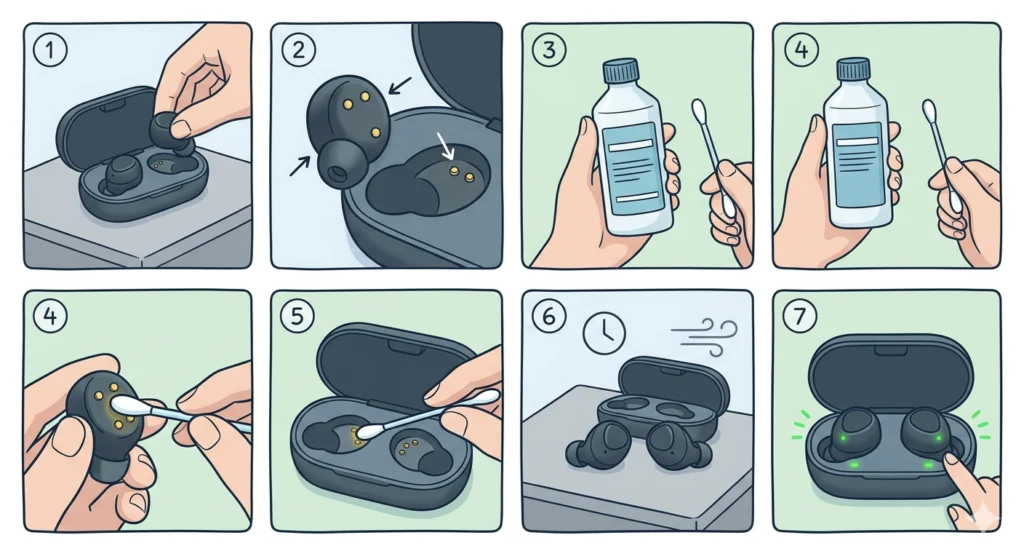
This is the first thing to check and the most effective fix for the majority of charging failures. Sweat, earwax, dust, and skin oils build up on the small gold charging pins over time. Even a thin invisible layer can break the electrical connection completely.
- Step 1: Take both earbuds out of the case and set them aside on a clean surface.
- Step 2: Look at the small gold pins on the bottom of each earbud and the matching contacts inside the case charging slots.
- Step 3: Dampen a cotton swab very lightly with isopropyl alcohol (70% or higher works best).
- Step 4: Gently wipe each gold contact pin on the earbuds. Use a circular motion and apply light pressure.
- Step 5: Use a fresh cotton swab to clean the contacts inside the case charging slots the same way.
- Step 6: Let everything air dry for at least two minutes before placing the earbuds back in the case.
- Step 7: Check if the charging indicator lights turn on when the earbuds are seated.
The key is to be gentle here. The gold contacts are small and can scratch if too much force is used. A dry microfiber cloth works if isopropyl alcohol is not available, though it is less effective at cutting through oils.
Pro-Tip: Make contact cleaning a monthly habit. It takes under two minutes and prevents most charging failures before they start. Keep a small pack of isopropyl wipes in the same drawer as the case.
Fix 2: Check and Charge the Case Itself
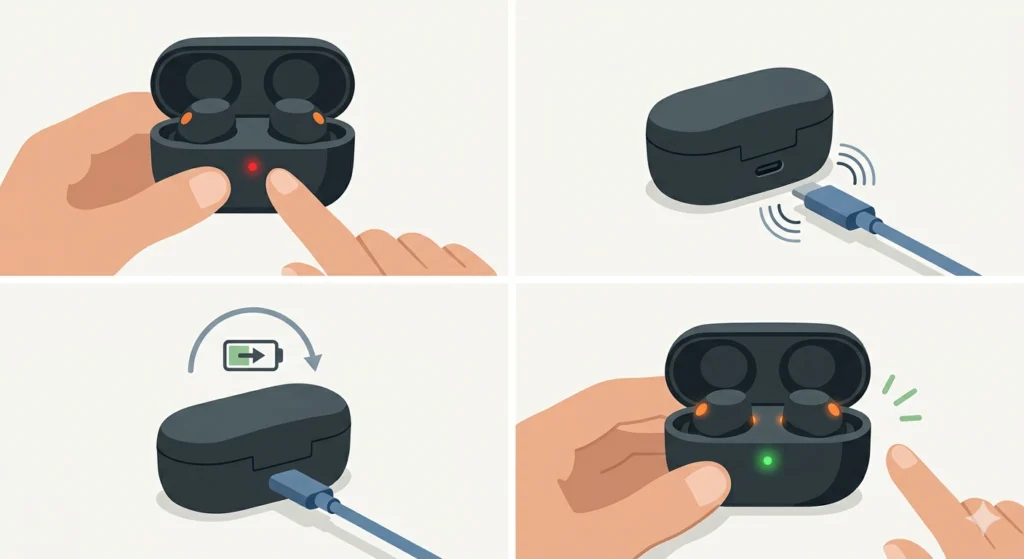
The WF-1000XM5 case has its own internal battery – if that battery is drained, the case cannot charge the earbuds no matter how clean the contacts are. This is an easy step that gets overlooked surprisingly often.
- Step 1: Open the case and check the LED indicator on the front. A red or no-light status means the case battery is low or dead.
- Step 2: Connect the case to power using the included USB-C cable. Make sure the cable clicks in firmly on both ends.
- Step 3: Let the case charge for at least 15 to 20 minutes with the earbuds inside.
- Step 4: After charging, check whether the earbuds are now receiving charge from the case.
Try a different USB-C cable and a different power adapter if the case does not seem to be charging. Wall adapters rated at 5V/1A or higher are recommended. Some low-quality USB hubs do not deliver enough power to charge the case reliably.
Fix 3: Reseat the Earbuds Correctly in the Case
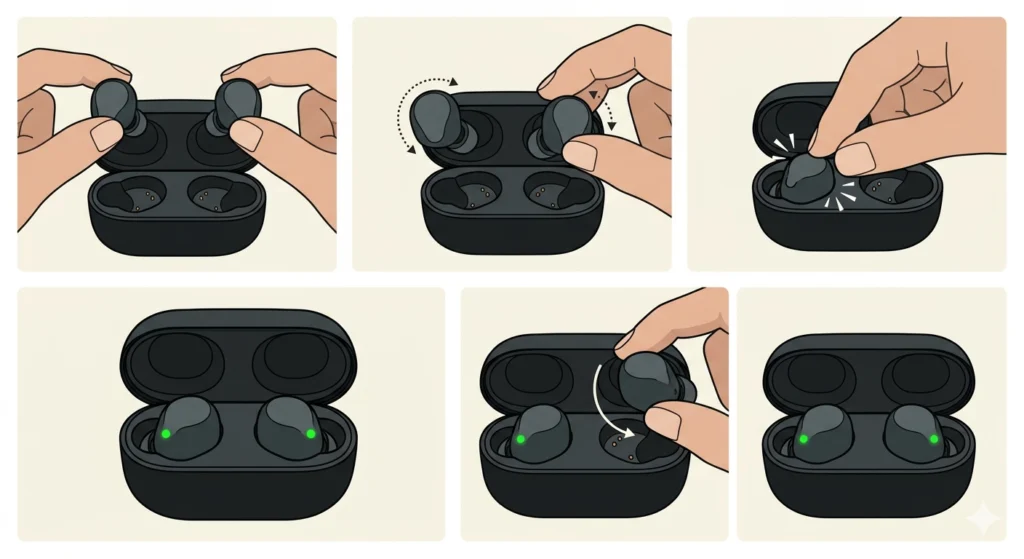
The WF-1000XM5 earbuds have a specific seating position. If either earbud is even slightly misaligned, the charging contacts will not meet properly and no charging will happen. This sounds simple, but the earbuds have an angled shape that can trick users into thinking they are seated when they are not.
- Step 1: Remove both earbuds completely from the case.
- Step 2: Hold each earbud and match its orientation to the shaped slot in the case.
- Step 3: Press each earbud down firmly until a small click or snap is felt or heard.
- Step 4: Check the LED inside the case – each slot should show a light confirming the earbud is seated and charging.
- Step 5: If one earbud shows a light and the other does not, remove the non-charging one, rotate it slightly, and reseat it again.
Most people find that pushing with a little more force than expected is what finally gets the earbuds to seat and connect properly. The case is snug by design.
Fix 4: Reset the Sony WF-1000XM5 Earbuds
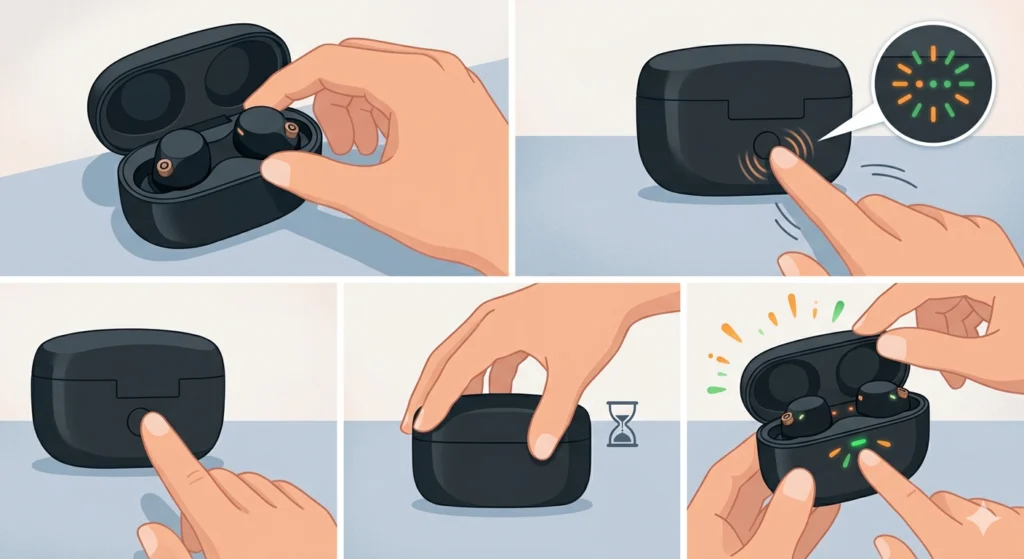
A full factory reset clears any firmware bug, corrupted pairing data, or software glitch that could be preventing the charging system from working correctly. This is different from simply turning the earbuds off.
- Step 1: Place both earbuds in the case and leave the lid open.
- Step 2: Press and hold the button on the back of the case for about seven seconds until the LED on the case flashes several times.
- Step 3: Release the button. The earbuds are now reset to factory settings.
- Step 4: Close the lid and wait 30 seconds.
- Step 5: Open the lid and check whether the charging indicator lights are now active.
After a reset, the earbuds will need to be re-paired with any devices. If the earbuds were previously paired with a phone via the Sony Headphones Connect app, that pairing will also need to be set up again. For users running Windows, a helpful resource on how to re-pair Bluetooth earbuds for stereo sound on Windows can make that process much smoother.
Fix 5: Update Firmware via Sony Headphones Connect App
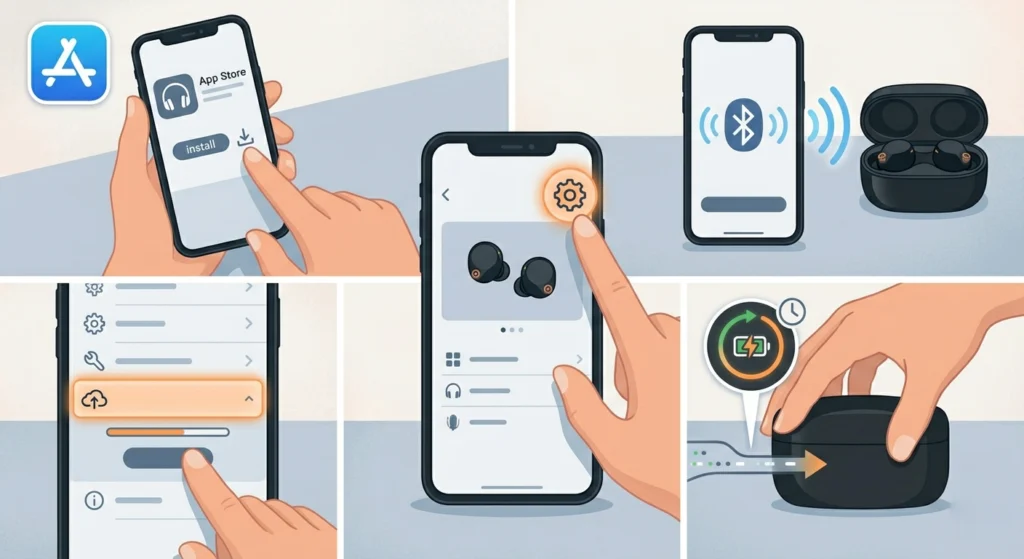
Sony releases firmware updates that fix bugs, improve stability, and sometimes directly address charging behavior. Running an outdated firmware version can cause the earbuds or case to behave unexpectedly.
- Step 1: Download the Sony Headphones Connect app on an Android or iOS device if it is not already installed.
- Step 2: Open the app and pair the WF-1000XM5 earbuds to the phone.
- Step 3: Go to the main device screen and tap the settings gear icon.
- Step 4: Look for a ‘System’ or ‘Firmware Update’ section. If an update is available, follow the on-screen prompts to install it.
- Step 5: Keep the earbuds in the case during the update. Once complete, test charging again.
Pro-Tip: Always keep the earbuds in the case with the lid open during a firmware update. Removing them mid-update can corrupt the firmware and create much bigger problems than a charging issue.
Fix 6: Test with a Different USB-C Cable and Power Source
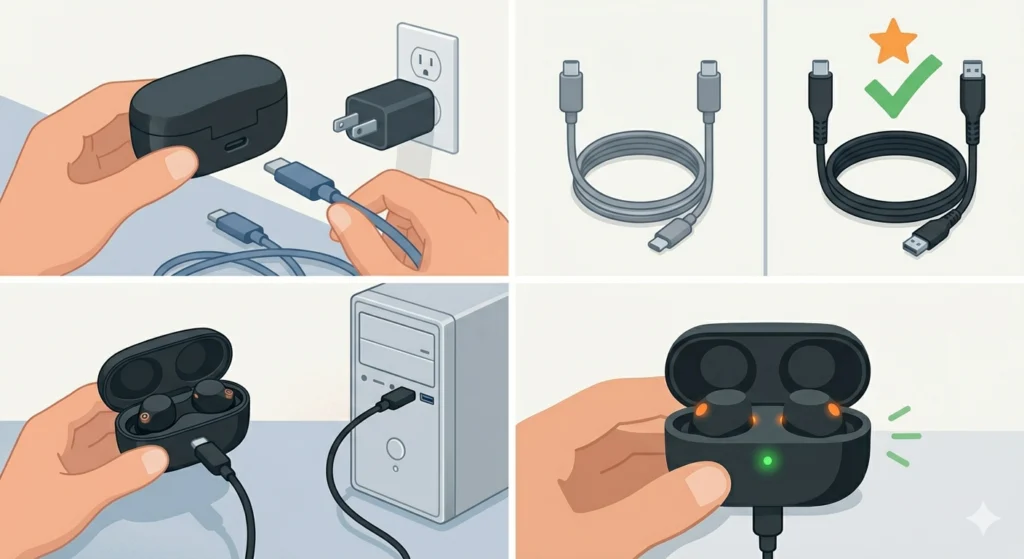
If the case itself is not charging properly, the culprit might be the cable or power adapter rather than the earbuds or case hardware. USB-C cables fail more often than expected, especially braided or cheap third-party cables.
- Step 1: Disconnect the current cable from the case.
- Step 2: Try a different USB-C cable – preferably the original Sony cable or a high-quality certified alternative.
- Step 3: Plug the cable into a different power source. Try a wall adapter instead of a computer USB port, or vice versa.
- Step 4: Check the case LED after plugging in to confirm whether charging has started.
- Step 5: If the case charges normally with a different cable, the original cable is the problem and should be replaced.
Tips for Keeping the WF-1000XM5 Charging Reliably
- Always store earbuds in the case after use – leaving them out in the open drains their battery faster and can expose contacts to more debris
- Avoid charging the case in extremely hot or cold environments – temperatures below 5°C or above 35°C can reduce charging efficiency
- Use the original Sony USB-C cable when possible, or at least a USB-IF certified cable
- Do not leave earbuds in the case for weeks without checking charge levels – lithium batteries stored at very low charge for extended periods can degrade
- Keep the case away from keys, coins, or metal objects in a bag – metal debris can scratch or bridge the charging contacts inside
- Check for firmware updates once a month through the Sony Headphones Connect app
Common Problems That Mimic a Charging Issue
Only One Earbud Charges
This almost always points to a contact alignment issue with the non-charging earbud. Remove it, clean its contact pins specifically, and reseat it with firm downward pressure. If the problem persists after cleaning and reseating, try the reset process for that specific earbud by holding the touchpad for 10 seconds while it is out of the case.
Earbuds Charge Slowly or Inconsistently
Slow or inconsistent charging is often caused by a weak power source. USB ports on laptops or older chargers may not supply enough consistent current. Switching to a dedicated wall adapter with at least 5V/1A output typically solves this. A partially clogged USB-C port on the case can also slow charging – inspect it with a flashlight and gently clear any debris with a toothpick.
Case LED Does Not Light Up When Plugged In
If the case shows no LED response at all when connected to power, the cable or adapter is usually the cause. Test with a known-working cable first. If the case still shows nothing after trying multiple cables and adapters, the case battery may be fully depleted and needs 30 to 60 minutes of charging before the LED becomes active again. In rare cases, the case itself may have a hardware fault.
Earbuds Drain Even When Stored in the Case
This happens when the case battery is depleted and cannot supply power, or when earbuds are not seated properly and remain in active searching mode. Always confirm the earbuds are fully seated (LED confirmation), and always ensure the case has adequate charge before storing for extended periods. Users who also experience audio output issues after charging may find the guide on adjusting audio output settings helpful when getting the earbuds reconnected.
Frequently Asked Questions
Why are my Sony WF-1000XM5 earbuds not charging in the case?
The most common reasons are dirty charging contacts, a depleted case battery, improper earbud seating, or a firmware glitch. Start by cleaning the gold contact pins on both the earbuds and inside the case with isopropyl alcohol on a cotton swab, then check that the case itself has charge and that the earbuds click firmly into their slots.
How do I reset the Sony WF-1000XM5 to fix charging issues?
Place both earbuds in the open case, then press and hold the button on the back of the case for approximately seven seconds until the LED flashes multiple times. Release the button and close the lid for 30 seconds. This resets both earbuds and the case to factory settings and often resolves charging bugs caused by firmware glitches.
How long does it take for the WF-1000XM5 case to fully charge?
The charging case for the WF-1000XM5 takes approximately 3.5 hours to fully charge via USB-C. The earbuds themselves charge fully within the case in about 1.5 hours. A quick 10-minute charge in the case provides around 60 minutes of playback time.
Can I charge the Sony WF-1000XM5 wirelessly?
Yes, the WF-1000XM5 charging case supports Qi wireless charging. Place the case flat on a Qi-compatible wireless charger with the USB-C port facing away. The LED will indicate charging has started. Wireless charging is slightly slower than wired charging but is fully supported by Sony.
Why does only one of my WF-1000XM5 earbuds charge?
This is almost always a contact alignment or debris issue with the non-charging earbud. Remove that earbud, clean its charging pins with isopropyl alcohol, and reseat it firmly into the case slot. If it still does not charge, try resetting just that earbud by holding its touchpad for 10 seconds while it is outside the case.
How do I know if the WF-1000XM5 earbuds are charging in the case?
When earbuds are correctly seated and charging, the LED indicator inside the case will illuminate – orange typically indicates charging in progress, and green or white indicates a full or near-full charge depending on the firmware version. The case LED on the outside also indicates the overall case battery level.
Is it safe to use a third-party USB-C cable to charge the WF-1000XM5 case?
Yes, any USB-C cable that meets the USB-IF standard and supports at least 5V/1A is safe to use with the WF-1000XM5 case. However, cheap uncertified cables can deliver inconsistent power or fail entirely. Using a certified cable from a reputable brand is always the safer option for reliable charging.
What should I do if the case itself is not charging?
First, try a different USB-C cable and a different power adapter. Inspect the USB-C port on the case for lint or debris and clear it gently if needed. If the case battery is completely empty, it may take 15 to 30 minutes before the LED turns on. If none of this works, the case may have a hardware fault and Sony support should be contacted.
Will a factory reset delete my equalizer settings on the WF-1000XM5?
Yes, a factory reset will clear all customized settings including equalizer presets, touch control configurations, and adaptive sound control preferences. These will need to be reconfigured through the Sony Headphones Connect app after the reset and re-pairing process is complete.
When should I contact Sony support for charging issues?
Contact Sony support if the earbuds or case still do not charge after cleaning the contacts, resetting the earbuds, updating firmware, and testing with a different cable and adapter. Sony’s warranty covers manufacturing defects for one year from purchase. If the unit is still within warranty, Sony will typically repair or replace it at no cost.