
OnePlus Buds 3 not pairing to a phone is one of the most frustrating issues users run into – especially when the fix is simpler than expected. Whether the buds refuse to show up in Bluetooth settings, keep disconnecting mid-connection, or just spin endlessly without connecting, this guide walks through every proven fix, step by step. No filler, no fluff – just what actually works.
Quick Summary Table
- Most Common Cause: Buds not in pairing mode or Bluetooth cache issues on the phone
- Fastest Fix: Reset the OnePlus Buds 3 by placing them in the case, closing the lid for 10 seconds, then reopening
- Works For: Android, iPhone, Windows, and other Bluetooth-enabled devices
- Time to Fix: Most users resolve this in under 5 minutes
- Key Tools Needed: The charging case, a phone with Bluetooth enabled, and optionally the HeyMelody app
Fix OnePlus Buds 3 Pairing Issues: Step-by-Step Guide
Fix 1: Put the Buds Into Pairing Mode Correctly
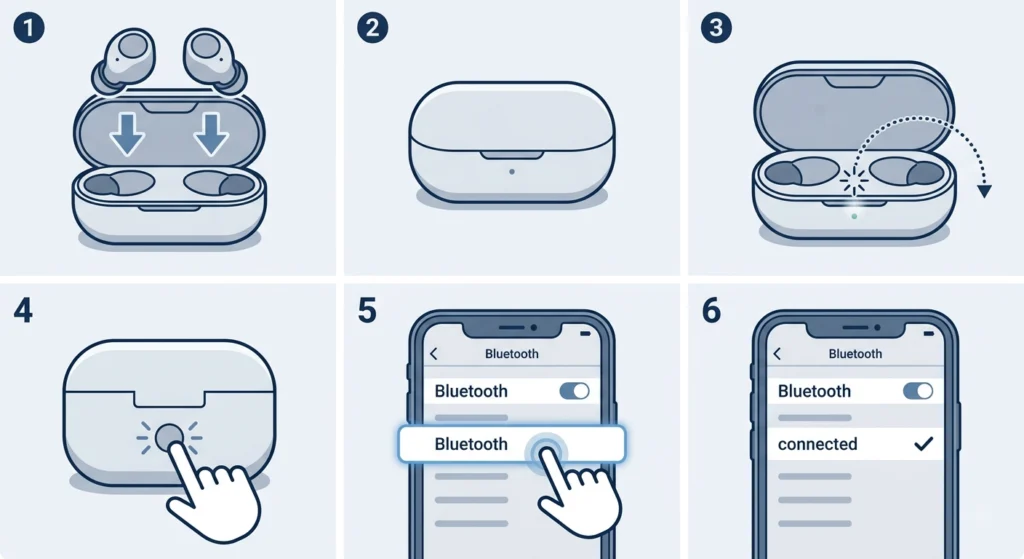
This sounds basic, but most pairing failures happen because the buds are not actually in pairing mode. Just opening the case is not always enough if the buds have already been paired to another device before.
- Step 1: Place both earbuds inside the charging case.
- Step 2: Close the lid completely and wait 10 seconds.
- Step 3: Open the lid – the LED should flash white, indicating the buds are ready to pair.
- Step 4: If the LED does not flash, press and hold the button on the back of the case for about 3 seconds until the light blinks.
- Step 5: On the phone, open Bluetooth settings and look for ‘OnePlus Buds 3’ in the available devices list.
- Step 6: Tap to connect.
The key is making sure the case LED is actively blinking white before attempting to pair. A solid white light means they are connected somewhere else already.
Fix 2: Remove Old Pairing Data and Re-Pair from Scratch
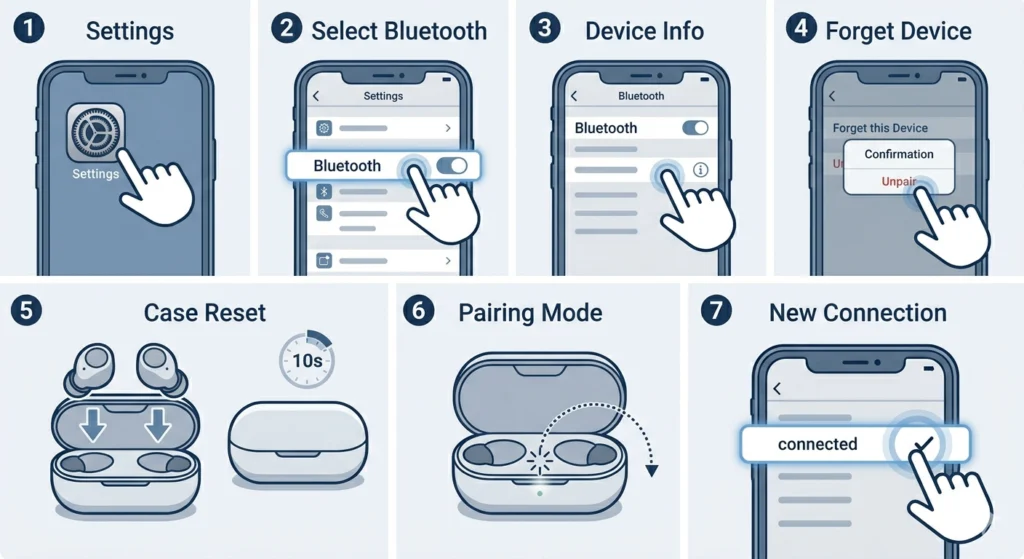
If the buds have been paired before – whether to the same phone or another device – leftover Bluetooth data can block a clean connection. Clearing that pairing history almost always solves stubborn ‘not connecting’ issues.
- Step 1: On the phone, go to Settings > Bluetooth.
- Step 2: Find ‘OnePlus Buds 3’ in the paired devices list.
- Step 3: Tap the gear icon or info button next to the name.
- Step 4: Select Forget or Unpair and confirm.
- Step 5: Now place the buds back in the case, close it, and reopen after 10 seconds.
- Step 6: Put the buds into pairing mode (see Fix 1 above).
- Step 7: Search for the buds in Bluetooth settings and pair fresh.
This works best when the device shows the buds as ‘paired’ but still fails to connect. That state almost always means corrupted pairing data on either the phone or the buds.
Fix 3: Reset the OnePlus Buds 3 to Factory Settings
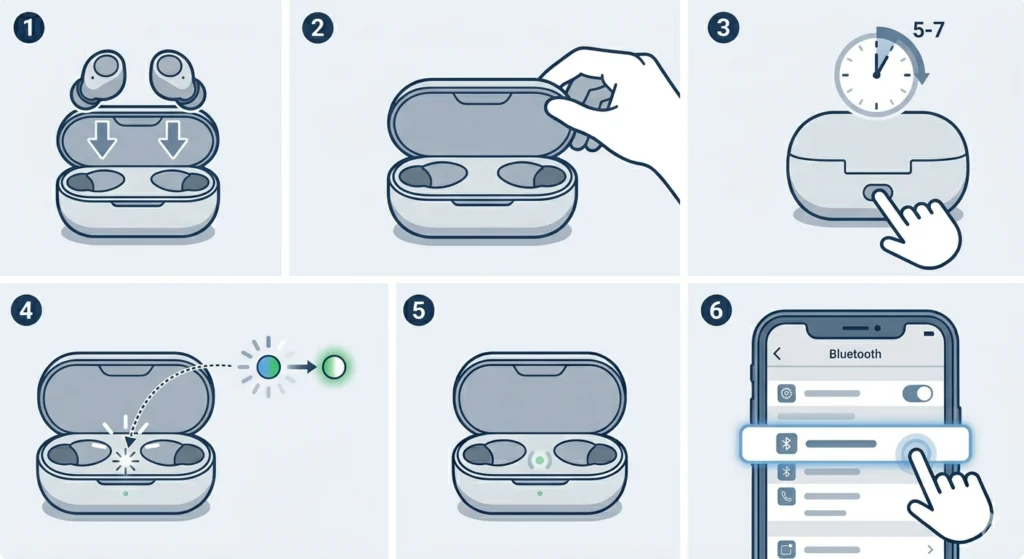
A full reset wipes all previously paired devices from the buds’ memory and restores them to factory state. This is the most reliable fix when nothing else works – and it takes less than a minute.
- Step 1: Place both buds inside the charging case.
- Step 2: Keep the lid open.
- Step 3: Press and hold the button on the back of the charging case for about 5-7 seconds.
- Step 4: Wait for the LED to flash a sequence – usually white blinks followed by a color change – confirming the reset is complete.
- Step 5: The buds will automatically enter pairing mode after the reset.
- Step 6: On the phone, open Bluetooth and connect to ‘OnePlus Buds 3’.
Pro-Tip: After a factory reset, also forget the buds from the phone’s Bluetooth list before reconnecting. This double-clear ensures no ghost data from either side causes another pairing failure.
Fix 4: Clear Bluetooth Cache on Android
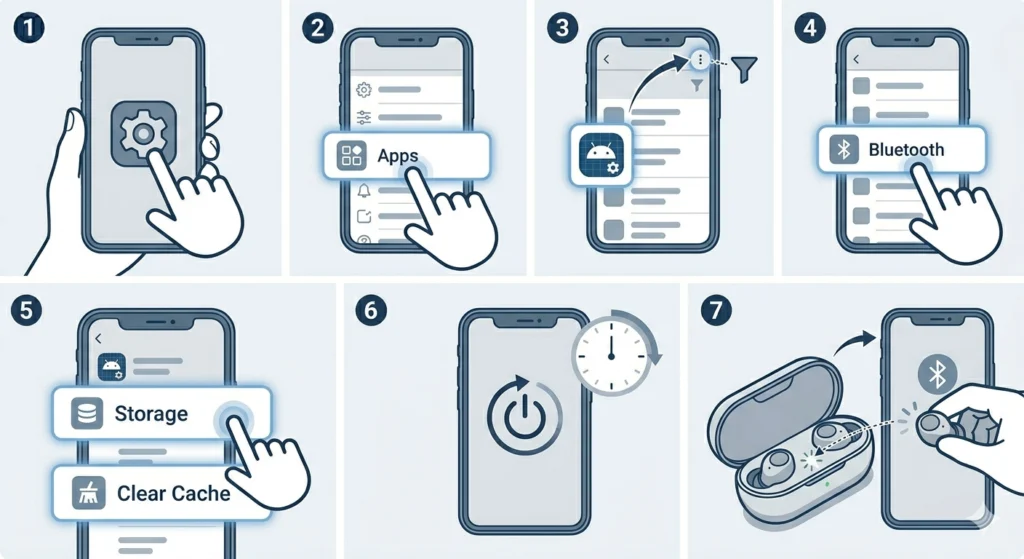
Android phones accumulate Bluetooth cache data over time, and this can interfere with pairing new or previously connected devices. Clearing this cache does not delete any settings – it just refreshes the Bluetooth system on the phone.
- Step 1: Open Settings on the Android phone.
- Step 2: Go to Apps or Application Manager.
- Step 3: Tap the three-dot menu or filter option and select Show System Apps.
- Step 4: Scroll down and find Bluetooth or Bluetooth MIDI Service.
- Step 5: Tap Storage and then tap Clear Cache.
- Step 6: Restart the phone.
- Step 7: Try pairing the OnePlus Buds 3 again.
Most people find this step unnecessary unless the phone has been struggling to pair with multiple Bluetooth devices recently. But when standard fixes do not work, this is often the hidden culprit.
Fix 5: Toggle Airplane Mode to Refresh Bluetooth
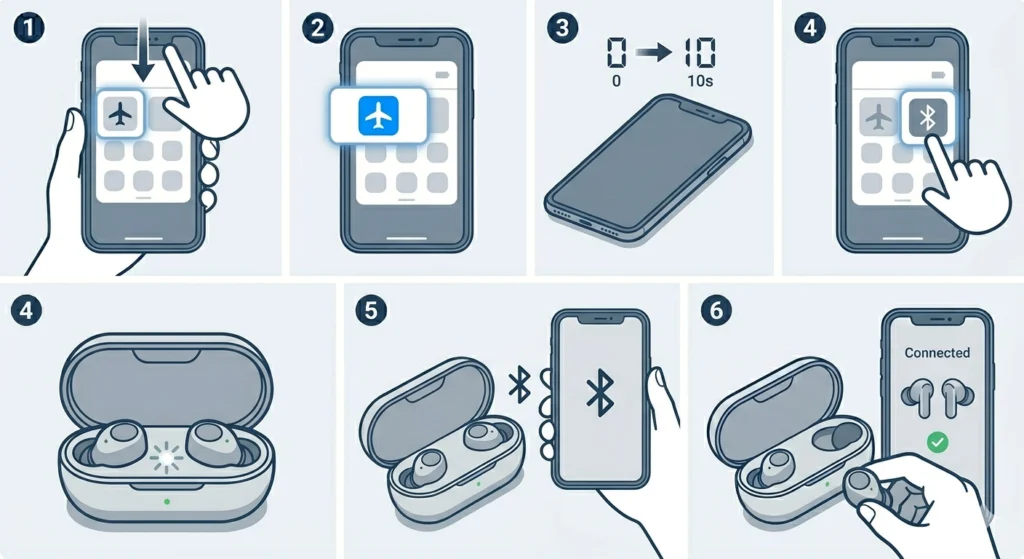
A quick and easy method that resets all wireless radios on the phone – no settings diving required.
- Step 1: Swipe down to open the quick settings panel.
- Step 2: Tap Airplane Mode to enable it.
- Step 3: Wait 10 seconds.
- Step 4: Turn Airplane Mode off.
- Step 5: Re-enable Bluetooth if it did not turn back on automatically.
- Step 6: Open the buds case and attempt pairing again.
Fix 6: Update Firmware Using HeyMelody App
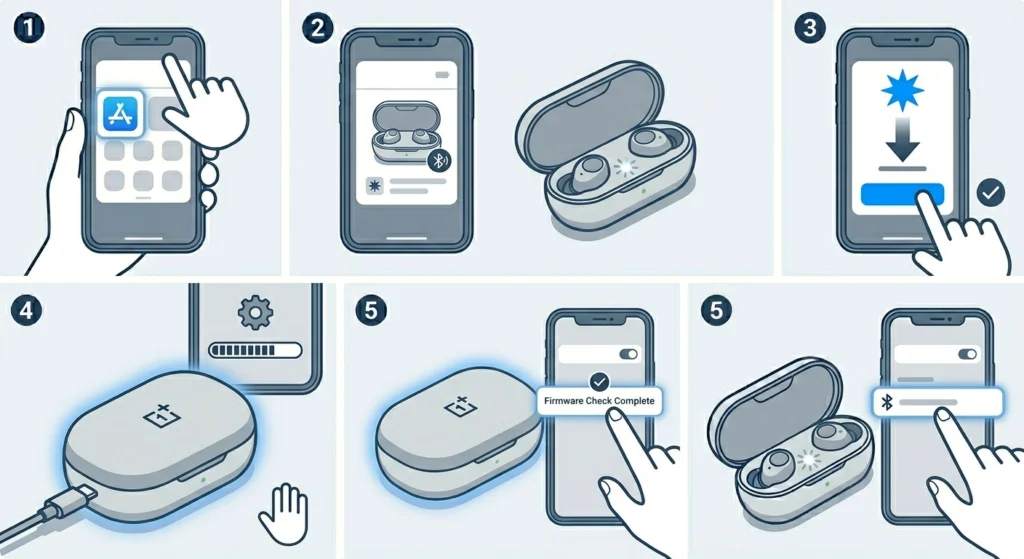
Outdated firmware on the OnePlus Buds 3 can cause pairing instability, dropped connections, and device recognition failures. OnePlus pushes firmware updates through the HeyMelody app, which is the official companion app for managing these earbuds.
- Step 1: Download and install the HeyMelody app from the Google Play Store or App Store.
- Step 2: Open the app and connect the OnePlus Buds 3 (this may require temporary pairing via this app first).
- Step 3: The app will automatically check for firmware updates.
- Step 4: If an update is available, tap to install it and keep the buds in the case during the process.
- Step 5: Once the update completes, re-pair the buds to the phone through Bluetooth settings.
Pro-Tip: Always keep the OnePlus Buds 3 firmware updated. Many pairing bugs are fixed in silent firmware patches. If the buds are on an old version, updating alone can solve recurring connection issues without any other troubleshooting needed.
Fix 7: Check If the Buds Are Already Connected to Another Device
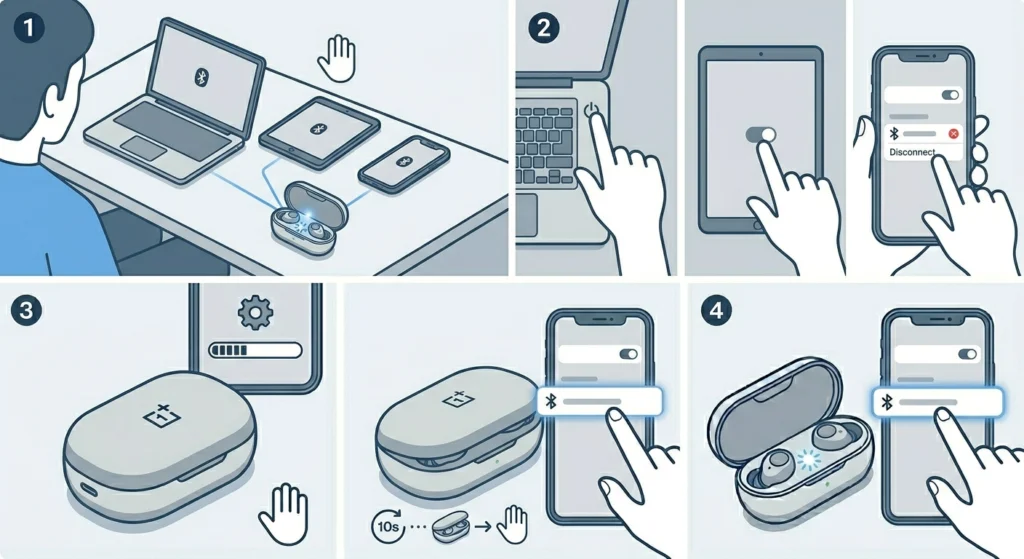
OnePlus Buds 3 support multipoint connection, meaning they can remember multiple devices. If they are actively connected to a laptop, tablet, or another phone, they will not appear available for a new pairing attempt.
- Step 1: Check all nearby devices that the buds have previously been paired to – laptops, tablets, other phones.
- Step 2: Turn Bluetooth off on those devices, or disconnect the buds manually from their Bluetooth settings.
- Step 3: Place the buds back in the case, close and reopen.
- Step 4: Attempt pairing on the intended phone.
This is an easy one to overlook. If the buds were last used with a work laptop sitting nearby, they will latch onto that device automatically instead of being discoverable to something new. For more on managing multiple Bluetooth audio connections, this guide on re-pairing Bluetooth earbuds for stereo sound on Windows is worth checking out.
Tips for Keeping OnePlus Buds 3 Connected Reliably
- Always return the buds to the case when not in use – this prevents them from auto-connecting to random devices in the background.
- Keep the charging case firmware updated alongside the earbuds through HeyMelody.
- Avoid pairing the buds to too many devices simultaneously, as this can cause priority conflicts during connection attempts.
- Make sure the phone’s Bluetooth is set to high performance mode if that option is available in developer settings.
- Keep the buds and case contacts clean – dirty charging pins can cause the buds to behave erratically, including pairing failures caused by incomplete boot sequences.
Common Problems and Troubleshooting
OnePlus Buds 3 Shows as Paired But Won’t Connect
This usually means stale pairing data exists on either the phone or the buds. The fix is to forget the device from Bluetooth settings on the phone and reset the buds (Fix 3 above), then pair fresh.
Only One Earbud Connects
Place both earbuds in the case, close the lid for 15 seconds, reopen, and let them re-sync before pairing again. If the issue persists, a factory reset resolves the split-sync problem in most cases.
Buds Disconnect Repeatedly After Pairing
This is often a firmware issue or Bluetooth interference. Update the firmware via HeyMelody, and check if other nearby wireless devices are causing interference on the 2.4GHz band.
OnePlus Buds 3 Not Showing in Bluetooth List
The buds are likely not in active pairing mode or are connected to another device. Reset them using Fix 3, confirm the case LED is blinking white, then scan for devices again. If using Windows and the buds still do not appear, reviewing managing audio input devices on Windows 11 can help rule out system-level Bluetooth conflicts.
Pairing Fails Midway Through Connection
Clear the Bluetooth cache on the phone (Fix 4), restart the device, and attempt the pairing again. If this repeats, a phone software update may also be needed.
Frequently Asked Questions
How do I put OnePlus Buds 3 into pairing mode?
Place both earbuds inside the charging case, close the lid for 10 seconds, then reopen. The LED will blink white to indicate pairing mode. If it does not, hold the button on the case for 3 seconds until the light blinks.
Why won’t my OnePlus Buds 3 connect to my phone?
The most common reasons are the buds not being in pairing mode, being connected to another nearby device, outdated firmware, or corrupted Bluetooth pairing data on the phone. Following the fixes above in order resolves the issue for most users.
How do I reset OnePlus Buds 3?
Place both buds in the open charging case and press and hold the button on the back of the case for 5-7 seconds until the LED blinks to confirm a reset. The buds will automatically enter pairing mode after the reset is complete.
Do OnePlus Buds 3 support multipoint connection?
Yes, OnePlus Buds 3 support multipoint Bluetooth, meaning they can be paired to multiple devices and switch between them. However, being actively connected to one device will block them from appearing discoverable to another.
Will resetting OnePlus Buds 3 delete everything?
A factory reset clears all saved Bluetooth pairings from the buds’ memory. It does not affect phone settings or the HeyMelody app data. After a reset, the buds need to be re-paired to all devices.
How do I update OnePlus Buds 3 firmware?
Download the HeyMelody app, connect the buds to it, and the app will automatically detect and prompt any available firmware updates. Keep the buds in the case during the update process.
Can I connect OnePlus Buds 3 to an iPhone?
Yes, OnePlus Buds 3 connect to iPhones via standard Bluetooth. However, some features like gesture customization require the HeyMelody app, which is also available on iOS. Pairing works the same way: put the buds in pairing mode and connect through iPhone Bluetooth settings.
Why does only one OnePlus Bud connect to my phone?
This happens when the two earbuds lose sync with each other. Place both in the case, close the lid for 15 seconds, reopen, and pair again. A factory reset typically fixes this if it keeps happening.
How do I connect OnePlus Buds 3 to a Windows PC?
Put the buds into pairing mode, then on the PC go to Settings > Bluetooth and devices, and select ‘Add device’. Choose Bluetooth, then select ‘OnePlus Buds 3’ from the list. If the audio output does not switch automatically, manually select the buds as the playback device from the sound settings.
What should I do if none of the fixes work?
If the buds still refuse to pair after a reset, firmware update, and cache clear, contact OnePlus support directly. There may be a hardware defect covered under warranty, particularly if the buds are new or relatively new.