
The JLab Studio Pro ANC is a solid pair of headphones, but Bluetooth connection issues can show up out of nowhere and kill the experience. Whether the headphones refuse to pair, drop connection constantly, or just won’t show up on a device, the fix is usually simpler than expected. This guide walks through the exact steps to get the JLab Studio Pro ANC connecting reliably again.
Quick Summary
- Main Fix: Reset the headphones to clear any corrupt pairing data
- Most Common Cause: Old or conflicting Bluetooth pairing memory
- Time to Fix: Usually under 5 minutes
- Works On: Windows, Mac, Android, iOS
- Key Step: Always delete the headphones from the device’s Bluetooth list before re-pairing
How to Fix JLab Studio Pro ANC Not Connecting
Fix 1: Reset the JLab Studio Pro ANC
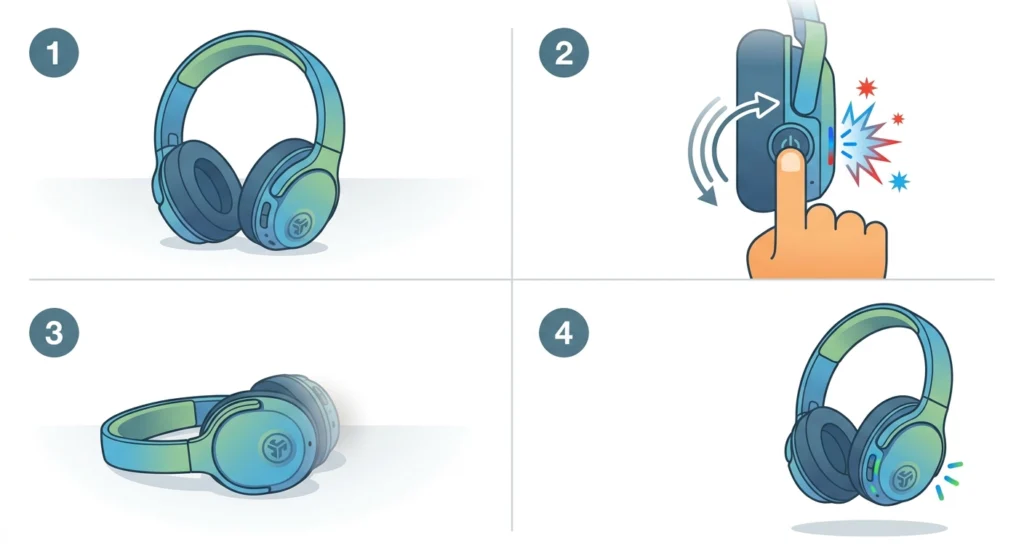
This is the most effective first step. Resetting clears all paired devices from the headphone’s memory, which resolves most connection failures caused by corrupted or conflicting pairing data.
- Step 1: Turn off the JLab Studio Pro ANC completely.
- Step 2: Press and hold the power button for approximately 10 seconds until the LED flashes a rapid sequence, indicating the reset is complete.
- Step 3: The headphones will power off automatically after the reset.
- Step 4: Power them back on – they will now be in pairing mode with a clean slate.
After the reset, go to the Bluetooth settings on the device and remove any saved entry for the JLab Studio Pro ANC before attempting to pair again. Skipping this removal step is one of the most common reasons re-pairing fails.
Pro Tip: If the headphones were previously paired to multiple devices (a phone, laptop, and tablet, for example), the reset clears all of them at once. This is actually the advantage – it eliminates any device priority conflict that could be blocking a clean new connection.
Fix 2: Delete and Re-Pair on the Device
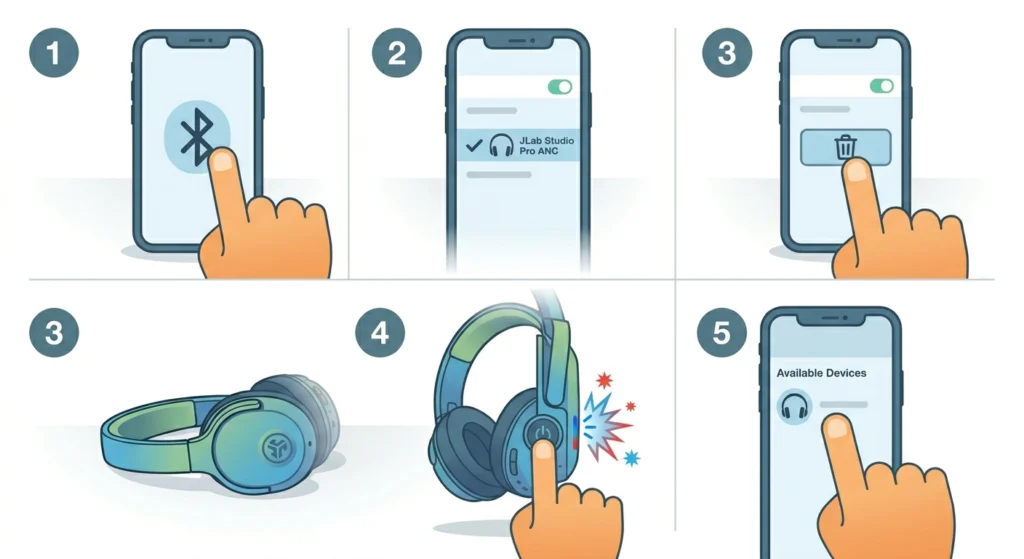
Even without a full reset, removing the old Bluetooth entry from the connecting device can resolve the issue. Devices sometimes hold onto stale pairing data that prevents a successful reconnection.
- Step 1: Open Bluetooth settings on the phone, tablet, or computer.
- Step 2: Find ‘JLab Studio Pro ANC’ in the paired devices list.
- Step 3: Select ‘Forget’, ‘Remove’, or ‘Unpair’ – the exact label depends on the device.
- Step 4: Put the headphones into pairing mode by holding the power button until the LED flashes.
- Step 5: Select the headphones from the available devices list and complete the pairing process.
On Windows 11, this process is straightforward through the Bluetooth and Devices settings panel. If there are persistent issues with how the device recognizes the headphones after re-pairing, re-pairing Bluetooth audio devices on Windows covers the exact steps to get stereo audio working correctly.
Fix 3: Check Bluetooth Range and Interference
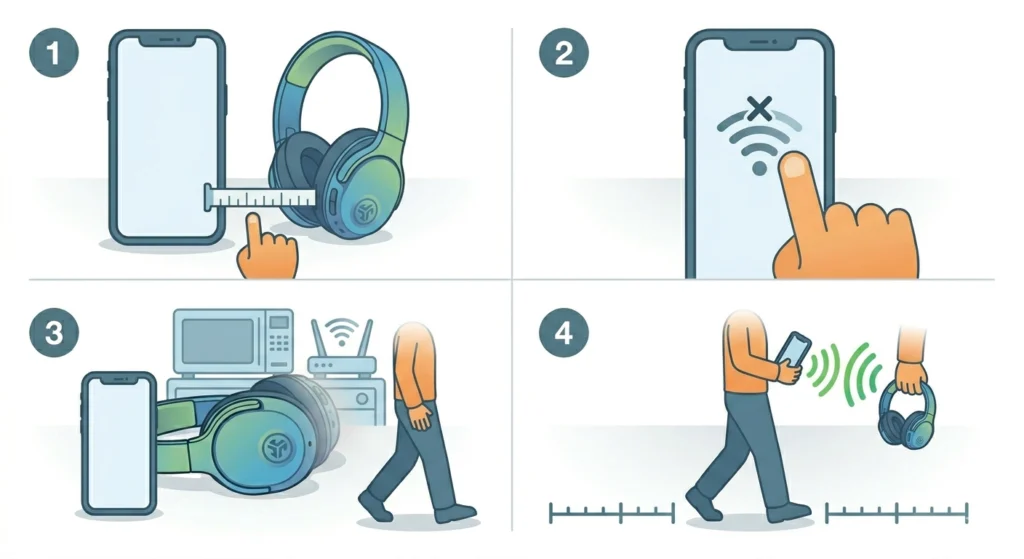
Bluetooth on the JLab Studio Pro ANC operates on the 2.4GHz band, which is the same frequency used by Wi-Fi routers, microwaves, and other wireless devices. If the connection drops or refuses to stay stable, interference could be the culprit rather than a pairing problem.
- Step 1: Move the headphones and the source device within 3 feet of each other during the initial pairing attempt.
- Step 2: Turn off Wi-Fi temporarily on the source device to test whether interference is causing the issue.
- Step 3: Move away from routers, microwaves, and other wireless devices if drops persist.
- Step 4: Once the connection is stable up close, gradually move further away to find the reliable range for that specific environment.
Fix 4: Charge the Headphones First
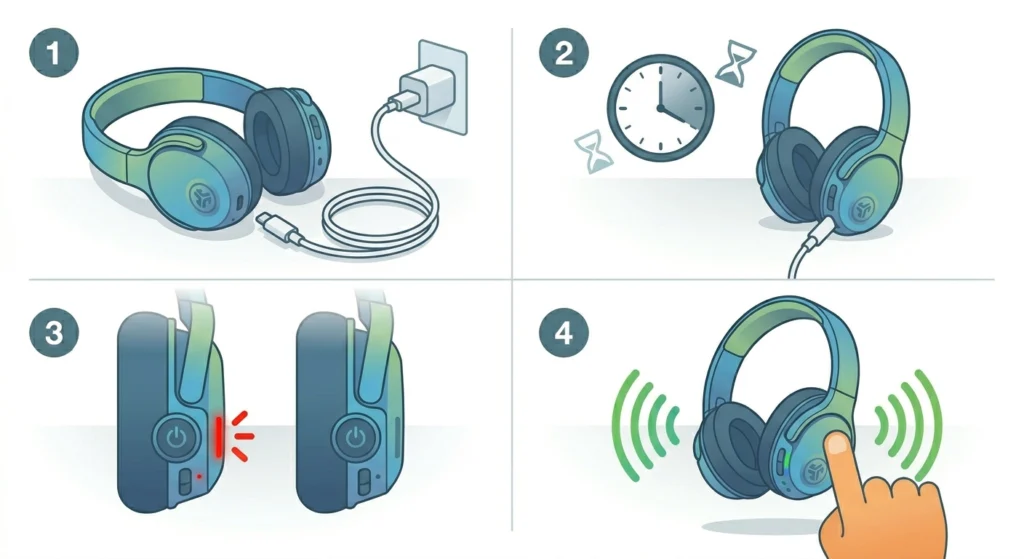
Low battery is an underrated cause of Bluetooth connection failures. When the JLab Studio Pro ANC battery drops below a certain level, the Bluetooth radio becomes unreliable and may fail to broadcast the pairing signal properly.
- Step 1: Connect the headphones to a charger using the USB-C cable included in the box.
- Step 2: Allow at least 20-30 minutes of charging before attempting to pair again.
- Step 3: The LED indicator will show solid red while charging and turn off or change color when adequately charged.
- Step 4: Power on the headphones and attempt to pair as normal.
Fix 5: Update the Device’s Bluetooth Driver (Windows)
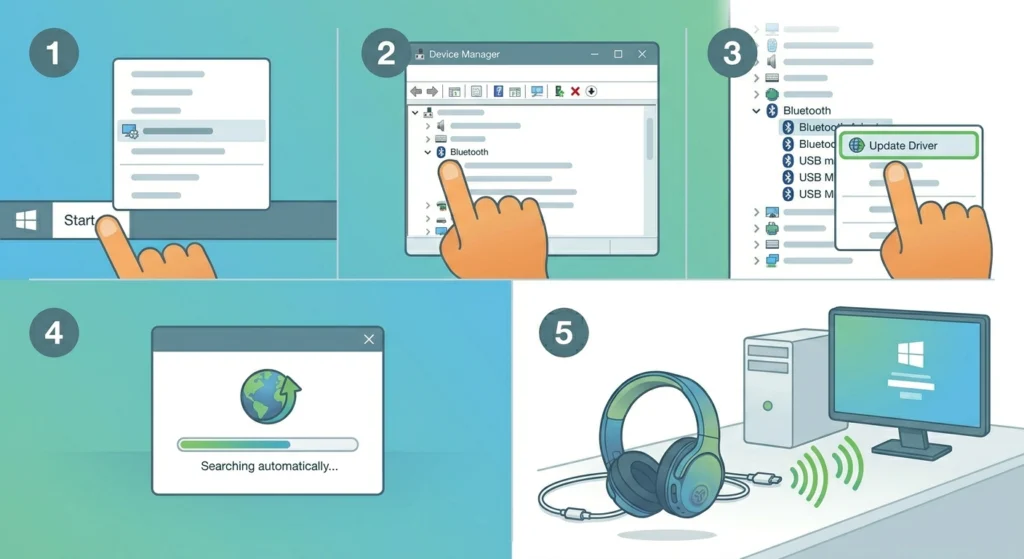
On Windows computers, an outdated Bluetooth driver is a common but overlooked reason why headphones won’t connect or pair correctly. This is especially relevant after a Windows update that may have replaced the Bluetooth driver with a generic version.
- Step 1: Right-click the Start button and open ‘Device Manager’.
- Step 2: Expand the ‘Bluetooth’ section in the list.
- Step 3: Right-click the Bluetooth adapter and select ‘Update driver’.
- Step 4: Choose ‘Search automatically for drivers’ and allow Windows to find the latest version.
- Step 5: Restart the computer and attempt to pair the headphones again.
If audio output settings behave oddly after pairing on Windows 11, adjusting audio output settings on Windows 11 can help make sure the system routes sound to the headphones correctly once connected.
Pro Tip: On Windows, after pairing successfully, right-click the JLab headphones in the Sound settings and set them as the ‘Default Device’ and ‘Default Communication Device’. Many people skip this and wonder why audio still plays through the computer speakers even after a successful Bluetooth connection.
Fix 6: Toggle Bluetooth Off and On
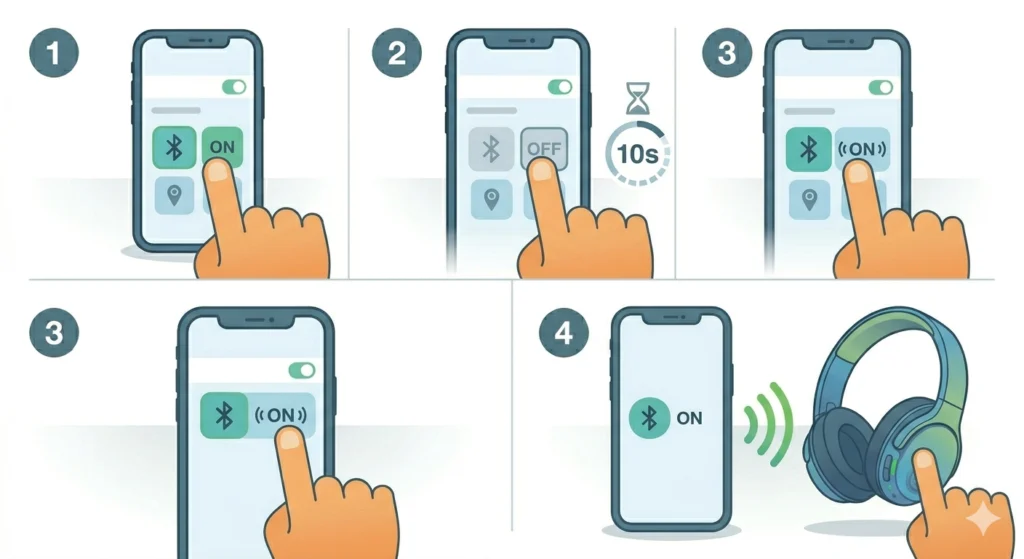
Sometimes the Bluetooth stack on a phone or computer gets stuck in a bad state. A simple toggle can flush this without requiring a full device restart.
- Step 1: Open the device’s Bluetooth settings or quick settings panel.
- Step 2: Turn Bluetooth off completely and wait 10 full seconds.
- Step 3: Turn Bluetooth back on.
- Step 4: Put the JLab Studio Pro ANC into pairing mode and connect.
Fix 7: Restart the Source Device
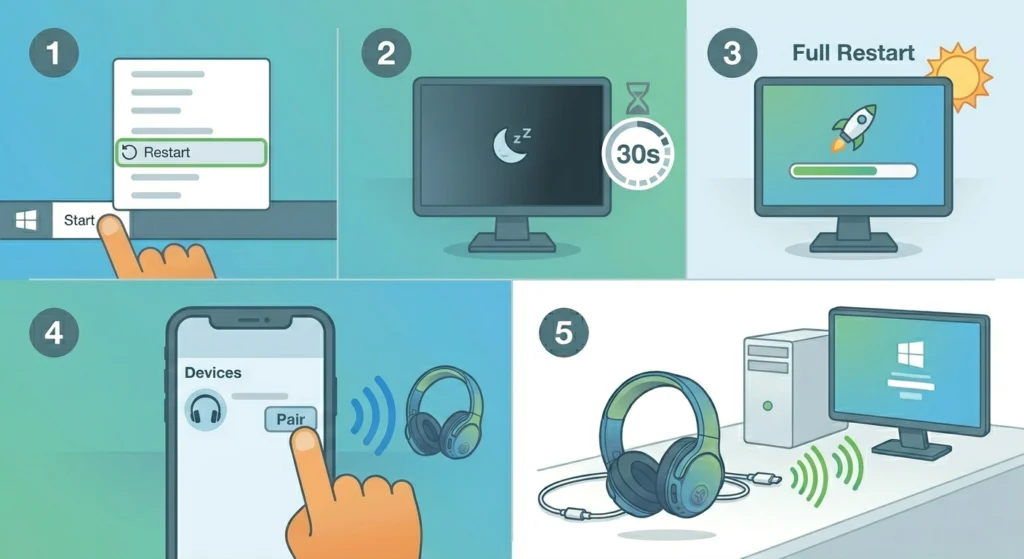
A full restart clears the device’s Bluetooth cache and resets any system-level audio or connection processes that may have become stuck. This works particularly well for Android phones and Windows PCs where Bluetooth services sometimes freeze without obvious signs.
- Step 1: Fully power off the phone, tablet, or computer (not just sleep or lock).
- Step 2: Wait 30 seconds before powering back on.
- Step 3: Once the device has fully restarted, put the JLab headphones into pairing mode.
- Step 4: Pair as normal through Bluetooth settings.
Tips for Keeping the JLab Studio Pro ANC Connected
- Keep the firmware updated using the JLab app – firmware updates often include Bluetooth stability improvements.
- Avoid pairing the headphones to more devices than needed. The Studio Pro ANC can store multiple device profiles, but a crowded pairing list can sometimes cause unexpected auto-connect behavior.
- Store the headphones powered off rather than on standby when not in use to preserve battery and prevent phantom connection issues.
- On Android, disabling battery optimization for Bluetooth can prevent the system from aggressively killing Bluetooth background processes, which causes drops.
- Make sure no other previously paired device is trying to auto-connect to the headphones when a new connection attempt is happening – this is a silent conflict that’s easy to miss.
Common Problems and Quick Fixes
Headphones Not Showing Up in Bluetooth List
The headphones need to be in active pairing mode to appear on a device’s scan. Simply powering on does not trigger pairing mode if they have existing paired devices in memory. Hold the power button for several seconds until the LED blinks rapidly – that blinking pattern confirms pairing mode is active.
Connects Then Immediately Drops
This usually means another paired device is competing for the connection. Check if a previously paired phone, tablet, or laptop is within Bluetooth range and trying to auto-connect. Turn Bluetooth off on those other devices temporarily, then reconnect to the intended device.
Audio Cuts Out During Playback
Stuttering or cutting audio is typically a range or interference issue rather than a pairing problem. Move the source device closer. Also check that the audio codec settings on Android are not set to a high-bandwidth option that the environment’s interference cannot support – switching to SBC can sometimes produce a more stable (if slightly lower quality) connection.
Headphones Connect But No Sound
The headphones may be connected as a hands-free profile rather than a stereo audio profile. On Windows, this shows up as two separate entries in the sound output list – one labeled ‘Headset’ and one labeled ‘Stereo’. Select the Stereo option for music and general audio. On Android and iOS, this can sometimes resolve by disconnecting and reconnecting once.
One Side Not Working After Connecting
If only one ear is producing audio, this is typically a mono/hands-free profile issue on the device side rather than a hardware fault with the headphones. Check the device’s audio output settings and confirm stereo mode is selected.
Frequently Asked Questions
How do I put the JLab Studio Pro ANC into pairing mode?
Turn the headphones off first. Then press and hold the power button until the LED begins blinking rapidly. This blinking pattern means the headphones are broadcasting and ready to pair. If the headphones connect automatically to a previously paired device instead, reset them first to clear the pairing memory.
Why does my JLab Studio Pro ANC keep disconnecting?
The most common causes are Bluetooth interference from nearby routers or electronics, low battery, the headphones auto-connecting to a different previously paired device, or an outdated Bluetooth driver on a Windows computer. Try moving closer to the source device and ruling out battery level first, then investigate interference if drops continue.
Can the JLab Studio Pro ANC connect to multiple devices at once?
The JLab Studio Pro ANC does not support true simultaneous multipoint connection, meaning it cannot actively stream audio from two devices at the same time. However, it stores multiple device profiles and can quickly switch between them by disconnecting from one and connecting to another.
What does it mean when the JLab Studio Pro ANC LED blinks red and white?
A red and white blinking LED pattern typically indicates the headphones are in Bluetooth pairing mode and waiting for a connection. If this pattern appears unexpectedly, it may mean the headphones lost their connection or were just reset and are now broadcasting for a new device to connect.
How do I reset the JLab Studio Pro ANC?
Turn the headphones off, then press and hold the power button for around 10 seconds until the LED flashes a rapid sequence and the headphones power off. This clears all paired device memory. Power them back on and they will be in fresh pairing mode, ready to connect to any device.
Will resetting the headphones delete all my paired devices?
Yes, a factory reset wipes the entire paired device list from the headphone’s memory. All previously paired phones, tablets, and computers will need to be re-paired. This is intentional – it resolves conflicts caused by old or corrupt pairing data and gives a clean connection start.
Why won’t the JLab Studio Pro ANC connect to my Windows laptop?
Windows Bluetooth issues often come down to outdated drivers or the system defaulting to the wrong audio profile after pairing. Update the Bluetooth driver through Device Manager, then check that the headphones are set as the default audio output device in Windows Sound settings. Also confirm the headphones are not auto-connecting to a phone or tablet in the same room before the laptop can grab the connection.
How do I fix JLab Studio Pro ANC not connecting to iPhone?
On iPhone, go to Settings, then Bluetooth, and tap the info icon next to the JLab Studio Pro ANC entry. Select ‘Forget This Device’. Then put the headphones into pairing mode and re-pair fresh. If the headphones do not appear in the list, make sure they are actively in pairing mode – just powering on is not enough if they have existing device memory.
Can a low battery cause Bluetooth connection failures?
Yes, and this is more common than most people expect. When battery drops low, the Bluetooth radio does not always broadcast a strong enough signal to pair reliably. Charging the headphones for at least 20-30 minutes before attempting to connect resolves this type of failure.
What should I do if none of these fixes work?
If the headphones still won’t connect after resetting, re-pairing, and trying multiple devices, contact JLab support directly at jlab.com. The JLab Studio Pro ANC comes with a 2-year warranty, and if there is a hardware fault with the Bluetooth module, JLab’s support team can arrange a replacement. Always try the reset process at least twice before concluding it is a hardware issue.