
The JBL Tune 770NC not connecting to phone is one of the most common frustrations users run into – especially after a firmware update, a factory reset, or switching between multiple devices. The good news is that most Bluetooth pairing issues with the JBL Tune 770NC are easy to fix without any special tools or technical knowledge. This step-by-step guide covers the exact fixes that actually work.
Quick Summary: Key Takeaways
- The most common cause is a stale or corrupted Bluetooth pairing – clearing and re-pairing almost always solves it.
- Always reset the headphones before attempting to pair again if the device was previously connected.
- The JBL Tune 770NC supports multipoint connection for up to 2 devices – but this can sometimes cause pairing conflicts.
- Both the headphones AND the phone need to have the old pairing cleared for a clean reconnect.
- If all else fails, a factory reset on the headphones will clear all stored pairings and restore default settings.
How to Fix JBL Tune 770NC Not Connecting to Phone
Fix 1: Clear the Existing Pairing and Re-Pair from Scratch
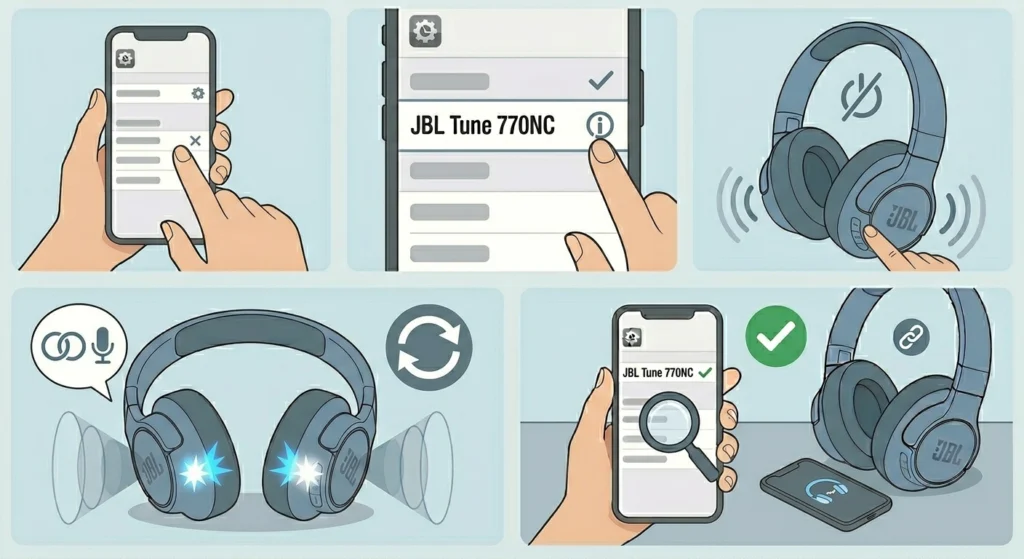
This is the single most effective fix when the JBL Tune 770NC stops connecting. Old or corrupted pairing data on either device can silently block a new connection. The key is to remove the pairing from both the headphones and the phone before starting fresh.
- Step 1: On the phone, go to Settings > Bluetooth and find ‘JBL Tune 770NC’ in the list of paired devices.
- Step 2: Tap the info icon or ‘Forget’ option next to the headphone name, then confirm.
- Step 3: Power off the JBL Tune 770NC completely.
- Step 4: Power them back on. The headphones will automatically enter pairing mode (the LED will flash and a voice prompt will say ‘Bluetooth pairing’).
- Step 5: On the phone, open Bluetooth settings and scan for new devices.
- Step 6: Select ‘JBL Tune 770NC’ from the list and complete the pairing.
Most people find that this single step resolves the issue entirely. If the headphones do not enter pairing mode automatically, press and hold the Bluetooth button until the LED flashes rapidly.
Fix 2: Manually Enter Pairing Mode on the Headphones
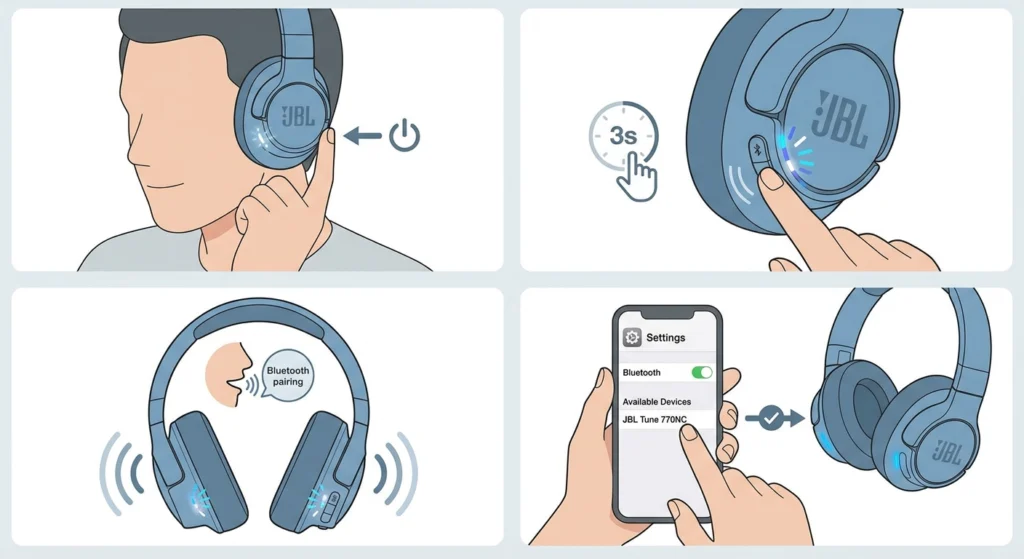
Sometimes the JBL Tune 770NC powers on and tries to reconnect to the last paired device instead of entering discovery mode. If that last device is not available or has connection issues, the headphones will appear ‘not connecting’ even though they are technically on and working.
- Step 1: Power on the headphones normally.
- Step 2: Press and hold the Bluetooth button (located on the left earcup) for about 3 seconds until the LED flashes blue and white alternately.
- Step 3: A voice prompt will confirm ‘Bluetooth pairing’ – this means the headphones are now discoverable.
- Step 4: Open Bluetooth on the phone, search for devices, and tap ‘JBL Tune 770NC’ to pair.
Fix 3: Disconnect Other Paired Devices (Multipoint Conflict)
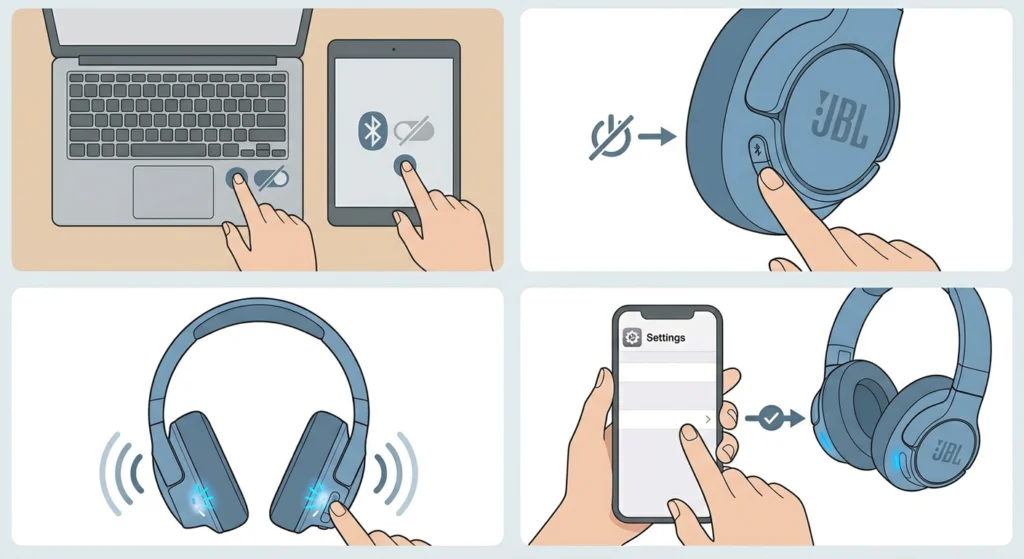
The JBL Tune 770NC supports JBL’s multipoint technology, allowing connection to two devices simultaneously. This works best when both devices are managed carefully – but when one of the connected devices is nearby and automatically claiming the connection, it can block the phone from pairing.
- Step 1: Turn off Bluetooth on any other device that was previously connected to the headphones (laptops, tablets, other phones).
- Step 2: Power the headphones off and back on.
- Step 3: Attempt to connect from the target phone only.
- Step 4: Once connected successfully, other devices can be re-enabled if multipoint is needed.
This works best when the headphones have been used with multiple devices recently. It is a surprisingly common cause that gets overlooked.
For users connecting to a Windows PC alongside a phone, this guide on re-pairing Bluetooth earbuds for stereo sound on Windows is helpful for managing that side of the connection properly.
Fix 4: Restart Bluetooth on the Phone
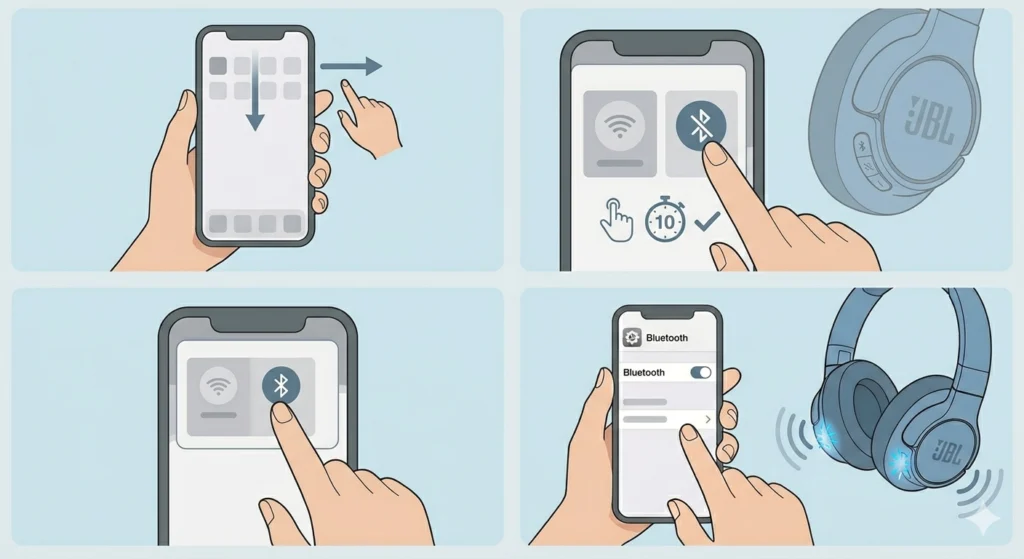
A quick Bluetooth restart on the phone can clear temporary glitches in the Bluetooth stack – the underlying software managing wireless connections. This takes about 10 seconds and is always worth trying before going deeper.
- Step 1: Swipe down from the top of the phone screen to access Quick Settings.
- Step 2: Tap the Bluetooth icon to turn it off. Wait 10 seconds.
- Step 3: Tap the Bluetooth icon again to turn it back on.
- Step 4: Try connecting to the JBL Tune 770NC again.
Fix 5: Restart the Phone
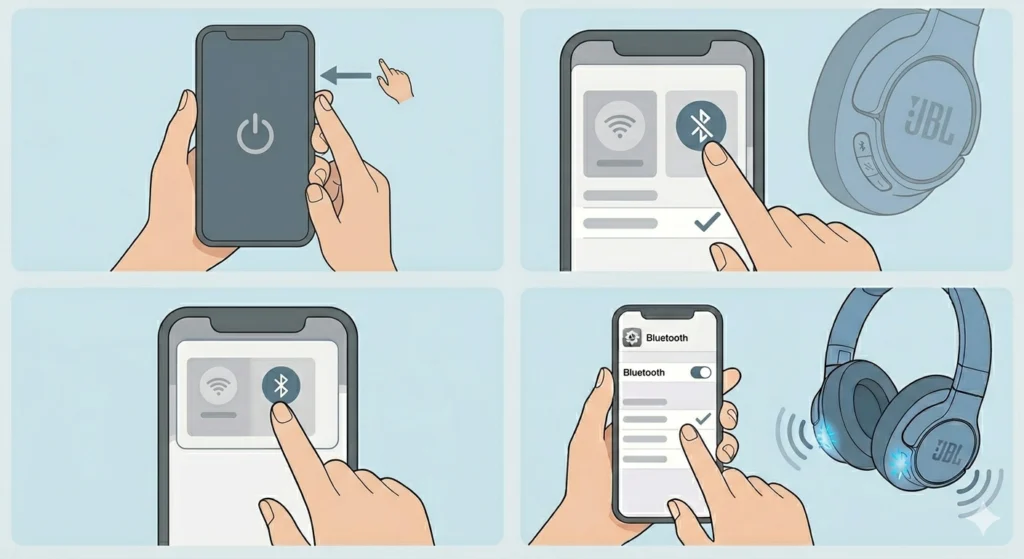
A full phone restart clears RAM, resets background services, and refreshes all wireless radio states. This is different from just toggling Bluetooth and can resolve deeper software-level conflicts.
- Step 1: Hold the power button on the phone and select ‘Restart’ or ‘Reboot’.
- Step 2: Once the phone is fully back on, enable Bluetooth.
- Step 3: Power on the JBL Tune 770NC and attempt to connect.
Fix 6: Factory Reset the JBL Tune 770NC
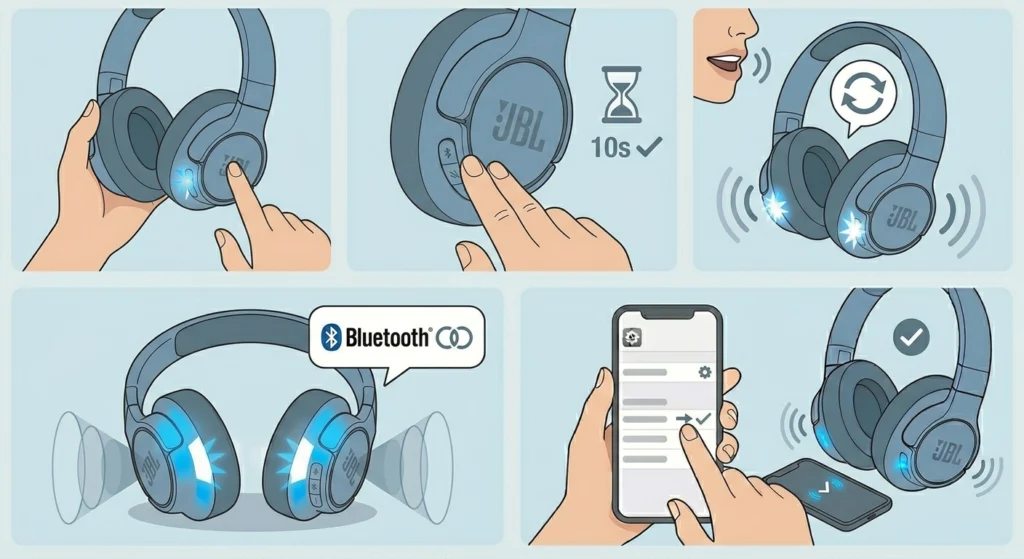
When nothing else works, a factory reset is the definitive solution. This clears all stored Bluetooth pairings from the headphones and restores them to out-of-box settings. The key is understanding that this erases all previously paired devices – so everything will need to be paired again from scratch.
- Step 1: Power on the JBL Tune 770NC.
- Step 2: Press and hold the Volume Up (+) button and the Power button simultaneously for about 10 seconds.
- Step 3: The headphones will power off and on automatically, and a voice prompt will confirm the reset.
- Step 4: The headphones will now enter pairing mode automatically – the LED will flash and the voice prompt will say ‘Bluetooth pairing’.
- Step 5: Open Bluetooth on the phone and pair as a new device.
Pro-Tip: Before doing a factory reset, make sure to remove the JBL Tune 770NC from the Bluetooth list on every device it was previously paired with (phone, laptop, tablet). If those old pairings remain on the other devices, reconnecting to them later can still cause conflicts. A clean slate on both sides is always the fastest path to a stable connection.
Tips for Keeping the JBL Tune 770NC Connected Reliably
- Keep the headphone firmware updated through the JBL Headphones app – firmware updates often include Bluetooth stability improvements.
- Avoid pairing the headphones to more devices than needed. The Tune 770NC stores up to 8 devices in memory, but active multipoint works with 2. Too many stored pairings can sometimes cause slow reconnect behavior.
- Store the headphones in their case when not in use and power them off if they will not be used for a while. This prevents phantom auto-connect attempts that drain the battery and can corrupt pairing states.
- Keep the phone within a reasonable range (within 10 meters with no obstructions) especially during the initial pairing step. Walls and interference sources can interrupt the handshake process.
- If using the JBL Headphones app, make sure it has the necessary Bluetooth and notification permissions on the phone – missing permissions can interfere with stable connectivity.
Pro-Tip: For users who switch between a phone and a computer regularly, managing the audio connection on the PC side matters just as much. A properly configured audio output on the computer side helps prevent the headphones from defaulting to the wrong device. Check this guide on adjusting audio output settings on Windows 11 to ensure the PC is not silently pulling the headphones away from the phone.
Common Problems and Troubleshooting
JBL Tune 770NC Shows as Connected but No Audio
This happens when the phone has connected to the headphones but the audio output is still routing to the phone speaker. Go to Settings > Bluetooth, tap on ‘JBL Tune 770NC’, and make sure it is set as the active audio output. On some Android phones, there is a separate ‘Media Audio’ toggle that needs to be enabled.
Headphones Connect Then Immediately Disconnect
This is usually a power issue or a conflict with a nearby previously paired device. Make sure the headphones are adequately charged (at least 20% battery). Also check if another device nearby has Bluetooth on and has the headphones stored in its paired list – it may be pulling the connection away.
JBL Tune 770NC Not Showing Up in Bluetooth Scan
If the headphones are not appearing in the phone’s Bluetooth scan, they are likely not in pairing mode. Power them off completely, then press and hold the Bluetooth button until the LED flashes rapidly and the voice prompt confirms pairing mode. Make sure no more than 2 active devices are trying to connect simultaneously.
Headphones Keep Reconnecting to the Wrong Device
The JBL Tune 770NC automatically reconnects to the last successfully connected device. If that is not the intended phone, the headphones need to be manually put into pairing mode (hold Bluetooth button) OR the previously preferred device needs to have its Bluetooth disabled so the headphones can find the correct phone instead.
Frequently Asked Questions
Why is the JBL Tune 770NC not connecting to my phone?
The most common reasons are: outdated or corrupted pairing data, the headphones trying to connect to a different previously paired device, multipoint conflict with another active device, or a minor Bluetooth stack glitch on the phone. Clearing the pairing on both sides and re-pairing fresh solves the issue in most cases.
How do I put the JBL Tune 770NC in pairing mode?
Power on the headphones and press and hold the Bluetooth button on the left earcup for approximately 3 seconds. The LED will flash blue and white alternately, and a voice prompt will say ‘Bluetooth pairing’ to confirm the headphones are now discoverable.
How do I factory reset the JBL Tune 770NC?
While the headphones are powered on, press and hold the Volume Up (+) button and the Power button at the same time for about 10 seconds. The headphones will reset, power off, and restart in pairing mode. All previously stored Bluetooth pairings will be erased.
Can JBL Tune 770NC connect to two devices at the same time?
Yes. The JBL Tune 770NC supports multipoint Bluetooth, allowing simultaneous connection to two devices (for example, a phone and a laptop). This is a built-in feature and does not require any special setup beyond pairing both devices normally.
How many devices can the JBL Tune 770NC remember?
The JBL Tune 770NC can store up to 8 previously paired devices in its memory. However, only 2 devices can be actively connected at the same time through the multipoint feature.
Why does the JBL Tune 770NC keep disconnecting?
Frequent disconnections are usually caused by: low battery on the headphones, interference from other wireless devices, or a competing paired device that keeps pulling the connection. Make sure the headphones are charged, reduce nearby wireless interference, and turn off Bluetooth on devices that are not actively being used with the headphones.
Does the JBL Tune 770NC work with both Android and iPhone?
Yes, the JBL Tune 770NC is compatible with both Android and iOS devices. The pairing process is the same on both platforms. The JBL Headphones app is also available on both the Google Play Store and the Apple App Store.
What should I do if the JBL Tune 770NC appears paired but no sound comes through?
Check the phone’s audio output settings and confirm ‘JBL Tune 770NC’ is selected as the active audio device. On Android, go to Settings > Bluetooth > tap the headphone name and verify ‘Media Audio’ is toggled on. On iPhone, open Control Center and check the AirPlay/audio output icon to select the headphones.
Will a factory reset delete all my JBL Tune 770NC settings?
Yes. A factory reset clears all stored Bluetooth pairings and restores the headphones to default settings. ANC preferences, EQ settings saved in the app, and device memory are all erased. After resetting, the headphones will need to be re-paired to all devices and reconfigured in the JBL Headphones app.
How do I update the firmware on the JBL Tune 770NC?
Download the JBL Headphones app on the phone, pair the headphones, and open the app. If a firmware update is available, a notification will appear in the app. Tap to install. Make sure the headphones have sufficient battery (above 30%) before starting a firmware update.