
Adaptive Transparency on AirPods Pro 2 is one of the most practical audio features Apple has ever built into a pair of earbuds. It lets in the sounds around you – like voices, traffic, or announcements – while automatically reducing harsh noises like power tools or loud music. The result is a more natural listening experience that keeps you connected to your environment without sacrificing comfort.
Quick Summary
- Feature: Adaptive Transparency – available on AirPods Pro 2nd generation
- Where to enable: iPhone Settings, Control Center, or squeeze the AirPods stem
- Main benefit: Lets in ambient sound while automatically cutting loud noise spikes
- Requires: iPhone with iOS 16 or later, AirPods Pro 2nd generation
- Time to set up: Under 2 minutes
How to Enable Adaptive Transparency on AirPods Pro 2
There are three different ways to switch on Adaptive Transparency. Each method works well depending on the situation – whether the AirPods are already in the ears or still in the case.
Method 1: Using iPhone Settings
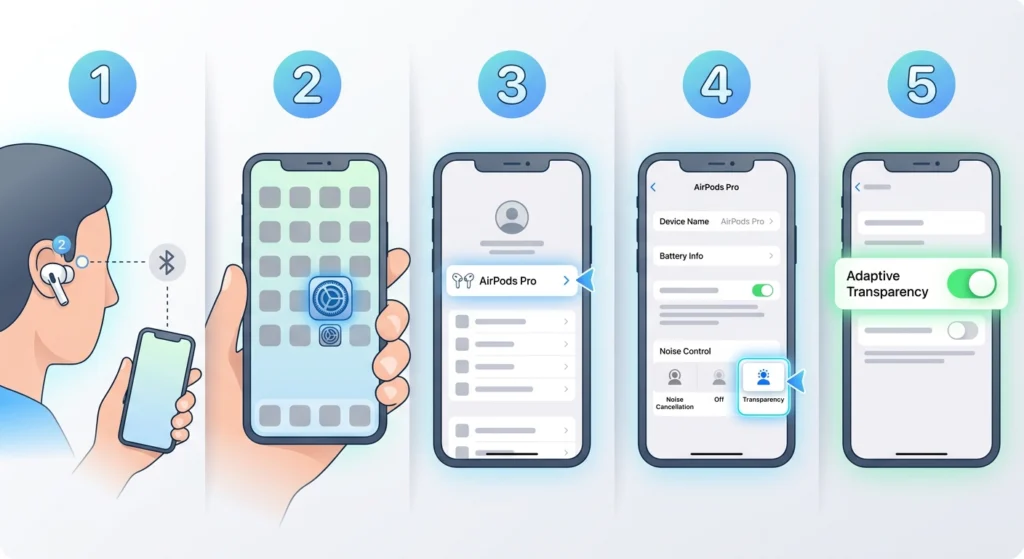
This is the most thorough approach and also the best option for confirming the feature is properly configured.
- Step 1: Put the AirPods Pro 2 in both ears and make sure they are connected to the iPhone.
- Step 2: Open the Settings app on the iPhone.
- Step 3: Tap on AirPods Pro – it appears near the top of the Settings menu when the earbuds are connected.
- Step 4: Under the ‘Noise Control’ section, tap Transparency.
- Step 5: Toggle on Adaptive Transparency. The toggle turns green when it is active.
Once enabled, the AirPods will automatically detect and reduce sudden loud sounds in real time – without cutting off everything else around you.
Method 2: Using Control Center
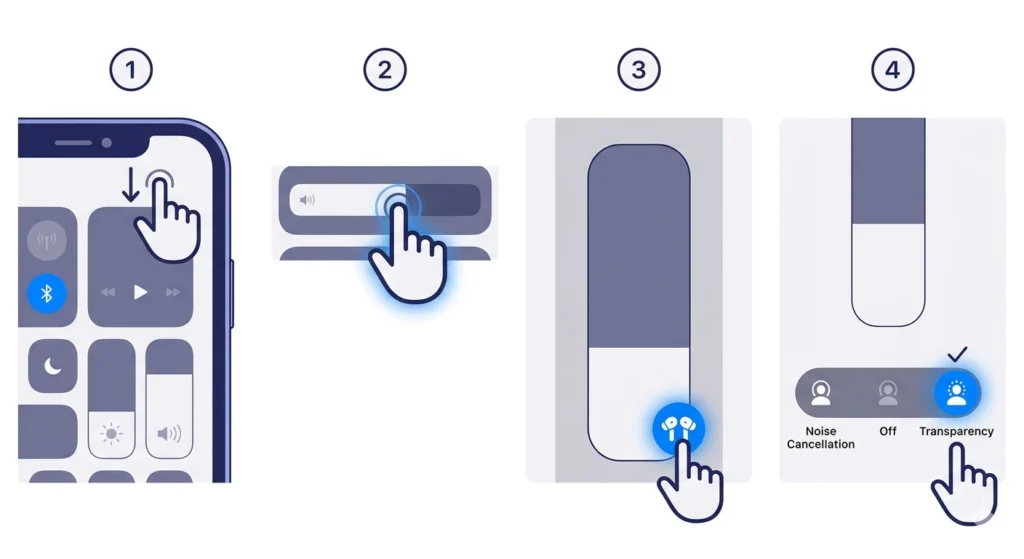
This is the fastest method when the AirPods are already in and there is no time to dig into Settings.
- Step 1: Swipe down from the top-right corner of the iPhone screen to open Control Center.
- Step 2: Press and hold the volume slider.
- Step 3: Tap the AirPods Pro icon at the bottom of the expanded volume panel.
- Step 4: Select Transparency from the listening mode options.
Note that Adaptive Transparency turns on automatically when Transparency mode is selected – as long as it has been enabled in Settings at least once. The key is to make sure it is toggled on there first.
Method 3: Squeeze the AirPods Stem
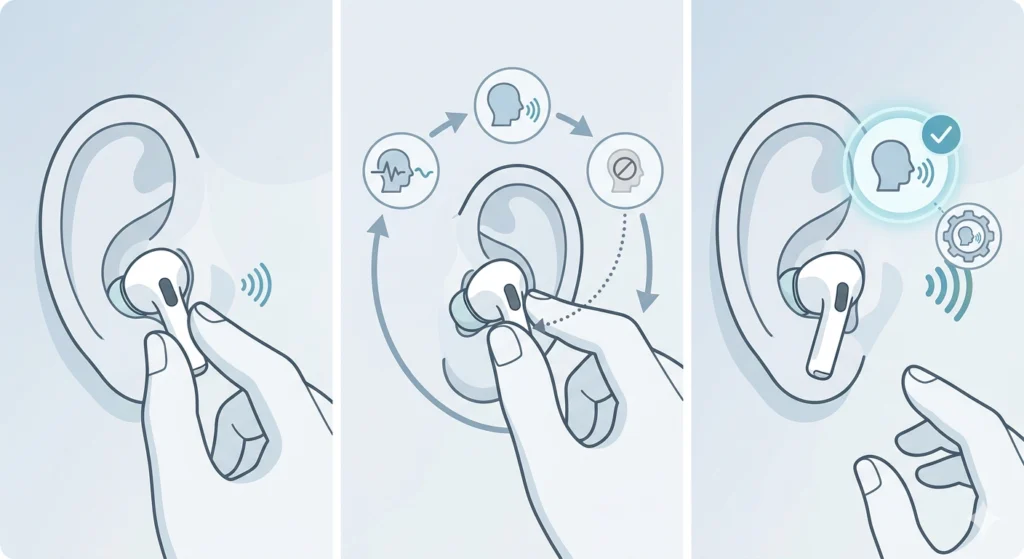
This is the quickest hands-free method, especially useful when the phone is not nearby.
- Step 1: Press and hold the stem of either AirPod Pro until a chime plays.
- Step 2: Each squeeze cycles through the available modes – Active Noise Cancellation, Transparency, and Off.
- Step 3: Stop when the Transparency chime sounds. Adaptive Transparency is active within that mode.
Most people find that after a few days of use, squeezing the stem becomes second nature. It takes less than a second and works even when hands are full.
Pro Tip: To customize which modes the stem cycles through, go to Settings > AirPods Pro > Press and Hold AirPods. From there, choose which listening modes to include in the rotation. Removing unused modes makes cycling faster.
How to Adjust Adaptive Transparency Loudness Reduction
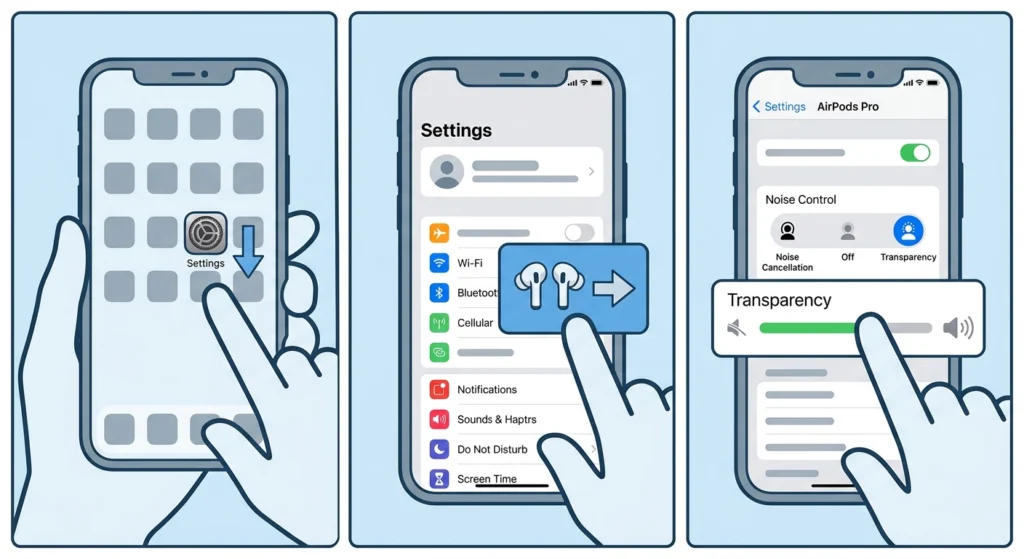
AirPods Pro 2 also allows adjustment of how aggressively the feature reduces loud sounds. This is useful for people who work in consistently loud environments and want a bit more ambient sound to come through.
- Step 1: Open Settings on the iPhone.
- Step 2: Tap AirPods Pro.
- Step 3: Under Transparency, look for Loudness Reduction and adjust the slider to the preferred level.
The higher the slider, the more it will cut loud spikes. The lower the slider, the more natural sound passes through unfiltered. This works best when fine-tuning the experience for a specific environment like a gym, a busy street, or a workshop.
Tips for Getting the Most Out of Adaptive Transparency
- Keep the AirPods firmware updated. Apple regularly improves the Adaptive Transparency algorithm with software updates, and newer firmware can noticeably improve how it handles complex noise environments.
- Use Transparency mode during commutes. Adaptive Transparency is ideal for walking in traffic or using public transit because it lets in voices and signals while reducing horn blasts or screeching brakes.
- Pair it with Conversation Awareness. This feature, also found in AirPods Settings, automatically reduces music volume when the AirPods detect the user is speaking. Combined with Adaptive Transparency, it makes conversations feel completely natural.
- Check the ear tip seal. If Adaptive Transparency sounds hollow or tinny, the ear tips may not be forming a proper seal. Run the Ear Tip Fit Test in Settings > AirPods Pro > Ear Tip Fit Test.
Pro Tip: If the AirPods are used with a Mac or iPad, Adaptive Transparency follows the device – not just the iPhone. Make sure to check the audio settings on each device separately if the behavior seems inconsistent across Apple devices. For Windows users dealing with audio switching issues, reviewing how to re-pair Bluetooth earbuds for stereo sound on Windows can also help resolve unexpected mode behavior.
Common Problems and Fixes
Fix 1: Adaptive Transparency Toggle Is Not Showing
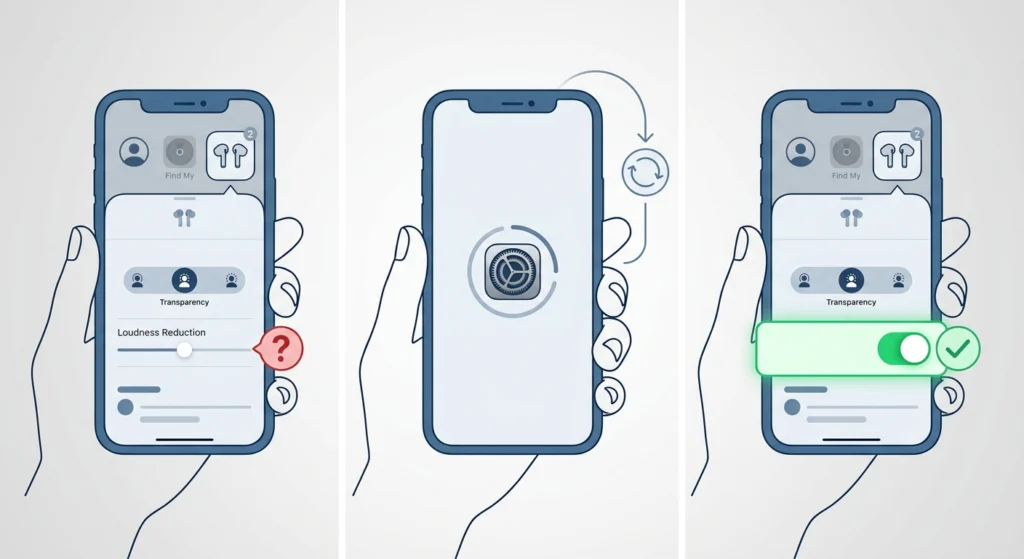
If the Adaptive Transparency toggle does not appear under Transparency settings, check that the AirPods are running the latest firmware. Apple introduced this feature with AirPods Pro 2 and requires a minimum firmware version. Connect the AirPods to the iPhone charger while they are in the case to trigger a firmware update automatically.
Fix 2: Adaptive Transparency Sounds Muffled or Distorted
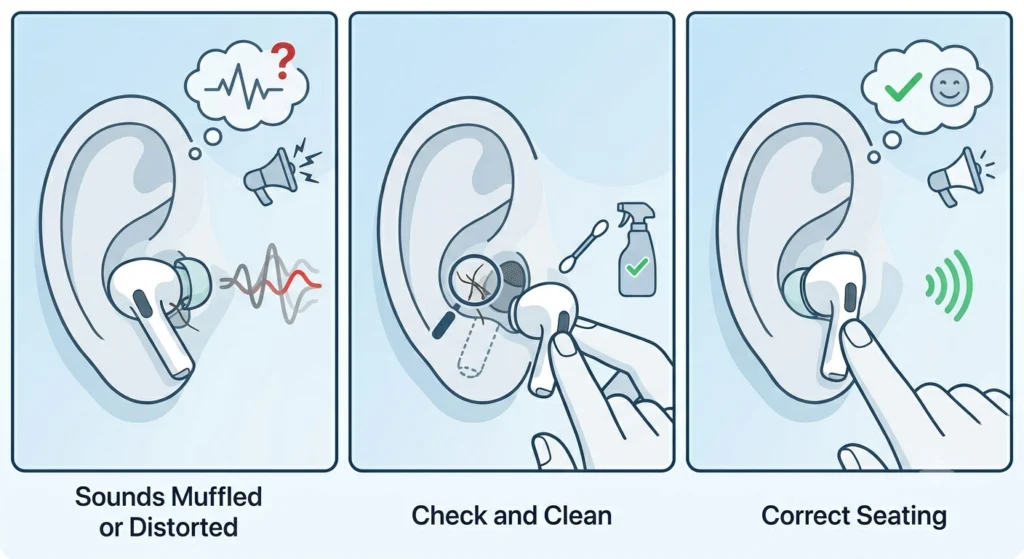
This usually means the ear tips are not seated correctly, or there is debris in the speaker mesh. Remove the ear tips, clean them gently, and reattach. Run the Ear Tip Fit Test to confirm a proper seal.
Fix 3: Mode Does Not Switch When Squeezing the Stem
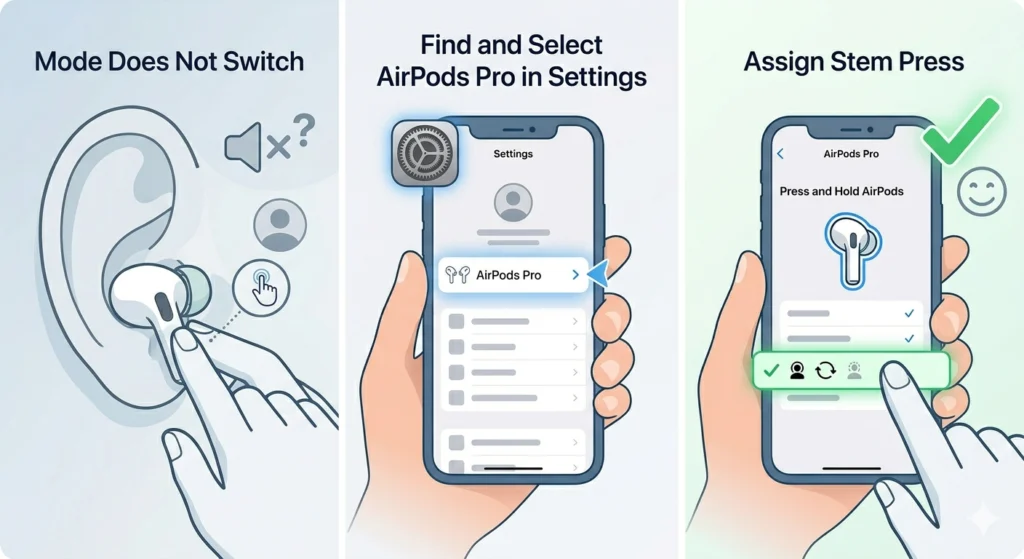
If squeezing the stem does not cycle to Transparency, the stem press may be assigned to a different action. Go to Settings > AirPods Pro > Press and Hold AirPods and confirm that ‘Noise Control’ is selected under the press-and-hold action. This is also where the included modes can be customized.
Fix 4: Adaptive Transparency Is Not Working on Mac or iPad
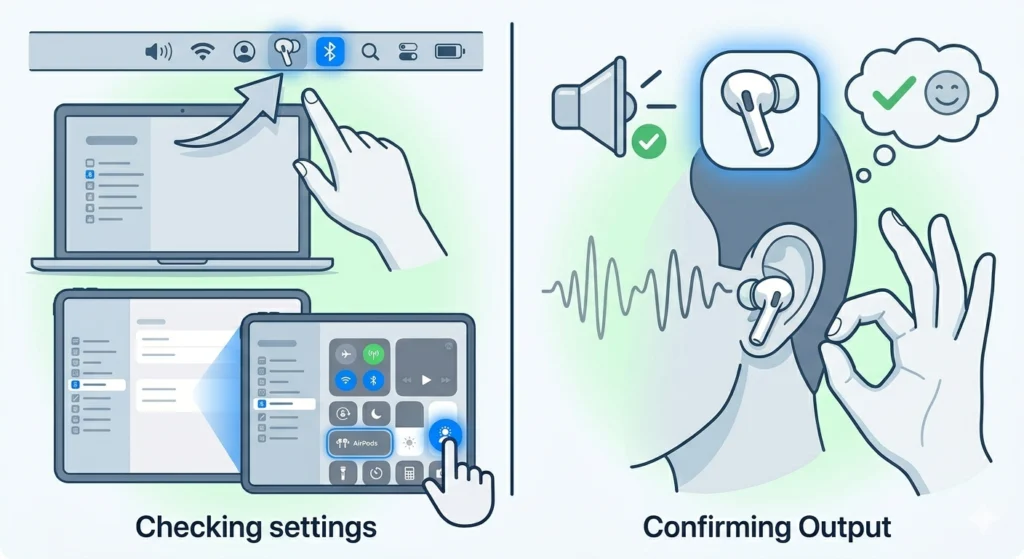
Adaptive Transparency is device-specific on non-iPhone Apple devices. On Mac, click the AirPods icon in the menu bar and select Transparency. On iPad, use Control Center the same way as on iPhone. If audio output issues persist, checking the audio output settings on the connected device can point to a solution.
Frequently Asked Questions
What is Adaptive Transparency on AirPods Pro 2?
Adaptive Transparency is a listening mode on AirPods Pro 2 that lets in ambient sound from the environment while using the H2 chip to detect and reduce sudden loud noises in real time. It is different from standard Transparency mode, which passes through all sounds without any filtering.
Is Adaptive Transparency the same as Transparency mode?
No. Standard Transparency mode passes through all external sound equally. Adaptive Transparency adds an extra layer – it monitors for loud sounds above a certain threshold and reduces them automatically while keeping other ambient sounds audible. Think of it as Transparency mode with a built-in limiter.
Which AirPods support Adaptive Transparency?
Adaptive Transparency is exclusive to the AirPods Pro 2nd generation. The original AirPods Pro has a standard Transparency mode but does not have the H2 chip required for real-time adaptive noise processing.
Do the AirPods Pro 2 need to be updated for Adaptive Transparency to work?
Yes, the AirPods Pro 2 must be on a recent firmware version. Apple introduced Adaptive Transparency with a firmware update shortly after the product launched. To check the firmware version, go to Settings > AirPods Pro > About.
Can Adaptive Transparency be used during phone calls?
During active phone calls, the AirPods switch to a call-optimized mode automatically. Adaptive Transparency is primarily active during music playback or when no media is playing. The microphone handles ambient awareness differently during calls.
Does Adaptive Transparency drain the battery faster?
Adaptive Transparency uses slightly more battery than passive listening because the H2 chip is actively processing audio in real time. In practice, the difference is minimal for most use cases. Apple rates the AirPods Pro 2 at around 6 hours of listening with Transparency mode active.
Can Adaptive Transparency be used on Android?
The AirPods Pro 2 can connect to Android devices via Bluetooth, but the Adaptive Transparency toggle and related settings are only accessible through an iPhone running iOS 16 or later. Once the feature is enabled on an iPhone, the AirPods will retain that setting even when connected to another device.
Why does Adaptive Transparency sound different in quiet vs loud environments?
That is actually the feature working correctly. In quiet environments, it passes through ambient sound naturally with minimal processing. In loud environments, it dynamically reduces harmful or jarring spikes. The difference in sound character reflects the H2 chip adapting to the current acoustic environment in real time.
Is there a way to hear more sound while using Adaptive Transparency?
Yes – the Loudness Reduction slider in Settings > AirPods Pro > Transparency can be adjusted to let more sound through. Lowering the slider reduces how aggressively the feature filters loud noises, which makes the mode closer to standard Transparency while still keeping some protection active.
Does Adaptive Transparency work if only one AirPod is in the ear?
Yes, using a single AirPod still enables Adaptive Transparency. However, the spatial accuracy and noise detection performance are better with both earbuds in, since the H2 chip uses microphones on both sides to process sound more accurately.