
Headphones not being detected on your phone is one of the most frustrating audio issues to deal with – especially when it happens right before a call, a workout, or a long commute. The good news is that most of the time, this problem has a straightforward fix. Whether it is a wired pair or Bluetooth earbuds, this guide covers exactly what to do to get them working again on Android or iPhone.
Quick Summary
- Clean the headphone jack or charging port before assuming the worst
- Restart the phone – it solves more than people expect
- For Bluetooth, forget the device and re-pair it fresh
- Check audio output settings if sound plays through the speaker instead
- Update the phone software if the issue started after a system update
- Reset network or audio settings as a last resort before replacing anything
How to Fix Wired Headphones Not Being Detected
Fix 1: Clean the Headphone Jack or USB-C Port
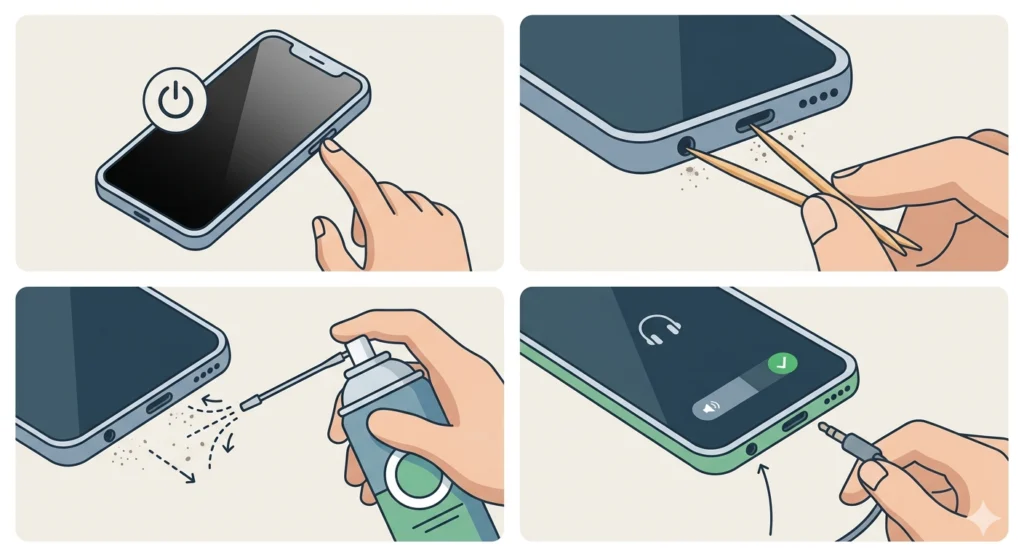
Dust, lint, and debris are the number one silent culprit behind wired headphone detection failures. When the port is even slightly blocked, the phone cannot make proper contact with the headphone plug and simply ignores it.
- Step 1: Power off the phone before cleaning to avoid any short circuit risk.
- Step 2: Use a dry toothpick or a non-metallic tool to gently loosen debris inside the port.
- Step 3: Use a can of compressed air to blow out any remaining dust.
- Step 4: Plug in the headphones again and check if the phone detects them.
This works best when the headphones work fine on another device but not on this specific phone.
Fix 2: Try a Different Pair of Headphones
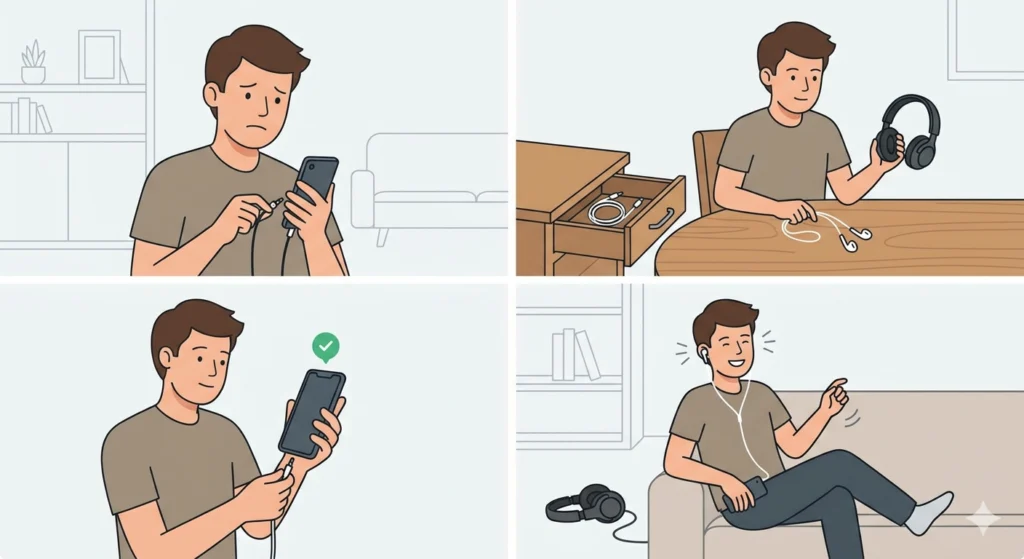
Before going further, rule out whether the headphones themselves are the issue. Plug in a different pair or use the original earphones that came with the phone. If those get detected right away, the original headphones are likely damaged – either a bent plug, a broken internal wire near the jack, or a faulty connector.
Fix 3: Remove the Phone Case
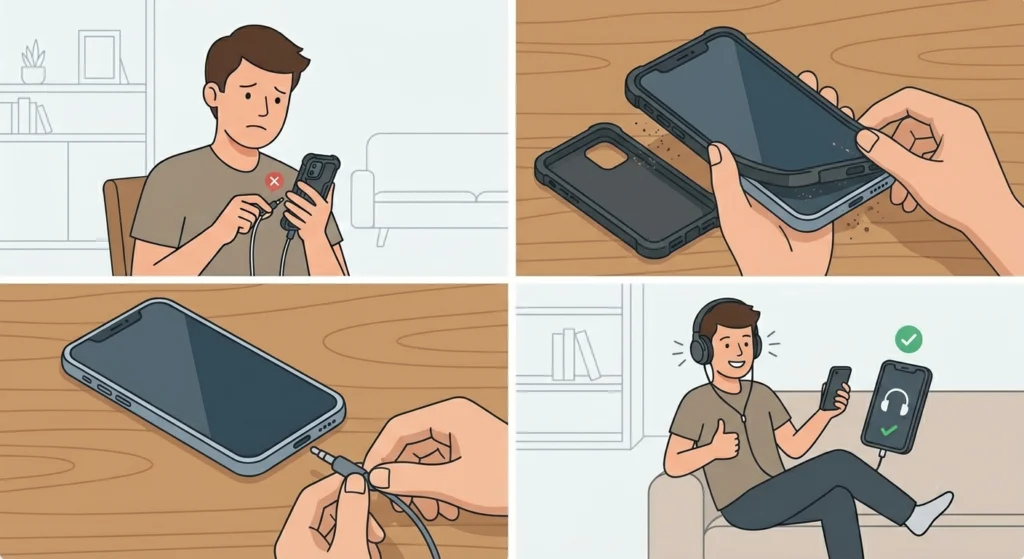
Thick phone cases, especially those with reinforced edges, can physically prevent the headphone plug from seating all the way into the jack. This is more common than most people realize. Remove the case, plug in the headphones again, and see if detection improves.
Fix 4: Restart the Phone
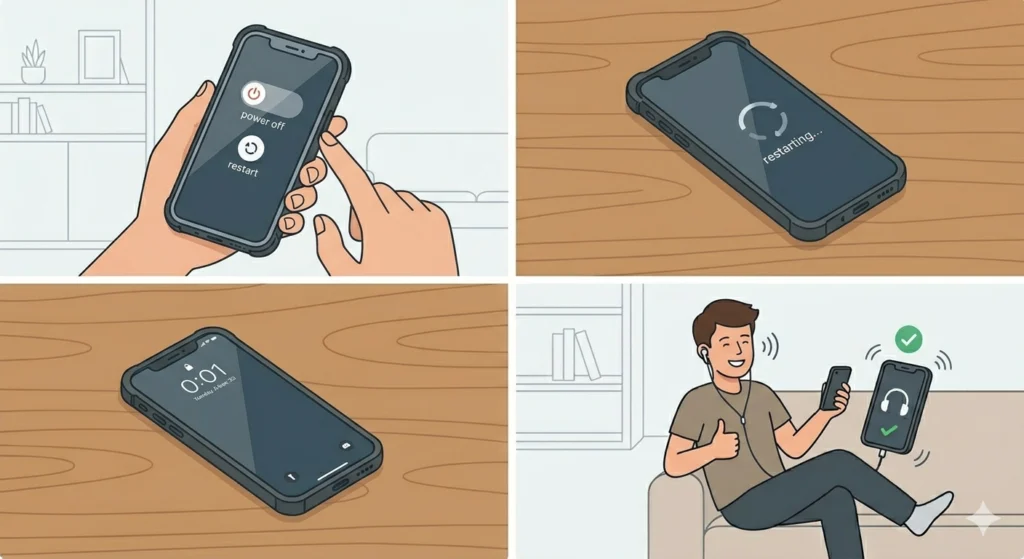
A simple restart clears temporary software glitches that can cause the audio system to stop responding to connected devices. Hold the power button, tap restart, wait for the phone to boot back up, then plug in the headphones.
Fix 5: Check the Audio Output Setting
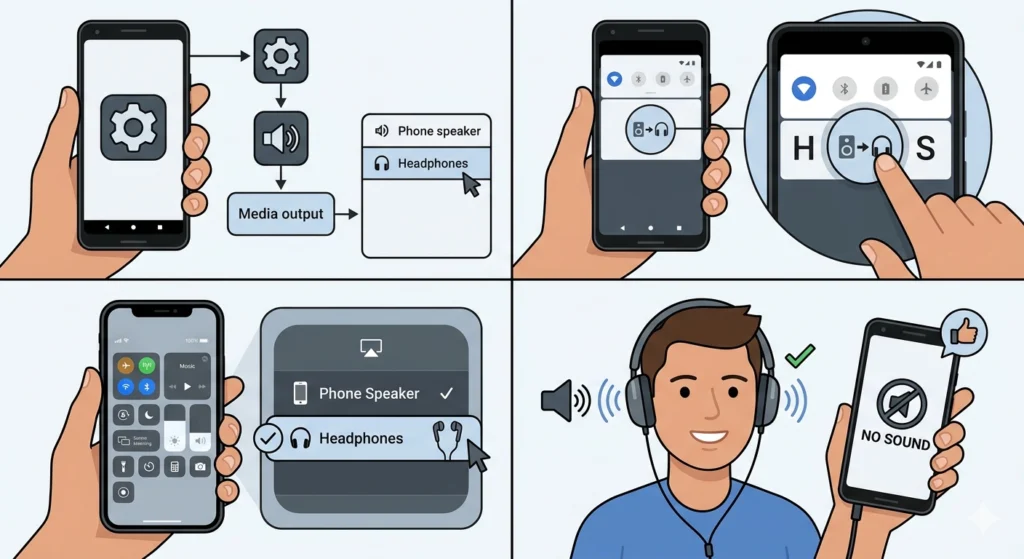
On some phones, the audio output can be manually switched or locked to the speaker even when headphones are connected. Go to Settings, then Sound or Audio, and look for an ‘Audio Output’ or ‘Sound Output’ option. Make sure it is set to headphones or automatic.
Pro-Tip: On Android phones running newer versions, pull down the notification shade and look for a media output icon (usually looks like a speaker or cast icon). Tap it to manually switch audio to the headphones if the phone is not detecting the switch automatically.
Fix 6: Update the Phone Software
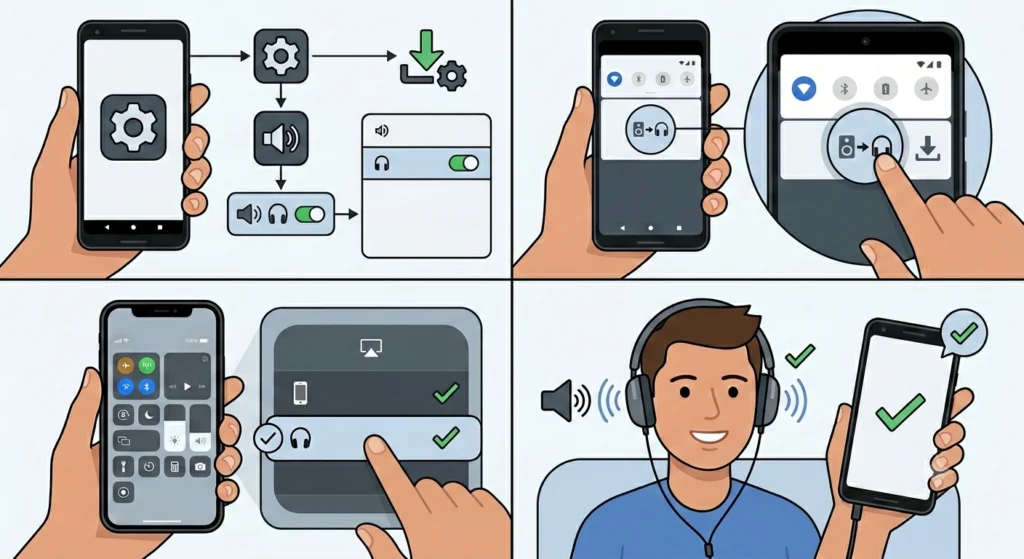
Firmware bugs introduced by system updates can sometimes break headphone jack detection. Check for any pending updates under Settings – Software Update (Android) or Settings – General – Software Update (iPhone) and install them. Manufacturers often push patches for exactly these kinds of audio bugs.
Fix 7: Reset Audio or Sound Settings
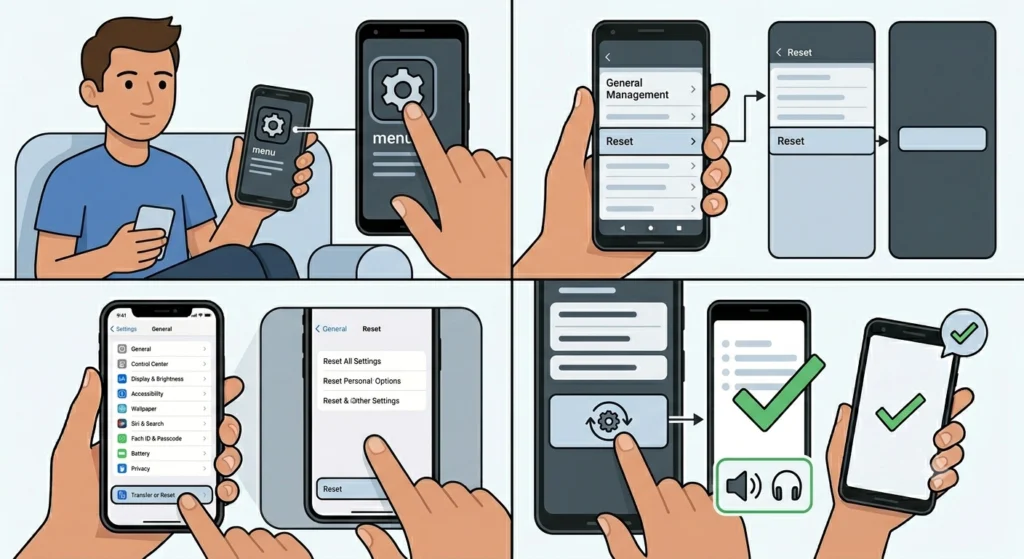
If the headphones still go undetected, resetting the sound configuration can clear corrupted audio preferences without erasing personal data. On Android, go to Settings – General Management – Reset – Reset All Settings. On iPhone, go to Settings – General – Transfer or Reset iPhone – Reset – Reset All Settings.
How to Fix Bluetooth Headphones Not Being Detected
Fix 1: Put the Headphones Into Pairing Mode
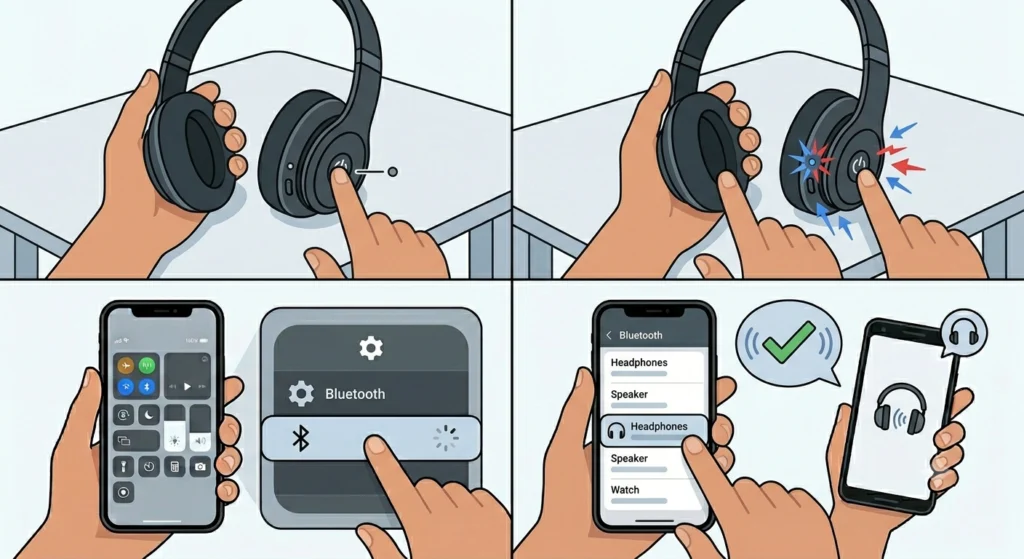
Bluetooth headphones will not show up on the phone if they are not actively broadcasting. Most headphones enter pairing mode by holding the power button for 5 to 10 seconds until the LED flashes rapidly. Check the manual for the exact method since it varies by brand.
- Step 1: Turn off the headphones completely.
- Step 2: Hold the power or pairing button until the LED flashes, indicating pairing mode is active.
- Step 3: On the phone, go to Settings – Bluetooth and scan for devices.
- Step 4: Select the headphones from the list and complete the pairing.
Fix 2: Toggle Bluetooth Off and On
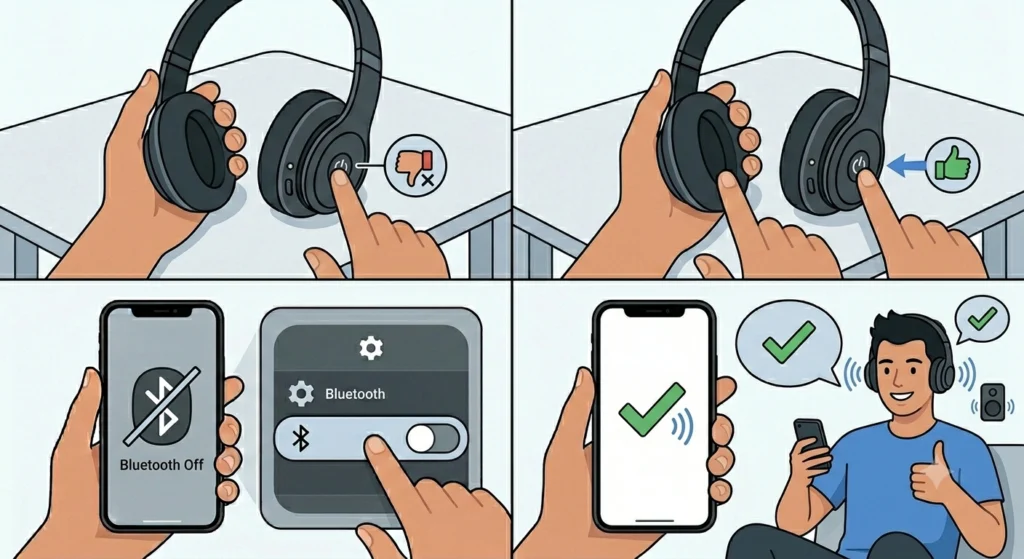
Toggling Bluetooth off and back on refreshes the radio and clears minor connection errors. Swipe down to open Quick Settings, tap the Bluetooth icon to turn it off, wait 10 seconds, then tap again to turn it back on. Try scanning for the headphones again.
Fix 3: Forget the Device and Re-Pair
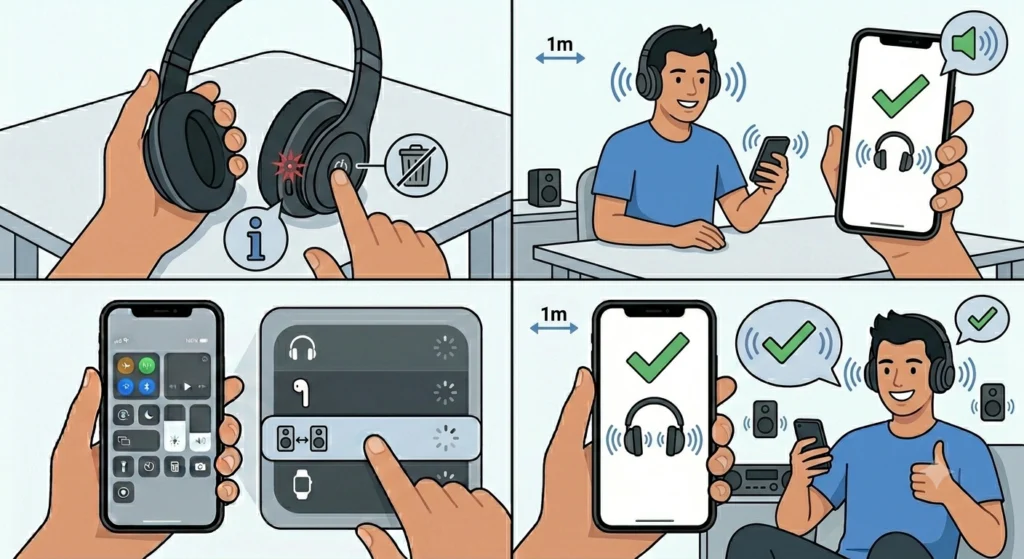
A corrupted pairing profile can prevent detection even when everything else is fine. Removing the saved device and pairing fresh often resolves it. Go to Settings – Bluetooth, find the headphones in the paired list, tap the info icon, and select ‘Forget’ or ‘Unpair’. Then put the headphones back into pairing mode and connect them as a new device.
This is closely related to fixing stereo audio issues as well – if after re-pairing the audio still sounds off or only plays in one ear, check out this guide on how to re-pair Bluetooth earbuds for proper stereo sound to make sure the connection is set up correctly.
Pro-Tip: Keep the headphones within 1 meter of the phone during pairing. Trying to pair from across the room is a common reason the device never shows up in the scan list – Bluetooth range during pairing is much shorter than during normal use.
Fix 4: Clear Bluetooth Cache (Android Only)
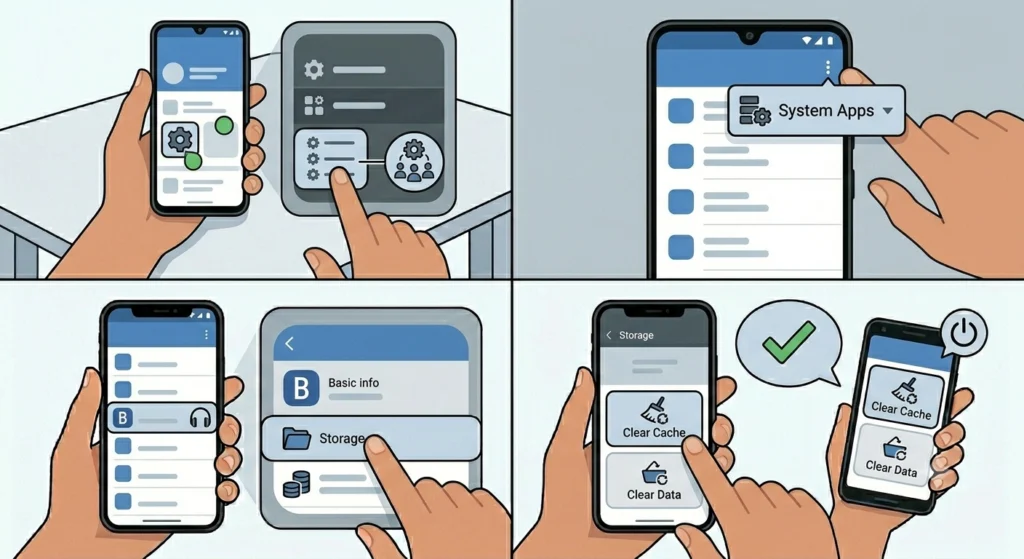
The Bluetooth system cache on Android can build up corrupted data over time, which interferes with device detection. Clearing it does not remove any paired devices permanently.
- Step 1: Go to Settings – Apps (or Application Manager).
- Step 2: Tap the three-dot menu and select ‘Show System Apps.’
- Step 3: Find ‘Bluetooth’ or ‘Bluetooth MIDI Service’ and tap on it.
- Step 4: Tap Storage, then tap ‘Clear Cache.’
- Step 5: Restart the phone and try pairing again.
Fix 5: Check for Interference
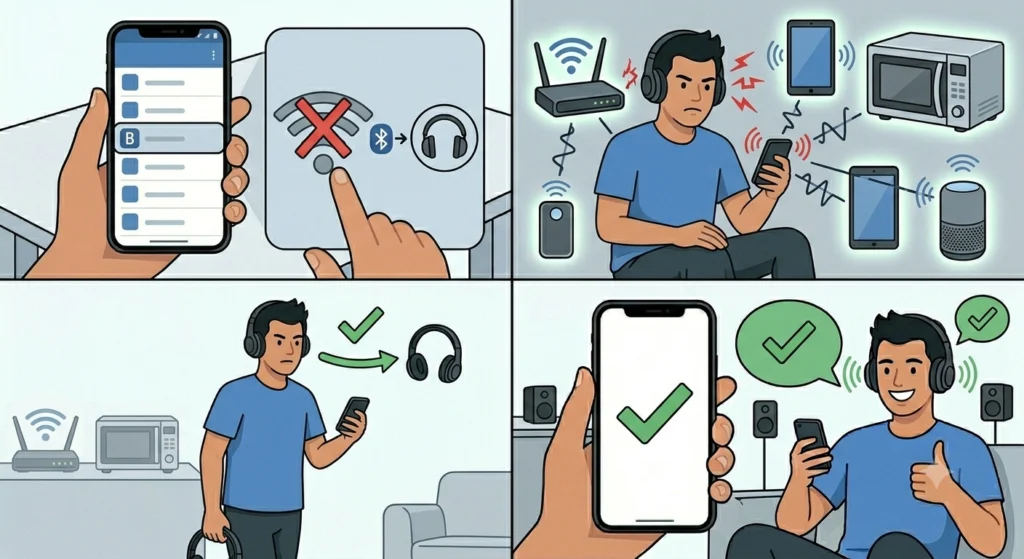
Other wireless devices, Wi-Fi routers, and even microwave ovens can disrupt Bluetooth signals on the 2.4 GHz band. Move away from crowded wireless environments, turn off Wi-Fi temporarily, and try pairing in a different location.
Fix 6: Reset Network Settings
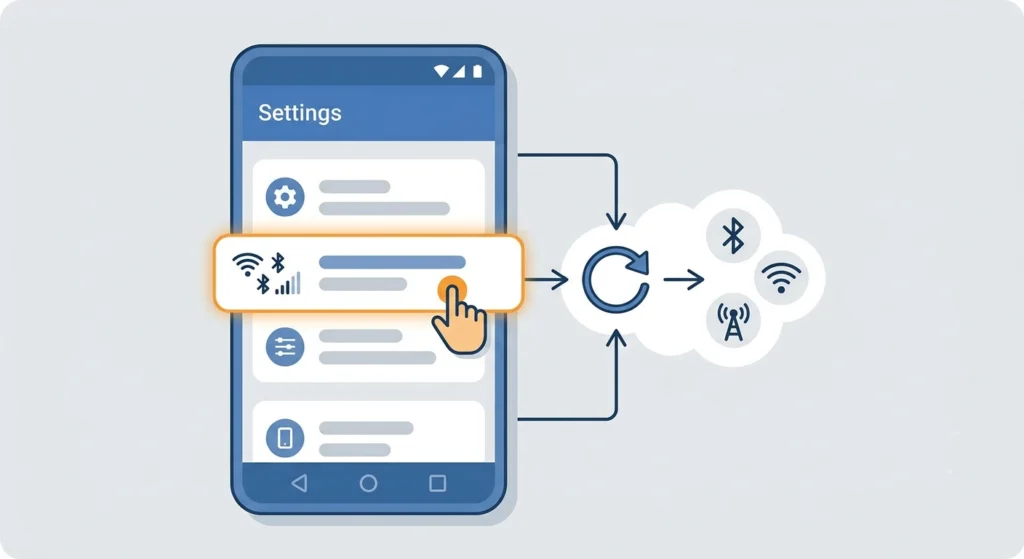
If the headphones still refuse to show up, resetting network settings clears all Bluetooth, Wi-Fi, and cellular configurations. On Android: Settings – General Management – Reset – Reset Network Settings. On iPhone: Settings – General – Transfer or Reset iPhone – Reset – Reset Network Settings. After the reset, re-pair the headphones from scratch.
Tips for Keeping Headphones Detected Reliably
- Clean the headphone jack every few months using compressed air – lint accumulates faster than expected
- Always disconnect Bluetooth headphones properly using the phone settings rather than just turning them off abruptly
- Avoid pairing more than 5 to 7 Bluetooth devices to one phone – too many saved devices can slow down detection and cause conflicts
- Keep both the phone and headphone firmware updated to avoid known bugs
- Store wired headphones with the plug protected – bending the jack connector is the most common cause of intermittent detection
Common Problems and Quick Fixes
- Phone detects headphones but audio still plays through speaker: Check the audio output setting manually in Quick Settings or the Sound menu.
- Headphones detected but only one side works: Check the balance settings under Accessibility – Audio and make sure balance is centered. Also test with another device to rule out physical damage.
- Bluetooth headphones keep disconnecting after being detected: This is often a power-saving setting. Go to Battery settings and disable battery optimization for Bluetooth or the headphone app.
- Wired headphones cause phone to think headset is always plugged in: There may be debris stuck in the port completing a false circuit. Cleaning the port usually resolves this.
- Headphones not showing in Bluetooth list even in pairing mode: The headphones may already be connected to another device. Turn off Bluetooth on other nearby phones or tablets and try again.
- Microphone on wired headset not detected: Some phones require a specific TRRS jack standard (OMTP vs CTIA). Using a headset with the wrong standard means audio works but the mic does not. A compatible adapter solves this. For similar microphone detection issues on other devices, this guide on resolving microphone detection problems covers the process in detail.
Frequently Asked Questions
Why are my headphones not being detected on my phone?
The most common reasons are debris in the headphone jack or charging port, a faulty headphone plug, a Bluetooth pairing error, or a software glitch in the phone’s audio system. Starting with a port cleaning and a phone restart resolves the majority of cases.
How do I force my phone to detect headphones?
Plug in the headphones, then go to Settings – Sound and check if an audio output option appears. On Android, pulling down the notification shade often shows a media output button that can be used to manually switch to the headphones. Restarting the phone while the headphones are plugged in can also force detection.
Does restarting the phone fix headphone detection issues?
Yes, in many cases it does. A restart clears cached system states, reloads audio drivers, and resets the hardware detection system. It is one of the quickest fixes and worth trying before anything more involved.
Why do my Bluetooth headphones show up but will not connect?
This usually means the saved pairing profile is corrupted. Go to Bluetooth settings, forget the device completely, put the headphones back into pairing mode, and reconnect them fresh. Clearing the Bluetooth cache on Android also helps.
My headphones work on other devices but not on my phone – what is wrong?
The issue is almost certainly with the phone rather than the headphones. Check for debris in the port, test with a different pair to confirm the port works, check for pending software updates, and if needed, reset the audio settings. A damaged or worn headphone jack on the phone itself is also possible if the phone is older.
Can a phone case cause headphones not to be detected?
Yes. Thick or poorly designed cases can block the headphone jack enough that the plug does not seat fully. This is especially common with 3.5mm jacks. Removing the case and testing is always worth doing before assuming the port is defective.
How do I fix the headphone jack on my Android phone?
Start by cleaning the jack with compressed air or a dry toothpick to remove lint. If the port still does not detect headphones after cleaning and a restart, check for software updates. If the issue persists, the port itself may have physical damage and a repair shop visit may be needed.
Why does my iPhone not detect my wired headphones?
Modern iPhones do not have a 3.5mm headphone jack – wired audio requires a Lightning or USB-C adapter. If using the correct adapter and headphones are still not detected, check that the adapter is fully inserted, clean the Lightning or USB-C port, and try a different adapter to rule out a faulty one.
Why do my Bluetooth headphones keep disappearing from the Bluetooth list?
This can happen when the headphones auto-connect to another paired device, when they are out of range, or when the phone’s Bluetooth is experiencing a software issue. Keep the headphones close, make sure they are not already connected elsewhere, and toggle Bluetooth off and on to refresh the scan.
Should I reset my phone to fix headphone detection?
A full factory reset should be a last resort. Try cleaning the port, restarting, toggling settings, re-pairing Bluetooth devices, and resetting only the audio or network settings first. Most headphone detection problems are resolved well before a factory reset is needed.