
Galaxy Buds 2 Pro ANC not working is one of the most frustrating issues users run into – especially when you’re relying on those earbuds to block out the world. Active Noise Cancellation is one of the standout features of the Buds 2 Pro, so when it stops doing its job, the whole experience falls flat. The good news is that most ANC problems come down to a few fixable causes, and this guide walks through every proven solution in order.
Quick Summary Table
| Fix | When to Try It | Difficulty |
|---|---|---|
| Check ANC is enabled in Galaxy Wearable | First step always | Easy |
| Clean the microphone mesh | ANC sounds weak or muffled | Easy |
| Adjust ear tip fit | ANC works but feels ineffective | Easy |
| Run Earbud Fit Test | ANC inconsistent per ear | Easy |
| Update Galaxy Wearable app and firmware | Issue appeared after recent use | Easy |
| Reset the earbuds | Multiple fixes have not worked | Moderate |
| Re-pair the earbuds | After reset or Bluetooth glitch | Moderate |
How to Fix Galaxy Buds 2 Pro ANC Not Working
Fix 1: Make Sure ANC Is Actually Turned On
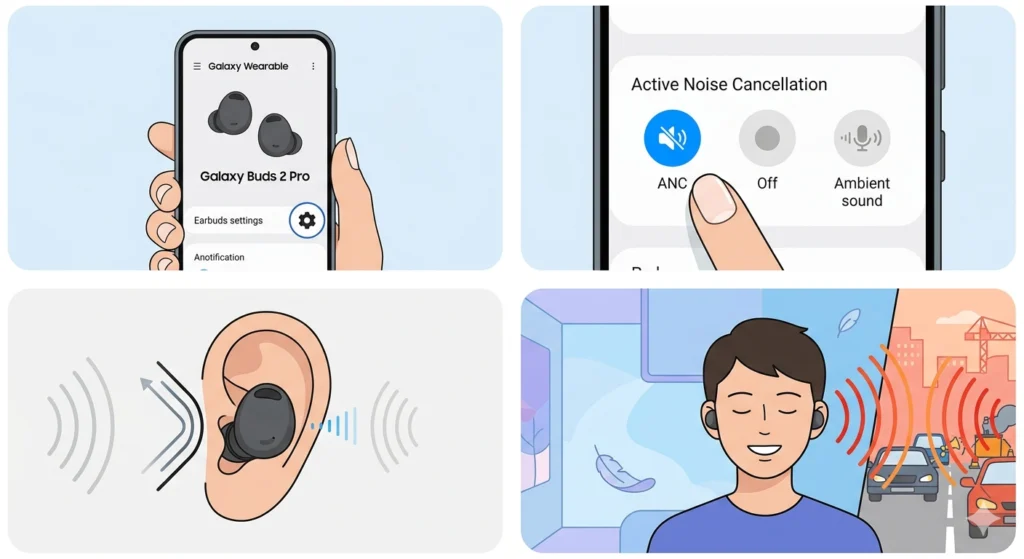
This sounds obvious, but the ANC mode on Galaxy Buds 2 Pro can get switched off accidentally – especially if someone taps the earbud to cycle through modes and lands on ‘Ambient Sound’ or ‘Off’ without realizing it.
- Step 1: Open the Galaxy Wearable app on the connected phone.
- Step 2: Tap ‘Noise controls’ or ‘Active Noise Cancellation.’
- Step 3: Make sure the toggle is set to ‘Noise canceling’ – not ‘Ambient sound’ or ‘Off.’
- Step 4: Put the earbuds in and test immediately in a noisy environment.
The key is to verify this in the app rather than relying on tap controls, since cycling through modes can be easy to mess up mid-session.
Fix 2: Clean the Outer Microphone Mesh
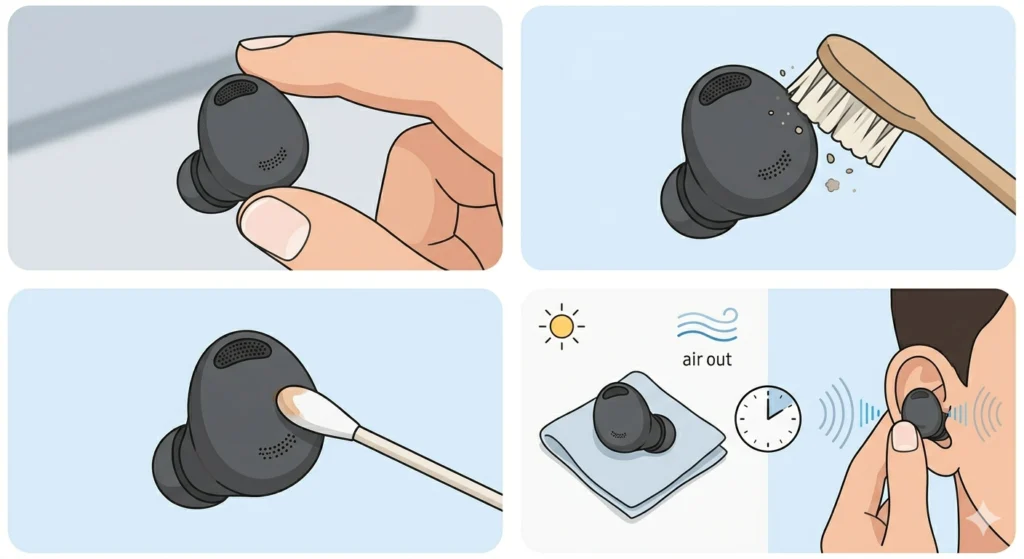
Galaxy Buds 2 Pro use external microphones to ‘hear’ ambient noise and cancel it out. If those mics are blocked by earwax, lint, or skin oils, ANC performance drops noticeably – sometimes to the point where it seems totally off.
- Step 1: Remove the earbuds and look at the outer shell where the microphone holes are (small perforated dots on the surface).
- Step 2: Use a dry, soft-bristle toothbrush or a clean microfiber cloth to gently brush away any visible debris.
- Step 3: For stubborn buildup, use a dry cotton swab – never insert anything into the mesh.
- Step 4: Let them air out for a minute, then test ANC again.
Avoid using water, alcohol, or compressed air directly on the microphone mesh. Gentle and dry is the right approach here.
Fix 3: Adjust the Ear Tips for a Proper Seal
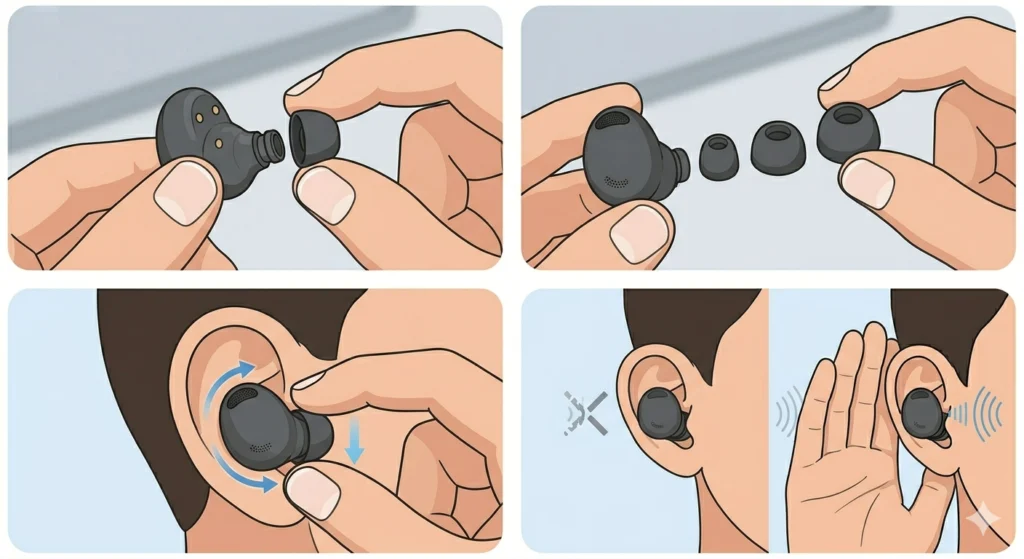
ANC on the Galaxy Buds 2 Pro is partially passive – meaning the physical seal created by the ear tip directly affects how well the noise cancellation works. A loose fit means outside sound leaks in before the ANC can even process it.
- Step 1: Remove the current ear tips by pinching and pulling them off the earbud.
- Step 2: Try a different size – the Buds 2 Pro include small, medium, and large silicone tips.
- Step 3: Reinsert the earbuds with a gentle twisting motion to seat them deeper in the ear canal.
- Step 4: Check if there is a noticeable difference in how much ambient sound you hear before even activating ANC.
Most people find that going one size up from what feels comfortable actually gives the best ANC performance, since the seal becomes more complete.
Fix 4: Run the Earbud Fit Test
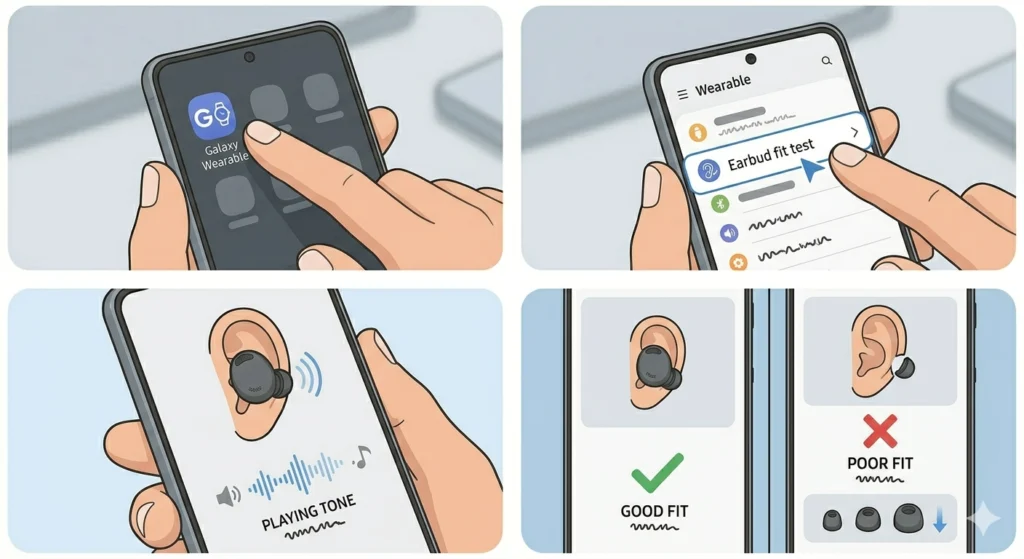
Samsung built a Fit Test directly into the Galaxy Wearable app for exactly this reason. It analyzes how well each earbud is seated and tells whether the seal is tight enough for ANC to work properly.
- Step 1: Open the Galaxy Wearable app.
- Step 2: Go to ‘Earbud fit test’ (found under ‘Earbuds settings’ or the main menu depending on app version).
- Step 3: Follow the on-screen instructions – the test plays a brief tone.
- Step 4: Review the result. If one or both earbuds show a ‘poor fit,’ adjust the tip size and re-test.
This works best when done in a quiet room so the test audio can be processed accurately.
Pro-Tip: If the Fit Test consistently shows ‘poor fit’ even after trying all three tip sizes, the issue might be with ear canal shape. Third-party memory foam tips (like those from Comply) designed for the Galaxy Buds 2 Pro can dramatically improve both comfort and ANC effectiveness for harder-to-fit ears.
Fix 5: Update the Galaxy Wearable App and Earbud Firmware
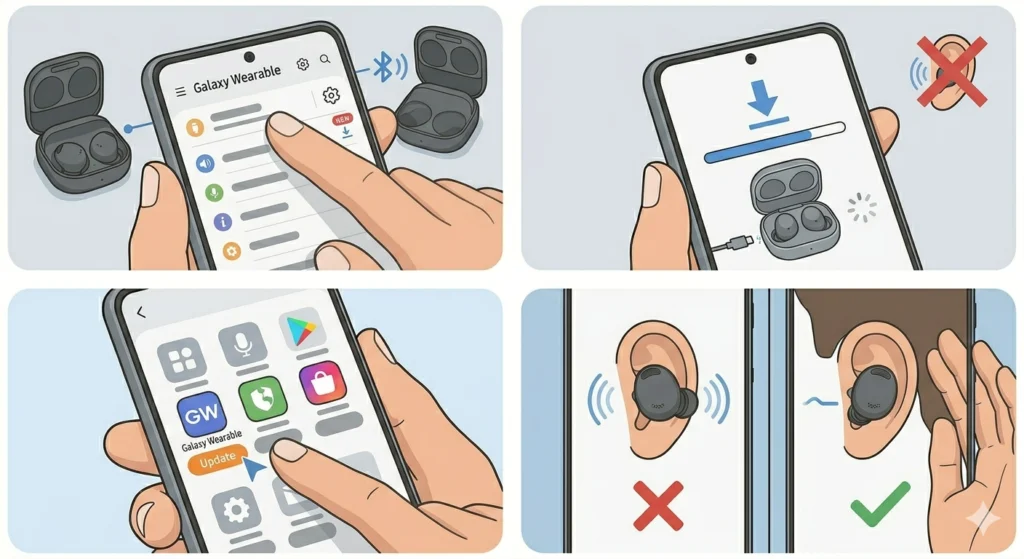
Samsung regularly pushes firmware updates that fix bugs – including ANC performance issues. Running outdated firmware is a common reason ANC suddenly starts underperforming after working fine for weeks.
- Step 1: Open the Galaxy Wearable app with the Buds 2 Pro connected.
- Step 2: Tap ‘Earbuds settings,’ then look for ‘Earbuds software update’ or ‘Update available.’
- Step 3: If an update is available, tap ‘Update’ and keep the earbuds in the case nearby during the process.
- Step 4: Also check the Google Play Store or Galaxy Store to make sure the Galaxy Wearable app itself is up to date.
- Step 5: After updating, re-test ANC.
Firmware updates sometimes reset certain settings, so check that ANC is still enabled in the app after the update completes.
Fix 6: Reset the Galaxy Buds 2 Pro
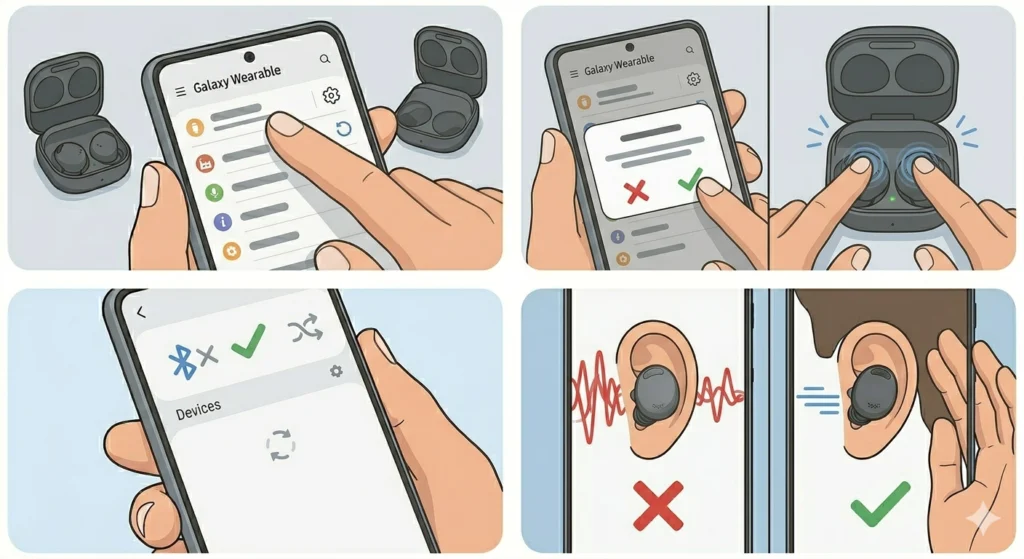
A full reset clears any corrupted settings that might be interfering with ANC processing. This is worth trying when nothing else has worked, since it restores the earbuds to their factory state.
- Step 1: Open the Galaxy Wearable app.
- Step 2: Go to ‘About earbuds’ or ‘General’ depending on the app layout.
- Step 3: Tap ‘Reset’ and confirm the action.
- Step 4: Alternatively, you can reset directly from the earbuds – place both earbuds in the case, open the lid, and touch and hold both earbud touchpads simultaneously until the earbuds reset (typically indicated by a light flash or sound).
- Step 5: After the reset, re-pair the earbuds through Bluetooth settings and set up ANC again in the Galaxy Wearable app.
If Bluetooth pairing behaves strangely after the reset – for example, only one earbud connects or they show as separate devices – check this guide on how to re-pair Bluetooth earbuds for stereo sound to get them back in sync properly.
Fix 7: Check for Conflicting Bluetooth Connections
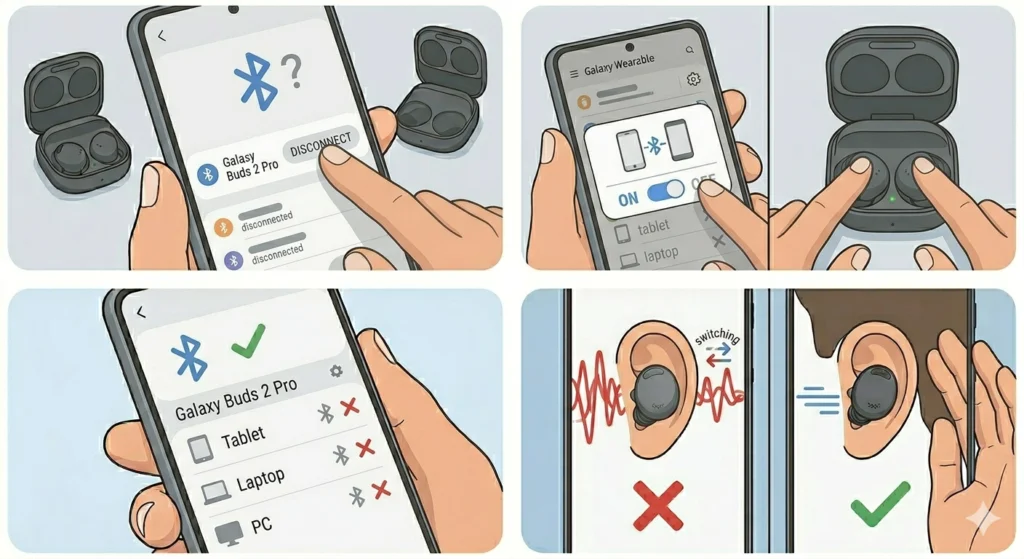
Galaxy Buds 2 Pro support multipoint connection (linking to two devices at once). Sometimes, ANC behaves erratically when the earbuds are actively managing audio from multiple sources. The ANC engine can get confused when switching between paired devices.
- Step 1: Open Bluetooth settings on all devices the earbuds are paired with.
- Step 2: Disconnect the earbuds from all secondary devices, leaving only the primary phone connected.
- Step 3: In the Galaxy Wearable app, check if ‘Connect to new device’ or multipoint settings are active – temporarily disable multipoint if it is.
- Step 4: Test ANC with only one device connected.
This works best when the Buds 2 Pro have been paired to multiple devices like a phone and a laptop at the same time. If audio output settings are causing additional confusion on a Windows device, this guide to adjusting audio output settings can help sort out which device is taking priority.
Pro-Tip: Multipoint connections are convenient but can introduce ANC instability. For the most consistent ANC performance, especially in loud environments like offices or commutes, using a single active connection is always more reliable.
Tips for Keeping Galaxy Buds 2 Pro ANC Working Well
- Store the earbuds in the case when not in use – extended exposure to heat or moisture degrades the microphone mesh over time.
- Clean the earbuds lightly after every few uses to prevent mic blockage from building up gradually.
- Enable auto-updates in the Galaxy Wearable app so firmware patches apply automatically.
- Avoid blocking the outer mic ports with fingers while wearing – it disrupts ANC processing temporarily.
- If switching between loud and quiet environments frequently, letting ANC adjust for a second or two before judging its performance gives a more accurate read on how it is functioning.
Common ANC Problems and What They Mean
ANC Is On But Barely Noticeable
This almost always points to a poor ear tip seal or blocked microphones. Try fixing the fit first, then clean the mics. ANC on the Buds 2 Pro is highly dependent on physical seal quality – without it, even a perfectly functioning ANC system underperforms.
ANC Turns Off by Itself
This typically happens when the earbuds detect a poor fit through the Fit Detection feature and automatically switch modes. It can also be triggered by a low battery level. Make sure the ear tips are seated properly and that the battery is above 20%.
ANC Works on One Earbud but Not the Other
One earbud may have a blocked microphone or a firmware sync issue. Clean both outer mic meshes, run the Fit Test, and if the problem persists, perform a full reset to re-sync both earbuds.
ANC Makes a Hissing or Static Sound
A low hiss is normal with ANC enabled – it is called self-noise and is inherent to how noise cancellation works. However, if the hissing is loud or distracting, this may indicate a mic issue or a software bug that a firmware update should fix.
ANC Stopped Working After a Phone Update
Android or Samsung One UI updates can occasionally cause compatibility hiccups with paired accessories. Check for a corresponding Galaxy Wearable app update, and if none is available, try disconnecting and re-pairing the earbuds from scratch.
Frequently Asked Questions
Why is the ANC on my Galaxy Buds 2 Pro not working at all?
The most common reasons are that ANC is disabled in the Galaxy Wearable app, the ear tips are not creating a proper seal, or the external microphones are partially blocked by debris. Start by verifying the mode in the app, then check fit and clean the mics.
Does battery level affect ANC performance on Galaxy Buds 2 Pro?
Yes. When battery drops below a certain threshold, the earbuds may limit or disable ANC to conserve power. Charging the case and earbuds fully before use ensures ANC operates at full capacity.
Can a bad ear tip size reduce ANC effectiveness?
Absolutely – and this is one of the most overlooked causes. ANC on the Galaxy Buds 2 Pro relies partly on the passive seal created by the ear tip. A loose or incorrect-size tip allows ambient noise to bypass the system entirely, making ANC seem ineffective even when it is working correctly.
Will resetting the Galaxy Buds 2 Pro fix ANC problems?
In many cases, yes. A factory reset clears corrupted settings and audio processing configurations that can interfere with ANC. After the reset, you will need to re-pair the earbuds and re-enable ANC in the Galaxy Wearable app.
How do firmware updates affect ANC on Galaxy Buds 2 Pro?
Samsung uses firmware updates to improve ANC algorithms, fix known bugs, and patch performance regressions. Running outdated firmware means missing these improvements. Always check for updates in the Galaxy Wearable app, especially if ANC suddenly got worse after a period of working fine.
Can using the Buds 2 Pro with multiple devices cause ANC issues?
Yes. Multipoint connections – where the earbuds are linked to two devices simultaneously – can sometimes cause ANC to behave inconsistently, especially when the audio source switches between devices. Temporarily disabling multipoint and using only one connection can resolve this.
Is the ANC on Galaxy Buds 2 Pro supposed to block all sound?
No. ANC reduces ambient noise – it does not eliminate it completely. The Buds 2 Pro are particularly effective at filtering low-frequency continuous sounds like engine hum or HVAC noise. High-frequency or sudden sounds (voices, alarms) will still be partially audible. If ANC used to sound much better than it does now, that points to a settings or hardware issue rather than a normal limitation.
Why does ANC turn off when the earbuds are in the case?
ANC only functions when the earbuds are in the ears and the earbud-to-ear contact sensor detects a proper fit. When stored in the case, ANC is automatically suspended. This is normal behavior and not a malfunction.
Do third-party ear tips work with ANC on Galaxy Buds 2 Pro?
Yes, as long as the tips are designed to fit the Galaxy Buds 2 Pro stem shape. Memory foam third-party tips often provide a better seal than the stock silicone options for some users, which can actually improve ANC performance. However, make sure the tips do not cover or press against the external microphone ports.
What should be done if none of the fixes work?
If ANC remains non-functional after trying all the steps in this guide – including a full reset and firmware update – there may be a hardware defect with the ANC microphones. In that case, contact Samsung Support or visit an authorized service center. If the earbuds are within the warranty period, a replacement may be available at no cost.