
Sony WH-1000XM4 stuttering audio is one of the most frustrating issues owners run into – especially when the headphones sound flawless one moment and choppy the next. The good news is that most stuttering problems come down to a handful of fixable causes: Bluetooth interference, outdated firmware, codec mismatches, or a simple pairing glitch. This step-by-step guide covers every proven fix so the audio stays smooth and uninterrupted.
Quick Summary Table
- Most common cause: Bluetooth interference or too much distance from the source device
- Fastest fix: Disconnect and reconnect Bluetooth, or move closer to the device
- Firmware fix: Update via the Sony Headphones Connect app
- Codec fix: Switch from LDAC to AAC or SBC for a more stable connection
- Last resort: Factory reset the WH-1000XM4
- Works on: Windows, Mac, Android, iOS, and all Bluetooth sources
Fix 1: Check Bluetooth Range and Interference

Before diving into settings, the simplest thing to check is physical distance and environment. The WH-1000XM4 works best within 10 meters (33 feet) of the source device, but walls, microwaves, Wi-Fi routers, and other Bluetooth devices nearby can all slash that range significantly.
- Step 1: Move closer to the phone, laptop, or audio source – ideally within 1-2 meters.
- Step 2: Turn off or move away from other Bluetooth devices in the area.
- Step 3: Keep the headphones away from microwaves and 2.4GHz Wi-Fi routers while testing.
- Step 4: Test the audio again once the environment is cleared up.
This works best when the audio cuts in and out only occasionally or worsens in crowded areas like offices or public transport.
Fix 2: Disconnect and Reconnect Bluetooth
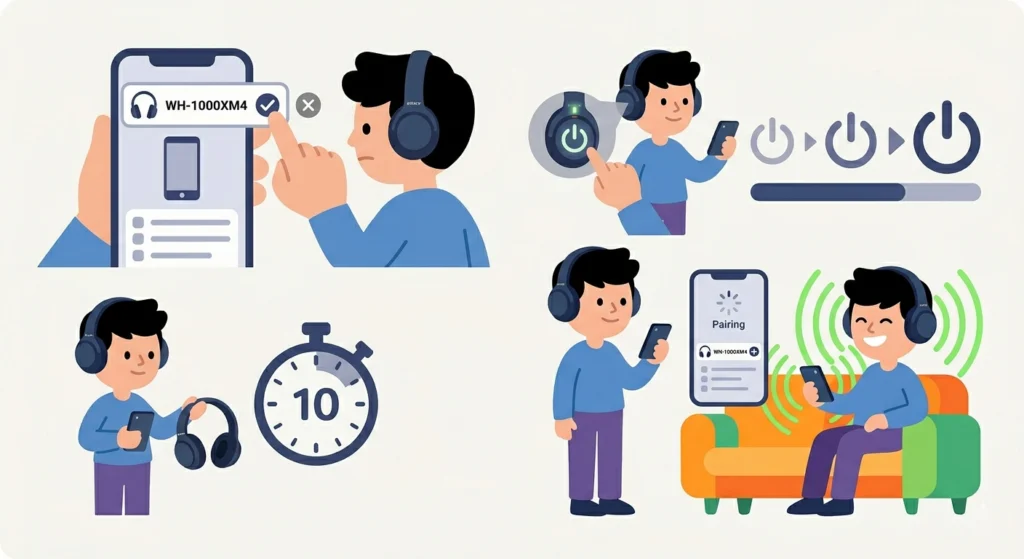
A stale or corrupted Bluetooth session is a surprisingly common culprit for stuttering. Simply cycling the connection often clears it up instantly.
- Step 1: On the source device, go to Bluetooth settings.
- Step 2: Find the WH-1000XM4 in the connected devices list and tap ‘Disconnect’ or ‘Forget’.
- Step 3: Turn the headphones off by holding the power button for 3 seconds.
- Step 4: Wait 10 seconds, then turn the headphones back on.
- Step 5: Re-pair the headphones from scratch through Bluetooth settings.
If the stuttering was caused by a bad session handshake, this fix resolves it immediately. For Windows users who keep running into pairing issues, this guide on how to re-pair Bluetooth headphones for stereo sound on Windows is worth bookmarking.
Fix 3: Change the Bluetooth Codec
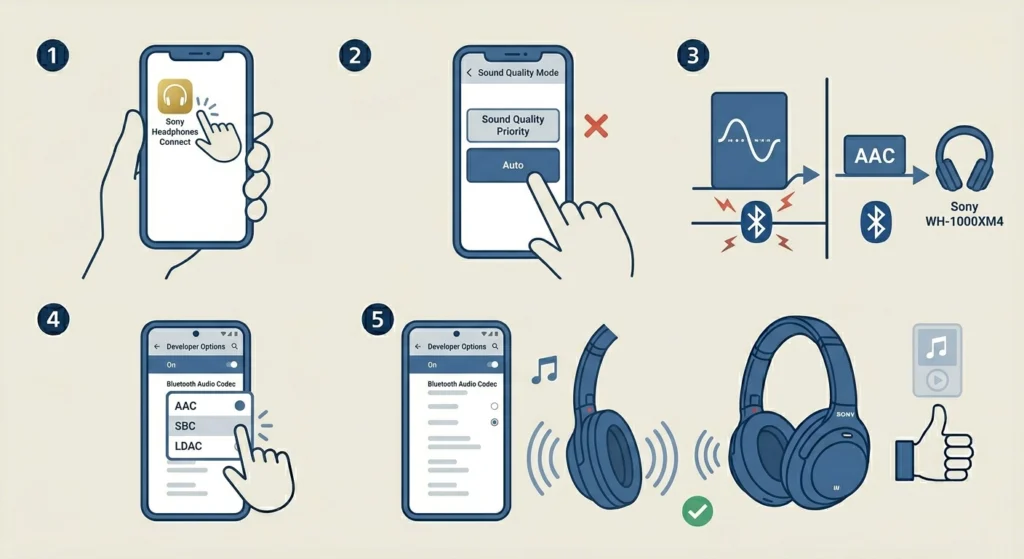
The WH-1000XM4 supports LDAC, AAC, and SBC codecs. LDAC delivers the best audio quality, but it demands a rock-solid Bluetooth connection. Any interference at all, and it stutters. Switching to AAC or SBC trades a little quality for a much more stable connection.
- Step 1: Open the Sony Headphones Connect app on the phone.
- Step 2: Tap the headphones icon and go to ‘Sound Quality Mode’.
- Step 3: Switch from ‘Sound Quality Priority’ (LDAC) to ‘Connection Priority’ or ‘Auto’.
- Step 4: On Android, the codec can also be changed manually: go to Developer Options, find ‘Bluetooth Audio Codec’, and select AAC or SBC.
- Step 5: Play audio and check if the stuttering stops.
Pro-Tip: LDAC at 990kbps is the most demanding setting and stutters the most in congested environments. Dropping to ‘Auto’ in the Sony app lets the headphones dynamically choose the best codec for the current connection quality – this setting eliminates most stuttering without permanently sacrificing sound quality.
Fix 4: Update the Firmware
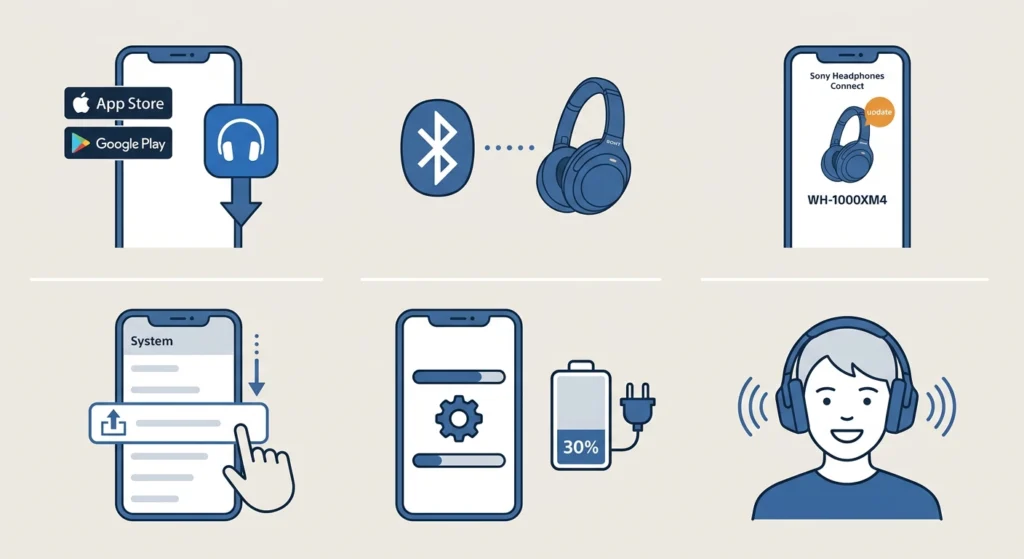
Sony regularly releases firmware updates that address Bluetooth stability bugs, codec performance, and audio sync issues. Running outdated firmware is a known cause of persistent stuttering on the WH-1000XM4.
- Step 1: Download the ‘Sony Headphones Connect’ app from the App Store or Google Play if it is not already installed.
- Step 2: Connect the WH-1000XM4 to the phone via Bluetooth.
- Step 3: Open the app and tap the headphones image on the home screen.
- Step 4: Scroll down to ‘System’ and tap ‘Firmware Update’.
- Step 5: If an update is available, tap ‘Update’ and keep the headphones connected and charged (above 30%) throughout the process.
- Step 6: Once the update finishes, reconnect and test the audio.
Fix 5: Disable Automatic Switching (Multipoint Connection)
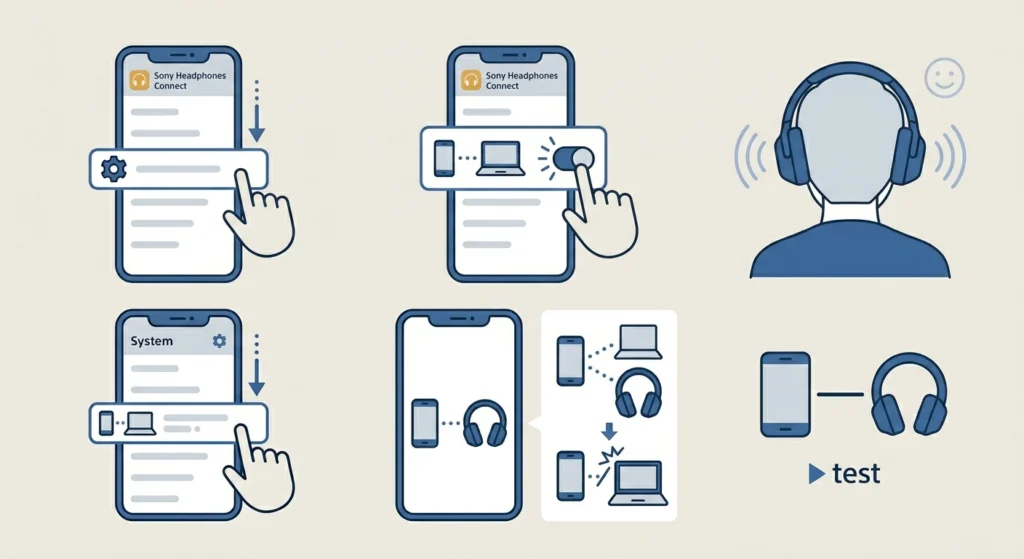
The WH-1000XM4 supports multipoint connection – meaning it can be connected to two devices at once. While convenient, this feature can trigger stuttering when the headphones try to switch between devices or when a second paired device sends audio signals in the background.
- Step 1: Open the Sony Headphones Connect app.
- Step 2: Go to ‘System’ and then ‘Connect to 2 Devices Simultaneously’.
- Step 3: Toggle this feature off.
- Step 4: Disconnect the headphones from all devices, then reconnect only to the primary device.
- Step 5: Test audio playback.
Most people find that disabling this feature alone clears up stuttering that happens when a laptop and phone are both paired.
Fix 6: Adjust Audio Settings on Windows 11
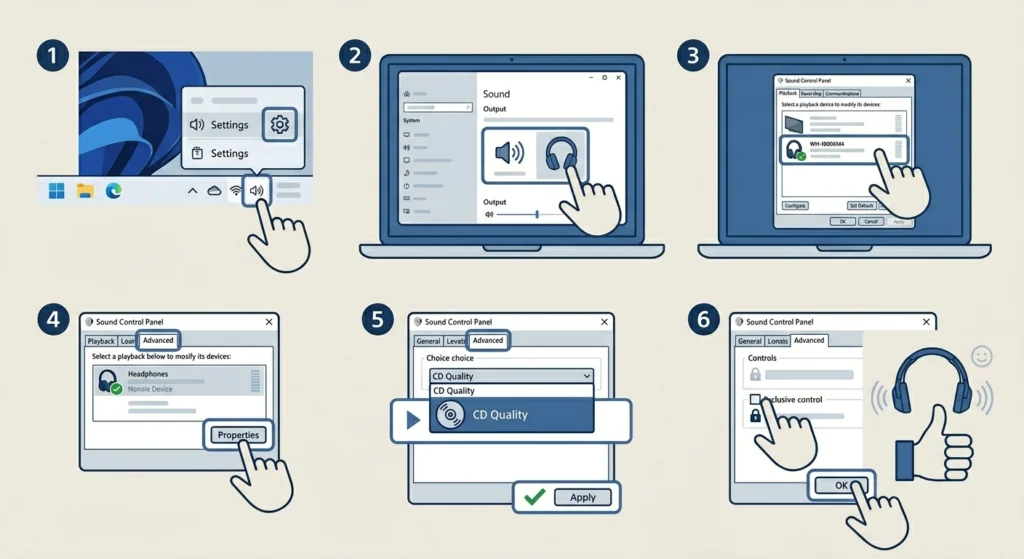
When the WH-1000XM4 stutters specifically on a Windows PC, the issue often comes down to audio settings rather than the headphones themselves. Windows can default to low-quality audio formats or conflict with Bluetooth drivers.
- Step 1: Right-click the sound icon in the taskbar and select ‘Sound Settings’.
- Step 2: Under ‘Output’, select the WH-1000XM4 headphones.
- Step 3: Click ‘More sound settings’ and go to the ‘Playback’ tab.
- Step 4: Right-click the WH-1000XM4 and choose ‘Properties’, then go to ‘Advanced’.
- Step 5: Change the default format to ’16 bit, 44100 Hz (CD Quality)’ and click Apply.
- Step 6: Uncheck ‘Allow applications to take exclusive control of this device’ and click OK.
For a more detailed walkthrough of audio output configuration on Windows 11, check out this guide on adjusting audio output settings on Windows 11.
Pro-Tip: On Windows, the WH-1000XM4 appears as two separate audio devices – one for stereo high-quality audio and one for the headset (with microphone). Always select the ‘Stereo’ version for music playback. The headset mode drops audio quality to support the microphone simultaneously and can cause stuttering when both are active.
Fix 7: Factory Reset the WH-1000XM4

If none of the above fixes work, a factory reset wipes all paired devices and restores default settings. This resolves deep software glitches that simpler fixes cannot touch.
- Step 1: Turn the headphones on.
- Step 2: Press and hold the Power button and the Custom button simultaneously for 7 seconds until the indicator light flashes red.
- Step 3: The headphones will power off automatically after the reset.
- Step 4: Turn them back on – they will now be in pairing mode.
- Step 5: Re-pair the headphones with the source device and test audio playback.
A factory reset removes all saved Bluetooth pairings, so every device will need to be reconnected from scratch. This is the most thorough software fix available without sending the headphones in for service.
Tips for Keeping WH-1000XM4 Audio Stutter-Free
- Keep firmware updated through the Sony Headphones Connect app regularly.
- Use ‘Connection Priority’ mode in busy Bluetooth environments like offices or public transport.
- Avoid placing the phone in a back pocket – the body blocks Bluetooth signals more than most people realize.
- Charge the headphones above 20% before long listening sessions – low battery can cause unstable codec performance.
- Clear old paired devices from the headphone memory periodically to avoid conflict (the XM4 stores up to 9 pairings).
- On Windows, always update Bluetooth drivers from the PC or motherboard manufacturer’s website, not just through Windows Update.
Common Problems and Troubleshooting
Stuttering Only Happens on Windows
This almost always points to the Bluetooth driver or audio format settings. Update the Bluetooth adapter driver, and make sure the audio format is set to 44100 Hz in sound settings. Also check that the headphones are set as the default playback device and not conflicting with onboard audio.
Stuttering Starts After a Few Minutes of Playback
This pattern often signals LDAC struggling with an inconsistent connection. Switch to ‘Connection Priority’ in the Sony app, or try disabling multipoint. It can also be related to battery – if the headphones are below 20%, performance drops.
Audio Cuts Out Completely and Comes Back
Complete cutouts rather than stuttering usually mean the Bluetooth connection is dropping entirely. Move closer to the source, check for interference from other devices, and try re-pairing. If it happens on multiple devices, a firmware update or factory reset is the next step.
Stuttering Only on Calls, Not Music
Call audio uses the headset profile (HFP), which runs at much lower quality than music playback. The microphone activates a second Bluetooth channel, which can compete for bandwidth. Disable ‘hands-free’ in Windows sound settings and use the headphones for listening only to test if the microphone is the cause.
Sony App Does Not Show Firmware Update
Make sure the app itself is updated to the latest version. Also confirm the headphones are fully connected via Bluetooth, not just paired. If the update option is greyed out, charge the headphones above 30% and try again.
Frequently Asked Questions
Why do Sony WH-1000XM4 headphones stutter?
The most common causes are Bluetooth interference, being too far from the source device, codec instability (especially with LDAC), outdated firmware, or a corrupted Bluetooth pairing session. The multipoint feature connecting two devices simultaneously can also trigger stuttering.
Does LDAC cause stuttering on the WH-1000XM4?
Yes. LDAC at its highest bitrate (990kbps) is very sensitive to Bluetooth interference and distance. In congested environments, switching to AAC or enabling ‘Auto’ mode in the Sony Headphones Connect app will significantly reduce or eliminate stuttering.
How do you reset Sony WH-1000XM4 to fix audio issues?
Hold the Power button and Custom button simultaneously for 7 seconds while the headphones are on. The indicator light will flash red, and the headphones will power off, completing the factory reset. Turn them back on and re-pair with the source device.
Can a firmware update fix WH-1000XM4 stuttering?
Yes, firmware updates frequently address Bluetooth stability and codec performance issues. Check for updates through the Sony Headphones Connect app under ‘System’ > ‘Firmware Update’. Keeping firmware current is one of the best preventive measures for audio stuttering.
Why does the WH-1000XM4 stutter on Windows but not on Android?
Windows Bluetooth stacks handle codecs differently from Android. Windows may default to a lower-quality or less stable audio profile, or the Bluetooth driver may be outdated. Adjusting the audio format in Windows sound settings and updating the Bluetooth driver usually resolves this.
Does low battery cause WH-1000XM4 stuttering?
It can. When battery drops below approximately 20%, the headphones may reduce processing power, which can affect Bluetooth stability and codec performance. Charging before long sessions helps avoid this issue.
How do you stop WH-1000XM4 from switching between devices?
Open the Sony Headphones Connect app, go to ‘System’, and turn off ‘Connect to 2 Devices Simultaneously’. This disables the multipoint feature and prevents the headphones from bouncing between two paired devices, which is a frequent cause of stuttering.
Does the Sony WH-1000XM4 support SBC and AAC codecs?
Yes. The WH-1000XM4 supports SBC, AAC, and LDAC. SBC is the most universally stable, AAC offers a good balance of quality and stability (especially with Apple devices), and LDAC provides the highest audio quality but requires a strong, clean Bluetooth connection.
Why does the WH-1000XM4 stutter on calls but not during music?
Phone calls use the Hands-Free Profile (HFP), which activates the microphone and uses a separate, narrower Bluetooth channel. This can compete with audio playback for bandwidth. Disabling the microphone profile in Windows sound settings or switching to a wired connection for calls can resolve this.
Is WH-1000XM4 stuttering a hardware defect?
In most cases, no. The vast majority of stuttering issues are caused by software, settings, firmware, or environmental Bluetooth interference – all of which can be fixed. If stuttering persists after a factory reset, firmware update, and testing on multiple devices, contacting Sony support for a hardware evaluation is the recommended next step.