
Earbuds that randomly pause music are one of the most frustrating audio problems out there. One second the track is playing perfectly, the next it stops without warning. This issue is surprisingly common across all major earbud brands – whether it is a pair of Sony, Samsung, Apple AirPods, or budget Bluetooth earbuds. The good news is that most causes are fixable without any special tools or technical skills. This guide walks through every proven fix, step by step, so the music stays playing where it belongs.
Quick Summary Table
| Cause | Fix | Difficulty |
|---|---|---|
| Proximity or ear-detection sensor | Clean sensor or disable auto-pause | Easy |
| Bluetooth connection instability | Re-pair earbuds, clear paired devices | Easy |
| Low battery | Charge earbuds fully before use | Easy |
| App or OS auto-pause settings | Disable smart pause, focus modes | Easy |
| Touch control sensitivity | Adjust or lock touch controls | Easy |
| Firmware bugs | Update earbud firmware | Moderate |
| Earbud fit issues | Replace ear tips, reseat earbuds | Easy |
Fix 1: Disable the Auto-Pause or Smart Pause Feature
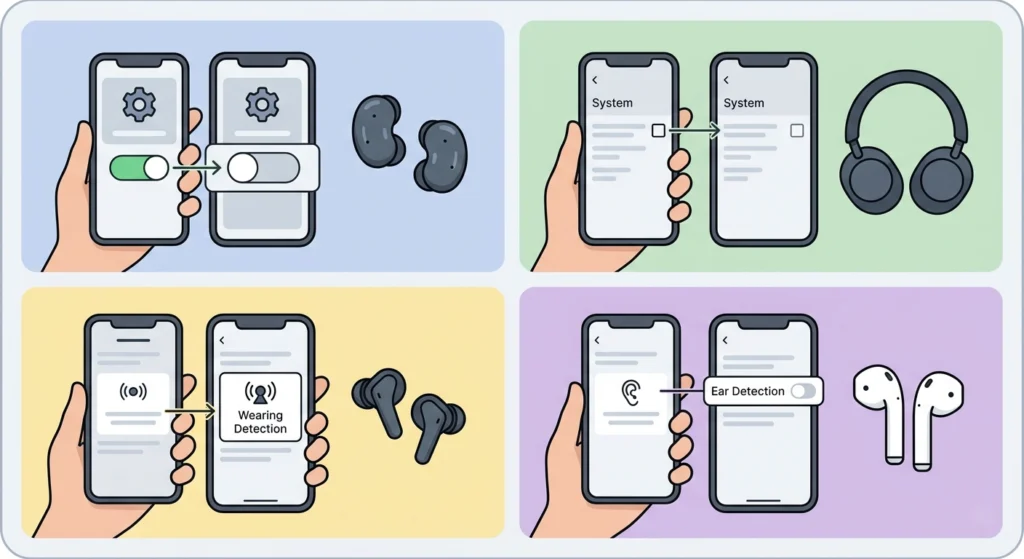
Most modern earbuds come with an auto-pause or smart pause feature that detects when earbuds are removed from the ears. When the sensor gets confused – from sweat, hair, or an imperfect fit – it triggers a false pause. This is the most common reason earbuds randomly stop music.
The key is to turn off this feature first before anything else. Here is how to do it based on common earbud companion apps:
- Samsung Galaxy Buds: Open the Galaxy Wearable app, go to ‘Earbud controls’, then toggle off ‘Auto pause when earbuds are removed’.
- Sony WF/WH series: Open Sony Headphones Connect app, go to ‘System’, then disable ‘Automatic power off’ and ‘Wearing detection’.
- Jabra earbuds: Open Jabra Sound+ app, navigate to ‘Advanced settings’, then turn off ‘Hear through’ or wearing detection options.
- Apple AirPods: Go to iPhone Settings, tap the AirPods name, then turn off ‘Automatic Ear Detection’.
After disabling the feature, test the earbuds with the same music that was pausing before. Most people find that this single step eliminates the problem entirely.
Fix 2: Clean the Ear-Detection Sensors
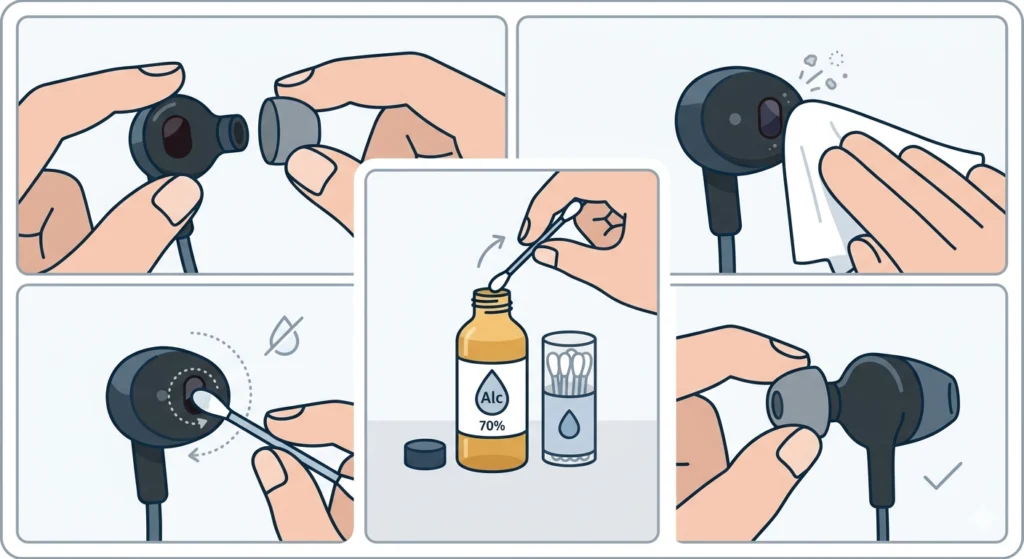
If auto-pause keeps triggering even when earbuds are properly seated, dirty sensors are usually the culprit. The infrared or optical sensors that detect ear contact sit in a small groove on the inner earbud surface. Earwax, sweat residue, and dust can coat these sensors and cause false ‘removed’ signals.
- Step 1: Remove the ear tips (silicone sleeves) from the earbuds.
- Step 2: Use a dry microfiber cloth to wipe down the inner sensor area gently.
- Step 3: For stubborn buildup, lightly dampen a cotton swab with isopropyl alcohol (70% or less). Do not use water directly.
- Step 4: Wipe the sensor area in a circular motion and allow to fully dry before reinserting the ear tips.
- Step 5: Reinstall ear tips and test playback.
This works best when done every few weeks as part of regular earbud maintenance, especially for people who use earbuds during workouts.
Fix 3: Re-Pair the Earbuds via Bluetooth
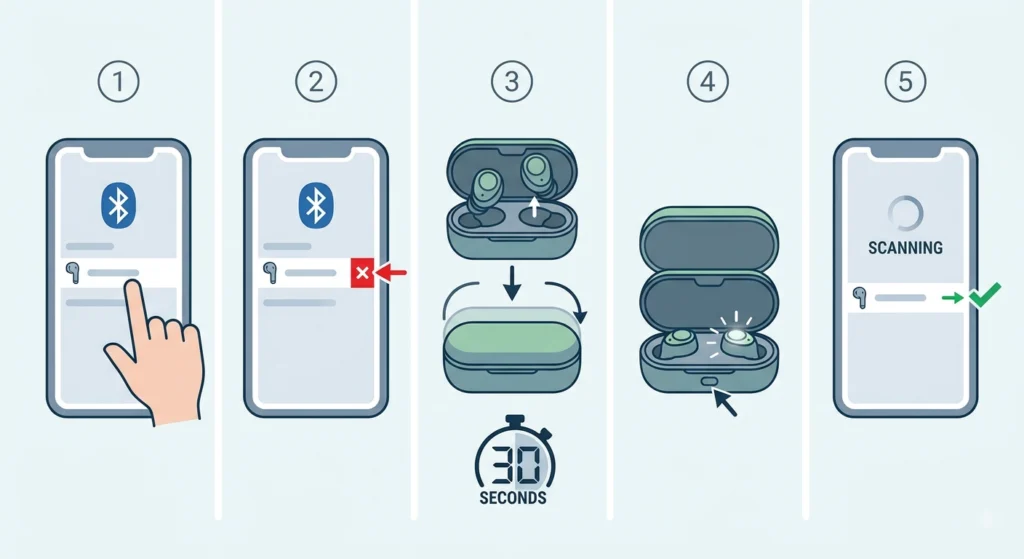
A weak or corrupted Bluetooth connection can cause dropouts that look like random pauses. The audio stream momentarily breaks, and the media player interprets this as a pause command. Re-pairing Bluetooth earbuds refreshes the connection and clears any corrupted pairing data.
- Step 1: On the phone or computer, go to Bluetooth settings and find the earbuds in the paired devices list.
- Step 2: Select ‘Forget’ or ‘Unpair’ the earbuds.
- Step 3: Put the earbuds back in the charging case and close the lid for 30 seconds.
- Step 4: Open the lid and put the earbuds into pairing mode (usually by holding the button on the case or on the earbuds themselves until the LED flashes).
- Step 5: On the device, scan for Bluetooth and reconnect to the earbuds as if pairing for the first time.
Also, keep the connected device within 5-10 meters during use. Walls, microwaves, and Wi-Fi routers on the 2.4GHz band can interfere with Bluetooth signal quality.
Pro-Tip: If the earbuds are paired to multiple devices (phone, laptop, tablet), they may be switching connections automatically mid-playback. Unpair the earbuds from all devices except the one in active use, then re-pair only that device. This alone stops a lot of mysterious random pauses.
Fix 4: Check and Adjust Touch Control Settings
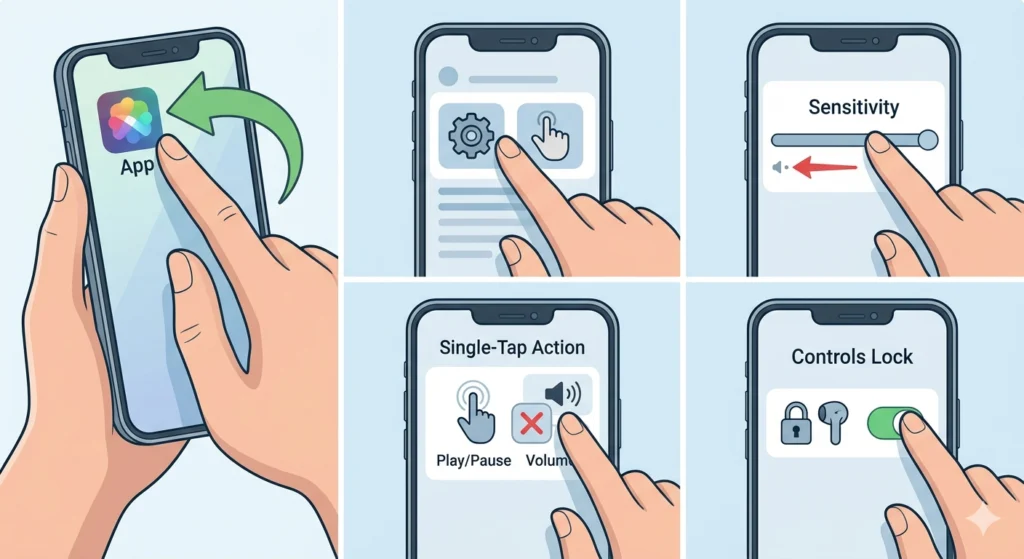
Touch-sensitive earbuds register taps on the earbud surface to control playback. The problem is that these touch panels are sometimes overly sensitive. Glasses temples, hair brushing the earbud, or even sweat running across the surface can register as a tap – triggering a pause.
- Step 1: Open the companion app for the earbuds (Galaxy Wearable, Sony Headphones Connect, Jabra Sound+, etc.).
- Step 2: Navigate to touch control or gesture settings.
- Step 3: Reduce touch sensitivity if the option is available.
- Step 4: Remap the single-tap action to something other than play/pause, or disable the single-tap function entirely.
- Step 5: If locking controls is available (common during workouts mode), enable it.
For earbuds without a companion app, check the manufacturer’s website for firmware update options that may include sensitivity adjustments.
Fix 5: Disable System-Level Auto-Pause Features
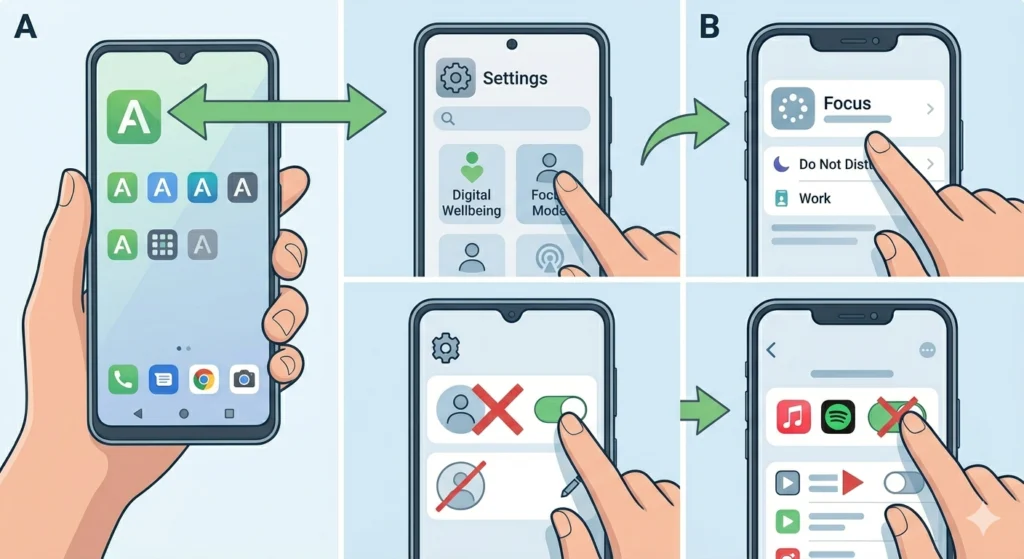
Phones and computers have their own settings that can pause audio independently of the earbuds. Focus Mode, Do Not Disturb, and media session management settings on Android and iOS can interrupt playback without any input from the user.
On Android:
- Step 1: Go to Settings and search for ‘Focus Mode’ or ‘Digital Wellbeing’.
- Step 2: Check if any active Focus profiles are pausing media apps.
- Step 3: Disable or edit the profile to allow media playback.
On iPhone/iOS:
- Step 1: Go to Settings, then Focus.
- Step 2: Check each Focus profile for any audio interruption rules.
- Step 3: Under each Focus profile, ensure the music app is not restricted.
On Windows 11, system audio settings can also affect Bluetooth playback. Reviewing audio output settings on Windows 11 can help rule out OS-level interference causing playback interruptions.
Fix 6: Fully Charge the Earbuds
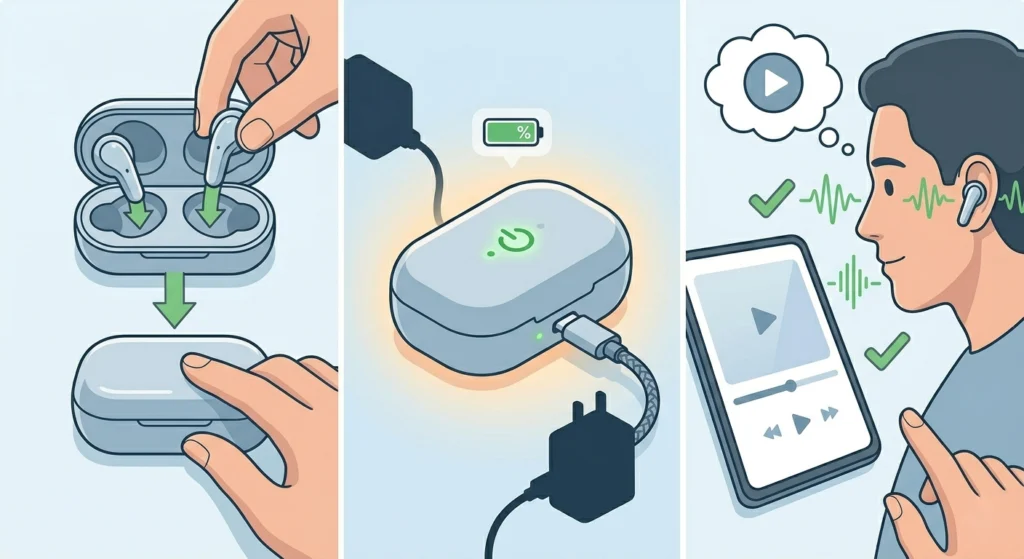
Low battery is an underestimated cause of random pauses. When earbud battery drops below a certain threshold – often around 15 to 20% – the firmware starts limiting functions to preserve power. One of the first things to get cut is maintaining a stable Bluetooth audio stream, which results in brief drops and pauses.
- Step 1: Place both earbuds in the charging case and close the lid.
- Step 2: Connect the case to a charger and allow both earbuds to charge to 100%.
- Step 3: After a full charge, test playback and observe if the pausing issue continues.
If the battery drains much faster than it used to, the battery itself may be degrading. Earbuds typically hold a reliable charge for 1-3 years of regular use before the cell capacity drops noticeably.
Fix 7: Update Earbud Firmware
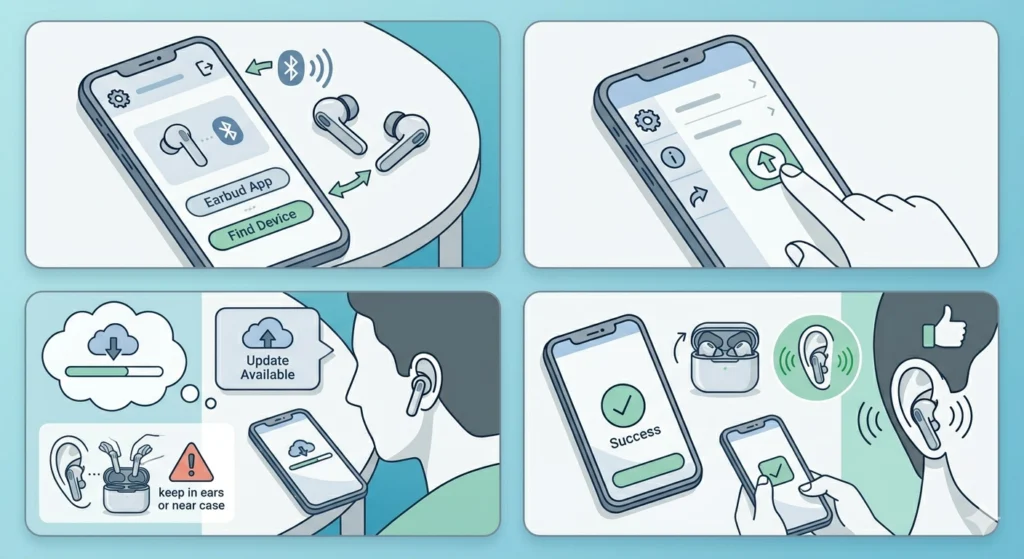
Firmware bugs are a real cause of random pauses, and manufacturers regularly release updates that fix exactly these kinds of playback issues. Keeping firmware current is one of the simplest long-term fixes available.
- Step 1: Connect the earbuds to their companion app (Samsung Galaxy Wearable, Sony Headphones Connect, Jabra Sound+, Bose Music, etc.).
- Step 2: Navigate to ‘About earbuds’ or ‘Software update’ within the app.
- Step 3: If an update is available, follow the on-screen instructions to install it. Keep earbuds in the ears or nearby during the update.
- Step 4: After the update completes, restart the earbuds and test playback.
For earbuds without a companion app, visit the manufacturer’s website and search for the specific model to find firmware update tools or instructions.
Fix 8: Replace or Adjust the Ear Tips for Better Fit
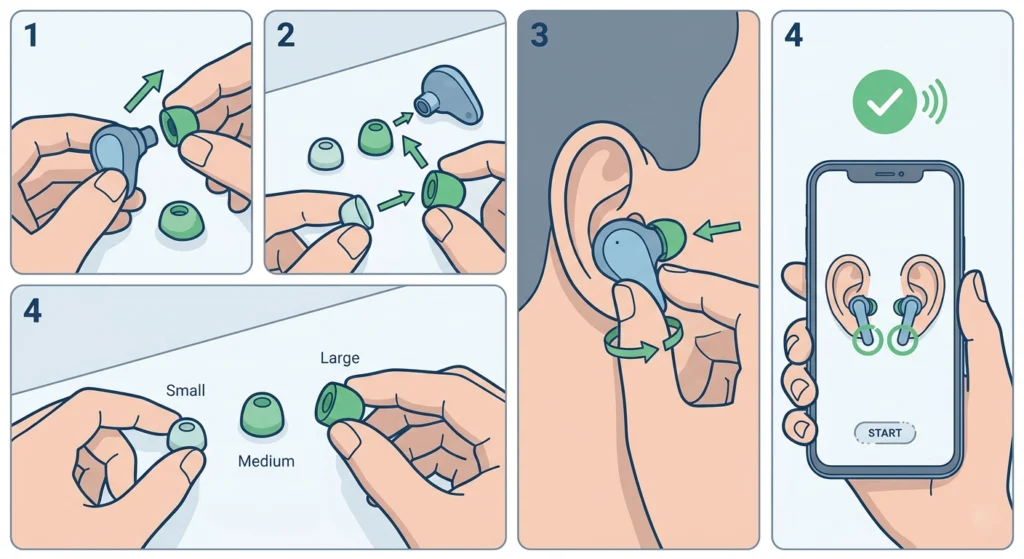
The fit of the ear tips directly affects how well the proximity sensor reads the ear. If the earbuds sit too loosely, they may periodically lose contact with the ear skin, triggering the auto-pause sensor even when they are still physically in the ear canal.
- Step 1: Remove the current ear tips from the earbuds.
- Step 2: Try a larger size from the included set of ear tips. Most earbuds come with small, medium, and large options.
- Step 3: Insert the earbuds with the new size and twist gently inward to create a seal.
- Step 4: Run an ear tip fit test if the companion app supports it (AirPods Pro and Samsung Galaxy Buds Pro offer this).
Memory foam ear tips are an excellent upgrade option for people who struggle with fit using standard silicone tips. They conform to the ear canal shape and provide a much more consistent sensor contact.
Pro-Tip: A poor ear seal does not just affect the auto-pause sensor – it also causes bass loss and noise leakage. Getting the right ear tip size solves multiple problems at once. If none of the included sizes work well, third-party ear tips from brands like Comply or Spinfit are widely available and compatible with most earbuds.
Tips for Preventing Random Pauses in the Future
- Clean earbuds and sensors at least once every two weeks, especially after sweaty workouts.
- Store earbuds in the case when not in use to protect sensors from dust and debris.
- Keep the companion app updated alongside the firmware for the best performance.
- Avoid using earbuds in areas with heavy wireless interference, such as crowded gyms or offices with many Wi-Fi networks.
- When using earbuds with multiple devices, manually connect to the intended device rather than relying on auto-switching.
- Charge earbuds before they drop below 20% to avoid low-battery performance throttling.
Common Problems and Troubleshooting
Only One Earbud Keeps Pausing
This usually points to a sensor issue on that specific earbud, or a Bluetooth connection problem where one earbud is losing sync. Clean the sensor on the affected earbud first. If the problem persists, reset the earbuds to factory settings and re-pair them.
Earbuds Pause Only During Calls, Not Music
This is often caused by the phone’s proximity sensor on the device itself, not the earbuds. When the phone screen goes to the ear during a call, the phone’s sensor can trigger audio changes. Try keeping the phone face-up on a surface during calls instead.
Music Pauses After Exactly the Same Amount of Time
This is a classic sign of a sleep or auto-off timer. Check the companion app for an inactivity timer and disable or increase it. Some apps also pause after a set duration to protect hearing – look for ‘listening time’ or ‘volume limit’ features in the app.
Random Pauses Only Happen With One Specific App
Some music streaming or podcast apps have their own smart pause features. Check the in-app settings for that specific app and look for anything labeled ‘smart pause’, ‘auto-pause’, or ‘pause on noise detection’. Disabling it within the app usually resolves the issue immediately.
Earbuds Still Randomly Pause After All Fixes
If nothing works, a hardware fault in the sensor or the earbud circuit board may be the cause. Check if the earbuds are still under warranty and contact the manufacturer for a replacement or repair. Most reputable brands offer at least a 1-year warranty covering defects.
Frequently Asked Questions
Why do earbuds randomly pause music without any input?
The most common reasons are a proximity or ear-detection sensor triggering a false signal, an accidental touch on the earbud panel, a Bluetooth connection dropout, or a system-level auto-pause feature on the connected device. Working through each potential cause systematically will identify and solve the problem.
How do I turn off auto-pause on earbuds?
Open the official companion app for the earbuds (such as Galaxy Wearable, Sony Headphones Connect, or Jabra Sound+) and look for ‘wearing detection’, ‘auto-pause’, or ‘smart pause’ in the settings. Toggle it off. For AirPods, go to iPhone Settings and disable ‘Automatic Ear Detection’ from the AirPods settings page.
Can dirty sensors cause earbuds to pause by themselves?
Yes, absolutely. The infrared sensors that detect whether earbuds are in the ear can be blocked by earwax, sweat, or dust. When the sensor is partially obstructed, it gives inconsistent readings and triggers random auto-pause events. Cleaning the sensor area with a dry cloth or a lightly alcohol-dampened swab usually resolves this.
Does low battery make earbuds randomly pause?
Yes. When battery levels drop low, the earbud firmware starts limiting certain functions to preserve remaining power. Maintaining a stable Bluetooth audio stream is one of the first things affected, which results in brief audio drops or full pauses. Charging earbuds fully before use prevents this.
Why do earbuds pause only when moving or exercising?
Movement causes the earbuds to shift slightly in the ear canal. If the fit is not snug, this movement breaks the seal between the earbud and the ear skin, which the proximity sensor reads as the earbud being removed. Switching to a larger ear tip size or using memory foam ear tips will fix the fit and stop the false pausing.
Can a firmware update fix random pausing issues?
Yes, firmware updates often include bug fixes for exactly these kinds of playback issues. Manufacturers monitor user reports and push patches for known problems. Keeping the firmware current through the companion app is one of the best preventive steps available.
Why does music pause only with certain apps and not others?
Some apps have their own built-in smart pause or voice-detection features that are separate from the earbud’s settings. Check the in-app settings of the specific streaming or podcast app for any auto-pause options and disable them. The earbud itself may not be the problem at all in these cases.
Should earbuds be reset to fix random pausing?
A factory reset can help if the issue started after a firmware update or if re-pairing alone did not work. Resetting clears all stored settings and paired device data, which can resolve bugs caused by corrupted configuration data. After a reset, re-pair the earbuds and set up preferences again from scratch.
Can Bluetooth interference cause earbuds to randomly pause?
Yes. Devices operating on the same 2.4GHz frequency band, such as Wi-Fi routers, microwaves, and other Bluetooth devices, can interfere with the Bluetooth audio stream. This interference causes momentary signal drops that the media player reads as a pause. Moving away from potential interference sources or switching the router to a 5GHz band can reduce this significantly.
What if only one earbud randomly pauses music?
When only one earbud is affected, the problem is almost always specific to that earbud’s sensor or its individual Bluetooth connection to the other earbud. Start by cleaning the sensor on the affected side. If that does not help, reset both earbuds and re-pair them. If the problem continues in one specific earbud, that unit may have a hardware defect and a warranty claim would be appropriate.