
Enabling Dolby Head Tracking on the Jabra Elite 10 transforms a good listening session into something genuinely immersive. Instead of sound moving with your head, the audio stays anchored in space – so when you turn to look at something, the soundstage shifts naturally around you, exactly the way it would in real life. This guide walks through every step needed to get Head Tracking up and running on the Jabra Elite 10 using the Jabra Sound+ app.
Quick Summary: Key Takeaways
- Dolby Head Tracking is exclusive to the Jabra Elite 10 and Elite 10 Gen 2 – it is not available on other Jabra models
- The feature is controlled entirely through the Jabra Sound+ app – there are no physical button shortcuts
- Spatial Sound must be enabled first before Head Tracking becomes accessible
- Both iOS and Android devices are supported, but the phone must be connected via Bluetooth
- Head Tracking works best with Dolby Atmos content from compatible streaming services
- The feature is off by default – it needs to be manually turned on in the app
Steps to Enable Dolby Head Tracking on Jabra Elite 10
The entire process happens inside the Jabra Sound+ app. Before starting, make sure the Jabra Elite 10 earbuds are charged, paired with the phone via Bluetooth, and that the Jabra Sound+ app is installed. The app is free and available on both the Apple App Store and Google Play Store.
Download and Set Up the Jabra Sound+ App
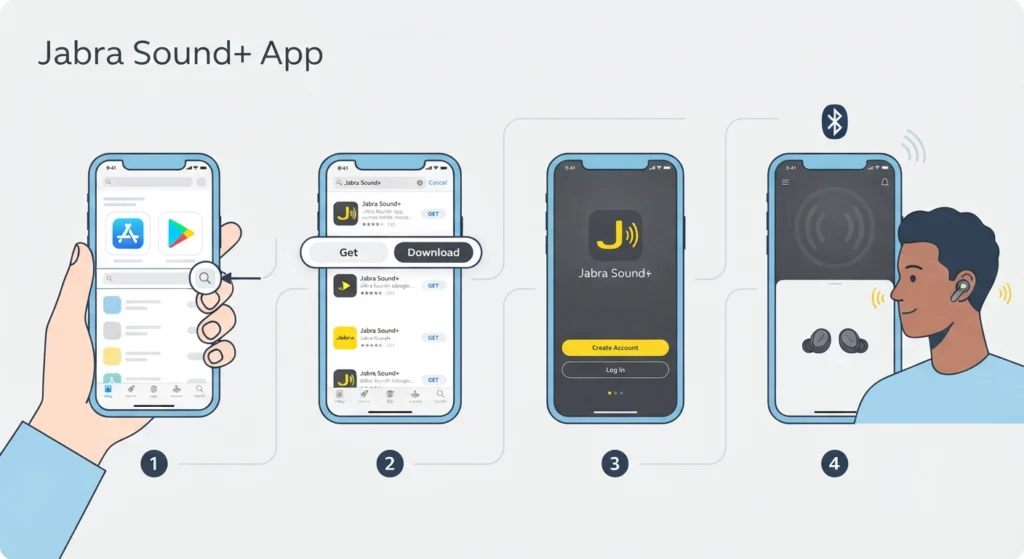
- Step 1: Open the App Store (iPhone) or Google Play Store (Android) on the phone.
- Step 2: Search for ‘Jabra Sound+’ and download the official app from Jabra.
- Step 3: Open the app and follow the on-screen prompts to create or log in to a Jabra account.
- Step 4: Make sure Bluetooth is enabled on the phone and the Jabra Elite 10 earbuds are in the ears and powered on.
Connect the Jabra Elite 10 to the App
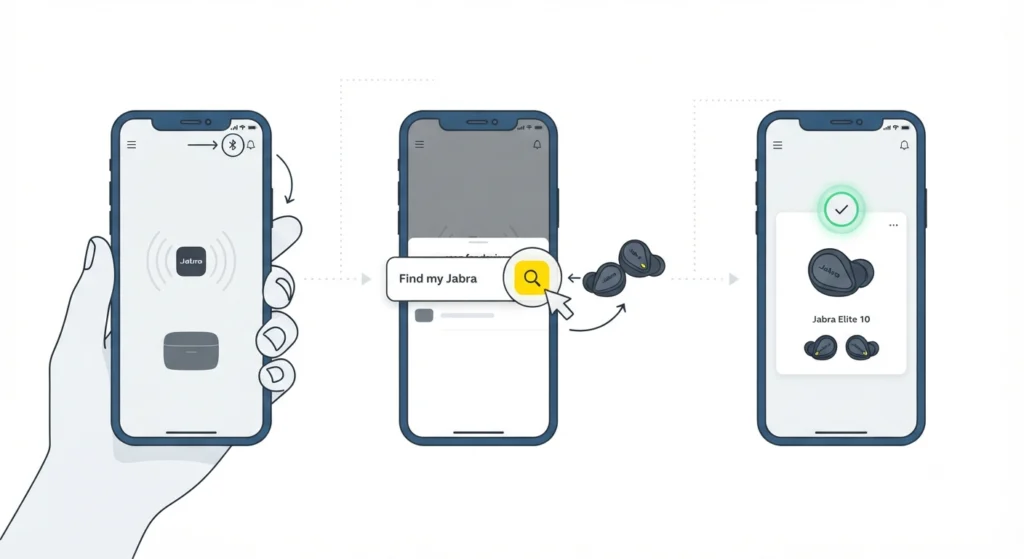
- Step 1: Open the Jabra Sound+ app – it should automatically detect the earbuds if Bluetooth is active.
- Step 2: If the earbuds do not appear automatically, tap ‘Find my Jabra’ or the device icon and follow the pairing instructions.
- Step 3: Wait for the app to confirm the connection – the Elite 10 device card will appear on the home screen.
If the earbuds are having trouble showing up in the app, a quick fix is to remove them from the case, place them back, then remove again to trigger a fresh Bluetooth broadcast. For persistent Bluetooth pairing issues, check out this guide on how to re-pair Bluetooth earbuds for stereo sound which covers the full reconnection process in detail.
Enable Spatial Sound
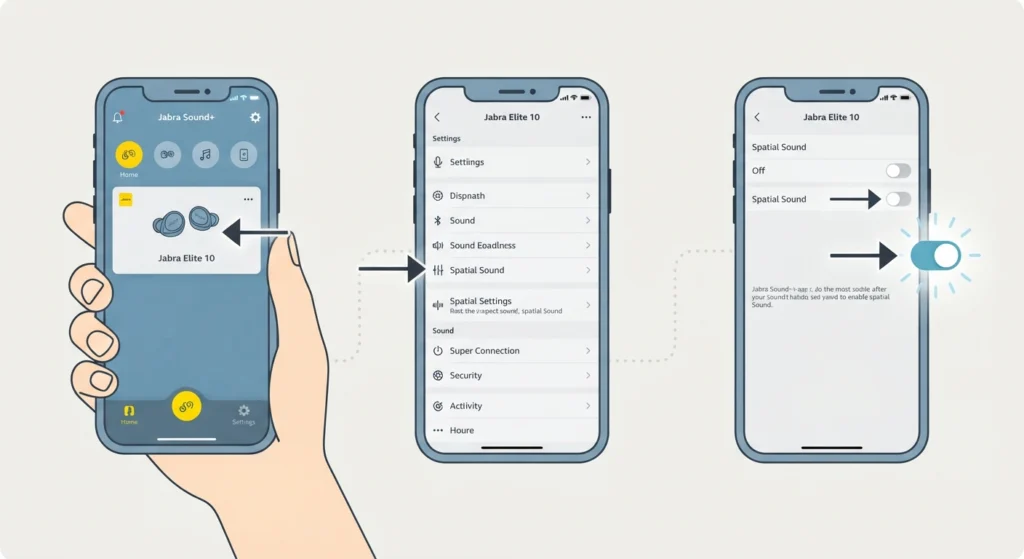
- Step 1: On the Jabra Sound+ home screen, tap on the Jabra Elite 10 device card to enter its settings.
- Step 2: Scroll down to find the ‘Sound’ or ‘Spatial Sound’ section.
- Step 3: Tap on ‘Spatial Sound for media’ and toggle it on. The toggle will turn blue or green when active.
Spatial Sound is off by default, so this step cannot be skipped. Head Tracking will not appear as an option until Spatial Sound is switched on first.
Pro-Tip: Spatial Sound works best when playing content from apps that support Dolby Atmos, such as Apple Music, Amazon Music, Tidal, or Netflix. Standard stereo streams will still benefit from the processing, but the effect is noticeably more immersive with native Dolby Atmos tracks.
Turn On Head Tracking
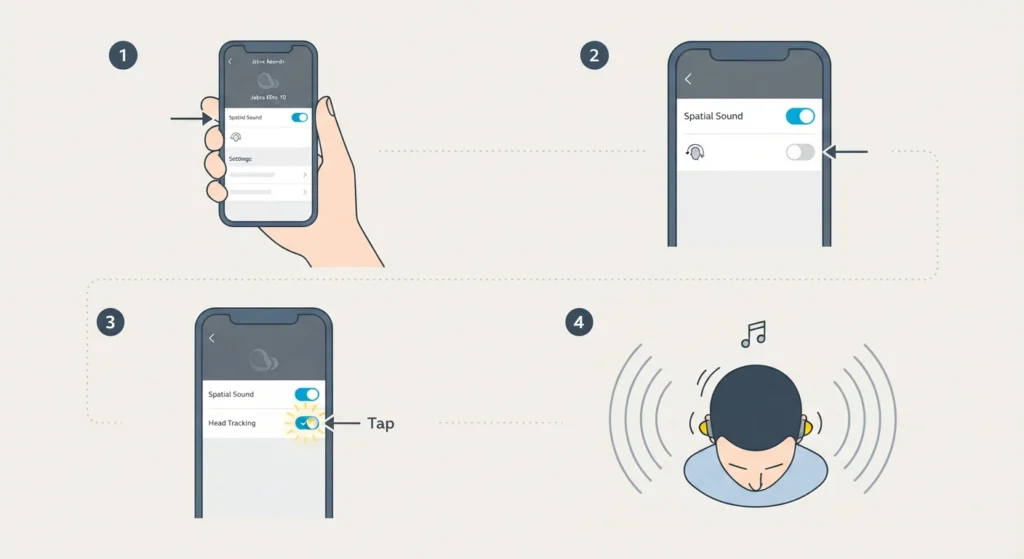
- Step 1: After enabling Spatial Sound, stay in the same settings menu for the Elite 10.
- Step 2: Look for the ‘Head Tracking’ option – it will appear just below or near the Spatial Sound toggle.
- Step 3: Tap ‘Head Tracking on’ to activate the feature. The setting will save automatically.
- Step 4: Put the earbuds back in, play some music or video content, and slowly turn the head side to side – the audio should now stay fixed in front as the soundstage rotates around the listener.
According to the official Jabra user manual, Head Tracking recalibrates the soundscape depending on head movements to simulate a 360-degree audio experience. The key difference to understand: with Head Tracking off, the audio moves with the head. With Head Tracking on, the audio stays anchored – so moving the head reveals different parts of the soundstage.
Pro-Tip: After enabling Head Tracking, sit still for 2-3 seconds before moving the head. The system needs a brief moment to calibrate the ‘front’ reference point. The best practice is to face forward – toward a screen or speaker – before the calibration locks in, so the sound is anchored exactly where intended.
Tips for Getting the Most Out of Dolby Head Tracking
- Use Dolby Atmos content whenever possible. Streaming services like Netflix, Apple TV+, Disney+, and Amazon Prime Video offer Dolby Atmos titles that sound dramatically better with Head Tracking active.
- Keep the Jabra Sound+ app updated. Jabra regularly releases firmware updates that refine the Head Tracking algorithm and fix latency issues.
- Avoid using Head Tracking during phone calls or podcasts. The feature is designed for music and video – for calls, it adds little benefit and may slightly increase processing overhead.
- The Jabra Sound+ app also allows firmware updates to be installed directly. Keeping the Elite 10 on the latest firmware ensures Head Tracking performs at its best.
- If the soundstage feels ‘off’ after enabling Head Tracking, remove both earbuds, place them back in the case for 10 seconds, then reinsert them. This resets the sensor calibration.
Common Problems and Fixes
Fix 1: Head Tracking Option Is Not Visible in the App
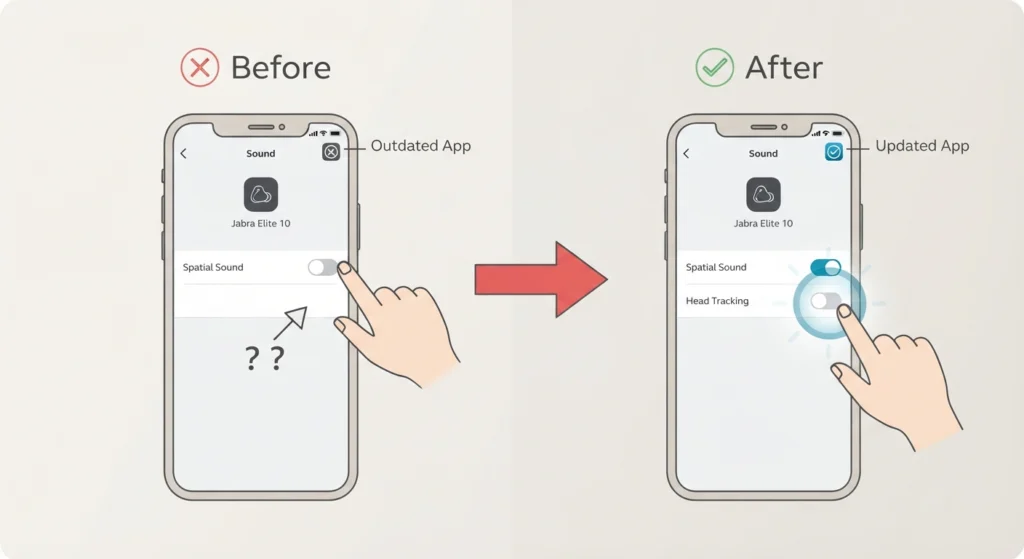
This almost always means Spatial Sound has not been enabled yet. Go back into the Jabra Elite 10 settings in the Sound+ app and make sure the ‘Spatial Sound for media’ toggle is switched on. Head Tracking only appears as a separate option once Spatial Sound is active. Also confirm the app is on the latest version – older app versions may not display the Head Tracking controls correctly.
Fix 2: Head Tracking Feels Delayed or Laggy
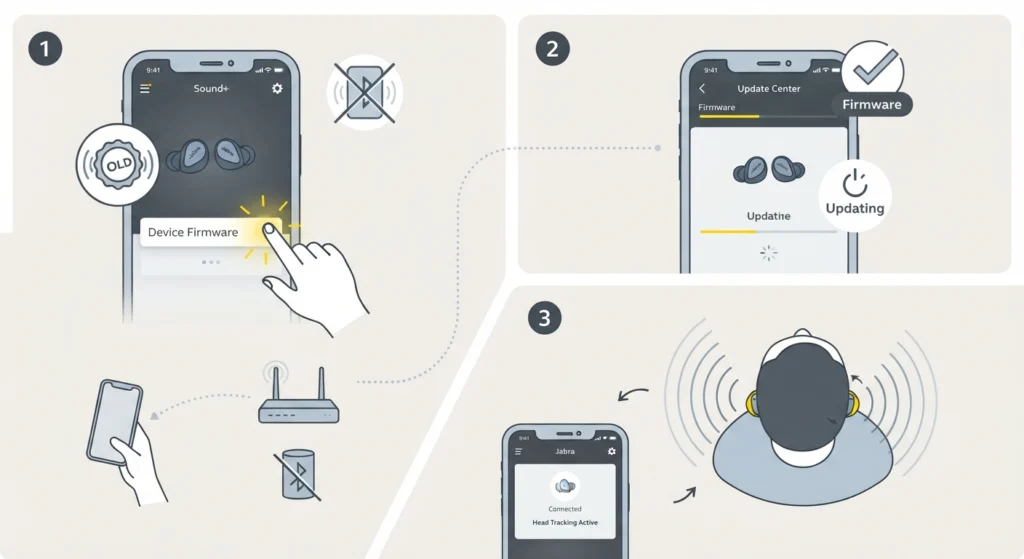
A slight delay between head movement and audio adjustment is normal, but excessive lag usually points to Bluetooth interference or an outdated firmware. Check the Signal+ app for firmware updates by navigating to the device settings and tapping ‘Device Firmware.’ Ensure there are no other Bluetooth devices actively connected to the phone competing for bandwidth. Moving closer to the phone can also help reduce latency.
Fix 3: Spatial Sound or Head Tracking Toggle Keeps Turning Off
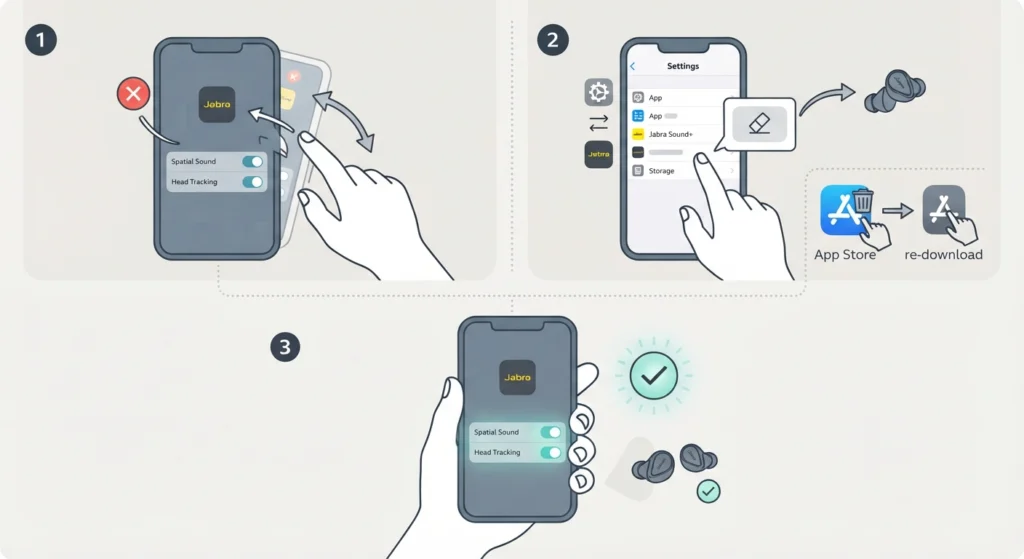
If the settings are not sticking, force-close the Jabra Sound+ app, reopen it, and re-toggle the features. If the problem persists, check that the earbuds have the latest firmware installed. In rare cases, clearing the app’s cache on Android – through Settings, then Apps, then Jabra Sound+, then Storage – can resolve settings that fail to save. On iPhone, deleting and reinstalling the app achieves the same result.
Fix 4: Audio Does Not Sound Spatial Even with Head Tracking On
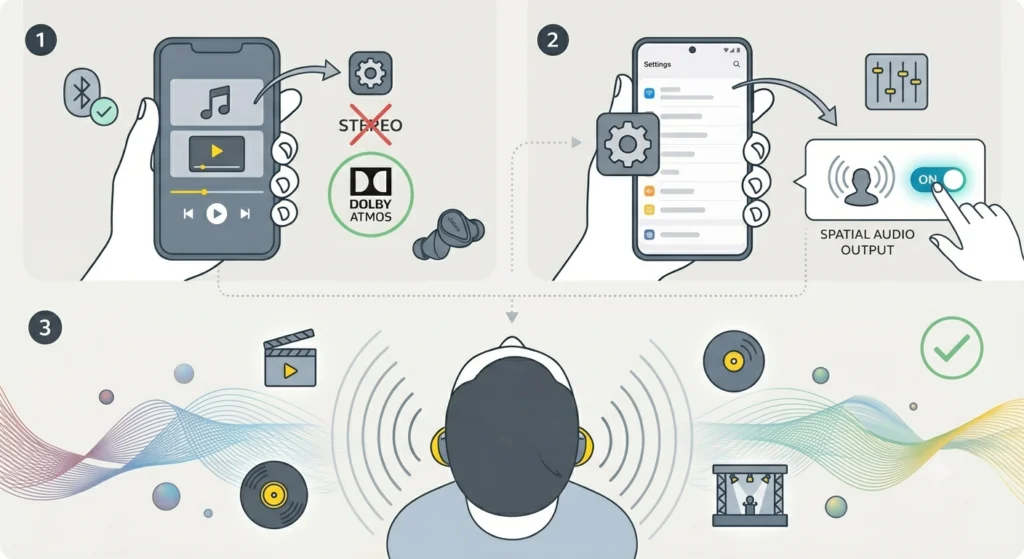
Head Tracking enhances spatial audio but does not create it from scratch. The content itself needs to be in stereo or Dolby Atmos format to notice a meaningful difference. Try playing a known Dolby Atmos track from Apple Music or Amazon Music HD and compare the effect. Also confirm the streaming app is actually delivering Dolby Atmos output – some apps require it to be enabled manually in their audio quality settings. On some Android devices, adjusting the audio output settings on the device level can also affect how spatial audio is processed.
Fix 5: Jabra Elite 10 Not Appearing in the Sound+ App
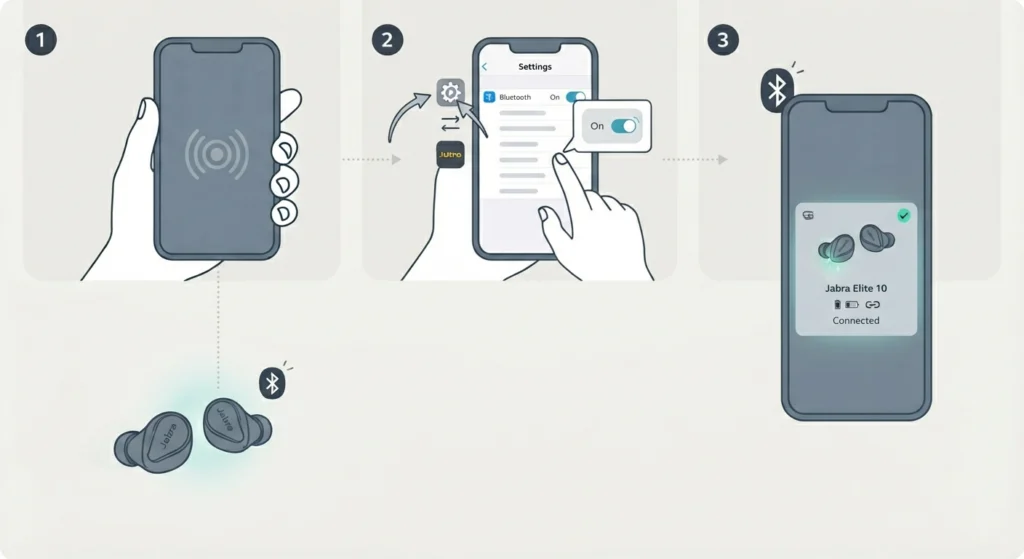
Make sure the earbuds are fully out of the charging case and actively connected to the phone via Bluetooth. The app requires an active Bluetooth connection to display the device settings. If the earbuds appear in the phone’s Bluetooth list but not in the app, try toggling Bluetooth off and back on. As a last resort, forget the device from Bluetooth settings and pair it fresh.
Frequently Asked Questions
Does the Jabra Elite 10 support Dolby Head Tracking?
Yes. The Jabra Elite 10 is the first Jabra earbud to support Dolby Head Tracking. The feature is built into the hardware and controlled through the Jabra Sound+ app. The Elite 10 Gen 2 also supports Head Tracking.
Does Head Tracking need to be enabled every time the earbuds are used?
No. Once Head Tracking is turned on in the Jabra Sound+ app, the setting is saved to the earbuds. It stays active across sessions without needing to be re-enabled each time.
Can Head Tracking be used on both iPhone and Android?
Yes. The Jabra Sound+ app is available for both iOS and Android, and Head Tracking works on both platforms. The experience is the same regardless of which phone is used.
Does Head Tracking work with all audio content?
Head Tracking is active for all media playback, including standard stereo music, videos, and podcasts. However, the effect is most noticeable with Dolby Atmos content from compatible streaming services.
Can Head Tracking and ANC be used at the same time?
Yes. Dolby Head Tracking and Advanced Active Noise Cancellation (ANC) on the Jabra Elite 10 can be used simultaneously without any conflict. Each feature operates independently.
Why does the sound feel like it shifts when turning the head?
That is exactly what Head Tracking is designed to do. When Head Tracking is on, the soundstage stays fixed in space – so turning the head makes the audio appear to come from a slightly different angle, just like real-world sound sources behave. This creates a more natural and immersive listening experience.
Does Head Tracking drain battery faster?
Enabling Spatial Sound and Head Tracking does add some processing load, which can marginally affect battery life. Jabra rates the Elite 10 at 6 hours with ANC on – running Spatial Sound with Head Tracking enabled may reduce this slightly, though the difference in everyday use is minimal.
Is Dolby Atmos required for Head Tracking to work?
No. Head Tracking works with any stereo audio content, not just Dolby Atmos. However, Dolby Atmos content provides the most dramatic and immersive result because it contains height and directional audio data that Head Tracking can leverage more effectively.
What should be done if Head Tracking causes audio to sound unnatural or disorienting?
Simply toggle Head Tracking off in the Jabra Sound+ app. Spatial Sound can remain active while Head Tracking is disabled – that way the Dolby audio enhancement stays on without the directional tracking effect. Some people prefer this combination for music listening.
Can the Jabra Elite 8 Active use Head Tracking?
No. The Elite 8 Active supports Dolby Spatial Sound but does not have Dolby Head Tracking. Head Tracking requires the gyroscope and sensor array found specifically in the Jabra Elite 10 and Elite 10 Gen 2.