
Setting up spatial sound on a pair of earbuds sounds technical, but enabling 360 Audio on the Samsung Galaxy Buds 2 Pro only takes a couple of taps once the right app is open. This feature turns flat stereo playback into a surround-style experience that shifts with head movement, and most people get it running in under two minutes. Below is the direct walkthrough, with the toggle locations, the firmware checks that actually matter, and a few details that often get missed.
Quick Summary Table
- Feature name: 360 Audio with Multi-channel tracking, available on Galaxy Buds 2 Pro
- Required app: Galaxy Wearable app, installed on a connected Android phone
- Where the toggle lives: Galaxy Wearable app, then either the 360 Audio menu or the Advanced menu depending on app version
- Firmware requirement: latest Buds and phone software, checked through Earbuds settings
- Bonus control: Head tracking switch inside the same 360 Audio menu
- Best content for this feature: video with 5.1ch, 7.1ch, or Dolby Atmos audio tracks, such as movies and shows on streaming apps
- Typical setup time: under 2 minutes once the app is updated
Step-by-Step Guide to Turn On 360 Audio
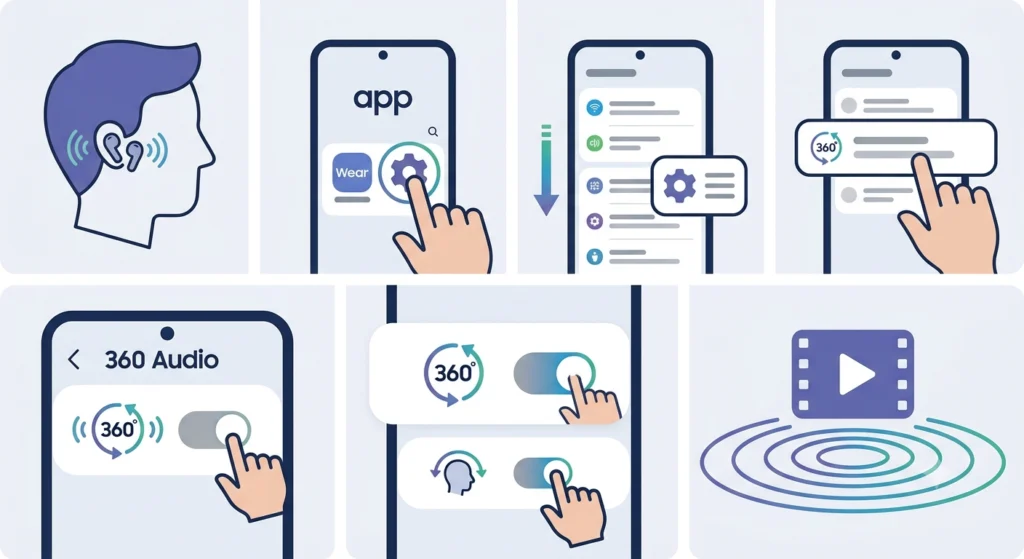
This is the core process, and it stays mostly the same whether the Galaxy Wearable app is running on a Samsung phone or another Android device. Follow these in order.
- Step 1: Put both Galaxy Buds 2 Pro earbuds in the ears and confirm they show as connected inside the Galaxy Wearable app. A solid connection icon at the top of the app means the buds are paired and ready.
- Step 2: Open the Galaxy Wearable app on the paired phone and tap into Earbuds settings from the main screen.
- Step 3: Look for the Advanced menu or scroll to find the 360 Audio option directly, since the exact label depends on the app version installed.
- Step 4: Tap 360 Audio to open its dedicated settings screen.
- Step 5: Switch the toggle next to 360 Audio to the on position. A short confirmation tone usually plays through the earbuds at this point.
- Step 6: Inside the same screen, tap the switch next to Head tracking if a more immersive, motion-aware effect is wanted while watching video.
- Step 7: Open a video app such as a streaming service and play content that includes surround audio to hear the difference right away.
Pro-Tip: 360 Audio and Dolby Atmos do not run at the same time on these earbuds. When 360 Audio is switched on, Dolby Atmos processing on the connected device gets deactivated automatically for that session, so there is no need to manually disable Atmos first.
Checking and Updating Firmware Before Enabling the Feature
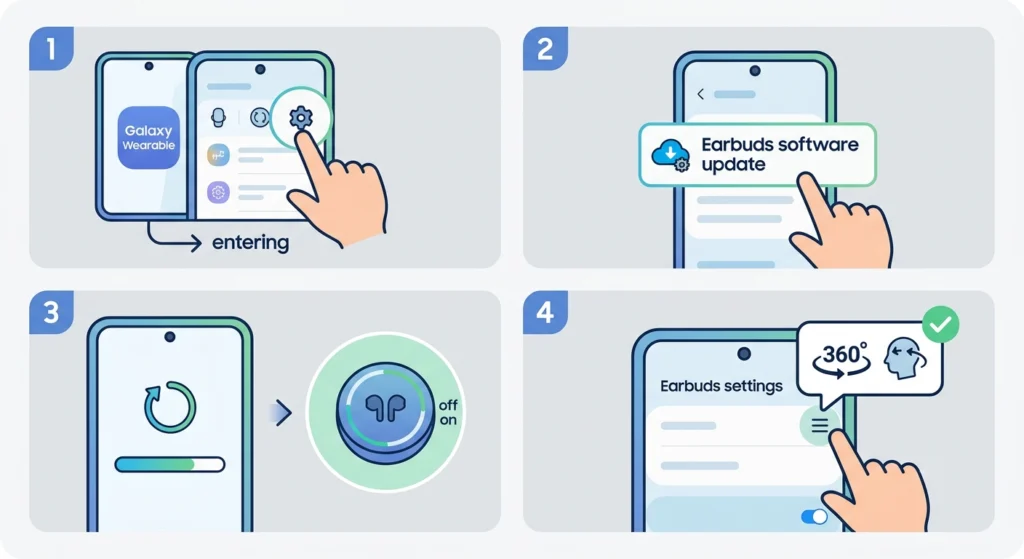
This step gets skipped more often than it should, and it is usually the reason the 360 Audio toggle looks greyed out or missing entirely. The feature only appears once both the phone software and the earbud firmware are current.
- Step 1: Open the Galaxy Wearable app and tap Earbuds settings.
- Step 2: Tap Earbuds software update.
- Step 3: Install any pending update and wait for the earbuds to restart, which usually takes a minute or two.
- Step 4: Once the update finishes, back out to the main settings screen and check for the 360 Audio option again.
One UI version 3.1 or later on the phone is the baseline requirement for this feature to show up at all, so an outdated phone build can hide the toggle even with fully updated buds.
Getting the Best Results From 360 Audio
Turning the toggle on is the easy part. Getting it to actually sound the way Samsung designed it requires a couple of small habits that most new users overlook at first.
- Fit matters more than people expect. Loose-fitting earbuds throw off the spatial effect, since the sound design relies on a sealed, consistent position in the ear canal.
- Content with multi-channel audio tracks shows the feature off best. A plain stereo podcast will not sound dramatically different, but a movie with 5.1ch or 7.1ch sound mixing will.
- Head tracking feels most natural when watching something on a screen directly in front, rather than while walking around or exercising, where constant head movement can make the audio shift in ways that feel distracting rather than immersive.
- Volume balance can feel slightly different with 360 Audio active compared to standard stereo playback, so a quick volume adjustment after turning it on is normal and expected.
Common Problems and Fixes
Fix 1: 360 Audio Toggle Is Missing or Greyed Out
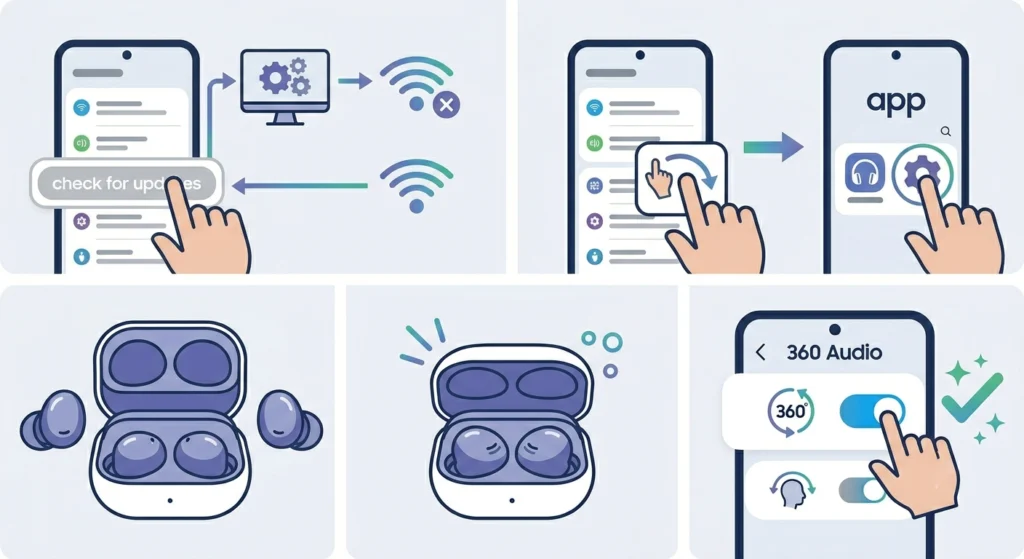
This almost always traces back to firmware. Recheck the Earbuds software update screen inside Galaxy Wearable and confirm the phone itself is running a current Android and One UI build. If the option still does not appear, closing and reopening the Galaxy Wearable app, or removing and re-inserting the earbuds, often refreshes the menu.
Fix 2: Audio Sounds Muffled After Turning It On
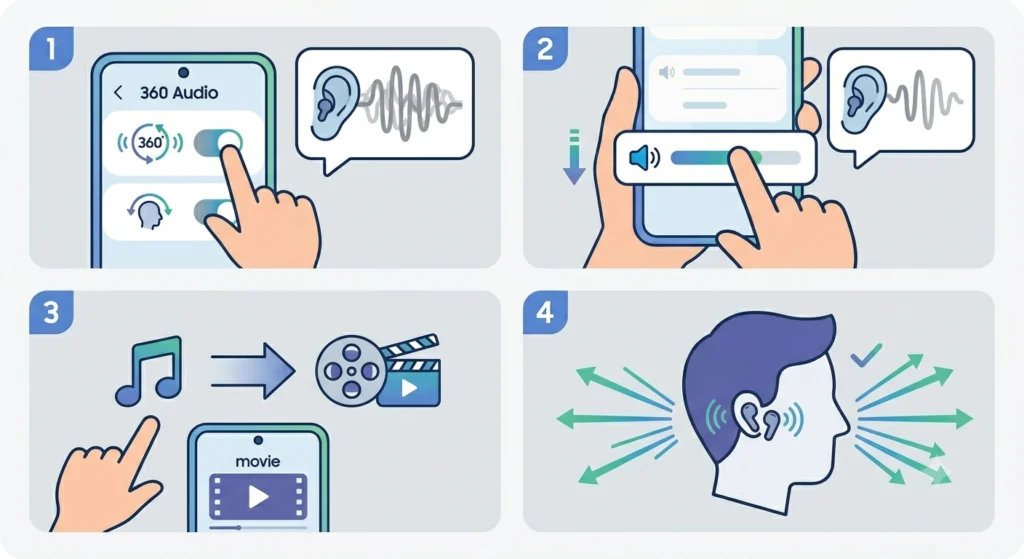
A muffled effect right after enabling the feature is a known characteristic of how 360 Audio processes sound, and it is not a defect. If it feels excessive, lowering the media volume slightly or testing with a different audio source, such as a movie instead of music, usually clarifies the sound.
Fix 3: Sound Shifts or Slides to One Side
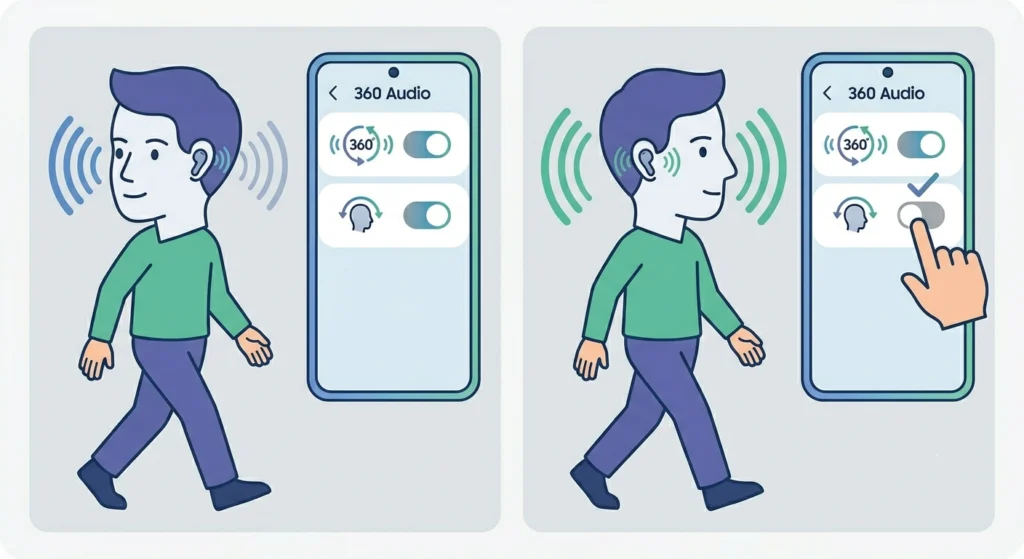
This happens with head tracking switched on while moving around a lot, since the earbuds are constantly recalculating direction based on head position. Turning off Head tracking inside the 360 Audio menu while walking or exercising removes this effect and keeps the sound centered.
Fix 4: No Surround Effect Even With the Toggle On
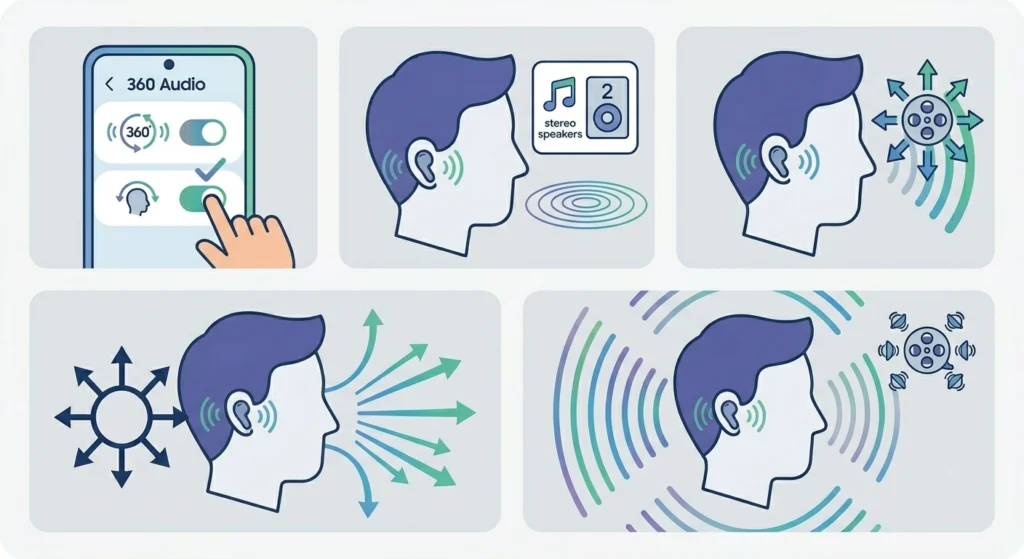
Standard two-channel audio, like most music tracks, will not produce a strong surround sensation because there is no multi-channel data for the feature to work with. Switching to a video with 5.1ch, 7.1ch, or Atmos-mixed audio gives a much clearer demonstration of what the feature actually does.
Fix 5: Earbuds Not Showing as Connected in the App
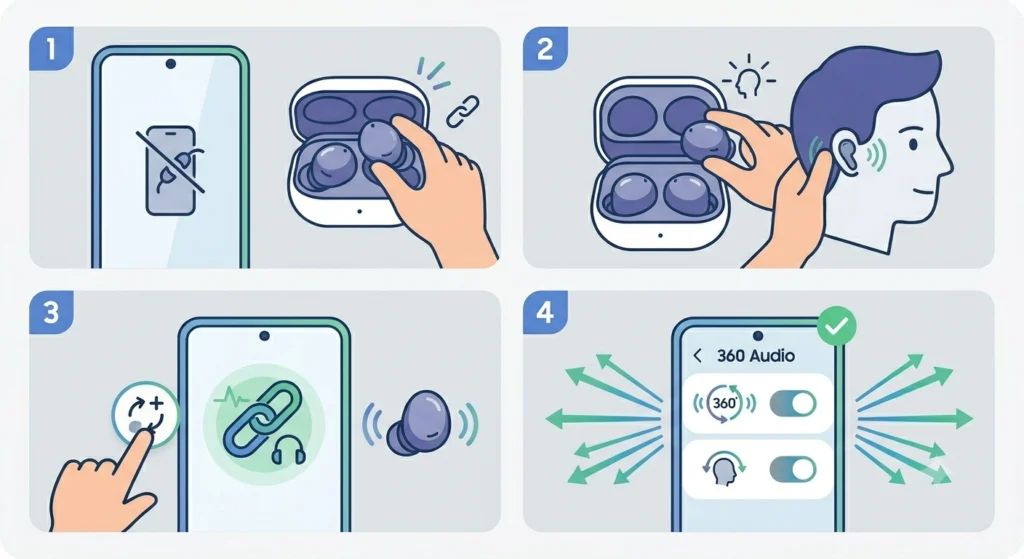
If the Galaxy Wearable app does not recognize the earbuds at all, the Bluetooth pairing itself may need attention before 360 Audio settings can even load. A guide on how to re-pair Bluetooth earbuds for stable stereo sound covers the pairing steps in detail for situations like this.
Frequently Asked Questions
What is 360 Audio on the Galaxy Buds 2 Pro?
It is a spatial sound feature that creates 360-degree surround audio using Multi-channel tracking, designed to make video and movie content feel more immersive by simulating sound coming from multiple directions.
Does 360 Audio work with regular music streaming?
It works with any audio, but the surround effect is most noticeable with multi-channel content such as movies and shows that include 5.1ch, 7.1ch, or Dolby Atmos tracks rather than standard two-channel music.
Can 360 Audio and Dolby Atmos be used together?
No. When 360 Audio is switched on, Dolby Atmos on the connected device is automatically deactivated for that session, since the two processing methods are not designed to run simultaneously.
Why is the 360 Audio option not showing in the Galaxy Wearable app?
This usually means either the earbud firmware or the phone software is out of date. Updating both through Earbuds settings and Earbuds software update typically resolves the missing option.
What is Head tracking and is it required for 360 Audio?
Head tracking is a separate switch inside the 360 Audio menu that adjusts sound direction based on head movement. It is optional and works alongside 360 Audio, but it can be turned off independently if it feels disorienting during movement.
Does 360 Audio drain the battery faster?
Spatial audio processing does use additional power compared to standard playback, so a noticeable reduction in battery life during extended use is expected behavior rather than a malfunction.
Which devices support 360 Audio on the Galaxy Buds 2 Pro?
The feature works with Android phones running the Galaxy Wearable app, with One UI version 3.1 or later required for the option to appear in the settings menu.
Is 360 Audio the same as 360 Audio Recording?
No, these are different features. 360 Audio is a playback feature for listening to surround sound, while 360 Audio Recording is a separate function that uses the earbud microphones to capture spatial sound while filming video on select Galaxy phones.
Why does the sound feel muffled right after enabling 360 Audio?
A slightly muffled or denser sound profile is a normal characteristic of how the spatial processing reshapes audio, particularly noticeable on the first few seconds of playback after switching it on.
Can 360 Audio be used while connected to a Windows laptop instead of a phone?
The 360 Audio toggle itself depends on the Galaxy Wearable Android app, but general audio output behavior on a Windows machine can still affect how the earbuds sound overall. For broader playback issues on a PC, checking how to adjust audio output settings on Windows 11 can help rule out unrelated sound problems on the computer side.