
The Edifier W820NB Plus not connecting to Bluetooth is one of the most common issues users run into – and it is usually fixable in just a few minutes. Whether the headphones are not pairing, keep dropping the connection, or simply will not show up on the device list, this guide covers the exact steps to get everything working again.
Quick Summary – Key Takeaways
- A full reset on the Edifier W820NB Plus clears most pairing problems instantly
- Removing the headphones from the paired devices list before re-pairing solves most reconnection failures
- Keeping the headphones within 1 meter during pairing significantly improves success rate
- Outdated firmware or a full Bluetooth device list on the headphones can silently block new connections
- Both the headphones and the source device need to be checked – not just one side
How to Fix Edifier W820NB Plus Not Connecting to Bluetooth
Fix 1: Put the Headphones Into Pairing Mode Correctly
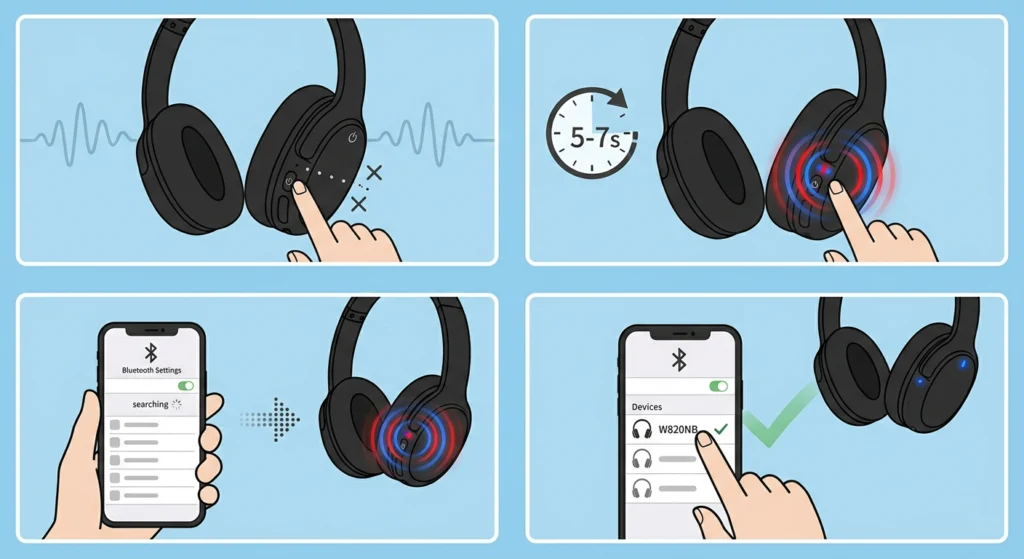
A surprisingly large number of connection failures come down to the headphones never actually entering pairing mode. The W820NB Plus will not connect if it is just powering on and looking for a previously saved device that is out of range.
- Step 1: Power off the headphones completely by holding the power button until the LED turns off.
- Step 2: Press and hold the power button for around 5 to 7 seconds until the LED flashes red and blue alternately.
- Step 3: Open Bluetooth settings on the phone, tablet, or computer and search for new devices.
- Step 4: Select ‘Edifier W820NB Plus’ from the available devices list and confirm the pairing.
The alternating red and blue LED is the key sign that the headphones are actively discoverable. If the LED is only solid or slowly pulsing one color, it is not in pairing mode yet.
Fix 2: Remove the Headphones From the Paired Devices List and Re-Pair
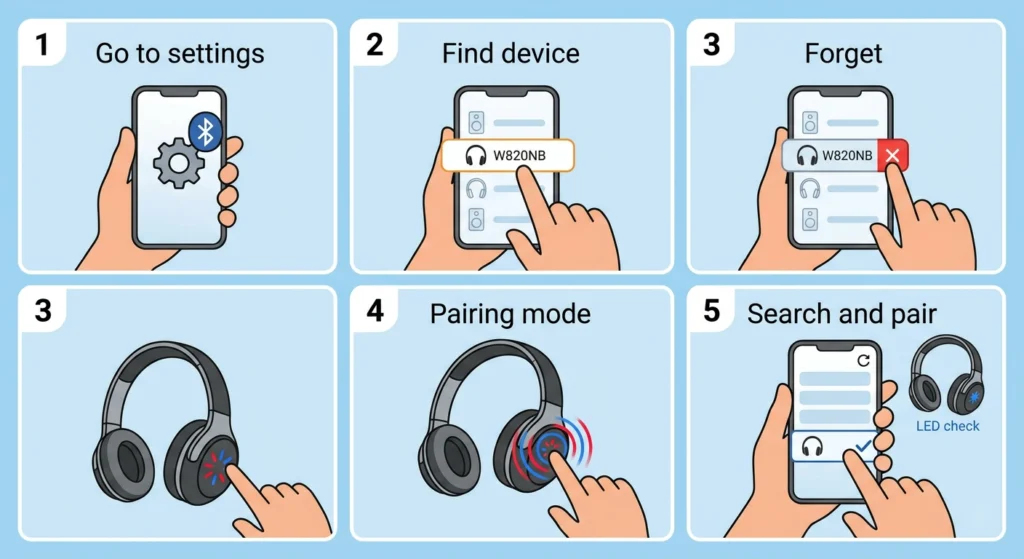
Old, corrupted pairing data stored on the phone or computer is one of the most overlooked causes of Bluetooth connection failure. The device might try to reconnect using broken handshake data, which leads to it stalling or failing silently.
- Step 1: Go to Bluetooth settings on the source device (phone, PC, tablet).
- Step 2: Find ‘Edifier W820NB Plus’ in the paired or saved devices list.
- Step 3: Tap ‘Forget’, ‘Unpair’, or ‘Remove Device’ – this deletes the old pairing data.
- Step 4: Put the headphones into pairing mode (red and blue flashing LED).
- Step 5: Search for new devices and pair fresh.
This works best when combined with a restart of both the headphones and the source device before re-pairing. For Windows 11 users who experience repeated disconnections after re-pairing, checking the guide on re-pairing Bluetooth audio devices for stereo sound on Windows can help resolve driver-level issues as well.
Fix 3: Reset the Edifier W820NB Plus to Factory Settings
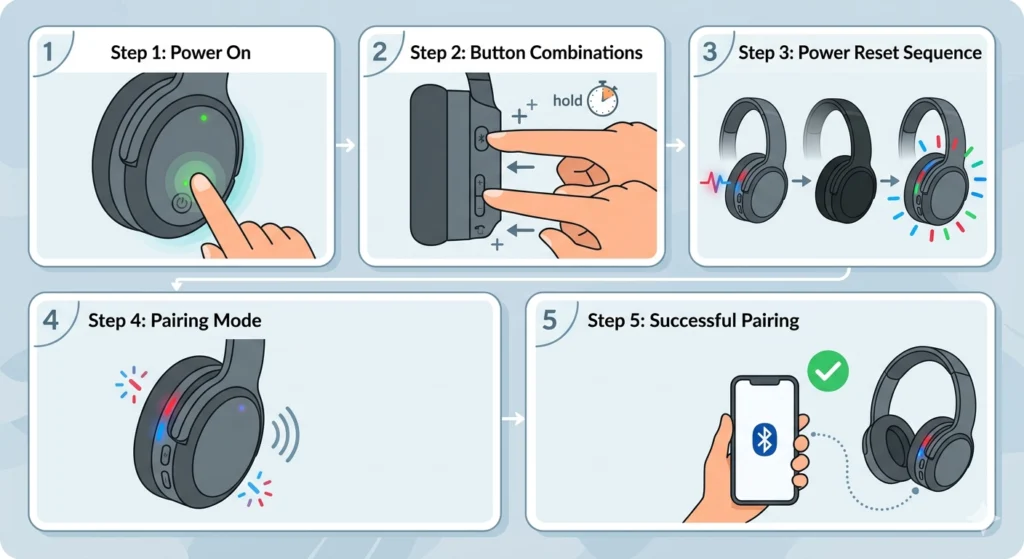
A factory reset wipes all stored Bluetooth pairings from the headphones themselves. This is the most reliable fix when the W820NB Plus will not connect to any device, not just one specific phone or computer.
- Step 1: Power on the headphones.
- Step 2: Press and hold the multifunction button (MFB) and the volume down button simultaneously for about 5 seconds.
- Step 3: The headphones will power off and back on automatically, confirming the reset.
- Step 4: The W820NB Plus will enter pairing mode automatically after the reset.
- Step 5: Pair the headphones with the device as normal.
Pro Tip: After a factory reset, delete the headphones from the source device’s Bluetooth list as well. Resetting only the headphones while leaving old data on the phone can still cause the connection to fail or behave erratically. Always forget the device from both sides.
Fix 4: Check the Bluetooth Device Pairing Limit on the Headphones
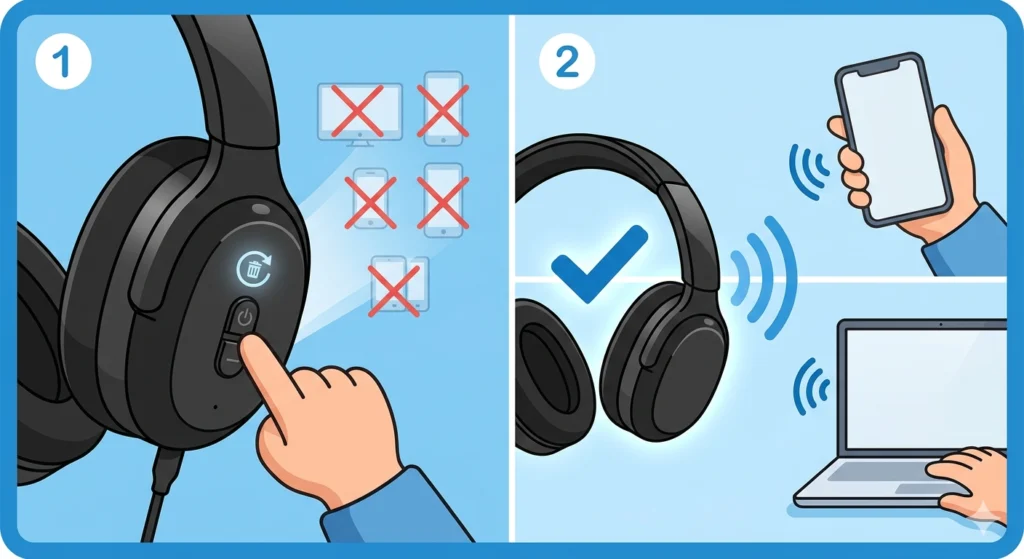
The Edifier W820NB Plus stores a limited number of paired devices in its memory. Once that limit is full, it will not accept a new pairing request – even if everything else is set up correctly. Most users do not realize this is happening because there is no error message. The headphones simply will not show up or will not complete the pairing.
- Step 1: If the headphones have been paired with multiple devices over time, do a factory reset (see Fix 3) to clear all stored pairings.
- Step 2: Re-pair only the devices actually in use.
This is especially common for users who have paired the W820NB Plus with phones, laptops, tablets, and smart TVs across different households or workplaces.
Fix 5: Restart the Bluetooth Adapter on the Source Device
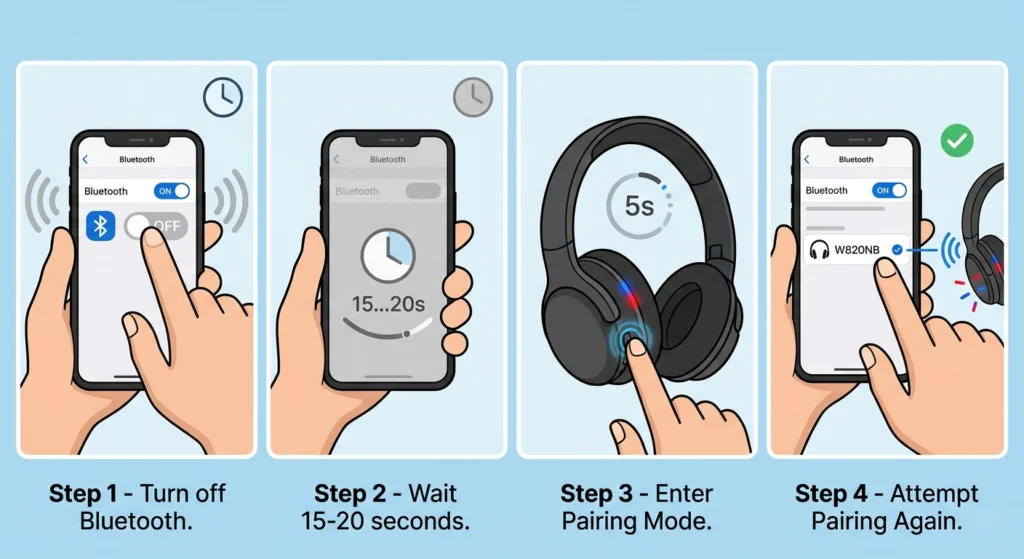
Sometimes the problem is not the headphones at all – it is the Bluetooth radio on the phone or computer acting up. Toggling Bluetooth off and on again flushes the adapter state and can resolve connection refusals that seem random.
- Step 1: Turn off Bluetooth on the phone, laptop, or PC completely.
- Step 2: Wait 15 to 20 seconds before turning it back on.
- Step 3: Put the W820NB Plus into pairing mode.
- Step 4: Attempt the pairing again.
On Windows 11, if Bluetooth keeps acting unstable even after toggling, reviewing the audio output settings guide for Windows 11 can help identify whether the issue is deeper in the system’s audio stack.
Fix 6: Reduce Distance and Eliminate Interference
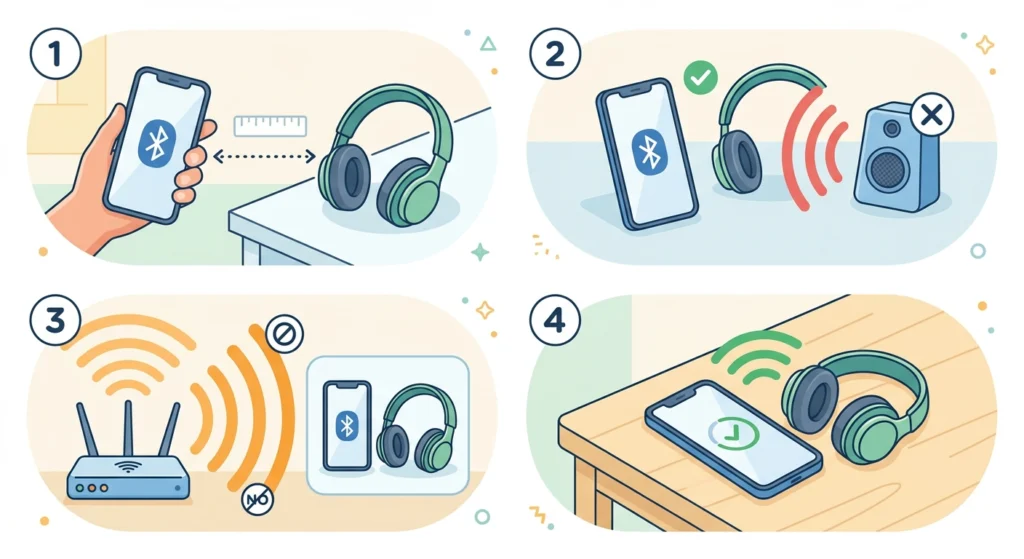
Bluetooth operates on the 2.4 GHz frequency band. Wi-Fi routers, microwave ovens, other Bluetooth devices, and even thick walls can interfere with the signal during the initial pairing handshake. The key is to pair in a clean environment, close to the source device.
- Step 1: Move the headphones within 1 meter of the phone or computer during pairing.
- Step 2: Turn off or move away from other active Bluetooth devices in the area temporarily.
- Step 3: Avoid pairing near a Wi-Fi router if possible.
- Step 4: Attempt the pairing once interference is reduced.
Fix 7: Update the Firmware on the Edifier W820NB Plus
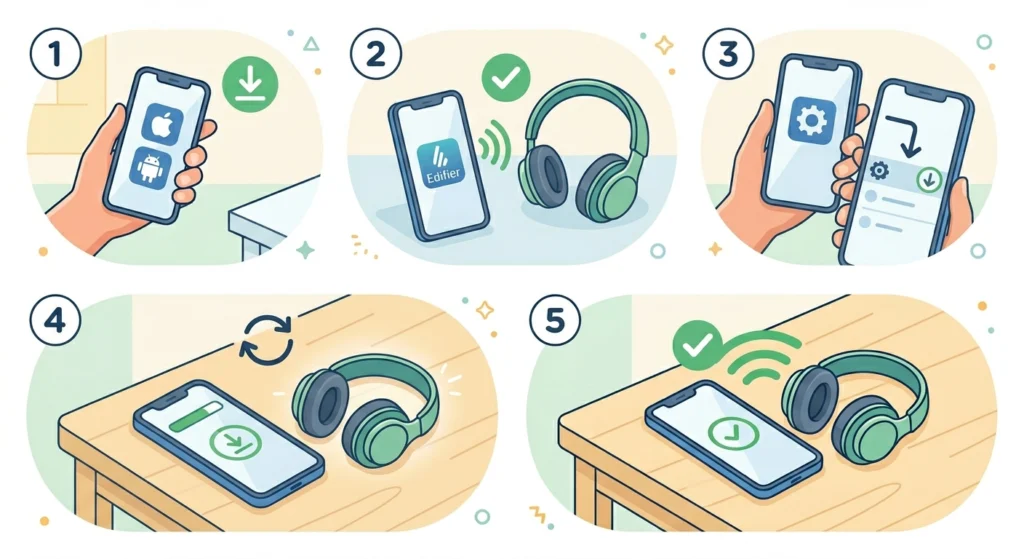
Firmware bugs have caused Bluetooth connectivity issues on the W820NB Plus in some batches. Edifier releases updates through the Edifier Connect app, which is available for both Android and iOS. Running an outdated firmware version can result in intermittent disconnections or pairing failures that are difficult to diagnose otherwise.
- Step 1: Download the Edifier Connect app from the App Store or Google Play Store.
- Step 2: Pair the W820NB Plus with the phone using the app.
- Step 3: Navigate to the firmware or device settings section in the app.
- Step 4: If a firmware update is available, install it and allow the headphones to restart.
- Step 5: Test the Bluetooth connection after the update completes.
Pro Tip: Keep the headphones plugged into USB-C charging during a firmware update. A firmware update that gets interrupted by a low battery can cause the headphones to enter an unresponsive state, requiring a hard reset to recover.
Tips for Keeping the Edifier W820NB Plus Connected
- Always power off the headphones properly rather than letting them auto-sleep – this ensures a clean disconnect from the paired device
- Keep the headphones charged above 20% to avoid unstable Bluetooth behavior caused by low power
- Use one active Bluetooth connection at a time to prevent connection conflicts when switching between multipoint devices
- Re-pair the headphones every few months if using them with multiple devices to keep the pairing memory clean
- Store the headphones away from other high-frequency electronics when not in use to prevent interference during reconnection
Common Bluetooth Problems With the Edifier W820NB Plus
Headphones Keep Disconnecting After a Few Seconds
This usually points to a corrupted pairing entry on the source device. Forget the device from Bluetooth settings, reset the headphones, and pair again from scratch. Check that no other device is also actively trying to connect to the headphones at the same time.
Headphones Are Not Showing Up in the Bluetooth Device List
The W820NB Plus must be in active pairing mode (red and blue flashing LED) to appear during a scan. If the headphones are already connected to another device, they will not broadcast to new ones. Disconnect from the other device first or do a factory reset.
Only One Side Is Producing Audio After Connecting
This is usually a stereo pairing issue rather than a Bluetooth connection issue. After disconnecting, forget the device, reset the headphones, and re-pair. This forces the stereo audio profile to reinitialize properly.
Bluetooth Keeps Connecting and Disconnecting in a Loop
A firmware bug or a corrupted Bluetooth cache on the phone can cause this. Clearing the Bluetooth cache on Android (Settings – Apps – Bluetooth – Storage – Clear Cache) and then re-pairing usually resolves it. On Windows, removing the device from Device Manager and re-pairing can help.
Edifier Connect App Cannot Find the Headphones
The Edifier Connect app requires location permissions on Android to scan for Bluetooth devices. Make sure location permission is granted. Also verify the phone’s Bluetooth is on and the headphones are in pairing mode before opening the app scan.
Frequently Asked Questions
How do you put the Edifier W820NB Plus into Bluetooth pairing mode?
Power off the headphones, then press and hold the power button for 5 to 7 seconds until the LED flashes red and blue alternately. This indicates active pairing mode. Open Bluetooth settings on the target device and select ‘Edifier W820NB Plus’ from the list.
How do you reset the Edifier W820NB Plus?
Power on the headphones, then press and hold the multifunction button (MFB) and the volume down button simultaneously for about 5 seconds. The headphones will power off and restart automatically, erasing all saved pairings and returning to factory defaults.
Why is my Edifier W820NB Plus not showing up in the Bluetooth list?
The headphones may not be in active pairing mode, or they could already be connected to another device. Make sure the LED is flashing red and blue, disconnect from any other paired device first, and ensure the source device Bluetooth is turned on and scanning.
Can the Edifier W820NB Plus connect to two devices at the same time?
Yes, the W820NB Plus supports Bluetooth multipoint, allowing connection to two devices simultaneously. However, only one device can actively stream audio at a time. If multipoint is causing connection issues, try connecting to just one device at a time to isolate the problem.
How many devices can the Edifier W820NB Plus remember?
The W820NB Plus can store a limited number of paired devices in memory. When the memory is full, new pairing attempts may fail silently. A factory reset clears all stored pairings and frees up space for new connections.
Why does my Edifier W820NB Plus keep disconnecting?
Common causes include low battery, outdated firmware, corrupted pairing data, interference from other Bluetooth or Wi-Fi devices, or another saved device attempting to auto-connect. Updating firmware, resetting the headphones, and re-pairing from scratch resolves most recurring disconnection issues.
Does the Edifier W820NB Plus need an app to connect?
No, the headphones connect directly via Bluetooth without needing any app. The Edifier Connect app is optional and is used for firmware updates and adjusting EQ or ANC settings, not for the basic Bluetooth pairing process.
What Bluetooth version does the Edifier W820NB Plus use?
The Edifier W820NB Plus uses Bluetooth 5.3, which provides a stable connection range of up to 10 meters in open space. Older devices using earlier Bluetooth versions are still compatible, though range and stability may vary slightly.
Why is the audio quality bad after connecting via Bluetooth?
Poor audio quality after a Bluetooth connection is often caused by the connection defaulting to a hands-free or headset profile instead of the high-quality A2DP stereo profile. Removing and re-pairing the device, or selecting the correct audio output profile in Bluetooth settings, usually resolves this.
Can extreme temperatures affect Bluetooth pairing on the W820NB Plus?
Yes, very cold or very hot conditions can affect the Bluetooth hardware performance and battery behavior of the headphones. For best pairing results, use the headphones at room temperature and make sure the battery is adequately charged before attempting to connect.