
An earbud charging case that stopped working is one of the most frustrating problems for wireless earbud users. One moment everything is fine, and the next, the case simply refuses to charge – leaving earbuds dead and unusable. The good news is that most of these issues are fixable at home without any special tools or technical background.
Quick Summary – What to Know Before Starting
- Dirty or corroded charging contacts are the most common cause of a non-working earbud case
- A simple reset or firmware update can fix many charging issues
- Always test with a different cable and power adapter before assuming the case is faulty
- Wireless charging pad issues are often separate from the case hardware itself
- Most fixes take under 10 minutes and require no tools
How to Fix an Earbud Charging Case That Stopped Working
Fix 1: Clean the Charging Contacts
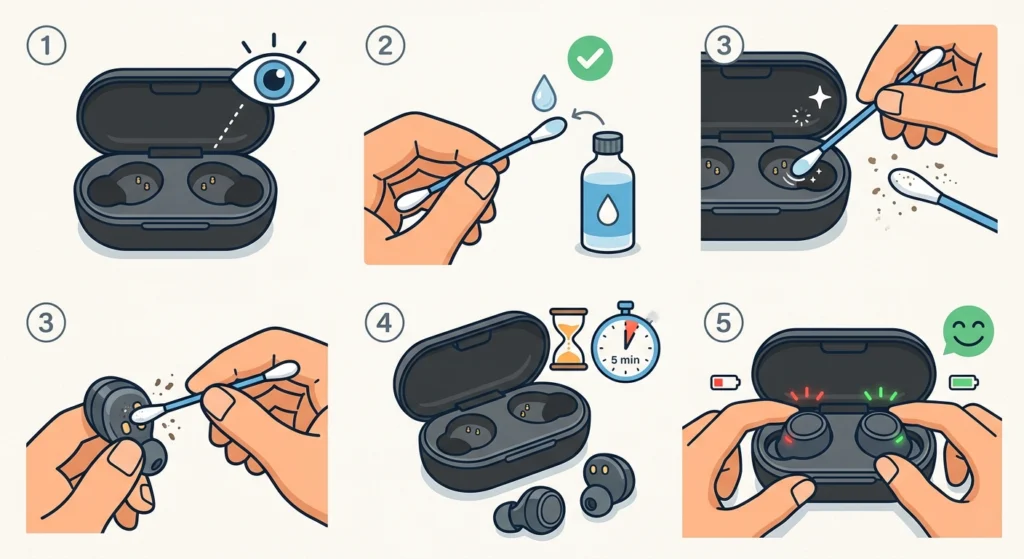
Dirty or corroded charging contacts are the number one reason an earbud charging case stops working. Dust, earwax, and moisture build up over time and block the electrical connection between the earbuds and the case.
- Step 1: Open the charging case and look at the small metal pins or pads inside where the earbuds sit.
- Step 2: Dip a cotton swab lightly in isopropyl alcohol (70% or higher).
- Step 3: Gently scrub the metal contacts inside the case and on the earbuds themselves.
- Step 4: Let everything dry completely for at least 5 minutes before placing the earbuds back in.
- Step 5: Place the earbuds in the case and check if the charging indicator lights up.
The key is to be gentle – scrubbing too hard can damage the contacts or remove any protective coating.
Pro-Tip: Avoid using water or regular household cleaners on charging contacts. Isopropyl alcohol evaporates quickly and leaves no residue, making it the safest option for electronics cleaning.
Fix 2: Check and Replace the Charging Cable and Adapter
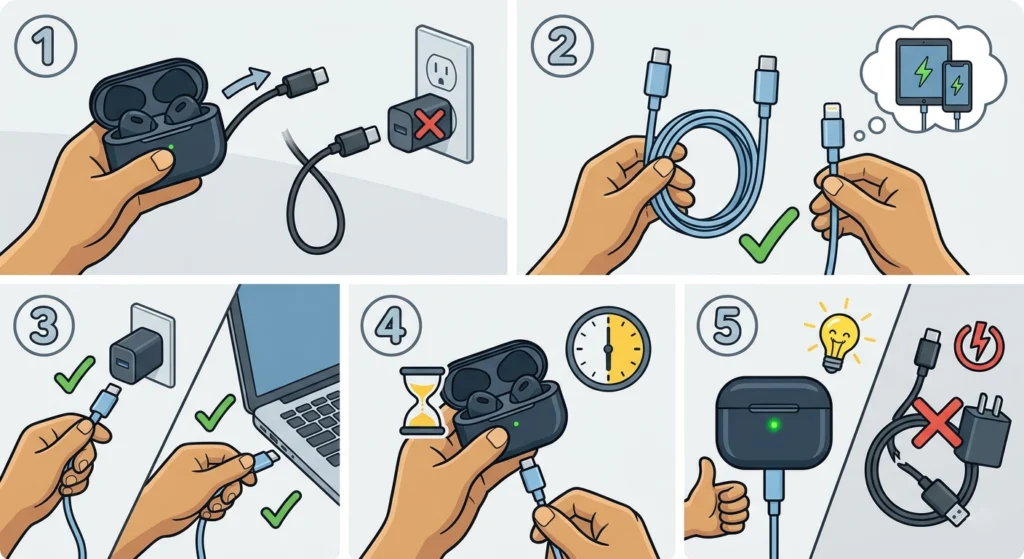
Before assuming the case itself is broken, rule out the cable and power source. A faulty USB cable or a weak charger is responsible for more ‘broken case’ situations than most people realize.
- Step 1: Unplug the current cable from the charging case.
- Step 2: Try a completely different USB-C or Lightning cable – ideally one known to work with another device.
- Step 3: Plug the new cable into a different power adapter or USB port on a computer.
- Step 4: Connect the cable to the charging case and wait 30 seconds to see if any indicator light appears.
- Step 5: If the case starts charging with a different cable or adapter, the original cable or charger is the problem.
Fix 3: Inspect the Charging Port for Debris or Damage
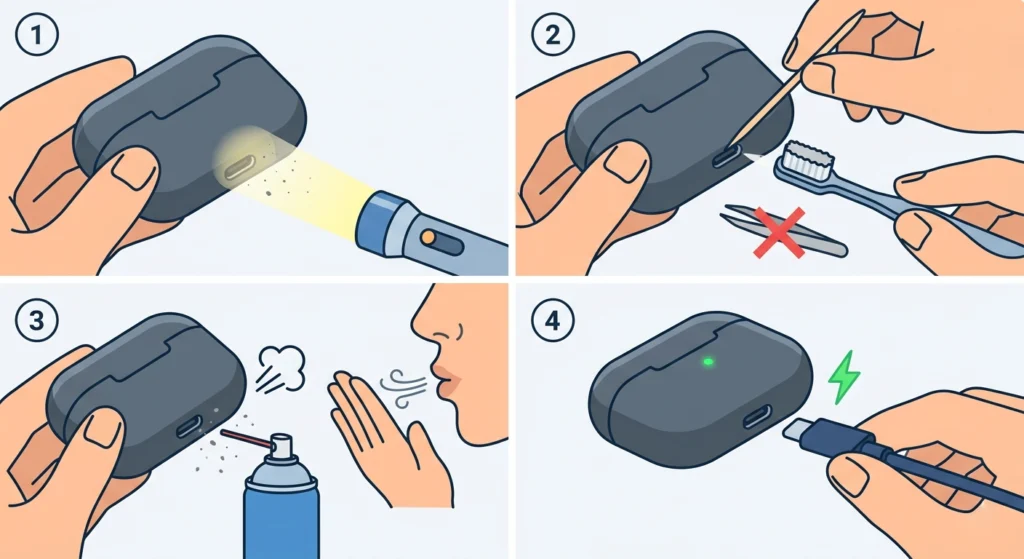
The charging port on the case can collect lint, dust, or tiny debris from pockets and bags. Even a small piece of fluff blocking the port prevents a proper connection.
- Step 1: Use a flashlight to look inside the charging port on the bottom of the case.
- Step 2: If debris is visible, use a toothpick or a dry soft-bristle toothbrush to gently dislodge it. Never use metal tools.
- Step 3: Blow gently into the port or use a can of compressed air to clear out any remaining particles.
- Step 4: Reconnect the charging cable and check for a charging response.
This works best when done in good lighting – the debris inside ports can be easy to miss otherwise.
Fix 4: Reset the Charging Case
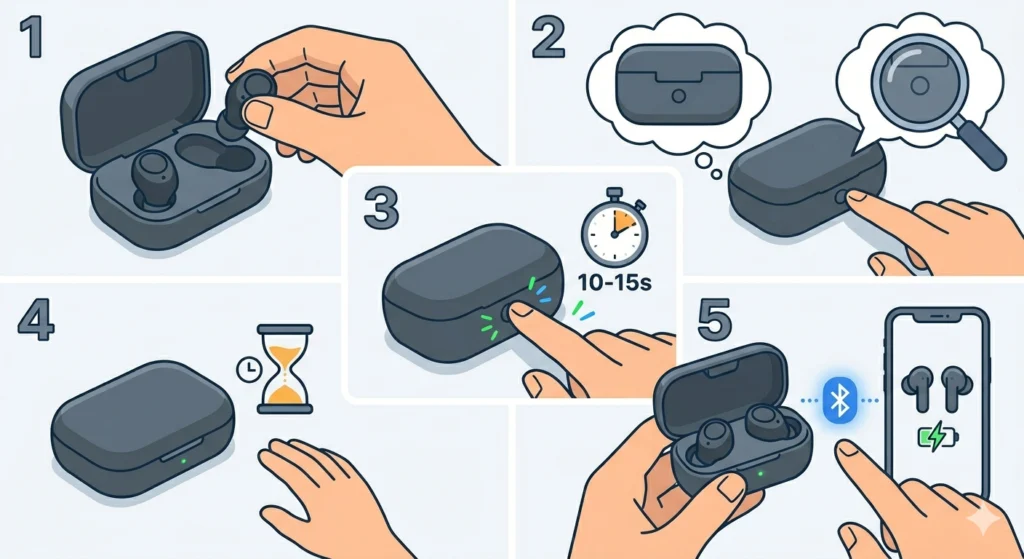
A software glitch or firmware hiccup can cause the case to stop functioning properly even when the hardware is perfectly fine. Resetting the case often clears these issues instantly.
- Step 1: Place both earbuds inside the charging case.
- Step 2: Locate the reset button – this is usually a small button on the back or inside the case. Check the product manual or manufacturer website if it is not obvious.
- Step 3: Press and hold the reset button for 10 to 15 seconds until an indicator light flashes or changes color.
- Step 4: Close the case, wait 30 seconds, then open it and check if charging resumes.
- Step 5: Re-pair the earbuds to the device if needed after the reset.
Most brands like Samsung, Apple, Sony, and Jabra all have a reset process. If re-pairing is needed after a reset, the guide on how to re-pair Bluetooth earbuds for stereo sound on Windows walks through the reconnection process clearly.
Fix 5: Charge the Case Itself First
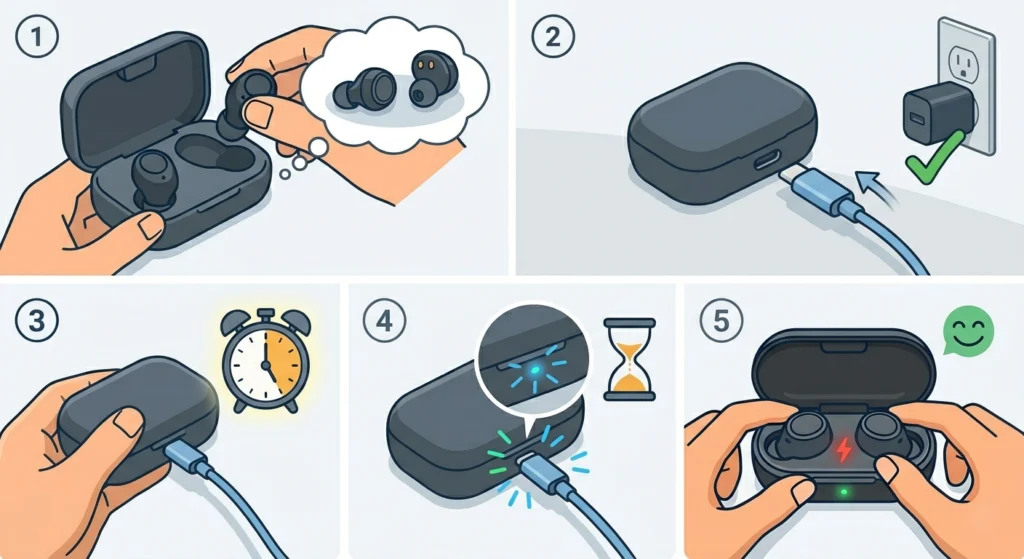
Sometimes the case battery is simply fully depleted – so drained that it cannot even power on or charge the earbuds until it gets a minimum charge level. This is common after long periods of storage.
- Step 1: Remove the earbuds from the case and set them aside.
- Step 2: Connect the empty case to a charger using a reliable cable.
- Step 3: Leave the case charging uninterrupted for at least 30 to 60 minutes.
- Step 4: After that time, check for indicator lights on the case itself.
- Step 5: Once the case shows some charge, place the earbuds back in and see if they begin charging.
Most people find that a deeply discharged case needs at least 20 to 30 minutes before any indicator light appears – so patience is important here.
Fix 6: Try Wireless Charging (If Supported)
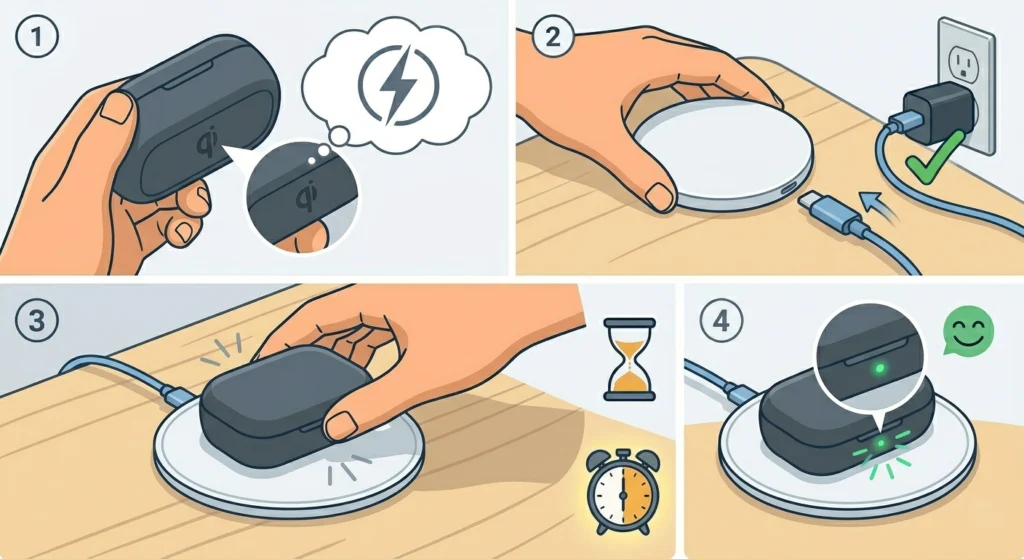
If the charging case supports wireless (Qi) charging, using a wireless pad can help determine whether the problem is with the charging port specifically or with the case battery and internals.
- Step 1: Check the product specifications or case body for a Qi wireless charging symbol.
- Step 2: Place a working wireless charging pad on a flat surface and power it on.
- Step 3: Set the earbud case flat on the center of the charging pad.
- Step 4: Wait 30 to 60 seconds and look for a charging indicator on the case.
If the case charges wirelessly but not via the cable port, the USB-C or Lightning port is likely damaged and may need a repair or replacement.
Fix 7: Update the Earbud Firmware
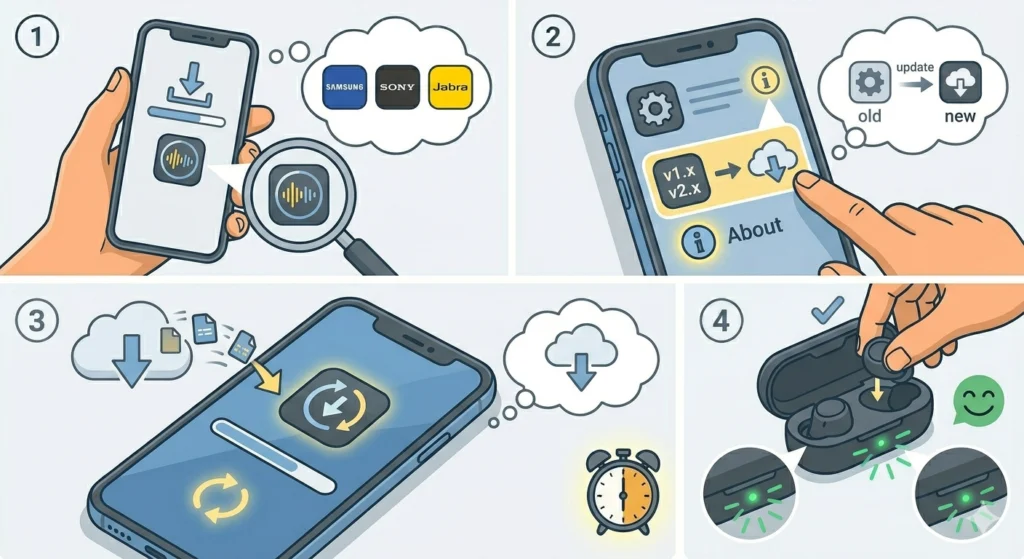
Outdated firmware can cause charging detection errors where the case does not recognize the earbuds or fails to manage battery distribution properly. Most brands push firmware updates through their companion apps.
- Step 1: Download the companion app for the earbuds (for example, Galaxy Wearable for Samsung, Sony Headphones Connect, or Jabra Sound+).
- Step 2: Open the app and navigate to the device settings or ‘About’ section.
- Step 3: Look for a firmware update option and install any available updates.
- Step 4: After the update completes, place the earbuds in the case and check charging behavior.
Pro-Tip: Keep earbuds in the case with at least 20% battery during a firmware update. Interrupting an update mid-process can cause additional charging and connectivity problems that are harder to fix.
Tips for Keeping the Charging Case Working Properly
- Clean the charging contacts every 2 to 4 weeks with a dry cotton swab to prevent buildup
- Store the case in a clean, dry environment – avoid leaving it in pockets with loose coins or keys
- Always use the cable that came with the earbuds or a certified replacement to avoid port damage
- Do not leave the case plugged in and fully charged for extended periods – this can reduce battery longevity over time
- Keep the case away from extreme heat sources like dashboards in direct sunlight, which can degrade the battery faster
- Close the case lid gently – repeated forceful closing can misalign the internal contacts over time
Common Problems and What They Usually Mean
Case Shows No Indicator Light at All
This usually means the case battery is deeply discharged or the charging cable or adapter is faulty. Start by trying a different cable and charger, then leave the case plugged in for an hour before expecting any response.
Earbuds Are Not Charging but the Case Is
This is almost always a contact issue. The metal pins in the case or on the earbuds are dirty or misaligned. Clean the contacts thoroughly and make sure the earbuds are seated correctly and fully clicked into place.
Case Charges Slowly or Intermittently
A loose or damaged charging cable is the most likely cause. A partially blocked charging port can also cause this. Try a new cable first, then inspect and clean the port.
Case Light Flashes but Earbuds Stay Dead
Flashing lights during charging often indicate a firmware or pairing issue. Perform a reset as described in Fix 4, then re-pair the earbuds to the phone or computer. If there are persistent audio issues after reconnecting, reviewing how to resolve microphone detection problems can help address any related connection issues.
Case Gets Unusually Hot While Charging
Some warmth is normal, but excessive heat is a warning sign. Disconnect the charger immediately, let the case cool down in open air, and avoid charging it in enclosed or hot spaces. If overheating continues, contact the manufacturer – this can indicate a battery fault.
Frequently Asked Questions
Why did my earbud charging case suddenly stop working?
The most common reasons include dirty charging contacts, a faulty or incompatible charging cable, a deeply discharged battery, port debris, or a minor software glitch. Most of these are easy to fix at home by cleaning contacts, swapping cables, or performing a reset.
How do I know if the charging case battery is dead?
If the case shows no indicator light even after being plugged in for over an hour with a verified working cable and adapter, the battery may be deeply discharged or degraded. Try charging it for a full hour with the earbuds removed before concluding the battery has failed.
Can a charging case be repaired if the port is physically damaged?
Yes, in many cases. Authorized service centers or repair shops can replace USB-C or Lightning ports. If the case is still under warranty, contact the manufacturer first as they may replace the case entirely at no cost.
How do I reset my earbud charging case?
Most cases have a small reset button, usually on the back or inside the case. Press and hold it for 10 to 15 seconds with the earbuds inside until the LED indicator flashes. The exact process varies by brand, so checking the product manual is recommended.
Does wireless charging work if the USB port on my case is broken?
Yes, if the case supports Qi wireless charging, it can still charge through a wireless pad even if the wired port is damaged. Look for a wireless charging symbol on the case or check the product specifications to confirm compatibility.
Why are my earbuds not charging even though the case has power?
This is almost always caused by dirty or misaligned charging contacts. Clean the metal pins inside the case and on the earbuds with isopropyl alcohol on a cotton swab, and make sure the earbuds click firmly into place when seated in the case.
Is it safe to use a third-party cable to charge the earbud case?
Using a certified third-party cable (such as one with USB-IF certification for USB-C) is generally safe. Avoid cheap, uncertified cables as they can deliver inconsistent power levels and damage the case battery or charging circuitry over time.
How long should a charging case take to fully charge?
Most earbud charging cases take between 1 and 2 hours to fully charge from empty, depending on the brand and case battery capacity. If it is taking significantly longer or shows no progress after 30 minutes, the cable, adapter, or case may have an issue.
Can software updates fix charging case problems?
Yes. Firmware updates from the manufacturer can resolve bugs related to charging detection, battery management, and earbud recognition. Always keep the companion app and firmware up to date through the official brand app.
When should the charging case be replaced instead of repaired?
If the case battery holds very little charge even after a full charge cycle, the port is physically broken and repair is not cost-effective, or the case is out of warranty and repair costs approach the price of a new unit, replacement is usually the more practical choice.