
The Digital Crown on AirPods Max is the small rotating dial sitting on top of the right ear cup, and learning its functions makes everyday listening far more convenient. Anyone switching from regular earbuds often expects flat buttons, yet this single control handles volume, playback, Siri, and even phone calls. The guide below breaks down every gesture so the headphones feel intuitive within minutes, not days.
Key Takeaways
- Rotate the Digital Crown to raise or lower the volume, and the default rotation direction can be reversed in Bluetooth settings.
- Press the Digital Crown once to play or pause whatever is currently playing.
- Double-press to skip to the next track, and triple-press to jump back to the previous one.
- Press and hold for about a second to bring up Siri.
- During calls, a single press answers or mutes, while a double-click declines or ends the call.
- The Digital Crown is separate from the noise control button, which only switches between Active Noise Cancellation, Transparency, and Adaptive Audio.
Step-by-Step Guide to Using the Digital Crown on AirPods Max
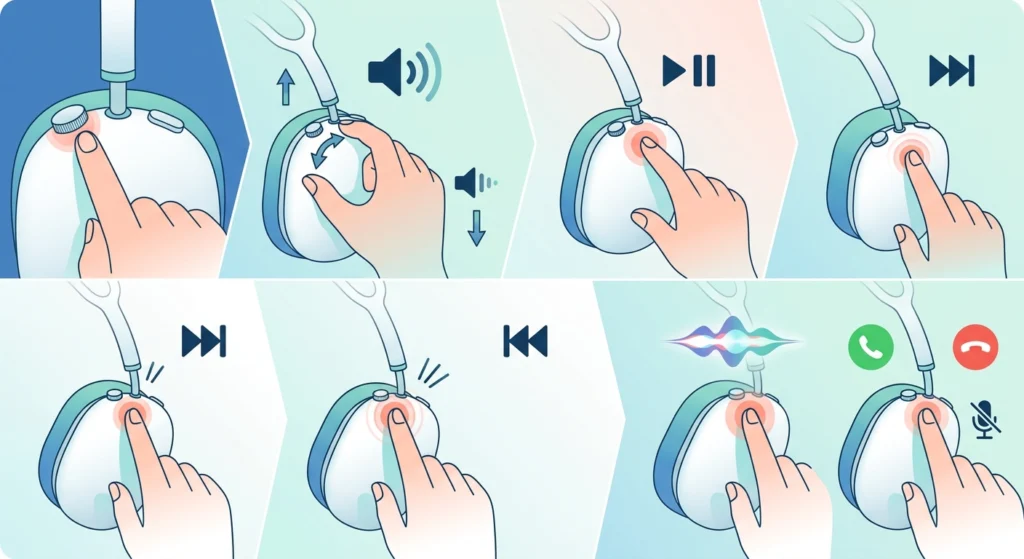
Getting comfortable with the Digital Crown only takes a few tries. Working through the sequence below in order helps build familiarity with each gesture before moving to the next one.
- Step 1: Locate the Digital Crown on the top edge of the right ear cup. It looks like a small rotating dial, separate from the flatter noise control button nearby.
- Step 2: Rotate the crown clockwise to raise the volume or counterclockwise to lower it. Movement is gradual, so small turns produce small changes, which makes fine-tuning easy.
- Step 3: Press the crown once to pause whatever is playing, then press it again to resume – no need to touch a phone, tablet, or laptop at all.
- Step 4: Press the crown twice in quick succession to skip ahead to the next track.
- Step 5: Press it three times quickly to jump back to the previous track or restart the one currently playing.
- Step 6: Press and hold the crown for roughly a second until a soft chime plays, then speak a request to activate Siri.
- Step 7: During an incoming call, press once to answer or double-click to decline. While already on a call, a single press mutes or unmutes the microphone, and a double-click ends the call.
Reversing the Volume Rotation Direction
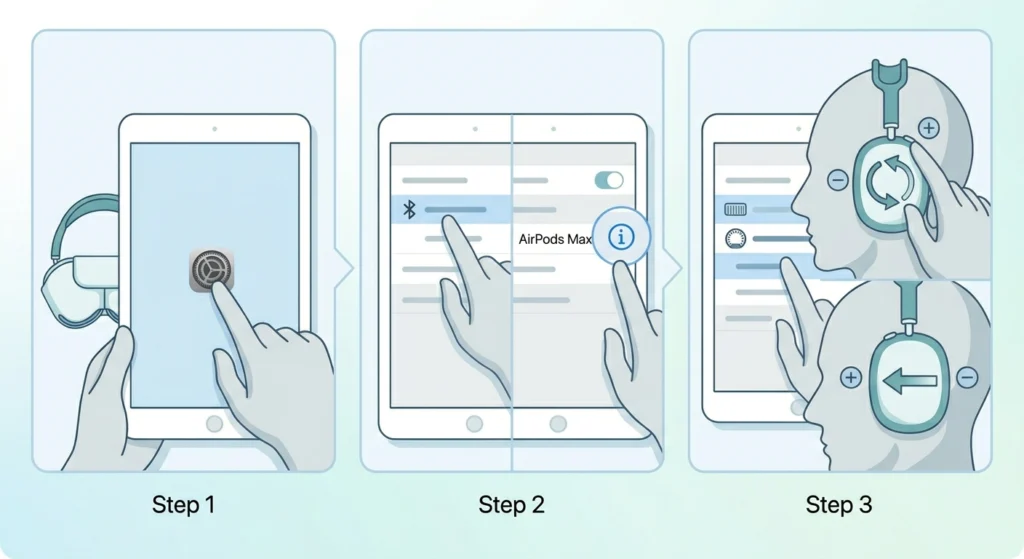
By default, turning the crown toward the front of the head raises the volume. Plenty of longtime headphone users instinctively expect the opposite, since traditional volume dials usually work the other way around. Switching the direction takes less than a minute and does not require any special tools.
- Step 1: Open the Settings app on the connected iPhone or iPad.
- Step 2: Tap Bluetooth, then tap the small i icon next to the listed AirPods Max.
- Step 3: Select Digital Crown, then choose either Back to Front or Front to Back, depending on which rotation feels more natural.
Pro Tip: The new direction takes effect immediately, so test it by rotating the crown right after saving the setting. If it still feels backward, simply switch it again until the motion matches muscle memory.
Tips for Getting the Most Out of the Digital Crown
- Keep rotations slow and steady when fine-tuning volume during quiet podcasts or recordings, since fast spins can jump several volume levels at once.
- When connecting AirPods Max to a Windows laptop for calls or meetings, sound sometimes drops to mono after a reconnect. This guide on re-pairing Bluetooth earbuds for stereo sound walks through restoring it properly.
- Siri activation and automatic device switching only work fully within the Apple ecosystem. On Android phones or Windows computers, the crown still handles volume, play, pause, and track skipping without any extra setup.
- Turn off Automatic Head Detection in settings if the crown’s play or pause press ever seems to conflict with the headphones automatically pausing when lifted off one ear.
Pro Tip: Store the AirPods Max in the Smart Case rather than loose in a bag whenever possible. A low battery is one of the most common reasons the Digital Crown starts feeling sluggish or delayed when pressed.
Common Problems and Fixes
Fix 1: Digital Crown Not Responding to Presses
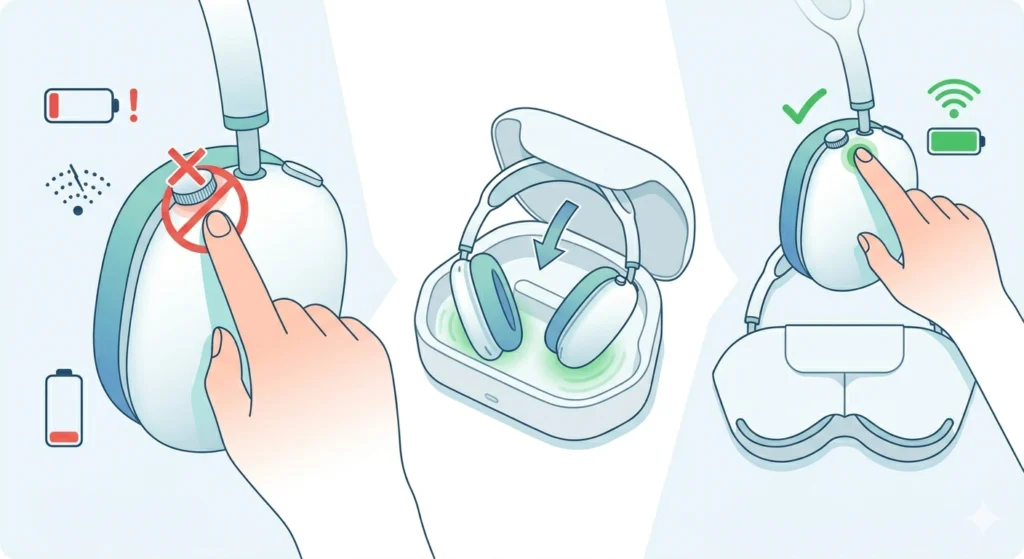
This usually points to a low battery or a connection hiccup rather than a hardware fault. Placing the headphones in the Smart Case for a few minutes, then taking them back out, often resets the connection enough for presses to register normally again. If the issue continues, forgetting the device in Bluetooth settings and reconnecting from scratch typically resolves it.
Fix 2: Rotating the Crown Has No Effect on Volume
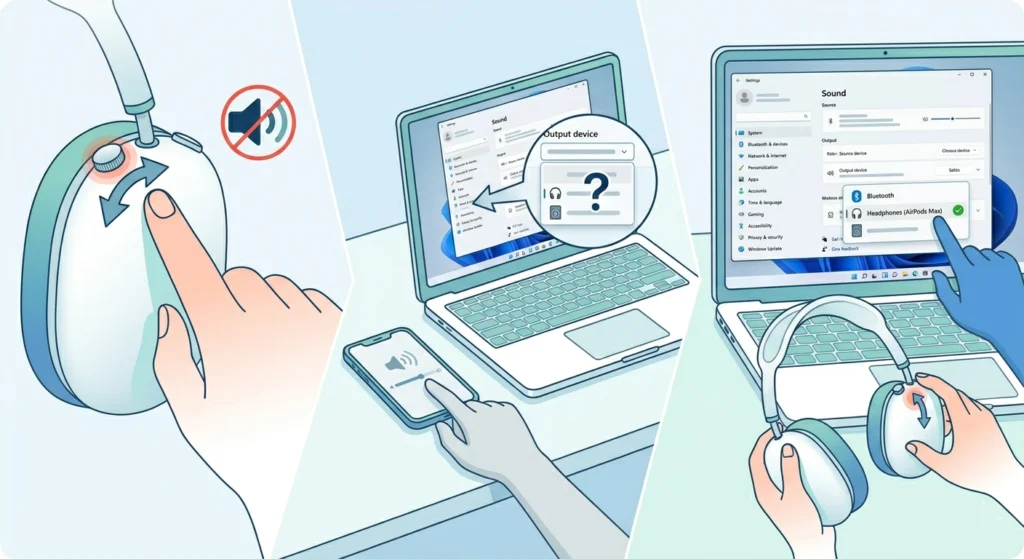
Start by checking the volume on the connected device itself, since the crown adjusts relative volume rather than overriding a muted source. On a Windows computer, the wrong playback device is sometimes selected, which can make crown adjustments seem like they are doing nothing. This guide on adjusting audio output settings on Windows 11 covers how to confirm the right output is selected before troubleshooting further.
Fix 3: Siri Does Not Activate When Holding the Crown
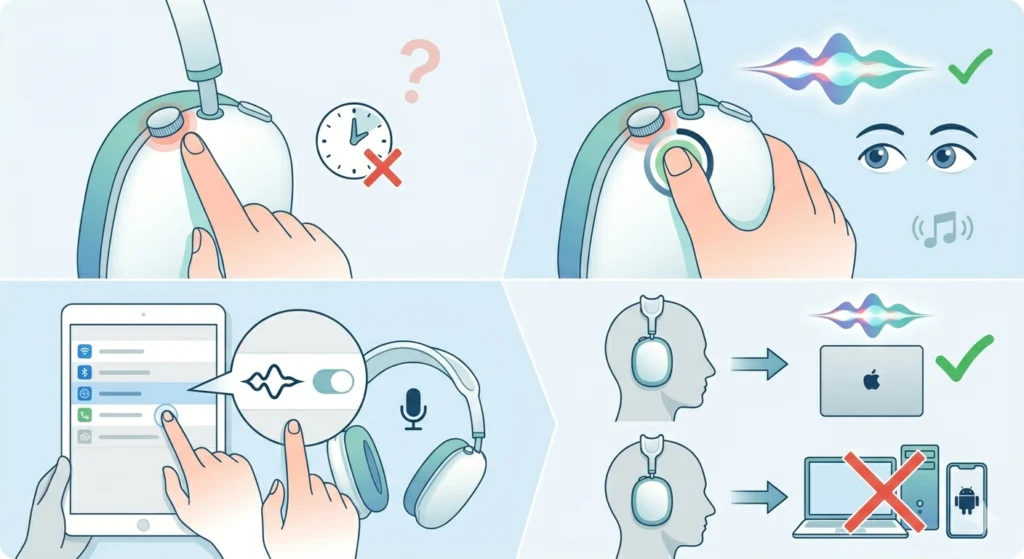
Holding the crown for too short a time is the most common cause, so aim for a full second and wait for the chime before speaking. Siri also needs to be enabled on the connected device, and this feature is exclusive to Apple devices, so it will not trigger when the headphones are paired with an Android phone or a Windows PC.
Frequently Asked Questions
What does the Digital Crown do on AirPods Max?
The Digital Crown is a rotating dial on the right ear cup that controls volume by turning, playback by pressing, Siri by pressing and holding, and calls through single or double presses.
How is volume adjusted using the Digital Crown?
Turning the dial clockwise raises the volume and turning it counterclockwise lowers it by default, though this direction can be reversed in the connected device’s Bluetooth settings.
How many presses skip a song on AirPods Max?
Two quick presses skip forward to the next track, while three quick presses jump back to the previous track or restart the current one.
Can Siri be triggered using the Digital Crown?
Yes. Pressing and holding the crown for about a second brings up a chime, after which a request can be spoken directly to Siri.
Does double-clicking the crown end a phone call?
Yes. While on an active call, double-clicking the Digital Crown ends the call, and the same gesture declines an incoming call before it is answered.
Can the volume direction of the Digital Crown be reversed?
It can. Opening Settings, tapping Bluetooth, selecting the AirPods Max, then choosing Digital Crown reveals the option to switch between Back to Front and Front to Back.
Does the Digital Crown work when paired with Android or Windows?
Basic functions like volume control, play, pause, and track skipping continue to work normally. Siri activation and automatic device switching, however, require an Apple device.
Is the Digital Crown the same as the noise control button?
No. The Digital Crown handles volume and playback, while the separate noise control button cycles between Active Noise Cancellation, Transparency, and Adaptive Audio.
Why does the Digital Crown sometimes stop responding?
Low battery and minor Bluetooth connection issues are the most frequent causes. Placing the headphones in the case briefly or reconnecting them through Bluetooth settings usually fixes it.
Does pressing the crown work without removing the headphones?
Yes. Every gesture, from volume changes to playback control and Siri activation, works while the AirPods Max are being worn normally.